Two-factor authentication asks for a code from an authenticator app every time you sign in, so someone who gets into your email or your Google account still can’t open your Forminal account. You sign in with Google or with a link sent to your email.
Examples
- Your forms collect personal data, and you want a second check on top of your Google account or your inbox.
- You were invited to a workspace that requires two-factor, and you need to turn it on to reach its forms.
- You don’t use Google and sign in with a link from your inbox instead.
Turn on two-factor
- Open Account menu » Profile and find Two-Factor Authentication.


- Select Turn On. If your account has a password, type it and select Continue.
- Scan the QR code with an authenticator app, such as 1Password, Google Authenticator or Authy. If you can’t scan it, type the key shown under it into the app.
- Save the backup codes somewhere safe. Copy Codes puts them all on your clipboard.
- Type the code the app shows into Code from the app and select Turn On Two-Factor.
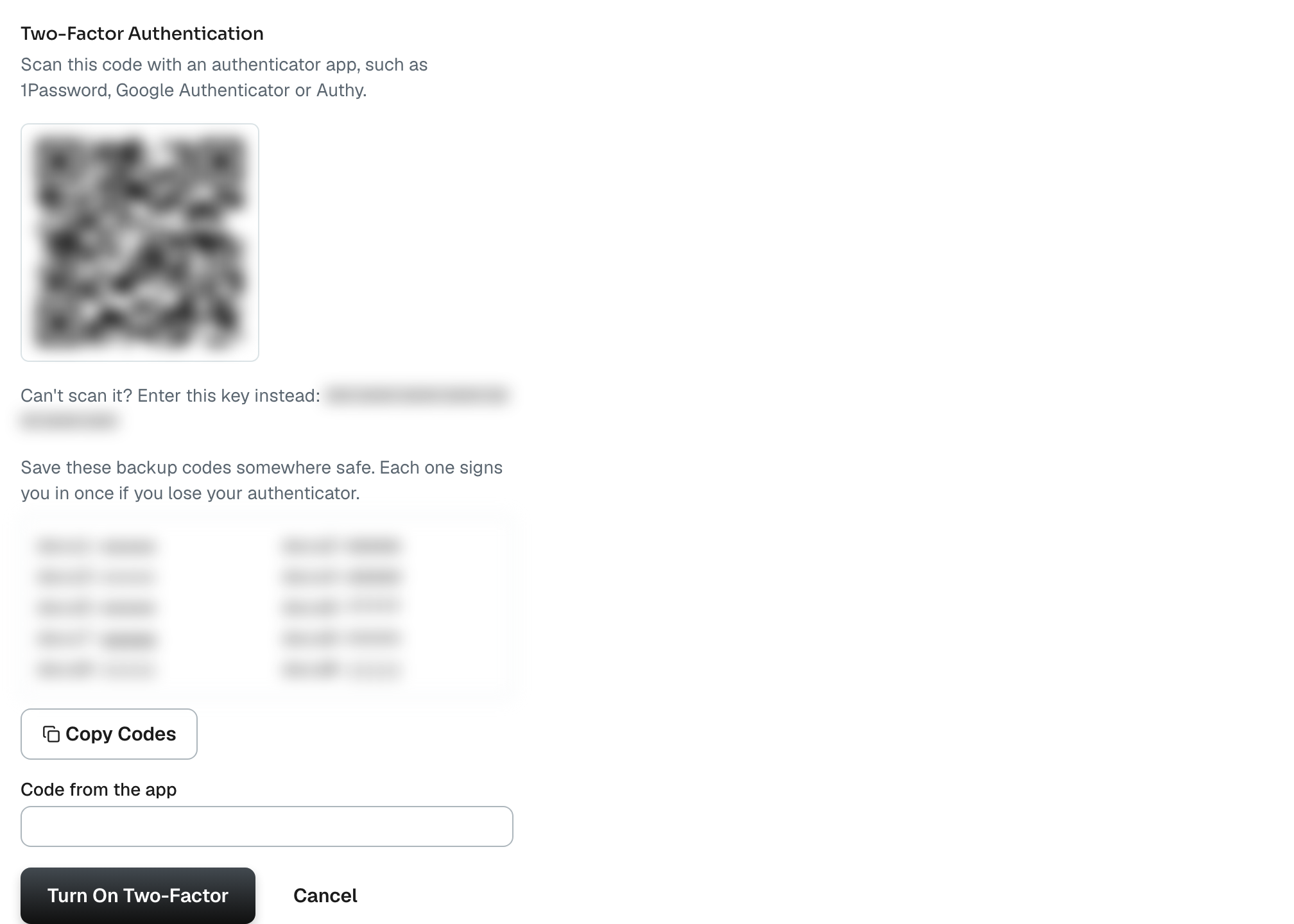
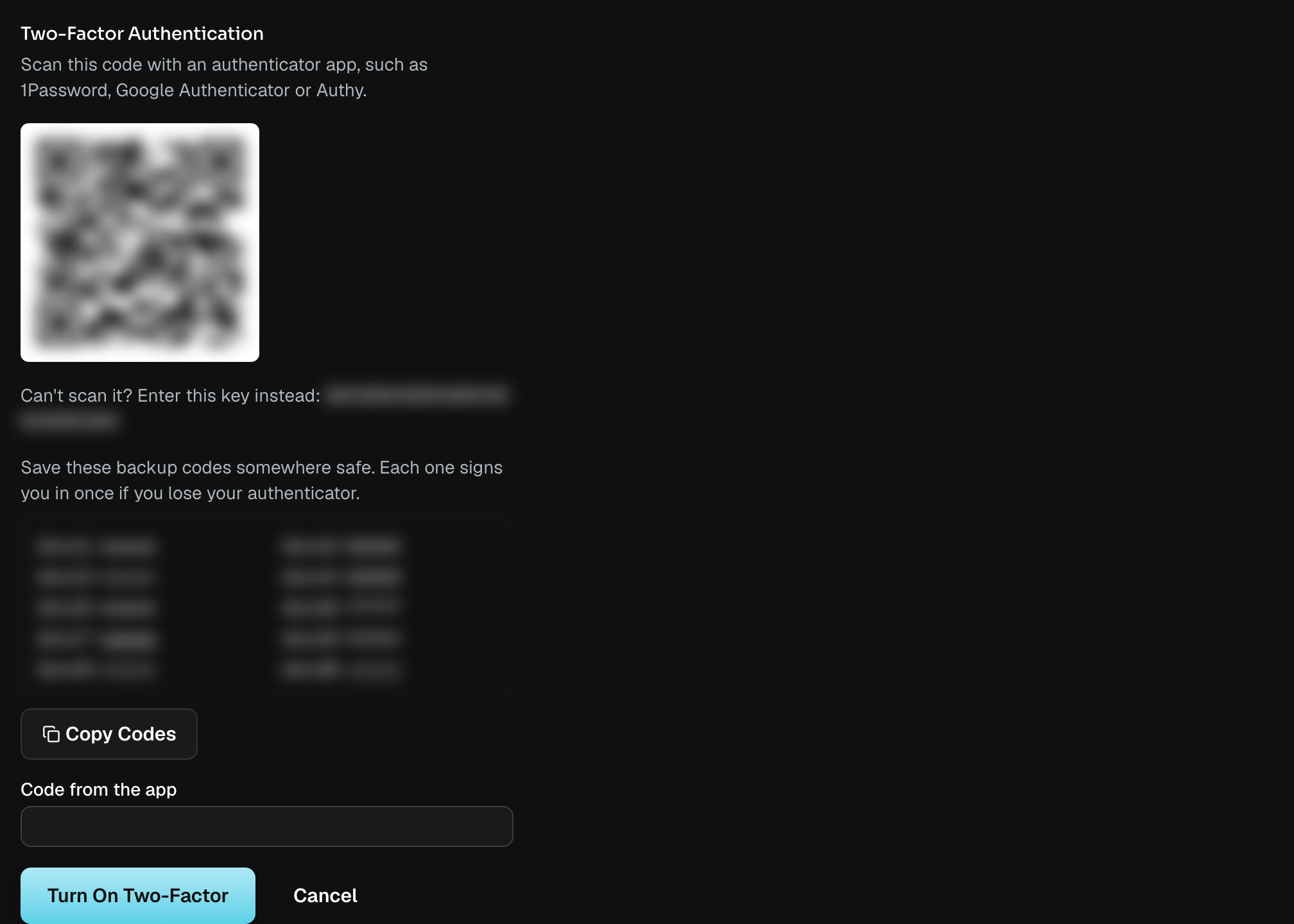
If the code is refused, check that the time on your phone is set correctly and try again.
Sign in with two-factor
After you continue with Google or open an email sign-in link, a Two-Factor Authentication page asks for the 6-digit code from your authenticator app. Type it into Authentication code and select Verify.
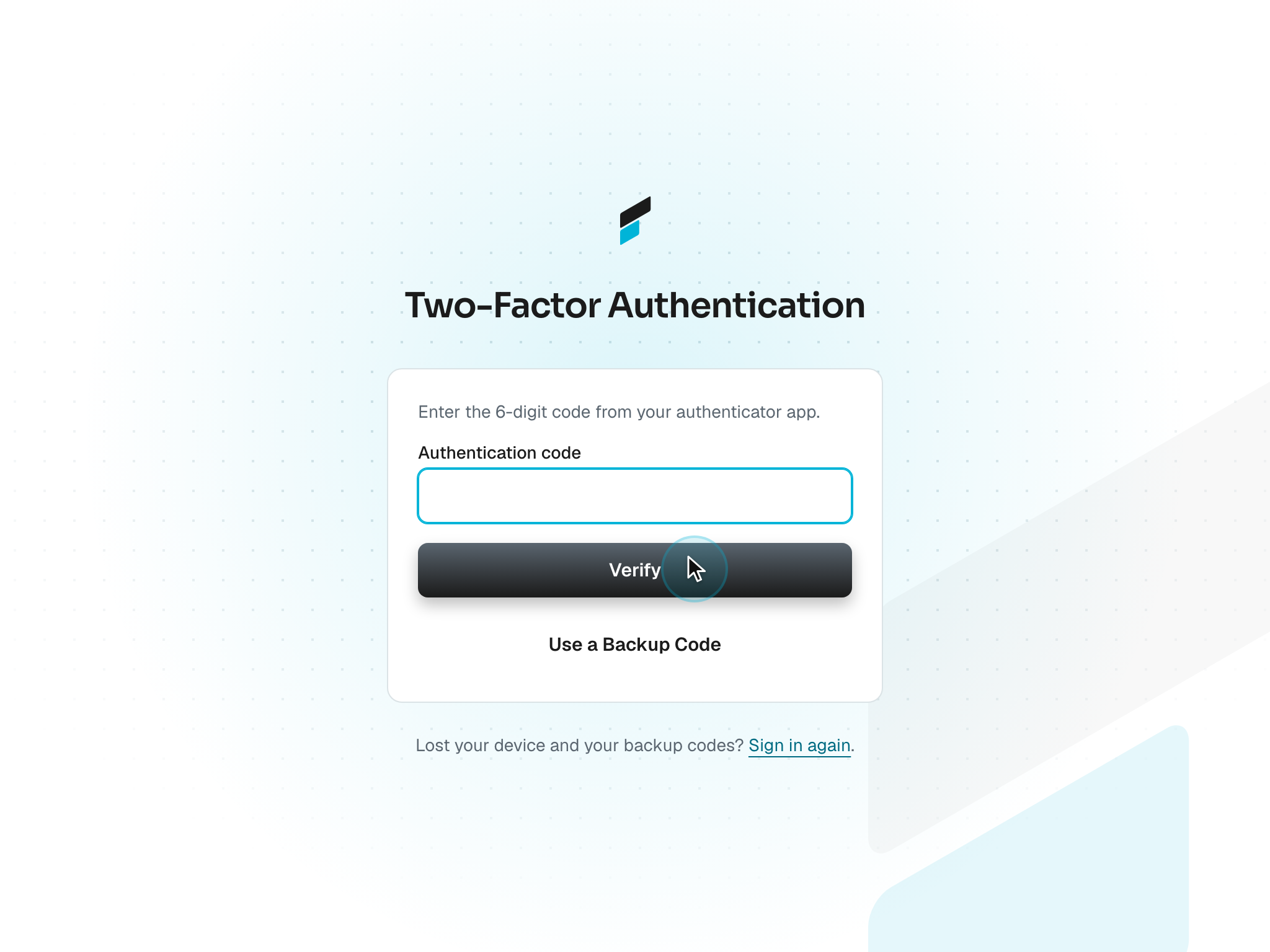
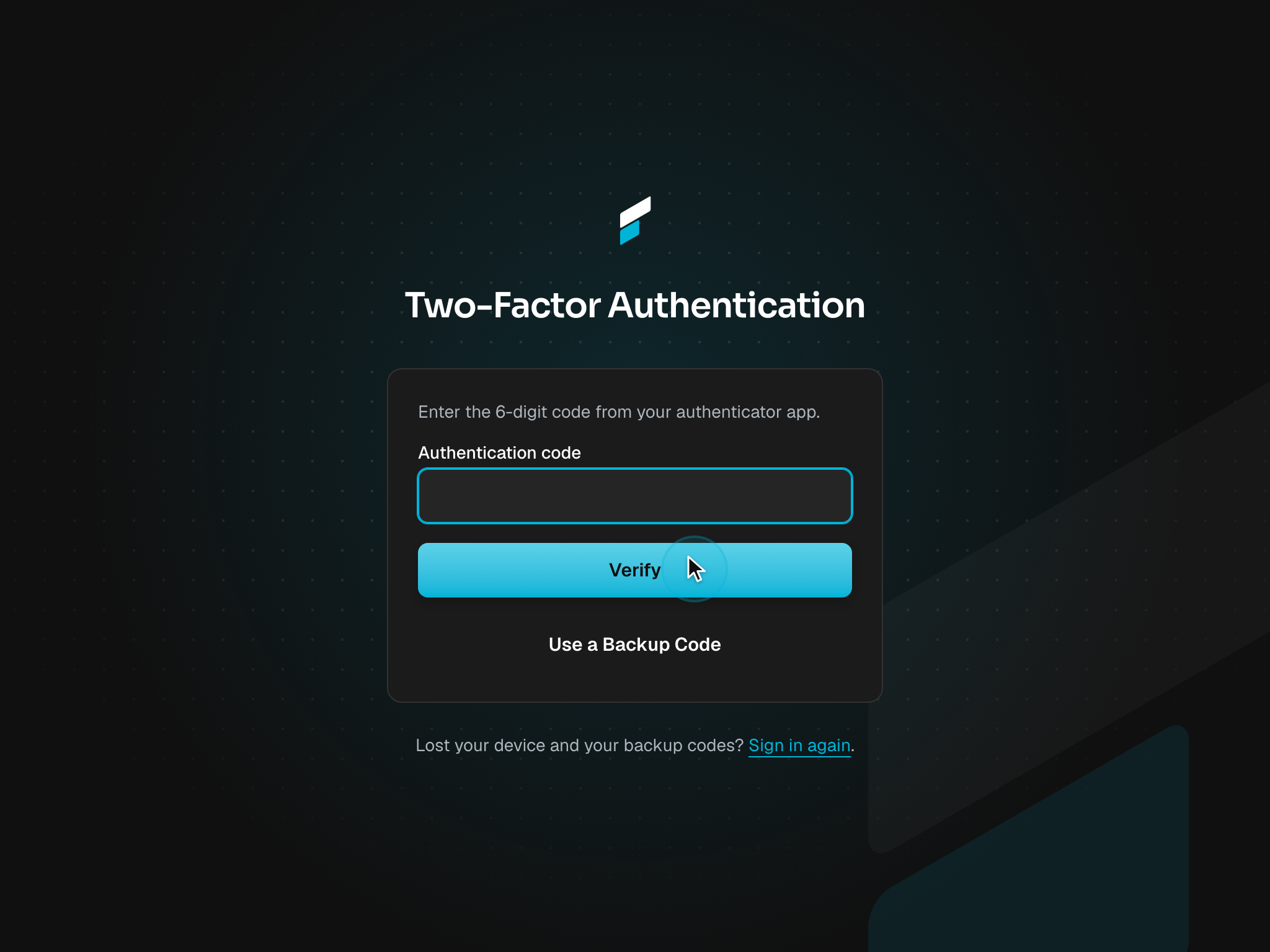
If you don’t have your phone, select Use a Backup Code and type one of the codes you saved. Each backup code works once. When you run low, select New Backup Codes in Profile to get a fresh set. If your account has a password, type it and select Make New Codes.
To turn two-factor off, select Turn Off in Profile. Accounts with a password confirm it first.
Sign in with Google or an email link
The sign-in page gives you two ways in, and neither needs a password. If you don’t have an account yet, either one creates your free account.
To use Google, select Continue with Google and choose your Google account. If your Forminal account has the same email address, you land in it. If you cancel at Google or something goes wrong there, the sign-in page says “Google sign-in did not finish. Try again or use an email link.”
To get a link by email instead:
- On the sign-in page, select Email Me a Sign-In Link. The Google button gives way to an email box.
- Type your email address and select Email Me a Sign-In Link again.
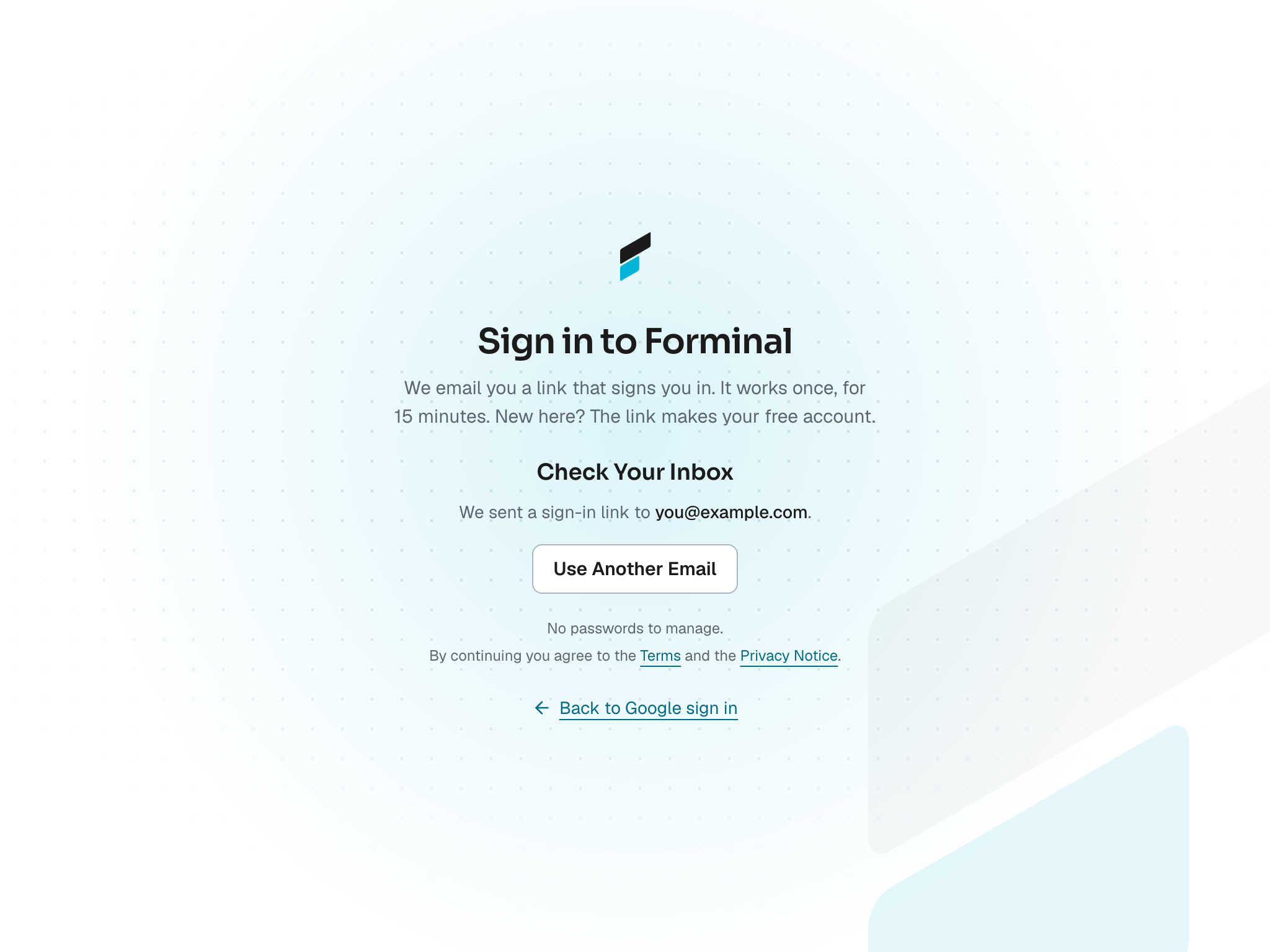
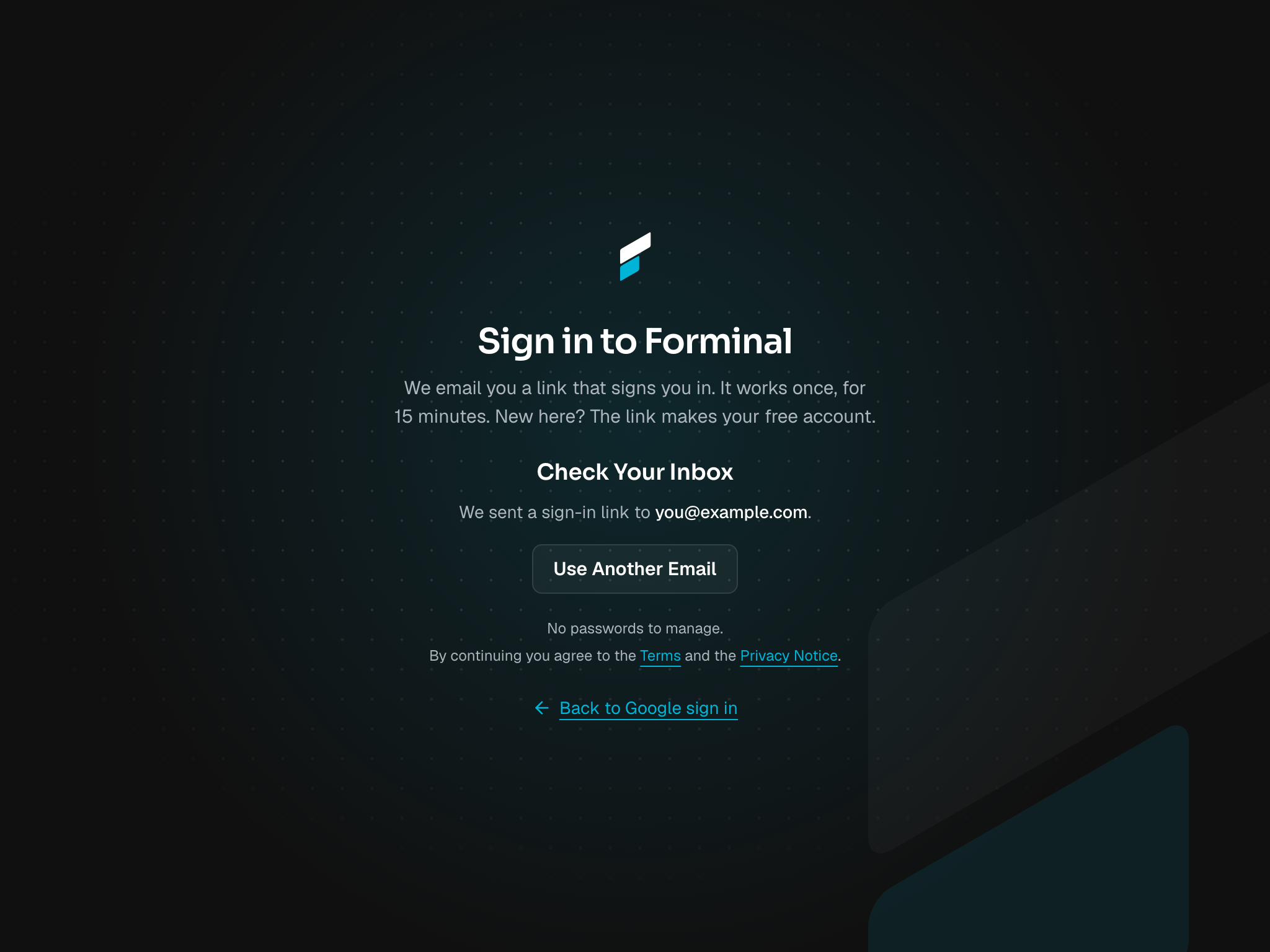
- Open the link in the email you get.
The link works once and expires in 15 minutes. If you typed the wrong address, select Use Another Email. To use Google instead, select Back to Google sign in. An old or used link takes you back to the sign-in page with “That link has expired or was already used. Ask for a new one.”
Both ways show a Send me product news and tips box, which starts unticked. To change your choice later, use the Send Me Product News and Tips switch in Account menu » Profile.
Good to know
An account made with Google or an email link has no password. It can still turn on two-factor, and Profile doesn’t ask for a password first. Profile also shows how you sign in, under Sign-in.
A workspace owner can require two-factor for everyone in the workspace. Until you turn it on, that workspace’s forms, submissions and analytics stay closed to you.
Google sign-in, email sign-in links and two-factor authentication are free on every plan.
Frequently asked questions
Which authenticator apps can I use?
Setup shows a QR code for an authenticator app, such as 1Password, Google Authenticator or Authy. If you can’t scan it, type the key shown under the code into the app.
What if I lose the phone with my authenticator app?
Select Use a Backup Code when you sign in and type one of the codes you saved. Each code works once, and you can make a new set in Profile.
Why is my two-factor code refused?
Check that the time on your phone is set correctly, then try a fresh code.
How long does an email sign-in link work?
15 minutes, and only once. If two-factor is on, you still type a code after opening it.
Can I create an account with a sign-in link?
Yes. If no account uses your email yet, opening the link creates your free account. Continue with Google does the same for your Google address.
Is two-factor authentication free?
Yes. Two-factor authentication, Google sign-in and email sign-in links are on every plan.
Do I need a password to sign in?
No. You sign in with Google or with a link sent to your email. If two-factor is on, a code from your authenticator app comes after either one.