Spam protection works best in layers: start with what is already on, and add a check that people might notice only once you need it. Every Forminal form has the first layer from the start, and the second needs only your own keys from a CAPTCHA provider. Both work on every plan, including Lite.
What every form already does
Each form has a hidden honeypot field. People never see it, but bots that fill in every box they find tend to fill it in too. Those submissions are saved and marked as spam, so they land on the Spam tab of the form’s Submissions page instead of among the real ones. Spam is never sent to your notification emails or integrations, and never charged on a payment form.
Each address can also send at most 10 submissions a minute to a form, which slows down a script trying to flood it.
Look at the Spam tab now and then. If a real person ended up there, select Not spam on their submission. When it’s less than 30 days old, your notifications and integrations get it then.
When to add a CAPTCHA
If spam keeps showing up among your real submissions, some bots are getting past the honeypot. That’s the time for a CAPTCHA: a check from Cloudflare, Google or hCaptcha that runs before the form accepts a submission. With one on, a submission without a passing check isn’t saved at all, and scripts that post straight to the form’s submit address are turned away.
Pick the check your visitors will notice least
- Cloudflare Turnstile: most visitors pass without clicking anything, and a few are asked to tick a box. If you aren’t sure, start here.
- reCAPTCHA v2 Checkbox: visitors tick “I’m not a robot”, and Google sometimes asks for an image puzzle too. That’s one more click for everyone.
- reCAPTCHA v2 Invisible: there’s no checkbox. Google checks people when they submit and shows a puzzle only to those it doubts.
- reCAPTCHA v3: no click and no puzzle. Google scores each visitor, and anyone under your Lowest passing score, 0.5 to start with, is turned away with no puzzle to prove otherwise.
- hCaptcha: a checkbox with an image challenge for visitors who look suspicious, if you’d rather not use Google or Cloudflare. It doesn’t work on a custom subdomain such as forms.example.com.
Get your keys from the provider
The keys are your own, made in the provider’s dashboard. For reCAPTCHA, each version needs its own key, so decide on the version first. When the provider asks which domains the key is for, add app.forminal.ai. Your forms run there even when they’re embedded on your site, so that’s the host the key has to allow, not your website’s address. If you serve forms on a custom domain, add that hostname as well.
The provider then shows a site key and a secret key. Keep that page open for the next step. The guides for Cloudflare Turnstile, reCAPTCHA and hCaptcha show each provider’s screens.
Save the keys once
- Open Account menu » Integrations.
- Under CAPTCHA, select Set Up next to the provider, such as Cloudflare Turnstile.
- Paste the site key into Site key and the secret key into Secret key. For reCAPTCHA v3, set Lowest passing score too.
- Select Save.
The row now reads “not on any form yet”. The keys belong to your account, so you save them once and use them on as many forms as you like.
Turn it on for a form
- Open the form in the builder and select Integrations in the top bar.
- Under CAPTCHA, select Use next to the provider you saved keys for.
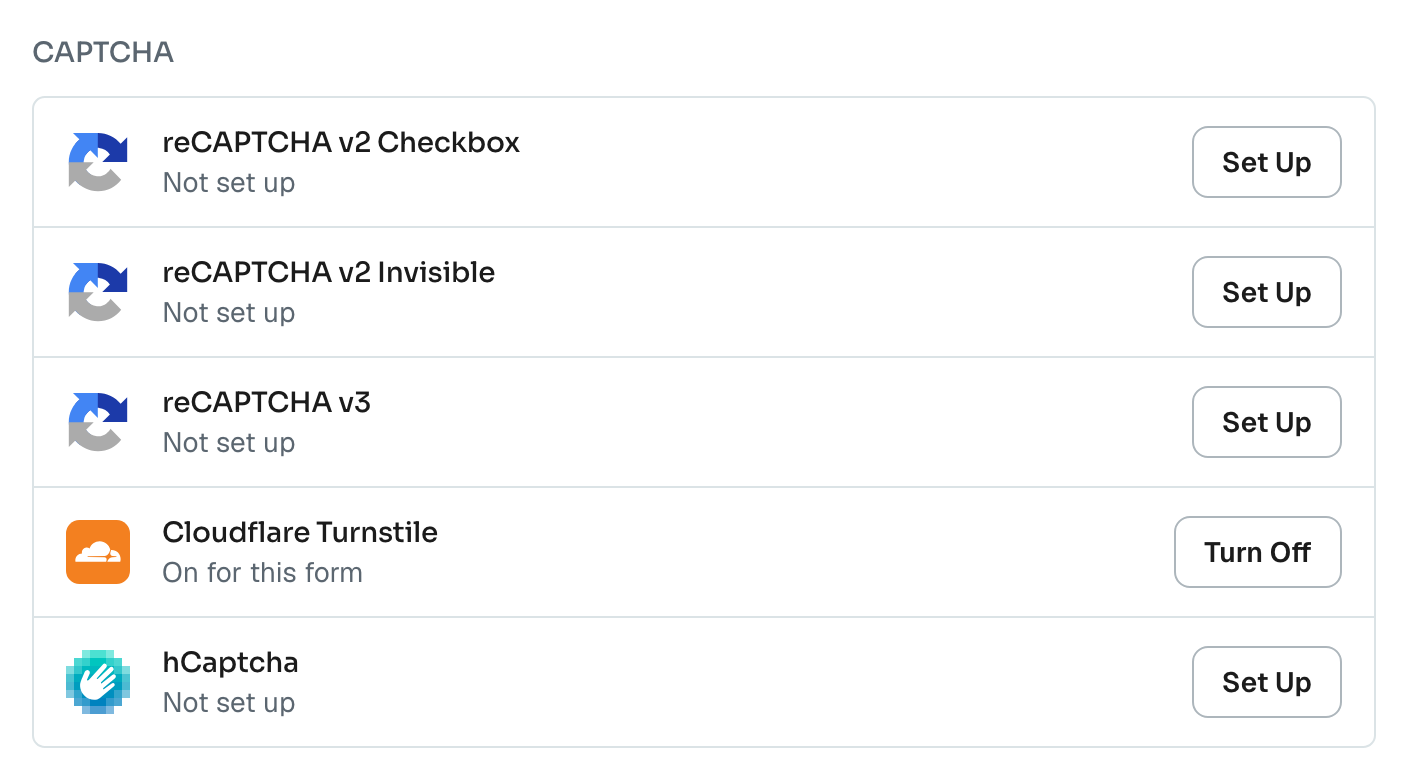
The row reads “On for this form”, and its button changes to Turn Off. The change applies at once, also on a form that’s already published. A form runs one CAPTCHA at a time, so selecting Use on another row switches the form to that one. Then open the form’s link in a private window and send a test submission, to see the check the way a visitor does.
If real people get stuck
- “Complete the CAPTCHA and try again.” means the provider answered but the check was turned down. With reCAPTCHA v3, Google most likely scored the person below your Lowest passing score. Select Edit on its row in Integrations and lower the score, for example to 0.3.
- An error inside the widget usually means the key doesn’t list the host the form ran on, or the key was saved under the wrong provider or version.
- “The CAPTCHA could not load. Turn off any blocker for this page and reload it.” means an ad or privacy blocker stopped the provider’s script in that visitor’s browser.
The Spam Protection page compares the providers side by side.
Create a free account and send a test submission to your first form.