A long form on one page looks like work before anyone starts. The same questions split into short pages read as a few quick steps, and a progress bar shows people the end is near. Page breaks and the progress indicator work on every plan.
Decide where the pages go
Group the questions the way people think about them: who they are, then what they need, then the details. A few questions a page keeps each step short. Put the easiest page first, so people get going before the questions that take some thought.
Add a page break
- Open the form in the builder, point where the new page should start and select Add Field.
- Under Layout, pick Page Break. Everything above it is one page, and everything below it is the next.
- On the canvas, the break shows the Next button for the page above and the title of the page below. Click either one and type over it.
- Add a break for each new page. Drag a break to move it, the same way you move a field.
Once a form has a break, the canvas also shows a card at the top for page 1 and a set of buttons at the bottom for the last page.
Name each page and its buttons
Select a page break to see its settings:
- Page Title: the title of the page the break starts, up to 200 characters. Type @ to pipe in an earlier answer, such as “Almost done, @Name”.
- Next Button Text: the button that ends the page above. Left blank, it reads “Next →”.
- Previous Button Text: the back button on the page above. Left blank, it reads “← Previous”. The first break has none, because page 1 has nowhere to go back to.
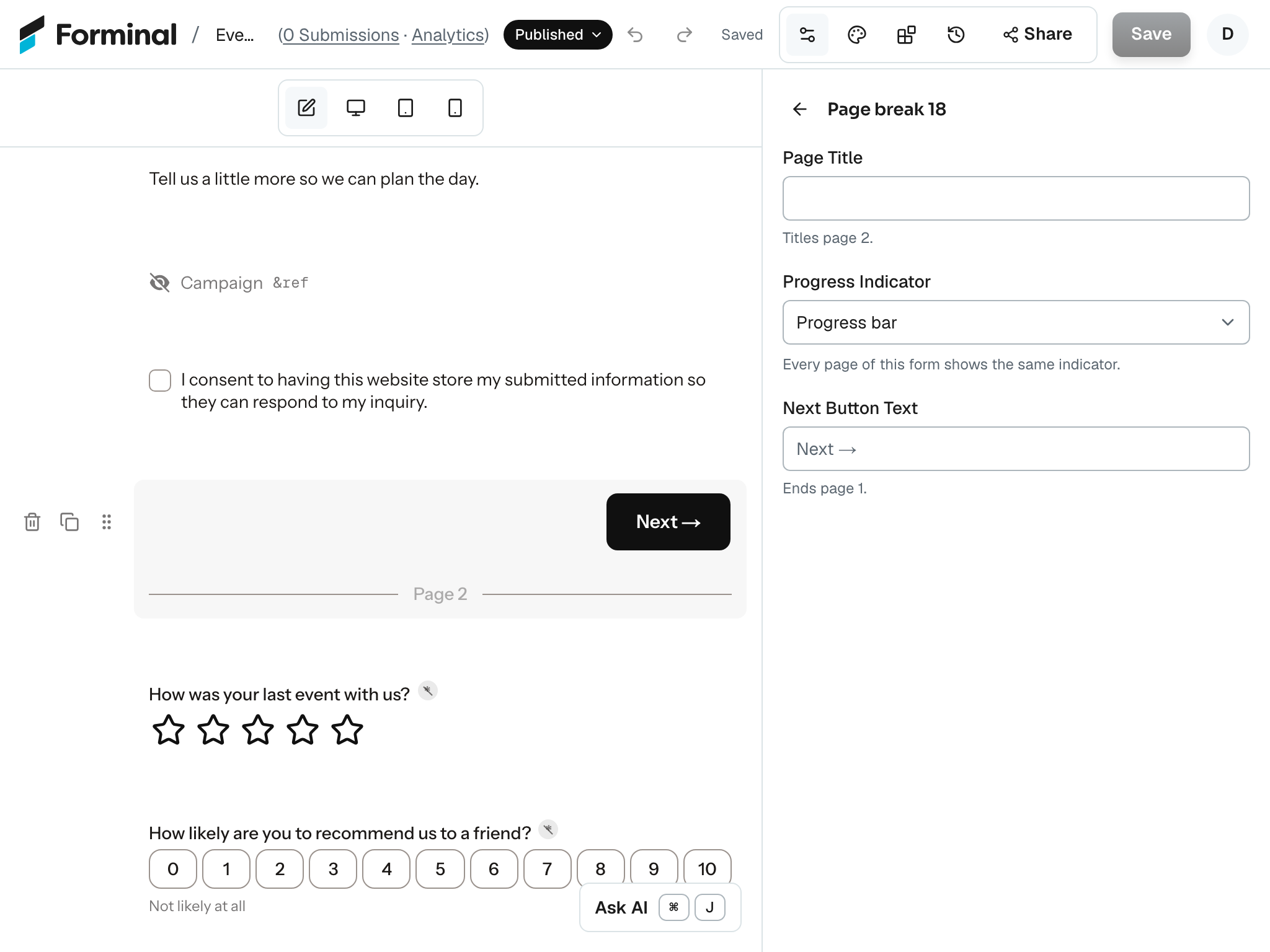
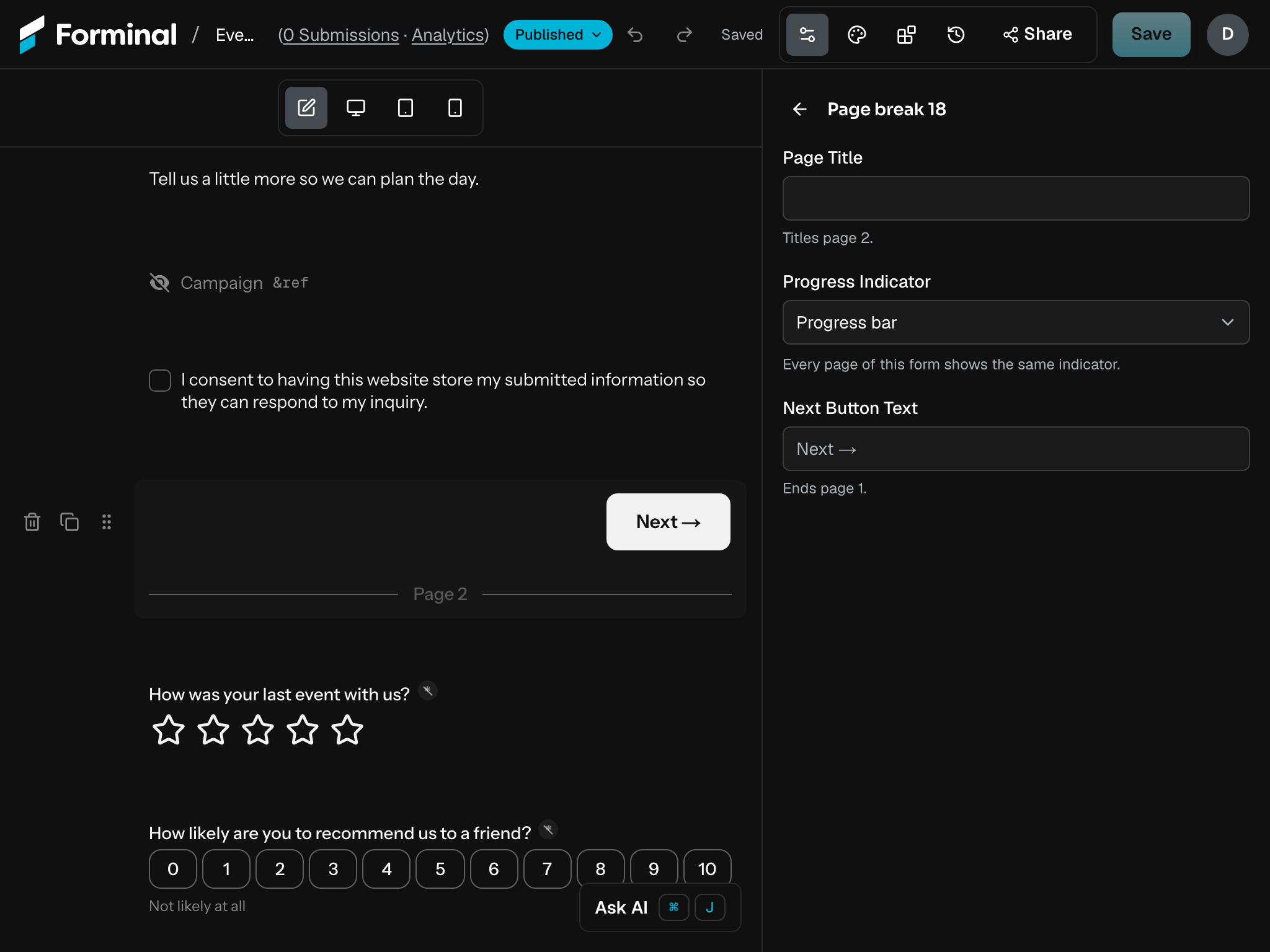
Select the card at the top of page 1 to name the first page, and the buttons at the bottom of the last page to set its Previous Button Text and Submit Button Text. Button labels can be up to 50 characters. Clear titles such as “Your details” or “Your trip” tell people what a step is about before they read the questions.
Show people how far along they are
- Select the card at the top of page 1, or any page break.
- Pick an option under Progress Indicator. It’s one setting for the whole form, so changing it in one place changes every page.
- Progress bar, the default: the page title above a bar with a percentage. On page 2 of 4 it shows 50%.
- Pages: a line such as “Page 2 of 4: Your income”.
- None: no indicator and no page titles.
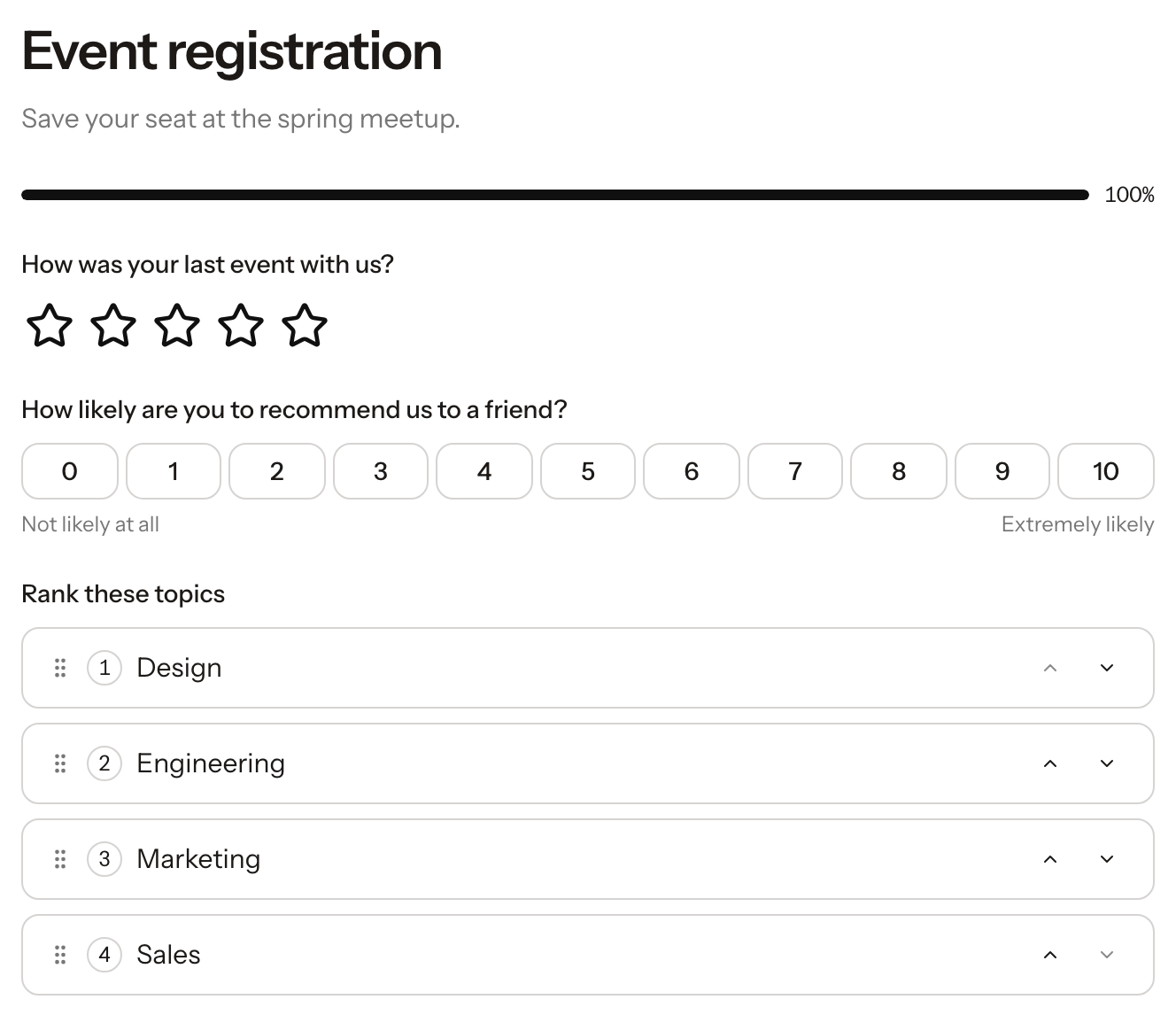
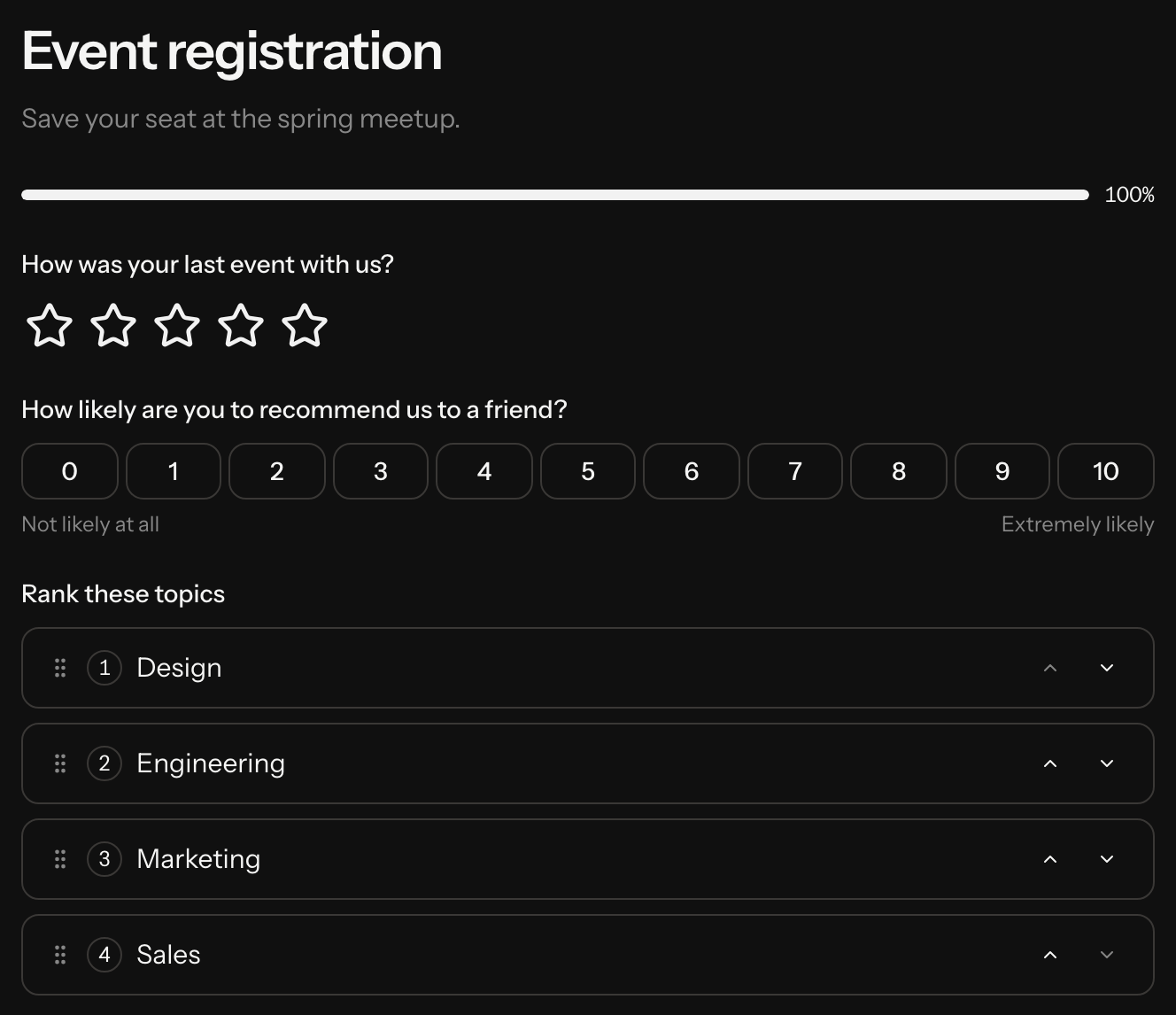
The bar fills with your form’s Accent color from Customize. A form with only one page shows no indicator.
Try it the way visitors will
Switch the builder from Edit to Desktop, Tablet or Mobile and click through the pages. Next checks the answers on the current page first, so a required question left empty keeps people on that page. Previous goes back without checking, and the answers stay filled in.
Skip the pages that don’t apply
There’s no rule that jumps to a page, but Smart Logic does the same job. Give each field on a page the same hide rule, such as Hide this field if “Do you have a car?” is “No”. People who answer No go straight past that page, and the progress indicator leaves it out of the count, so the bar still ends at 100% on the last page.
Good to know
- Unless you turn on Partial Submissions, Remember Answers or Save and Resume, nothing is saved until the last page is submitted, so someone who leaves halfway leaves no submission. On Pro and Business, Save and Resume lets people leave and finish later from a link.
- Page breaks never show in submissions or exports. Each submission is one row with every answer.
- A Payment field has to be on the last page, so no break can come after it.
- Page breaks count toward the 50 fields a form can hold.
Split a Form into Pages has the same steps with more screenshots, and the Multi-Page Forms and Progress Indicator pages cover every setting.
Create a free account and split your longest form into pages.