A Net Promoter Score survey asks one question: how likely is someone to recommend you, from 0 to 10. The score alone doesn’t tell you what to fix, so the useful part is what you ask the people who give you a low one. This guide builds an NPS survey that asks low scorers what went wrong, emails your team about each one, and charts the results.
Add the NPS question
- In the builder, select Add Field and, under Rating and Ranking, choose Net Promoter Score. On an empty form, select Start from Scratch instead of Add Field.
- The label starts as “How likely are you to recommend us to a friend or colleague?”. Swap “us” for your product’s name if you like.
- Leave the scale at 0 to 10 in steps of 1. The split into promoters and detractors assumes that scale, so a different one gives you a number you can’t compare with anyone else’s NPS.
- On the Advanced tab, check the labels under the scale. Start Label (“Not likely at all”) and End Label (“Extremely likely”) are on, and Center Label is off. Each can be up to 50 characters.
- Leave Default at None, so nobody’s answer is nudged toward a number.
Turn on Required on the General tab if the score is the point of the survey. Someone who skips it then sees “Pick a score”.
Ask low scorers what went wrong
Scores of 0 to 6 are detractors, 7 and 8 are passives, and 9 and 10 are promoters. Give detractors a follow-up question and leave everyone else alone:
- Add a Long Text field under the NPS question, with a label such as “What could we do better?”.
- Select it and open the Smart Logic tab in its settings.
- Turn on Enable Conditional Logic and choose Show in the “this field if” line.
- Under Select a field, pick the NPS question, choose less than, and pick 7.
The question now appears only for scores of 6 or less. A hidden field isn’t required, and its answer is left out of the submission, so a happy customer never meets a box they have to skip. You can do the same for promoters, for example showing “Would you leave us a review?” when the score is greater than 8.
To try the rules, switch the builder from Edit to Desktop, Tablet or Mobile and fill in the preview. Preview saves nothing and sends no email.
Email your team about every low score
- Select Form Settings in the top bar, then Notifications, and select Add Notification.
- In To, type the address of whoever follows up with unhappy customers.
- If the survey asks for an email, open Reply To, type @ and pick the Email field, so a reply goes straight to the customer.
- Write a subject such as “Low NPS score”. Type @ to put the score itself in it.
- Turn on Enable Conditional Logic, choose Send “this email if”, and set the NPS question to less than 7.
The email lists every answer, including the follow-up, and only goes out for detractors. Get an Email for Each Submission covers the rest of the composer.
Read the results
Every score shows on the Submissions page, in the CSV export and in notification emails as the number chosen.
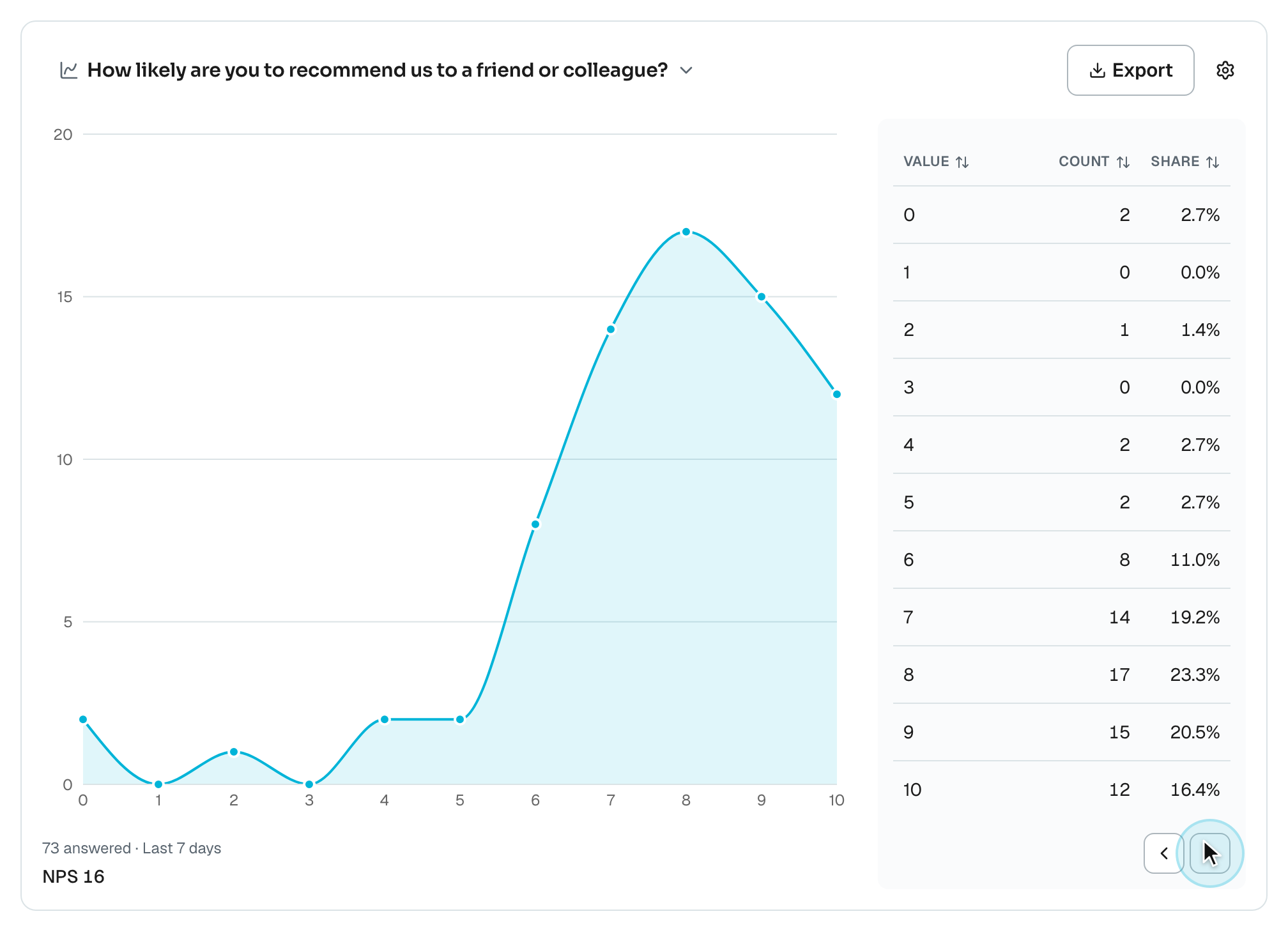
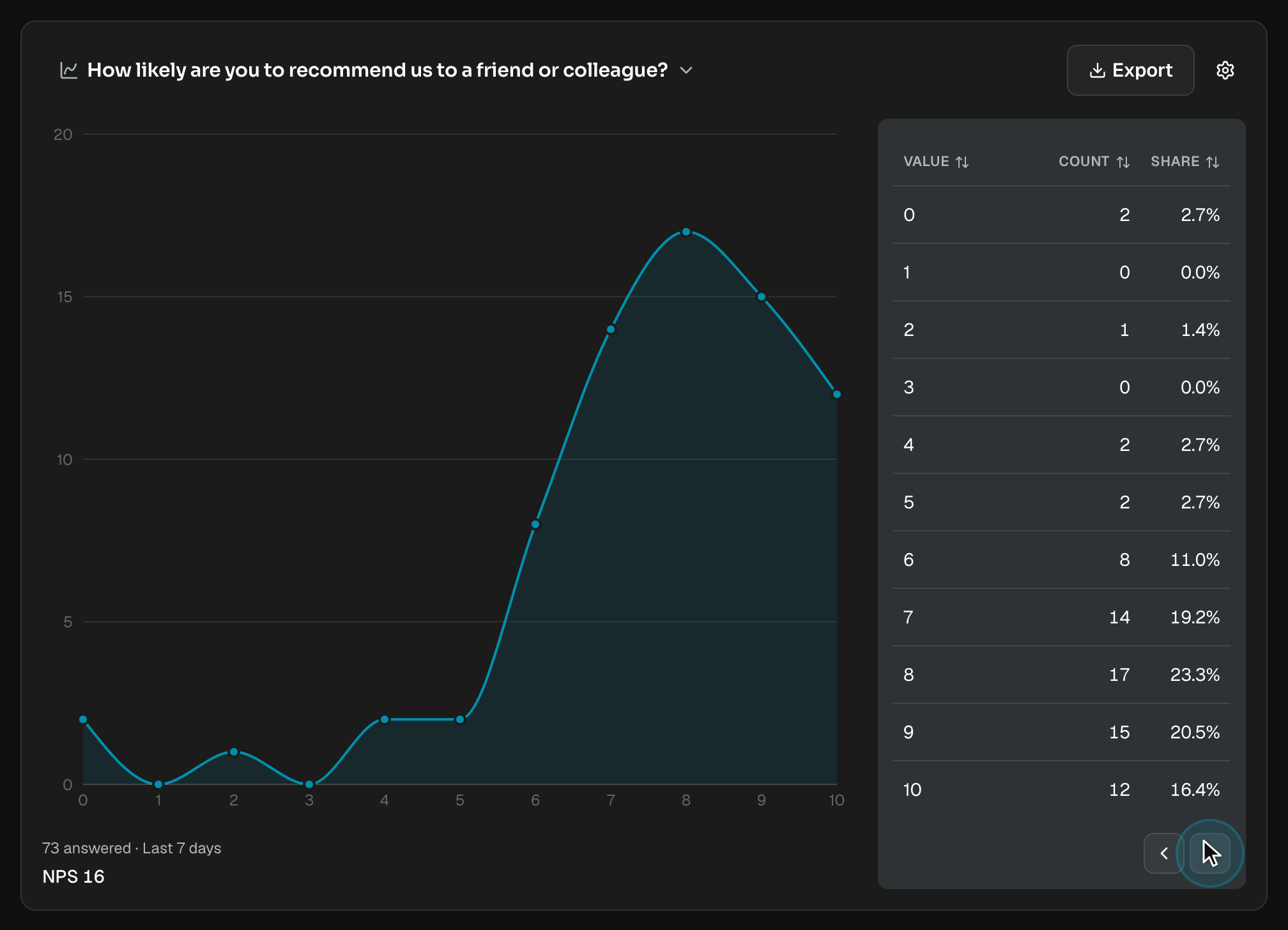
On Pro and Business, the Analytics page does the arithmetic. Select Analytics next to the form’s title in the builder and, under Charts, pick the NPS question. The chart has one point for each score from 0 to 10, with your Net Promoter Score under it: the share of promoters minus the share of detractors. As a pie it’s three slices, detractors, passives and promoters. In Chart settings, turn on Compare to previous period to see whether last month’s changes moved the score, and use Export to download the chart as a JPG or a PDF.
On Lite, the Analytics page shows the same chart with made-up sample numbers, so you can see what you’d get. Every answer is kept, and the real chart is there once you upgrade.
Tips for a better NPS survey
- Keep it short: the score, the follow-up and perhaps one more question.
- To know who gave which score without asking, pass a customer ID in the link you send. A hidden field picks it up and stores it with the submission.
- The labels sit at the left, middle and right under the buttons, so keep them short for narrow phone screens.
- Spam isn’t counted in the charts.
Every setting is on the Net Promoter Score page, and the charts are covered in Answer Summary Charts.
Create a free account and add a Net Promoter Score question to your next customer survey.