Net Promoter Score asks the familiar recommendation question on a row of numbered buttons from 0 to 10, with short labels under the ends of the scale.
Examples
- A quarterly customer survey, followed by a “What could we do better?” question shown only to scores of 6 or less.
- A check-in sent after a customer finishes onboarding.
Set it up
- In the builder, point between two fields and select Add Field. On an empty form, select Start from Scratch.
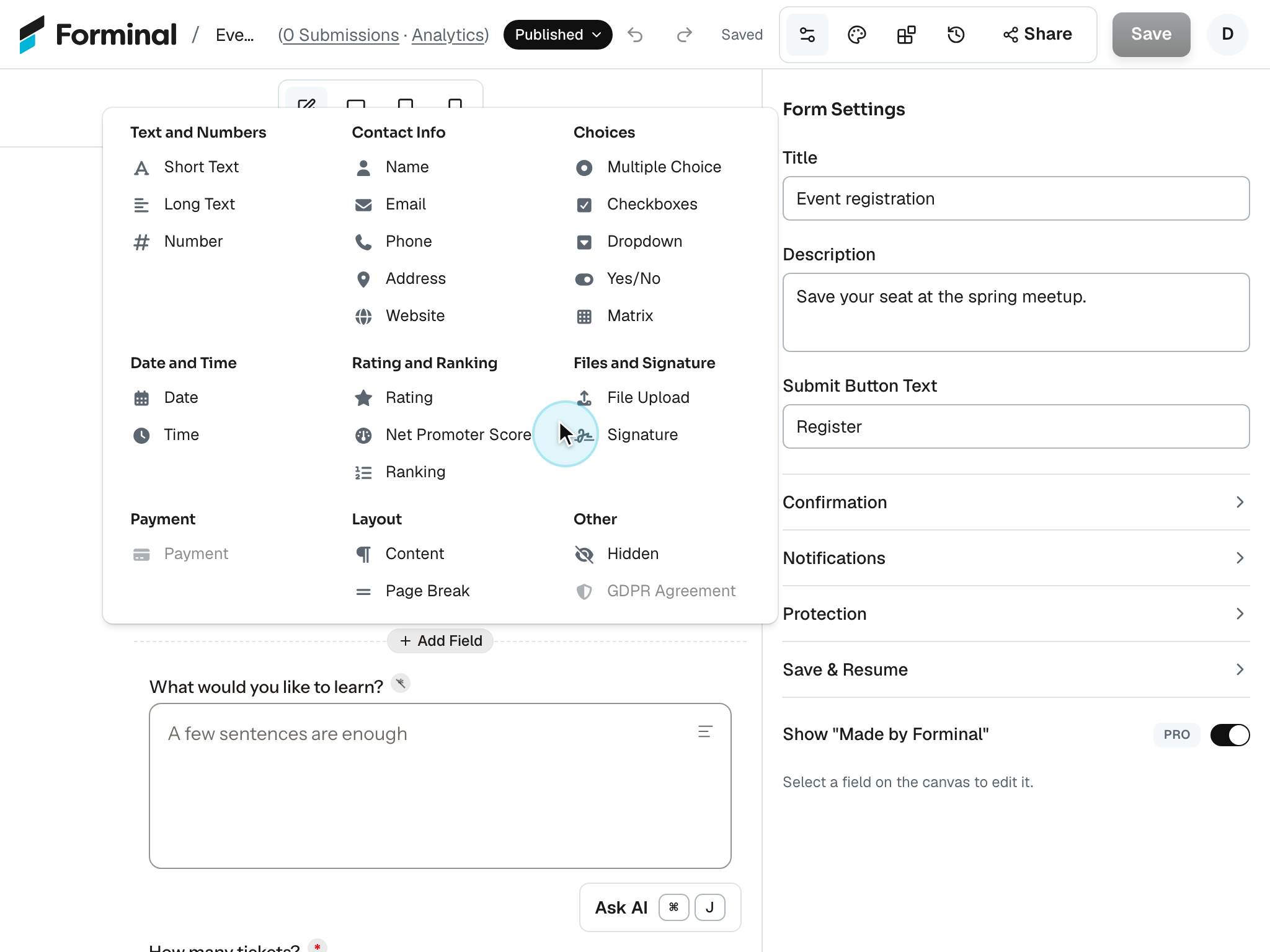
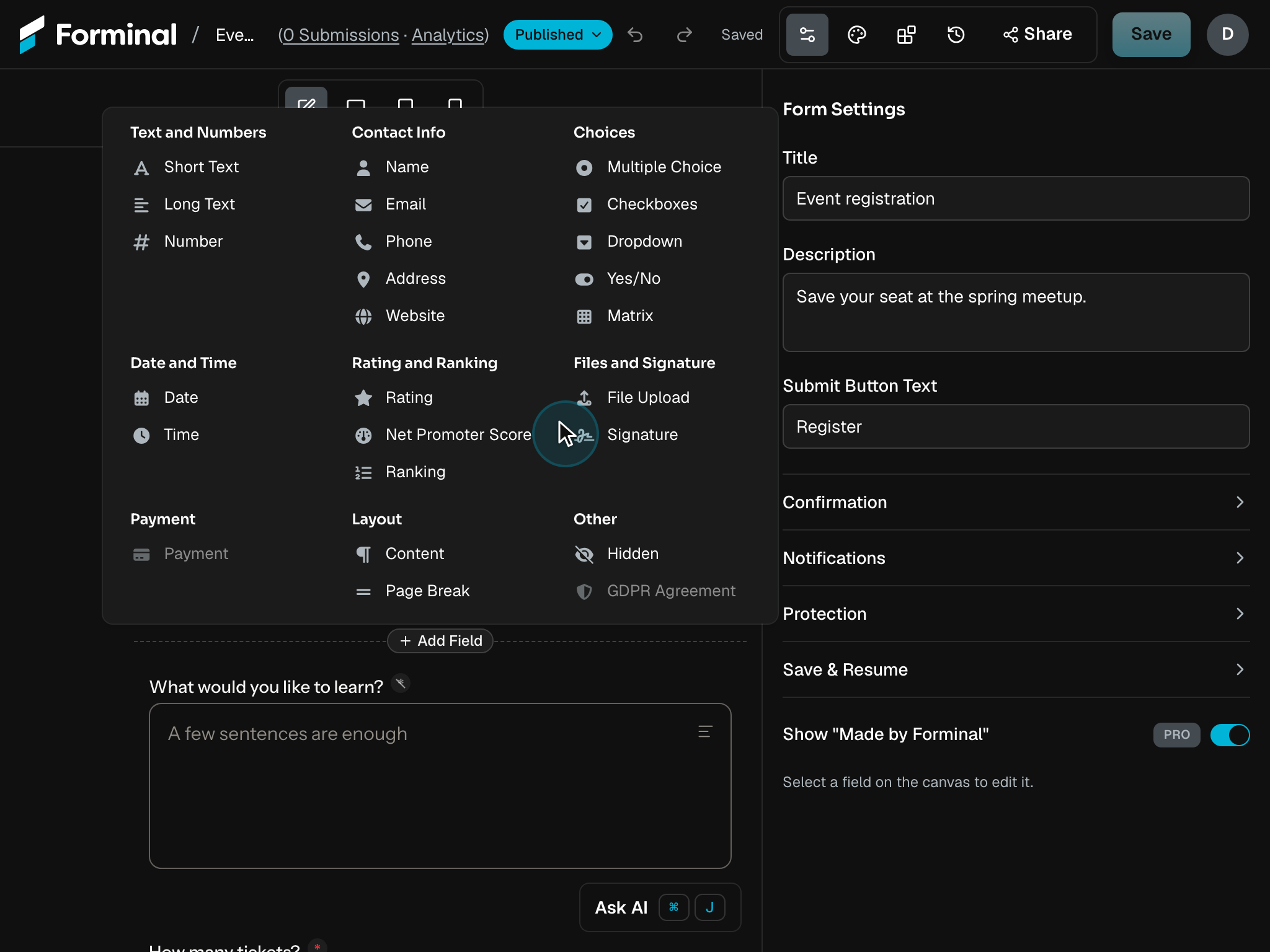
- Under Rating and Ranking, select Net Promoter Score.
- The label starts as “How likely are you to recommend us to a friend or colleague?”. Change it on the General tab if you want to name your product.
- Leave Scale at 0 to 10 in steps of 1 for a standard score, or change From, To and Step.
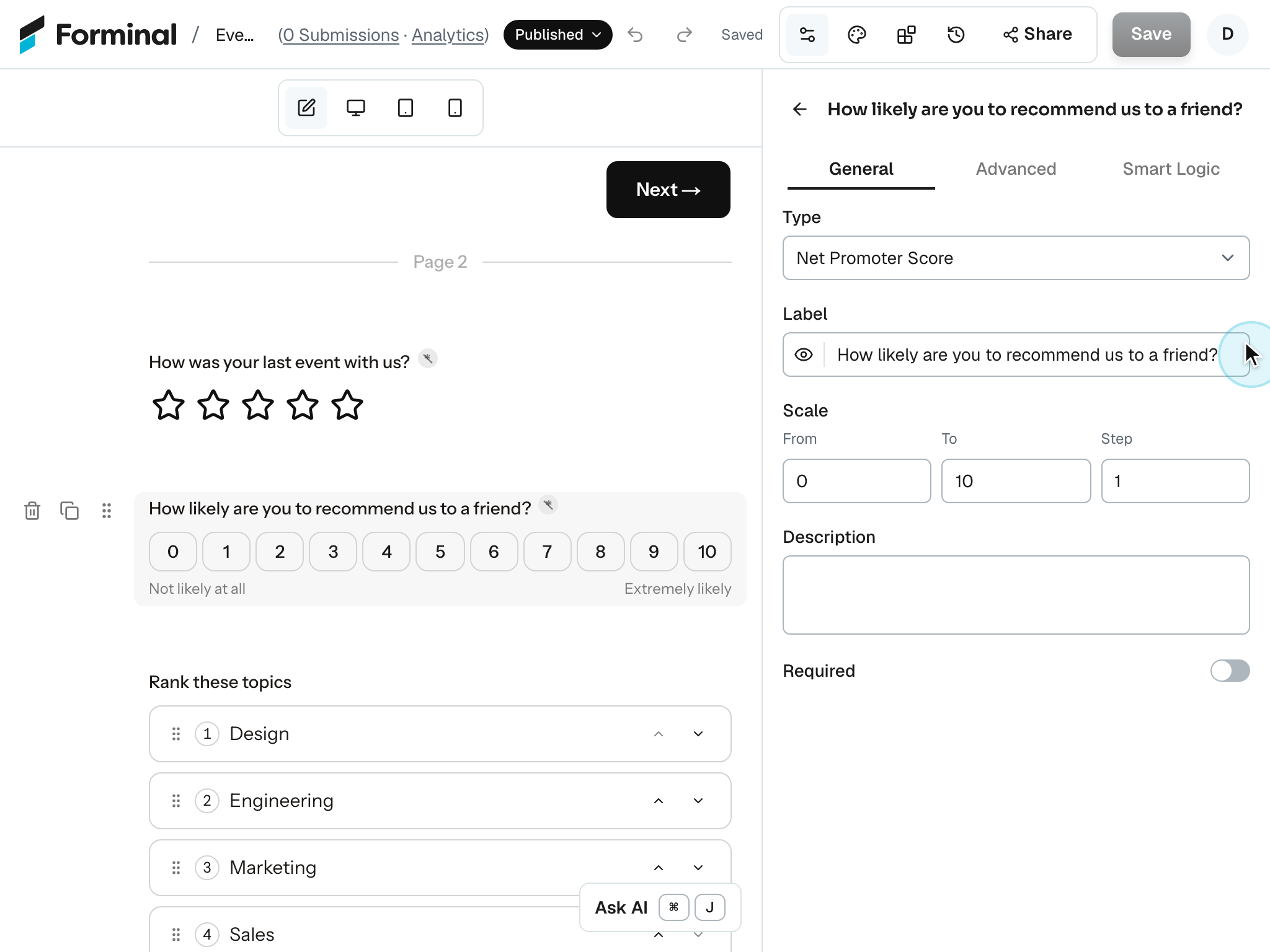
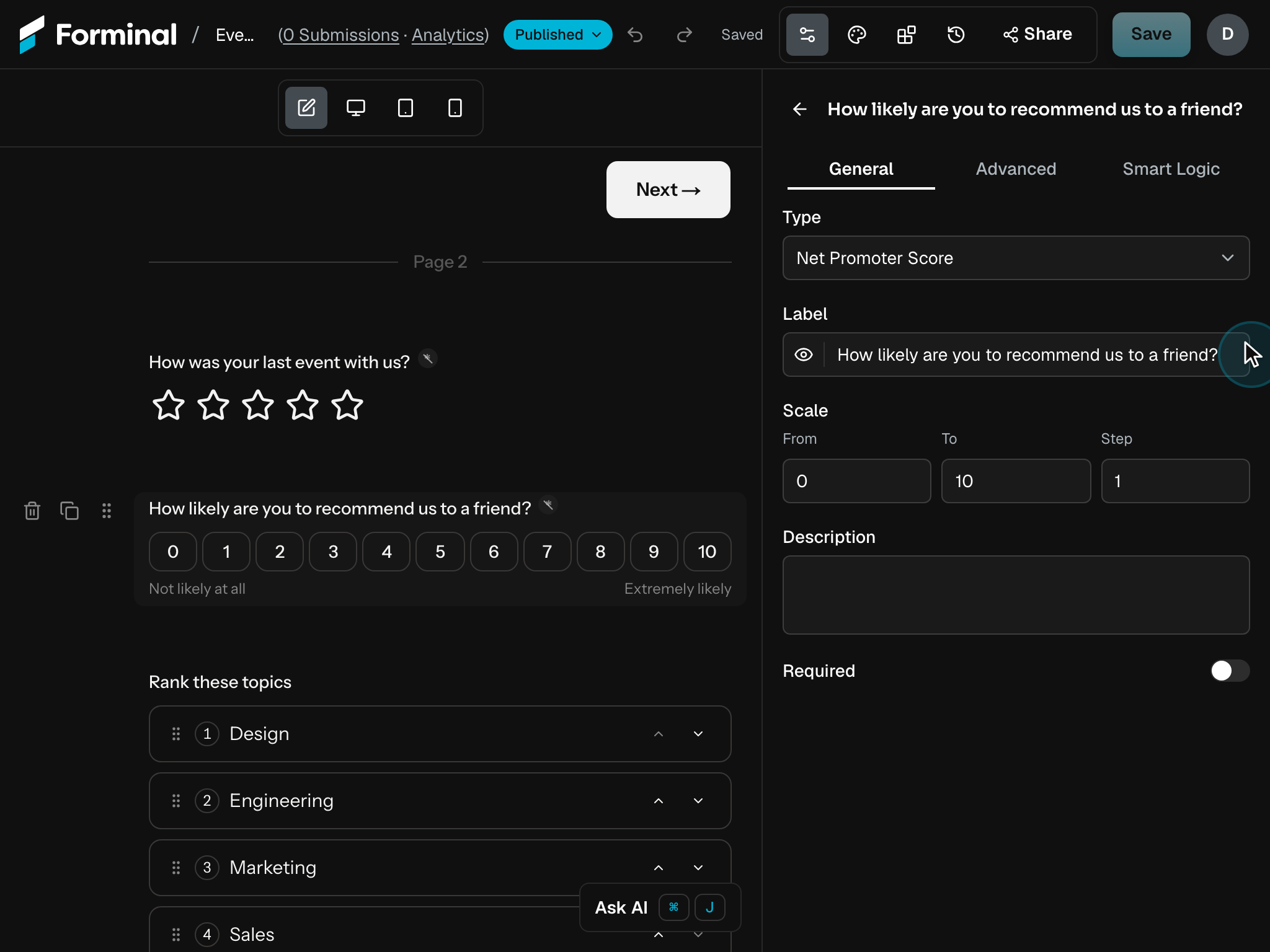
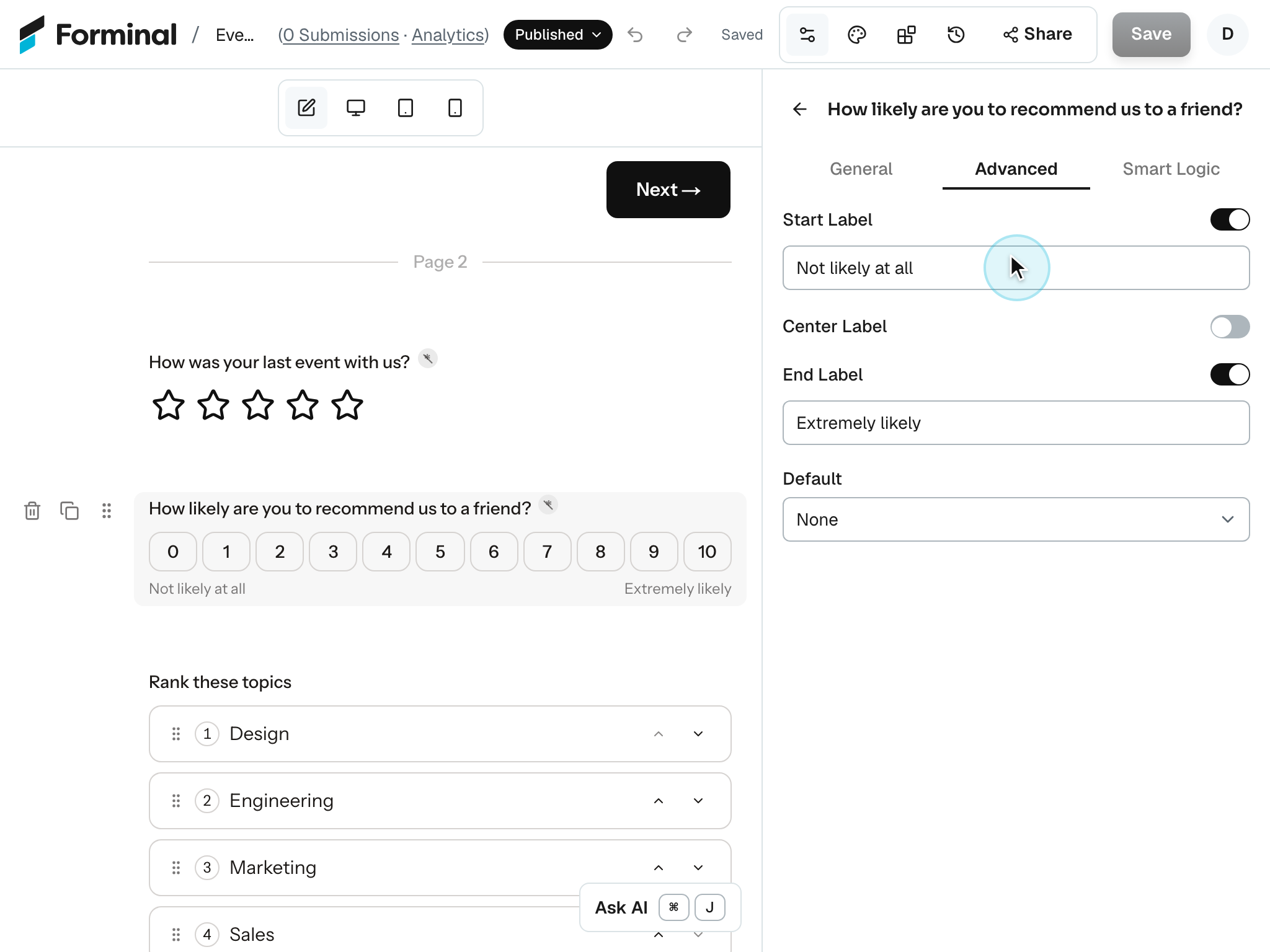
- On the Advanced tab, set the labels and an optional Default score.
Settings
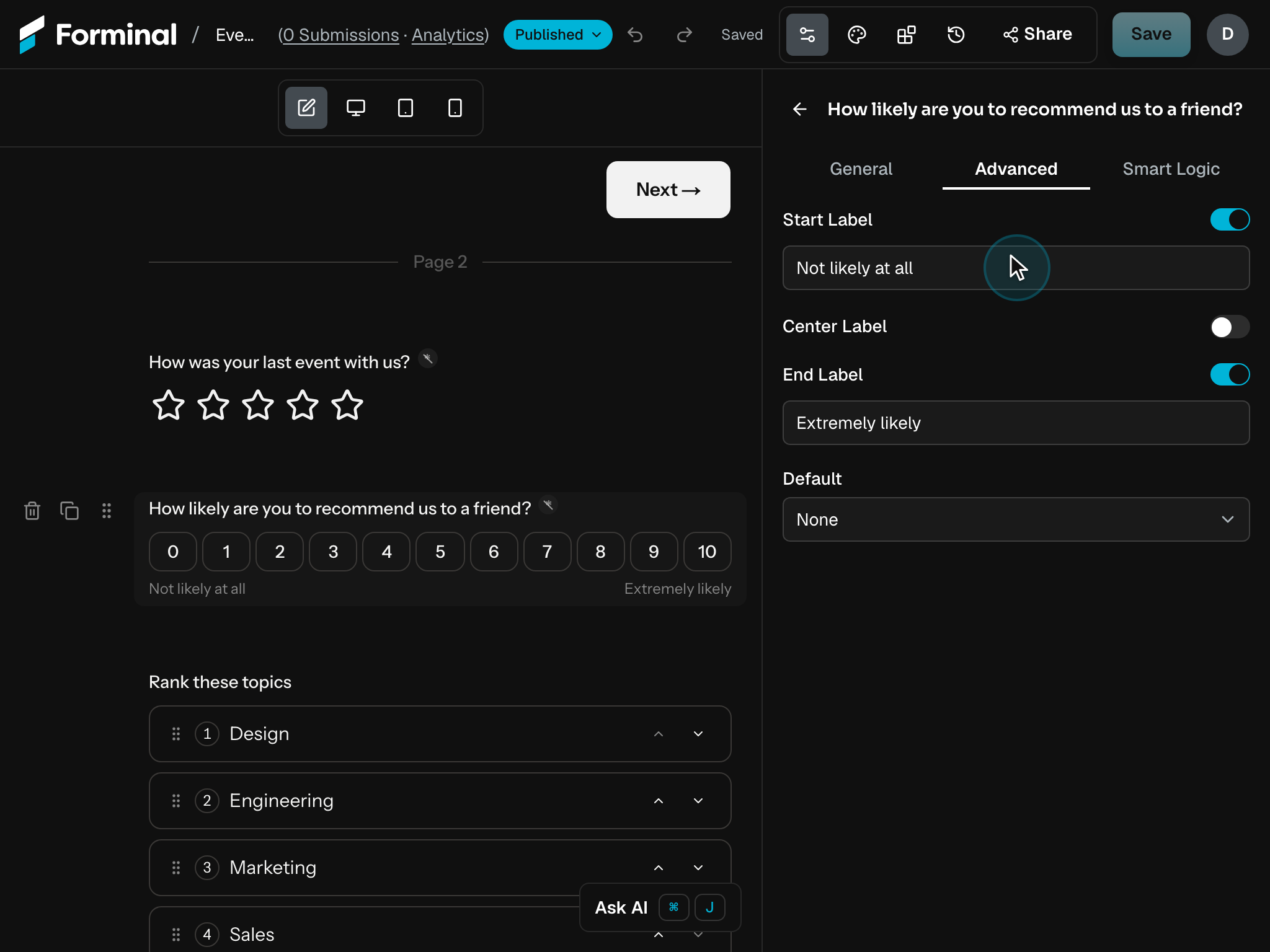
Start Label, Center Label and End Label each have a switch. New fields have Start Label (“Not likely at all”) and End Label (“Extremely likely”) on. Turning on Center Label adds “Neutral” in the middle. You can rewrite any of them, up to 50 characters each, or switch them all off.
The scale can start at 0 and go up to 100, with at most 10 steps, and the range has to divide evenly by Step. Default sets a score that’s already picked when the form opens; leave it at None for most surveys so the answer isn’t nudged.
What people see and how answers show
People see one button per score with the labels underneath, and click or use the arrow keys to choose. On an optional field, clicking the chosen score again clears it. A required field left empty shows “Pick a score”.
The submissions table, the CSV export and notification emails show the number chosen. In Smart Logic you can use is, is not, greater than and less than to branch on the score. When you ask the AI assistant to summarize answers, it works out the overall score for you, counting 9 and 10 as promoters and 0 to 6 as detractors.
Good to know
The promoter and detractor split assumes the standard 0 to 10 scale, so keep that scale if you want a score you can compare with other NPS results. The labels sit at the left, middle and right under the buttons, so keep them short for narrow phone screens.
Frequently asked questions
Does Forminal work out my NPS for me?
When you ask the AI Assistant to summarize answers, it works out the overall score, counting 9 and 10 as promoters and 0 to 6 as detractors. The submissions table and the CSV export show the number each person picked.
Can I change the labels under the scale?
Rewrite the Start, Center and End labels on the Advanced tab, up to 50 characters each, or switch any of them off. The center label, Neutral, is off for new fields.
Can I ask a follow-up question only to low scores?
Use Smart Logic with less than or greater than on the score, for example to show “What could we do better?” to scores of 6 or less.
Can I use a scale other than 0 to 10?
You can change From, To and Step, up to 100 with at most 10 steps. The promoter and detractor split assumes the standard 0 to 10 scale, so keep it if you want a score you can compare with other NPS results.
Should I set a default score?
For most surveys, leave Default at None so the answer isn’t nudged toward a number.