The thank-you message is what people see in place of the form right after they submit. You write it on the canvas like any other content, with headings, lists, links and pictures, and you can put their own answers into it.
Examples
- Telling a customer when to expect a reply, with a link to your help center.
- Thanking survey respondents with a photo of the team that reads the answers.
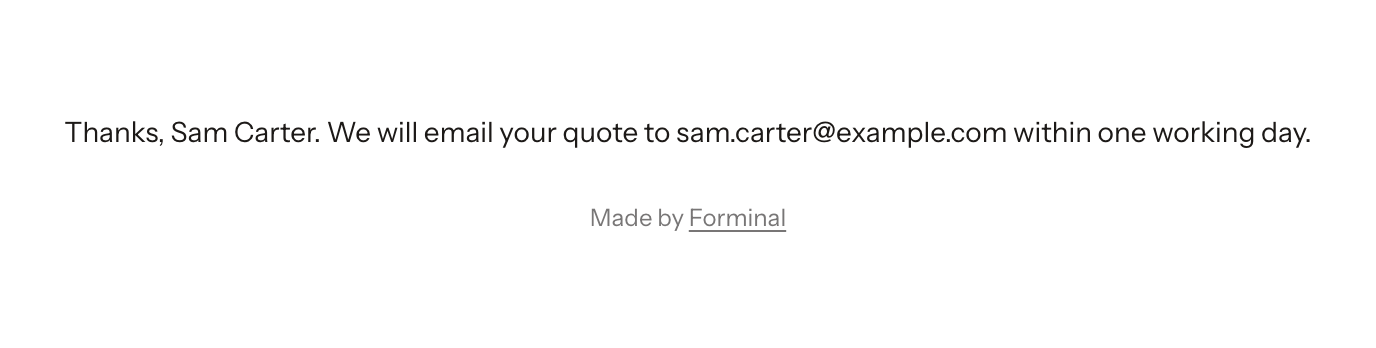
- “Thanks, @Name, we’ll email @Email within a day.” on a quote request.
Write your message
- Scroll to the bottom of the canvas, below the Confirmation divider marked “After form submission”, and click the message. You can also select Form Settings in the top bar, then select Confirmation.
- Make sure the Page tab is selected in the confirmation settings.
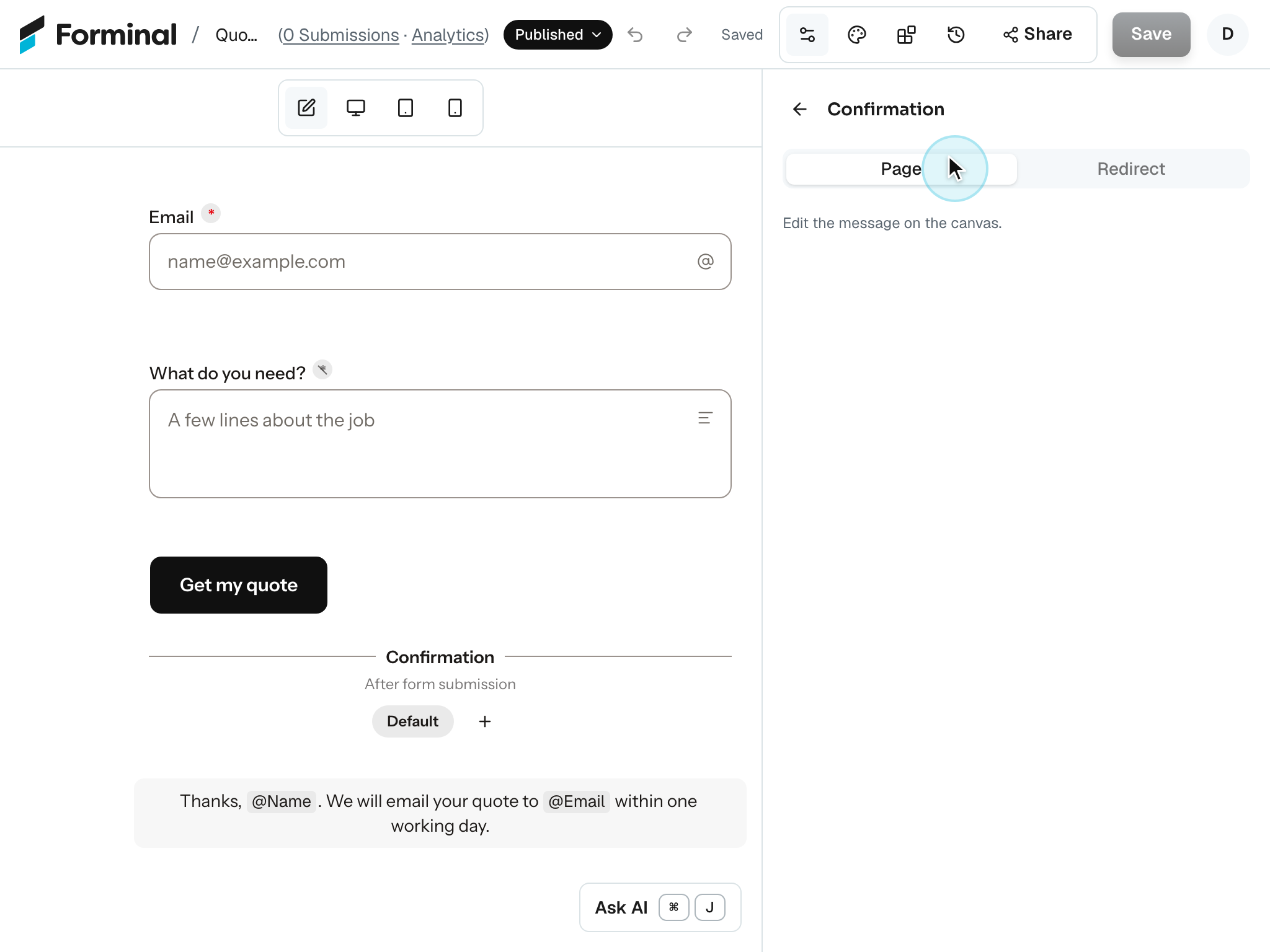
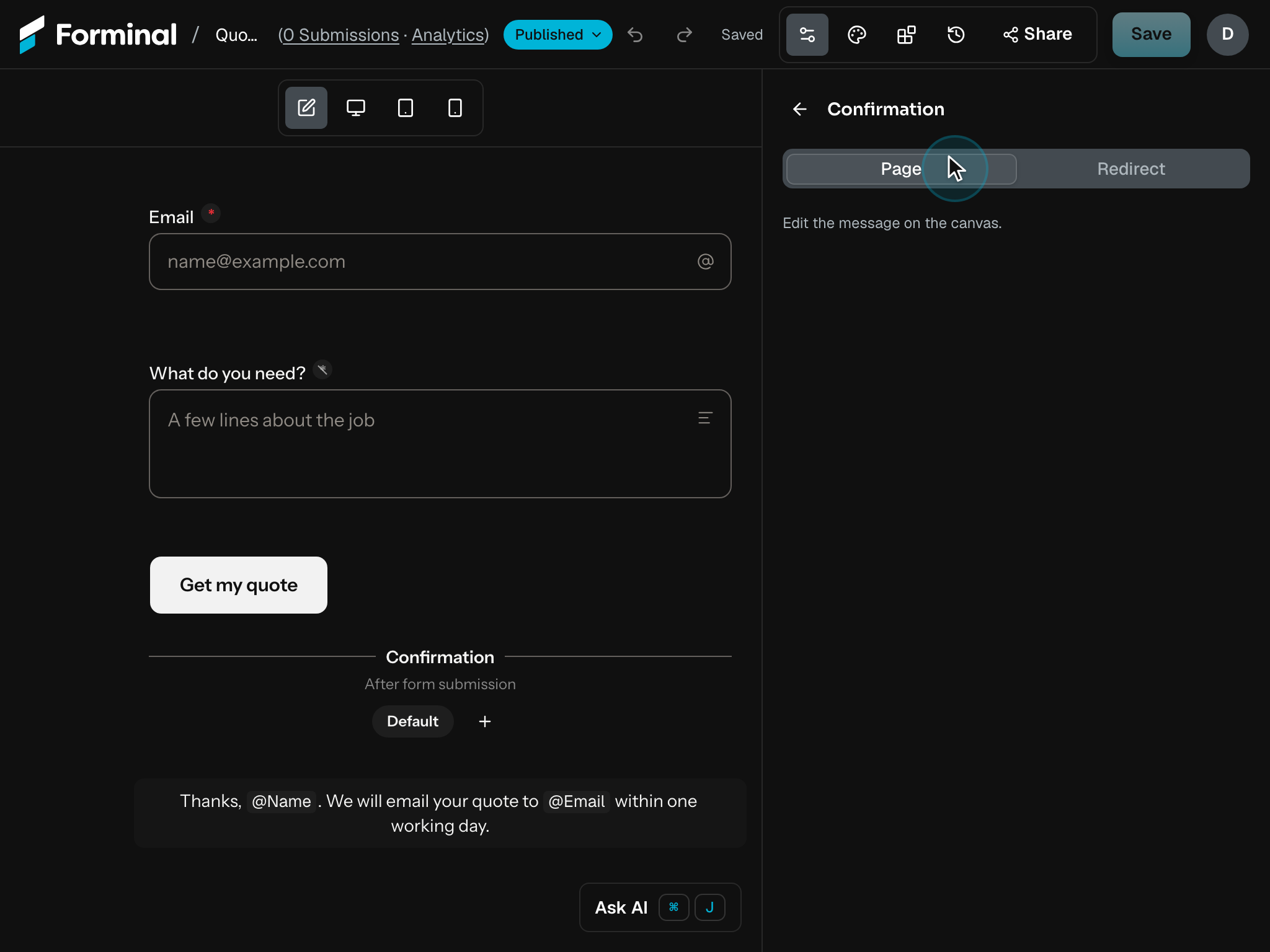
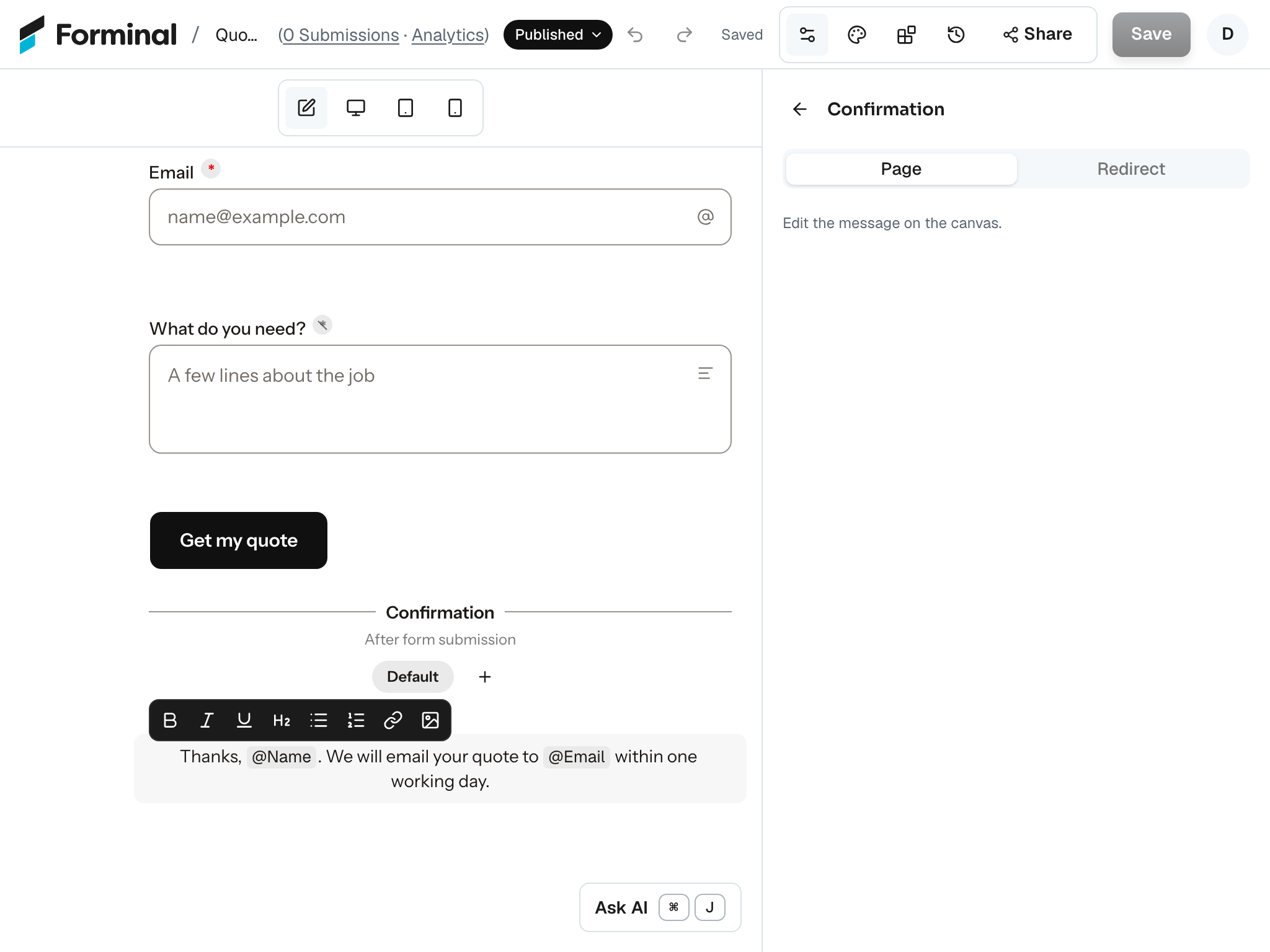
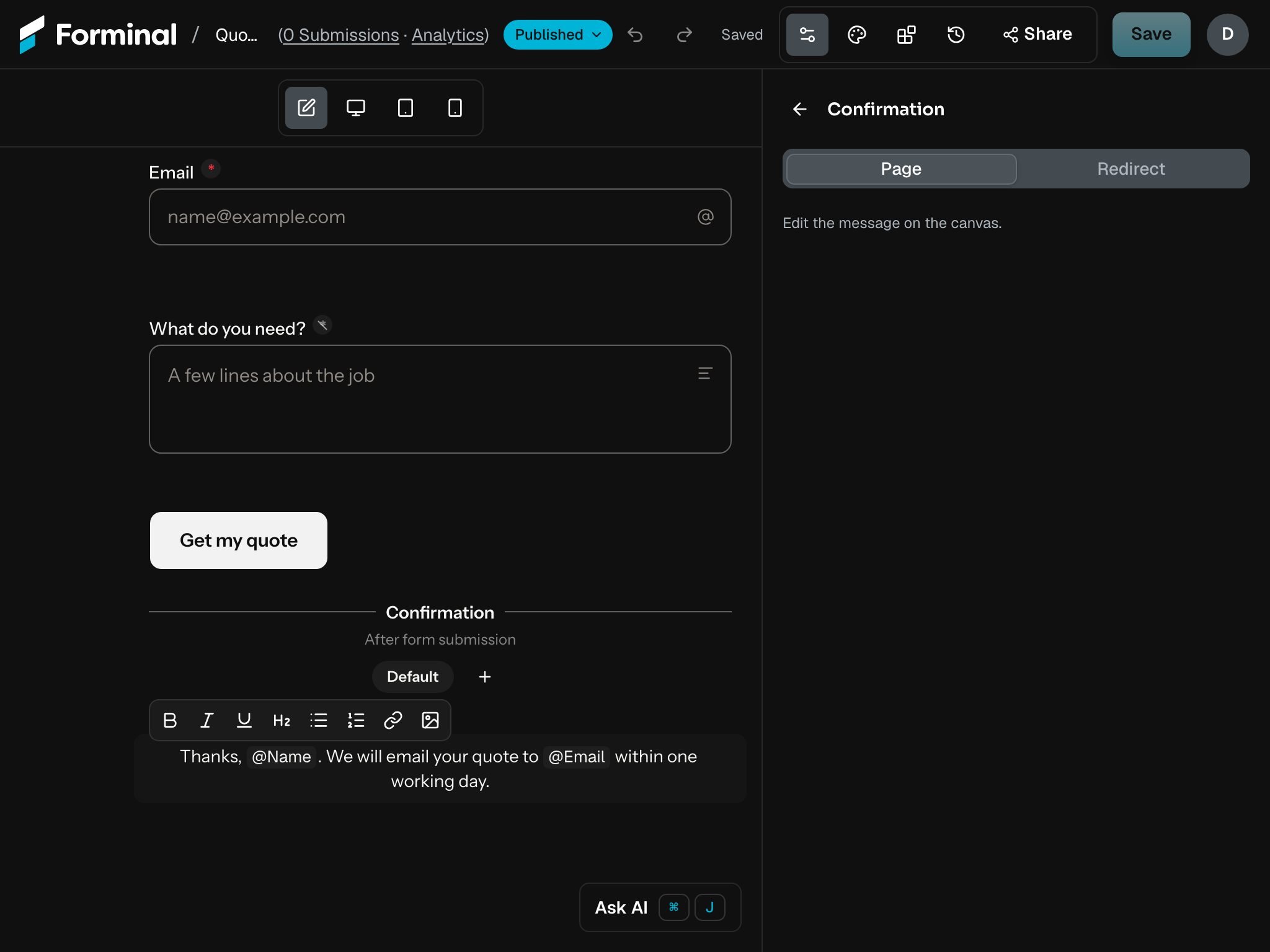
- Click the message and type. A formatting toolbar appears while you edit.
- Type @ to pick a question and put its answer into the text. The answer shows as a chip, such as @Name.
What you can put in it
- Text formatting: Bold, Italic, Underline, Heading, Bullet list, Numbered list and Link.
- Images from your media library, in PNG, JPEG, GIF or WebP, up to 2 MB each or 5 MB on Business. Select an image to set its alignment (left, center or right) and its width and height. It keeps the alt text you gave it in the media library.
- Answers piped in with @. A question that was left blank or hidden by Smart Logic shows nothing. See Answer Piping for fallback text.
What people see
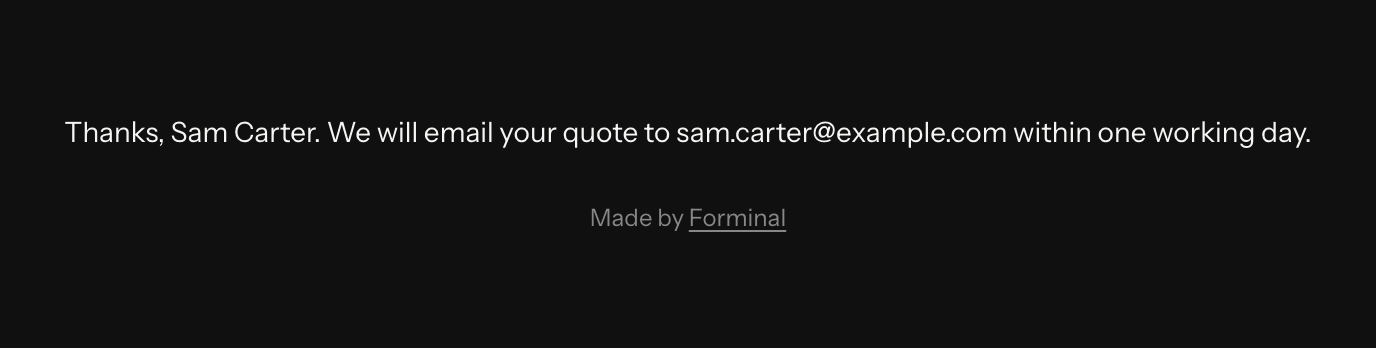
The form disappears and the message takes its place, centered, in your form’s colors and font, with each piped answer filled in. If your form shows the “Made by Forminal” line, it appears under the message too. On an inline embed the message shows inside the frame on your page. A popup closes on its own 2 seconds after someone submits, so a long message there may not get read. You can change the delay, or keep it open with After Sending.
Good to know
A message can hold up to 20 KB of content. A form can hold up to 30 images in all, 15 MB together, counting images in content fields. Leave the message empty, or let it end up empty once the answers are filled in, and people see “Thanks, your submission has been recorded.” To try it with real answers, switch the builder to Desktop, Tablet or Mobile and submit the form there; nothing is saved. To show different messages to different people, see Confirmations, and to send people to another page, see Redirect After Submit.
Frequently asked questions
Can I show a different thank-you message to different people?
Add conditional confirmations, each with its own message and rules based on the answers.
What do people see if I leave the message empty?
They see Thanks, your submission has been recorded. The same text shows when the message ends up empty after the answers are filled in.
Why does my thank-you message vanish in a popup?
A popup closes on its own 2 seconds after someone submits, so a long message there may not get read. Change the delay or pick Stay open under After Sending on the Embed tab, keep the message short, or send people to a page with a redirect.
How can I test the message with real answers?
Switch the builder to Desktop, Tablet or Mobile and submit the form there. Nothing is saved.
Can I hide the Made by Forminal line under the message?
On a plan that includes Remove Branding, turn off the Show Made by Forminal switch and the line goes from the message too.