Rating shows a row of icons, and people click one to give a score. The icons fill up to the one they hover or pick, so the score is easy to read at a glance.
Examples
- Rating a support conversation from 1 to 5 stars.
- A restaurant feedback form that uses hearts on a 1 to 10 scale.
Set it up
- In the builder, point between two fields and select Add Field. On an empty form, select Start from Scratch.
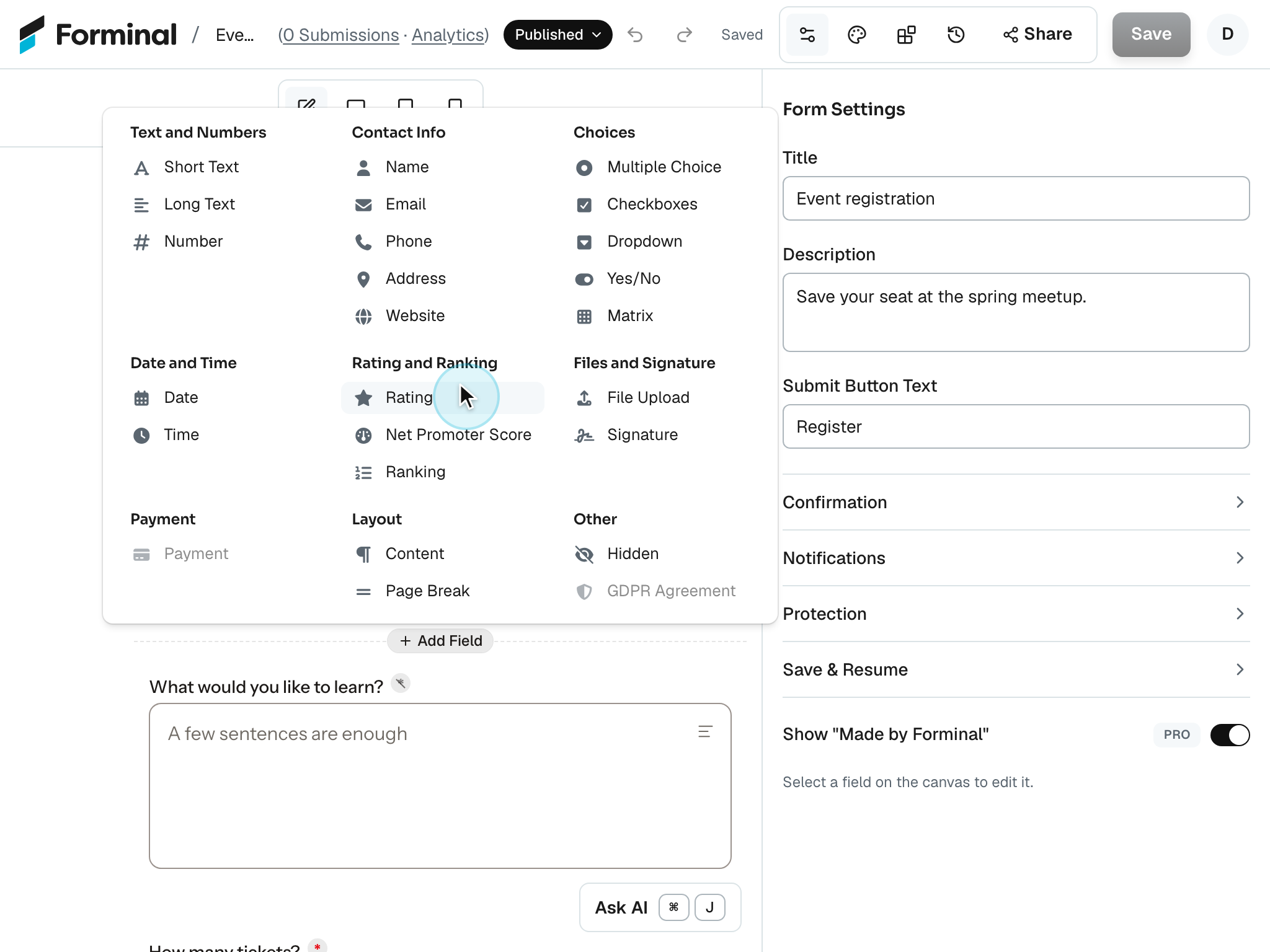
- Under Rating and Ranking, select Rating.
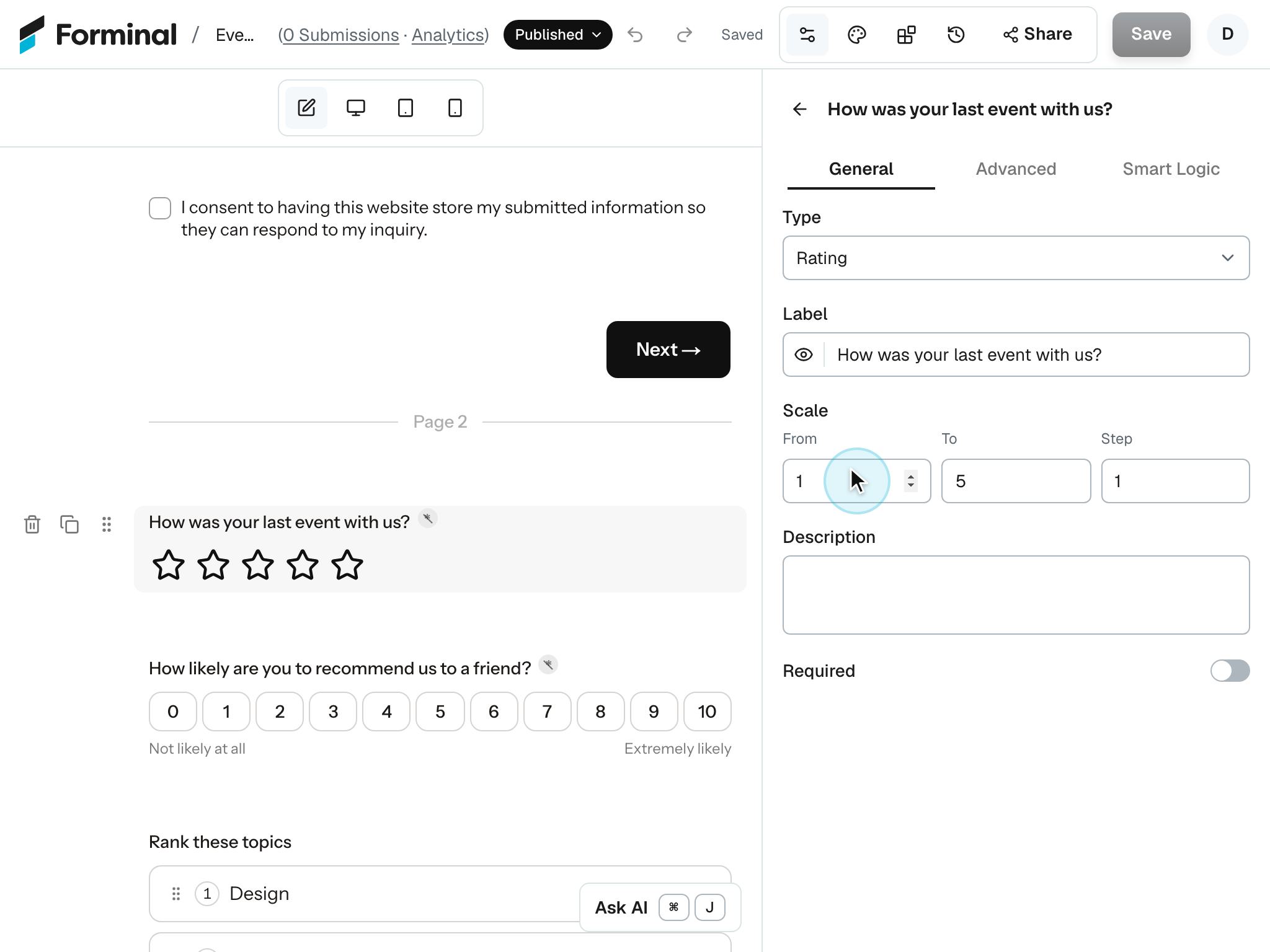
- Change the label, which starts as “How would you rate it?”.
- Under Scale on the General tab, set From, To and Step. The default is 1 to 5 in steps of 1.
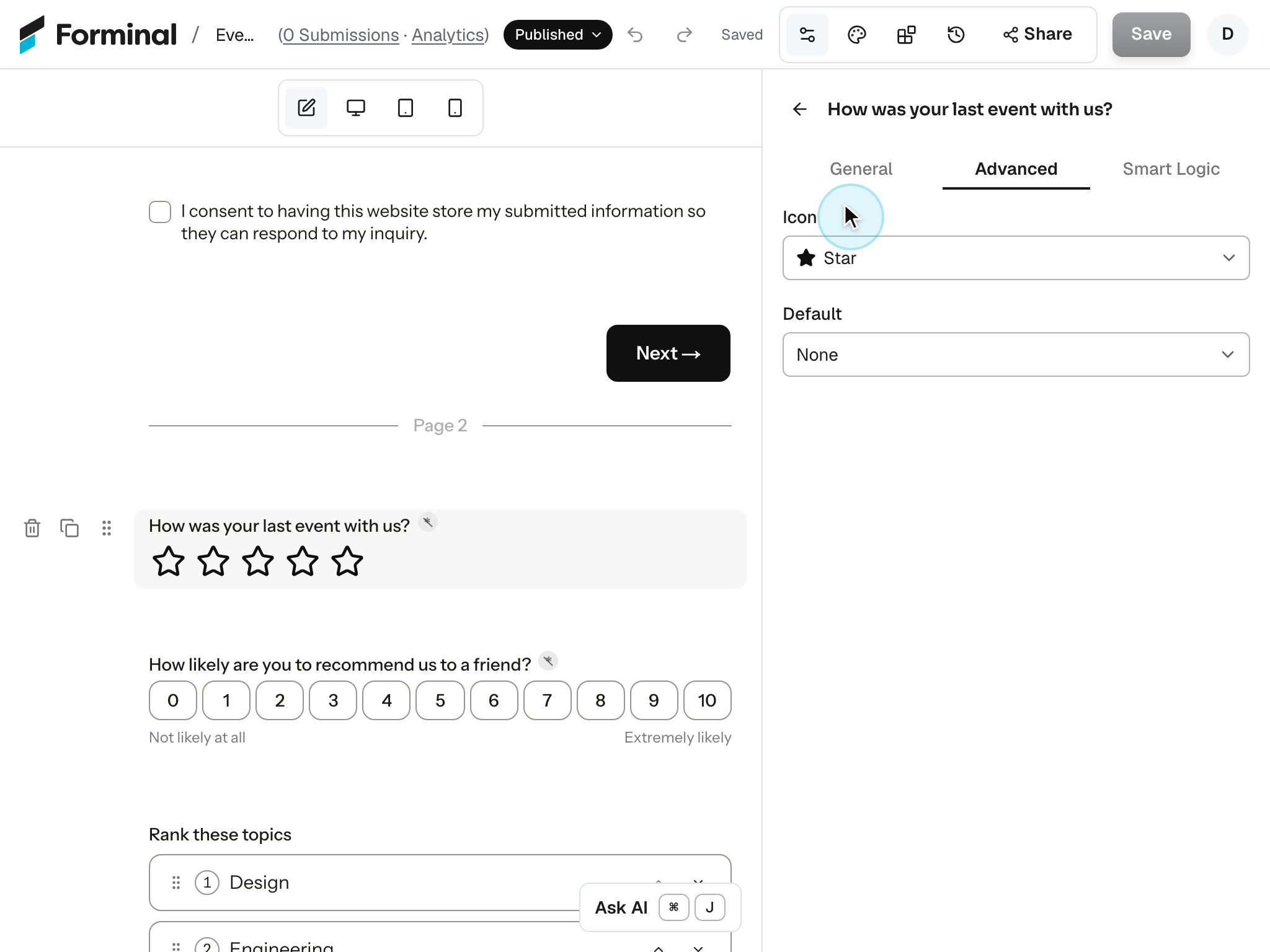
- On the Advanced tab, choose the Icon: Star, Heart, Thumbs up, Smile or Flame.
- Optionally set a Default score there, or click an icon on the canvas to set it.
Scale rules
From starts at 1 or higher and To can go up to 100, but the scale can have at most 10 steps, and the distance from From to To has to divide evenly by Step. So 1 to 10 by 1 works, and so does 10 to 100 by 10, but 1 to 20 by 1 doesn’t. If the numbers don’t fit, the builder says “Scale needs 1 to 10 steps”.
A scale that starts above 1 still draws the icons below it, greyed so they can’t be picked. A 3 to 5 scale shows five stars, and only the last three can be clicked.
What people see and how answers show
People click an icon, or use the arrow keys, to choose. On an optional field, clicking the chosen icon again clears the score. A required field left empty shows “Pick a rating”.
On the Submissions page, a rating shows the field’s whole scale in its own icon, filled up to the score, so a 4 on a 7-star field is seven stars with four filled. Hover over the icons, or move to them with the Tab key, to see the score, such as “4 of 7”. An opened submission shows the same icons with the score written beside them.
The CSV export, PDFs, notification emails and webhooks write the score as text, out of the top of the scale, for example “4 / 5”. In Smart Logic you can act on the score with is, is not, greater than and less than, or check whether it’s empty, so a low score can reveal a “What went wrong?” question.
Good to know
Rating has no labels under the icons. If you want words like “Not likely” and “Very likely” at the ends, use the Net Promoter Score field, which shows numbered buttons with labels.
If you change the scale after people have answered, a score the new scale doesn’t have shows as text on the Submissions page, for example “8 / 5”. So does a scale that starts high, such as 90 to 100, which would need too many icons to fit.
Frequently asked questions
Can I use hearts or thumbs up instead of stars?
Choose the Icon on the Advanced tab: Star, Heart, Thumbs up, Smile or Flame.
Can a rating scale go from 1 to 10?
Yes. A scale can have at most 10 steps, and the distance from From to To has to divide evenly by Step. So 1 to 10 by 1 works, and so does 10 to 100 by 10, but 1 to 20 by 1 doesn’t.
Can I add words like Poor and Excellent under the icons?
Rating has no labels. If you want words at the ends of the scale, use the Net Promoter Score field, which shows numbered buttons with labels.
Can a low rating show a follow-up question?
Use Smart Logic with less than on the score, so a low rating can reveal a question such as “What went wrong?”.
How does a rating appear in submissions?
On the Submissions page it shows as the field’s icons, filled up to the score. Hover over them, or open the submission, to read the score, such as “4 of 5”. The CSV export, PDFs and notification emails write it as text, for example “4 / 5”.