Attach a PDF of the answers to a notification email. The people who get it can read the whole submission without signing in to anything, which helps when they aren’t the ones who built the form.
Examples
- A quote request that goes to your sales team with the whole request attached.
- A booking email to the customer with a copy of what they entered.
- An application sent to a hiring manager who files each one as a PDF.
Turn it on
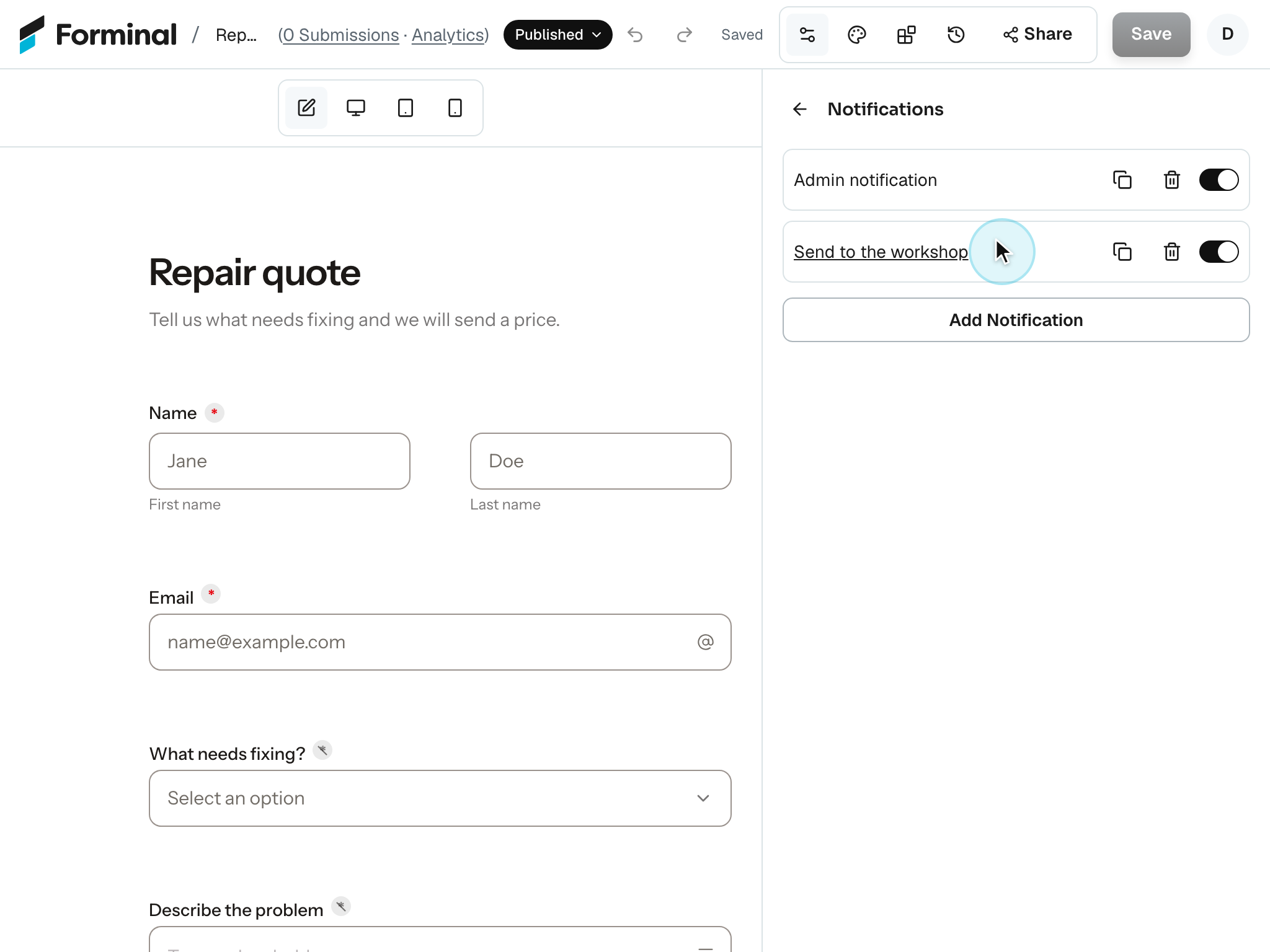
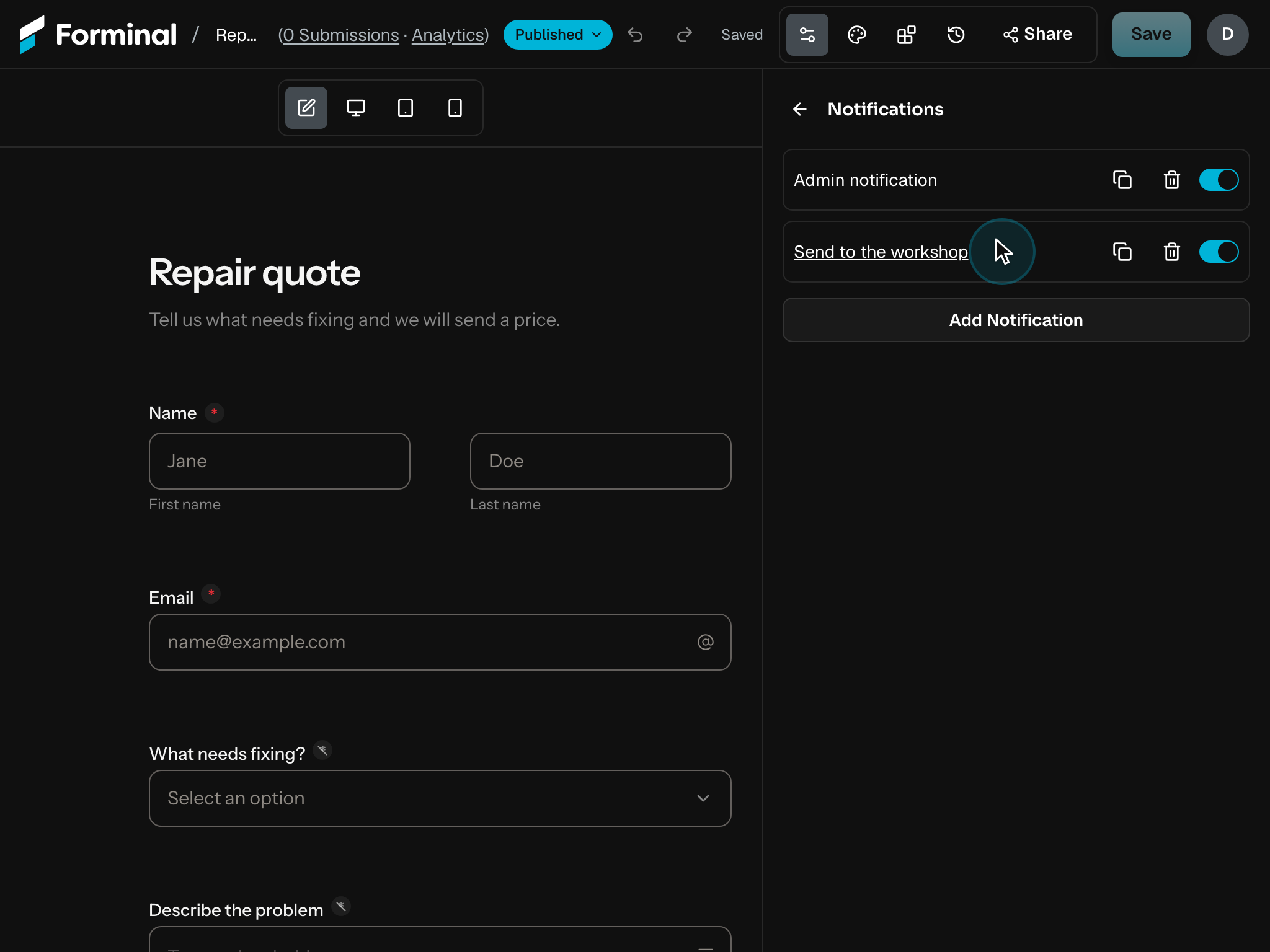
- Open the form in the builder, select Form Settings in the top bar, then select Notifications.
- Open the notification you want by selecting its name, or select Add Notification.
- Switch on Attach PDF with Answers, under the message.
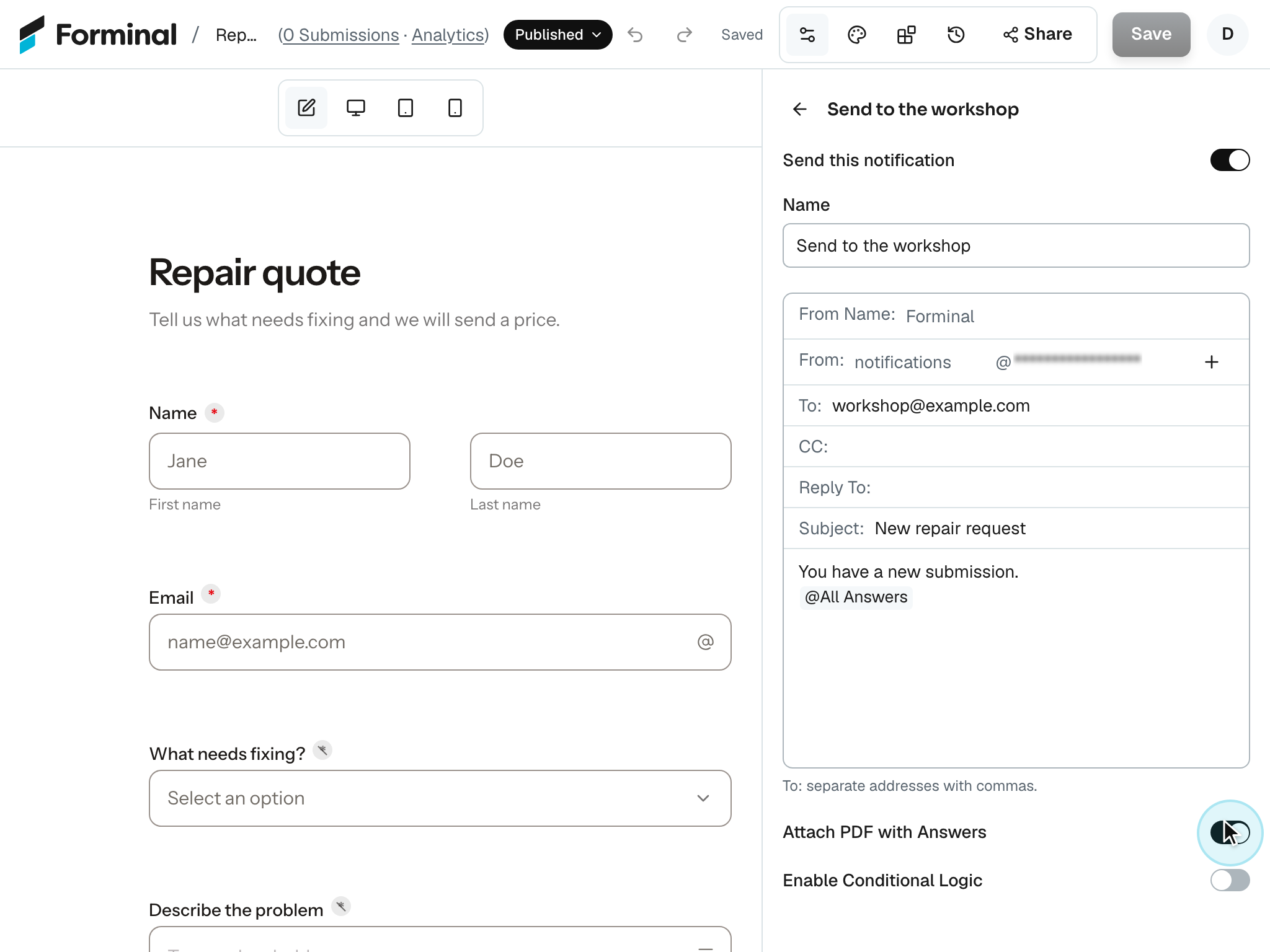
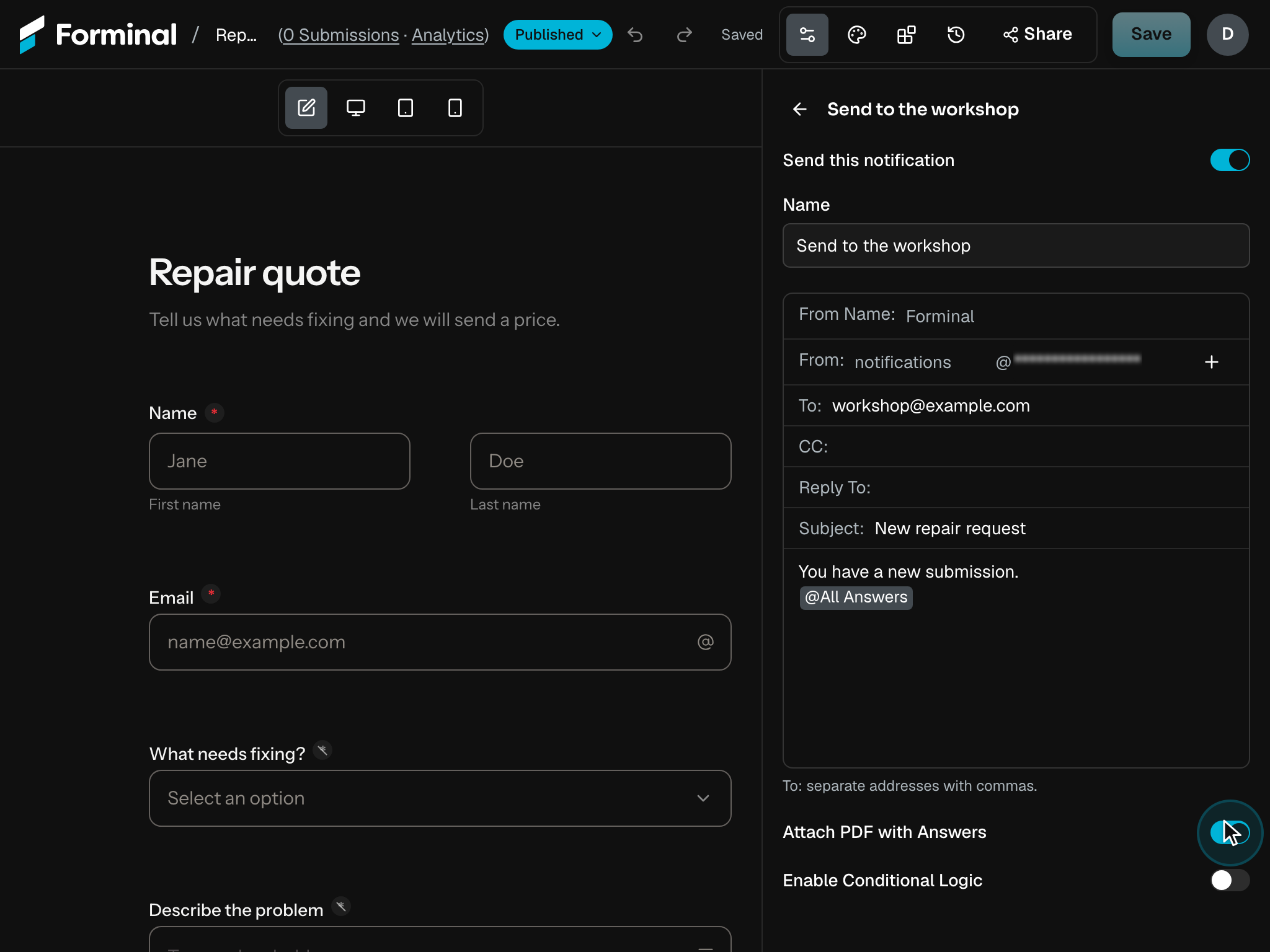
The switch belongs to one notification, so one email can carry the PDF while another goes out without it. The notification still has to be switched on and its conditions met, like any other.
What people receive
The PDF is the same file you get from Download PDF on the Submissions page, in your form’s colors and font. It is named after the form title and the date and time of the submission, for example “Contact 2026-10-13 14-05.pdf”. It lists each answered question with its answer, uploaded files as links to your media library or Google Drive, and the payment on a payment form. Unanswered questions are left out, and the time is in UTC. Each page ends with “Submission” and its ID, then “Page 1 of 2”. The file is made once for each submission, even when several notifications attach it.
Good to know
Attaching a PDF is a Pro feature. On a plan without it, the switch shows a PRO badge and a note reads “On your plan the email goes out without the PDF.” The email is still sent, only the file is missing.
If the PDF can’t be made, the email still goes out without it, because the notification matters more than the file. To save a PDF yourself on any plan, see PDF Downloads.
Frequently asked questions
Which plans can attach a PDF to notification emails?
Attaching a PDF is a Pro feature, and Business includes everything in Pro. On Lite the notification still goes out, just without the PDF. See plans and upgrades.
Can I send the PDF to the person who filled in the form?
Yes. Address a notification to the answer of the form’s Email field and switch on Attach PDF with Answers for that notification. The switch belongs to one notification, so the email to your team can go out with or without it.
Are uploaded files attached to the email too?
The PDF is the only attachment, and uploaded files appear in it as links. A link to your media library opens for someone signed in with access to the form’s submissions; a Google Drive link opens in your Drive.
What happens if the PDF can’t be made?
The notification email still goes out, without the file.
Is the attached PDF different from the one I download?
It’s the same file you get from Download PDF on the Submissions page, in your form’s colors and font. You can download that one on any plan, see PDF Downloads.