Your media library keeps the files and signatures people send through your forms, one folder per form, so you can look at them, download them and delete them. It also holds the images and embeds you add to your forms. Open it from Account menu » Media.
Examples
- A job application form whose CVs you read and download from the form’s folder.
- A photo contest where you preview each entry before you pick a winner.
- An expense form whose receipts you delete once the claims are paid.
What the media library holds
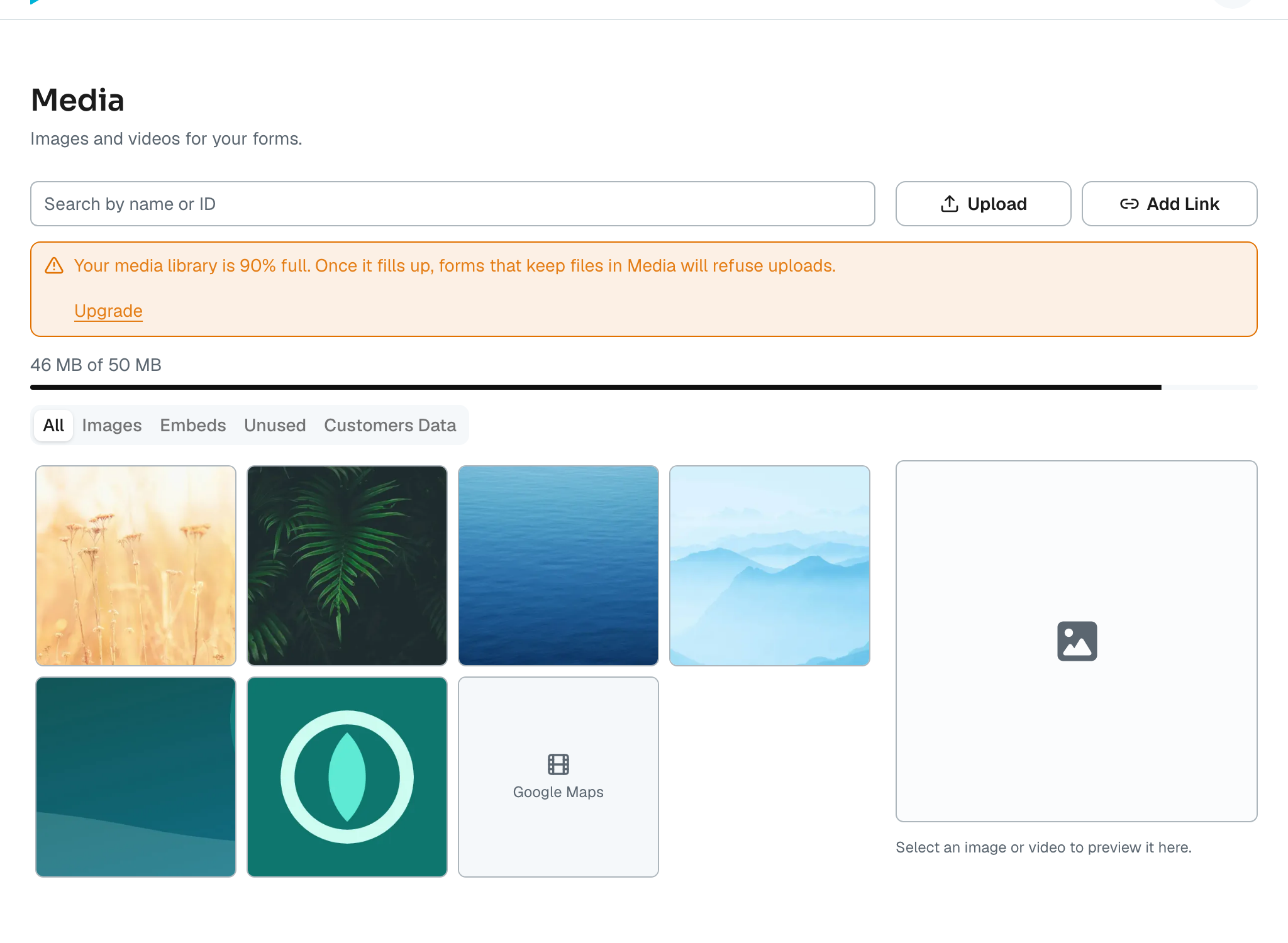
The All, Images, Embeds and Unused tabs list what you add to your forms: logos and covers, card photos, option images, pictures in Content blocks, and the videos and other links you embed. Add an image with Upload, or a link with Add Link. Each image can be up to 2 MB, or 5 MB on Business.
The Customers Data tab lists the files people send through File Upload and Signature fields on forms that save their files to Media. You don’t set anything up: Save Files To starts on Media, so a file field keeps its files here as soon as the form is published.
Find the files people send
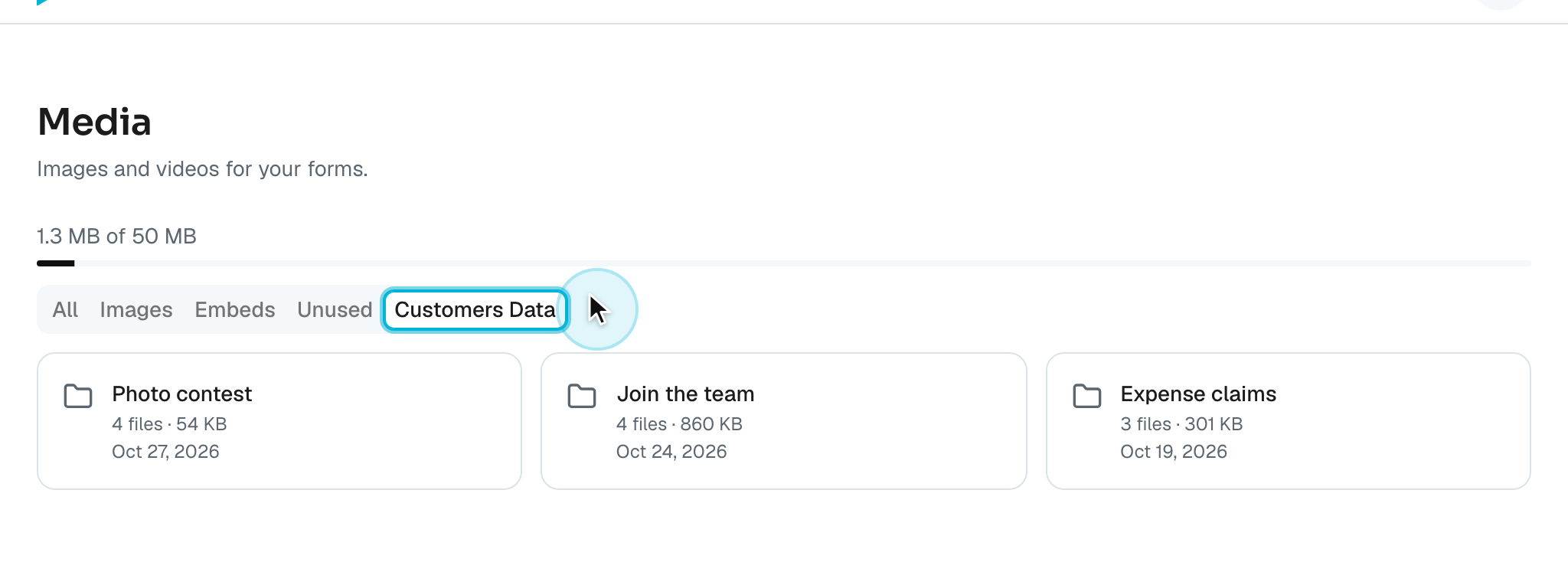
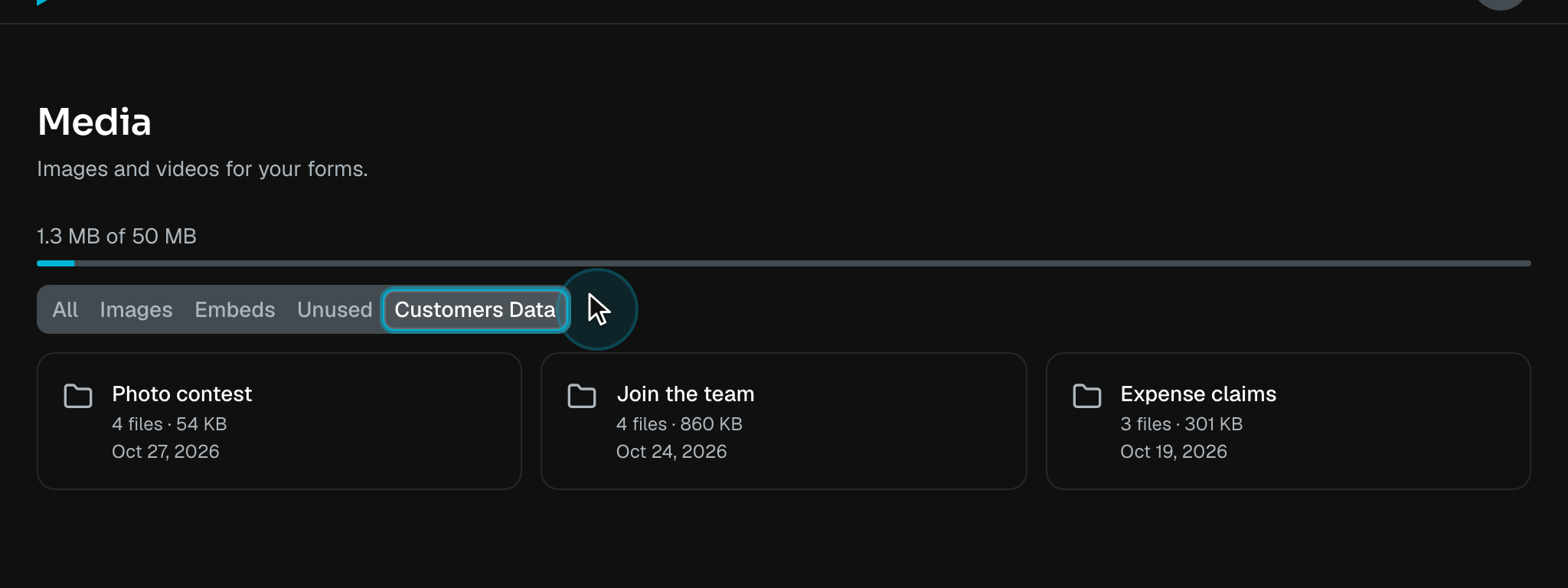
- Open Account menu » Media and select the Customers Data tab. Each form with files has a folder, named after the form’s current title, with its number of files, their total size and the date of the newest one. Before anyone sends a file, the tab reads “No files yet. Files people send through your forms appear here, one folder per form.”
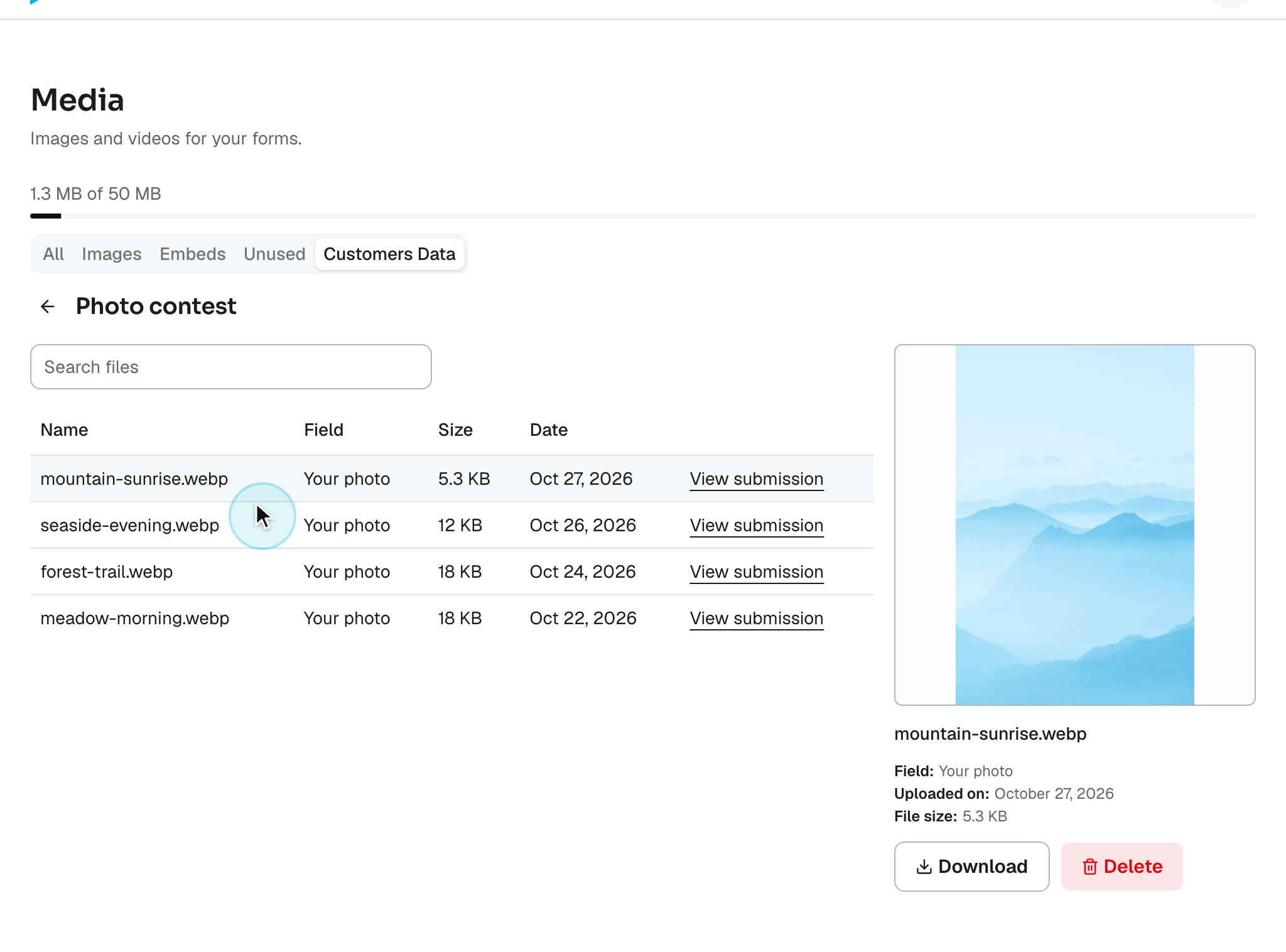
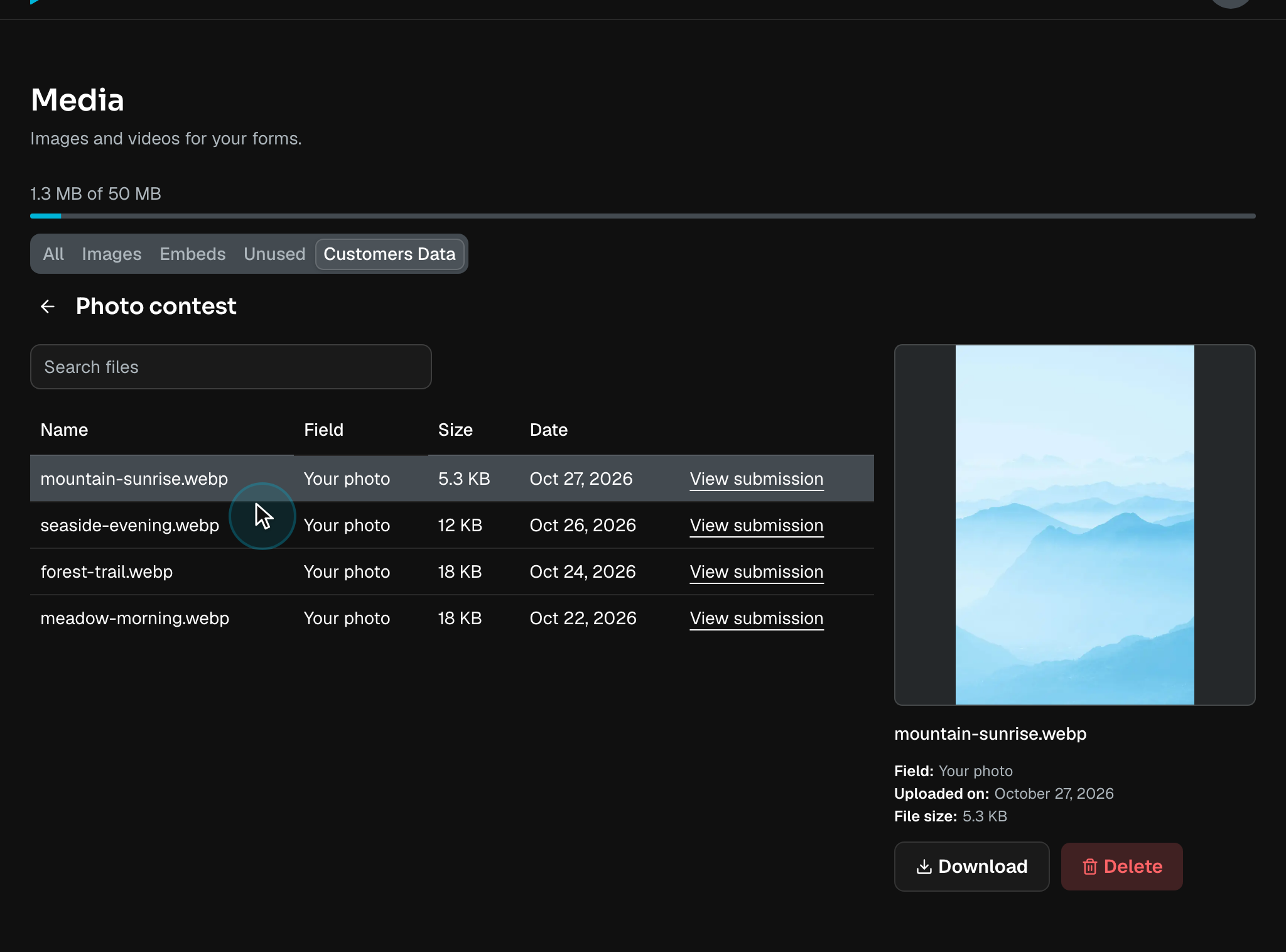
- Select a folder. It lists the files with their name, the field they were sent through, their size and date, newest first. Type in Search files to find one by name, and select Load More to see older files. A file sent with a submission marked as spam carries a Spam badge.
- Select a file to see it beside the list. Images (png, jpeg, gif and webp) show a preview and other files an icon, with the field, the upload date and the size under it. Select Download to save the file, or View submission to open the answers it came with.
The same files are linked from the form’s Submissions page, and from the CSV export, notification emails, PDFs, webhooks and the REST API. Those links open only for someone signed in with access to the form’s submissions, or with an API key.
Google Sheets, Zapier and Make get the same links.
Delete a file
- In the form’s folder, select the file and then Delete.
- Confirm with Delete. The dialog warns that this also removes the file from the submission.
The rest of the submission stays. Deleting a submission or a form deletes its files too, and so does Data Retention when it removes old submissions.
Storage and limits
Images and the files people send share one storage space: 50 MB on Lite, 250 MB on Pro and 1 GB on Business. The bar above the tabs shows how much you’ve used. Files from an unfinished partial submission count, but they’re listed only once the submission is complete.
Files sent to a Google Drive folder don’t count toward it.
When the library is almost full
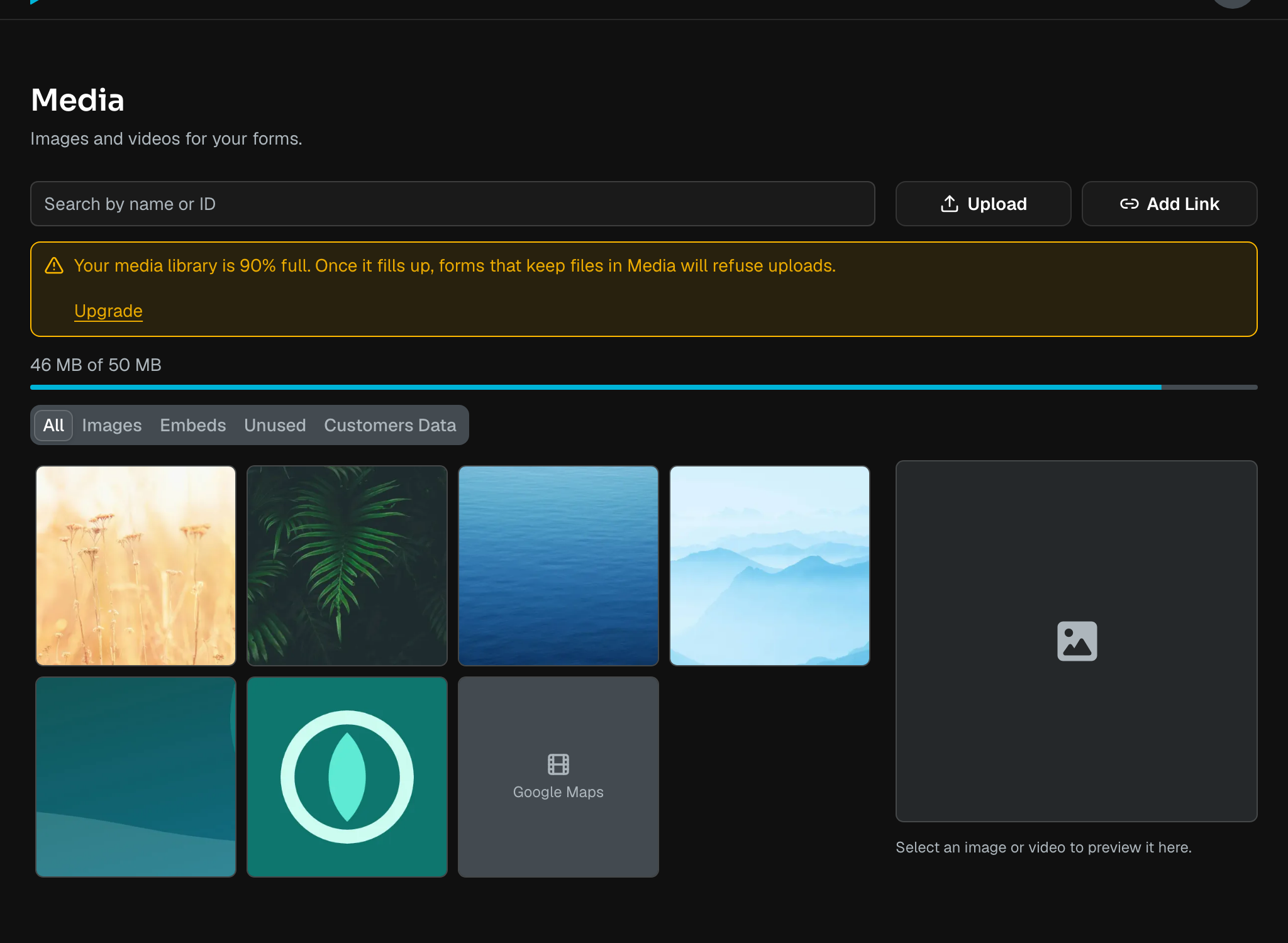
At 90% you see a warning on the Media page, and above the submissions of each form that keeps files in Media: “Your media library is 90% full. Once it fills up, forms that keep files in Media will refuse uploads.” When a higher plan has more room, the notice includes an Upgrade link.
When the library is full
Forms that keep files in Media stop taking them. People filling in the form see “This form can’t take files right now.” when they add a file. You get one email about it, not one for every refused upload. Delete files you no longer need, or upgrade, and uploads start again.
Forms that send files to Google Drive keep working.
Teammates in a workspace
In a workspace, a member with Submissions set to Viewer sees that workspace’s Customers Data on their own Media page, for the forms whose submissions they can read. A member with Forms set to Editor sees the workspace’s images. Members can preview and download files, but only you, the owner, can delete them.
Send files to Google Drive instead
To keep a form’s files in your own Drive, open a File Upload or Signature field’s settings and, under Folder, set Save Files To to Google Drive, then pick a folder; see Google Drive. While it’s on Media, the setting says “Files are saved in Media, in this form’s folder under Customers Data.” You can switch back to Media at any time. The Drive folder stays saved, and files still waiting to be copied to Drive come to Media. If you turn the folder off, new files come to Media until you turn it back on. Files already in Drive stay there.
Good to know
- Files kept in Forminal are encrypted on our servers, and they stay until you delete the file, its submission or its form.
- A folder takes the form’s current title, so renaming the form renames its folder.
- A form made without an account can’t collect files. Its file fields are left off the published form until the form is in your account.
- Each file can be up to 10 MB. The type, size and count limits of each field are set in its settings; see File Upload.
Frequently asked questions
Where are uploaded files stored?
In your media library, encrypted on Forminal’s servers, when the form’s Save Files To is set to Media. Open Media » Customers Data to find them in a folder named after the form.
How much storage do I get?
50 MB on Lite, 250 MB on Pro and 1 GB on Business, shared by your form images and the files people send.
What happens when my media library is full?
Forms that keep files in Media stop taking them, and people see “This form can’t take files right now.” You get an email and a notice on the Media page. Delete files or upgrade to start uploads again.
Can teammates see uploaded files?
Yes, a workspace member with Submissions set to Viewer sees the workspace’s files on their own Media page and can download them. Only the owner can delete a file.
Does deleting a file remove it from the submission?
Yes. The file is gone from the submission’s answer too, and the rest of the submission stays. There’s no undo.
Can I send files to Google Drive instead?
Yes. In a File Upload or Signature field’s settings, set Save Files To to Google Drive and pick a folder. That form’s new files then go to your Drive instead of Media. See Google Drive.