A card puts your form on a panel of its own, with its own background color or photo, padding, rounded corners, a shadow and a border. The page around the card keeps your Page Background color. Cards work on every plan.
Examples
- A white card with rounded corners and a soft shadow on a light gray page.
- An event sign-up form on a landscape photo, with see-through inputs that let the photo show through.
- A contact form framed by a thin border in your brand color.
Put a form on a card
- Open the form in the builder and select Customize in the top bar.
- Scroll past the logo and cover settings and turn on Card. The card settings open under the switch.
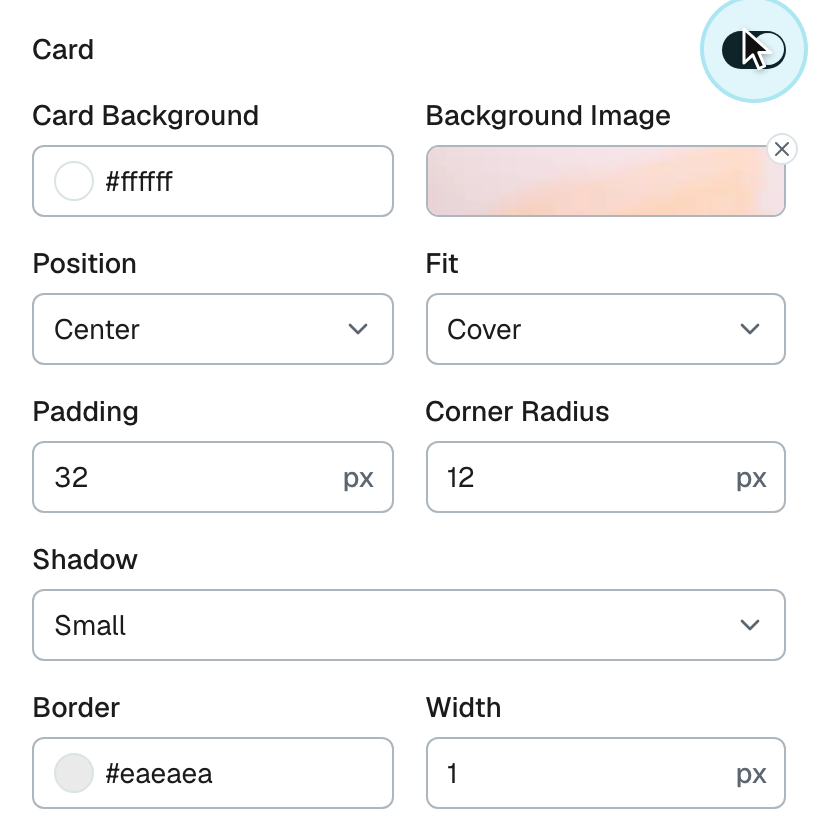
- Set Card Background, and change the Padding, Corner Radius, Shadow and Border as you like. The canvas shows each change right away.
A new card starts with a see-through background, square corners, no shadow and no border, so you don’t see its edges yet. It does add 40 px of padding, so the form gets 40 px of extra space on every side. To take the card away, turn Card off.
Nine of the themes come with a card already set up: Compact, Studio, Tonal, Enterprise, Tint, Pill, Sage, Terminal and Brutal. Picking one of them turns the card on for you, with the theme’s own color, corners and border in its light and dark look, and you can change any card setting afterwards, or add a photo.
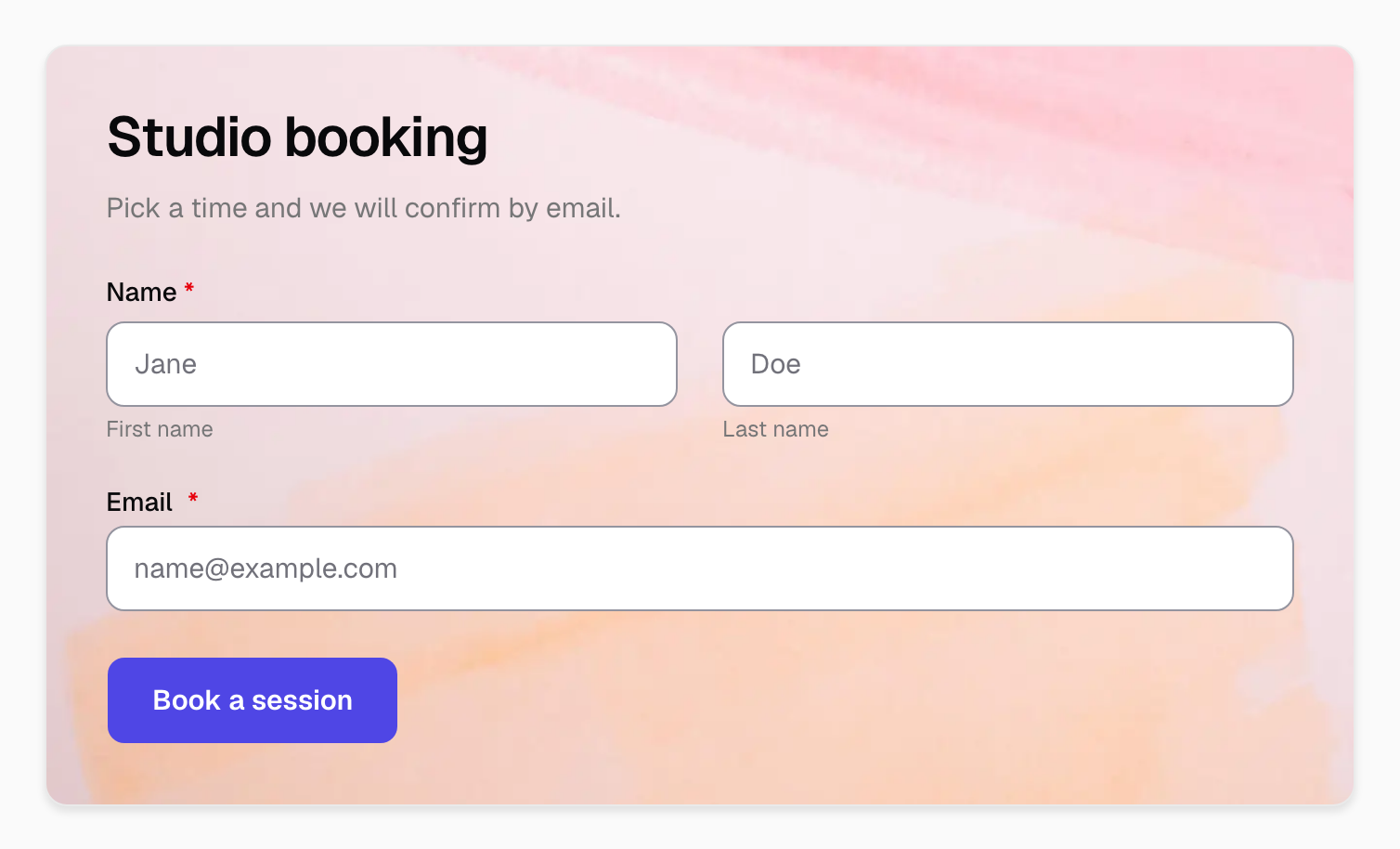
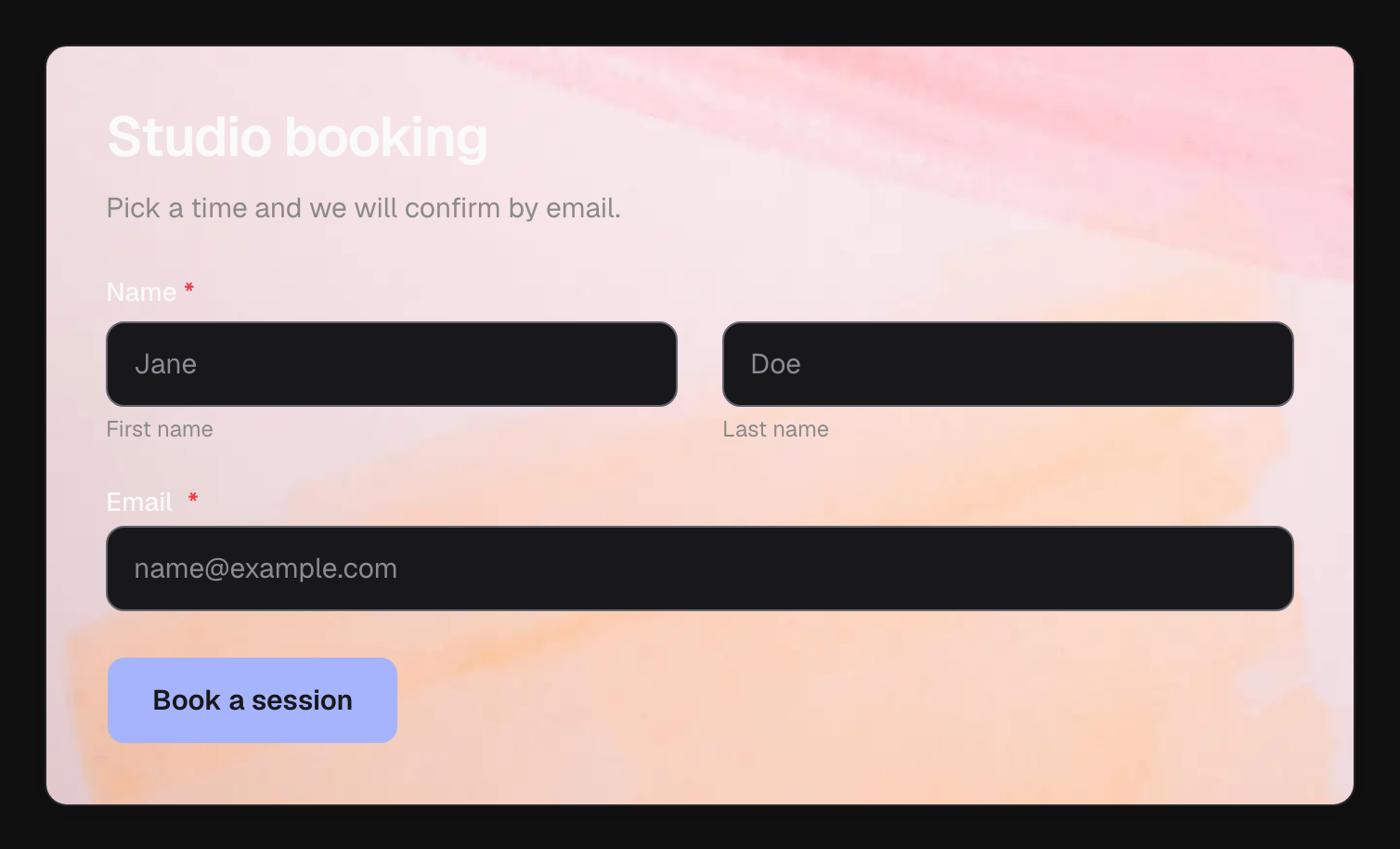
Add a background photo
- With Card on, select the box under Background Image. The Card Image dialog opens with 52 photos.
- Select a photo to use it. To use your own picture instead, select Upload Your Own. That opens your media library, where you pick an image, or upload one with Upload, and then select Use.
- Choose where the photo sits with Position, and how it fills the card with Fit.
To change the photo, select its thumbnail and pick another one. To remove it, select the small cross on the corner of the thumbnail. The card stays, with its background color.
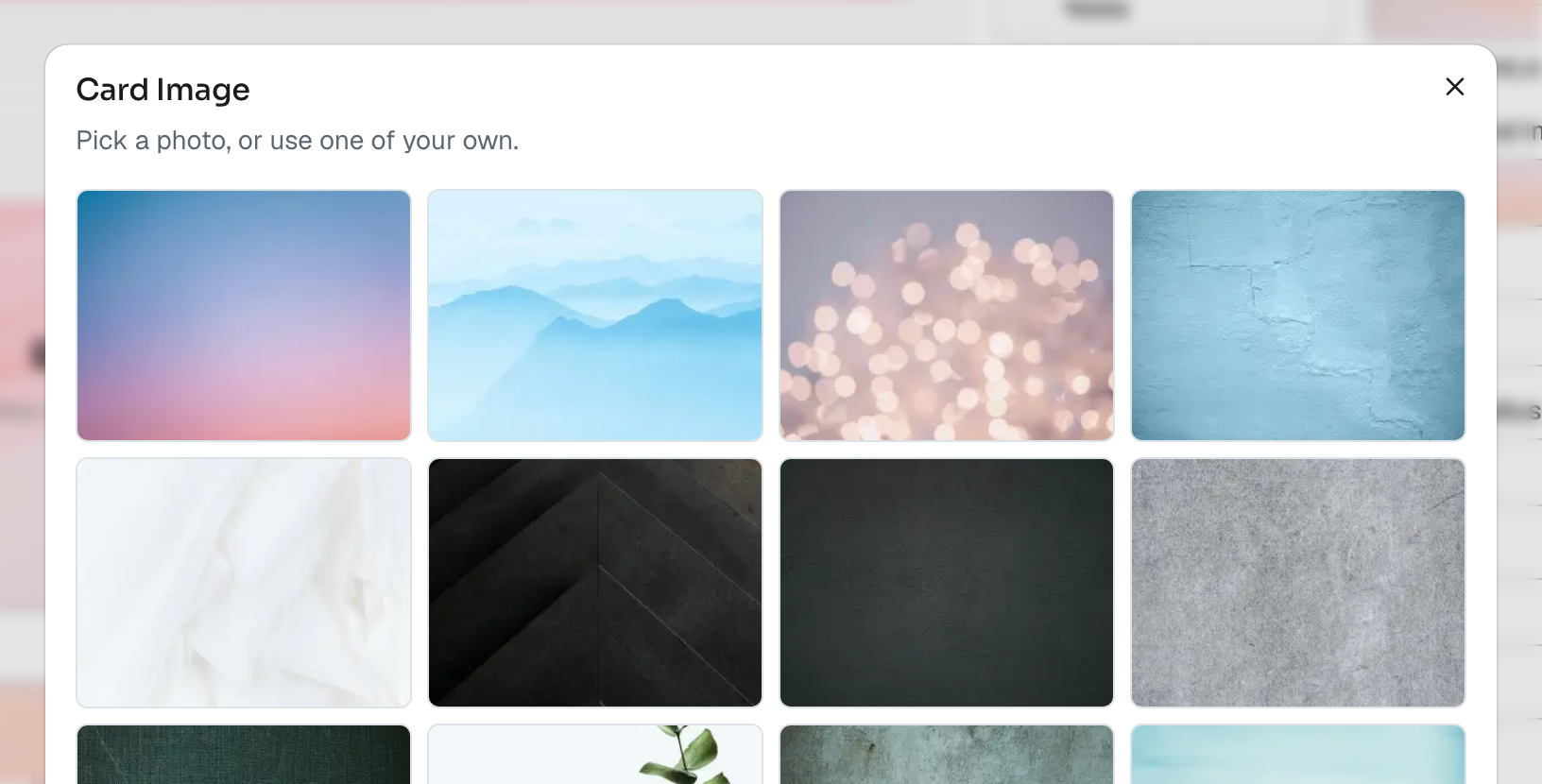
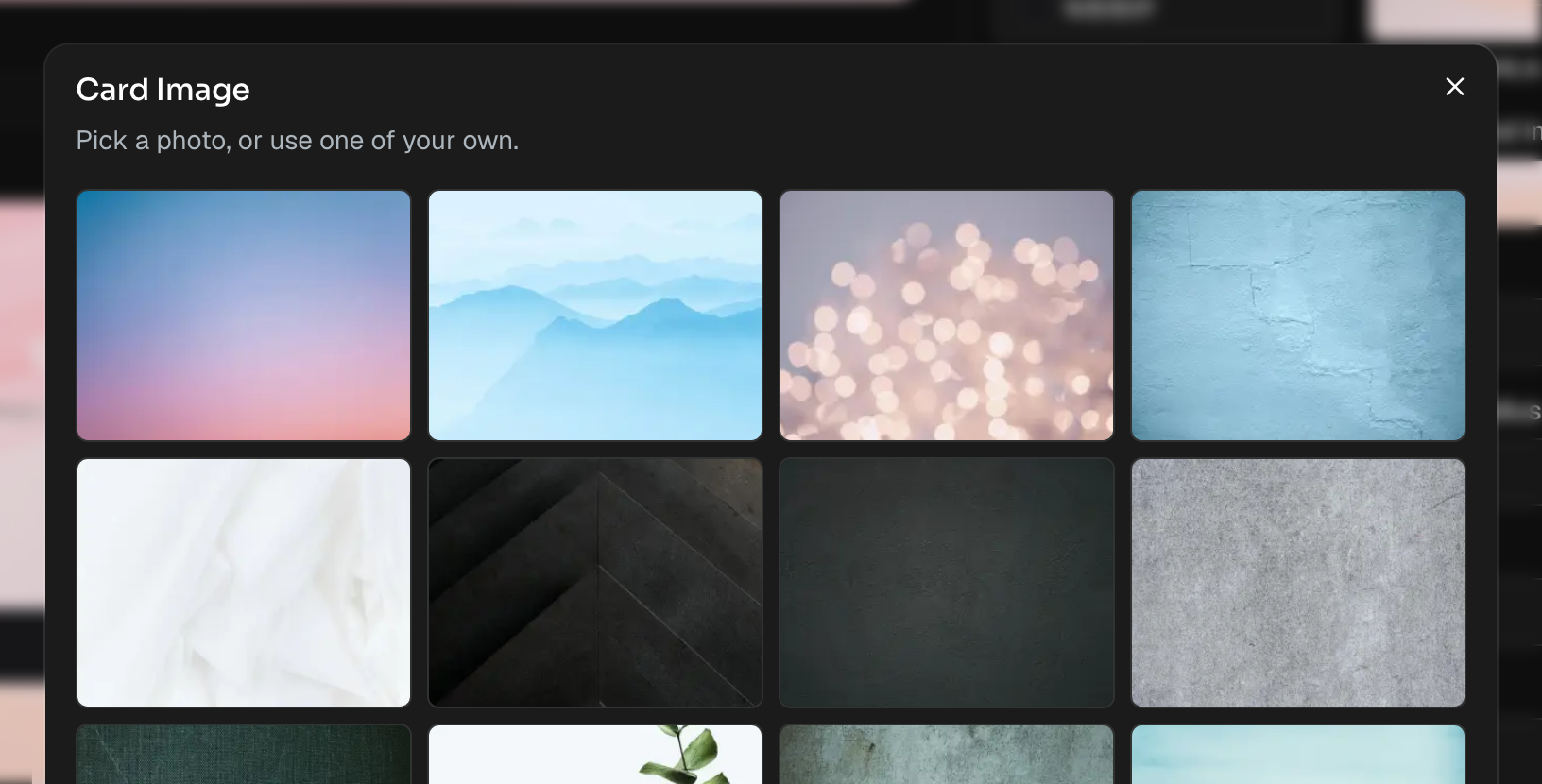
Card settings
- Card Background: the color of the card. Type an eight-digit hex code for a see-through color, such as
#ffffffccfor white at 80%. With a photo, the color sits under it. It shows through the see-through parts of an image, and while the photo loads. - Background Image: a photo drawn inside the card, under its border and clipped to its corners.
- Position: which part of the photo stays in view. Center (the default), Top, Bottom, Left, Right, Top left, Top right, Bottom left or Bottom right.
- Fit: Cover (the default) scales the photo to fill the whole card and crops what doesn’t fit. Tile keeps the photo at its own size and repeats it, which suits a pattern.
- Padding: the space between the card’s edge and the form, from 0 to 80 px.
- Corner Radius: how round the corners are, from 0 (square) to 60 px.
- Shadow: None, Small, Medium or Large.
- Border and Width: the color and thickness of the line around the card, from 0 to 12 px.
Position and Fit stay grayed out until the card has a photo. A number outside its range turns the box red, shows the range and isn’t saved.
Where the card shows
The card shows everywhere people see the form: on the form’s own link, in an embed on your site, including popups, on the password screen of a password-protected form, on the screen a visitor from a blocked country sees, and on the page people come back to after paying. In the builder it shows on the canvas and in the Desktop, Tablet and Mobile previews. Your Logo and Cover sit above the card, outside it, and the “Made by Forminal” line, when the form shows it, sits centered below the card.
With Transparent Background on in Customize, an inline or full-page embed clears only the page color around the card. The card keeps its own color and photo.
Good to know
- On the form’s own link, its password and blocked-country screens and the page after a payment, the card adds its padding and border around the form, so the fields keep the width they had without a card. In an inline embed or a popup, the frame on your site stays the same width, so the fields get narrower by the padding and border on each side.
- When the form is narrow, as on a phone, the padding shrinks to at most 20 px so the fields keep enough room.
- The 52 stock photos are stored on Forminal’s own servers, so a visitor’s browser doesn’t load them from another site. They work on a custom domain too. If you add an image to your media library as a link to another site, the card loads that image from that site.
- An image you upload for the card goes into your media library, like the logo and cover: up to 2 MB per image, or 5 MB on Business, within your library’s storage. On a form made without an account, it counts toward the form’s 30 images and 15 MB.
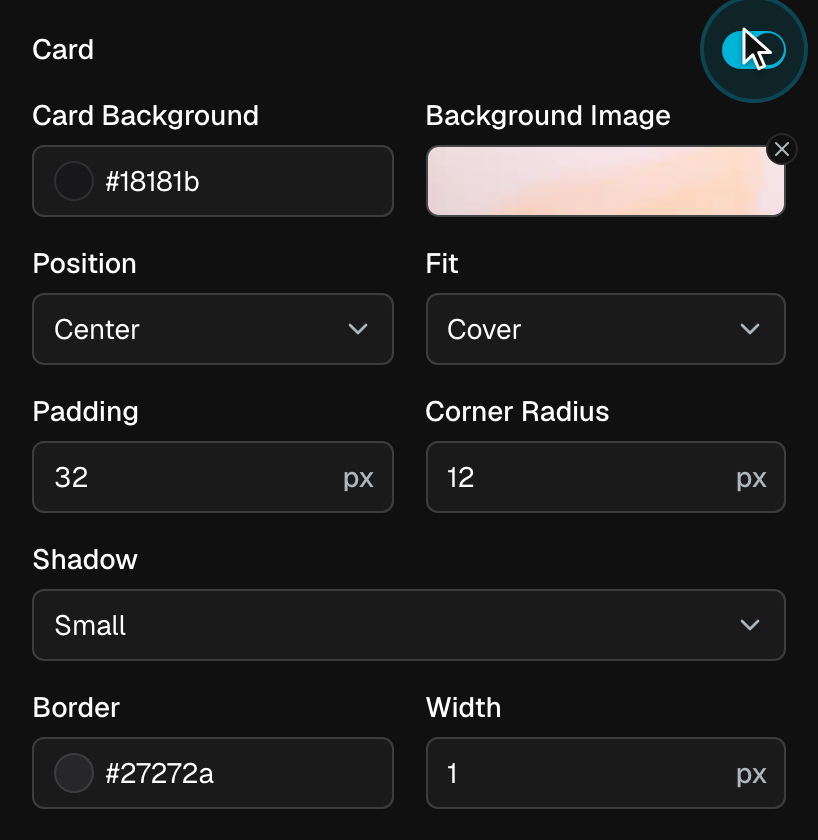
- The card has a dark look too. With Appearance on Auto and the Editing switch on Dark, the Card Background, Border color and photo you change apply to the dark look only. Padding, corners and shadow are shared by both looks.
- Picking a theme replaces the card with the theme’s own, and a theme without a card, such as Default, turns it off. Select Undo in the top bar to get your card back.
- Reset Styles at the bottom of the Customize panel removes the card.
- If you delete your uploaded image from the media library, the card loses its photo and keeps its color. The same happens when you import a form file that doesn’t include the image. A stock photo is kept.
- The card isn’t drawn on the PDF of a submission.
- The AI Assistant can add a card, change its settings and pick one of the 52 photos. It can’t put an uploaded image on the card, but it can move or refit one the card already has.
Frequently asked questions
Can I put a background image behind my form?
Yes. Turn on Card in the Customize panel, then pick one of 52 photos under Background Image or upload your own. The photo fills the card the form sits on, and the page around it keeps your Page Background color.
Do I need a paid plan for the card and background photos?
No. The card, its settings and the photos work on every plan, and the published form shows them as you set them.
Does the card show when the form is embedded?
It does, in an inline embed and in a popup. If you turn on Transparent Background in Customize, an inline or full-page embed clears only the page color around the card, and the card keeps its color and photo.
Why is the padding smaller on my phone?
When the form is narrow, the card’s padding shrinks to at most 20 px, so the fields keep enough room on a small screen.
Do the stock photos load from another website?
No. The 52 stock photos are stored on Forminal’s own servers, so a visitor’s browser doesn’t contact another site to show them. An image you added to your media library as a link loads from the site it links to.
Why did my card change when I picked a theme?
A theme sets the card too. It replaces your card with its own, or turns the card off if it has none, as Default does. Select Undo once to get your previous look back.
Can the card look different in dark mode?
Yes. With Appearance on Auto, set the Editing switch to Dark and change the Card Background, the Border color or the photo. Those changes show only to visitors whose device is set to dark mode. A dark-only photo needs a photo in the light look first: without one, the photo you add shows in both looks.