Date gives people a calendar to pick from, so every answer arrives as a real date in the format you choose. You decide which days can be picked: block the past or the future, block weekdays, set a range, or list the only dates allowed.
Examples
- A booking form that blocks past dates and weekends.
- A date of birth question with future dates blocked.
- An open day sign-up that offers only the three dates the event runs.
Add it to a form
- In the builder, point between two fields and select Add Field. On an empty form, select Start from Scratch.
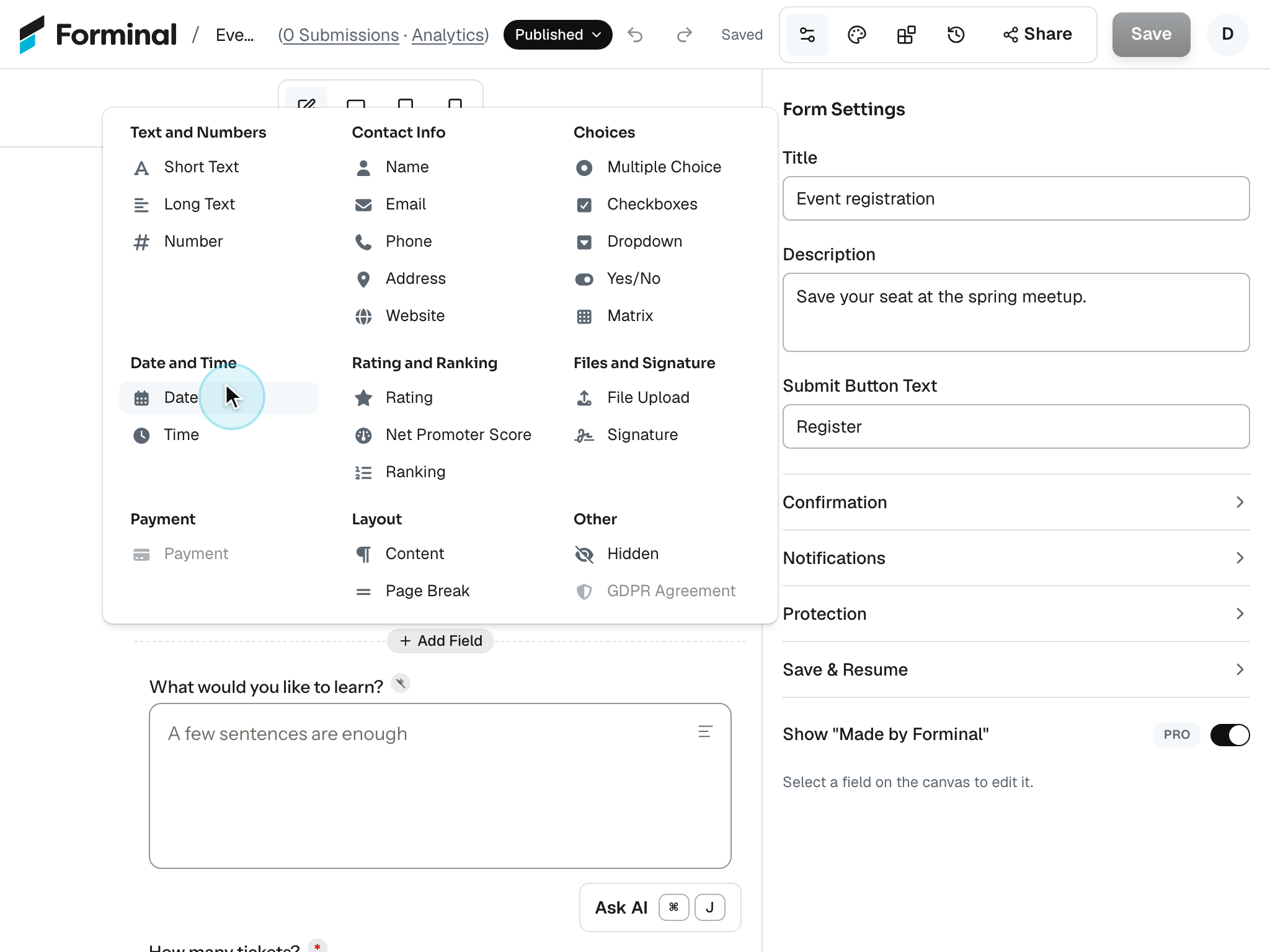
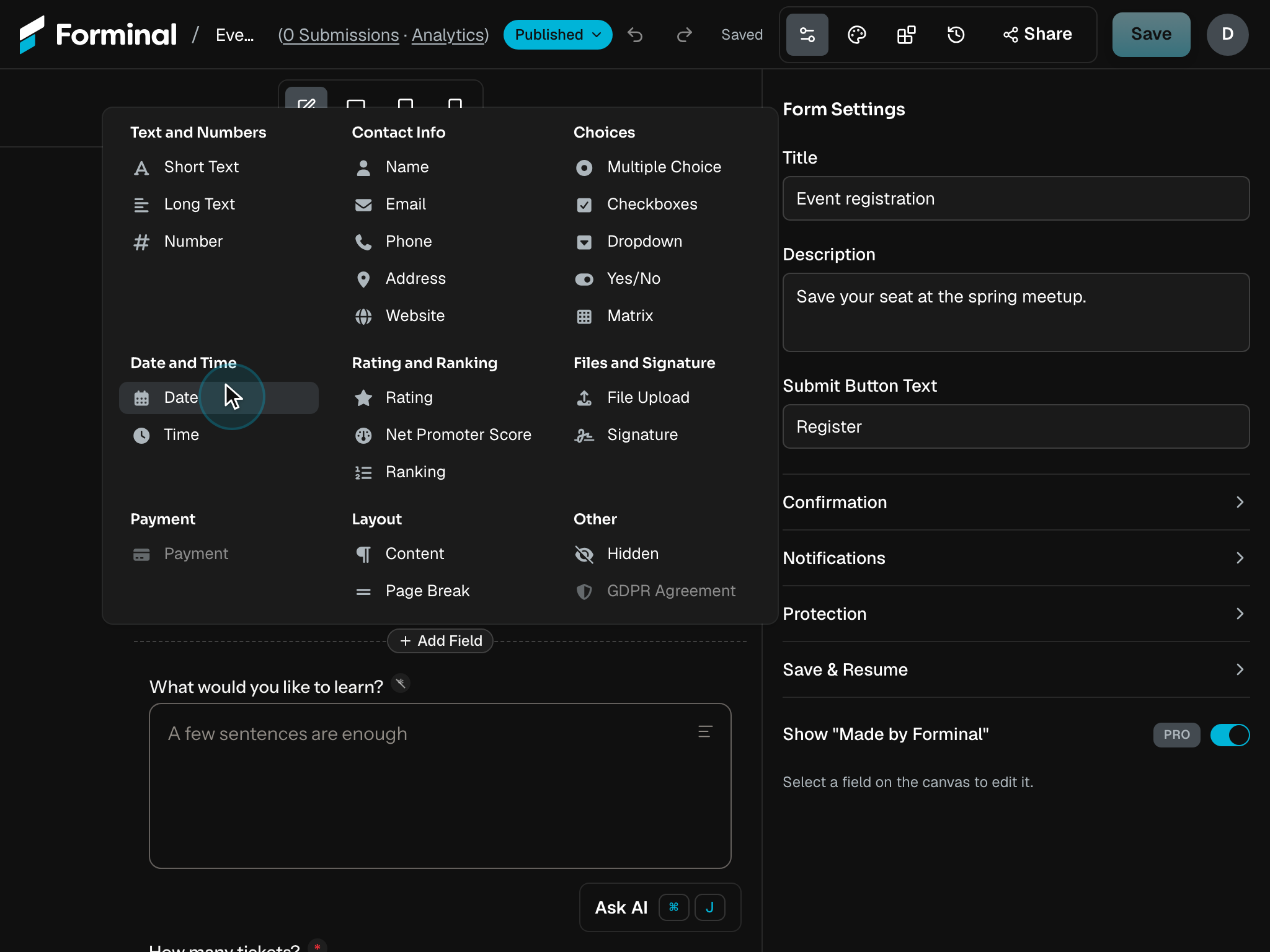
- Under Date and Time, select Date.
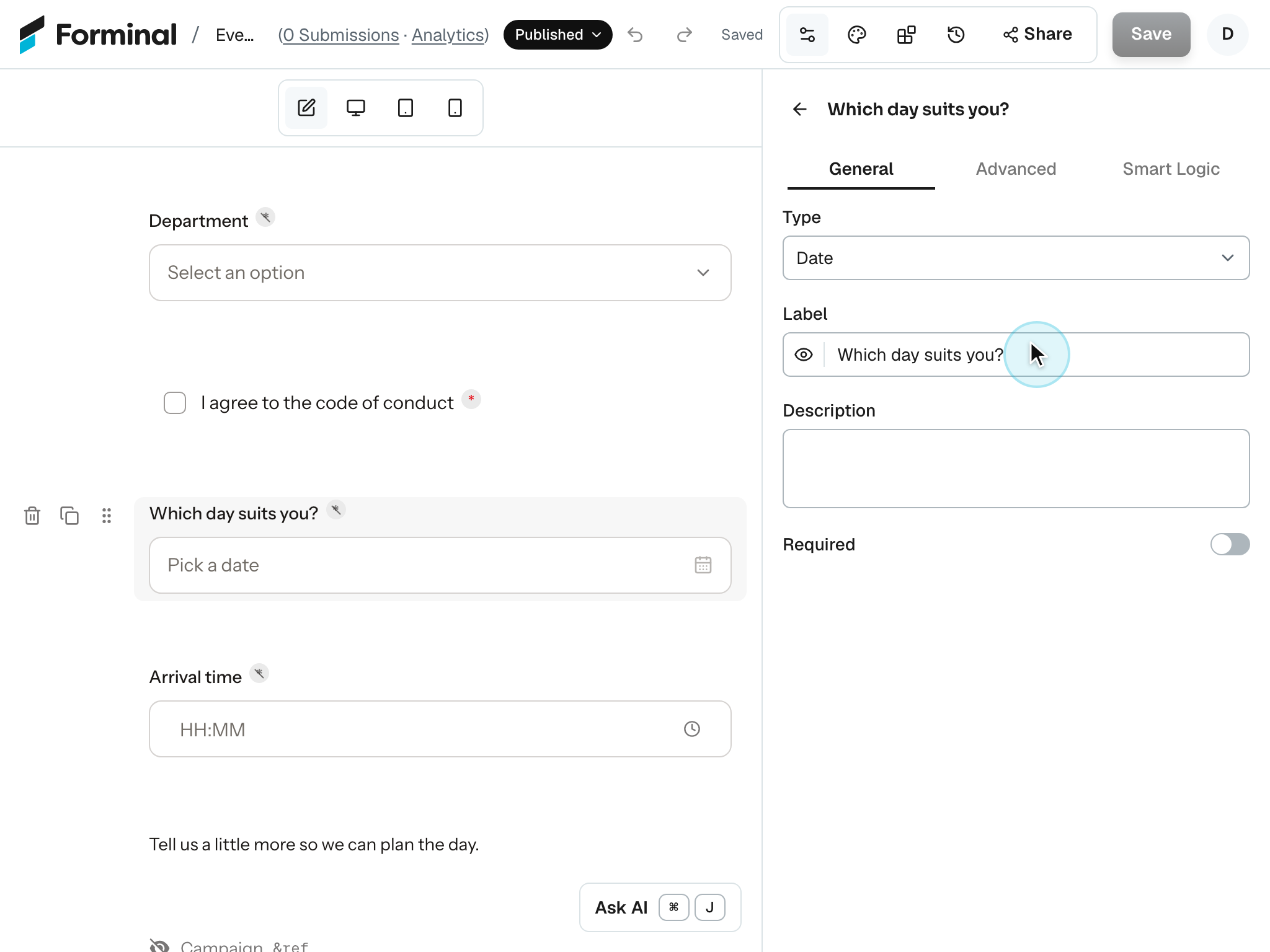
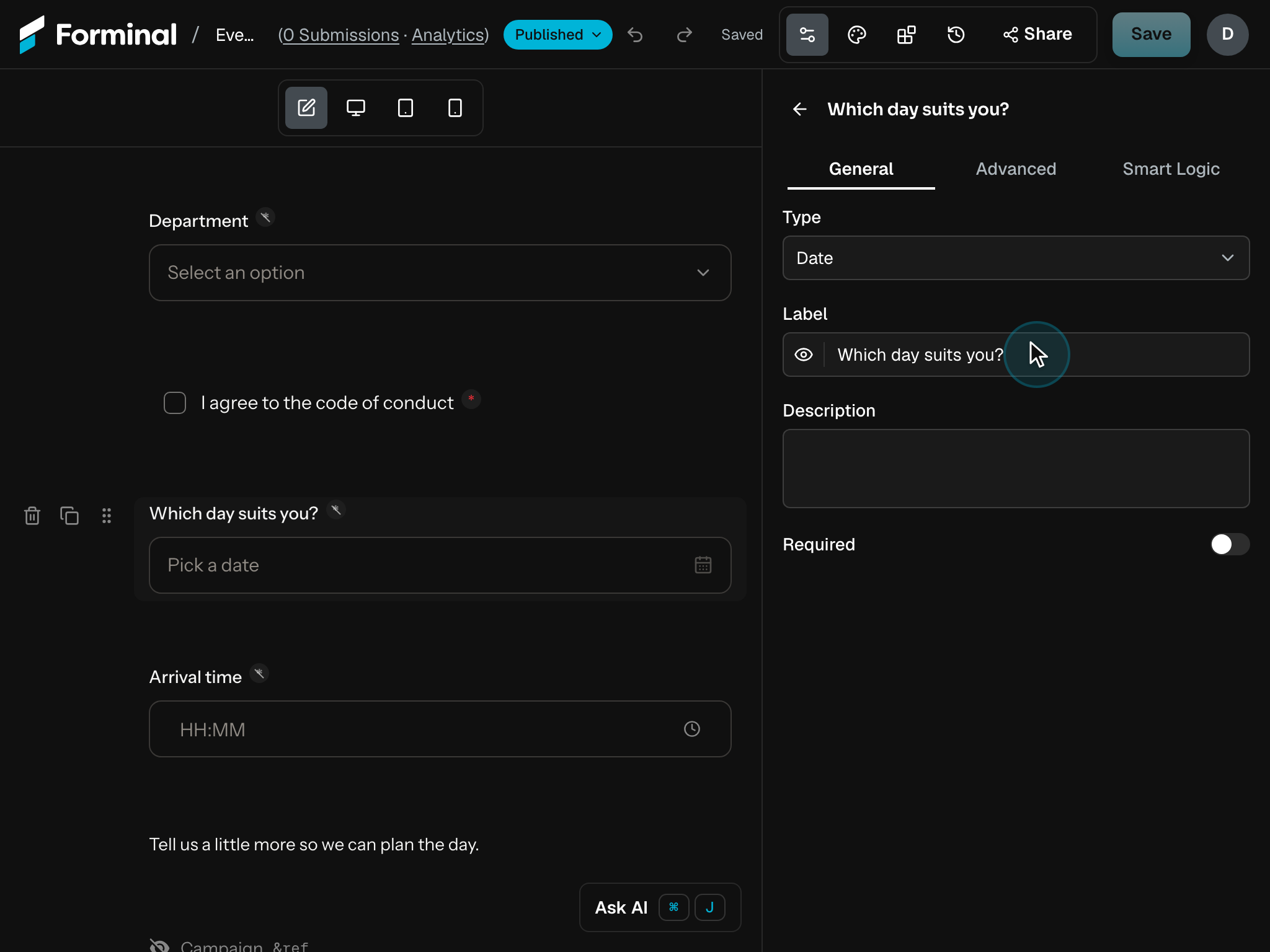
- Change the label (it starts as “Date”), add a Description if needed, and turn on Required if an answer is needed.
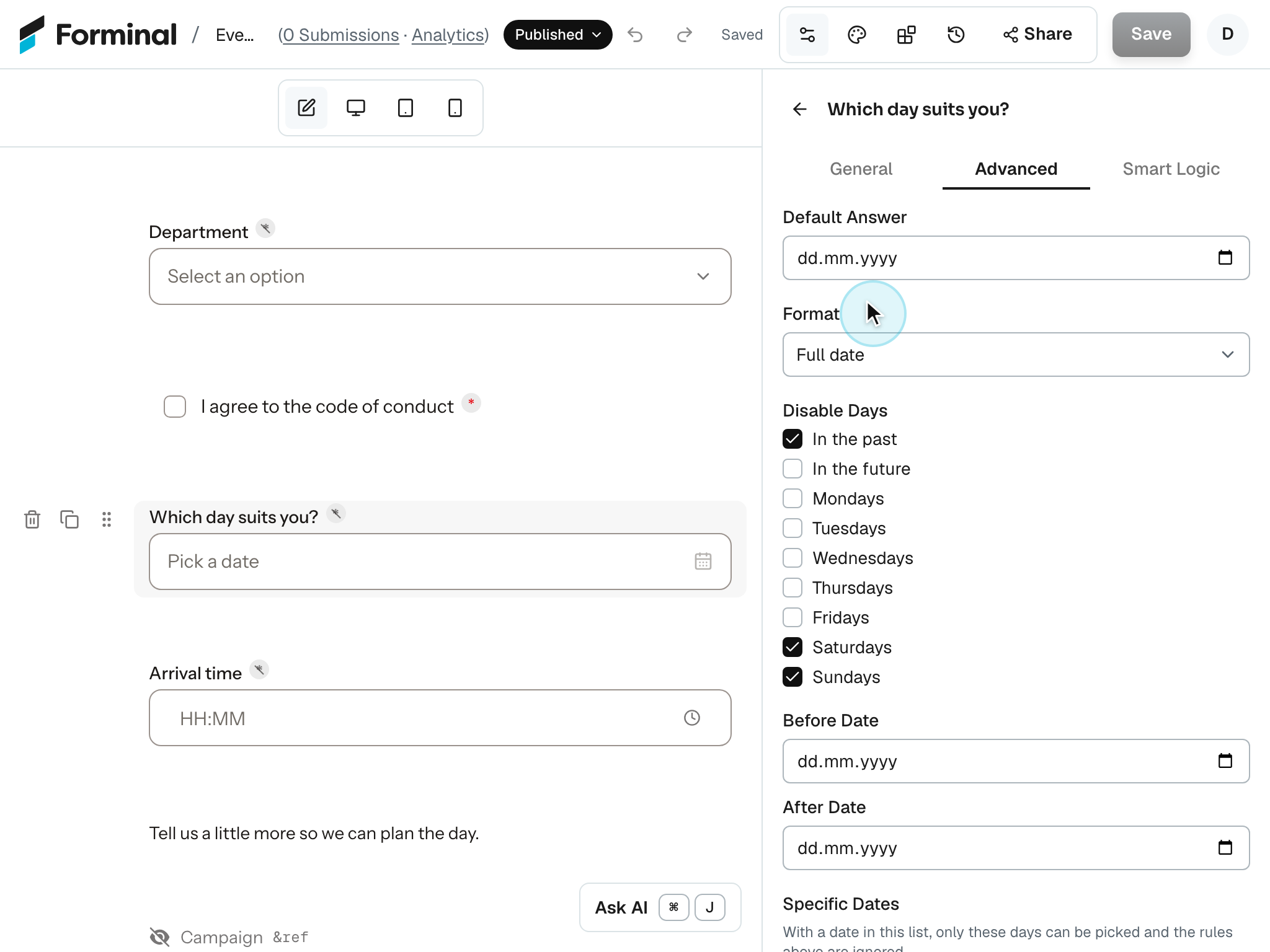
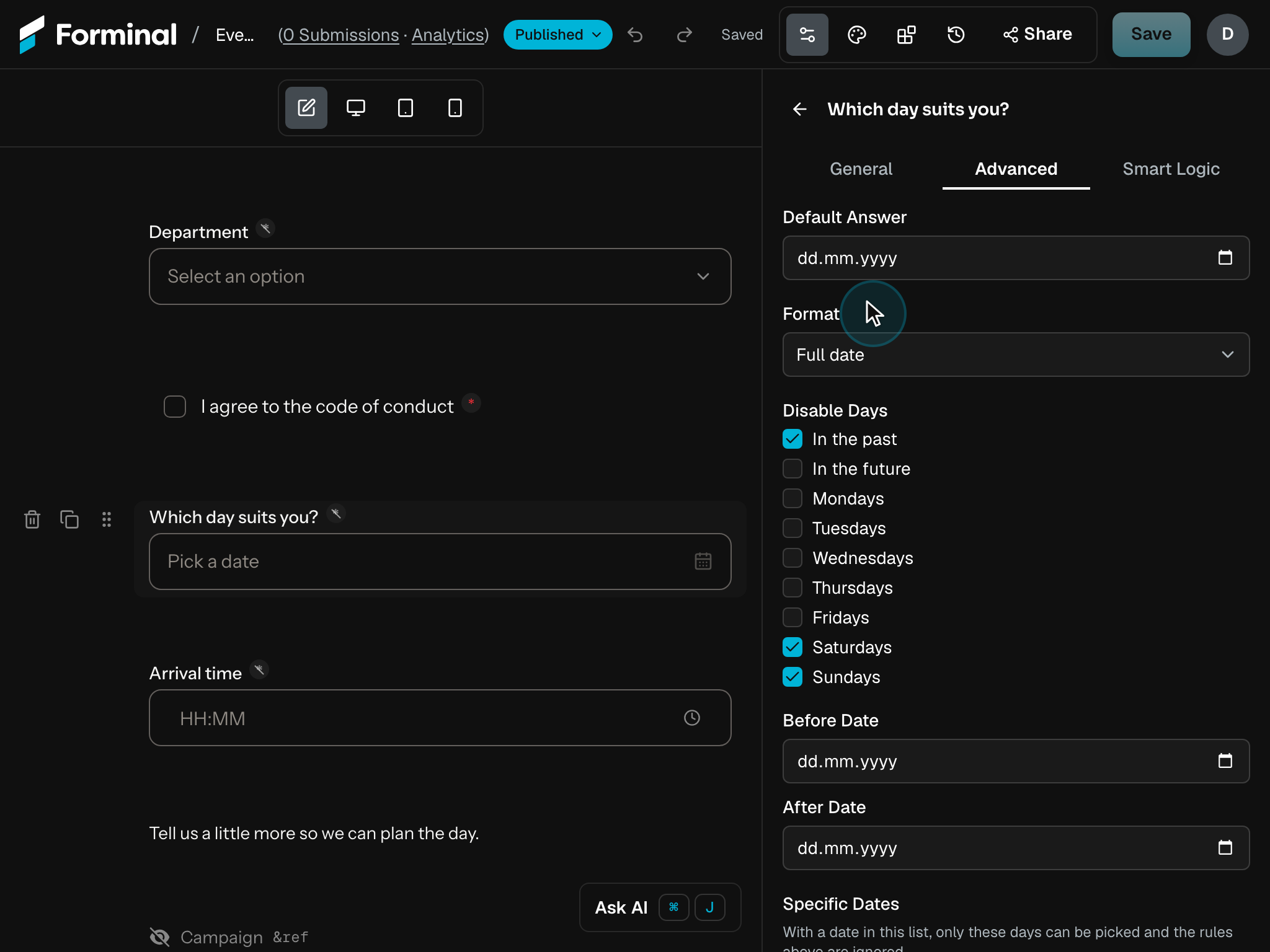
- Open the Advanced tab to choose the Format and which days can be picked.
Settings
All of these are on the Advanced tab.
- Default Answer: a date filled in before anyone touches the field.
- Format: Full date (October 8, 2026), DD/MM/YYYY, MM/DD/YYYY or YYYY-MM-DD. Full date is the default. The format is used on the form and wherever the answer shows later.
- Disable Days: tick In the past, In the future, or any day of the week from Mondays to Sundays. “Today” is never blocked by the past or future rules.
- Before Date and After Date: only days before the Before Date and after the After Date can be picked. The dates themselves are excluded, so to allow all of June set After Date to May 31 and Before Date to July 1. After Date has to be earlier than Before Date.
- Specific Dates: add up to 100 dates. As soon as the list has one date, only the listed dates can be picked and the rules above are ignored.
- Start Week On: Monday (the default) or Sunday, for how the calendar lays out each week.
What people see and how answers show
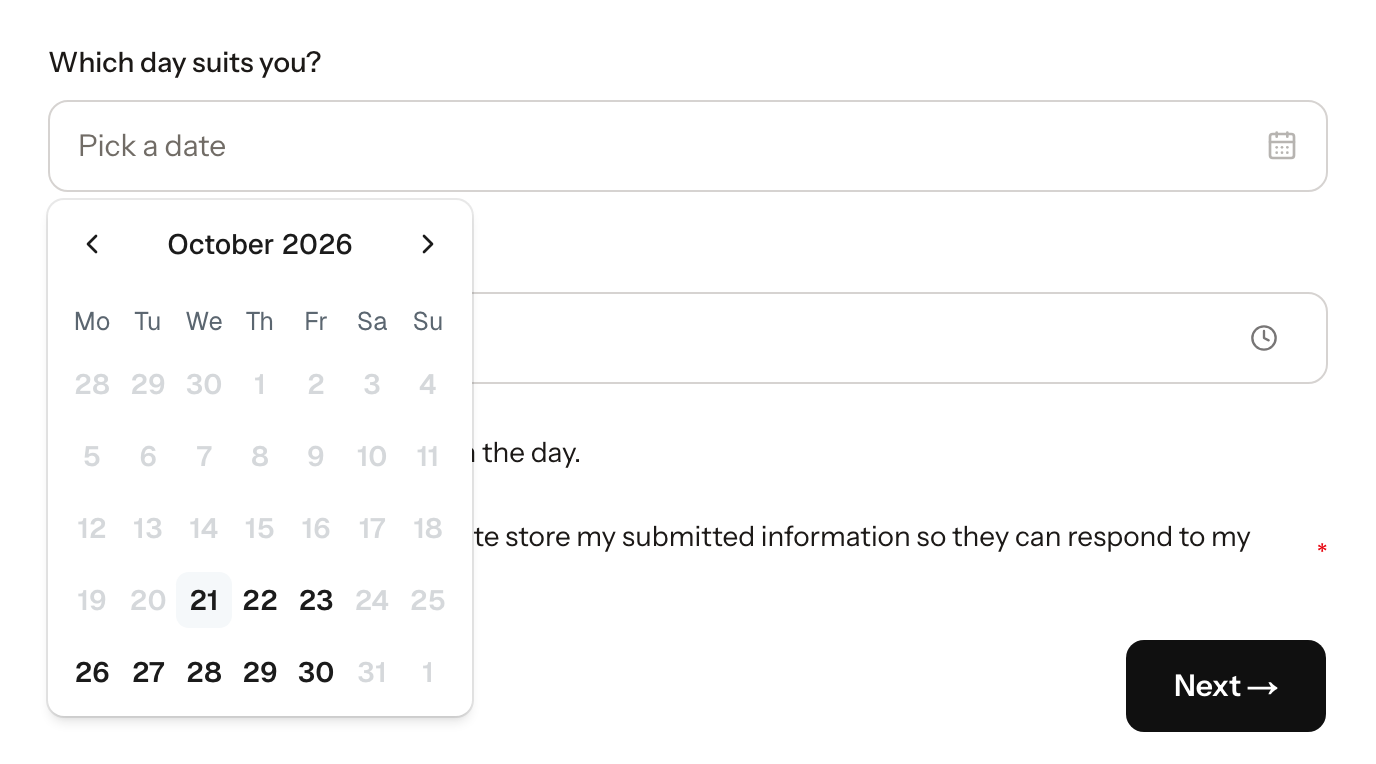
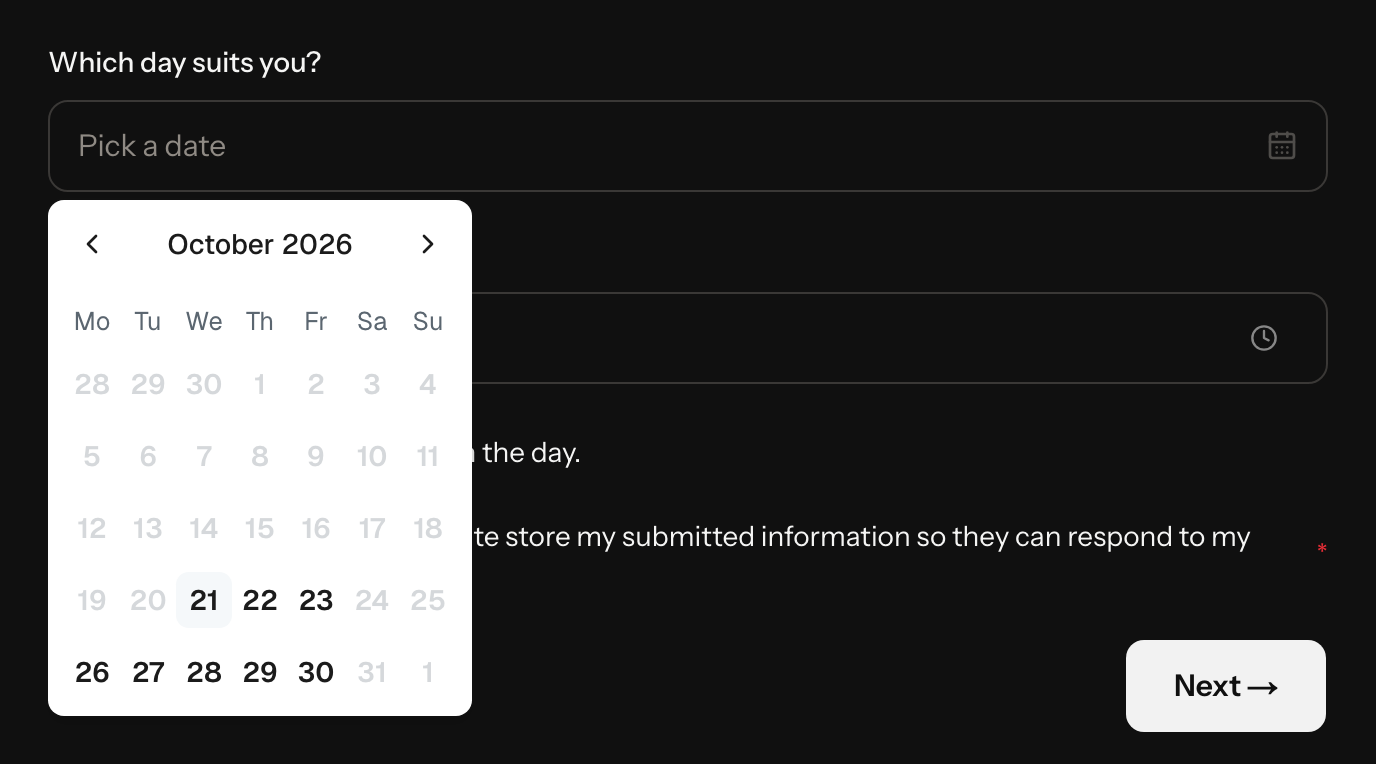
The field reads “Pick a date”. Clicking it opens a calendar where blocked days are greyed out. After picking, the date shows in your format, with a button to clear it. A required field left empty shows “Pick a date”, and a date that breaks your rules shows “Pick an available date”.
The submissions table, the CSV export and notification emails show the date in the field’s format. In Smart Logic you can compare the answer with a date using is, is not, greater than (later) and less than (earlier), or check whether it’s empty.
Good to know
The same rules are checked again when the form is sent, so a blocked date can’t get through by other means. The past and future rules go by today’s date. The calendar reads it from the visitor’s device and the check on sending reads it from the server, so a visitor in a time zone far from the server’s can, for part of the day, be offered today and then be told to pick another date. Changing the format later also changes how earlier answers display.
Frequently asked questions
Can I block weekends or past dates?
Under Disable Days on the Advanced tab, tick In the past, In the future or any day of the week. Today is never blocked by the past or future rules, and the same rules are checked again when the form is sent.
Can I offer only a few specific dates?
Add up to 100 dates under Specific Dates. Once the list has a date in it, only the listed dates can be picked and the other rules are ignored.
Does changing the date format affect earlier answers?
It does. The submissions table, the CSV export and notification emails show every date in the field’s current format, including answers that came in before the change.
Can the date field also ask for a time?
No, it takes a date only. Add a Time field next to it when you need both.
Why was a visitor told to pick another date for today?
The calendar reads today’s date from the visitor’s device, and the check on sending reads it from the server. A visitor in a time zone far from the server’s can, for part of the day, be offered today and then be asked to pick another date.