The AI assistant is a chat built into your account. You can ask it to build a form from a sentence, change one you have, or answer questions about your submissions. It works on the Forms page, in the form builder, and on a form’s Submissions and Analytics pages.
Examples
- “Make a booking form for a dentist with a date and time” turns into a working form.
- Asking which answer came up most often in last week’s survey.
- On the Analytics page, asking which field people give up on before they submit.
Open the assistant
- Sign in. The assistant only works on an account, so if you’re building a form without one, selecting Ask AI asks you to sign in first.
- Select Ask AI in the bottom right corner of the page, or press
⌘ Jon a Mac orCtrl Jon Windows.
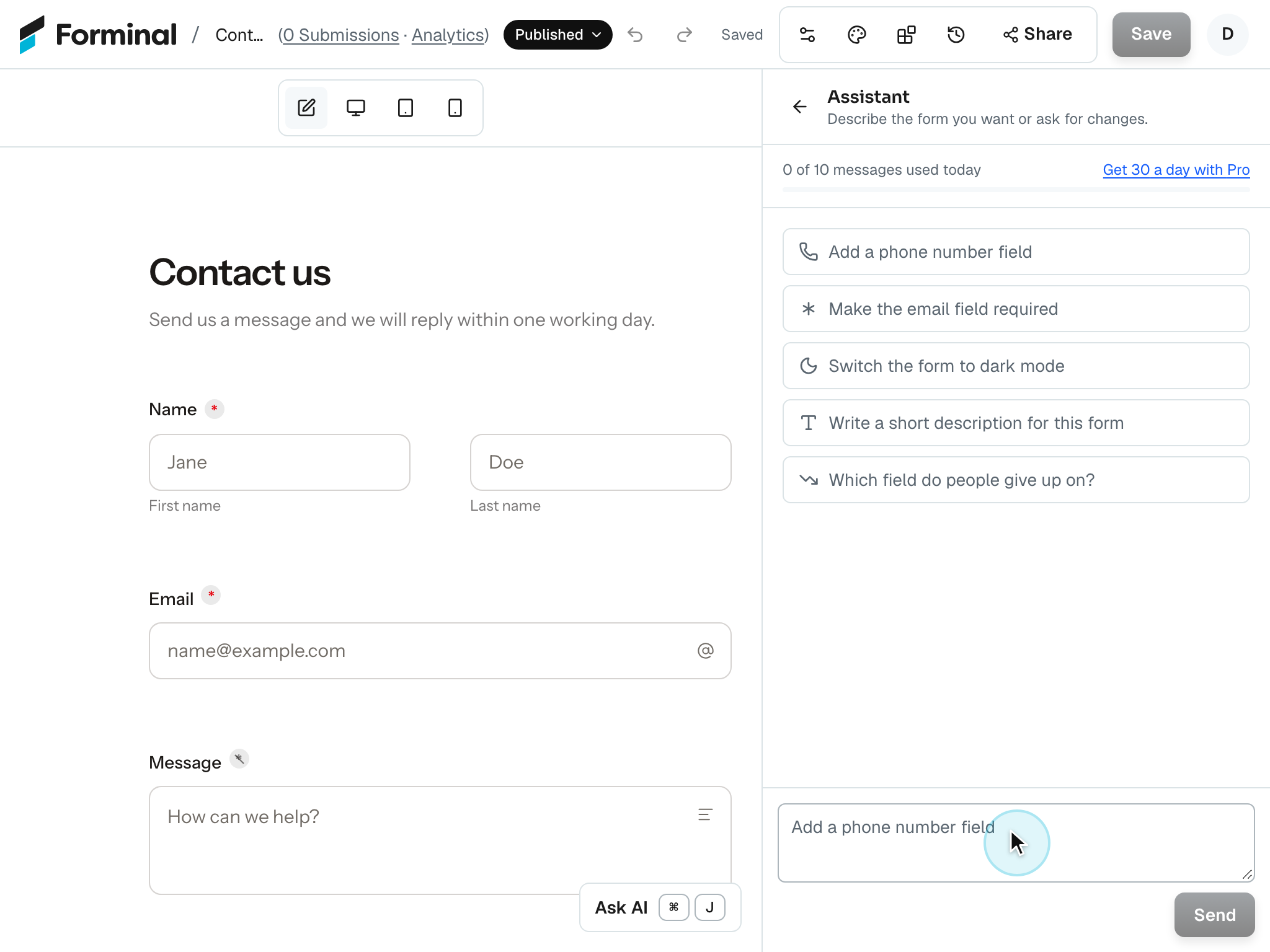
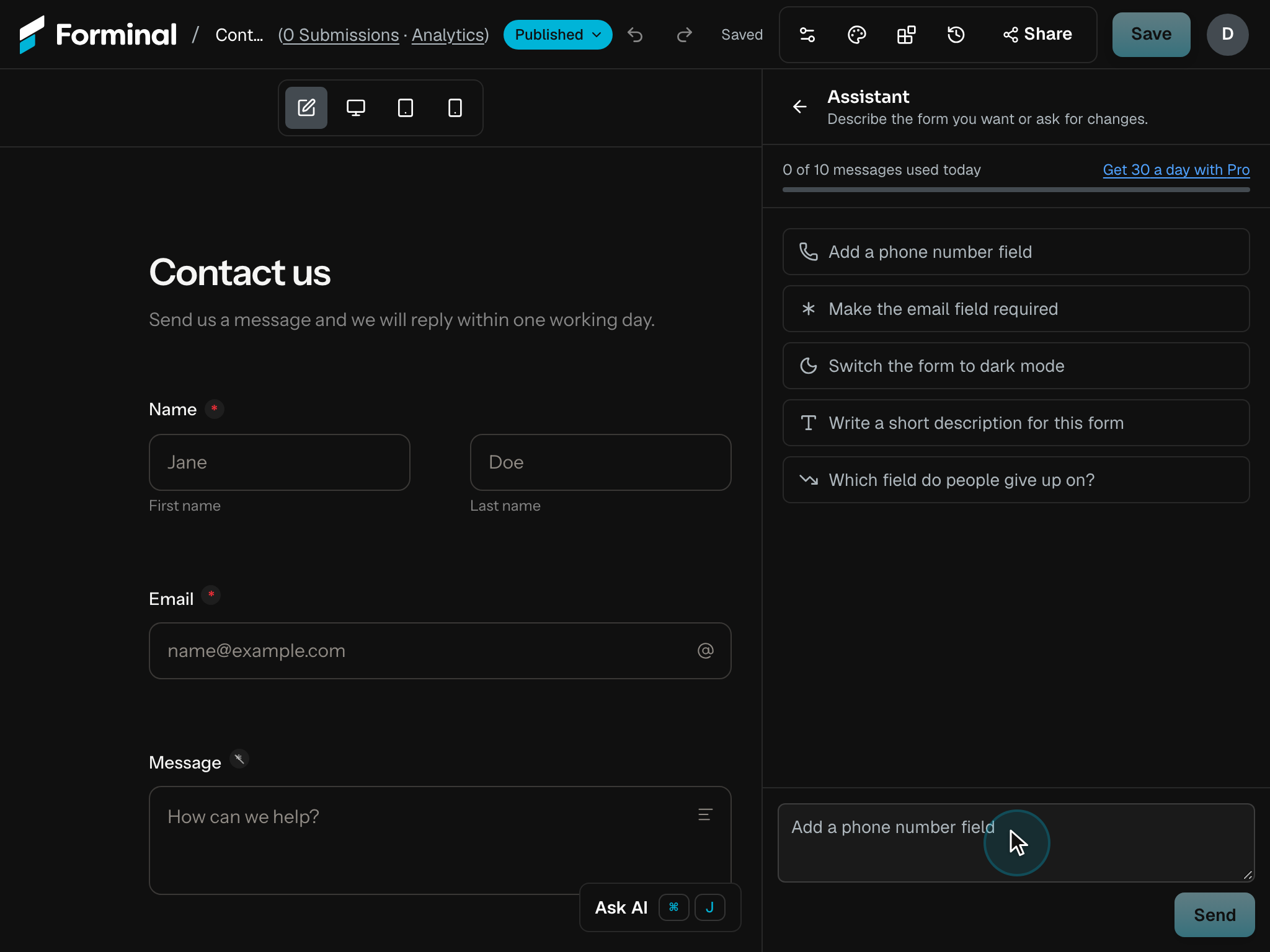
- Type your request, or pick one of the suggestions under the chat. They show in an empty chat, and under the earlier messages until you send one.
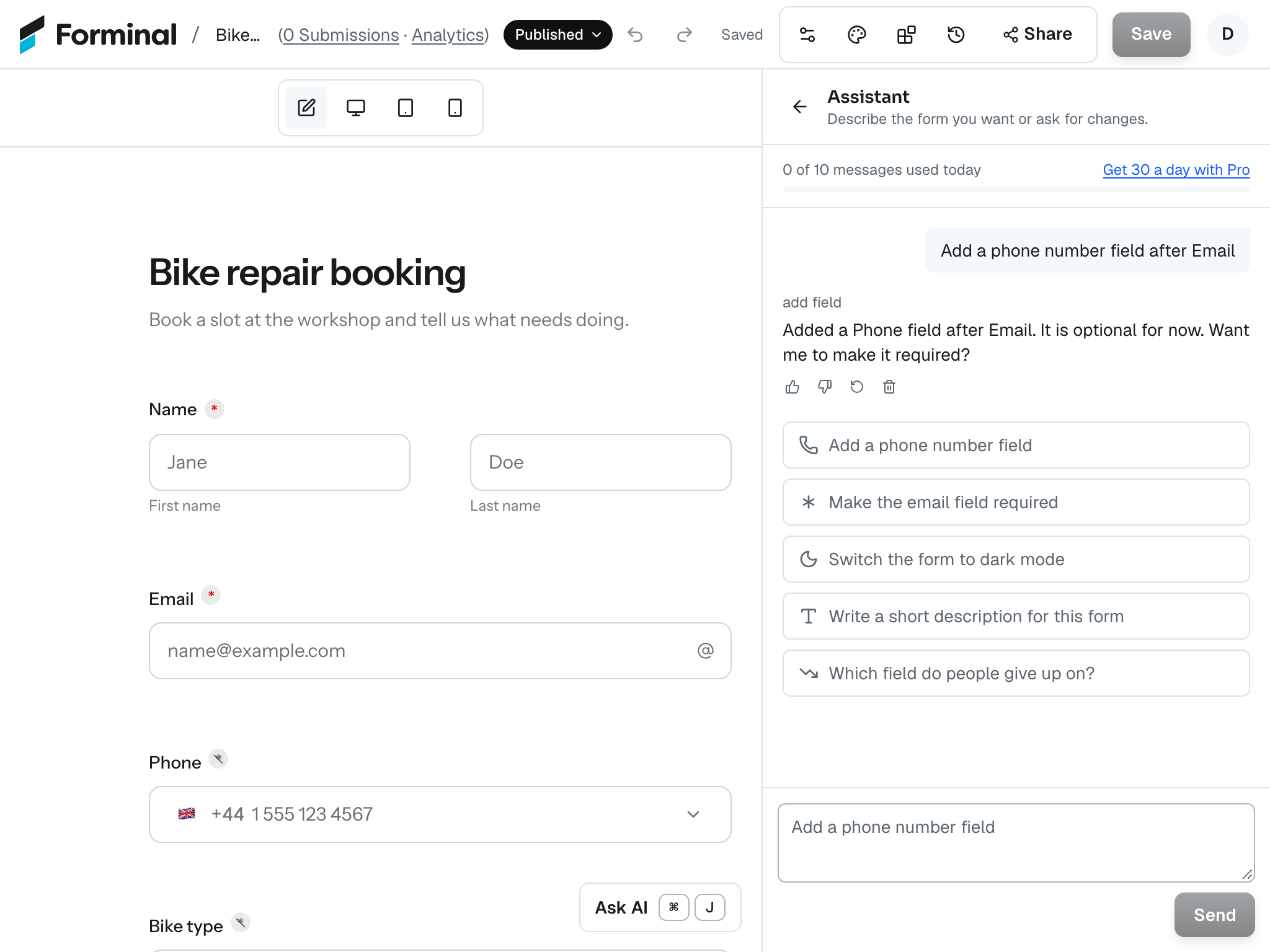
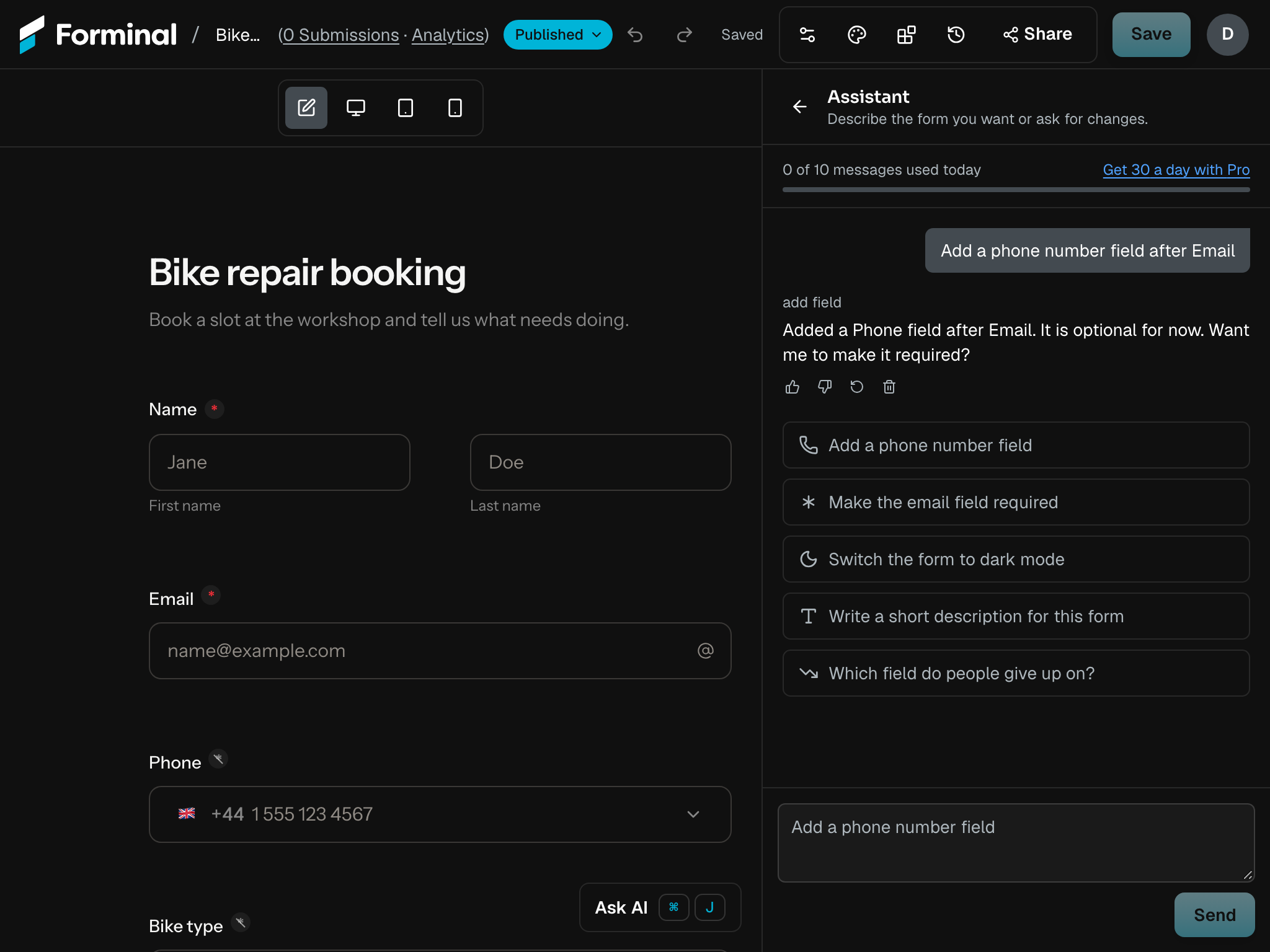
Each page keeps its own conversation. The Forms page has one chat for your whole account, and every form has a separate chat for its builder, its Submissions page and its Analytics page, so you can pick up where you left off.
What it can do on each page
Forms page
Ask about your forms by name or by their numbers, like “Top 3 forms by views” or “Which forms have unread submissions?”. It can also create a new draft with the title you give, copy a form (without its submissions), and publish or unpublish forms. A new form starts empty, and the assistant offers you a link to the builder, where it adds the fields.
Form builder
Describe the form you want or ask for changes. The assistant can add, edit, remove and move fields (including placing two side by side, setting how wide each field in a row is, and adding page breaks), set show and hide rules with Smart Logic, change the title, description, submit button text and confirmation, send people to another address after they submit, set up conditional confirmations, set the progress indicator on a multi-page form, show or hide the “Made by Forminal” line, turn on One Submission per Person, and change the theme, the Appearance (light, dark or automatic), colors, font and spacing. It can also put the form on a card and pick one of the 52 stock photos for it. It can give choice options icons as well. It can also put an earlier answer into a label or message with answer piping. Each change appears on the canvas as soon as it’s made. On a published form, its changes wait as unsaved edits until you select Save, so the live form doesn’t change before you check them.
Asking it to build a new form on one that already has fields would replace them, so the assistant asks you to confirm first. In the builder it can also tell you how the form is doing, such as which field people drop off at, before you change anything.
Submissions page
Ask it to find submissions, read one in full, summarize what people answered (counts, averages and sample answers per field), or count how many came in per day, week, month, quarter or year. It can tag submissions, mark them read or unread, move them to spam or back, and delete them. It reads what people typed, not the files or signatures they attached.
Analytics page
Ask how the form is doing: views, conversion rate, abandonments and errors for a period, how that compares with the period before, the best and worst week or month, and which fields people quit on or hit errors at. Views and conversion come from Analytics, so these answers are available on the same plans as Form Analytics. The answer summary charts are part of Form Analytics too. With it, you can ask what people answered and get the numbers the charts show, or ask the assistant to show another question in the answer chart, change your chart style or compare with the previous period, such as “Show the satisfaction question as orange columns”. Without it, you can still ask about submissions over time here, and about answers on the Submissions page.
How many messages you can send
Your plan sets how many messages you can send the assistant each day: 10 on Lite, 30 on Pro and 100 on Business. The count starts again at midnight UTC. The chats on every page share one daily count, and selecting Repeat under the latest answer uses a message too. On a form someone shared with you in a workspace, your messages count against your own plan, not the owner’s.
Under the Assistant heading, the chat shows how many you’ve used today, such as “3 of 10 messages used today”, over a bar that changes color at 80% and turns red at 90%. On Lite and Pro, selecting the link beside it, such as Get 30 a day with Pro, shows what the next plan gives, with a button to upgrade.
When you’ve used them all, the chat says so, for example “You’ve used all 10 messages for today.”, and shows when they reset, in your own time zone. You can’t send another message until then unless you upgrade.
Your daily number is also the most you can send in any one hour. If you use them all shortly before midnight UTC, the new day’s messages may not go through until up to an hour after midnight. The chat can also ask you to try again in a bit when a lot of messages come from one internet address within an hour, such as a shared office network, or when the assistant is busy for everyone.
Checking and undoing changes
- Deleting forms or submissions never happens straight from the chat. The assistant shows a card with what it’s about to delete, and nothing is removed until you confirm. Moving more than 50 submissions to spam works the same way.
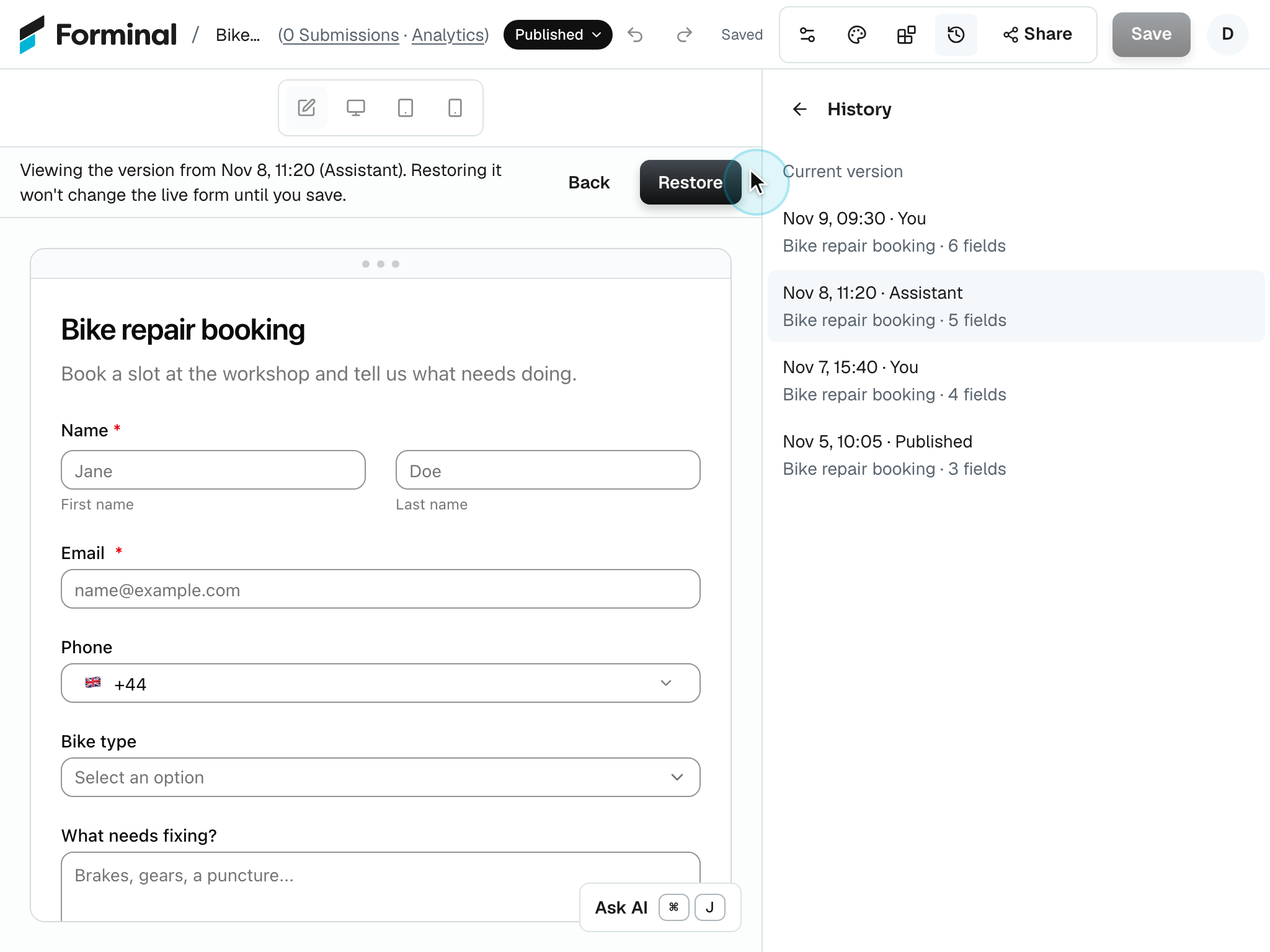
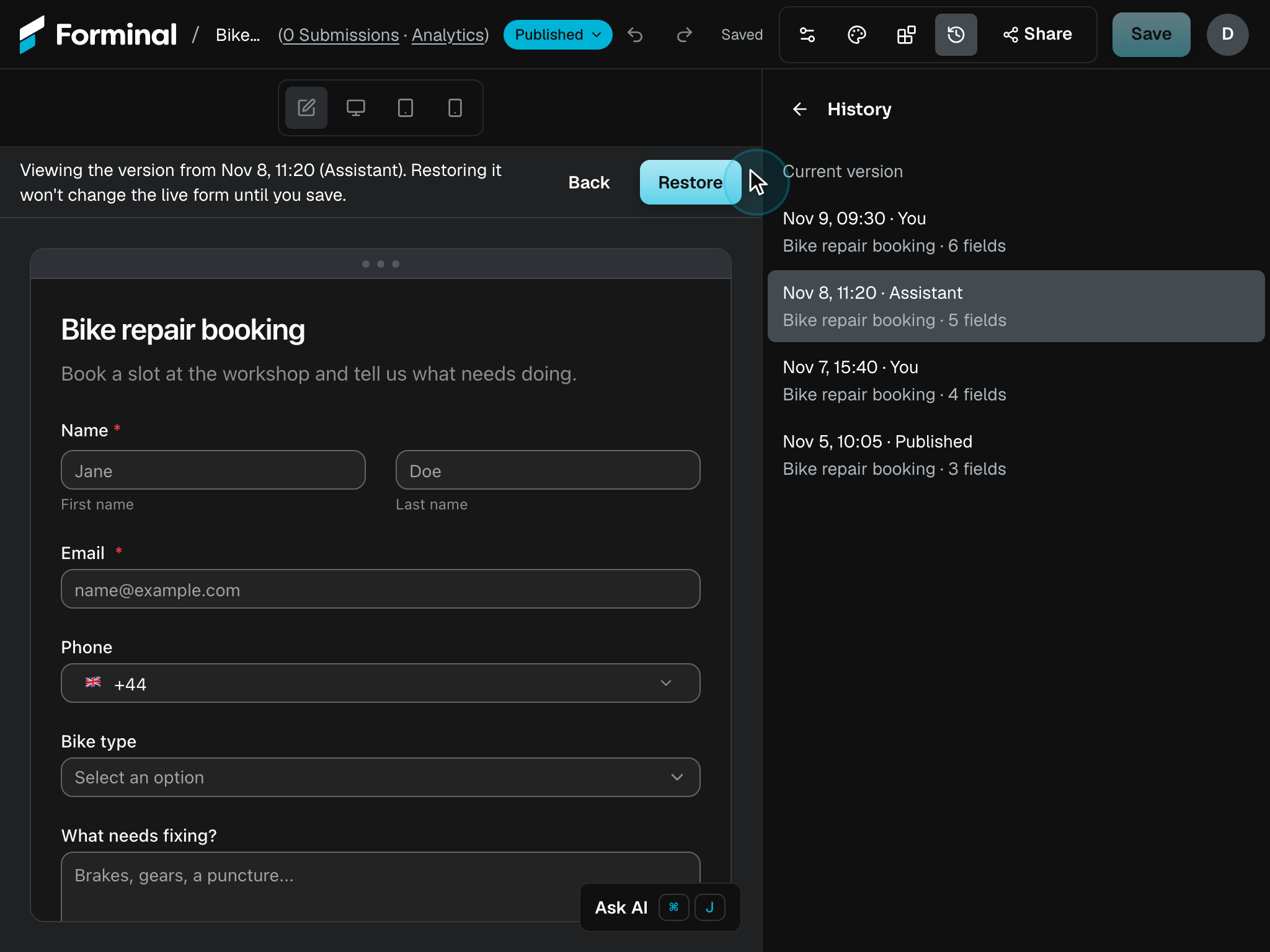
- On a draft, the assistant’s changes are saved as it makes them. On a published form they wait for you to select Save. Open History in the builder to see each change the assistant made to a draft, marked Assistant, then open an earlier version and select Restore to go back to it.
- When the assistant links you to another page, the link shows as a chip under its answer. It never takes you there by itself.
- If you ask for something your plan doesn’t include, the change is still made, and a note under the answer tells you what the published form will do instead.
Good to know
The assistant can’t change notifications, integrations or Stripe settings, and it can’t open uploaded files. People you share a workspace with can use it on a shared form at the access level you gave them. Answers in submissions come from the people who filled in your form, and the assistant treats them as data, not as instructions.
Frequently asked questions
Is there a limit on how many messages I can send the assistant?
Yes. Lite accounts can send 10 messages a day, Pro 30 and Business 100, and the count starts again at midnight UTC. The chat shows how many you’ve used today under its Assistant heading.
Can the assistant delete my forms without asking?
No. Before deleting forms or submissions, it shows a card with what it’s about to delete, and nothing is removed until you confirm.
Can I undo a change the assistant made?
Open History in the builder, find the version marked Assistant from before the change, and select Restore. On a published form, nothing the assistant changes goes live until you select Save.
Can the assistant set up notifications or integrations?
No. It can’t change notifications, integrations or Stripe settings, and it can’t open uploaded files. You set those up yourself.
Do I need an account to use the assistant?
Yes. If you’re building a form without one, selecting Ask AI asks you to sign in first.
Can the assistant answer questions about form views and conversion?
Yes, on the Analytics page, on the same plans as Form Analytics. Without it, you can still ask about submissions over time, and about answers on the Submissions page.
What happens when I’ve used all of today’s messages?
The chat says you’ve used them all and shows when they reset, in your own time zone. You can’t send another message until then unless you upgrade. On Lite and Pro, the link next to the count shows how many the next plan gives.
Do workspace members use my assistant messages?
No. Each person’s messages count against their own plan, so a member on Lite gets 10 a day, even on a form you shared from a Business account.