Advanced Styles gives you control over sizes and spacing: how wide the form is, how big the text is, and the size, shape and spacing of the inputs and the button. Every setting is a number in pixels, so you don’t need to write any CSS.
Examples
- A narrow, centered sign-up form on its own link.
- A full-width submit button with larger text for mobile visitors.
Change a setting
- Open the form in the builder and select Customize in the top bar.
- Scroll to Advanced. It has three groups, Layout, Inputs and Button, followed by Custom CSS.
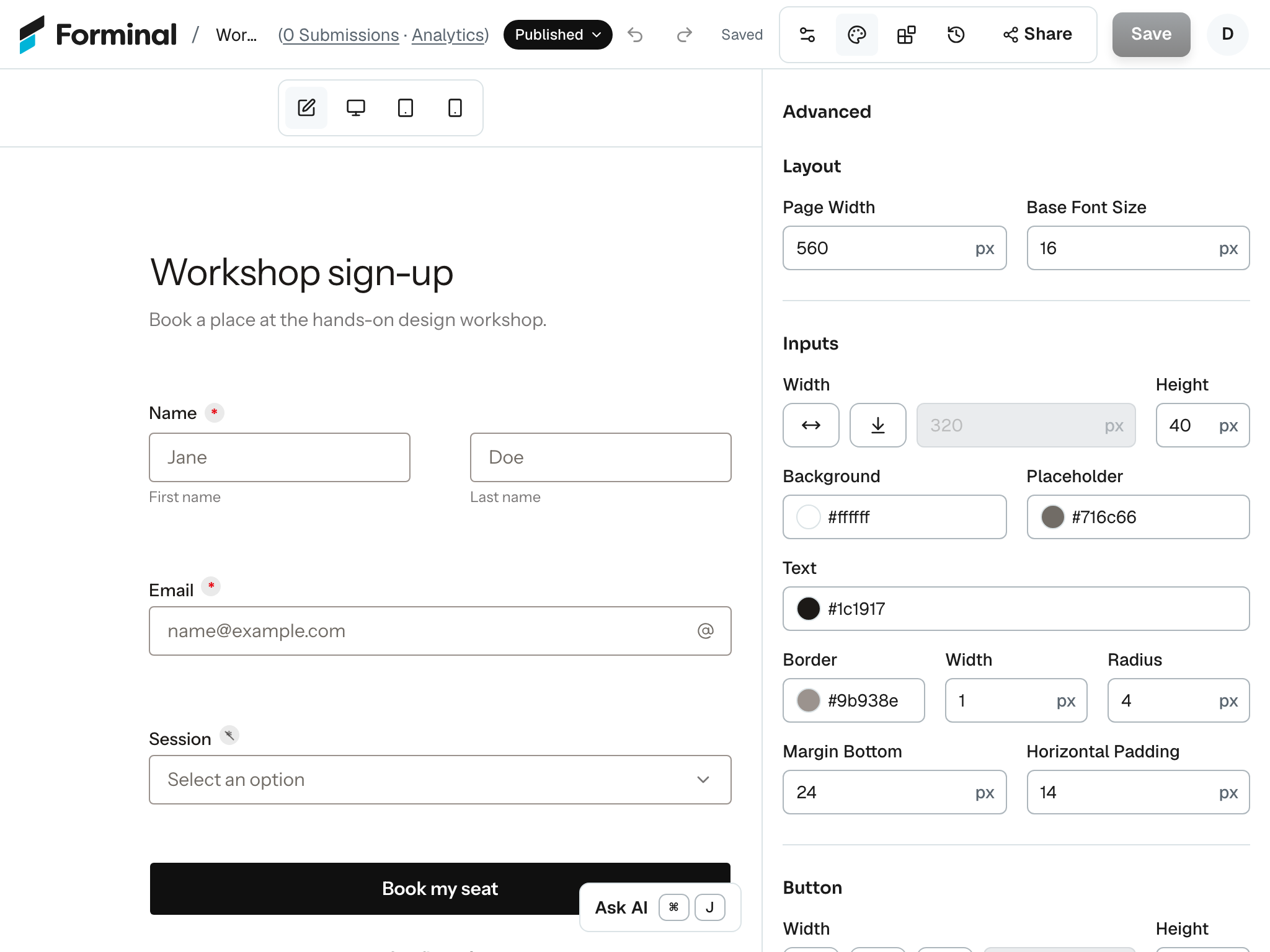
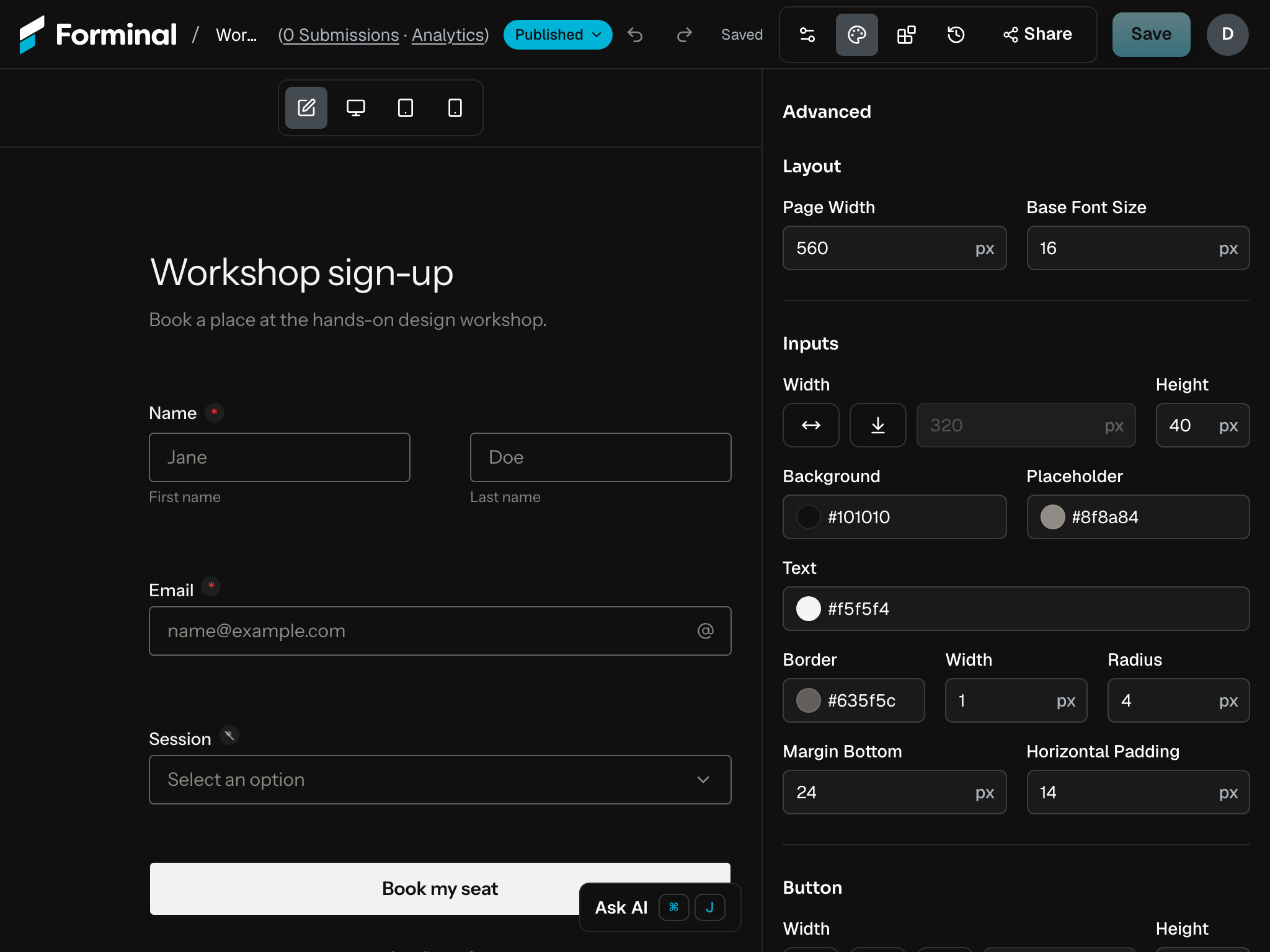
- Type a number into any box, or select one of the width or alignment buttons. The canvas updates as you type. A number outside the allowed range turns the box red, shows the range (for example “320 to 1200”) and isn’t saved.
Settings
Layout
- Page Width: the widest the form gets on its own link, from 320 to 1200 px. The default is 672.
- Base Font Size: from 12 to 24 px, default 16. Everything scales from it: labels and input text are a bit smaller, captions smaller still, and the form title is one and a half times as big.
Inputs
- Width: Full (the default) fills the form, or Fixed sets a width from 120 to 1200 px. Fixed starts at 320.
- Height: from 24 to 80 px, default 46. It applies to one-line inputs and dropdowns. Paragraph boxes keep their own height.
- Background, Placeholder, Text and Border: the input colors. Text colors what people type, and starts as the form’s Text color. See the Colors page.
- Width next to Border: the border thickness, from 0 to 8 px, default 1. Set 0 for no outline.
- Radius: how round the corners are, from 0 (square) to 40 px, default 10.
- Margin Bottom: the space between one field and the next, from 0 to 80 px, default 24. Fields that share a row use the same gap between them.
- Horizontal Padding: the space between the input’s edge and the text inside it, from 0 to 40 px, default 14.
Button
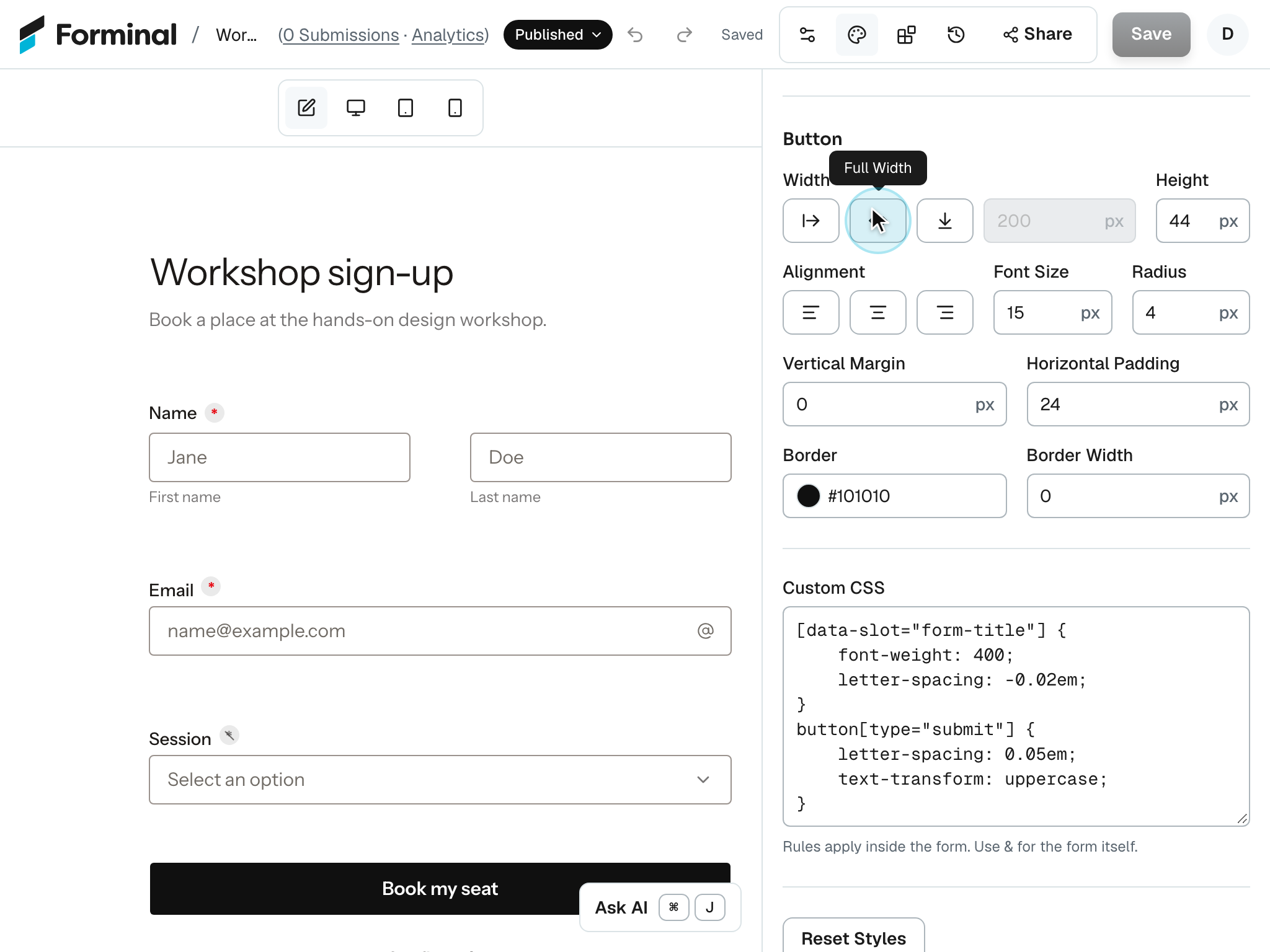
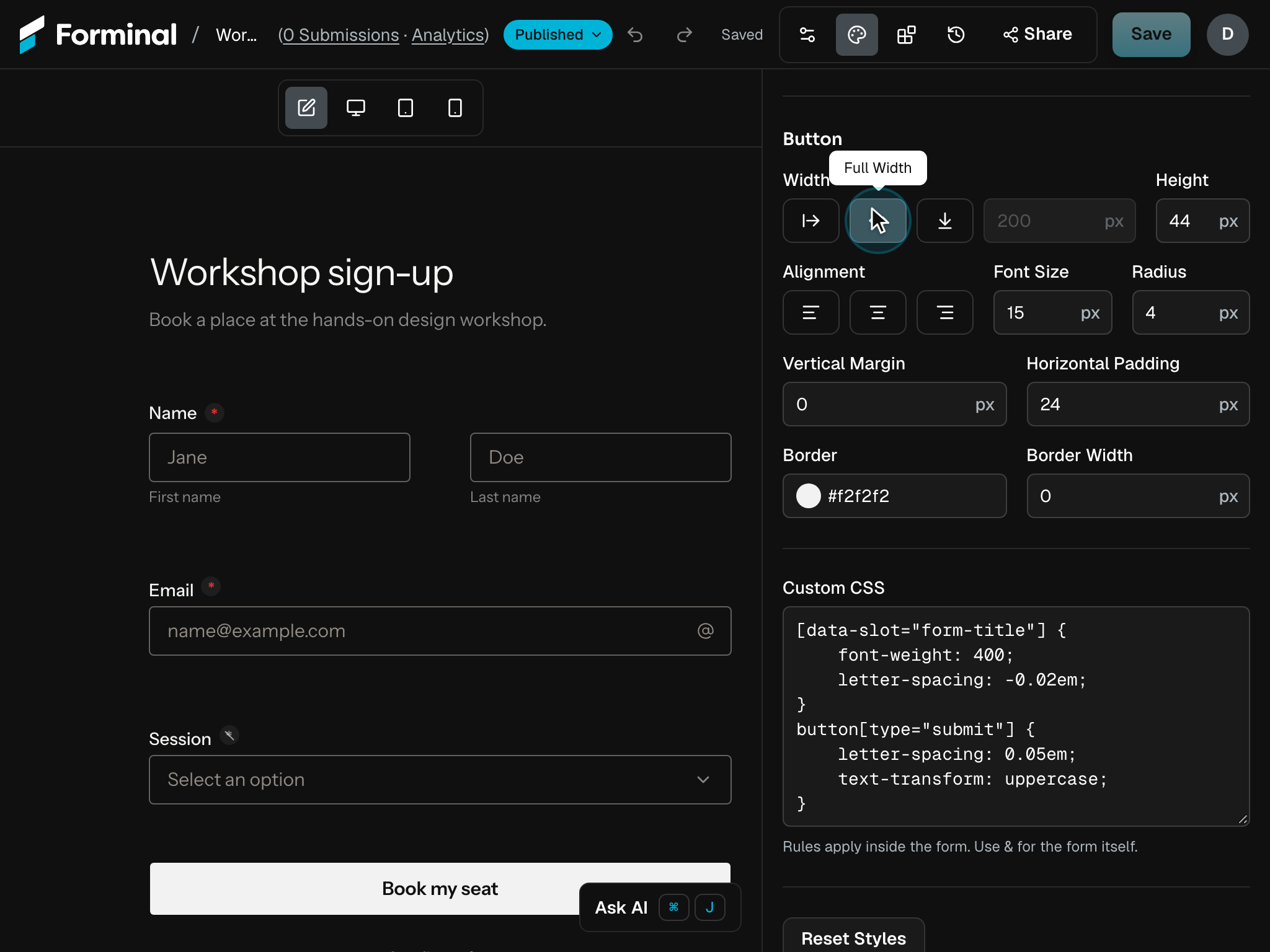
- Width: Auto (the default) fits the button text, Full fills the form, and Fixed sets a width from 80 to 1200 px, starting at 200.
- Height: from 24 to 80 px, default 48.
- Alignment: left (the default), center or right.
- Font Size: the button text, from 10 to 32 px, default 15.
- Radius: from 0 to 40 px, default 10.
- Vertical Margin: extra space above and below the button, from 0 to 80 px, default 0.
- Horizontal Padding: space on each side of the button text, from 0 to 60 px, default 24.
- Border and Border Width: a line around the submit button and the Next and Previous buttons, from 0 to 8 px. The width starts at 0, so there’s no border until you set one.
Good to know
Page Width applies on the form’s own link. In an inline embed or a popup, the form fills the frame on your site, so you control its width there. On a form with several pages, the Previous and Next buttons sit at opposite ends of the row whatever Alignment you pick. On phones, input text never goes below 16 px, so the screen doesn’t zoom in when someone taps a field. If your plan doesn’t include Advanced Styles, you can still try them on the canvas, but the published form and the preview use the default sizes. The input colors and the button’s Border and Border Width aren’t part of that and always apply, even though they sit under the Advanced heading. A theme sets most of these sizes for you, and the same rule applies to them. Default and High Contrast, the two themes without a PRO badge, use the default sizes, so they look the same on every plan. Reset Styles puts every setting back to its default.
Frequently asked questions
Which plan includes Advanced Styles?
Advanced Styles is part of Pro, and Business includes everything in Pro. On Lite you can try them on the canvas, but the published form and the preview use the default sizes. The input colors and the button border work on every plan. See Plans and upgrades.
Why doesn’t Page Width change my embedded form?
Page Width applies only on the form’s own link. In an inline embed or a popup the form fills the frame on your site, so you set the width there.
Why is the input text on phones bigger than I set?
On phones, input text never goes below 16 px. That stops the screen from zooming in when someone taps a field.
Do I need to know CSS to use Advanced Styles?
No. Every setting is a number in pixels or a button. For details the settings don’t reach, you can write Custom CSS.
Why don’t the Previous and Next buttons follow my button alignment?
On a form with several pages, Previous and Next always sit at opposite ends of the row, whatever Alignment you pick.