Estilos Avançados dá-lhe controlo sobre tamanhos e espaçamentos: a largura do formulário, o tamanho do texto, e o tamanho, forma e espaçamento dos campos e do botão. Cada configuração é um número em pixels, pelo que não precisa de escrever nenhum CSS.
Exemplos
- Um formulário de inscrição estreito e centrado no seu próprio link.
- Um botão de submissão a toda a largura com texto maior para visitantes móveis.
Alterar uma configuração
- Open the form in the builder and select Customize in the top bar.
- Scroll to Advanced. It has three groups, Layout, Inputs and Button, followed by Custom CSS.
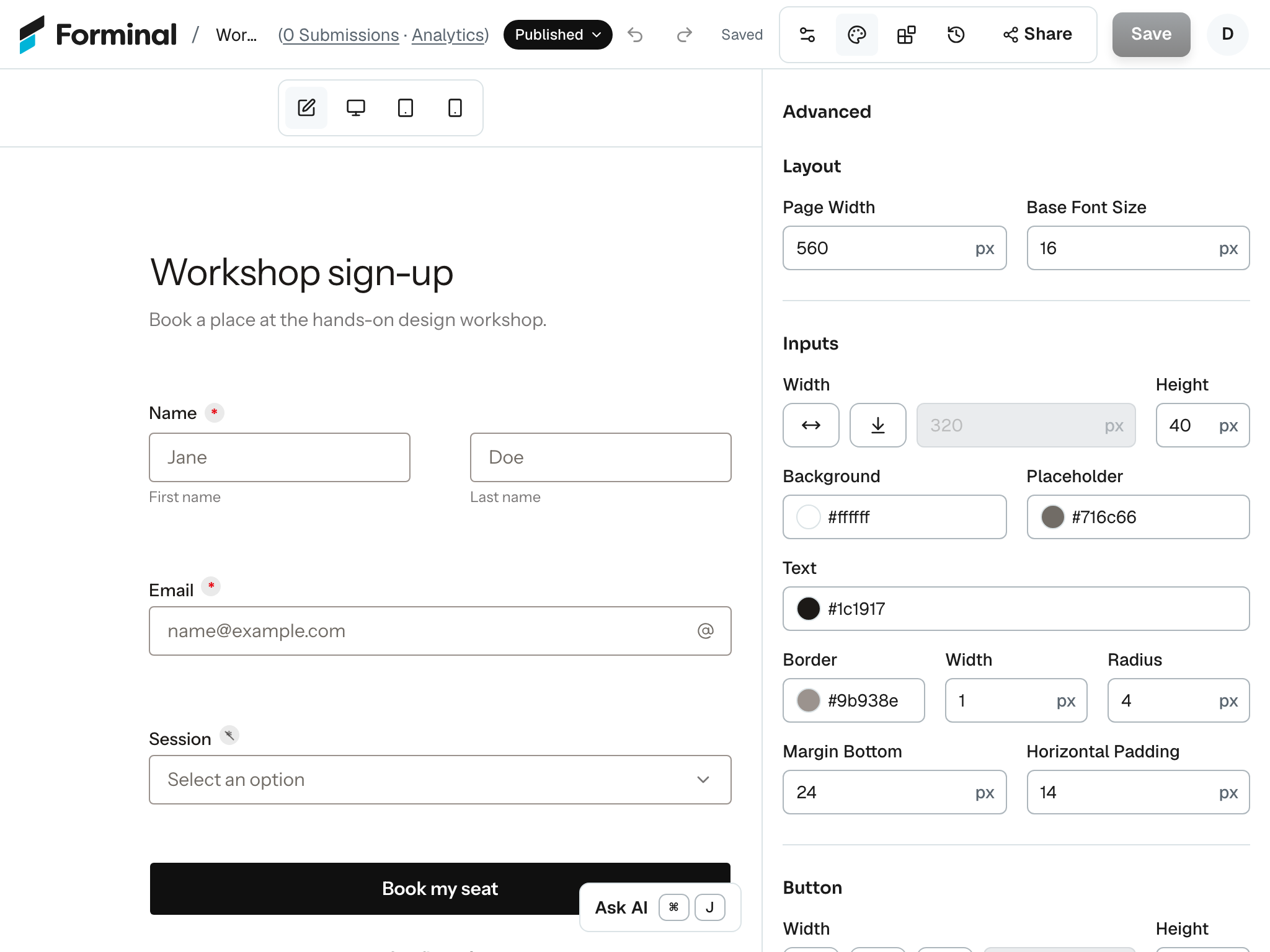
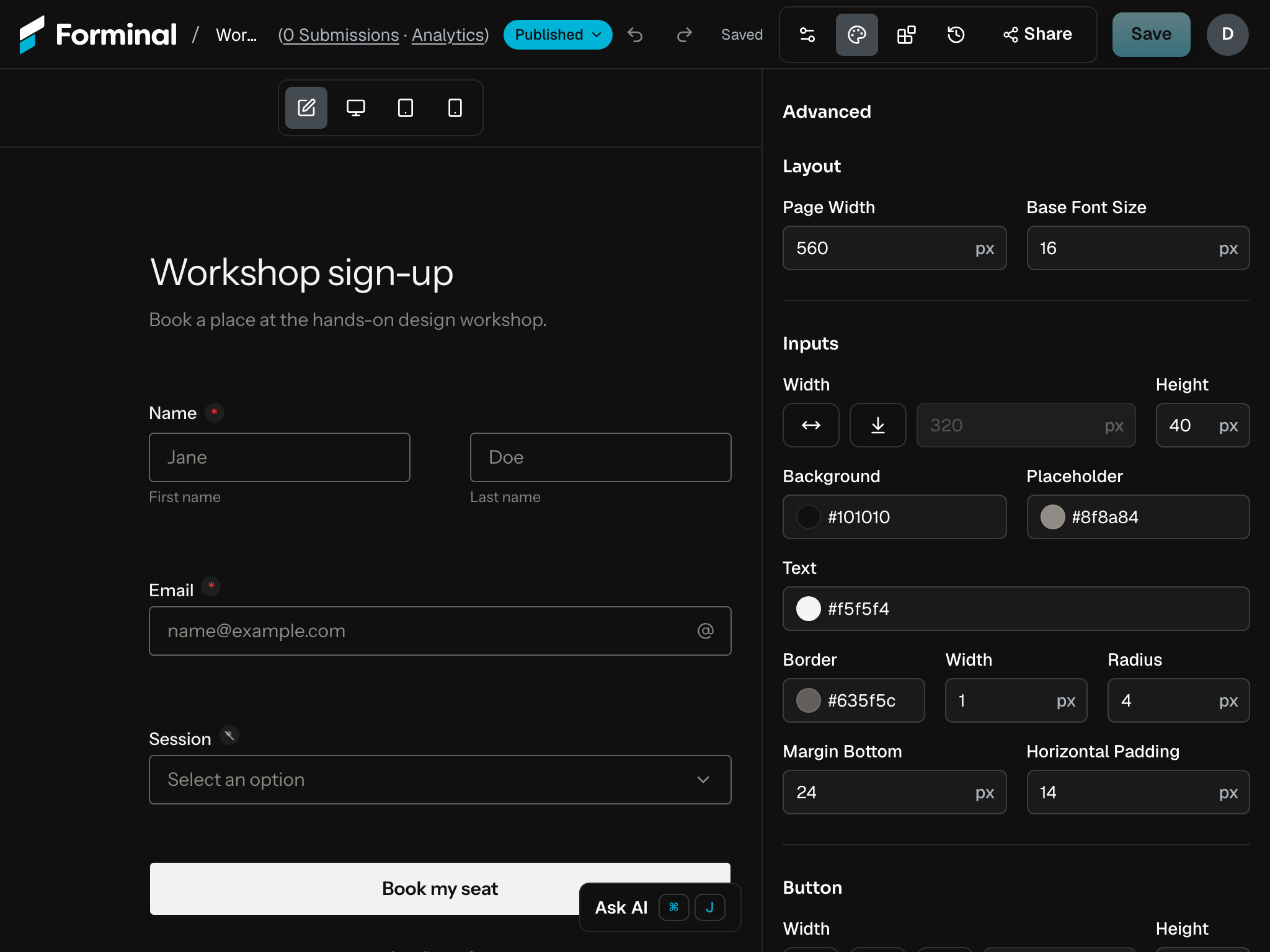
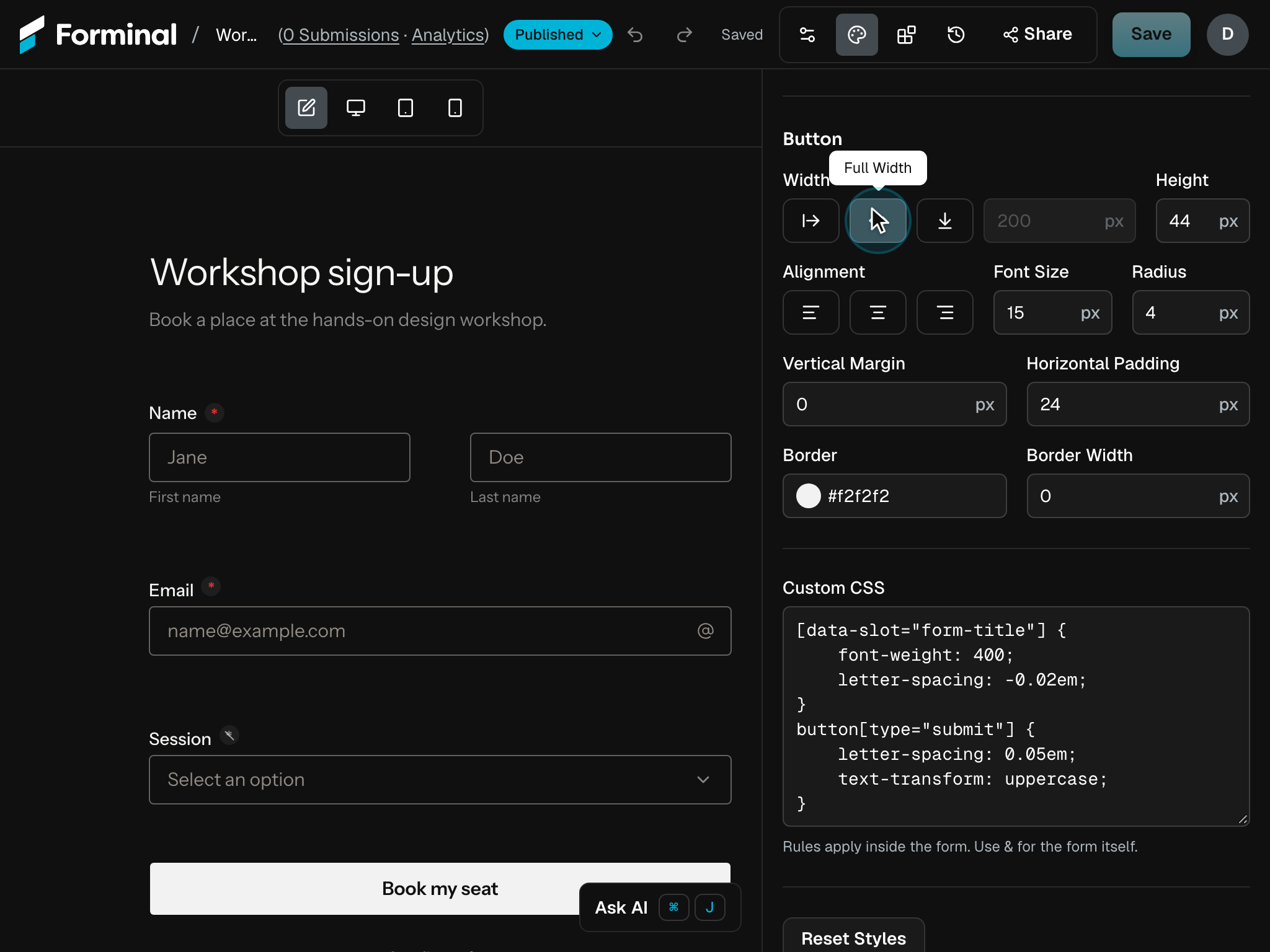
- Escreva um número em qualquer caixa, ou selecione um dos botões de largura ou alinhamento. A tela atualiza à medida que escreve. Um número fora do intervalo permitido torna a caixa vermelha, mostra o intervalo (por exemplo, "320 a 1200") e não é guardado.
Configurações
Layout
- Page Width: the widest the form gets on its own link, from 320 to 1200 px. The default is 672.
- Base Font Size: from 12 to 24 px, default 16. Everything scales from it: labels and input text are a bit smaller, captions smaller still, and the form title is one and a half times as big.
Campos
- Width: Full (the default) fills the form, or Fixed sets a width from 120 to 1200 px. Fixed starts at 320.
- Height: from 24 to 80 px, default 46. It applies to one-line inputs and dropdowns. Paragraph boxes keep their own height.
- Background, Placeholder, Text and Border: the input colors. Text colors what people type, and starts as the form’s Text color. See the Colors page.
- Width next to Border: the border thickness, from 0 to 8 px, default 1. Set 0 for no outline.
- Radius: how round the corners are, from 0 (square) to 40 px, default 10.
- Margin Bottom: the space between one field and the next, from 0 to 80 px, default 24. Fields that share a row use the same gap between them.
- Horizontal Padding: the space between the input’s edge and the text inside it, from 0 to 40 px, default 14.
Botão
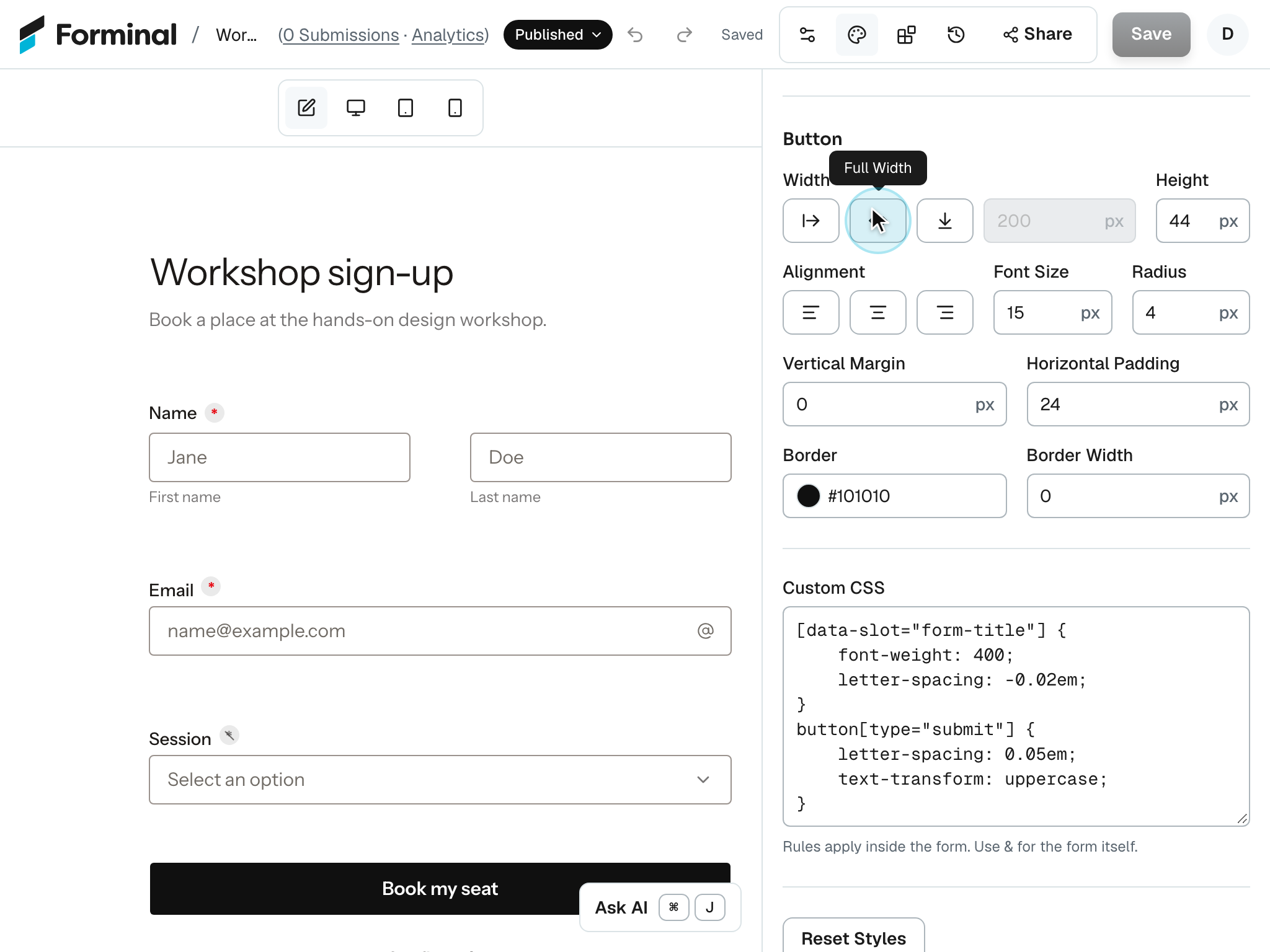
- Width: Auto (the default) fits the button text, Full fills the form, and Fixed sets a width from 80 to 1200 px, starting at 200.
- Height: from 24 to 80 px, default 48.
- Alignment: left (the default), center or right.
- Font Size: the button text, from 10 to 32 px, default 15.
- Radius: from 0 to 40 px, default 10.
- Vertical Margin: extra space above and below the button, from 0 to 80 px, default 0.
- Horizontal Padding: space on each side of the button text, from 0 to 60 px, default 24.
- Border and Border Width: a line around the submit button and the Next and Previous buttons, from 0 to 8 px. The width starts at 0, so there’s no border until you set one.
Bom saber
Page Width applies on the form’s own link. In an inline embed or a popup, the form fills the frame on your site, so you control its width there. On a form with several pages, the Previous and Next buttons sit at opposite ends of the row whatever Alignment you pick. On phones, input text never goes below 16 px, so the screen doesn’t zoom in when someone taps a field. If your plan doesn’t include Advanced Styles, you can still try them on the canvas, but the published form and the preview use the default sizes. The input colors and the button’s Border and Border Width aren’t part of that and always apply, even though they sit under the Advanced heading. A theme sets most of these sizes for you, and the same rule applies to them. Default and High Contrast, the two themes without a PRO badge, use the default sizes, so they look the same on every plan. Reset Styles puts every setting back to its default.
Perguntas frequentes
Que plano inclui Estilos Avançados?
Estilos Avançados faz parte do Pro, e Business inclui tudo no Pro. No Lite pode experimentá-los na tela, mas o formulário publicado e a pré-visualização utilizam os tamanhos predefinidos. As cores de entrada e a borda do botão funcionam em todos os planos. Ver Planos e atualizações.
Porque é que a Largura da Página não altera o meu formulário incorporado?
Largura da Página aplica-se apenas ao link próprio do formulário. Num incorporamento em linha ou numa janela pop-up, o formulário preenche o quadro no seu site, pelo que define a largura aí.
Porque é que o texto de entrada nos telemóveis é maior do que defini?
Em telemóveis, o texto de entrada nunca fica abaixo de 16 px. Isso impede que o ecrã amplie quando alguém toca num campo.
Preciso de saber CSS para usar Estilos Avançados?
Não. Cada definição é um número em píxeis ou um botão. Para detalhes que as definições não abrangem, pode escrever CSS Personalizado.
Porque é que os botões Anterior e Seguinte não seguem o meu alinhamento de botões?
Num formulário com várias páginas, Anterior e Seguinte ficam sempre em extremidades opostas da linha, independentemente do Alinhamento que escolher.