People who ask for a quote want a number. When your prices follow a pattern, such as a price per guest plus a delivery fee, the form can work that number out while people answer and show it before they press Submit. They get an estimate straight away, and you get a request with the figure already in it. Calculations and option prices work on every plan.
Plan the fields
This guide builds a catering quote. Next to Name and Email, so you can reply, it needs four fields:
- A Dropdown called Menu, where each menu has a price per guest.
- A Number field called How many guests?
- A Number field called Delivery fee, worked out from the guest count.
- A Number field called Estimated total, which adds it all up.
A formula can go in a Short Text, Long Text, Number or Hidden field. Use Number for prices, so the result follows the field’s number format.
Put a price on each option
- Select the Menu dropdown and open its Advanced tab.
- Turn on Option Amounts. An amount box appears next to each option.
- Type the price per guest for each menu, such as 18 for Buffet and 32 for Three courses.
Multiple Choice and Checkboxes take amounts the same way. With Checkboxes, a formula adds up the amounts of every option ticked, which suits extras such as a dessert table or serving staff.
Work out the delivery fee
- Select Delivery fee, open its Advanced tab and turn on Enable Calculation.
- In the Formula box, type @ and pick How many guests? to insert it as a chip, or select Insert Field.
- Write the rule as an if block, so delivery is free from 50 guests and costs 25 below that:
if ( @How many guests? >= 50 ): 0 else: 25 endif;
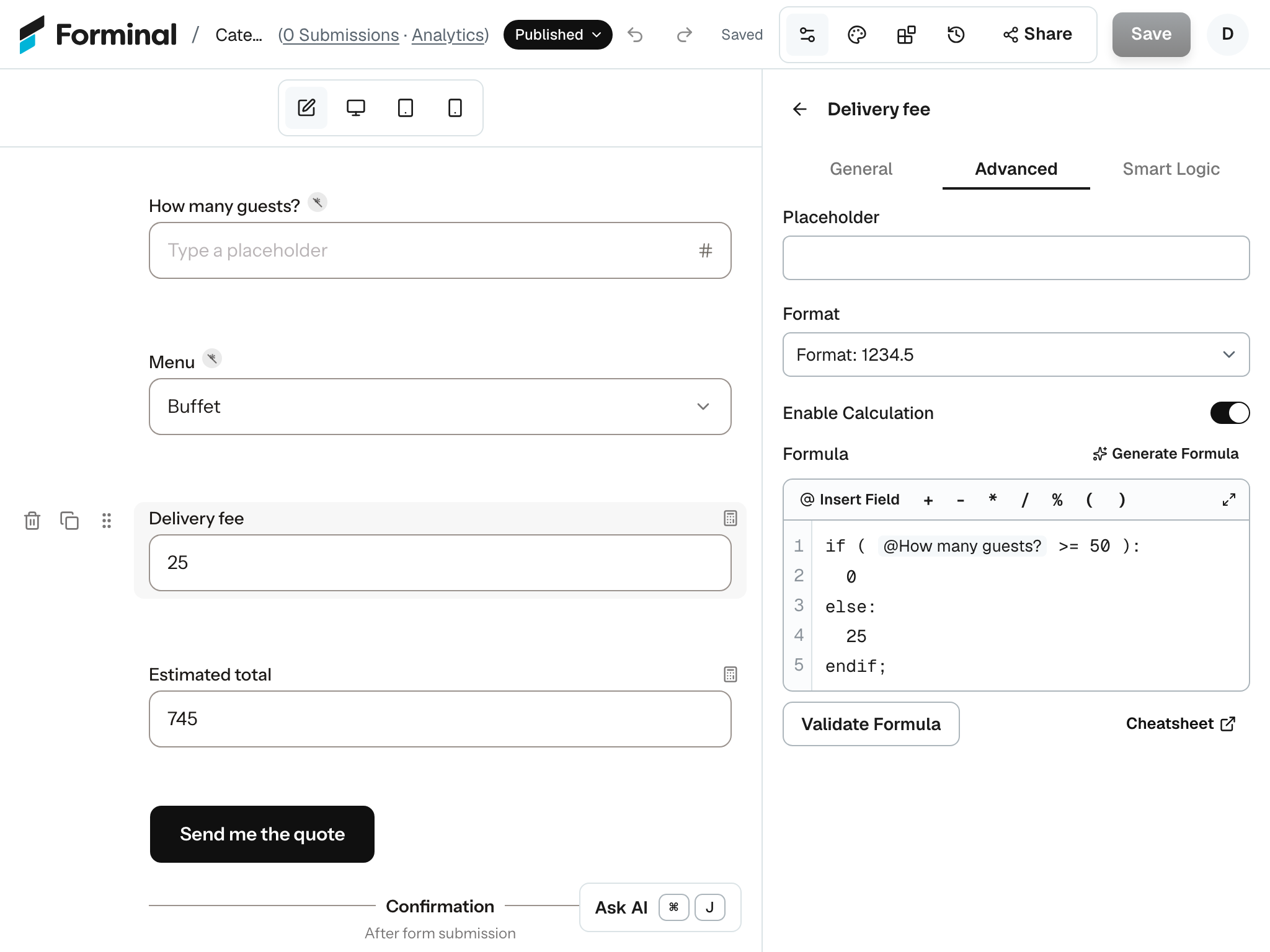
You can put each part of the if block on its own line, as in the screenshot, or keep it on one. A new line counts as a space.
Add up the total
- Select Estimated total, open Advanced and turn on Enable Calculation.
- Type the formula
@Menu · Amount * @How many guests? + @Delivery fee. When you type @ and look for Menu, its Amount is listed as a separate item. - Select Validate Formula. A working formula shows Formula Is Valid and the result worked out from each field’s default answer, so you can check the math before anyone sees it.
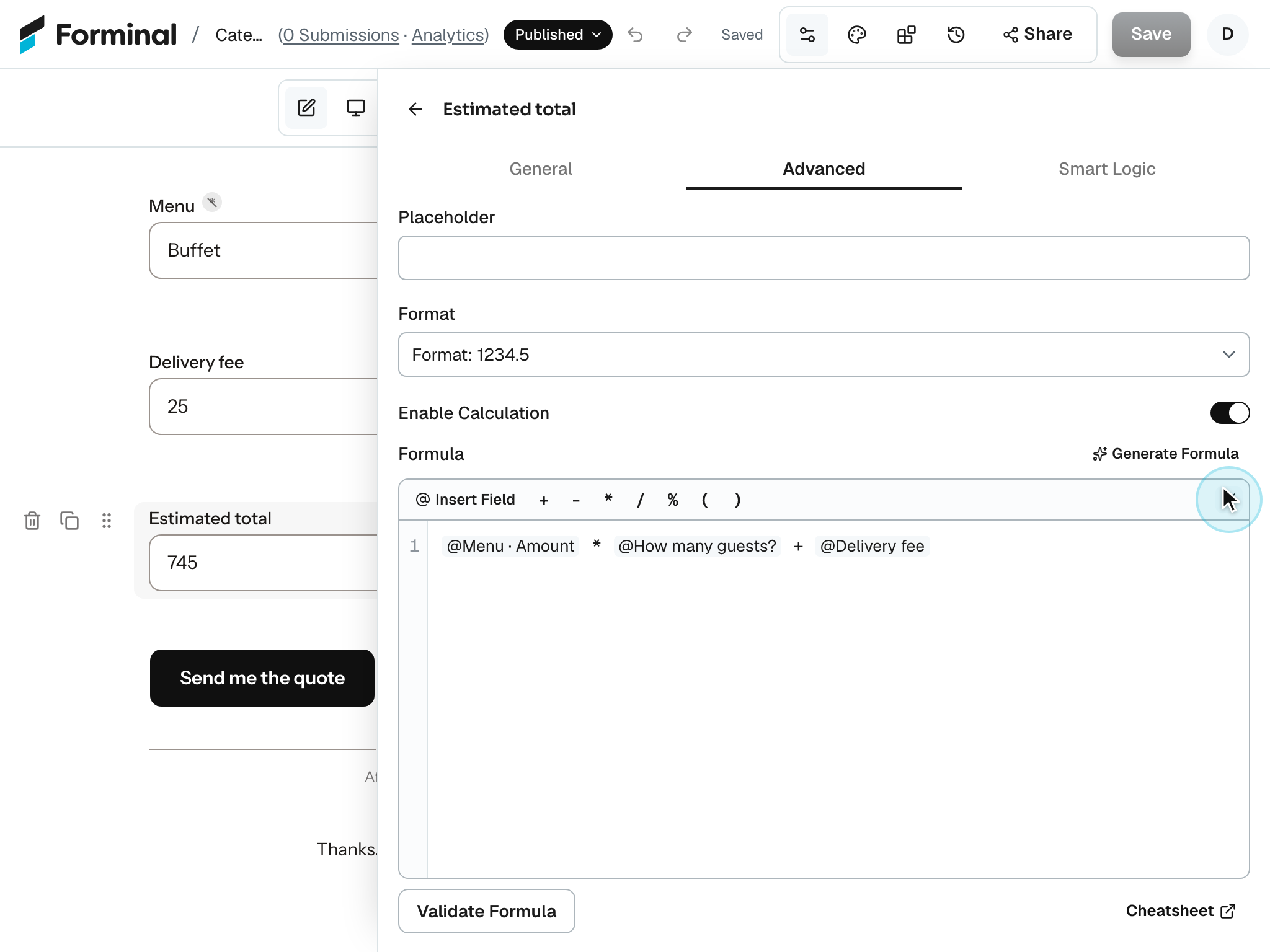
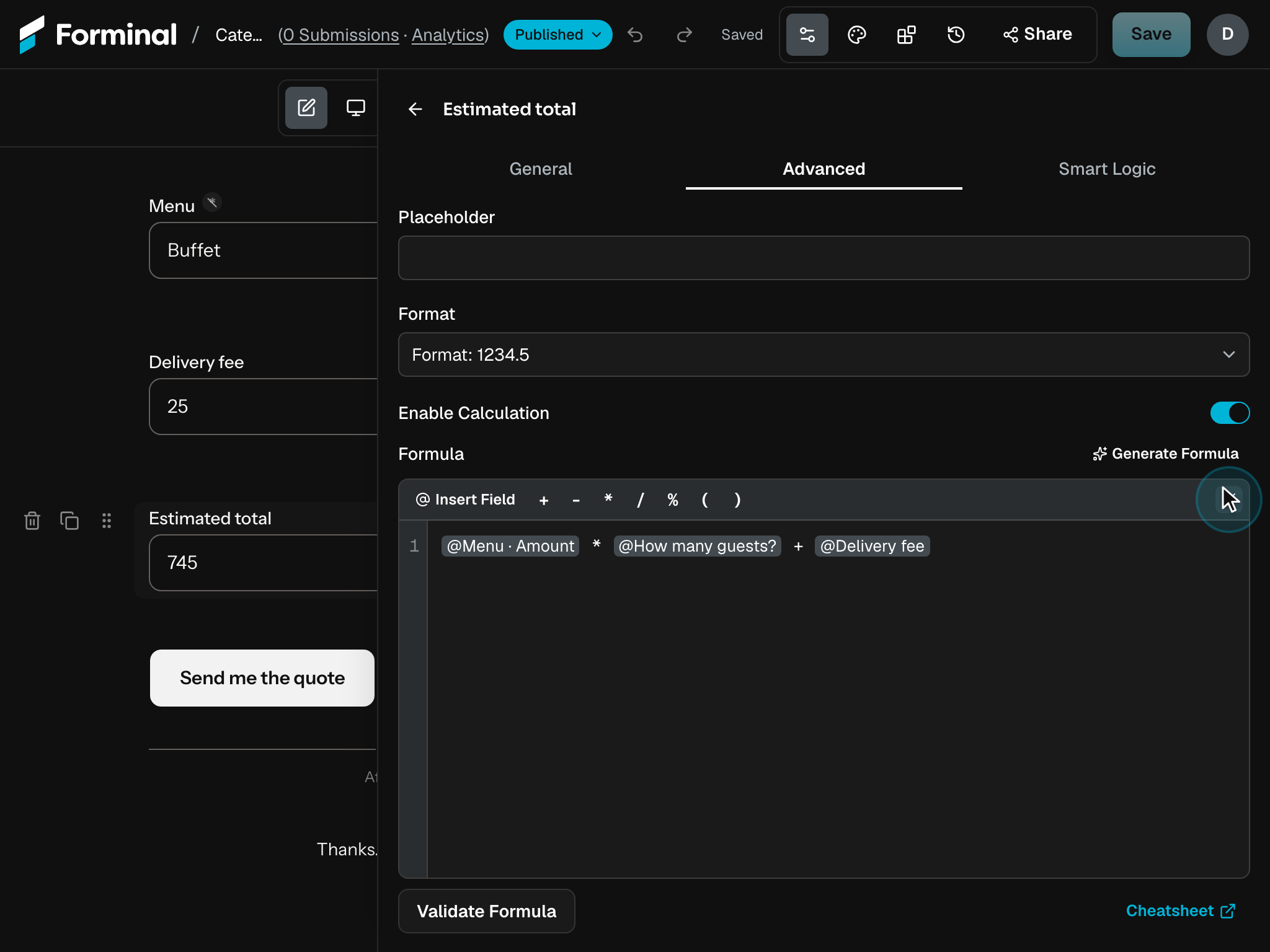
Operators follow normal math order, so the price is multiplied by the guests before the delivery fee is added. To show a currency sign, type it into the Number field’s Prefix, such as $. A calculated field drops Default Answer, the minimum, the maximum and Required, because people can’t type in it.
What people see
On the published form, the delivery fee and the total change as people answer, and nobody can type over them.
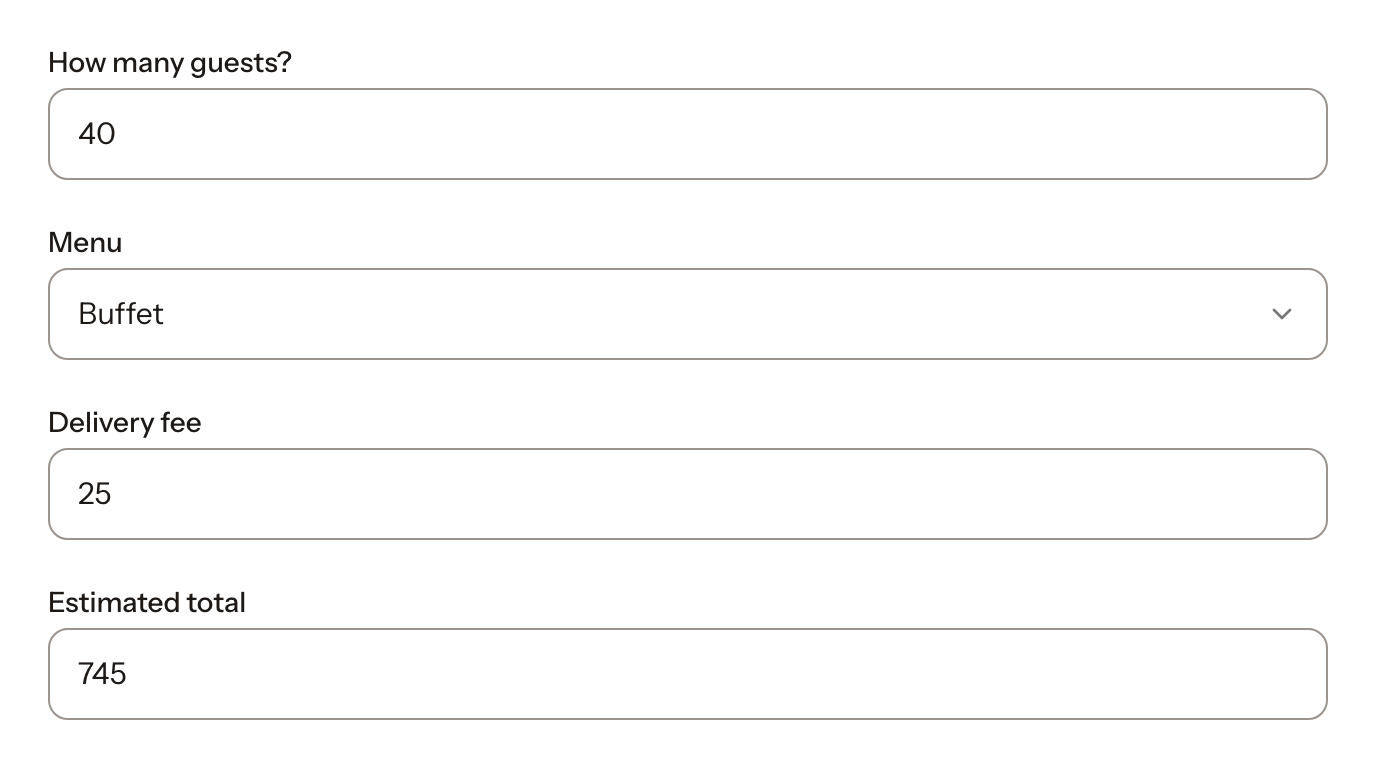
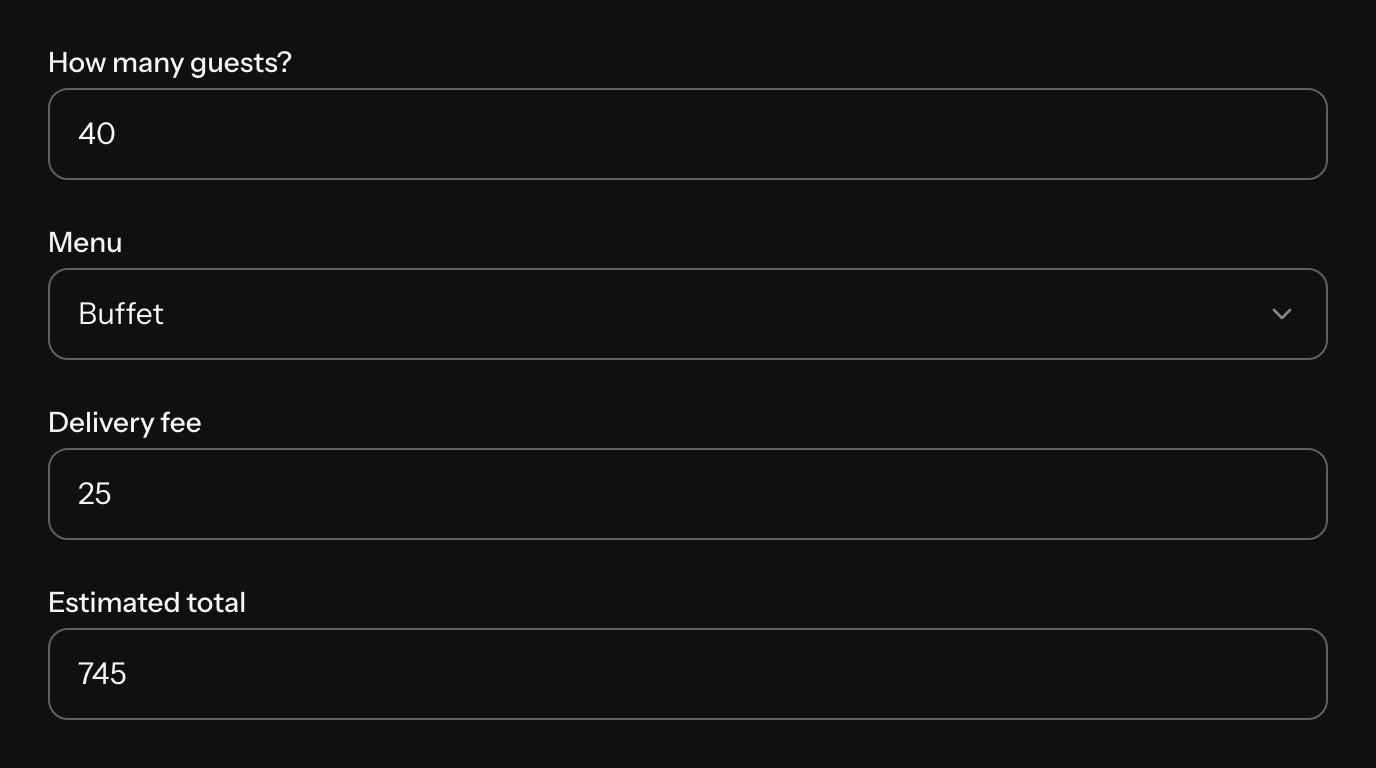
When the form is sent, the server works every calculated field out again from the submitted answers and ignores what the browser sent. Nobody can lower their quote by editing the page, and the total saved with the submission is always the one your formula gives.
Take a deposit, or just send the quote
If people should pay when they book, add a Payment field and set its Amount to From Fields, then pick Estimated total. For a deposit, add another calculated Number field such as round(@Estimated total * 0.2, 2) and charge that one instead.
If a person still needs to confirm the price, leave the payment out. The estimate is saved like any other answer, so it shows in the submissions table, the CSV export and your notification emails, and goes to Google Sheets and webhooks.
Good to know
- A blank number counts as 0 in a sum, so the total grows as people fill in the form.
- If a formula can’t be worked out, for example because it divides by zero, the field stays empty and people see no error. Validate Formula tells you why.
- A field that Smart Logic hides counts as empty in a formula.
- You can save a form with an unfinished formula, but you can’t publish it until the formula validates.
- A formula can be up to 10,000 characters long.
Every operator and function is in the Formula Cheatsheet, which the Cheatsheet link under the Formula box opens. The Calculations page covers every field type a formula can read.
Create a free account and build a quote form that shows the price while people answer.