When leads arrive from a newsletter, two ad campaigns and a partner’s blog, you want to know which one sent each of them, and “How did you hear about us?” gets vague answers. UTM Tracking reads it from the link instead. Tag each link you share, and every submission keeps the values. There’s no field to add and nothing to turn on, and it works on every plan.
Tag each link you share
UTM parameters go at the end of the form’s link, and Forminal reads all five: utm_source, utm_medium, utm_campaign, utm_term and utm_content. Give each place you share the form its own link:
- In the newsletter:
?utm_source=newsletter&utm_medium=email&utm_campaign=spring_sale - In a paid social ad:
?utm_source=facebook&utm_medium=paid&utm_campaign=spring_sale - On a partner’s site:
?utm_source=partner_blog&utm_medium=referral
It works on the form’s own link and on a custom domain. When the form is embedded on your site, put the parameters on the page that holds it, such as https://example.com/signup?utm_campaign=spring_sale, and the embed code passes them on to the form.
Values are saved in lower case, so Facebook and facebook count together. When a parameter appears twice in a link, the first one counts.
Ads without UTM tags
Facebook and Google add their own click id to the links in their ads. When a link has no utm_source, the form reads that id instead. A Google Ads click (gclid) saves source google and medium cpc. A Facebook click (fbclid) saves source facebook and no medium, because Facebook adds the id to clicks on ordinary posts too. The click id itself is never stored. To tell one campaign from another, add utm_campaign to the ad’s link.
Find the leads from one campaign
- Open the form’s Submissions page. Once some submissions carry UTM values, a UTM button shows in the toolbar.
- Select UTM. Each parameter that has values is listed, such as Source or Campaign, with how many submissions hold each value.
- Tick the values you want to keep. Values of one parameter add up, so ticking two campaigns shows both. Ticks across parameters narrow the list, so a source and a campaign show only submissions with both. No value keeps the submissions that came without that parameter.
- Each filter shows as a chip, such as “Campaign: spring_sale”. Select the remove button on the chip to take it off.
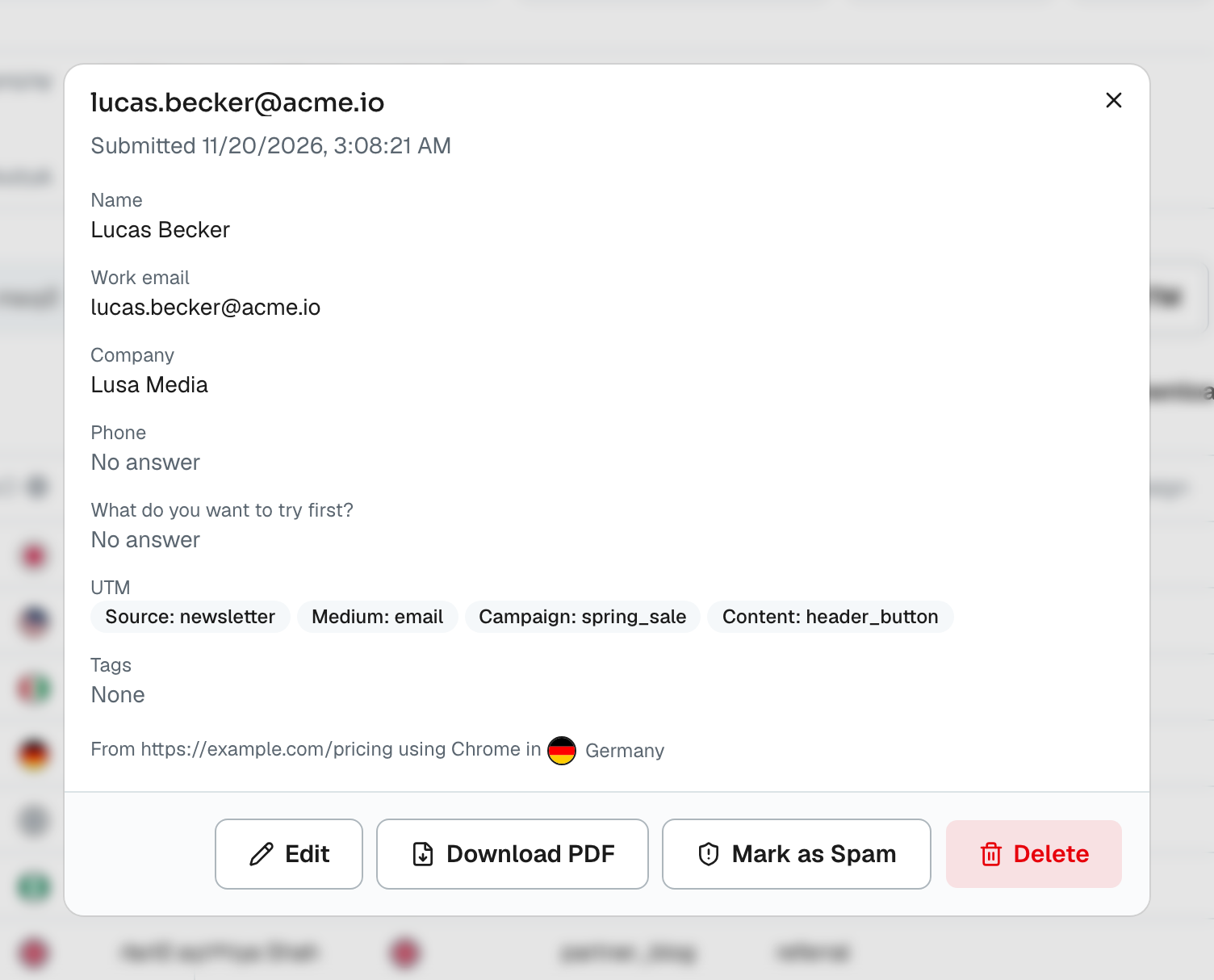
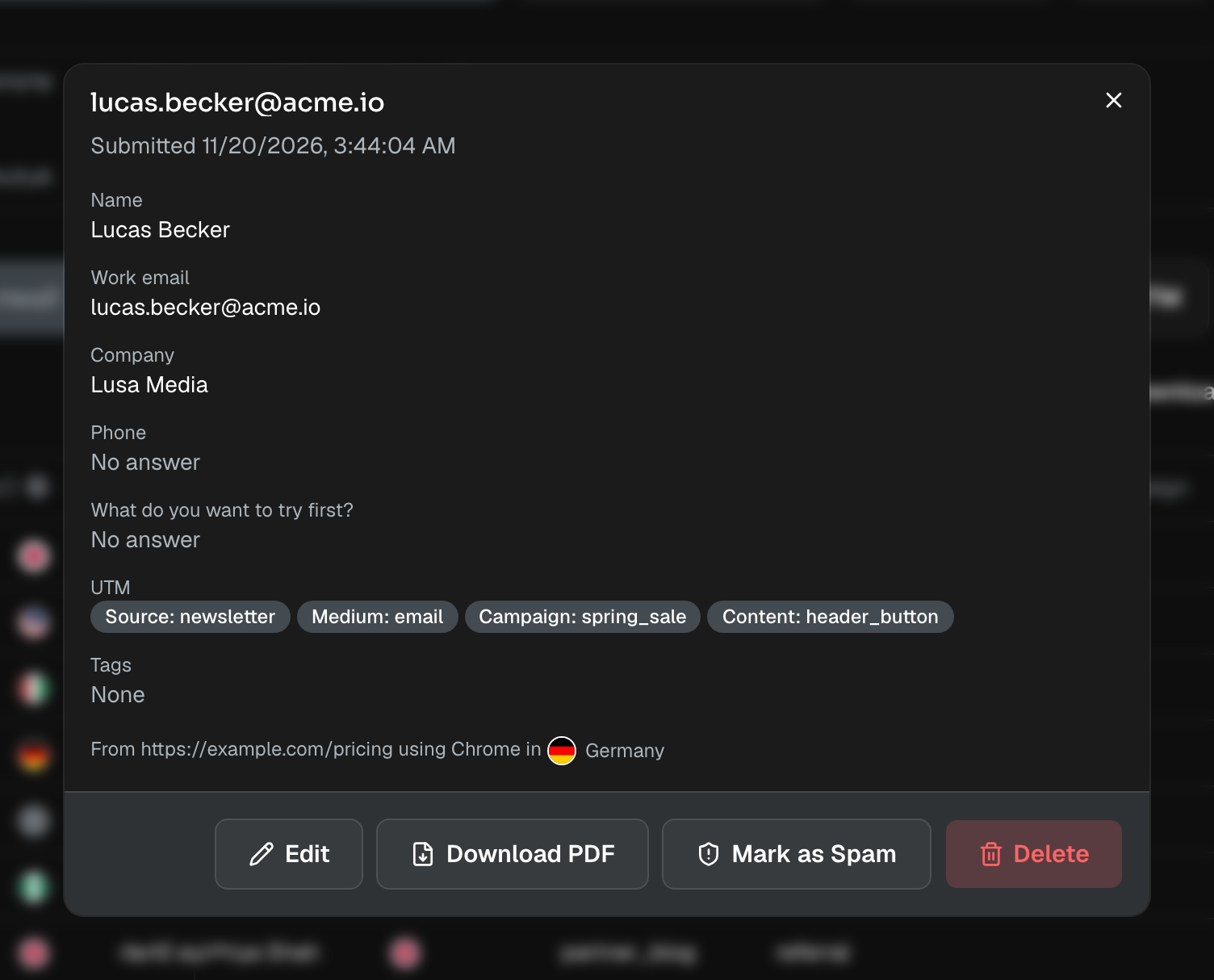
The counts, the CSV download and deleting every matching submission all follow the filter. To see the values as columns, select Column settings at the right of the toolbar and turn on UTM Source, UTM Campaign or any of the others. Opening a submission with View submission lists the parameters it came with.
Send the values on with each lead
CSV downloads have the five UTM columns after Country. New Google Sheets connections get the same columns, so a lead sheet shows the campaign beside each lead. Webhooks get the values under submission.utm, with only the parameters the visit carried, and the REST API returns them with each submission.
Use a hidden field for anything else
UTM covers five parameters. For a value of your own, such as a partner code, add a hidden field:
- In the builder, select Add Field » Hidden, under Other. On an empty form, select Start from Scratch instead of Add Field.
- Under Parameter Name, type the name the link will use, such as ref. It starts as hidden_1.
- Give the field a label you’ll recognize in your submissions.
A link ending in ?ref=spring_webinar then saves spring_webinar with the submission. Anyone can edit a link, so treat the value as something the visitor supplied, and don’t use it for prices or permissions. You don’t need hidden fields for the five UTM parameters: a hidden field named utm_campaign is stored as an ordinary answer, separate from the UTM values.
Compare campaigns in Analytics
On Pro and Business, Form Analytics counts views too, so you can see how many of a campaign’s visitors sent the form:
- Open the form’s Analytics tab and pick a period.
- In the chart menu at the top of the Charts card, pick Traffic.
- Open All traffic and pick a value under Source, Medium, Campaign, Term or Content.
- Under Compare with, pick another value of the same parameter, Previous period or Custom period.
Views, Submissions and Conversion Rate then count only that traffic, and each shows how it changed from what you compare it with.
What is and isn’t stored
Nothing is saved in the visitor’s browser for UTM tracking: no cookie and no storage. The values are campaign labels read from the link, and a submission’s values are deleted with the submission. Only the visit that sends the form counts, so someone who first came from an ad and later came back through a plain link has no UTM values.
The UTM Tracking page has every detail, and Hidden Fields covers values of your own.
Create a free account and share your first tagged link.