A job application form can take the CV along with the rest of the answers, so you stop matching email attachments to names. Add a File Upload field, limit it to documents, and every CV lands in one folder for the form: in your media library in Forminal, or in a Google Drive folder you share with the hiring manager. File uploads work on every plan.
Build the application form
Ask for what you screen on first. A typical application has a Name, an Email, a Phone, a Dropdown for the role, a Website field for a portfolio or LinkedIn profile, and a Long Text for a short cover note. Then add the CV:
- In the builder, select Add Field and choose File Upload under Files and Signature. On an empty form, select Start from Scratch instead of Add Field. It starts with the label “Upload a file”, so rename it to something like “Your CV”.
- On the General tab, turn on Required if you won’t read an application without a CV.
- On the Advanced tab, set File types to Documents. That accepts pdf, doc, docx, xls, xlsx, ppt, pptx, txt and csv, and turns away photos and everything else.
- Leave Max Size (MB) at 10, the most a file can be, or lower it.
- Set Max File Uploads to 2 if you also want a cover letter or a portfolio as a separate file. Above 1, people can pick several files at once.
What applicants see
A dashed box reads “Drag & Drop a File, Choose File to Upload”, with your limits under it. Each file starts uploading as soon as it’s picked and shows “Uploading…” until it’s done.
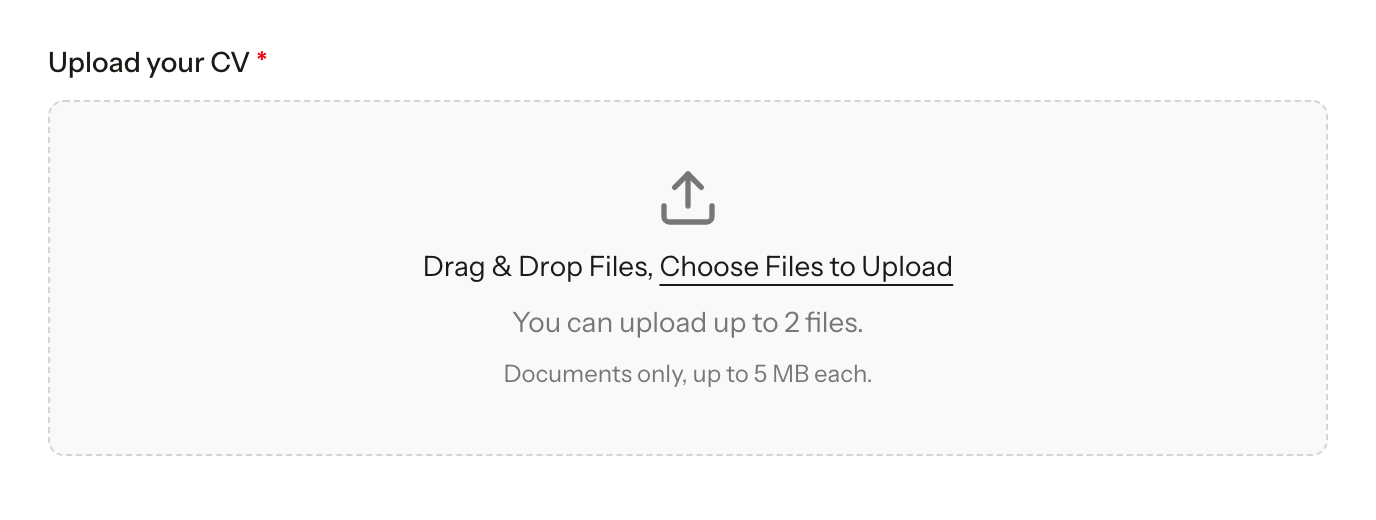
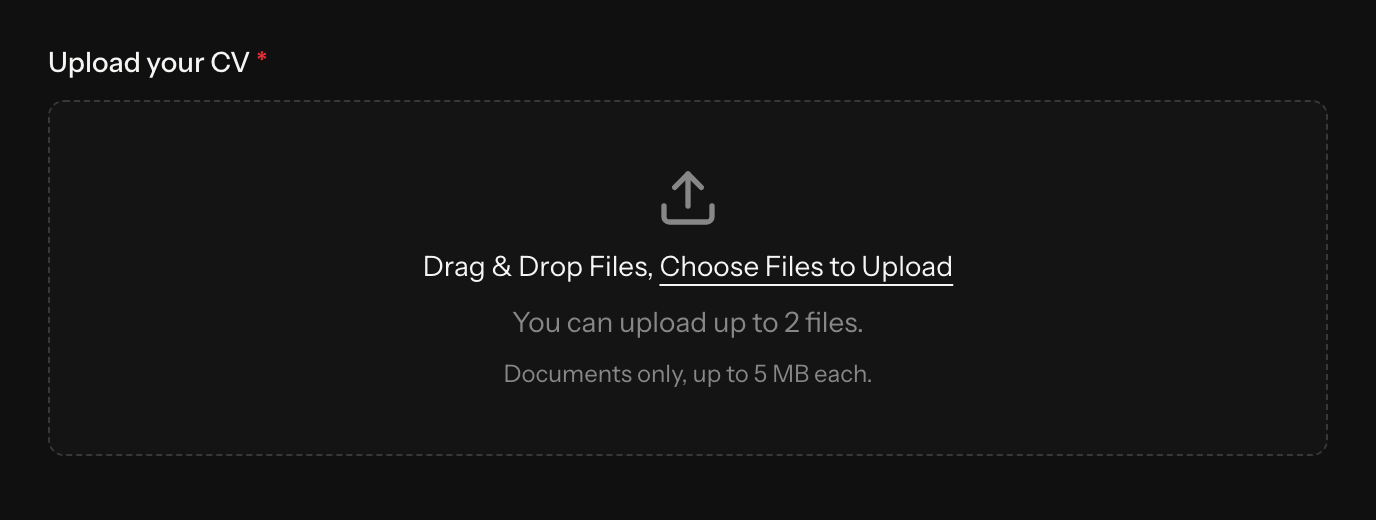
A file that breaks a rule is stopped right away with “File is too large” or “This file type is not allowed”, and a required field left empty shows “Add a file”. That way applicants can fix the file before they press Submit.
Choose where the CVs go
On the field’s General tab, find Folder. Save Files To starts on Media, so there’s nothing to set up:
- With Media, the CVs stay in Forminal, encrypted on our servers. Open Account menu » Media and select the Customers Data tab. Each form has its own folder, named after the form, where you can preview, download or delete the files. They count toward your media library’s storage: 50 MB on Lite, 250 MB on Pro and 1 GB on Business.
- With Google Drive, the CVs go to a folder in your own Drive, and each submission gets a subfolder named after its submission ID. Files in Drive don’t count toward your media library.
To use Drive:
- Under Save Files To, select Google Drive.
- If no Google account is connected yet, select Manage accounts and connect one on the Integrations page.
- Pick the account under Select Google account.
- Check the Folder name, which starts as your form’s title, and select Create Folder. To use a folder you already have, select Browse Google Drive instead.
Until a folder is saved, the field stays off the published form, so do this before you share the link. Forminal only sees the folders and files it creates or that you pick, not the rest of your Drive. Google Permissions for Sheets and Drive explains what each permission is for.
Read the applications
The Submissions page lists each applicant with the names of their files. Open a submission and each name links to the file. A CV kept in your media library opens only for someone signed in with access to the form’s submissions, so a forwarded link doesn’t hand it to anyone else.
To hear about each application as it arrives, switch on a notification under Form Settings » Notifications. The email lists every answer, with the CV as a link; see Get an Email for Each Submission. On Pro and Business, Attach PDF with Answers on that notification adds the whole application as a PDF, which suits a hiring manager who files each one.
If several people review applications, put the form in a workspace, included on Pro and Business. A member with Submissions set to Viewer can read the applications and download the files from their own Media page. Only you can delete them.
Good to know
- Only the form’s owner can change Save Files To or the folder. Workspace members see a note saying the owner manages it.
- Deleting a submission deletes the files kept in your media library with it. Files already copied to Drive stay there, because Forminal never deletes anything from your Drive.
- When the media library is full, forms that keep files in Media stop taking them, and applicants see “This form can’t take files right now.” Forms that send files to Drive keep working.
- A form made without an account can’t collect files until it’s in your account.
Every file rule is on the File Upload page, and the two places files can go are covered in Media Library and Google Drive.
Create a free account and add a File Upload field to your next job posting.