Workspaces let you group your forms, invite teammates by email and decide, person by person, what each of them can see and change. The forms stay yours. Members work on them under your account, with your plan’s features.
Examples
- A marketing team where everyone edits forms but only managers read submissions.
- An agency giving a client view-only access to submissions.
- One workspace per client, so each client’s people see only their own forms.
Create a workspace
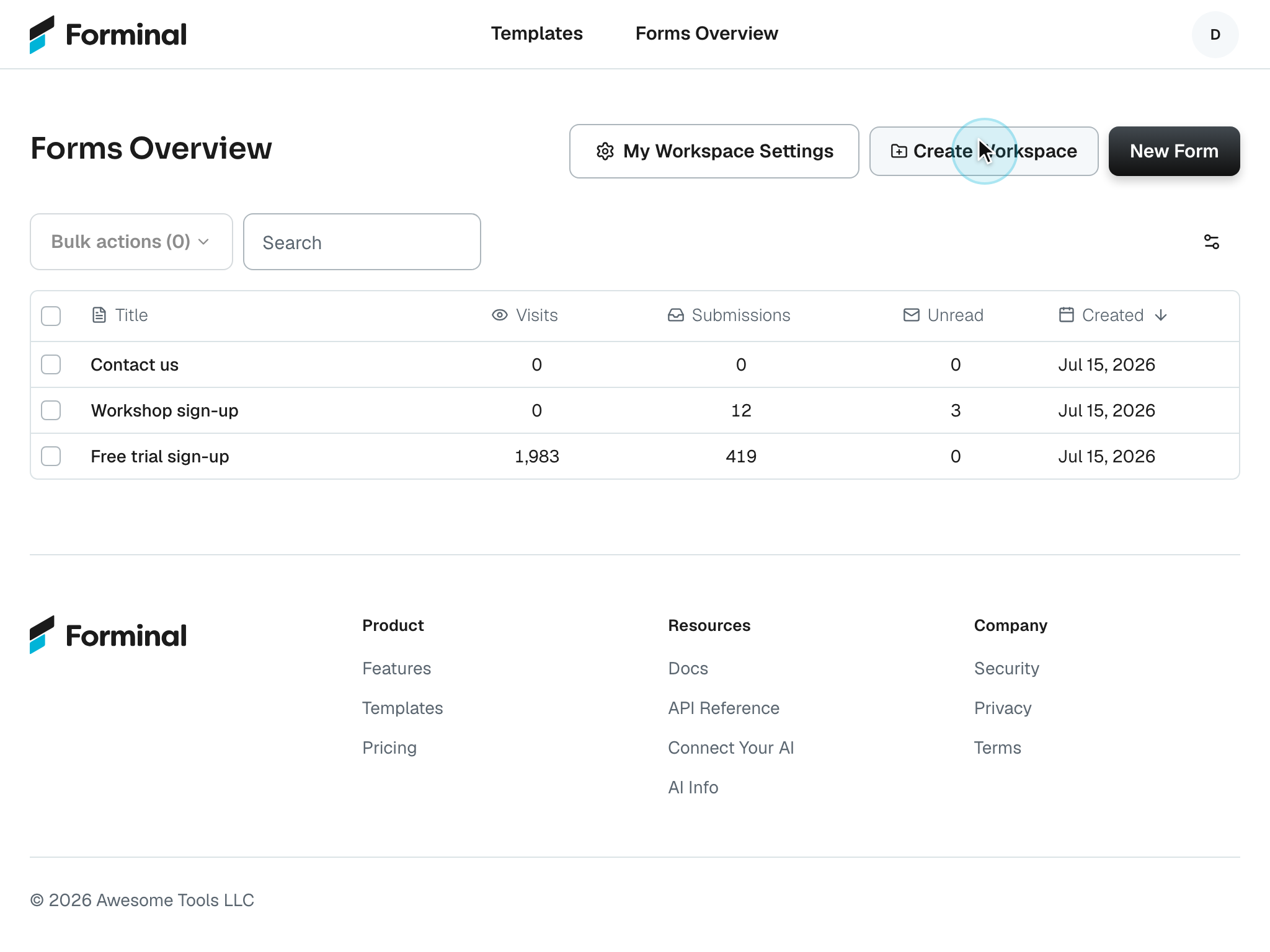
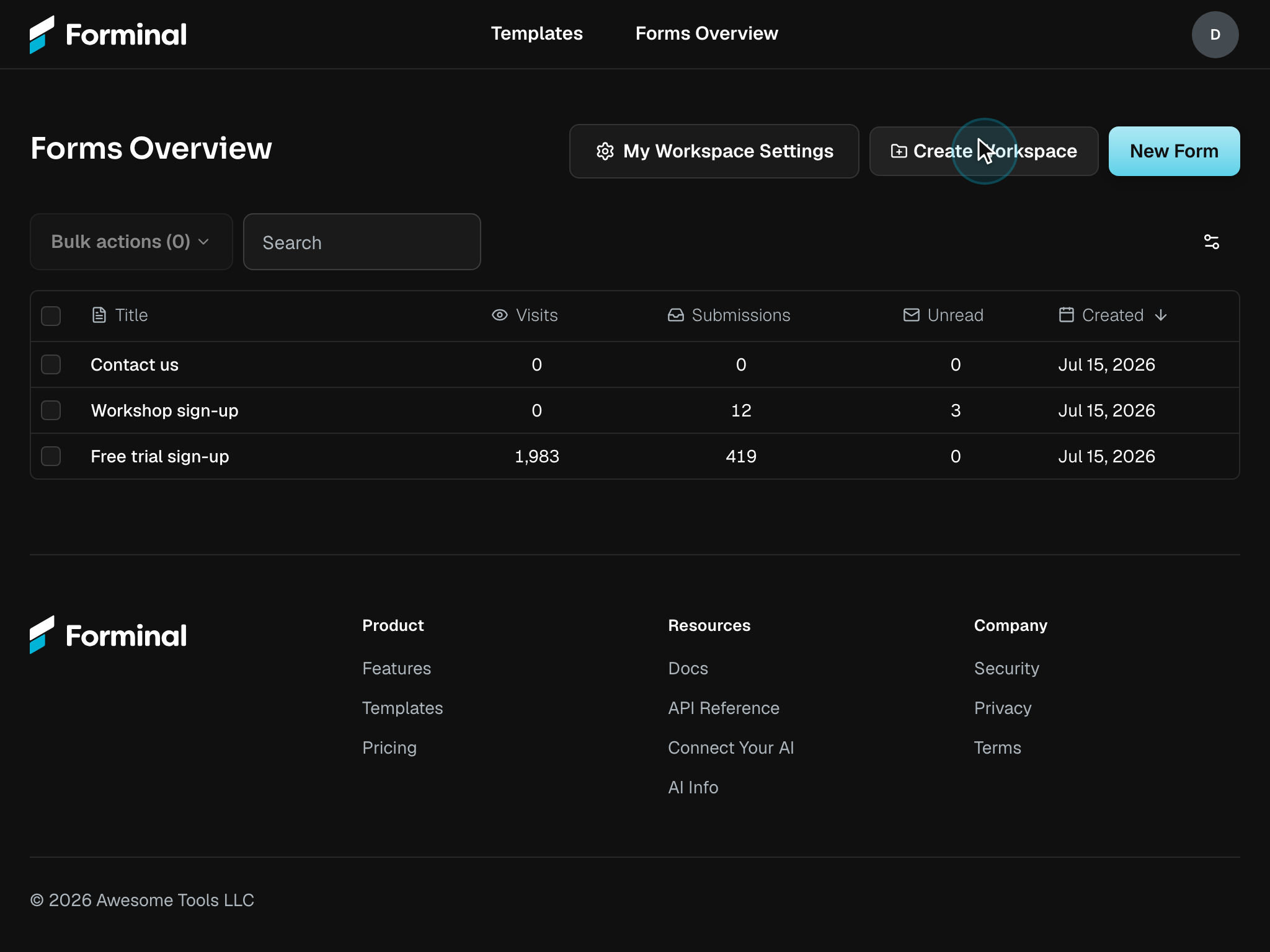
- On your dashboard, select Create Workspace.
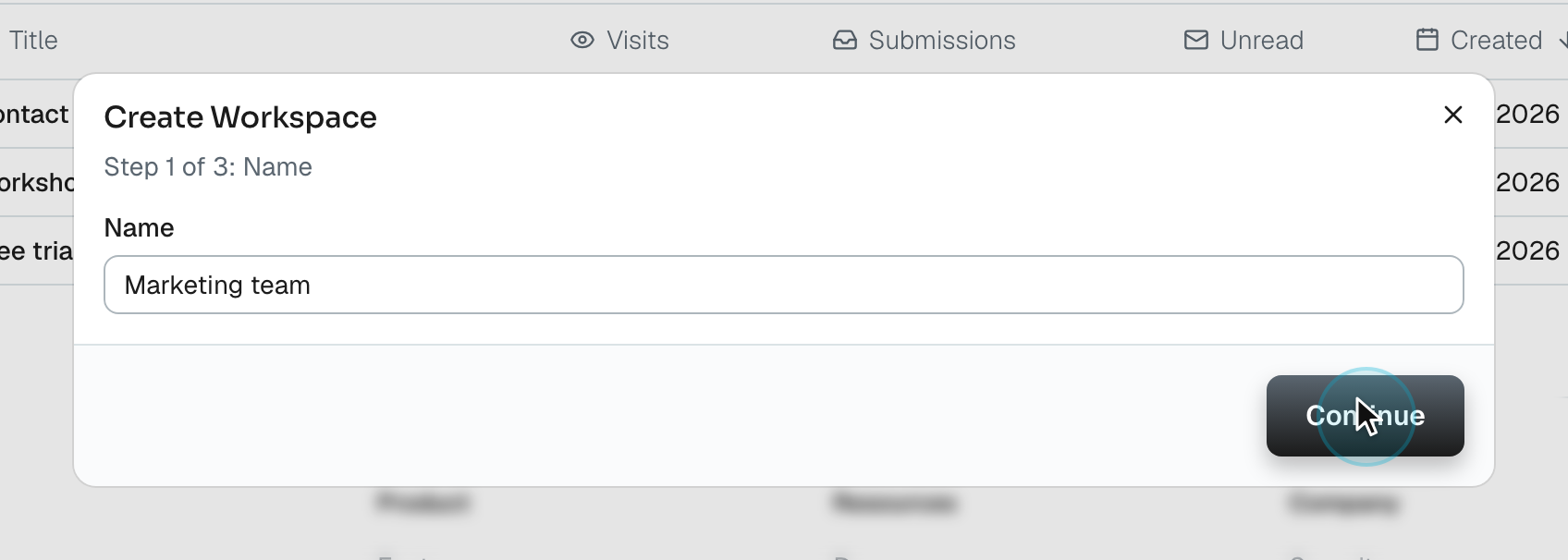
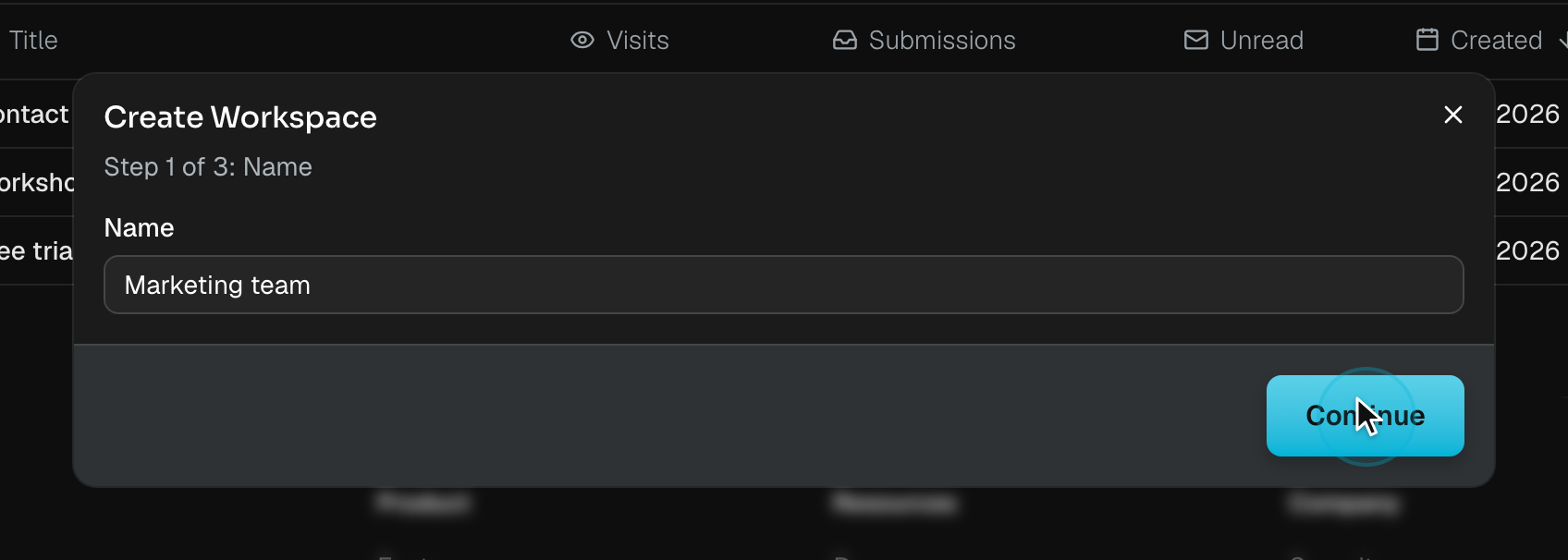
- Type a Name of up to 60 characters and select Continue.
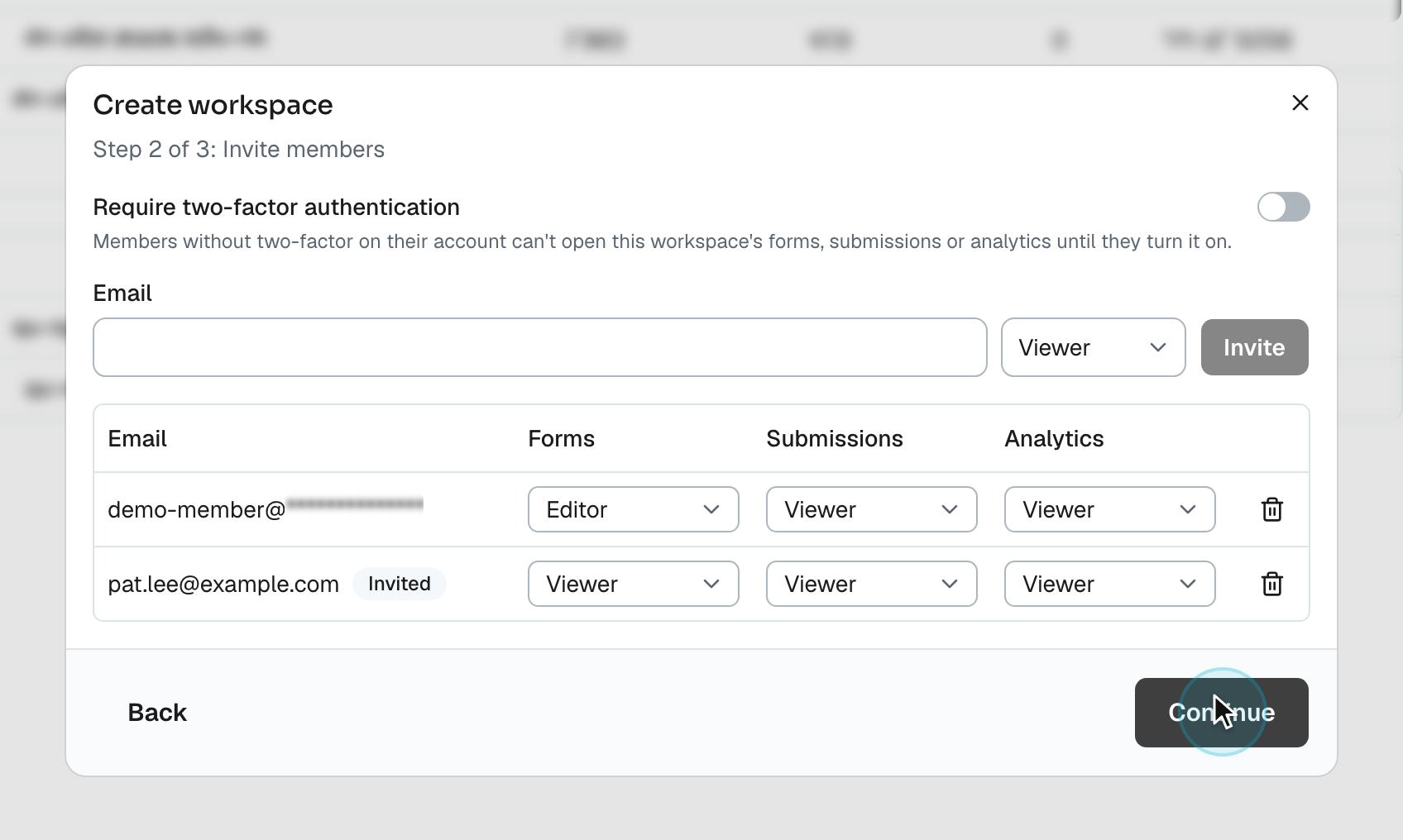
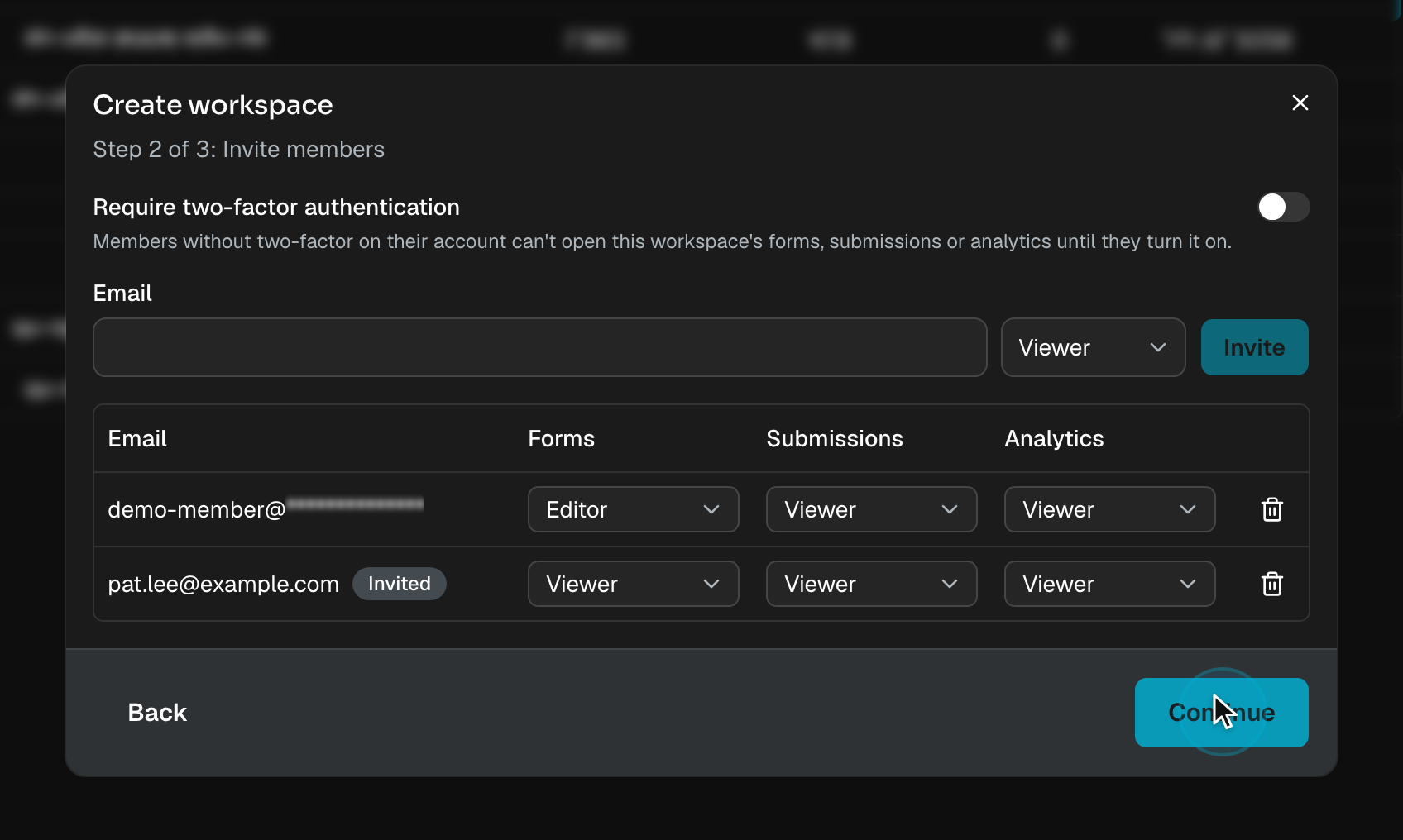
- Invite members: type an Email, choose Viewer or Editor as the Role, and select Invite. Repeat for each person, then select Continue, or select Skip to do it later.
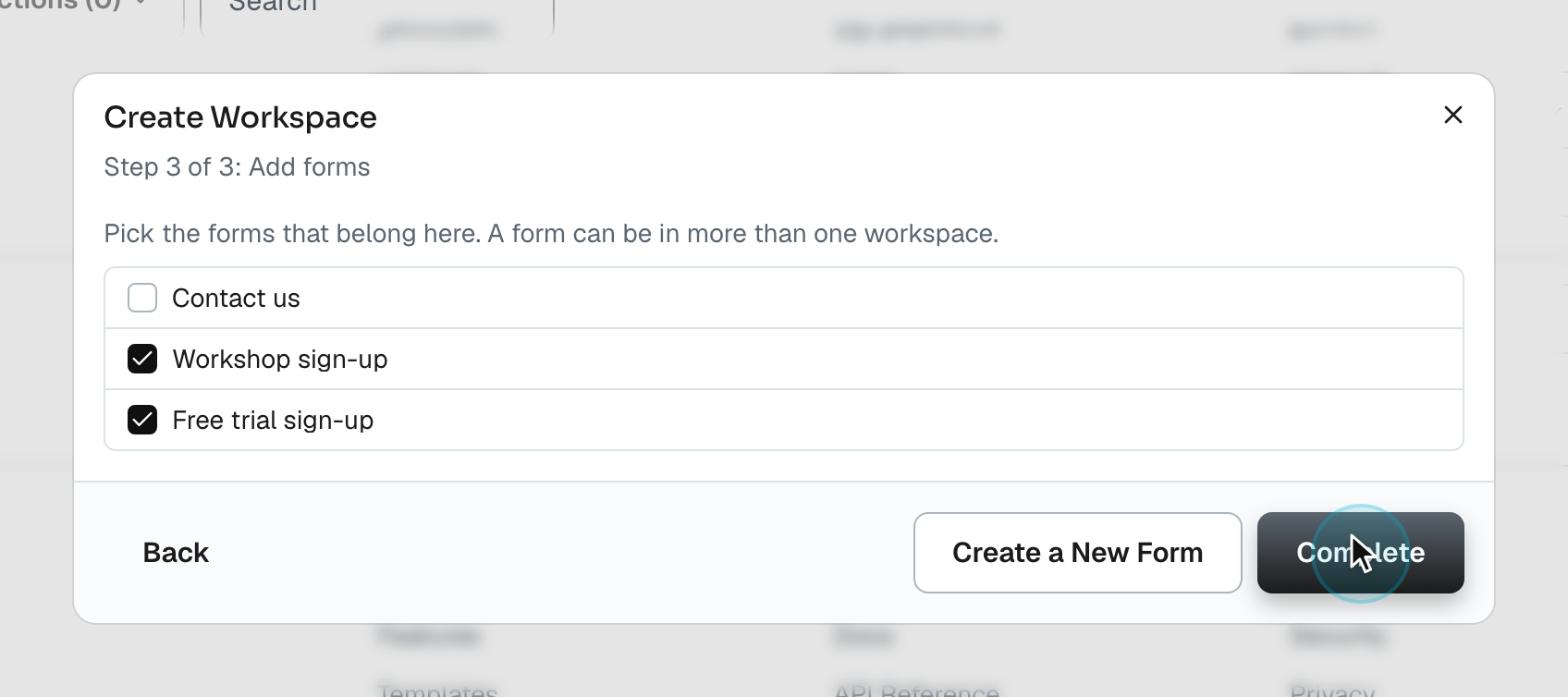
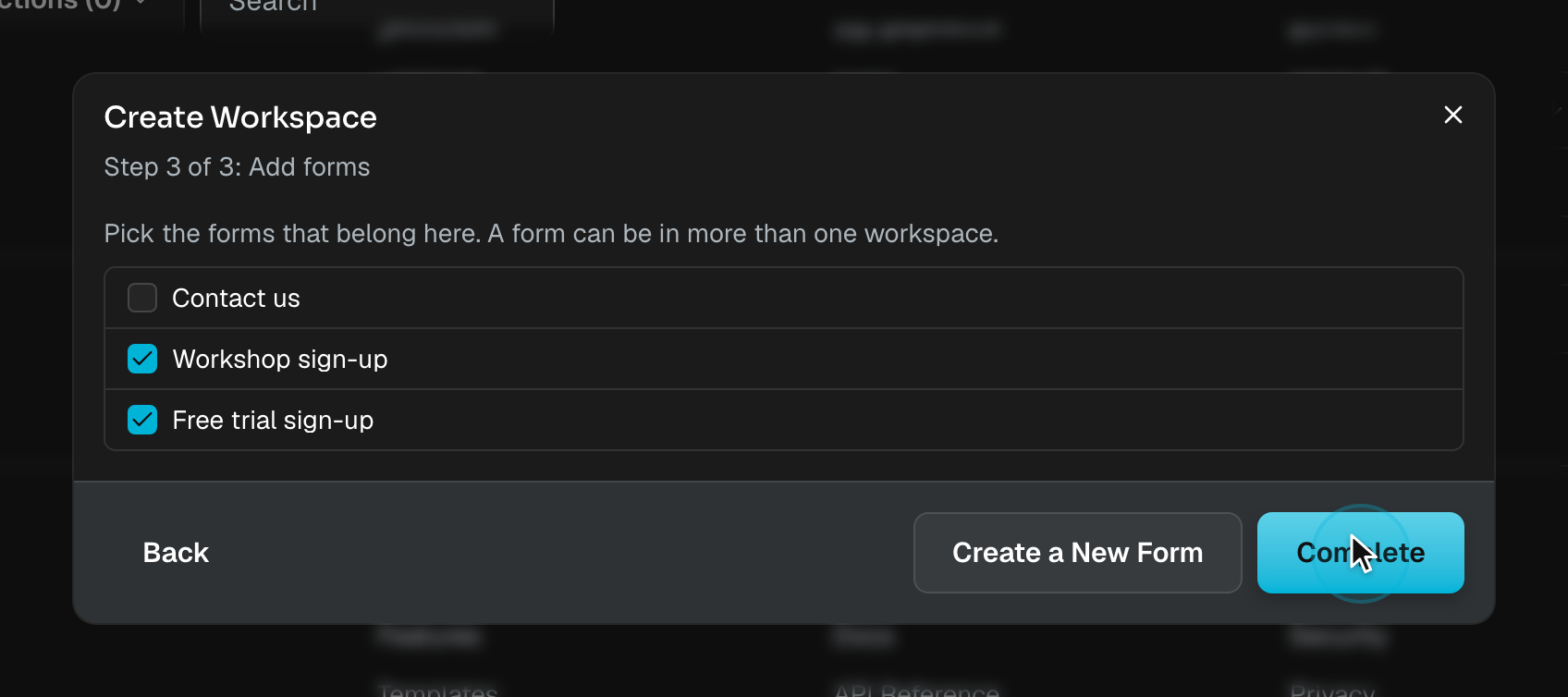
- Add forms: tick the forms that belong in this workspace, then select Complete. From 7 forms on, a search box helps you find them by title. Create a New Form starts a blank form inside the workspace instead.
The workspace then shows on your dashboard with its forms under it, and the icons on its heading start a new form in it, rename it, open its members or delete it.
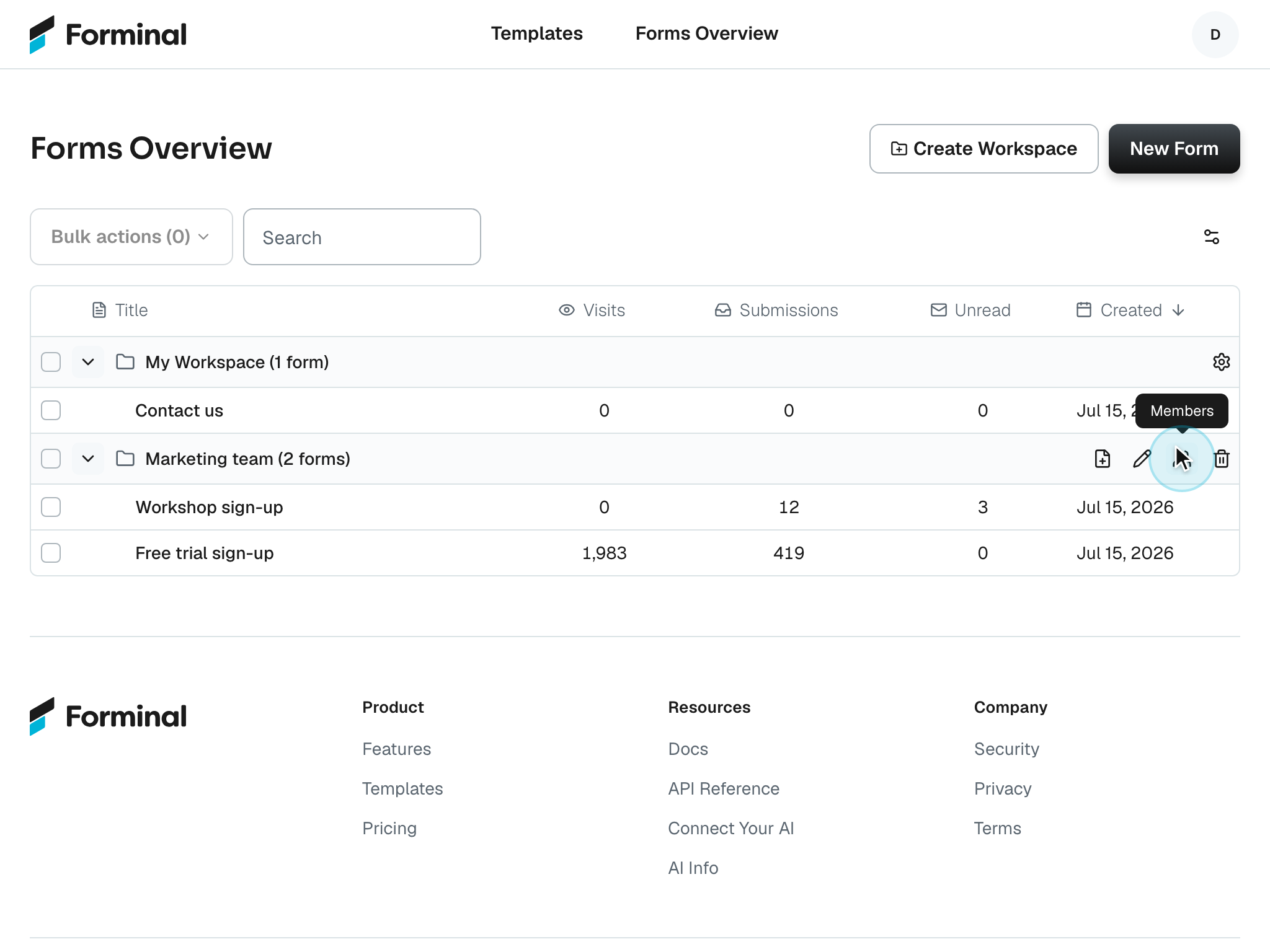
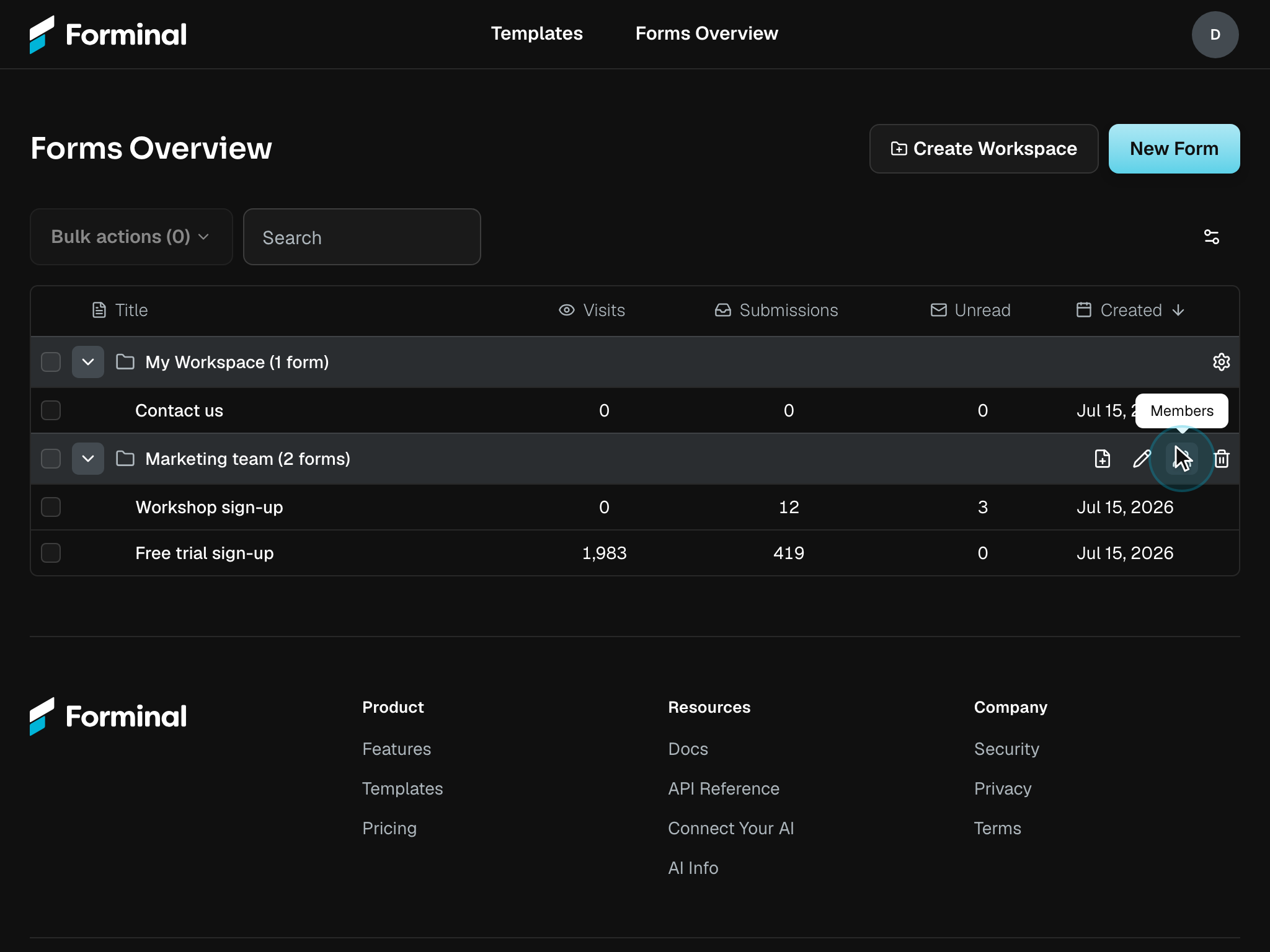
A form can be in more than one workspace. To change which workspaces a form is in later, use the Workspaces button on its row in the dashboard. A form that isn’t in any workspace sits in My Workspace, which only you see. To start a new form straight inside a workspace, use New form on the workspace’s heading.
Roles and access
Each member has a level for each area, and it applies to every form in that workspace:
- Forms can be Not allowed, Viewer or Editor. A viewer can open a form in the builder but sees it as View only. An editor can change it, publish it, use the assistant on it, and restore earlier versions. An editor can also create new forms in the workspace.
- Submissions can be Not allowed or Viewer. A viewer can read the form’s submissions, and also sees the workspace’s files under Media » Customers Data. Only you can delete them; see Media Library.
- Analytics can be Not allowed or Viewer. A viewer can open the form’s analytics.
- Pages can be Not allowed, Viewer, Editor or Publisher, for the form’s Submission Pages. A viewer can look at pages in the builder. An editor can create and change draft pages. A publisher can also publish a page, change or delete a published one, and approve or hide submissions on it. Pages needs Submissions access, and works only while you’re on Business. Inviting someone as Viewer gives Viewer here, and as Editor gives Editor.
The role you choose when you invite someone is a starting point. Viewer gives Viewer in every area. Editor gives Editor on Forms and Pages, and Viewer on Submissions and Analytics. After that, select Members on the workspace’s heading to set each area for each person, or Remove to take someone out. People who haven’t signed up yet show an Invited badge.
What members see
There’s nothing to accept. The person gets an email saying you added them to the workspace and asking them to sign in with that address. Once they have an account with that email and have confirmed it, the workspace shows up on their dashboard with the forms they can reach. If one person is in several of your workspaces that hold the same form, they get the highest level any of them grants. A member can leave a workspace with Leave on its heading, and loses access until you add them again.
Require Two-Factor Authentication
To make sure every member protects their account, select Members on the workspace’s heading and switch on Require Two-Factor Authentication. It applies to that workspace only.
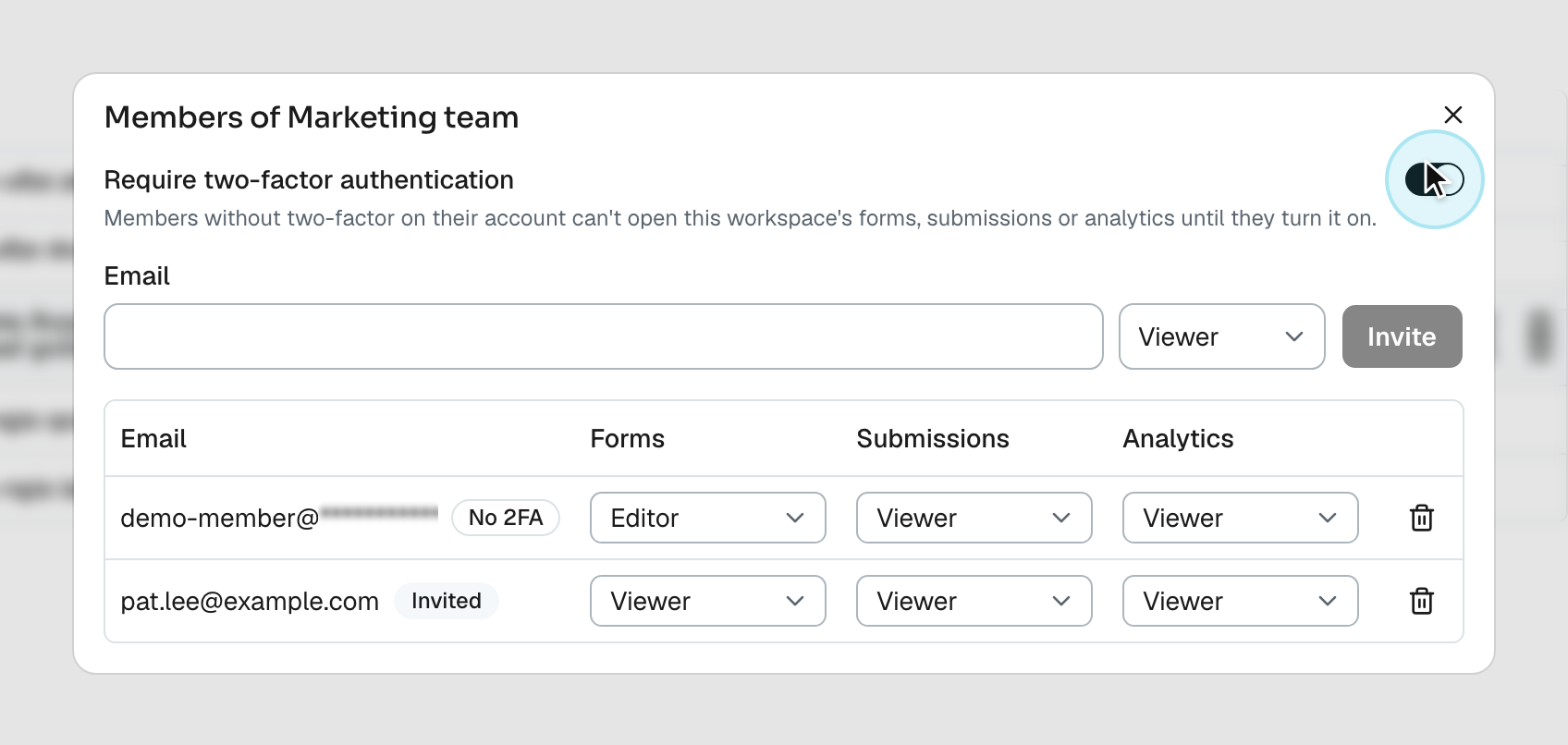
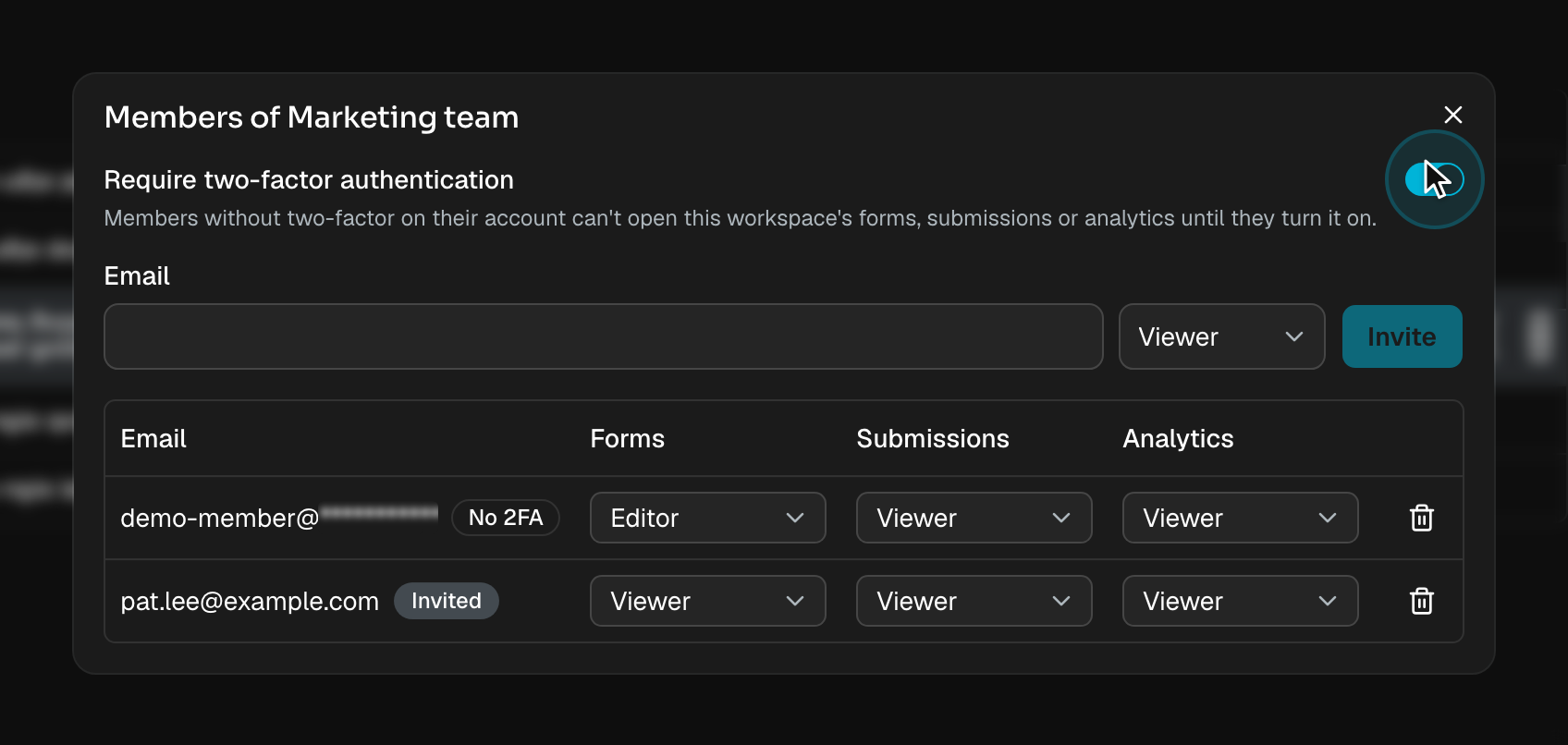
Members who haven’t turned on two-factor authentication then can’t open the workspace’s forms, submissions or analytics, and the members list marks them No 2FA. On their dashboard the workspace shows a Two-Factor Authentication Required notice with a Set Up Two-Factor link to their profile, and a form page opened from an old link shows the same notice. The API, the MCP server and the assistant refuse them too. Access comes back as soon as they turn two-factor on.
Good to know
You can send up to 30 invites an hour. Deleting a workspace doesn’t delete its forms: they stay yours, in My Workspace unless they’re also in another workspace, and its members lose access to them. If your plan stops including workspaces, members lose access but nothing is deleted. You can still rename or delete workspaces, change levels and remove members, and everyone’s access comes back as it was when you upgrade again.
To see what members did on your forms, such as who edited a form or viewed its submissions, open the Action Log.
Frequently asked questions
Which plan includes workspaces?
Workspaces come with Pro and Business. Members don’t need a paid plan of their own, because they work on your forms with your plan’s features.
Can a workspace member delete my forms?
No. Deleting a form, editing or deleting submissions, connecting integrations and choosing a CAPTCHA stay with you as the owner.
Does a teammate have to accept the invite?
There’s nothing to accept. They get an email and sign in with that address, and once the email is confirmed the workspace shows on their dashboard.
What happens to the forms if I delete a workspace?
They stay yours, in My Workspace unless they’re also in another workspace. The members lose access to them.
Can teammates edit the same form at the same time?
There’s no live co-editing. Members can work on the same forms, but nobody sees another person’s changes as they are made. Version History lets you roll back a change.
Can I make every member use two-factor authentication?
Turn on Require Two-Factor Authentication in the workspace’s Members panel. Members without it can’t open that workspace’s forms, submissions or analytics until they set up two-factor.