Short Text is a single line for answers that fit in a few words, like a company name or an order number. Use it when no more specific field type fits.
Examples
- A contact form asking for a company name.
- An event sign-up asking for a job title to print on the badge.
- A returns form asking for the order number, with Smart Logic showing a follow-up question when it starts with “EU”.
Add it to a form
- In the builder, point between two fields and select Add Field. On an empty form, select Start from Scratch.
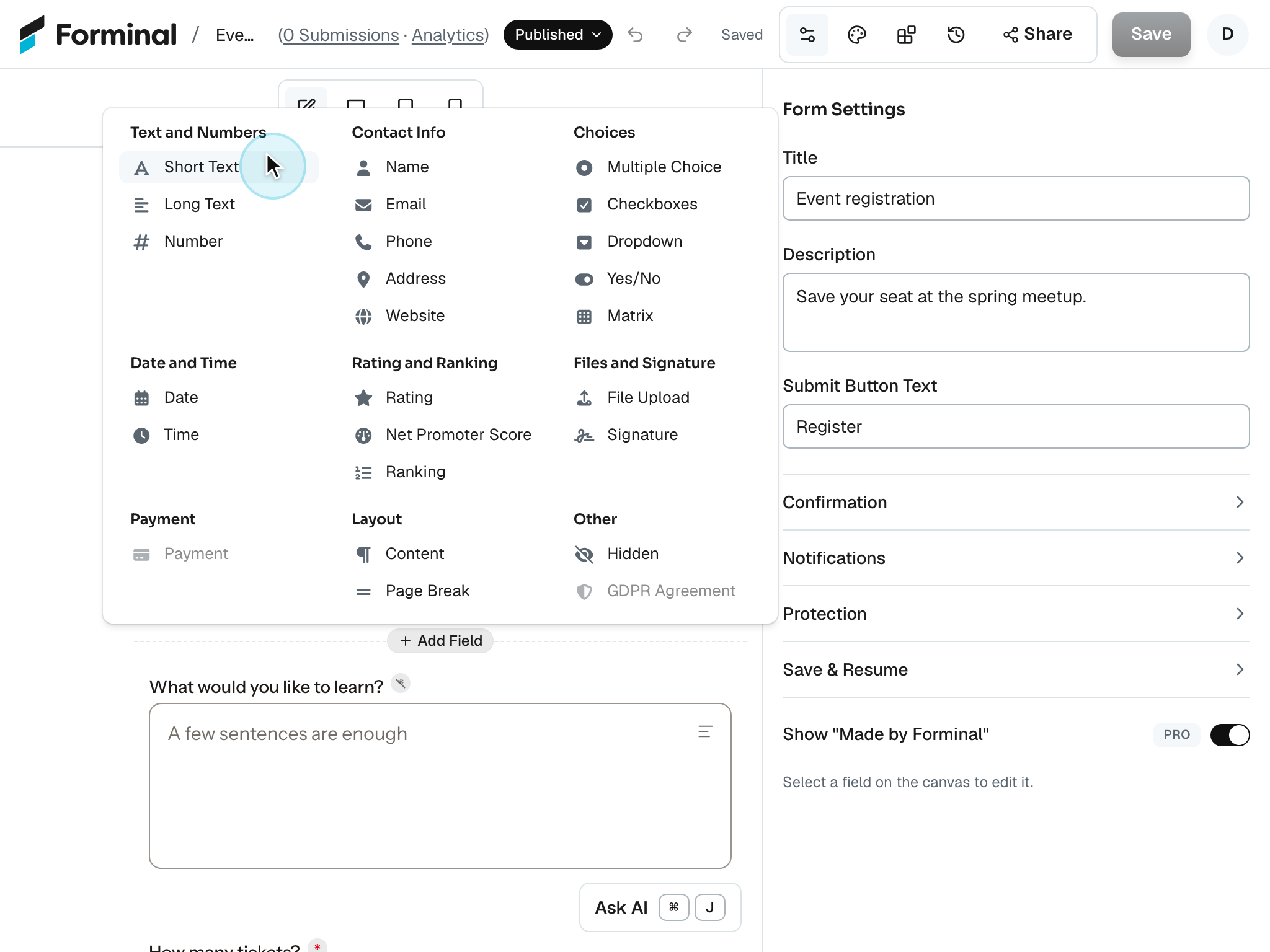
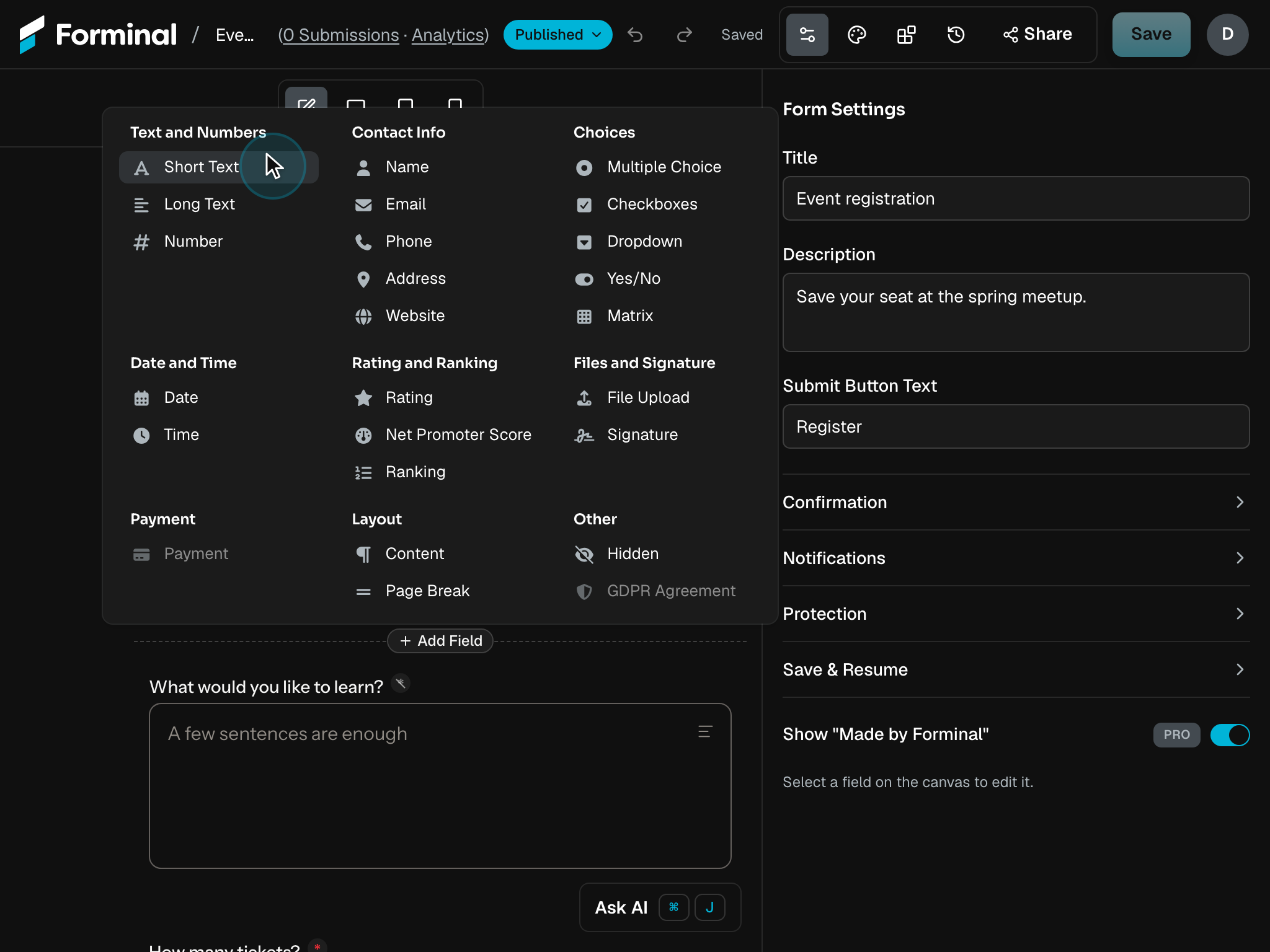
- Under Text and Numbers, select Short Text. It’s added with the label “Short answer” and selected, so its settings open on the right.
- Type your question over the label, either on the canvas or in the Label box.
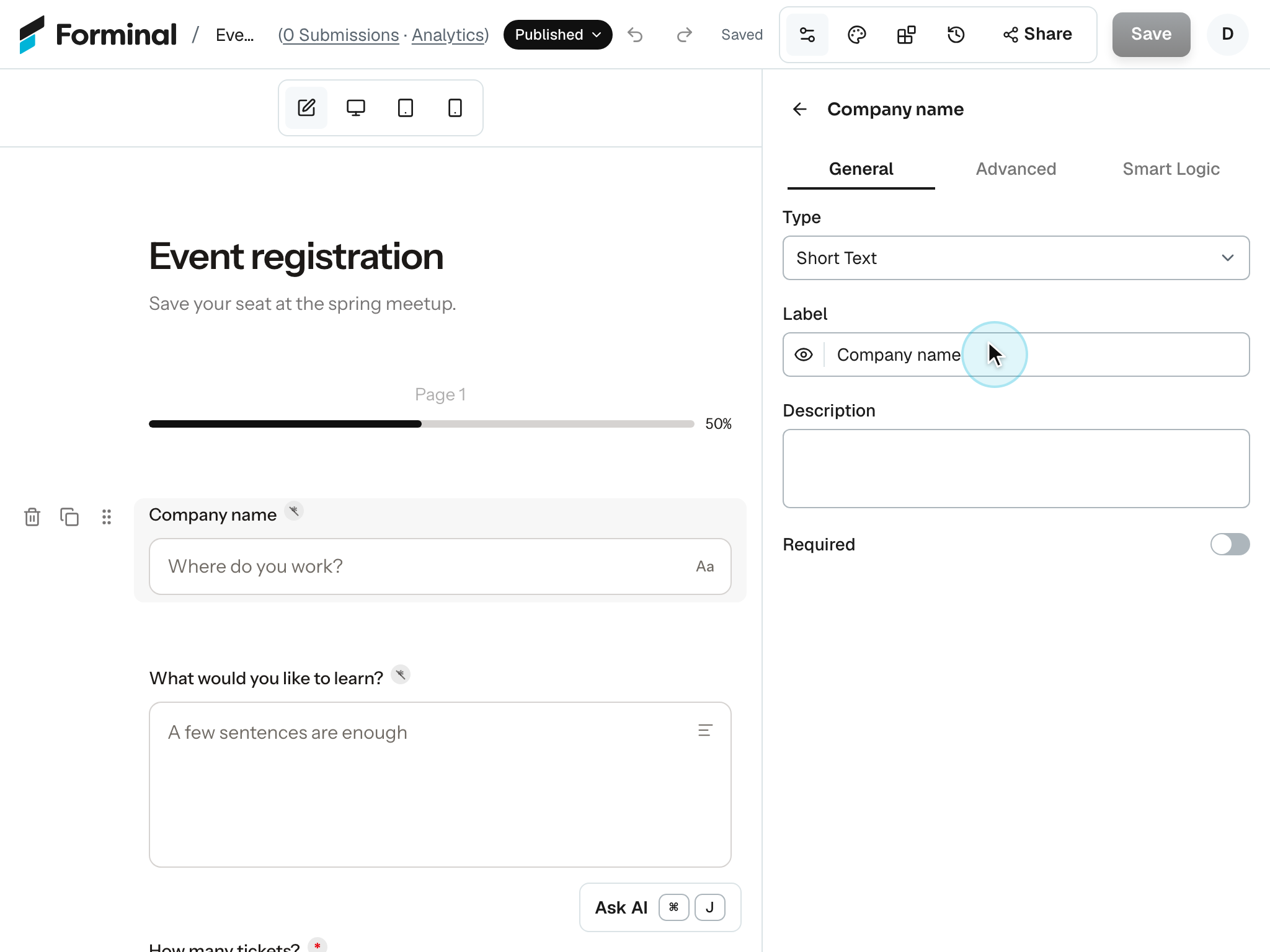
Settings
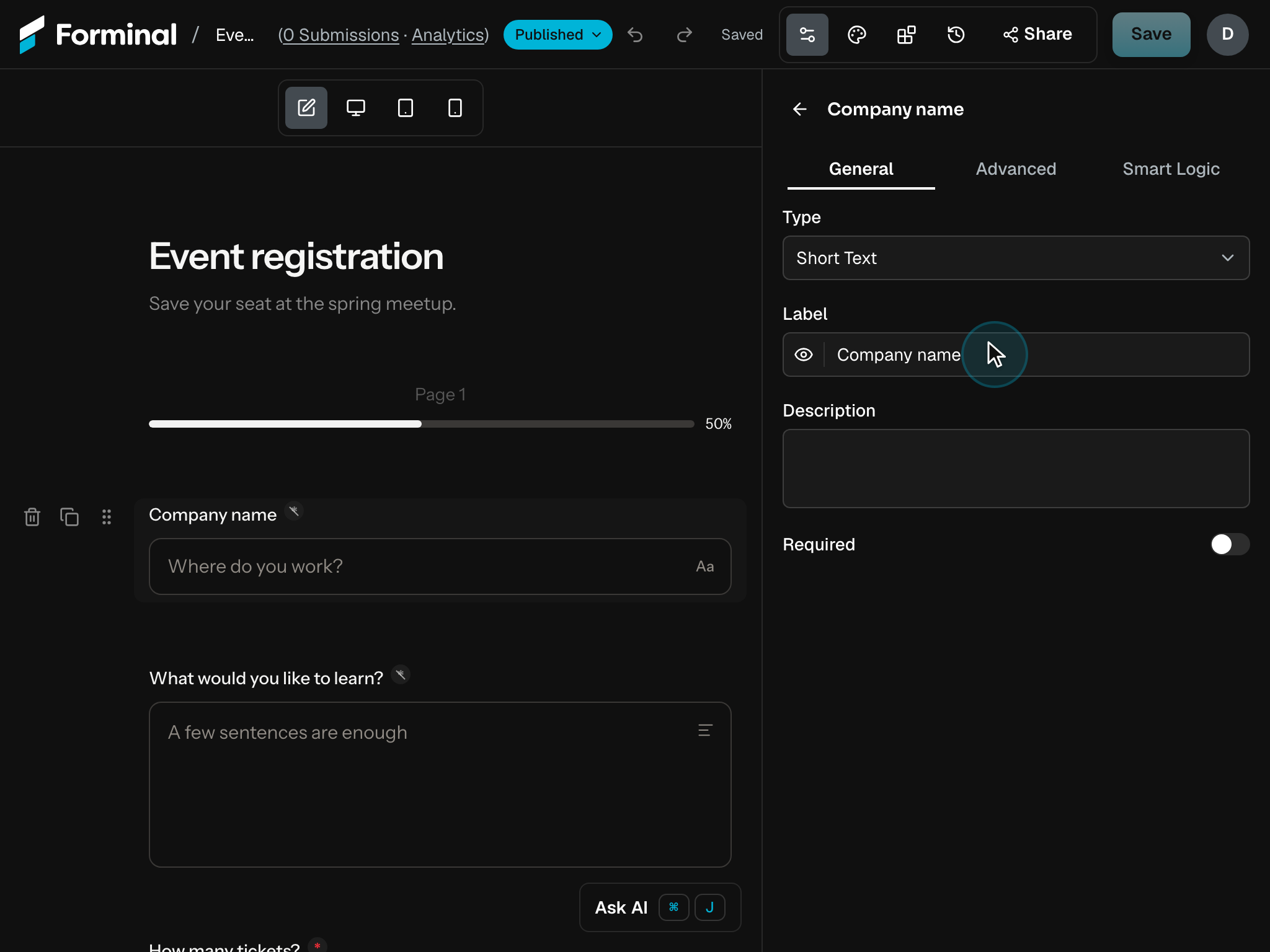
The General tab holds the Type, the Label, a Description with its Description Position (under the label, or under the box), and the Required switch. You can also click the small asterisk next to the label on the canvas to make the field required. The eye button at the start of the Label box hides the label on the form, while screen readers still read it. Use it on a short form where the placeholder says what to type. See Hide a field’s label.
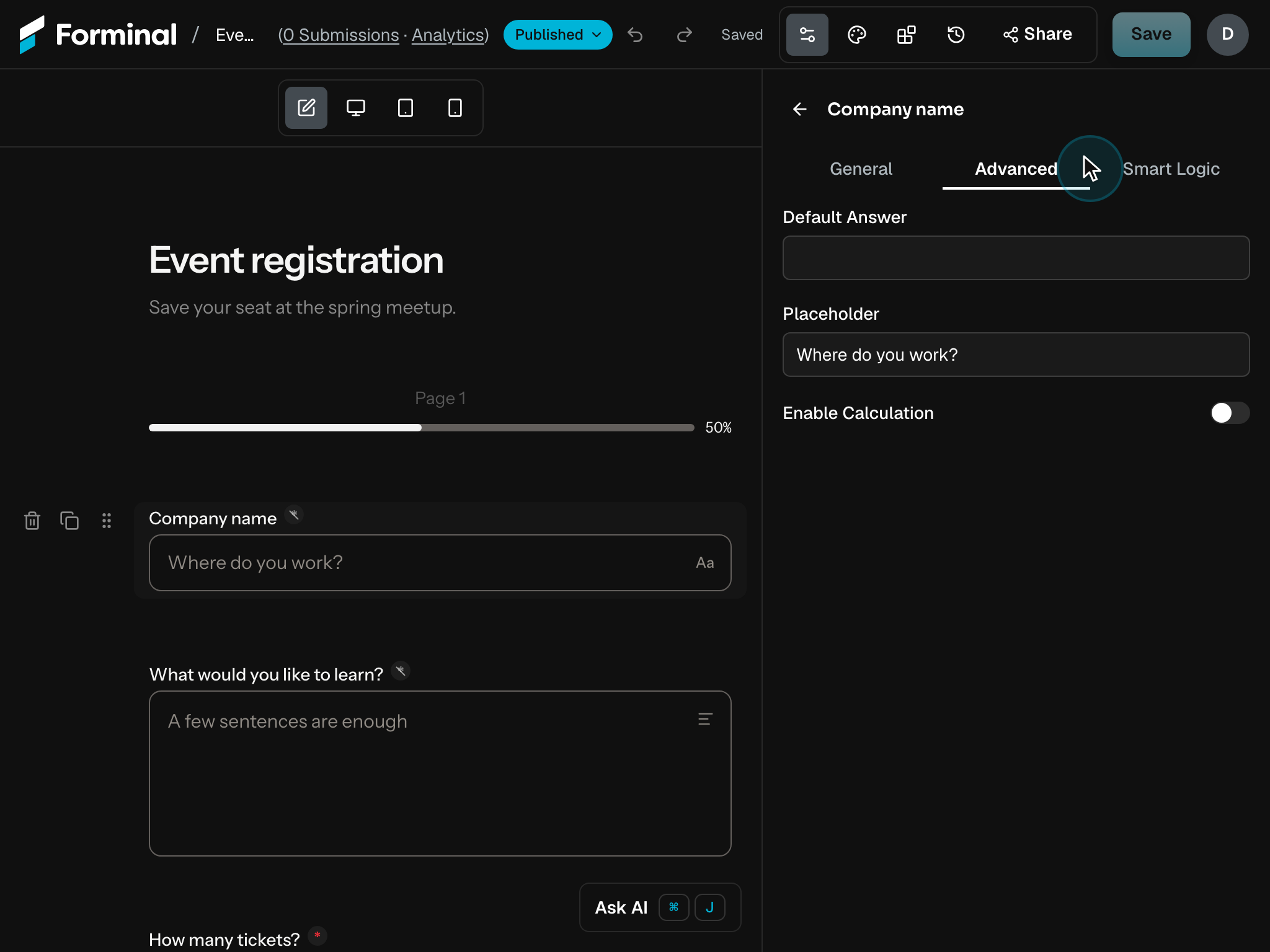
The Advanced tab holds the Placeholder, the grey hint inside the empty box, and the Default Answer, which fills the box in before anyone types. You can also edit the placeholder right inside the box on the canvas. Type @ in the label, description or placeholder to pipe in an earlier answer.
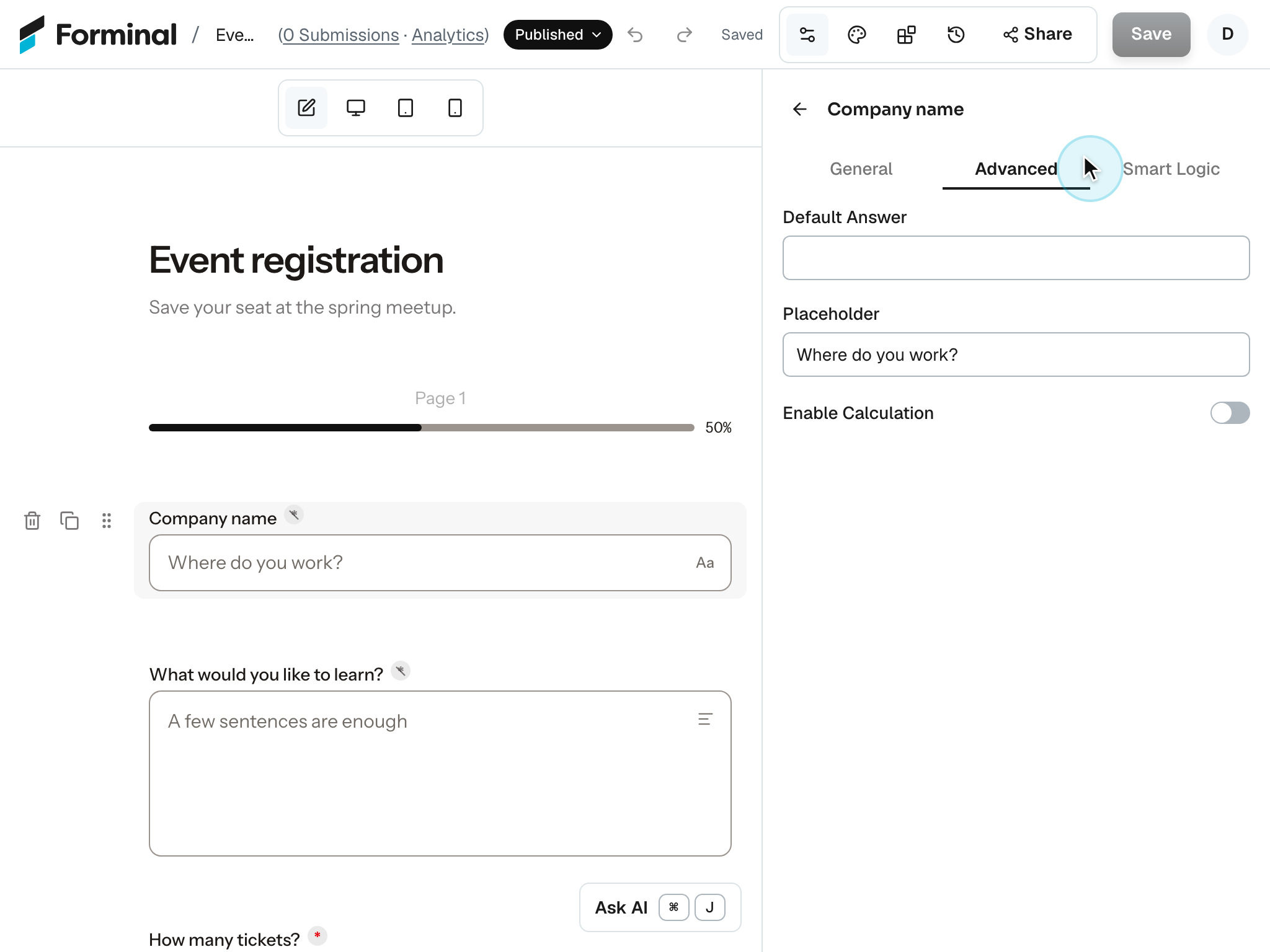
The Smart Logic tab can show or hide this field based on other answers. Other fields can also use a short text answer in their rules, with is, is not, contains, does not contain, starts with, ends with, empty and not empty. These checks ignore upper and lower case.
How answers show in submissions
The answer is saved with spaces trimmed from both ends. It shows as typed in the submissions table, in its own column of the CSV export and in notification emails. If the field has no label, its column is called “Question” and its number.
Good to know
An answer can be up to 500 characters, and so can the default answer. A required field left blank shows “This field is required”. The label can be up to 200 characters, the description up to 1,000 and the placeholder up to 200. Up to four fields can share a row, and a form holds up to 50 fields. For longer replies, use Long Text. To get a valid email, phone number or link, use the Email, Phone or Website field, which check the format for you.
Frequently asked questions
How long can a short text answer be?
Up to 500 characters. For anything longer, such as a paragraph of feedback, use Long Text, which takes up to 5,000.
Does short text check that an answer is an email address or phone number?
Can a short text answer decide which questions show next?
It can. Other fields can use it in their Smart Logic rules, for example to show a question when the answer starts with or contains a given text. These checks ignore upper and lower case.
Can I put two short text fields on the same row?
Drag one field over the left or right edge of another in the builder, and they share the row. Up to four fields fit in a row, and on most phones they stack one under another. See Side-by-Side Fields.