Zapier starts a Zap each time someone submits your form, so the answers can go on to any of the apps Zapier works with. You build the Zap in Zapier with the Forminal New Submission trigger, and the form starts it from then on.
Examples
- Sending each lead from a quote request form to your CRM.
- Posting a message to your team chat when a new support request arrives.
Set it up
- Open the form in the builder, select Integrations in the top bar, then select Connect next to Zapier.
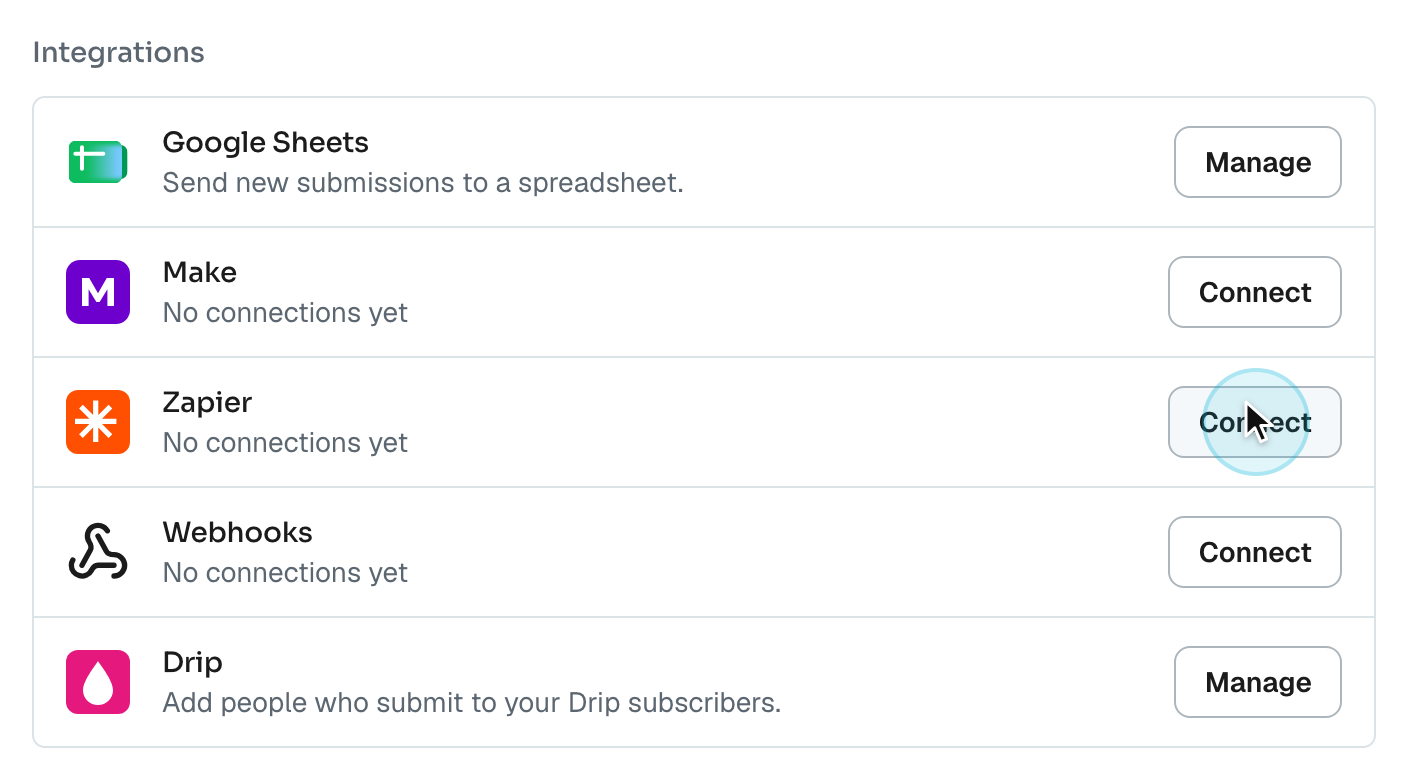
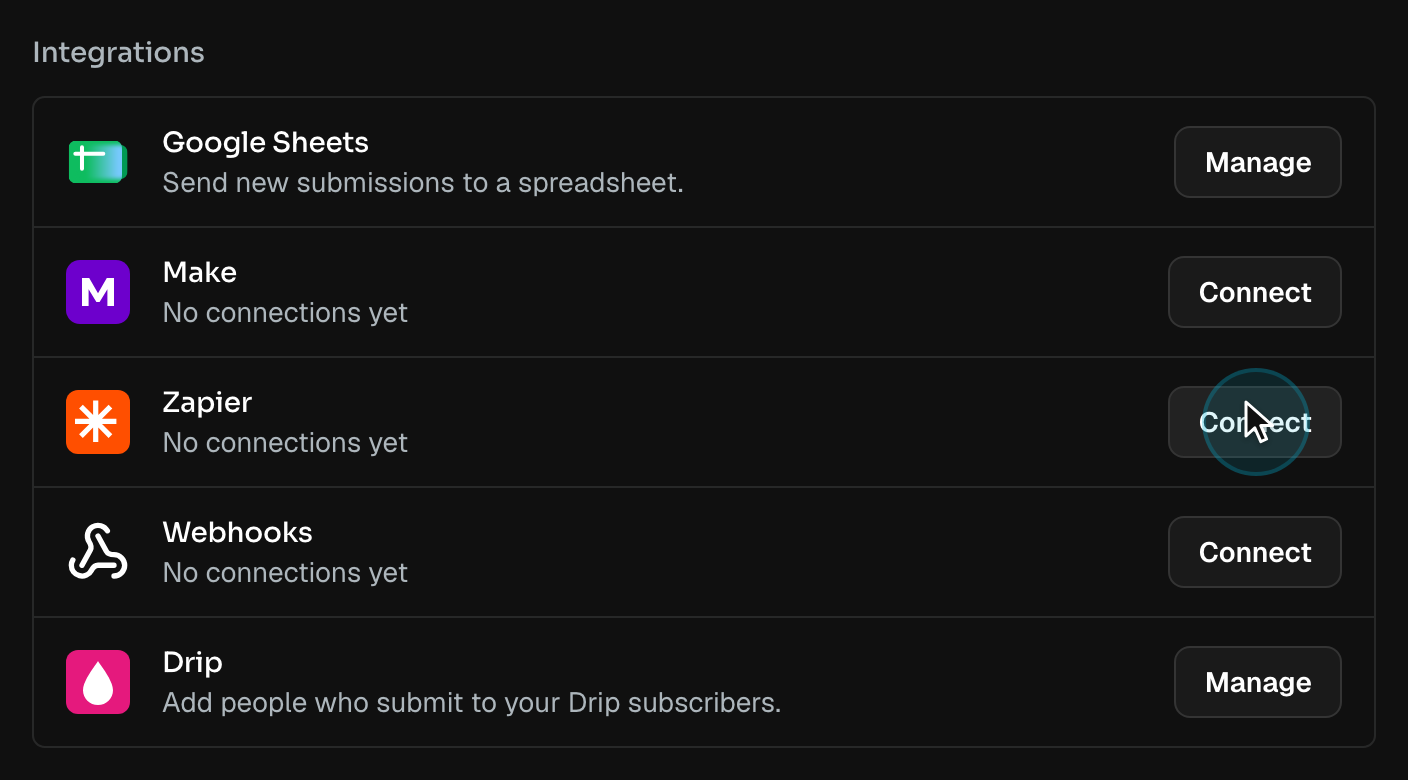
- Under Choose a Zap, select Use Template on the Scratch row. Zapier opens in a new tab.
- In Zapier, pick Forminal as the trigger app and New Submission as the event.
- Sign in to Forminal when Zapier asks, and select Allow.
- Choose the form under Form. Name in Forminal is optional, and it’s the name the Zap gets on the form’s Zapier page.
- Test the trigger. Zapier loads up to three of the form’s latest submissions, or a sample one if the form has none yet, so you can map fields before anyone has answered.
- Add your action steps and publish the Zap.
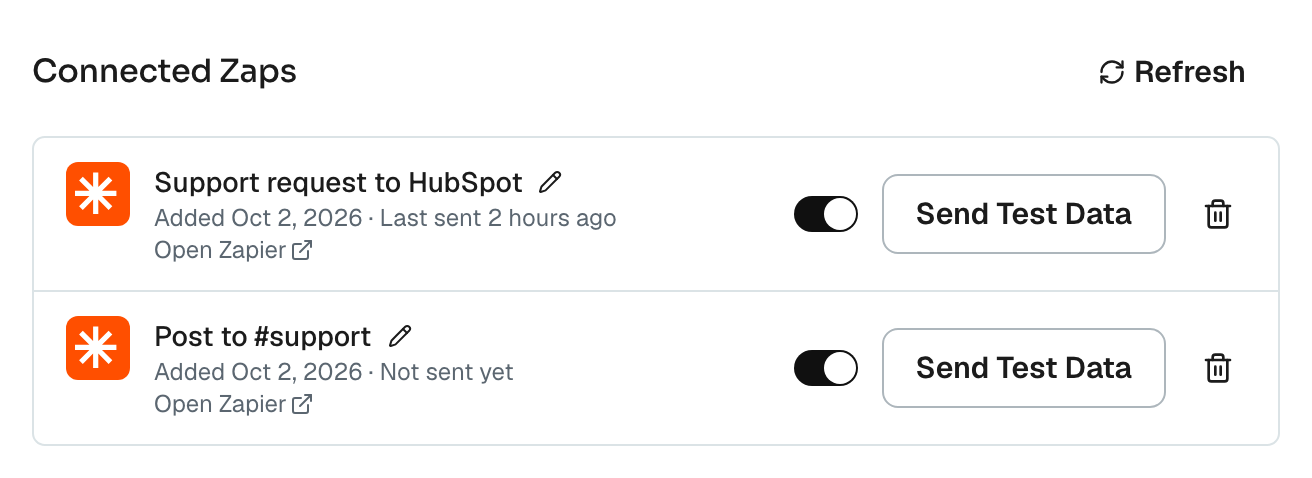
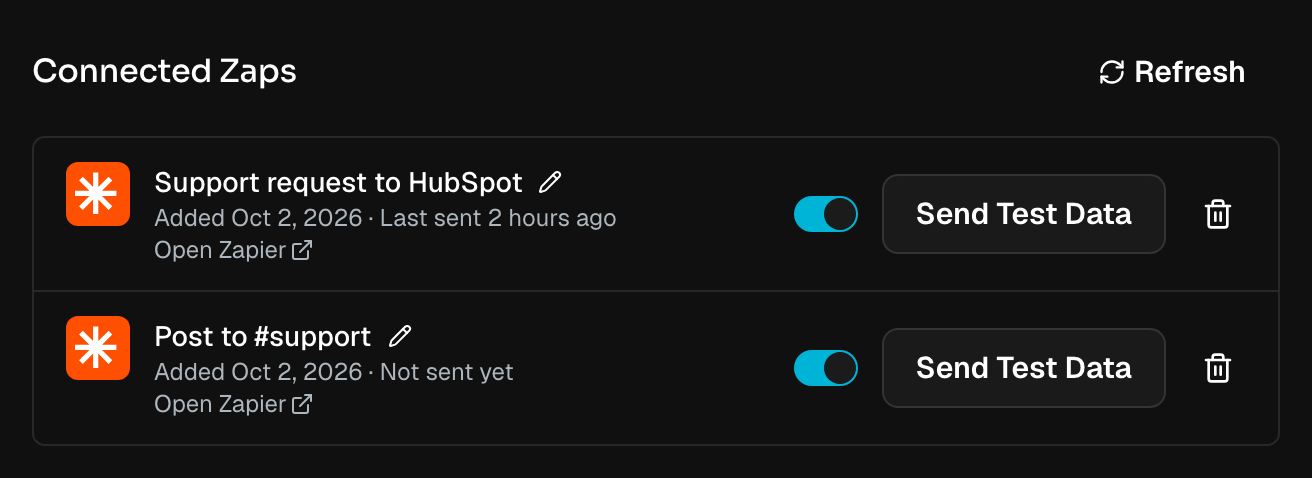
Steps 3 to 7 happen in Zapier. Once the Zap is on, it shows under Connected Zaps on the form’s Zapier page. Select Refresh if the page was already open. Each Zap has a switch to pause it, Send Test Data, a pencil to rename it, Open Zapier, the export button (the upload arrow) to export existing submissions, and a bin to delete it. A form can start up to 10 Zaps.
What the Zap receives
Every submission arrives as one item. In the Zap editor you’ll see Submission ID, Form ID, Form title, Submitted at, Origin page, Browser, Time to complete (s), Country, Country code, UTM Source, UTM Medium, UTM Campaign, UTM Term, UTM Content, Tags, Payment status and Payment amount (minor units), and one entry per question named after its label. Payment amount is in the currency’s smallest unit, so 25.00 USD is 2500.
The question entries are keyed by field ID behind the scenes, so renaming a question doesn’t break steps you already mapped. Answers are readable text rather than raw values, and file uploads and signatures come through as links to the files, in your Google Drive or in your media library. A media library link opens only for someone signed in with access to the form’s submissions, or with an API key. The item also carries the answers keyed by label and a full list of fields with their raw values, for steps that need them.
When it runs
The Zap starts right after each submission, once per submission. If the form has a Payment field, it waits until the payment is paid. Spam is never sent. Send Test Data on the form’s Zapier page sends one item filled with sample answers, marked as a test, and you can check it in the Zap’s history.
If Zapier doesn’t answer within 10 seconds, can’t be reached, or answers that it’s busy or has a server problem, the app tries once more a second later. If that fails too, the Zap’s row shows “Could not send the last submission” with the reason, and the app tries again after 1, 5 and 30 minutes, then after 2, 5 and 10 hours. That’s seven tries over about 18 hours, and the message clears once one goes through. In rare cases a retry sends the same submission twice, for example when Zapier received it but answered too late. Check the submission ID if a repeat matters.
Send the submissions you already have
The Zap gets the submissions that come in after you connect it. To run it for the ones the form already has, select the export button on the Zap’s row, then Export. The dialog says how many submissions that is. The Zap runs once per submission, oldest first, and uses your Zapier tasks each time. Only complete submissions that aren’t spam are sent, and a submission with a payment only once it’s paid.
They go in the background, after new submissions and at most 50 a minute. The row shows the progress on one line, such as “Exporting · 120 of 400 sent · Stop export”. Select Stop export to drop the ones still waiting. Running it again sends everything again. It won’t start while the row is off or while it’s already exporting.
Disconnect
Turning a Zap off or deleting it in Zapier removes it from the form’s Zapier page. If you delete the row here instead, with the bin and then Delete, the Zap stops getting this form’s submissions; turn it off and on again in Zapier to reconnect it. To disconnect Zapier from your account, open Account menu » Integrations and select the bin on the Zapier card. That signs Zapier out and removes every Zap connection it made.
Good to know
A paused row sends nothing, and Send Test Data works only while the row is on, up to 20 tests a minute. If Zapier reports that a Zap is gone, the app removes its row instead of retrying.
Frequently asked questions
Can I test my Zap before anyone fills in the form?
Yes. When you test the trigger, Zapier loads up to three of the form’s latest submissions, or a sample one if the form has none yet. Send Test Data on the form’s Zapier page sends another sample, marked as a test.
Will my Zap break if I rename a question?
The question entries are keyed by field ID behind the scenes, so steps you already mapped keep working after a rename.
Why does the payment amount show as 2500 instead of 25.00?
Zapier gets Payment amount in the currency’s smallest unit, so 25.00 USD arrives as 2500.
What happens if Zapier can’t be reached?
Forminal tries once more a second later. If that fails too, the Zap’s row shows Could not send the last submission with the reason, and the app keeps trying for about 18 hours, seven tries in all.
How do I reconnect a Zap after deleting it from the form’s Zapier page?
Turn the Zap off and on again in Zapier. That connects it to the form’s submissions again.
Can I send submissions I already have to my Zap?
Yes. On the form’s Zapier page, select the export button on the Zap’s row, then Export. Each past submission runs the Zap once, oldest first, and uses Zapier tasks.