Smart Logic shows or hides a field depending on how someone answered other questions. People see fewer questions, and none that don’t apply to them. You set it per field, with rules like “Show this field if Role is Business”.
Examples
- Show “Company” only when “Role” is “Business”.
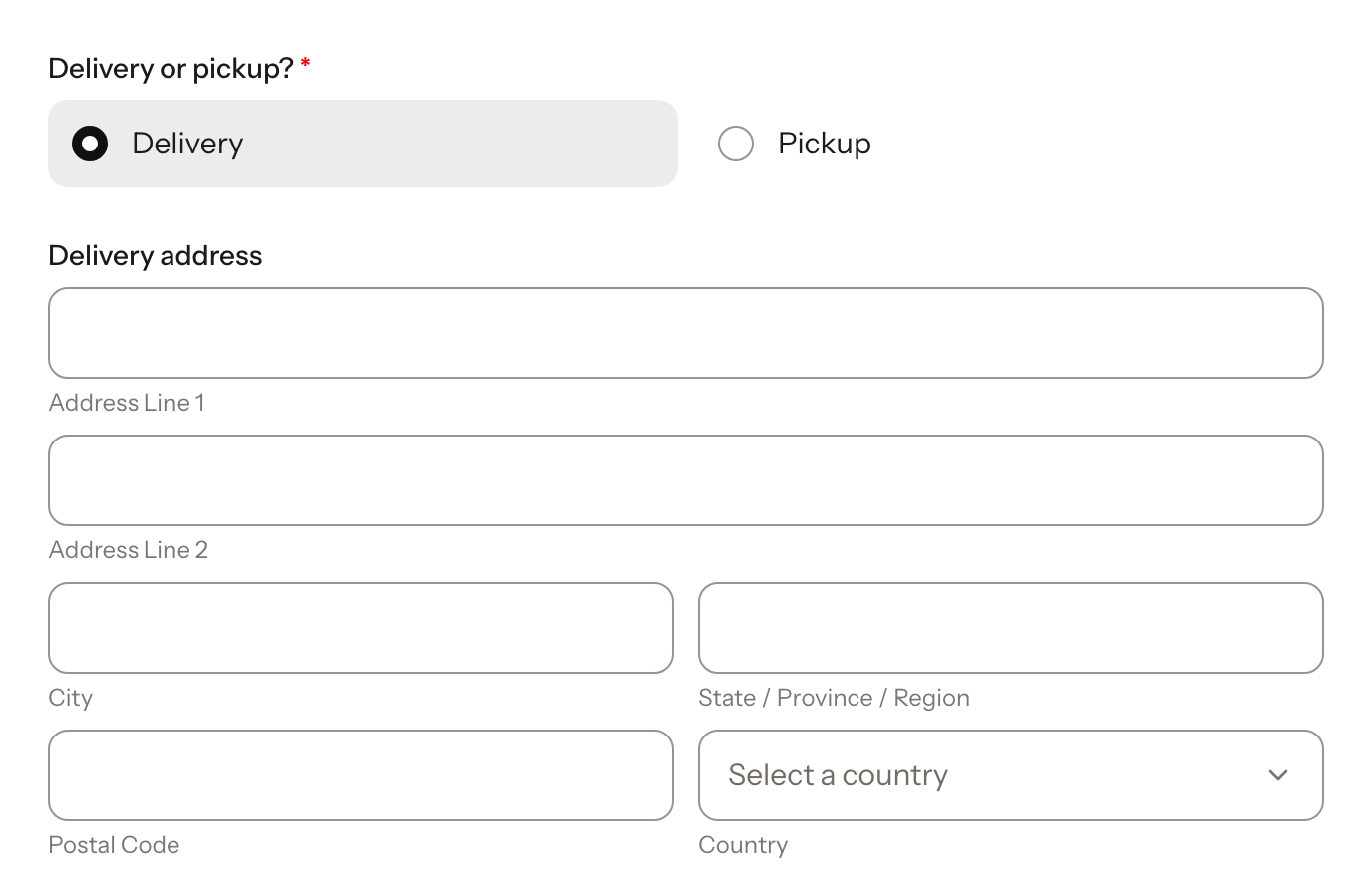
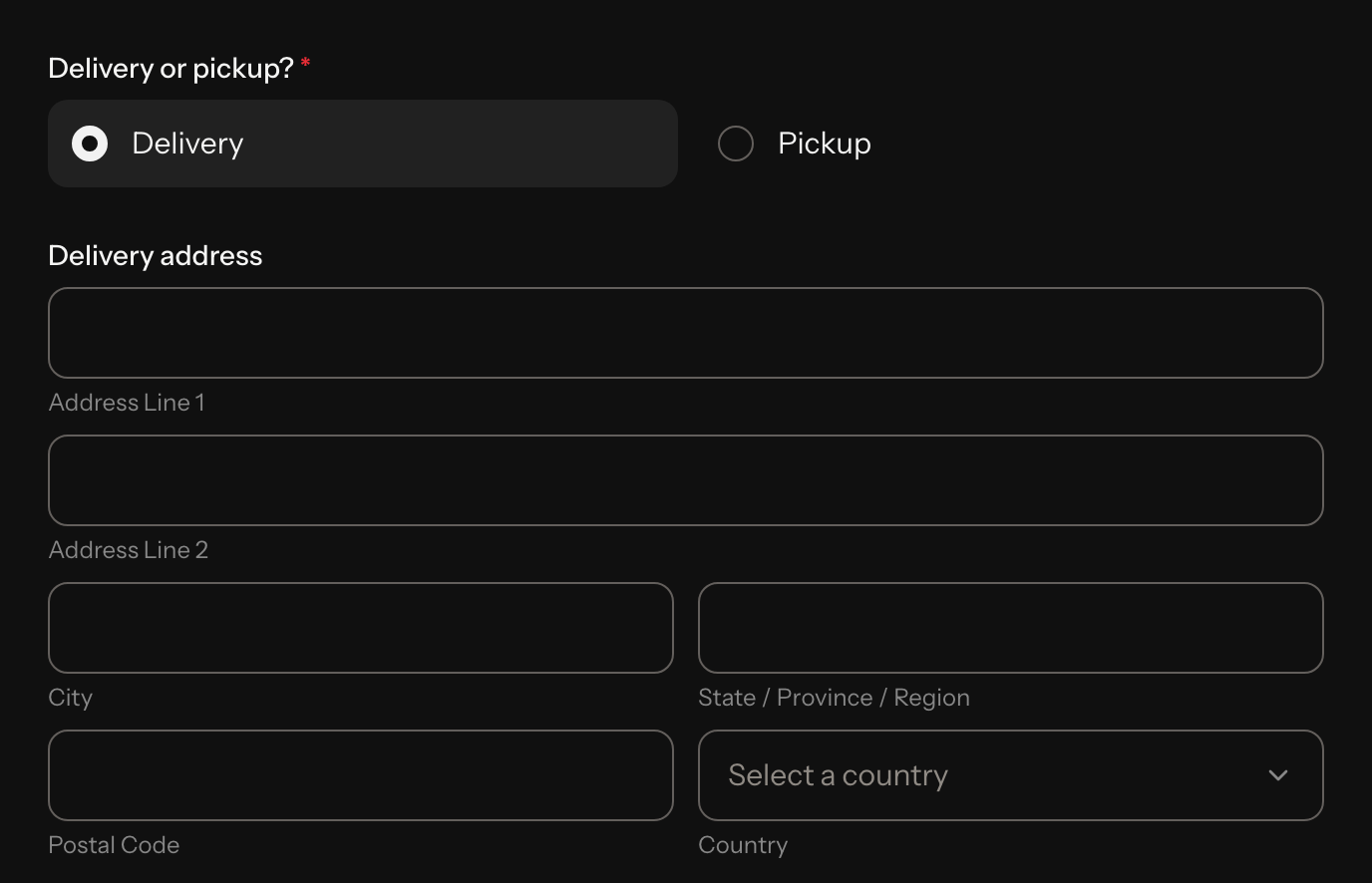
- Ask for a delivery address only when someone picks delivery instead of pickup.
- Hide a “What went wrong?” question when a rating is greater than 3.
Add logic to a field
- Select the field on the canvas and open the Smart Logic tab in its settings.
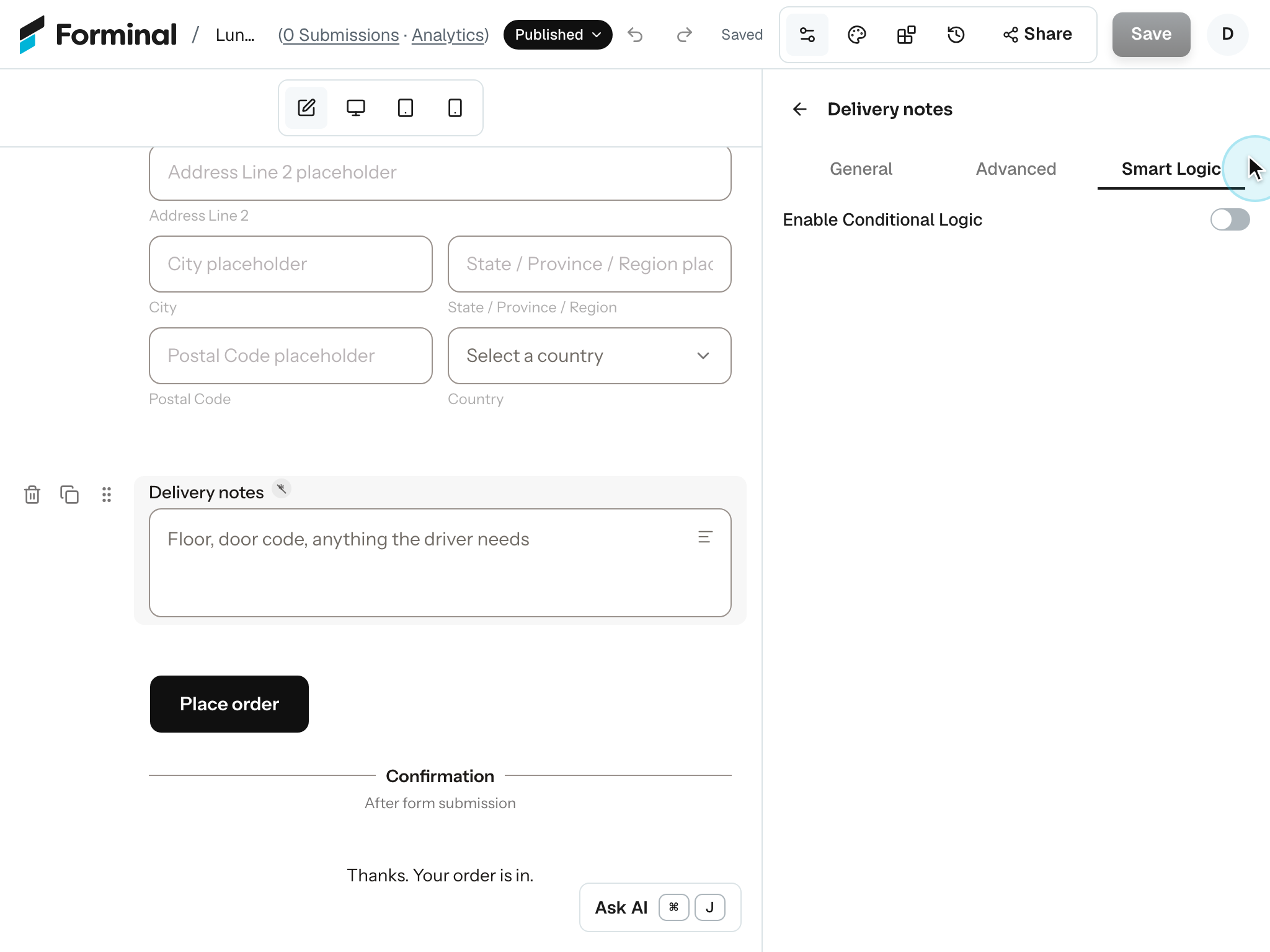
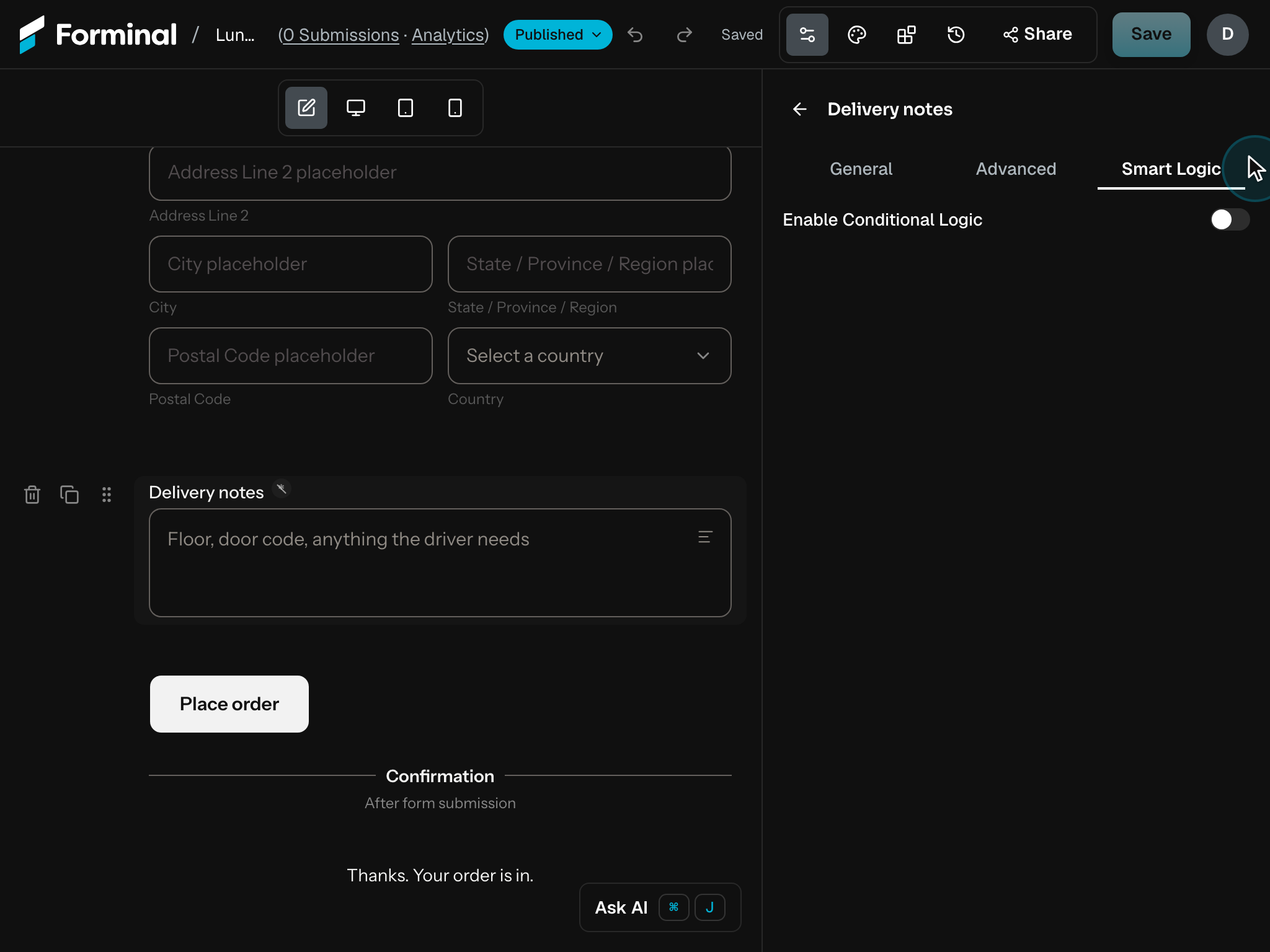
- Turn on Enable Conditional Logic.
- Choose Show or Hide in the “this field if” line.
- In the first rule, pick a field under Select a field, then a rule such as is or contains, then the value to compare with.
- Select And to add another rule that must also be true, or Add New Group to add another set of rules joined by “or”.
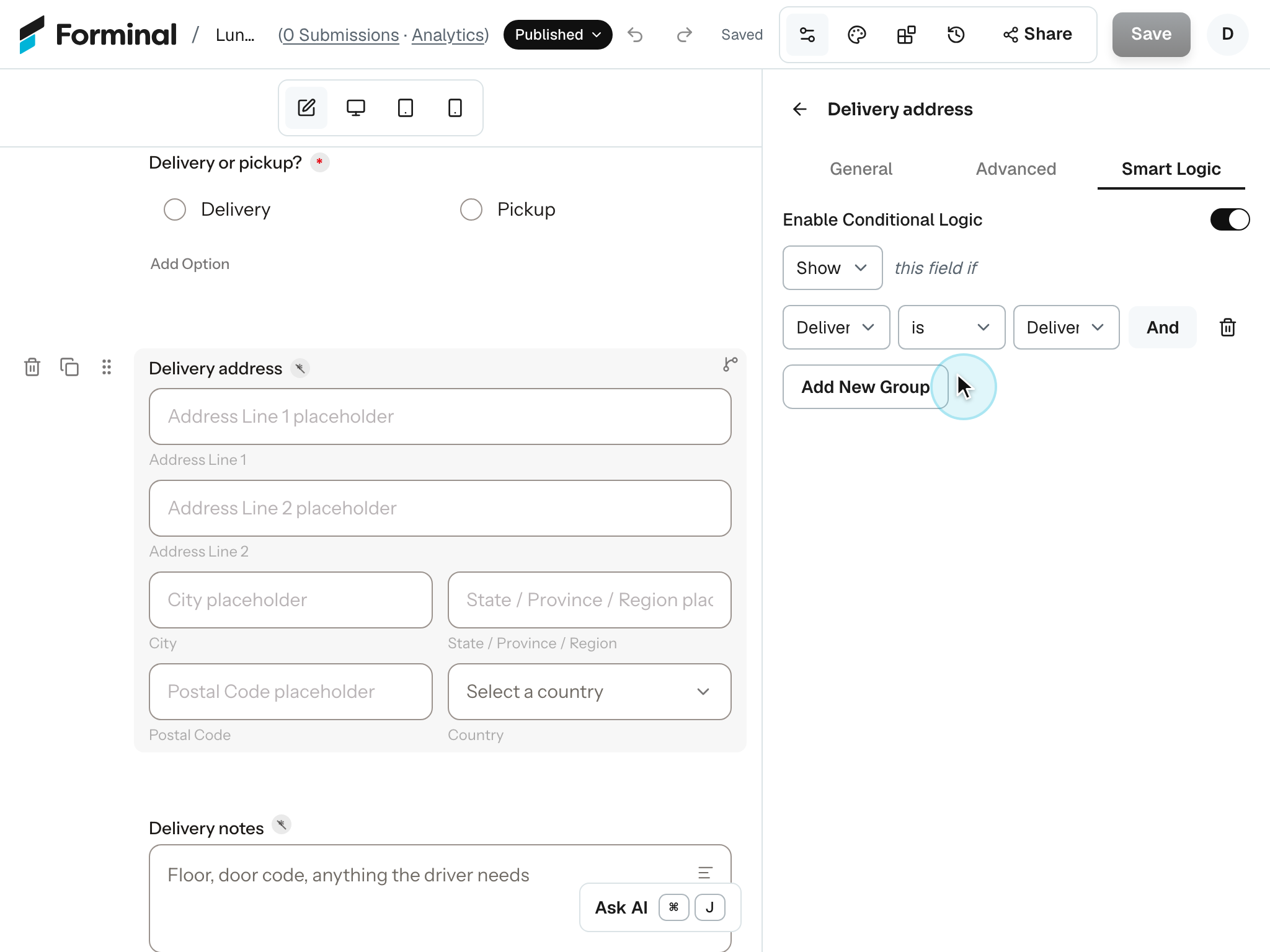
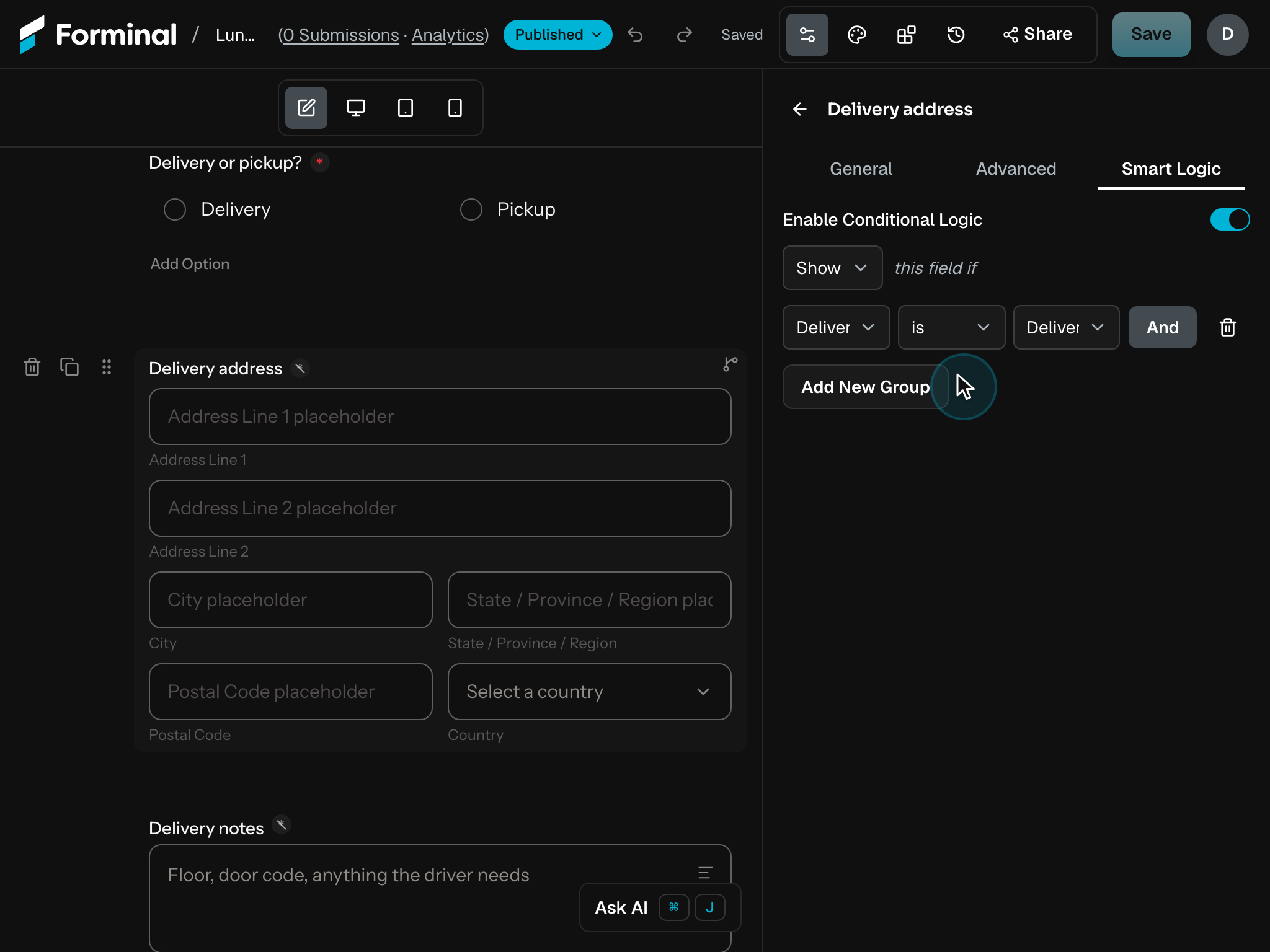
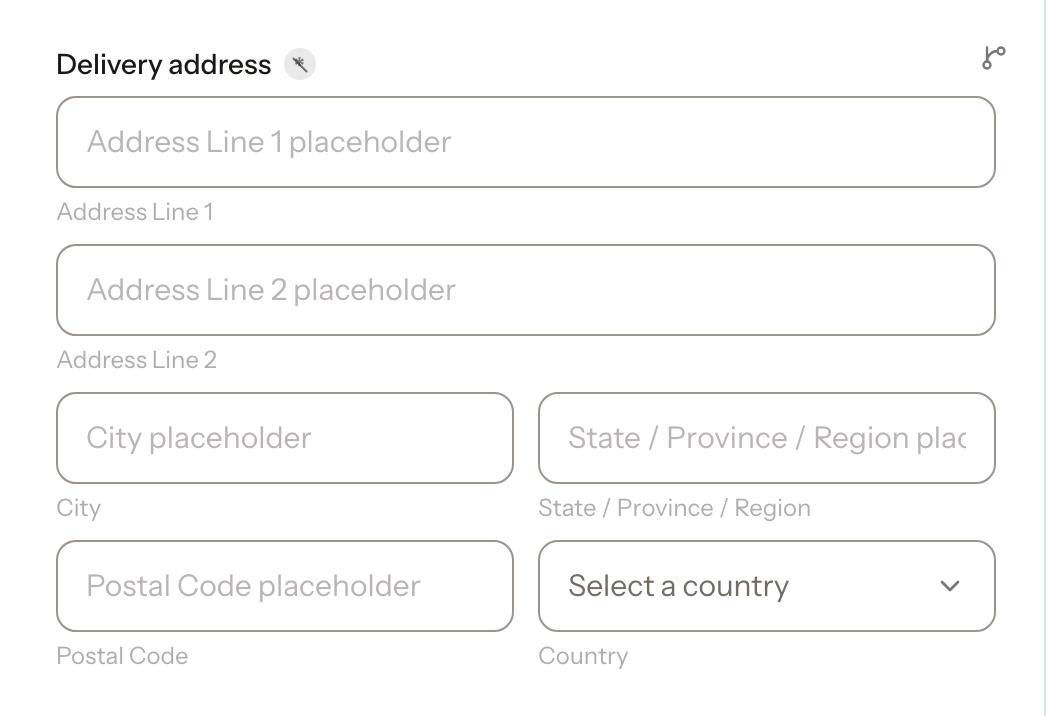
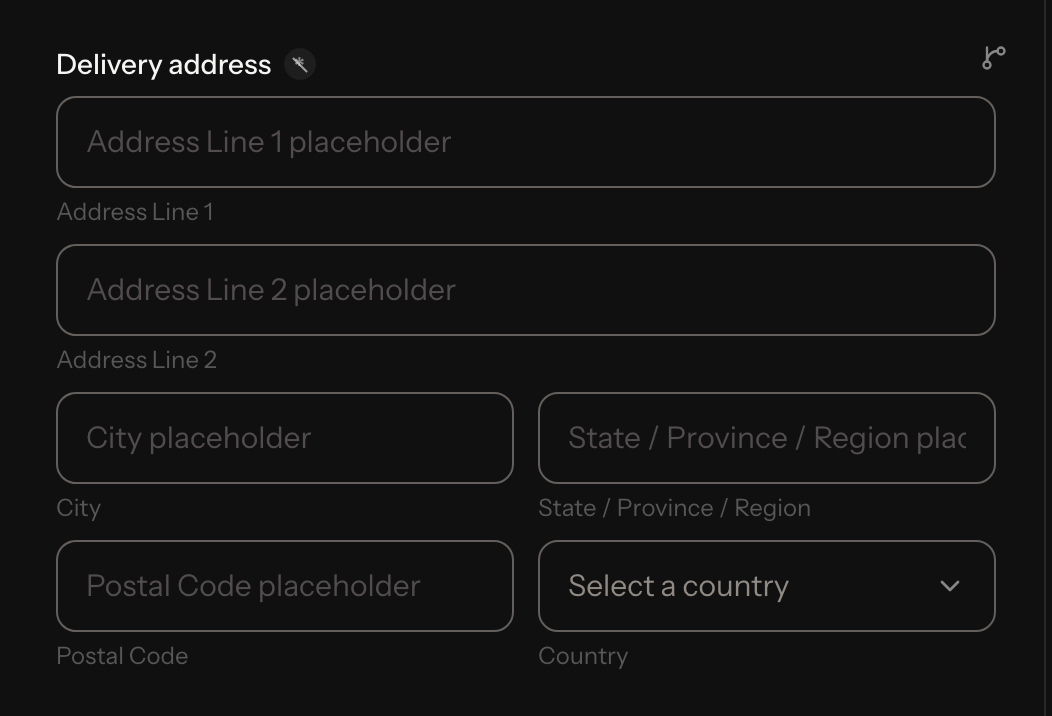
A field with logic turned on gets a small icon on the canvas, so you can spot it later. Turning the switch off keeps your rules, so you can turn them back on without rebuilding them. To try the rules, switch the builder from Edit to Desktop, Tablet or Mobile and fill in the preview.
How rules work
Rules inside one group are joined by AND, so all of them must match. Groups are joined by OR, so the field’s action happens when any one group matches. A field can have up to 10 groups, each with up to 10 rules.
Which rules each field offers
- Short Text, Long Text, Email, Phone, Website, Name, Address and Hidden field: is, is not, empty, not empty, contains, does not contain, starts with, ends with.
- Number, Rating, Net Promoter Score, Date and Time: is, is not, empty, not empty, greater than, less than.
- Multiple Choice, Dropdown and Checkboxes: is, is not, empty, not empty. You pick the option from a list.
- Yes/No: is or is not, with Checked or Not checked.
- File Upload and Signature: empty or not empty.
- Respondent’s Country, listed after your fields: is any of, is none of, empty, not empty. It’s the country the visitor is in, detected for you, so no field is needed. You pick the countries from a list, and empty means the country is unknown.
Ranking, Payment and Content blocks can’t be used in a rule, and a field can’t use itself. Text rules ignore upper and lower case and extra spaces at the ends. For Checkboxes or a Dropdown that allows several picks, “is” means that option is one of the picks. Rating and Net Promoter Score compare numbers, so you pick a value from the scale. Dates are picked from a calendar, and times are typed as HH:MM.
What people see
Fields appear and disappear as people answer, with no reload. A hidden field isn’t required, even if you marked it Required, and its answer is left out of the submission. The server checks the same rules when the form is sent, so a hidden answer can’t sneak through.
Logic can chain. If field B is hidden, a rule on field C that looks at B treats B as empty. On a multi-page form, a page where every field is hidden is skipped, and it isn’t counted in the progress indicator.
Other places that use the same rules
- Notifications: turn on Enable Conditional Logic in a notification and choose Send or Don’t send “this email if” the rules match.
- Confirmations: each extra confirmation has a Use when section. The form shows the first confirmation in the list whose rules match, and the default one when none do.
- Answer piping: a pipe that points at a hidden field shows its default value instead of the answer.
- Calculations: each branch of a calculation has a condition built from the same rules, and the first branch that matches picks the formula.
Good to know
A rule that isn’t finished, with no field picked or no value filled in, is ignored. If none of a field’s rules are finished, the field shows as usual. A rule value can be up to 500 characters. Page breaks can’t have logic of their own. If you delete a field that rules depend on, those rules are removed, and if you delete an option a rule pointed to, that rule’s value is cleared. A field can use a field that comes after it, but people usually answer from the top down, so rules work best when they look at earlier questions.
Frequently asked questions
Does Smart Logic need a paid plan?
No. Smart Logic is part of every plan, Lite included. See pricing for what the paid plans add.
Is a required field still required when Smart Logic hides it?
No. A hidden field isn’t required, and its answer is left out of the submission. The server checks the same rules when the form is sent, so a hidden answer can’t get through.
Can I show a question based on the visitor’s country?
Pick Respondent’s country in a rule, after your own fields. Forminal detects the country, so you don’t need a field for it. More on the Respondent’s Country page.
How many rules can one field have?
Up to 10 groups, each with up to 10 rules. Rules in a group must all match, and the field’s action runs when any one group matches.
Can I skip a whole page with Smart Logic?
Page breaks can’t have logic of their own, but a page where every field is hidden is skipped and left out of the progress count. Hide the fields on that page and the page goes with them.
Can Smart Logic decide whether a notification email is sent?
Turn on Enable Conditional Logic in the notification and choose Send or Don’t send this email if the rules match. See notifications.