Signature gives people a box to sign in with a mouse, a trackpad or a finger. Each signature is saved as an image in your Media Library, next to any files uploaded with the form.
You can pick a Google Drive folder for the form instead.
Examples
- A consent form for a photo shoot.
- A rental agreement signed on a tablet at the front desk.
Add it to a form
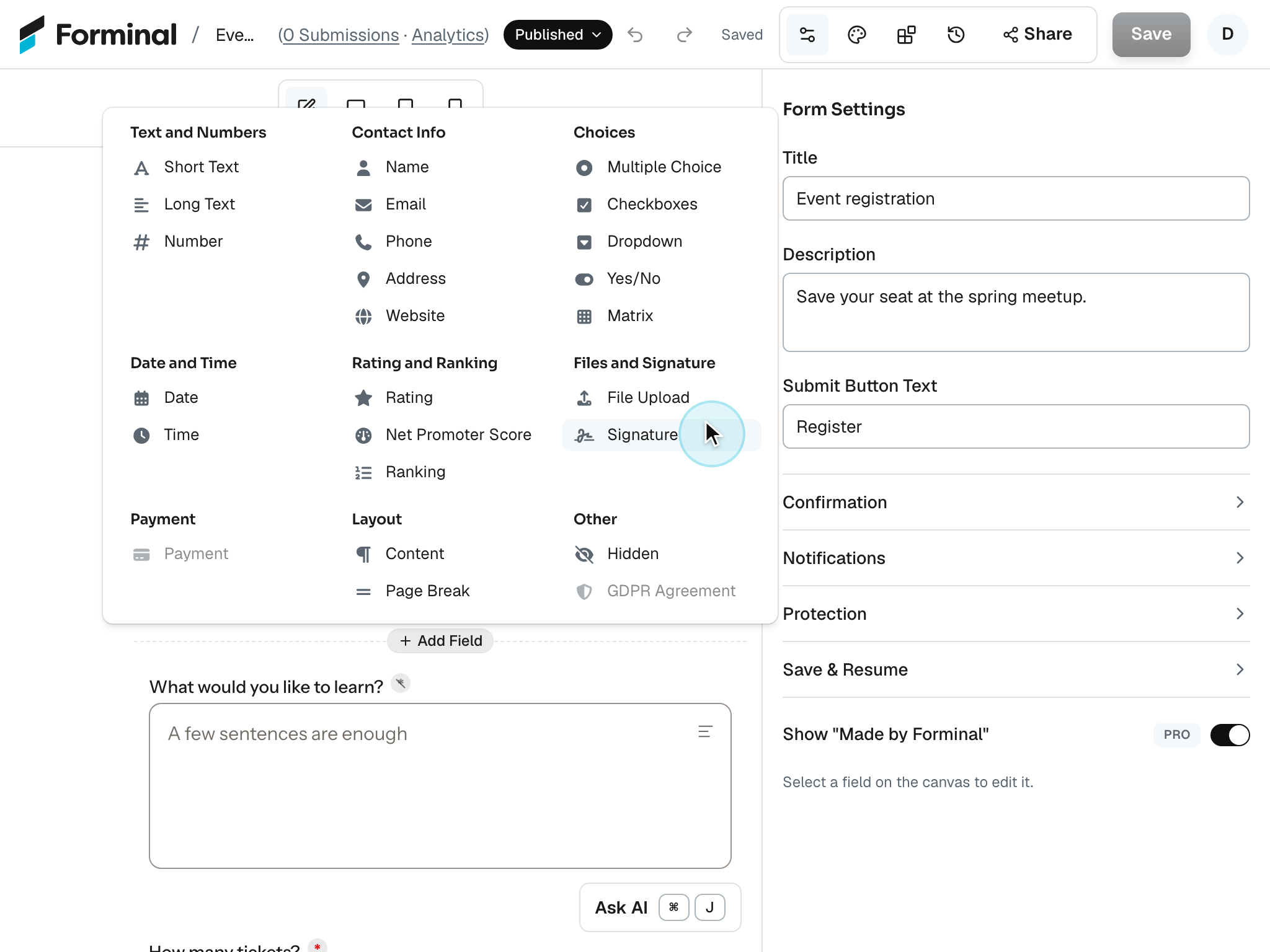
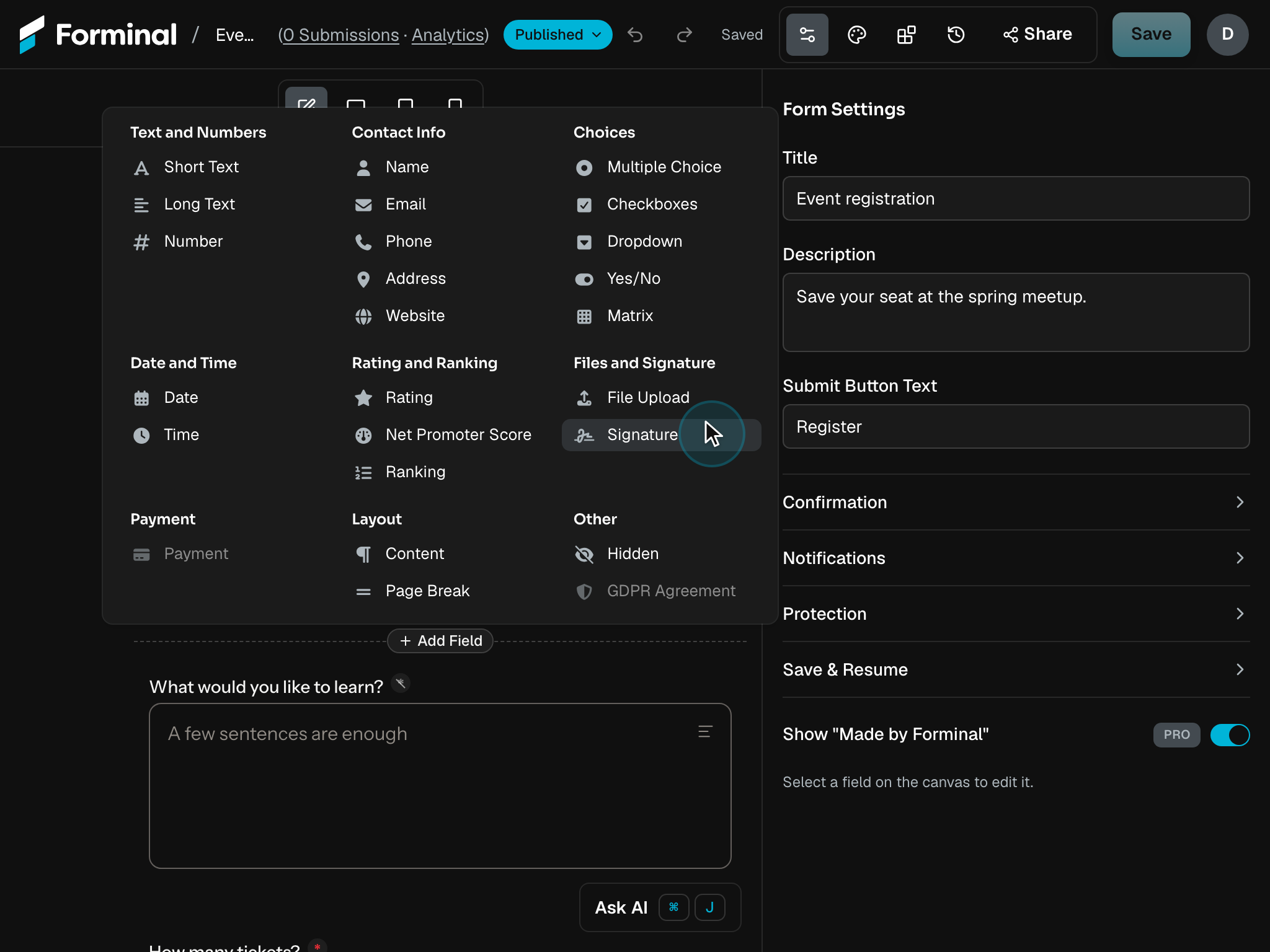
- In the builder, select Add Field and choose Signature under Files and Signature. On an empty form, select Start from Scratch instead of Add Field.
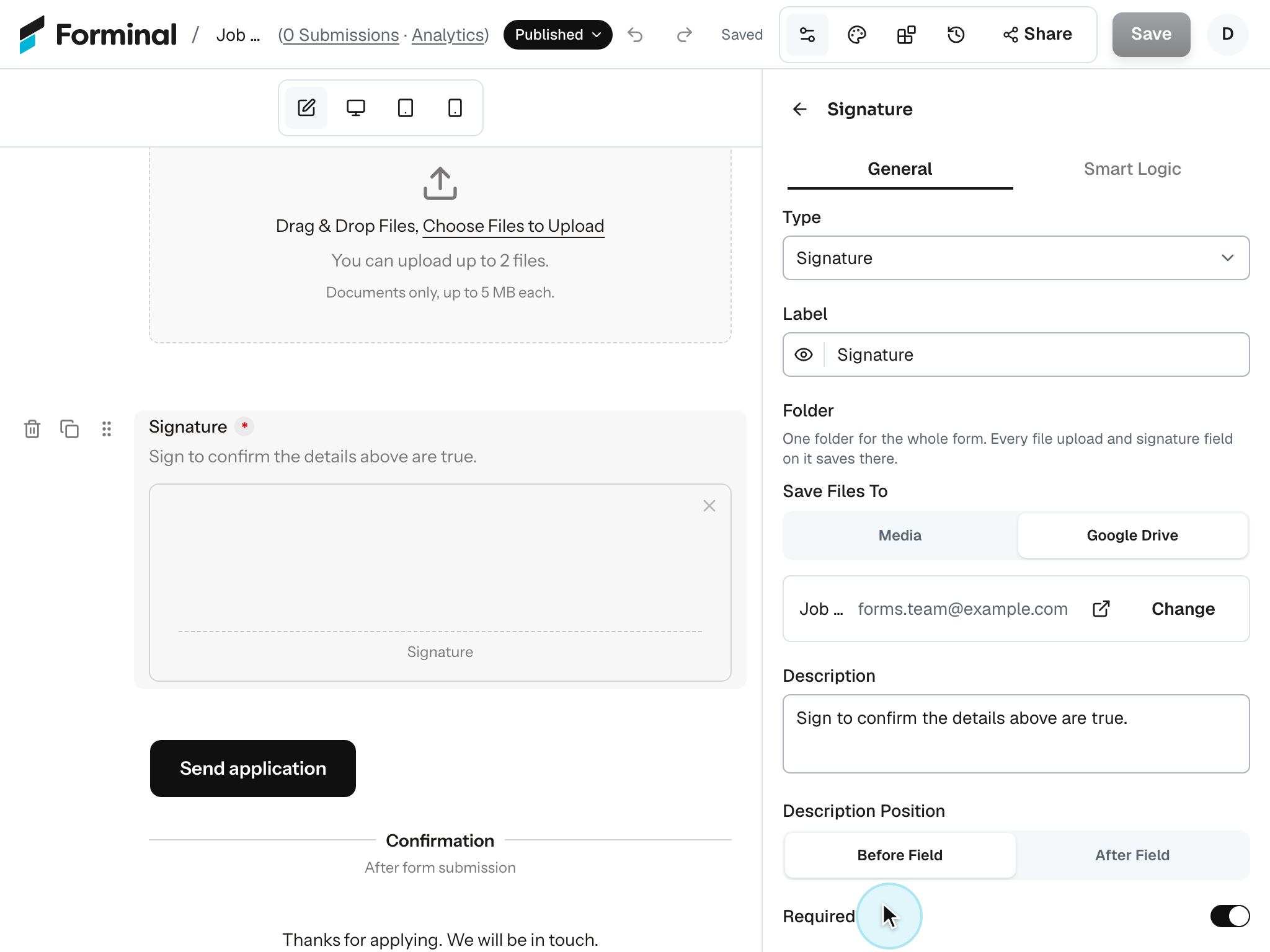
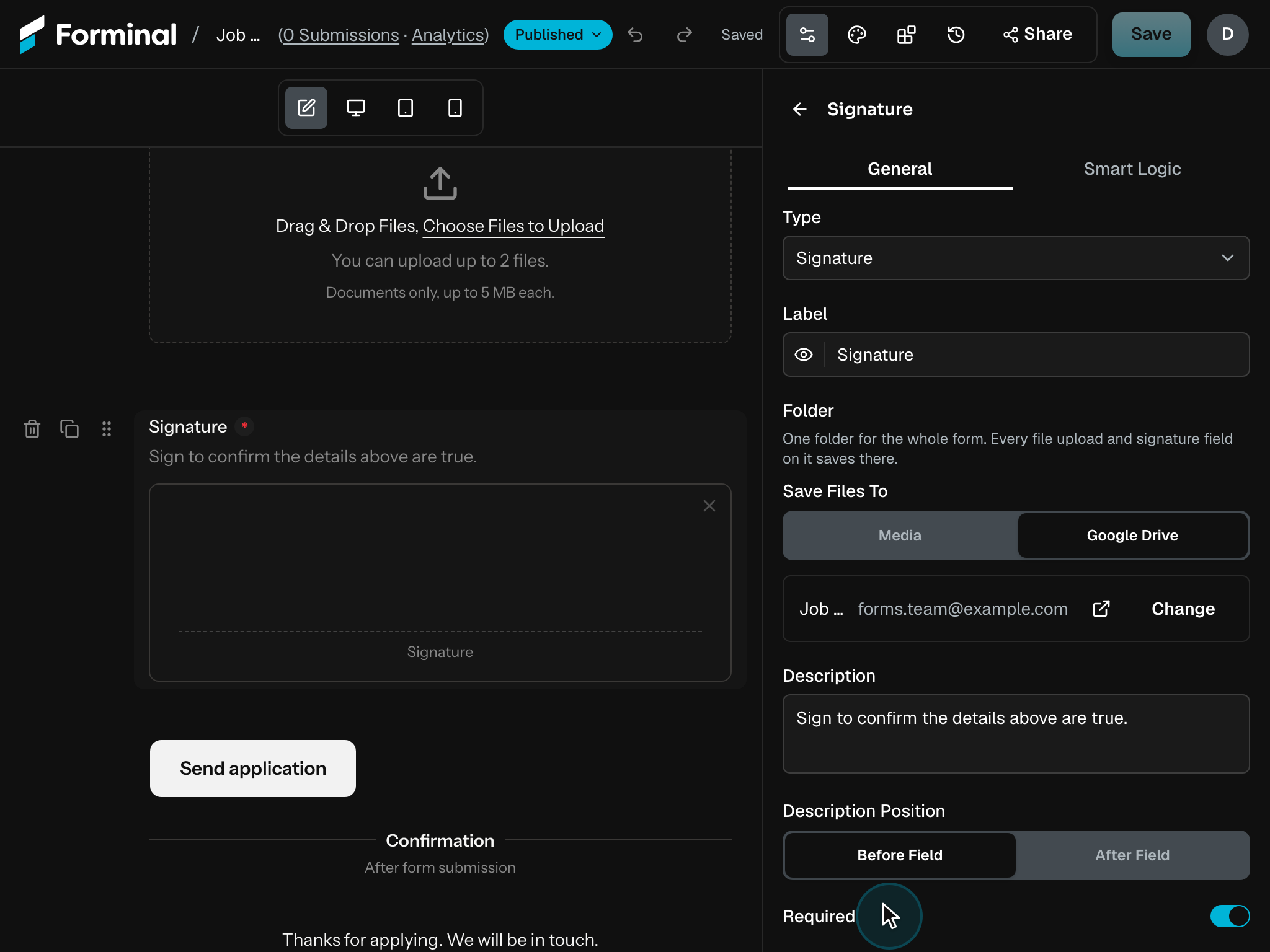
- On the General tab, set the Label and, if you like, a Description, for example the sentence the person is agreeing to.
- Under Folder, leave Save Files To on Media to keep signatures in your media library.
- Turn on Required if people can’t submit without signing.
To use Drive instead, select Google Drive under Save Files To, choose the account under Select Google account, then select Create Folder or Browse Google Drive. If no Google account is connected yet, select Manage accounts first.
Save Files To and the folder belong to the whole form, so if it already has a File Upload field set up, the signature saves to the same place. With Media picked, signatures go to Media » Customers Data, in the form’s folder. A form made without an account leaves the field off the published form until the form is in your account.
With Google Drive picked, the field stays off the published form until a folder is saved.
What people see
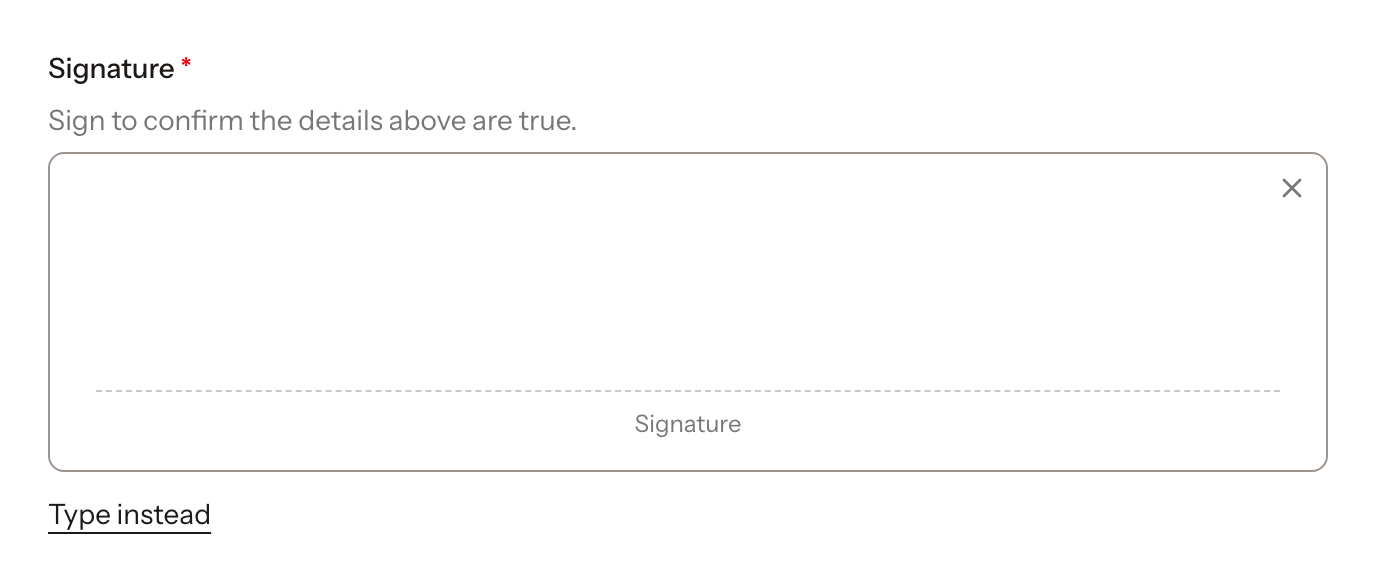
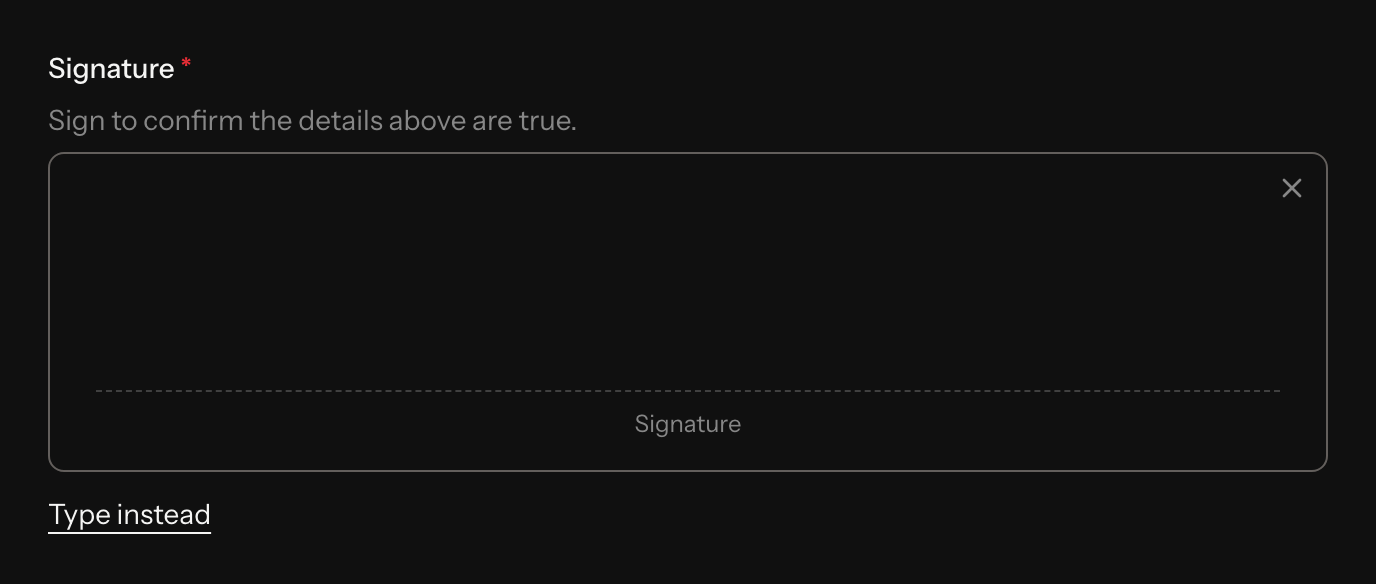
A box with a dashed line and the word “Signature” under it. People sign on the line, and the signature saves a moment after they lift the pen. The X in the corner clears the box so they can start over. If they skip a required signature, they see “Sign to continue”.
How answers show in submissions
Each signature is a PNG named signature.png. In your media library it sits in the form’s folder under Customers Data. The submissions table shows “Signed”. Open a submission to get a link to the image. The CSV export and notification emails give the same link.
In Drive, a signature goes in that submission’s own folder.
Good to know
A signature image can be up to 1 MB. It can’t be piped into other text. In Smart Logic it can be a condition with “empty” or “not empty”, so you can show a field only after someone has signed. A signature has no Advanced tab, because there is nothing more to set. As the form’s owner, you can replace a signature by editing the submission: remove it, and the signature box comes back.
Frequently asked questions
Where are signatures saved?
Each signature is saved as a PNG named signature.png, in the form’s folder in your media library. The submissions table shows Signed, and the submission links to the image.
Can people sign on a phone or tablet?
They can sign with a finger on a touch screen, or with a mouse or trackpad on a computer.
Do signatures and uploaded files go to the same place?
Yes. Every File Upload and Signature field on a form saves to the place picked under Save Files To. With Media, that’s the form’s folder in your media library.
What happens if no Google Drive folder is connected?
With Save Files To on Media, signatures are kept in your media library, under Customers Data, in a folder named after the form, and the field works on the published form. With Google Drive picked, the field stays off the published form until you save a folder, and each signature then goes in its submission’s folder in Drive.
Can I show the signature in a notification email?
The signature itself can’t be piped into text. Notification emails and the CSV export give a link to the image instead.