Every submission records the country it came from, with nothing to add to the form, unless the form’s GDPR Agreement has Disable User Details on. The server works it out from the visitor’s network and saves it with the submission, next to the date. It shows up in your submissions and integrations, and the form can use it while people fill it in: to prefill answers, show or hide questions, or keep some countries out.
Examples
- See which countries your sign-ups come from, without asking.
- Preselect the visitor’s country in a Country dropdown and start an international phone number on their dial code.
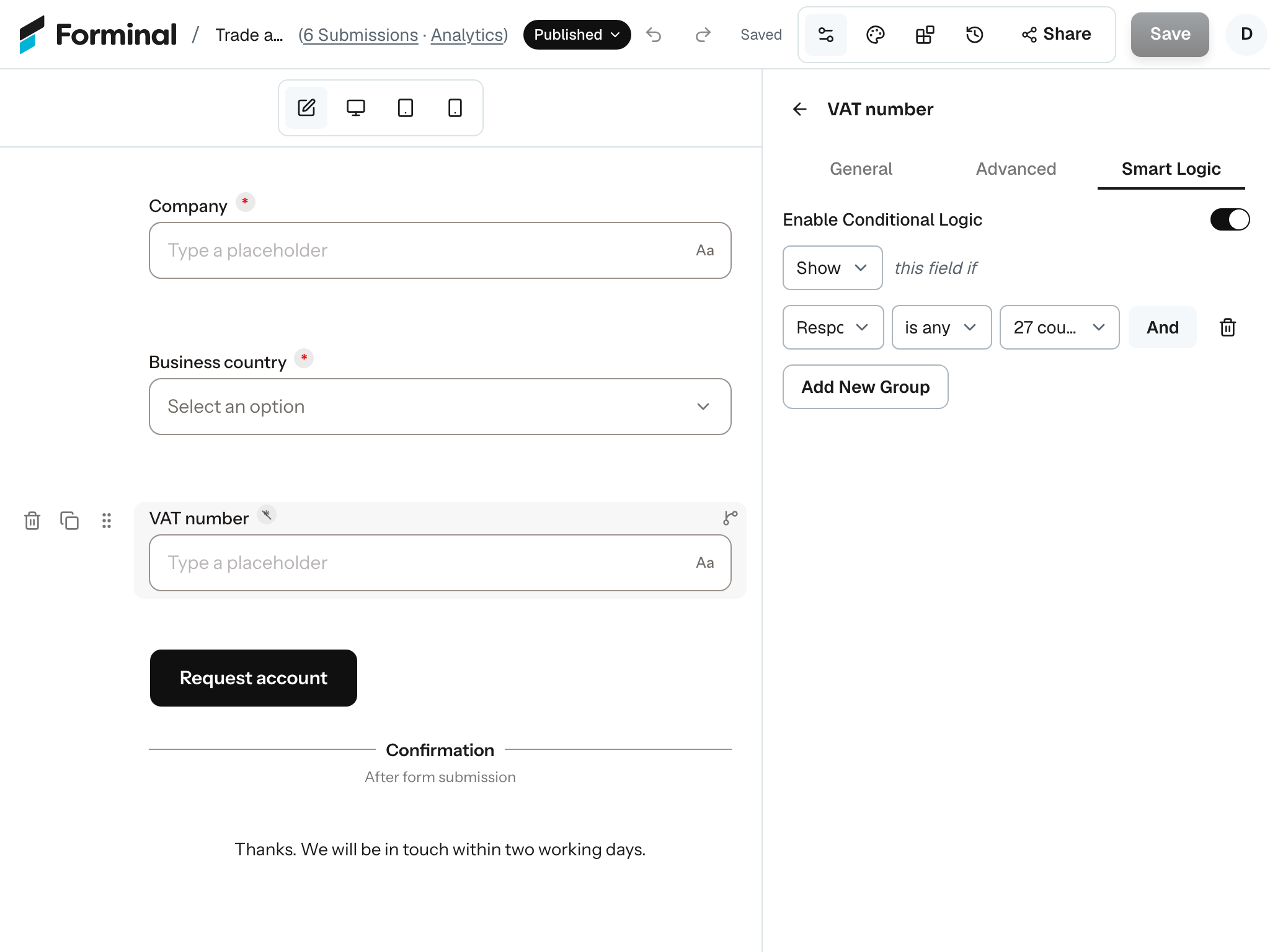
- Show a VAT number question only to visitors from EU countries.
- Open a giveaway entry form only in the countries where the giveaway runs.
See it in your submissions
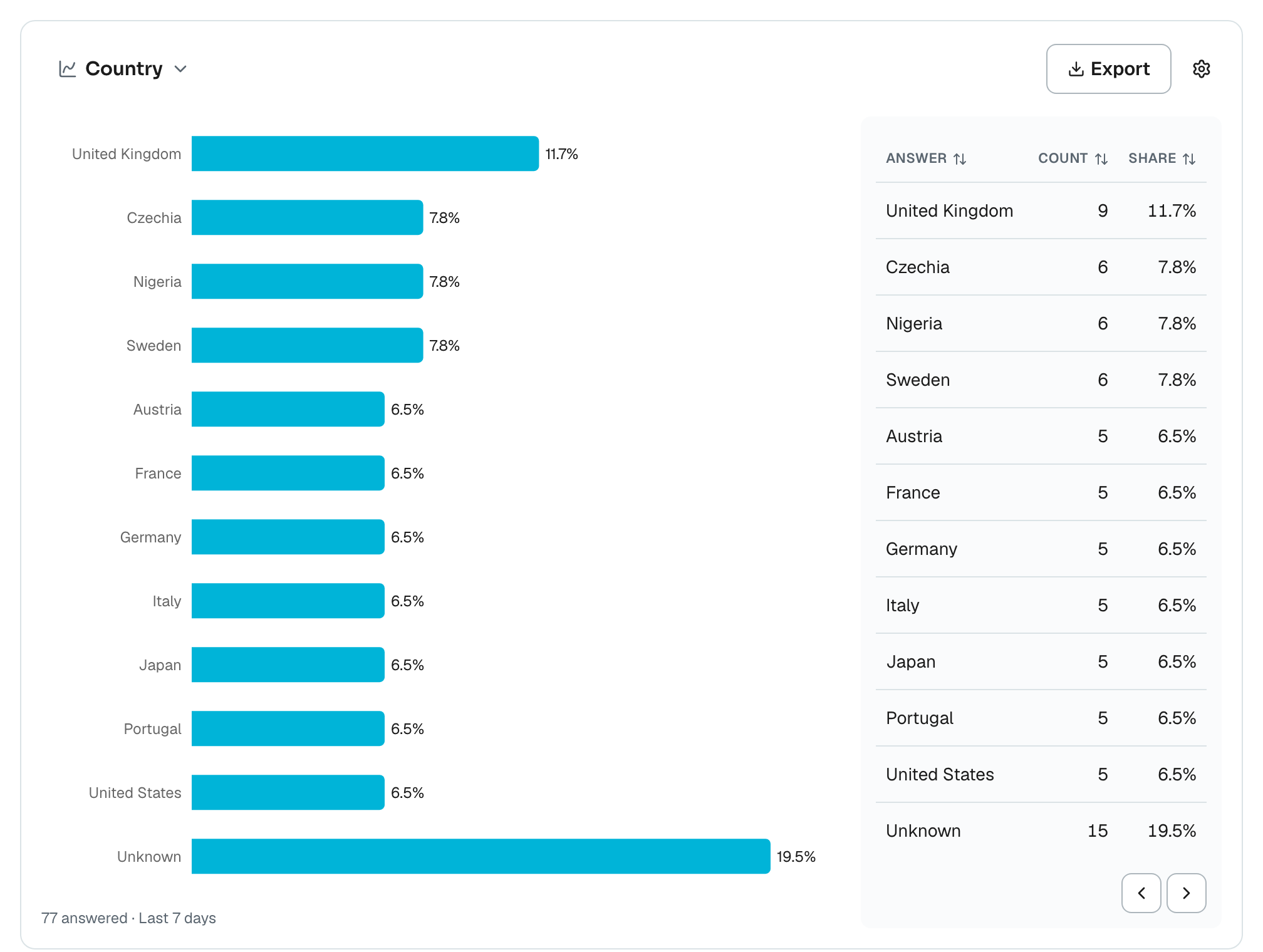
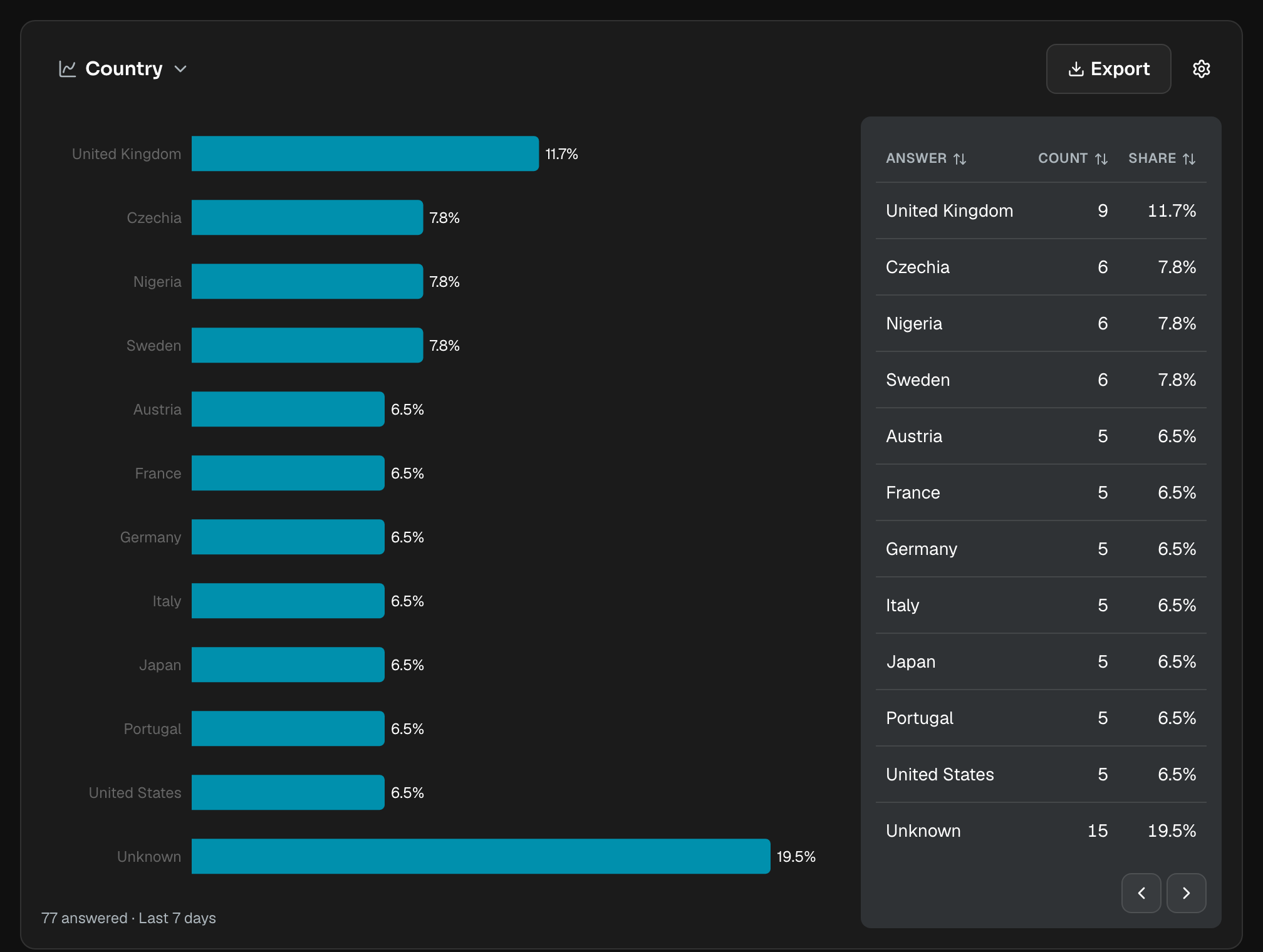
The Submissions page has a Country column from the start. Each cell shows the country’s round flag. Hover over a flag, or tab to it, to see the country’s English name, such as Germany. A submission with no detected country shows a grey globe, named Unknown. On the Analytics page, the last answer chart, just before Traffic in the chart menu, counts submissions by country. Answer charts come with Form Analytics, on Pro and Business. To move or hide the column, select Column settings at the right of the toolbar.
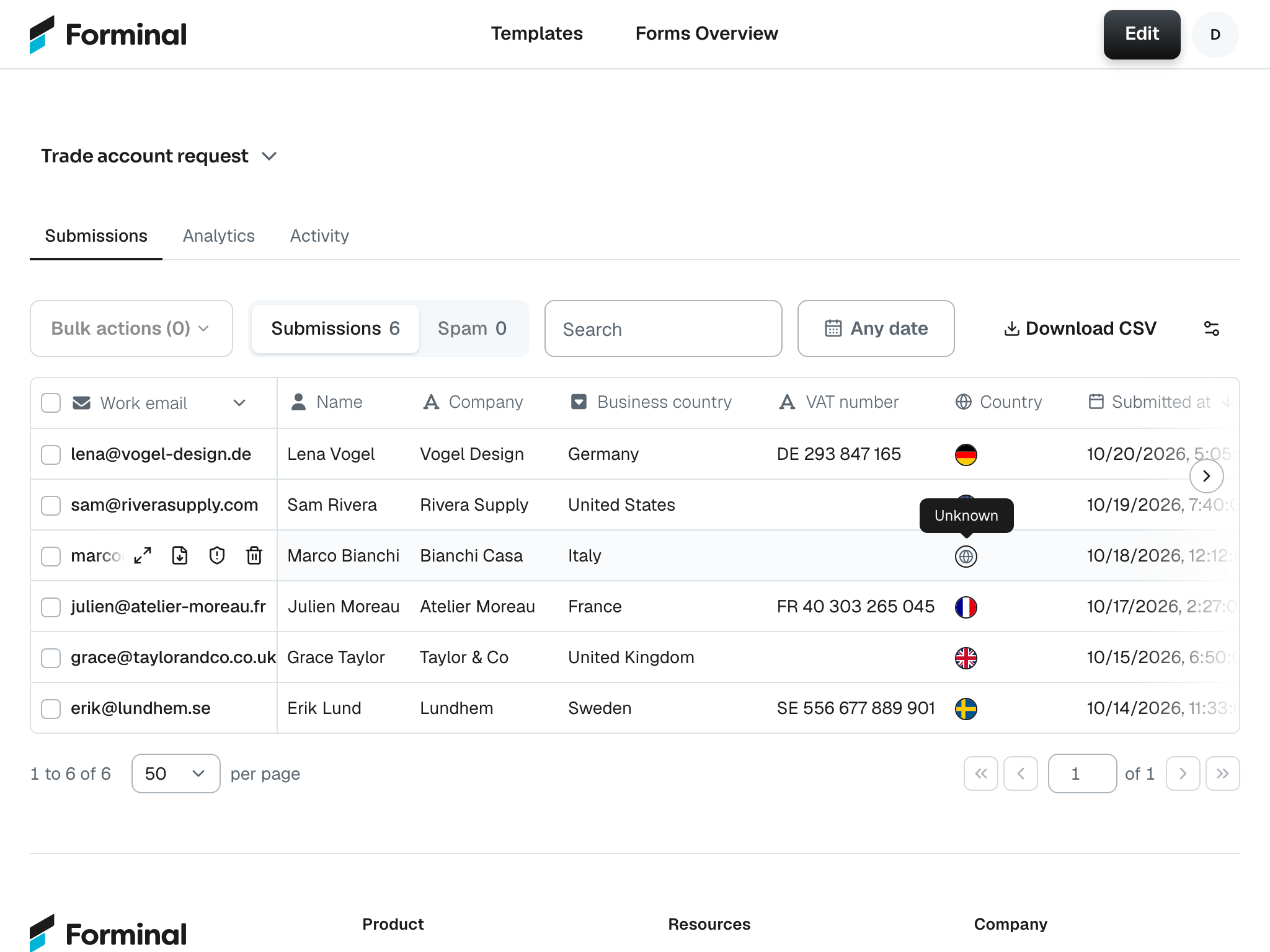
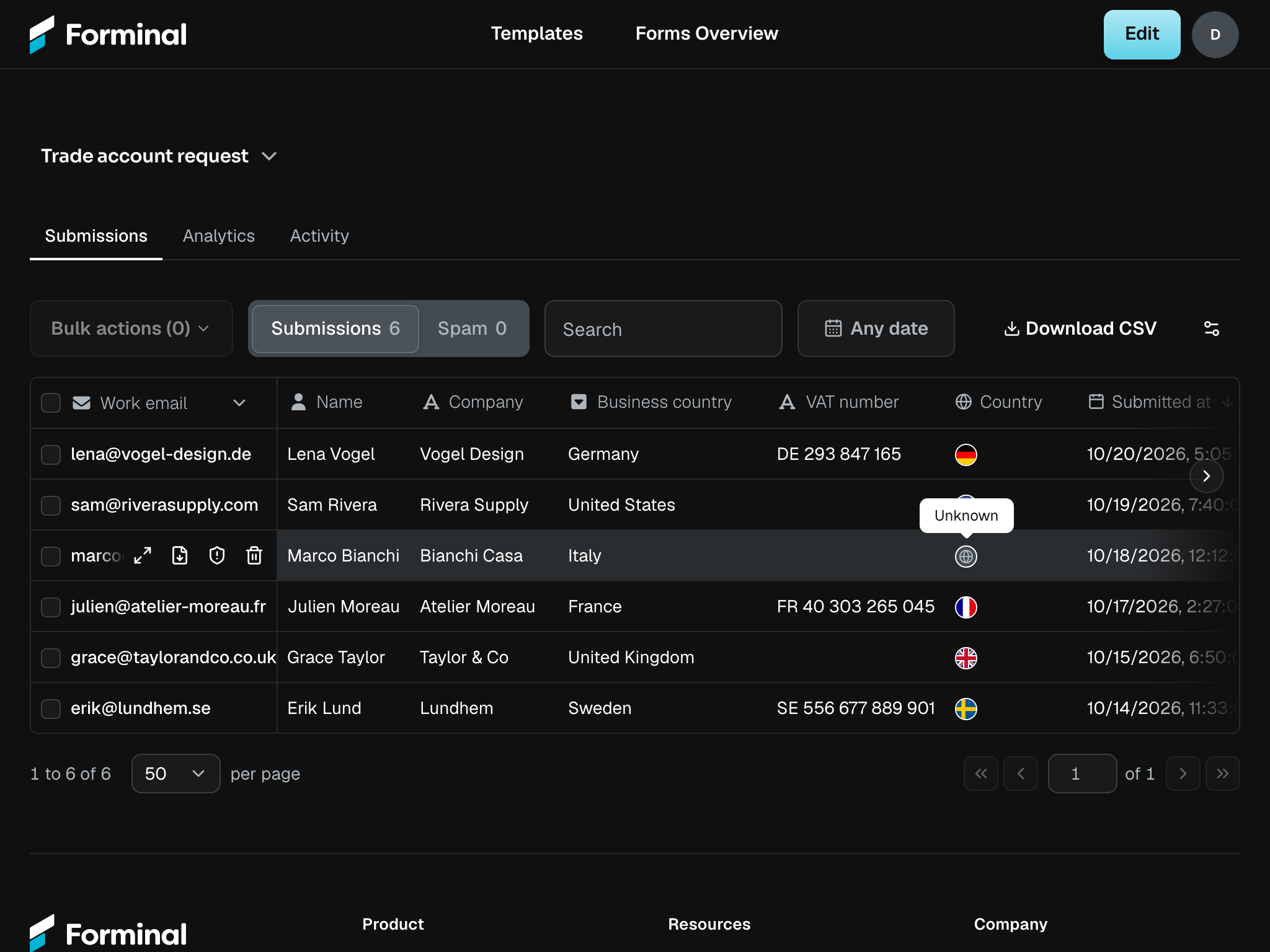
Select the column’s heading to sort by it. When the country is unknown, the cell is empty. View submission shows it too, after the page and browser the submission was sent from, as in “From https://example.com/contact using Chrome in Germany”.
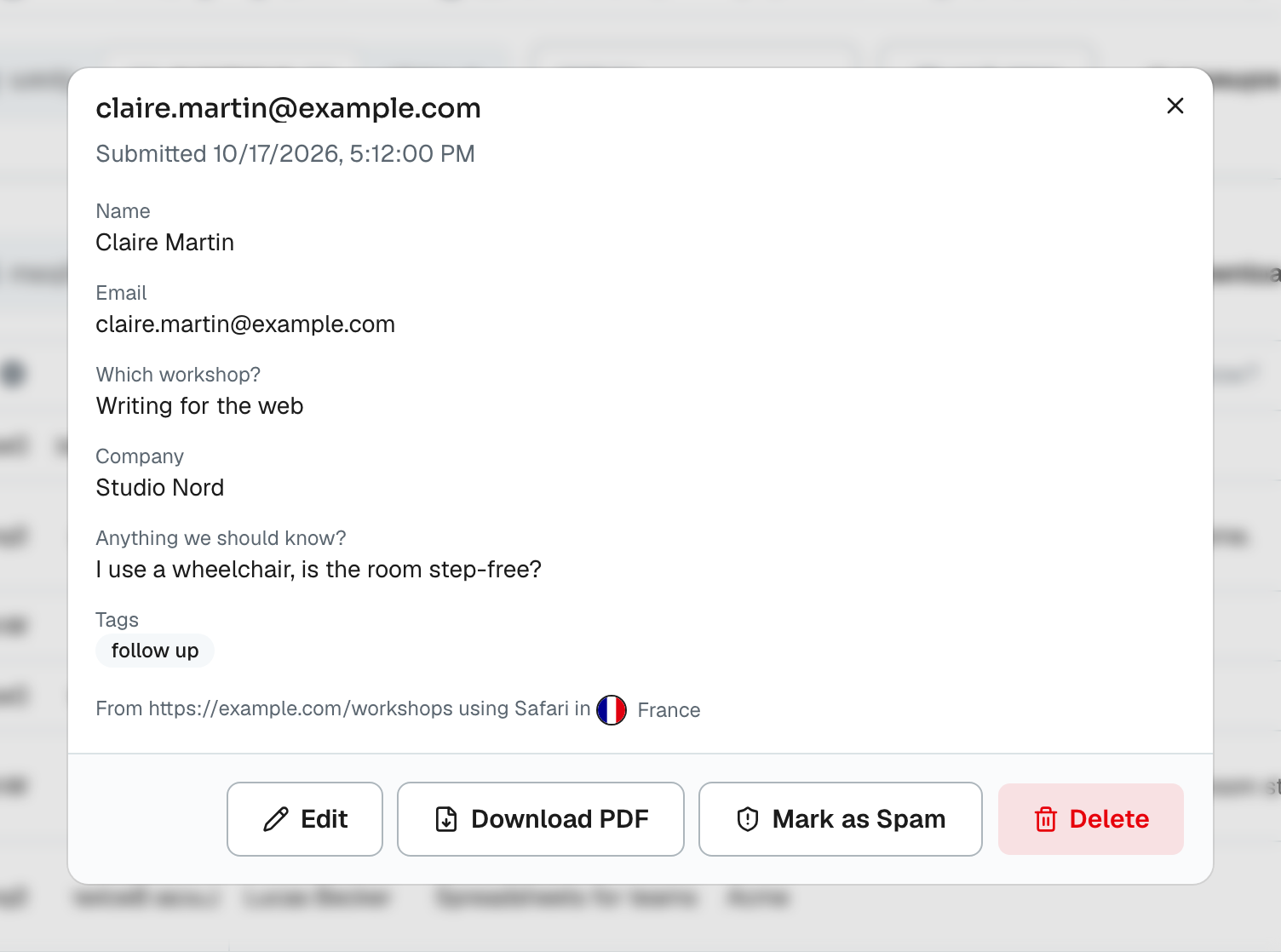
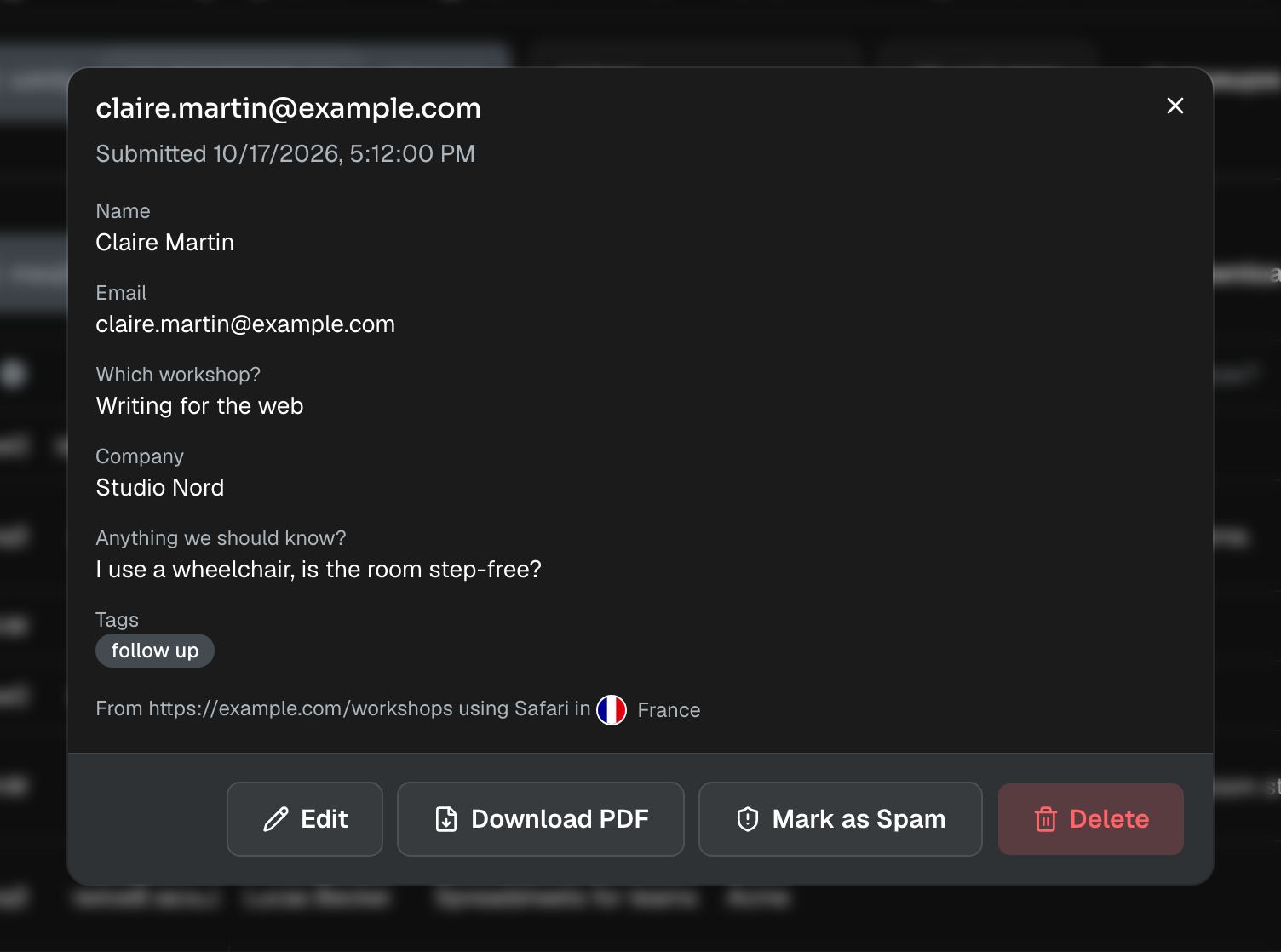
CSV downloads have a Country column with the English name, after Time to complete (s), and so do new Google Sheets connections. A sheet connected earlier keeps its columns until you connect it again. Webhooks, Zapier and Make get the country under submission as a code and a name, such as DE and Germany, or nothing when it’s unknown.
Use it while people fill in the form
The form knows the country as soon as it opens, before the visitor types anything, so everything below takes effect on the first screen.
Prefill from Country
Multiple Choice, Checkboxes, Dropdown, Address and Phone fields have a Prefill from Country switch on their Advanced tab. Turn it on, and the field starts with the visitor’s country already in place. The visitor can still change it.
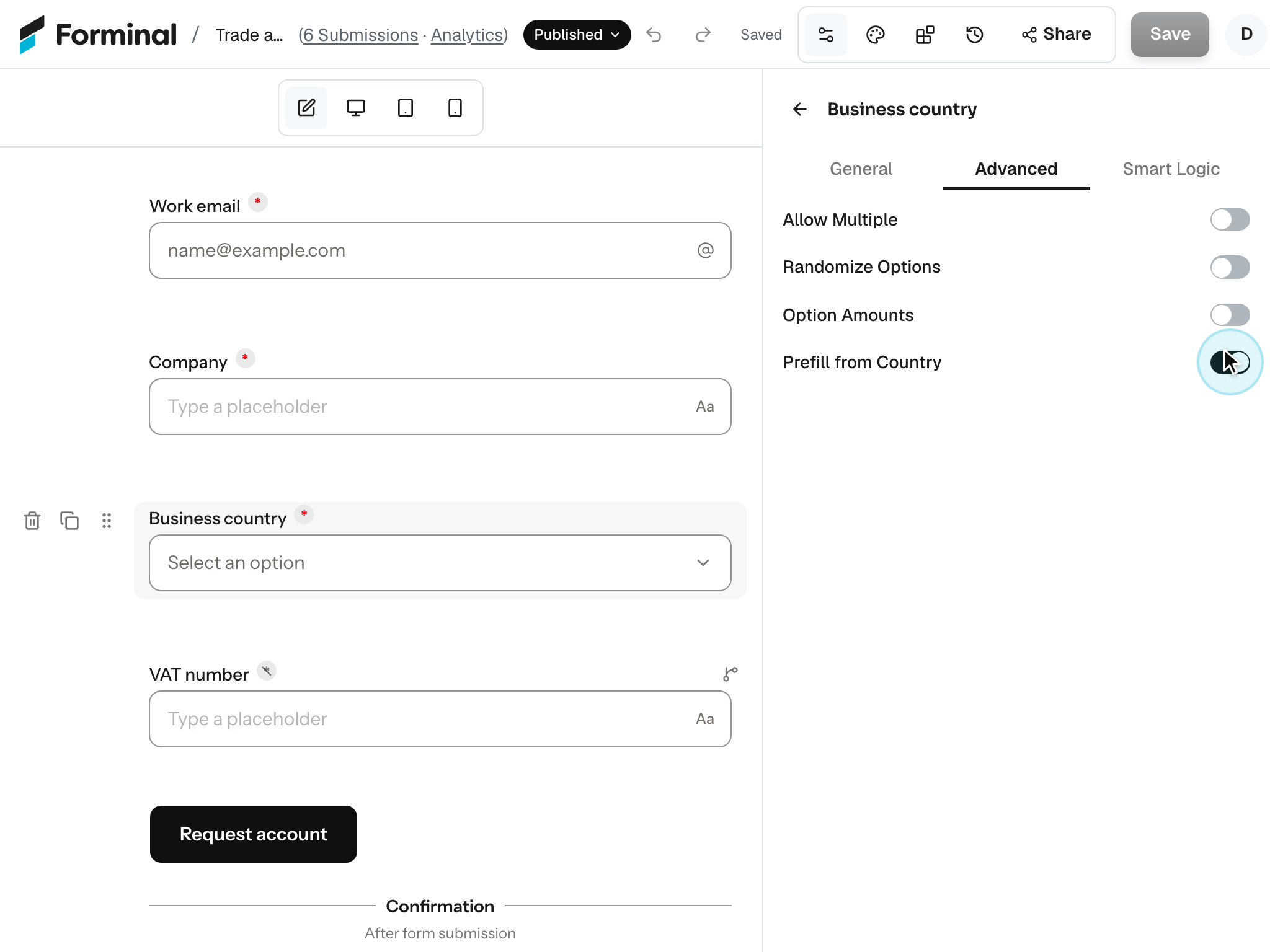
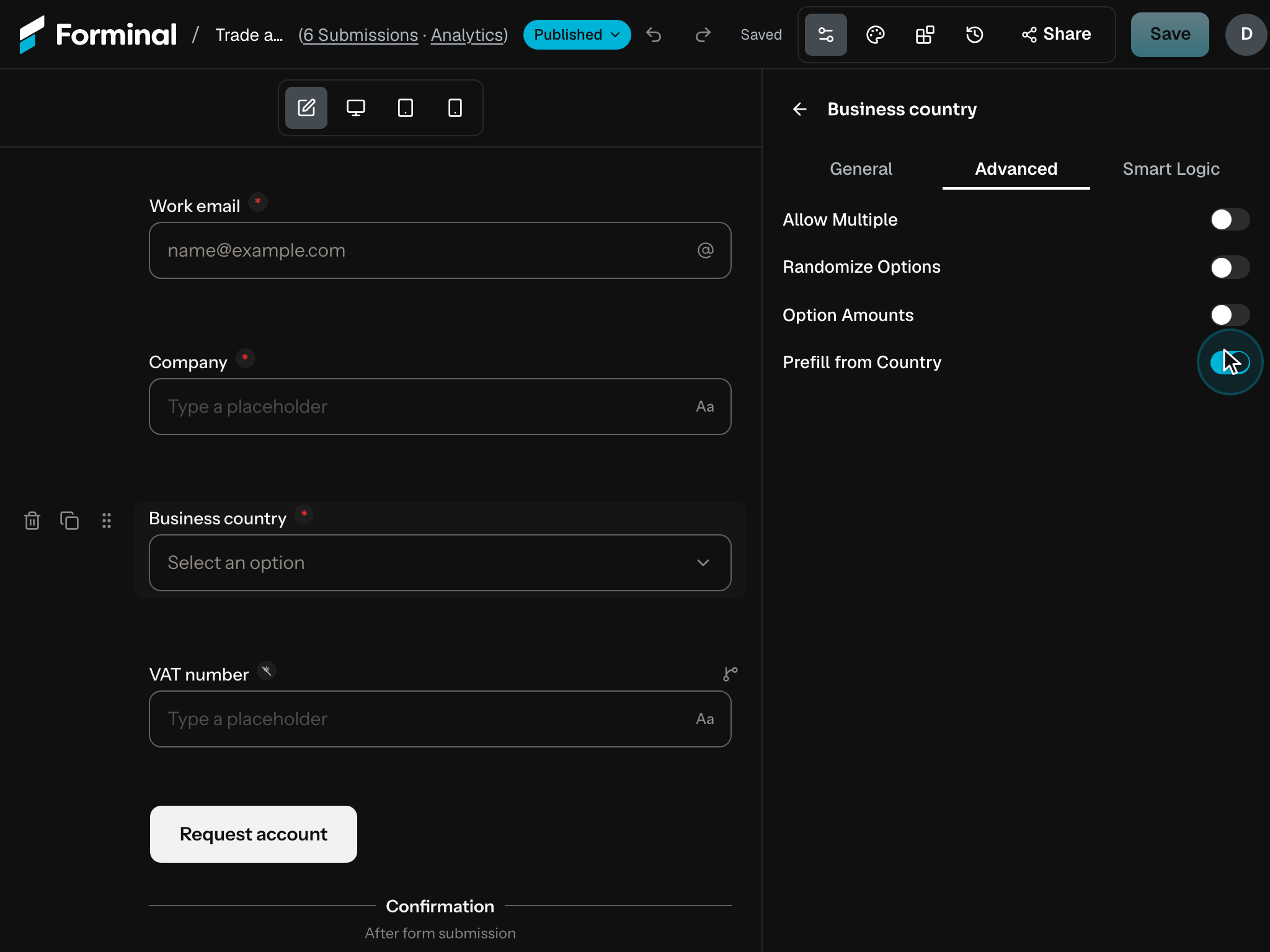
- Multiple Choice, Checkboxes and Dropdown: the option whose label is the country’s English name, such as Germany, is selected. Upper and lower case don’t matter. A field with a default answer keeps it.
- Address: the Country part is filled in, when the address shows that part and it isn’t filled already.
- Phone: the dial code starts on the visitor’s country instead of the default country. This works only with International Format turned on, so the switch shows only then.
When the country is unknown, nothing is prefilled and each field starts as you set it up.
Smart Logic
In a Smart Logic rule, pick Respondent’s country at the end of the field list. It offers is any of, is none of, empty and not empty. For is any of and is none of, you pick the countries from a list you can search by name, up to 250 per rule. Empty means the country is unknown. Is none of also matches when the country is unknown, so add a not empty rule beside it if unknown visitors shouldn’t count. The same rules work for conditional confirmations and notifications.
The country’s name in your text
With Answer Piping, type @ and pick Respondent’s country to put the country’s English name into a label, a description, the form’s title, a confirmation message, a notification email or a webhook body field, such as “Thanks for joining from Germany”. Give it a default for visitors whose country is unknown, as in {{country|your country}}. Without one, it shows nothing.
Country Access
Country Access decides who can open the form by country.
- Open the form in the builder and click an empty part of the canvas, so the sidebar shows Form Settings. Select Protection.
- Under Country Access, pick Block these countries or Only allow these countries.
- Under Countries, add the countries. Type in Find a country to search the list.
- Under When the country is unknown, choose Allow or Block.
- Change the Message if you like. It starts as “This form isn’t available in your country.”
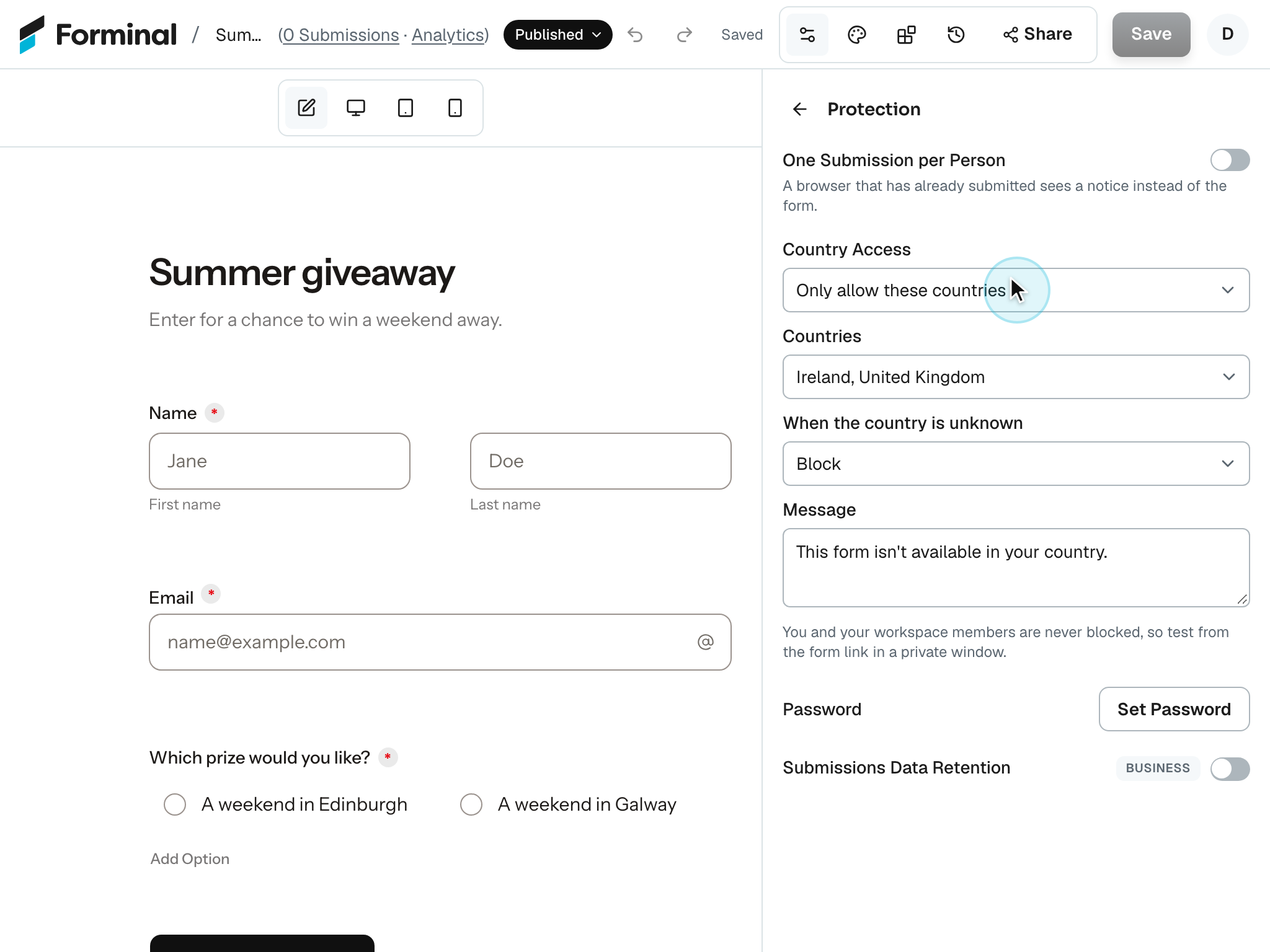
A list holds up to 250 countries, and the message up to 500 characters. A visitor who is refused sees the form’s title and your message instead of the form, on the form link, in an embed and on a custom domain. The server checks again when the form is sent, so a refused visitor can’t submit it another way. Pick Off to turn Country Access off.
You and your workspace members are never blocked, so test from the form link in a private window.
Good to know
The country is detected on the server, and anything the browser sends in its place is ignored, so a visitor can’t change it. It comes from the visitor’s network, so it isn’t exact: someone on a VPN or a work network shows up where that network is. When the server can’t tell, the country is unknown. Submissions sent before the country was recorded don’t have one.
The builder’s preview has no country, so rules treat it as unknown, the name shows its default and nothing is prefilled. Open the form link to see what a visitor sees.
If country detection isn’t set up on the server, a form that prefills, decides or shows anything by country gets the warning “Country detection isn’t set up on this server, so every visitor counts as unknown.” It shows when you publish, and under Country Access while that’s on.
A form with Disable User Details on, a switch on its GDPR Agreement, never looks up the country and stores none. Country Access, country rules, {{country}} and Prefill from Country then don’t work, and the builder won’t let you add them: Country Access stays Off with a note saying why. Turning Disable User Details on for a form that already uses them asks you to confirm first.
The country, Prefill from Country and Country Access are available on every plan.
IP geolocation by DB-IP.
Frequently asked questions
Do I need a country question to see where submissions come from?
No. Unless the form’s GDPR Agreement has Disable User Details on, the server records the country with every submission, and the Submissions page shows it in a Country column from the start.
How accurate is the detected country?
It comes from the visitor’s network, so it isn’t exact. Someone on a VPN or a work network shows up where that network is, and when the server can’t tell, the country is left unknown.
Can I stop people in some countries from opening my form?
Use Country Access in the form’s settings to block a list of countries or allow only the ones you pick, and choose what happens when the country is unknown. A refused visitor sees your message instead of the form, and the server checks again when the form is sent.
Why can I still open my form when my country is blocked?
You and your workspace members are never blocked. Open the form link in a private window to see what a visitor sees.
Why don’t my country rules work in the builder’s preview?
The preview has no country, so rules treat it as unknown, the piped name shows its default and nothing is prefilled. Test on the form link instead.
Is respondent’s country included in the free plan?
It is. The country, Prefill from Country and Country Access work on every plan.