A password keeps a form private to the people you give it to. Visitors see only a password box. The questions, options and descriptions are not sent to their browser until they type the right password.
Examples
- An internal request form that only your team should fill in.
- A members-only survey whose link you share in a newsletter.
- A client intake form where each client gets the password with their welcome email.
Set a password
- Open the form in the builder and select Form Settings in the top bar, or click an empty part of the canvas, so the sidebar shows the form’s settings.
- In Form Settings, select Protection.
- On the Password row, click Set Password.
- Type the password in the Form Password window. The eye button (Show password) shows what you typed, and clicking it again hides it.
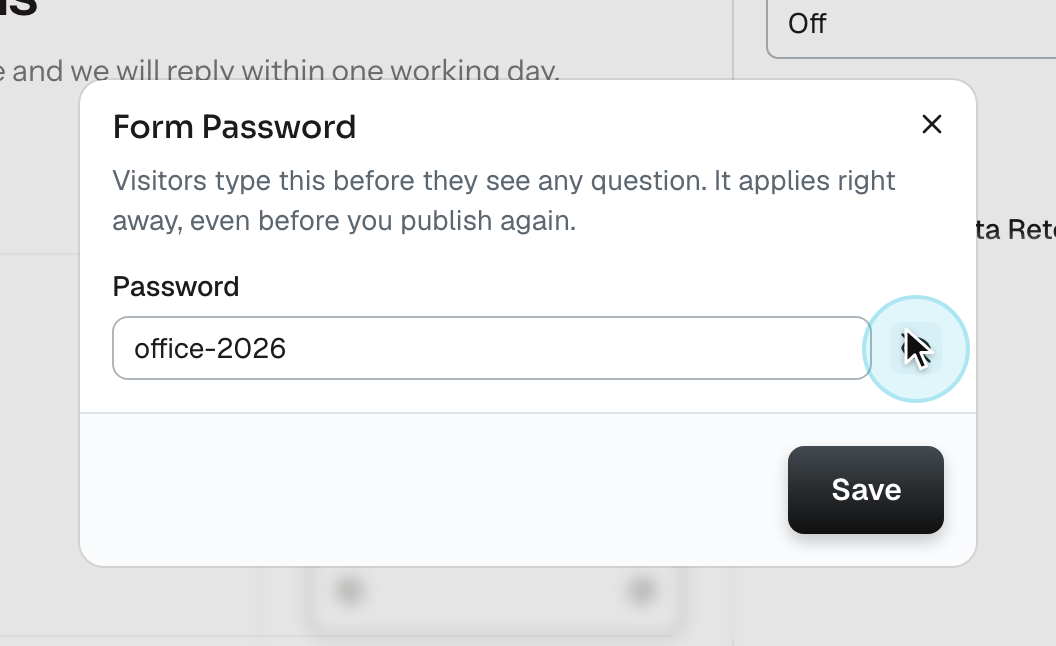
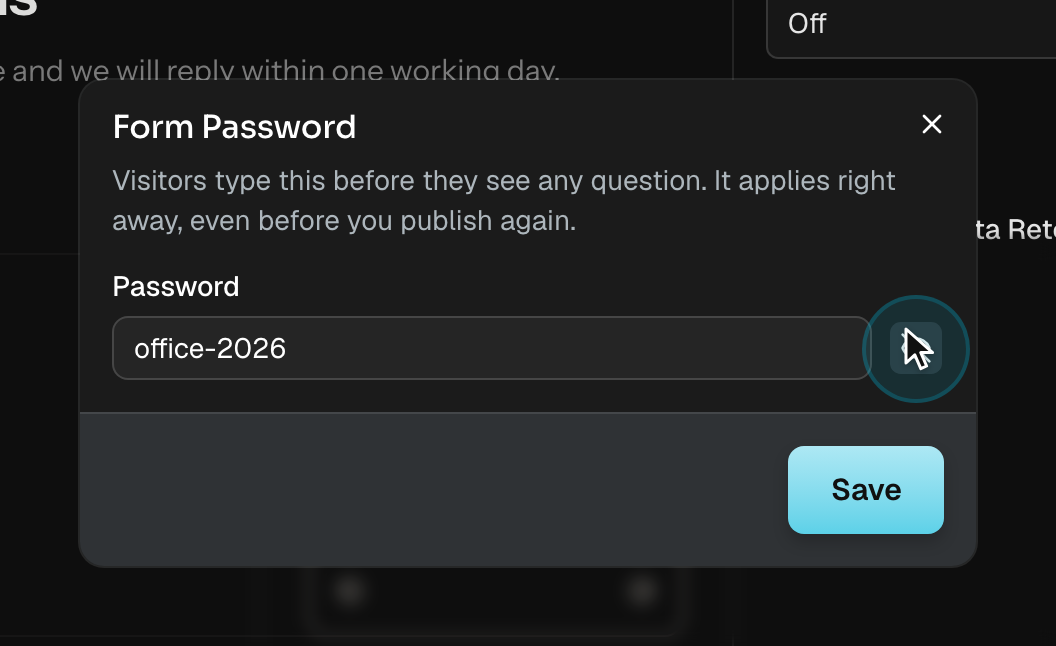
- Click Save. The row now reads Password set, with Change and a Remove password button.
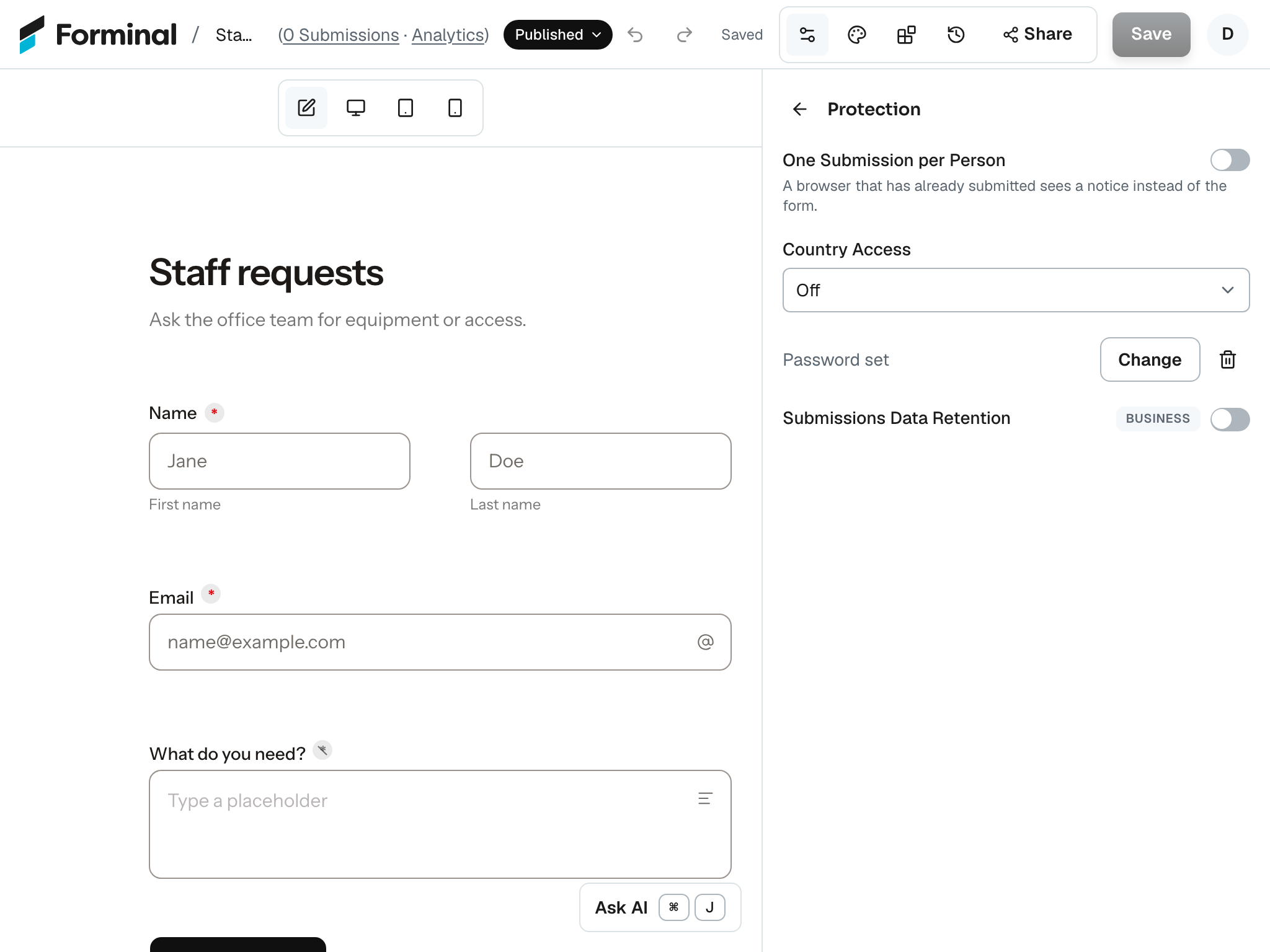
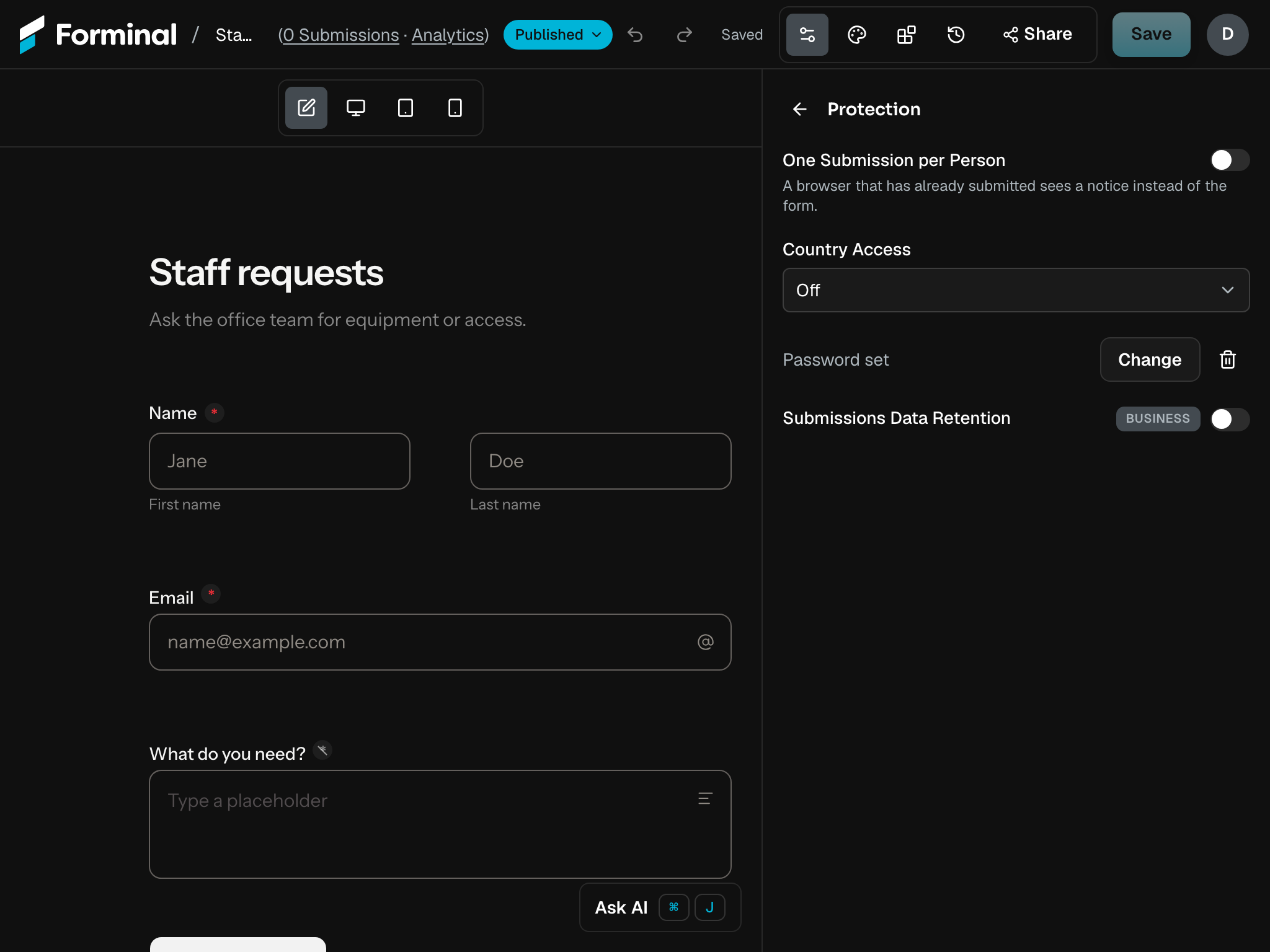
The password applies right away, even before you publish again. Use 4 to 128 characters. Spaces count, and nothing is trimmed.
You can replace or remove the password at any time, but you can’t read it back, so keep a copy somewhere safe. Setting a password needs an account, so a guest is asked to sign in first.
What people see
Visitors see the form’s title and a Password box with an Unlock button. The form’s logo and cover image still show above it. A wrong password shows “That password isn’t right.” After 10 tries in a minute from one address, they see “Too many tries. Wait a minute and try again.”
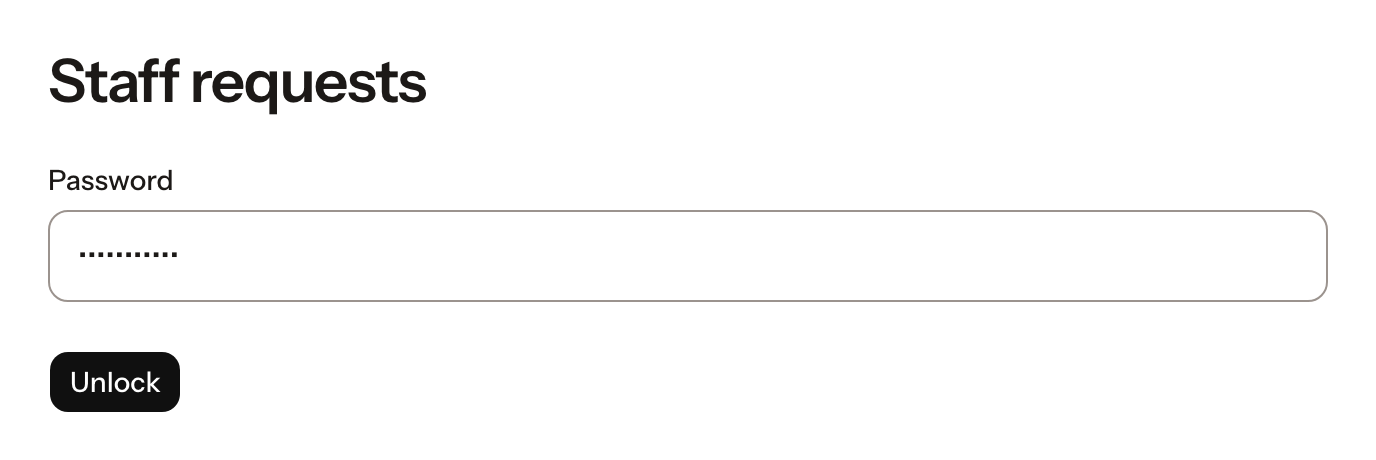
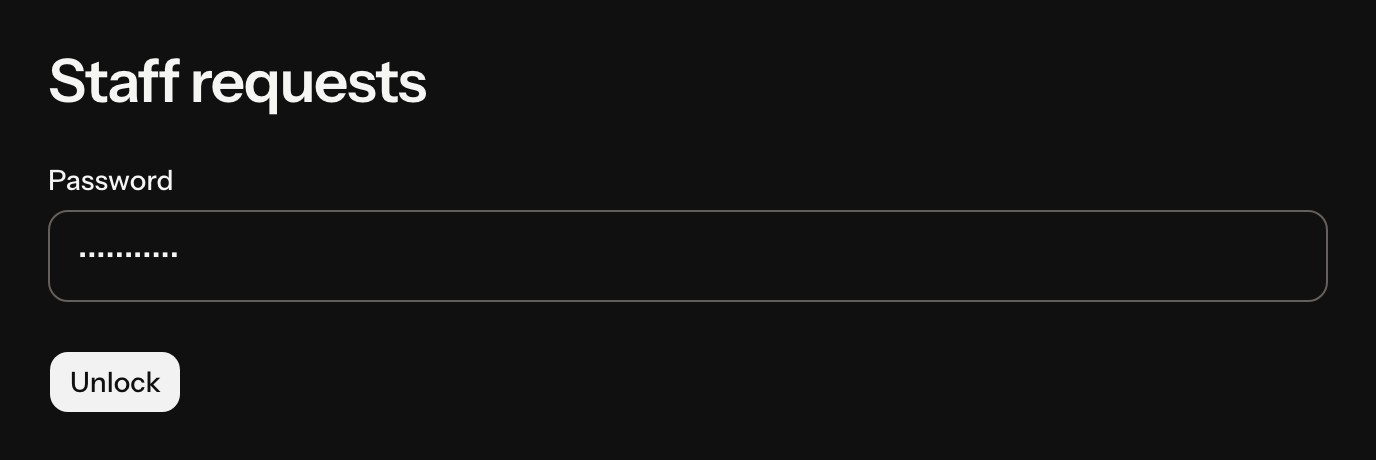
With the right password the form opens, ready to fill in. It works on the form’s own link, inside an embed or a popup, and on a custom domain. Other parts of the address, such as the embed’s hide-title option, are kept.
An unlock lasts 24 hours, but it is kept only while the page stays open. Reloading the page asks for the password again.
Good to know
Submitting and uploading files need the password too, so nobody can send answers by skipping the box. If the password changes while someone is filling in the form, they see “Enter the password again to send this form.” with a Reload button.
Changing or removing the password ends every unlock at once. Anyone who can open the form in the builder skips the box, you included.
Images you add in Content blocks are not protected. Anyone with an image’s address can open it, so keep sensitive material out of them. The assistant can tell you whether a form has a password, but it can’t set, change or read one. You set it by hand in the builder, and in the forms list a Lock icon marks forms that have one. Passwords are available on every plan.
Frequently asked questions
Can I see the password I set?
No. You can replace or remove it at any time, but you can’t read it back, so keep a copy somewhere safe.
How long does an unlocked form stay open?
An unlock lasts up to 24 hours, but only while the page stays open. Reloading the page asks for the password again.
Are images on a password-protected form private?
Images in Content blocks aren’t protected, and anyone with an image’s address can open it. The logo and cover also show above the password box, so keep sensitive material out of them.
Does the password work on an embedded form?
It does. The password box shows on the form’s own link, inside an embed or a popup, and on a custom domain.
Can the AI assistant set a password for my form?
It can tell you whether a form has one, but it can’t set, change or read it. You set the password yourself in the builder.
Do password-protected forms need a paid plan?
No, passwords are available on every plan.