Name collects a person’s name in the layout you pick: one box, first and last, or first, middle and last. Each part is its own box, so browsers can fill them in from saved details and you get the parts back separately.
Examples
- A registration form that needs first and last names for badges.
- A quick contact form where one name box is enough.
- A follow-up question that says “Thanks, @Name. What brings you here today?” by piping in the answer.
Set it up
- In the builder, point between two fields and select Add Field. On an empty form, select Start from Scratch.
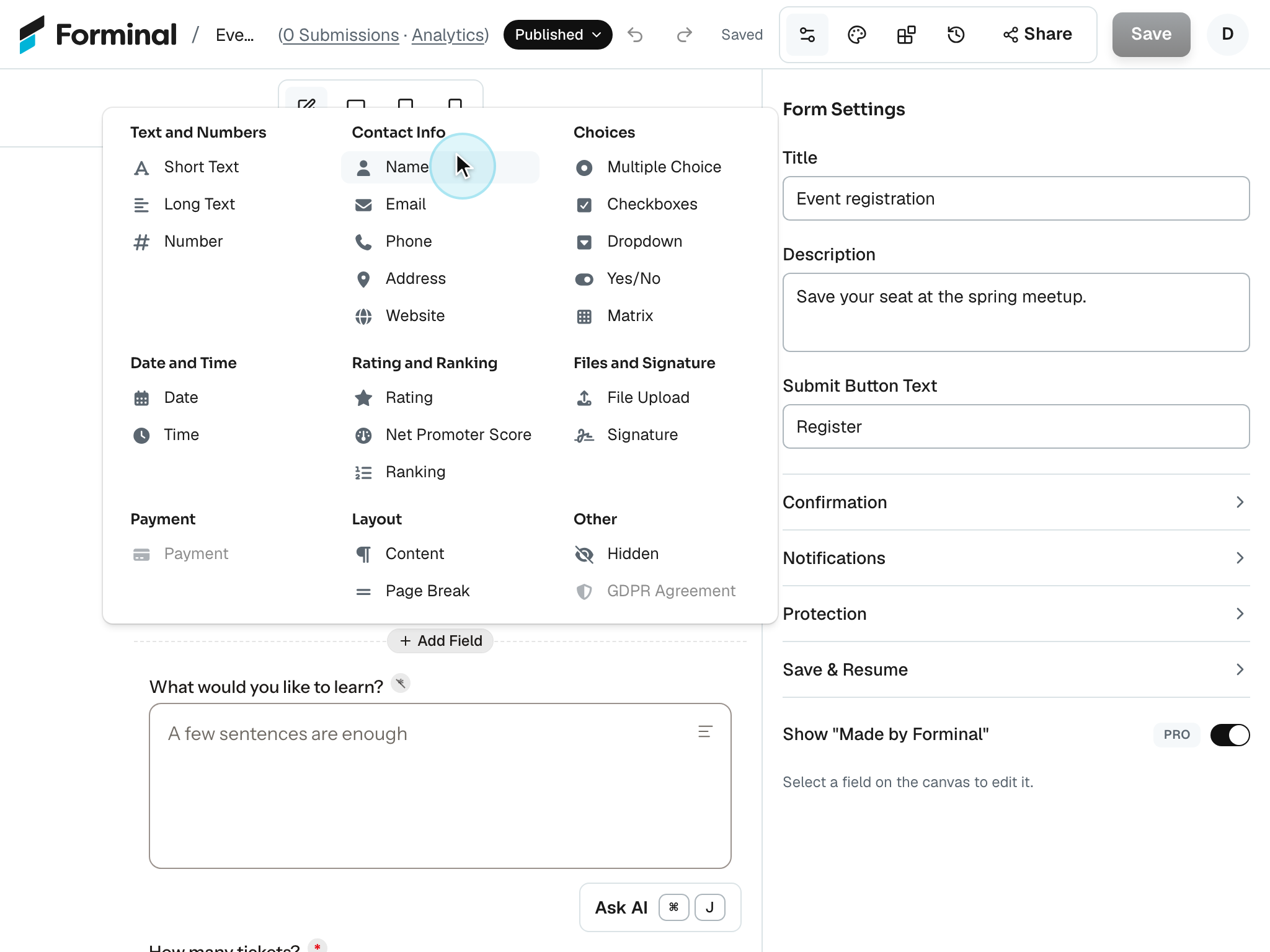
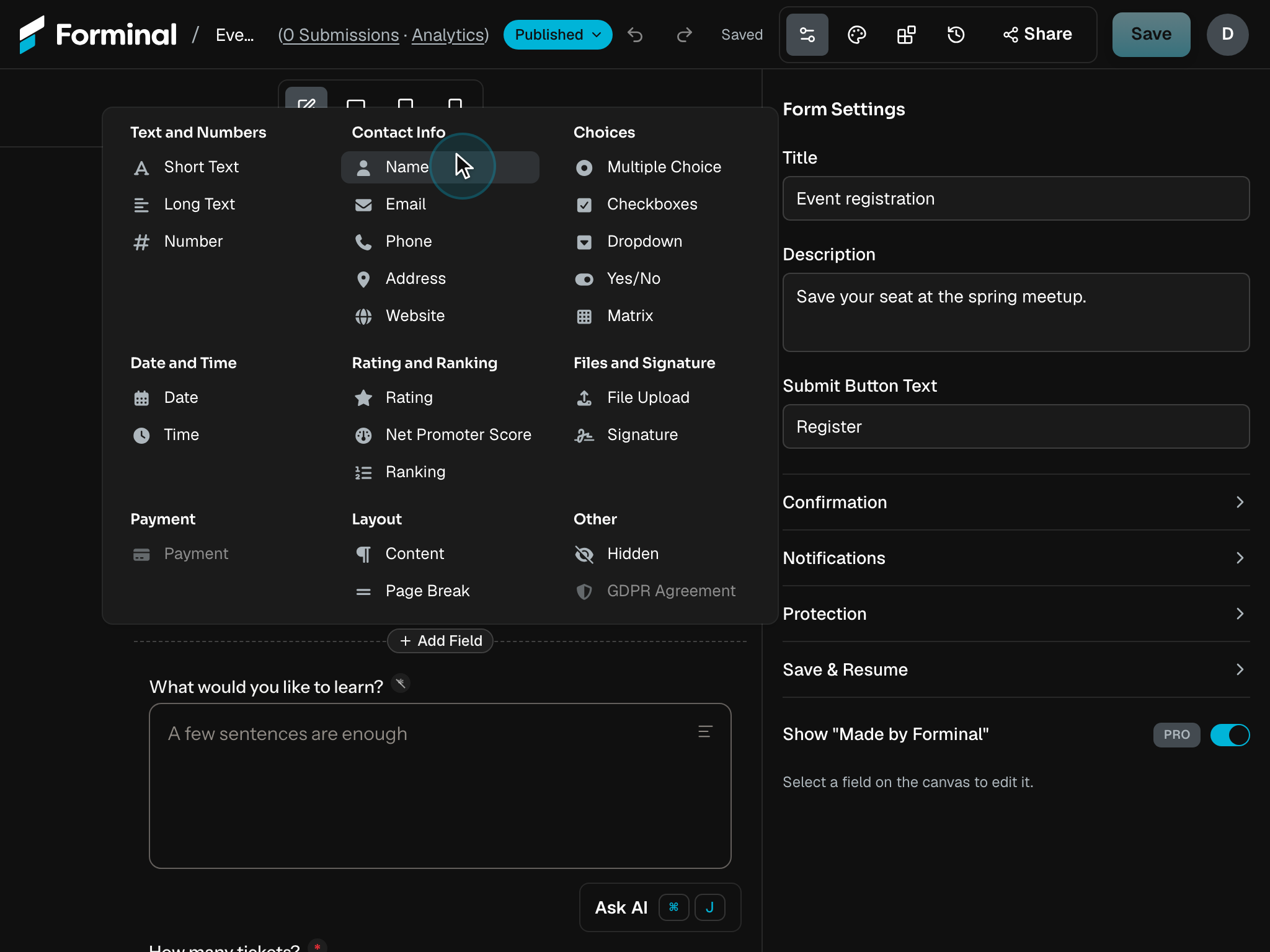
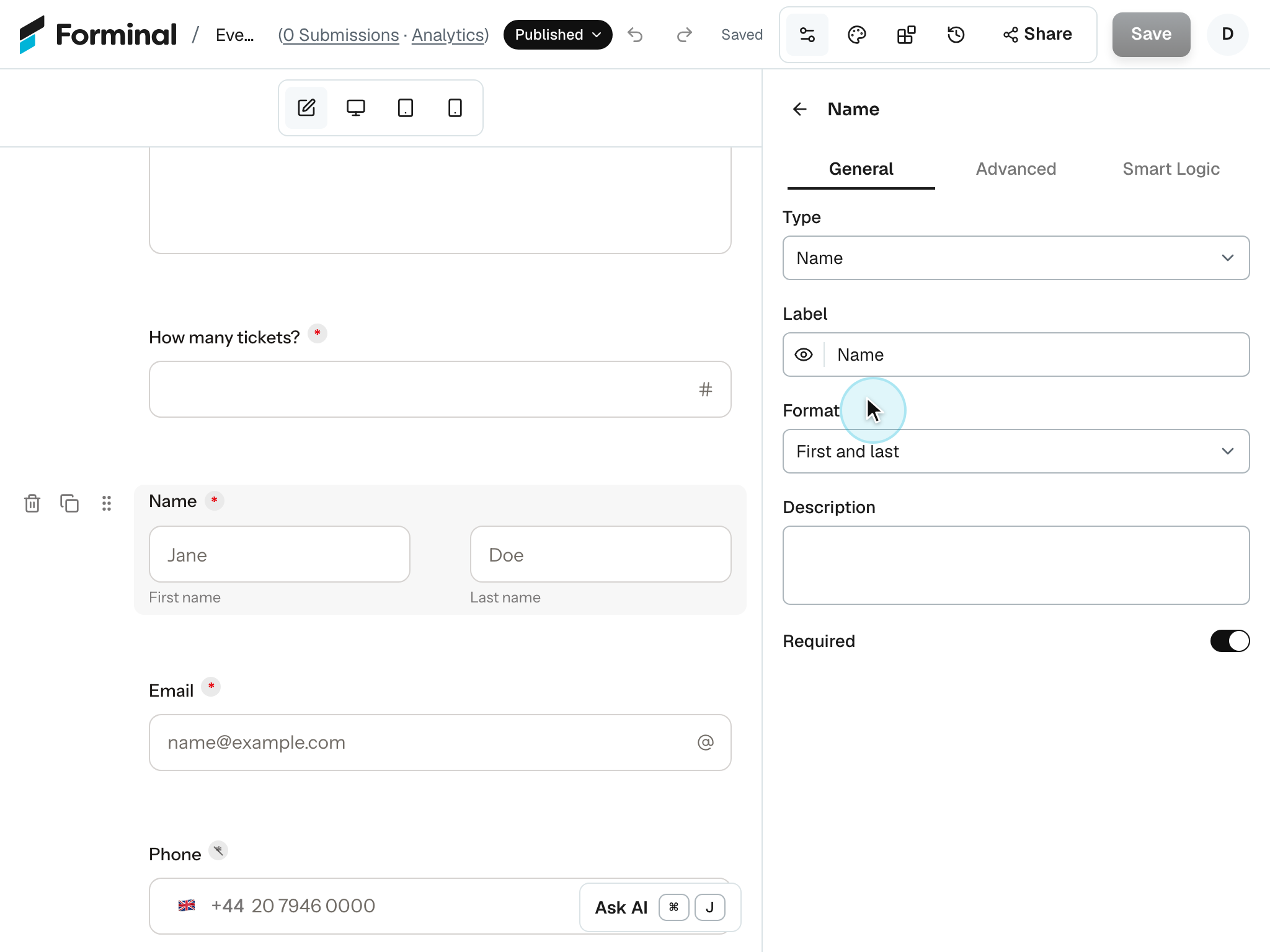
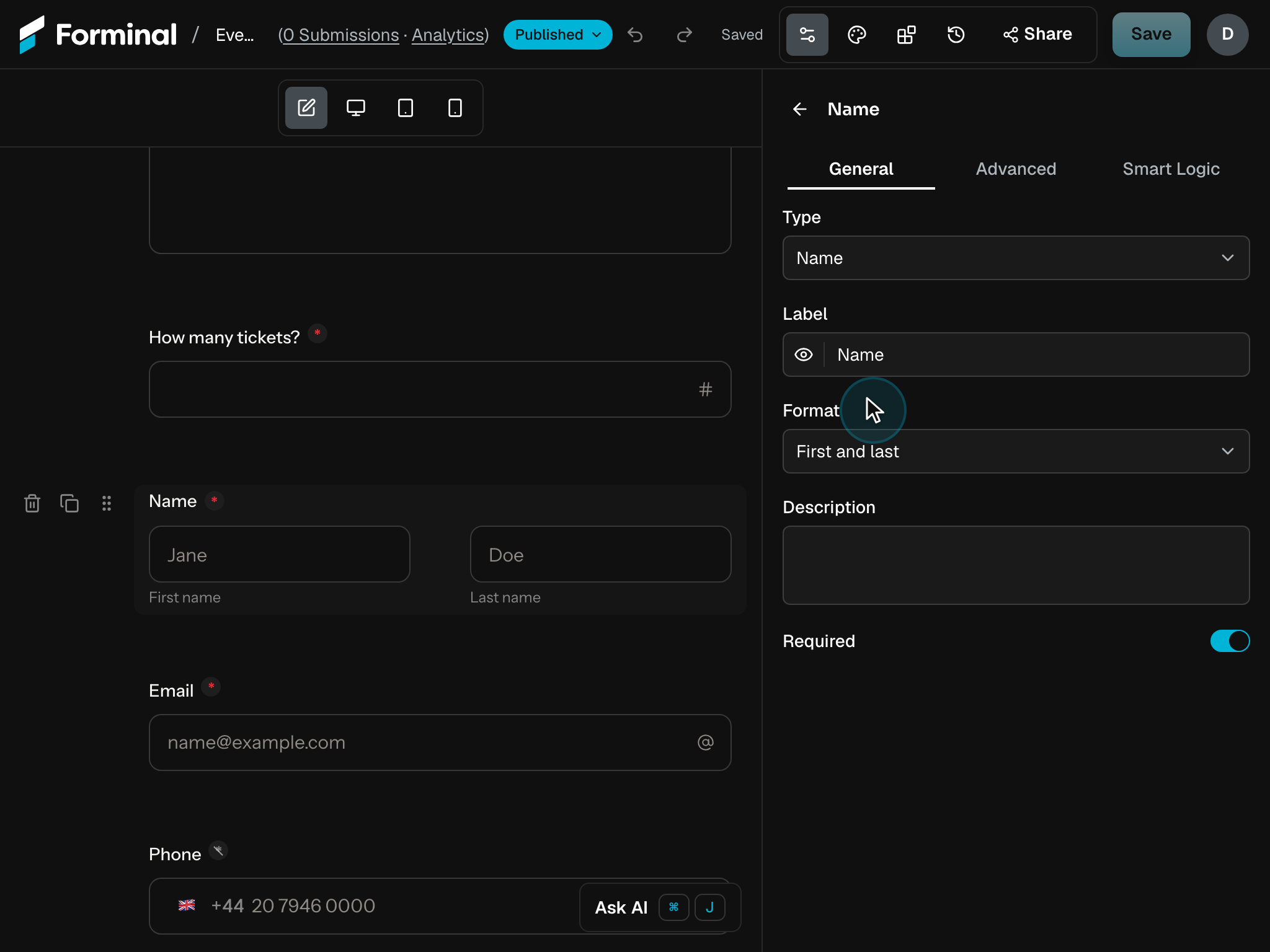
- Under Contact Info, select Name. It starts as First and last, with the placeholders “Jane” and “Doe”.
- On the General tab, choose a Format: Single line; First and last; or First, middle, and last.
- Set the Label, a Description and Required as you would for any field. With Description Position set to After Field, the description shows below every part instead of under the label.
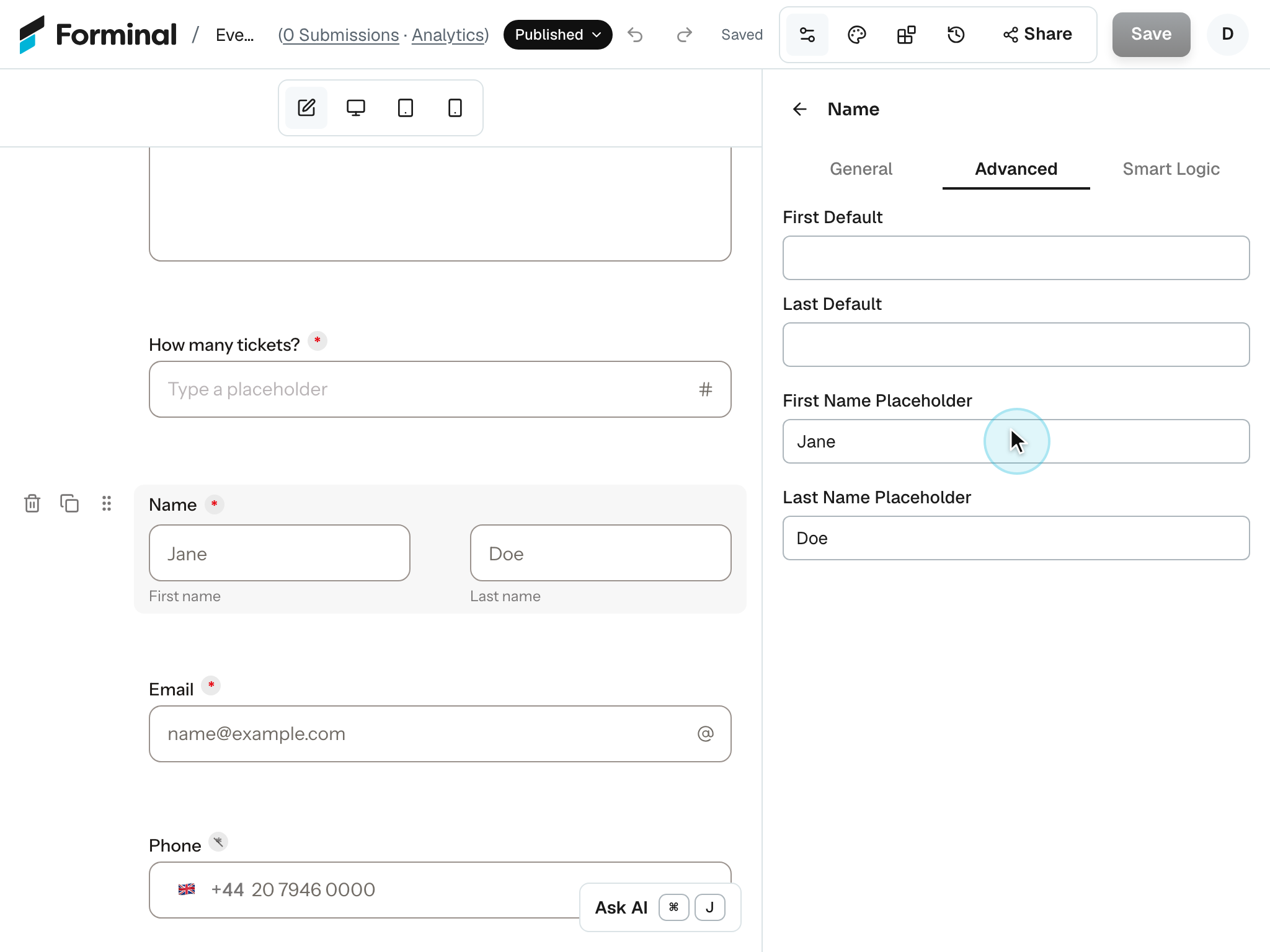
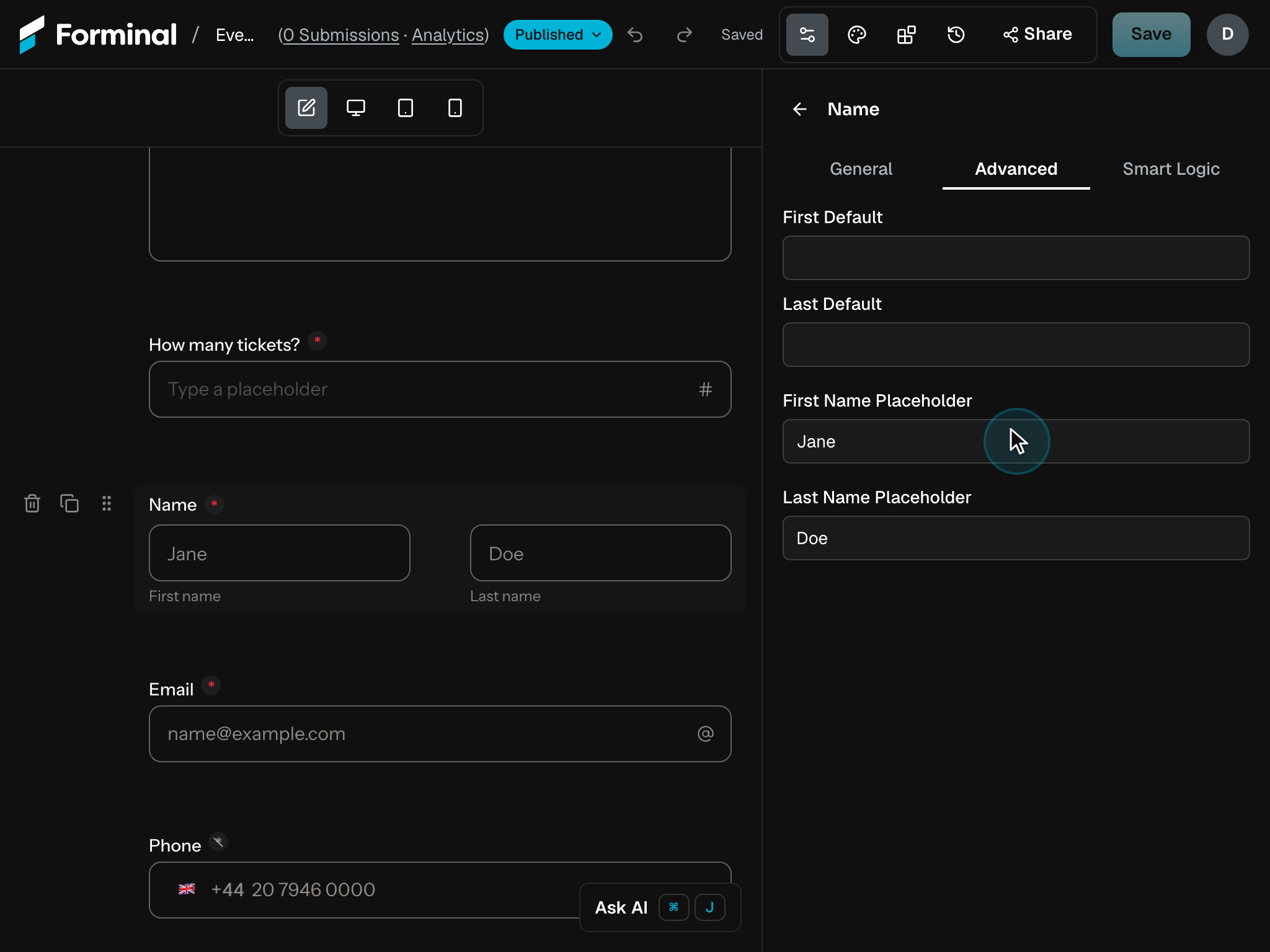
- On the Advanced tab, change the placeholder and default for each part if you need to.
Settings for each part
With two or three parts, the Advanced tab has a placeholder box for each part, such as First Name Placeholder and Last Name Placeholder, so you can write “Given name” and “Family name” if that suits your audience. There’s also a default for each part (First Default, Last Default and, for three parts, Middle Default), which fills that box in ahead of time. With Single line, you get one Placeholder and one Default Answer instead, and the placeholder starts as “Jane Doe”.
What people see
The parts sit side by side under one label. A few themes draw them their own way: Inset and Bento give each part a box of its own with its caption inside at the top, Float sets each caption on its part’s top edge, and Grouped lists the parts as rows of one group. On a plan without Advanced Styles the published form shows the parts the Default way. When the field is required, a blank first or last name shows “Enter a first name” or “Enter a last name” under the field. The middle name is never required. A required Single line name shows “This field is required”.
How answers show in submissions
The parts are joined with spaces, so “Jane”, “Marie” and “Doe” read as “Jane Marie Doe” in the submissions table, the CSV export, notification emails and anywhere you pipe the answer. The whole name takes one column. In Smart Logic, rules check the joined name with the text checks, such as contains or starts with, and ignore upper and lower case.
Good to know
Each part takes up to 100 characters, and a Single line name up to 200. Part placeholders can be up to 200 characters, and part defaults up to 100.
Frequently asked questions
Can I ask for the first and last name in separate boxes?
Set the Format on the General tab to First and last, or to First, middle, and last. Each part gets its own box, so browsers can fill them in from saved details.
Do first and last names get separate columns in the CSV export?
No. The parts are joined with spaces, and the whole name takes one column in the submissions table and the CSV export.
Is the middle name required?
Never. On a required name field, only the first and last name have to be filled in.
Can I greet people by name later in the form?
Type @ in a later label or in the thank-you message and pick the Name field, as in “Thanks, @Name.” See Answer Piping.
How long can a name be?
Each part takes up to 100 characters, and a Single line name up to 200.