Import and export saves a form as a JSON document that you can import again later. The document holds the whole form: its title and description, every field with its options and Smart Logic, the settings, notifications and confirmations, and its look. Importing it creates a new draft. Both happen through the API. Use them for backups, for moving forms between accounts, or with tools and AI agents that write forms for you.
Examples
- Copying a proven form to start a new one.
- Keeping a backup of an important form.
- Moving a form you built for a client into the client’s own account.
Export a form
You’ll need the form’s id. It’s the part after /forms/ in the builder’s address.
- While signed in, open
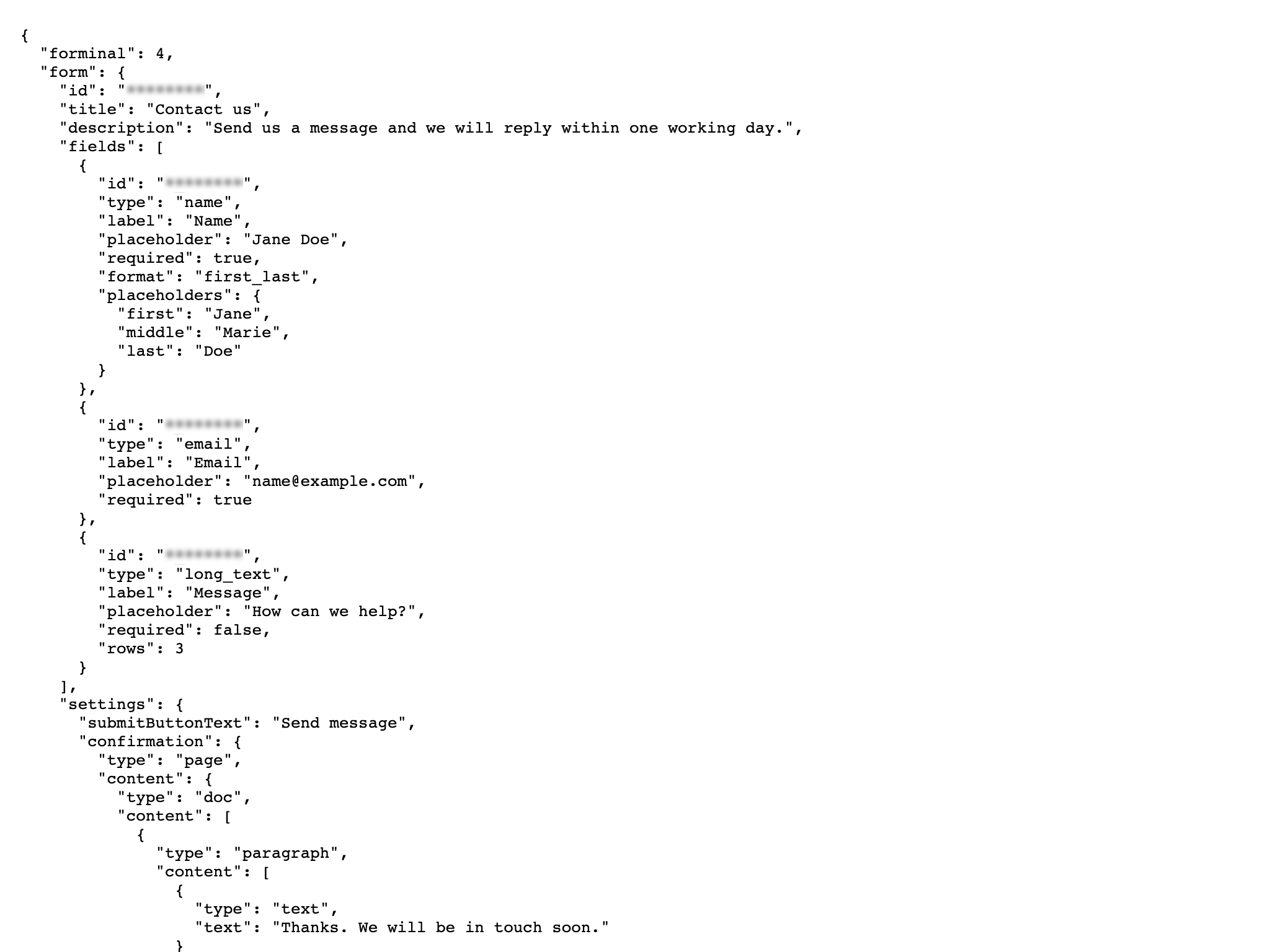
https://app.aw.co.ua/api/forms/FORM_ID/exportin the same browser, with your form’s id in place ofFORM_ID. - The browser shows the form as JSON. Save the page as a
.jsonfile.
From a script, send the same request with an API key. To create one:
- Open Account menu » Profile » API keys.
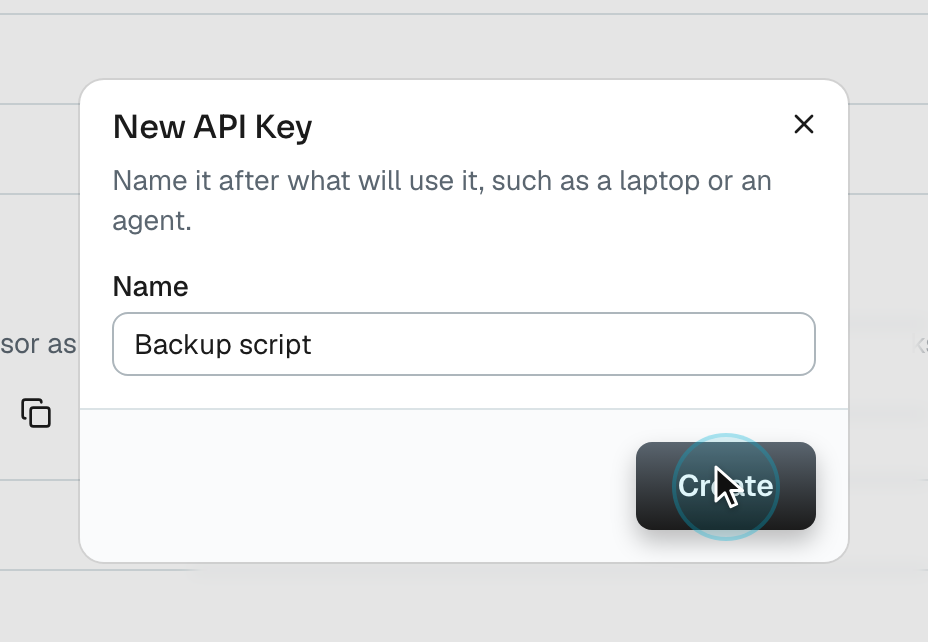
- Select Create Key, type a Name that says what will use it, and select Create.
- Copy the key from the Your New Key window with Copy Key. This is the only time the full key is shown.
curl -H "Authorization: Bearer $AW_API_KEY" https://app.aw.co.ua/api/forms/FORM_ID/export -o form.jsonYou can export any form you can open, including one shared with you in a workspace with Viewer access to Forms.
Import a form
Send the document to the import address, with the Forminal-Ack header carrying the acknowledgement code from llms.txt. With an API key, the new draft lands in your account:
curl -X POST https://app.aw.co.ua/api/forms/import -H "Authorization: Bearer $AW_API_KEY" -H "Forminal-Ack: <code from llms.txt>" -H "Content-Type: application/json" --data @form.jsonThe answer holds the new form with its id, a dropped list of anything that couldn’t be carried over, and warnings naming features in the form that your plan doesn’t serve. Those features are kept, but the published form leaves them out until you upgrade. The import is always a new draft: it never changes an existing form, and you publish it from the builder when you’re ready.
You can also import without a key. The form then belongs to a guest, and the answer includes a handoffUrl. Open that link in your browser to take the form over and continue in the builder, then sign in to keep it.
The file format
An export is a JSON object with two keys: forminal, the format version (currently 4), and form, the form itself. Documents in versions 1 to 3 still import, and so does a file exported before the product was renamed, which names its version awesomeforms. The full format is published as a JSON Schema at https://app.aw.co.ua/api/forms/schema, built from the same rules the app checks with, so you can write or check a document with your own tools. A document that doesn’t match is refused and nothing is created.
Good to know
The document holds the form, not its data. Submissions, analytics, version history, connected integrations and the CAPTCHA you chose aren’t in it. Images aren’t in it either: the logo, the cover and any image in a content block or a confirmation are dropped on import, so add them again in the builder. On import the form and every field get new ids, and Smart Logic, answer piping and payment amounts are pointed at the new fields for you. A rule that names a field or option missing from the document is dropped and listed in dropped. A form can hold up to 50 fields, and its title up to 200 characters.
Frequently asked questions
Is there an export button in the builder?
Export and import both go through the API. For a one-off backup you don’t need code: while signed in, open the form’s export address in your browser and save the JSON it shows.
Does an exported form include its submissions?
It doesn’t. The file holds the form only, without submissions, analytics, version history, connected integrations or the CAPTCHA you chose. To keep your submissions, download them from the Submissions page as a CSV.
Will importing a file overwrite the original form?
An import always creates a new draft with new ids, and it never changes an existing form. You publish the copy from the builder when it’s ready.
What if the form uses features my plan doesn’t include?
The import still goes through. The answer names those features under warnings, and they stay in the form, but the published form leaves them out until you upgrade.
Why are the logo and images missing after an import?
Images aren’t stored in the file. The logo, the cover and any image in a content block or a confirmation are dropped on import, so add them again in the builder.
Can an AI agent write a form and import it for me?
It can. An agent can write a document that matches the published Form JSON Schema and import it. Without an API key the form belongs to a guest, and the answer includes a handoff link that you open to take the form over, then sign in to keep it.