GDPR Agreement is a consent checkbox. Visitors tick it to agree that you store what they send, and the form can’t be submitted until they do. It’s always required and never ticked in advance. On its settings you’ll also find two privacy switches for the whole form: one stops the form storing anything in the visitor’s browser, and the other stops it keeping their IP address, browser and country.
Examples
- A contact form for visitors in the EU, where people agree to you keeping their message before they send it.
- A form with partial submissions on, which only saves unfinished answers once the box is ticked.
- A survey that shouldn’t keep IP addresses or browser details, with Disable User Details on.
Add it to a form
- In the builder, point between two fields and select Add Field. On an empty form, select Start from Scratch.
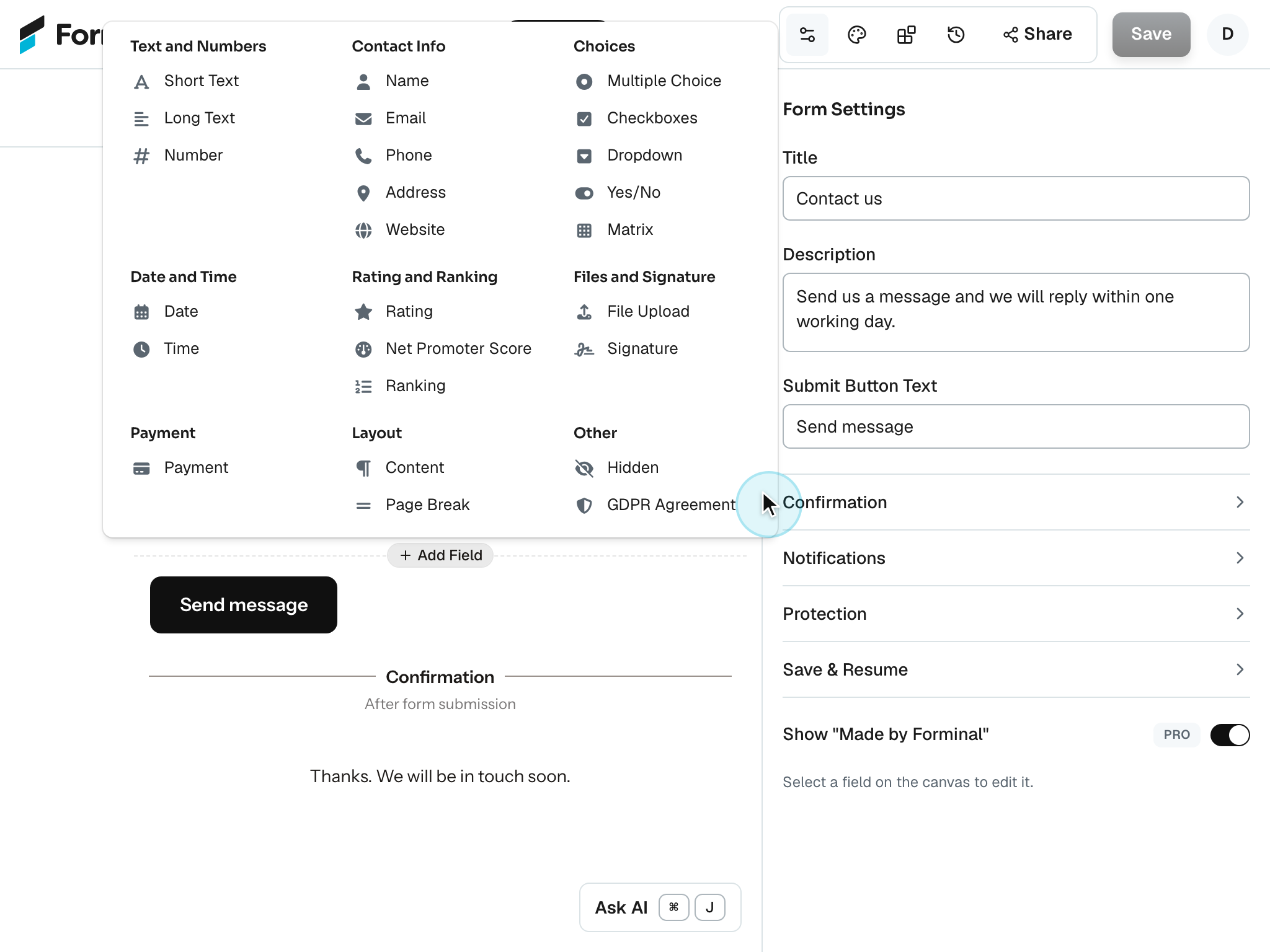
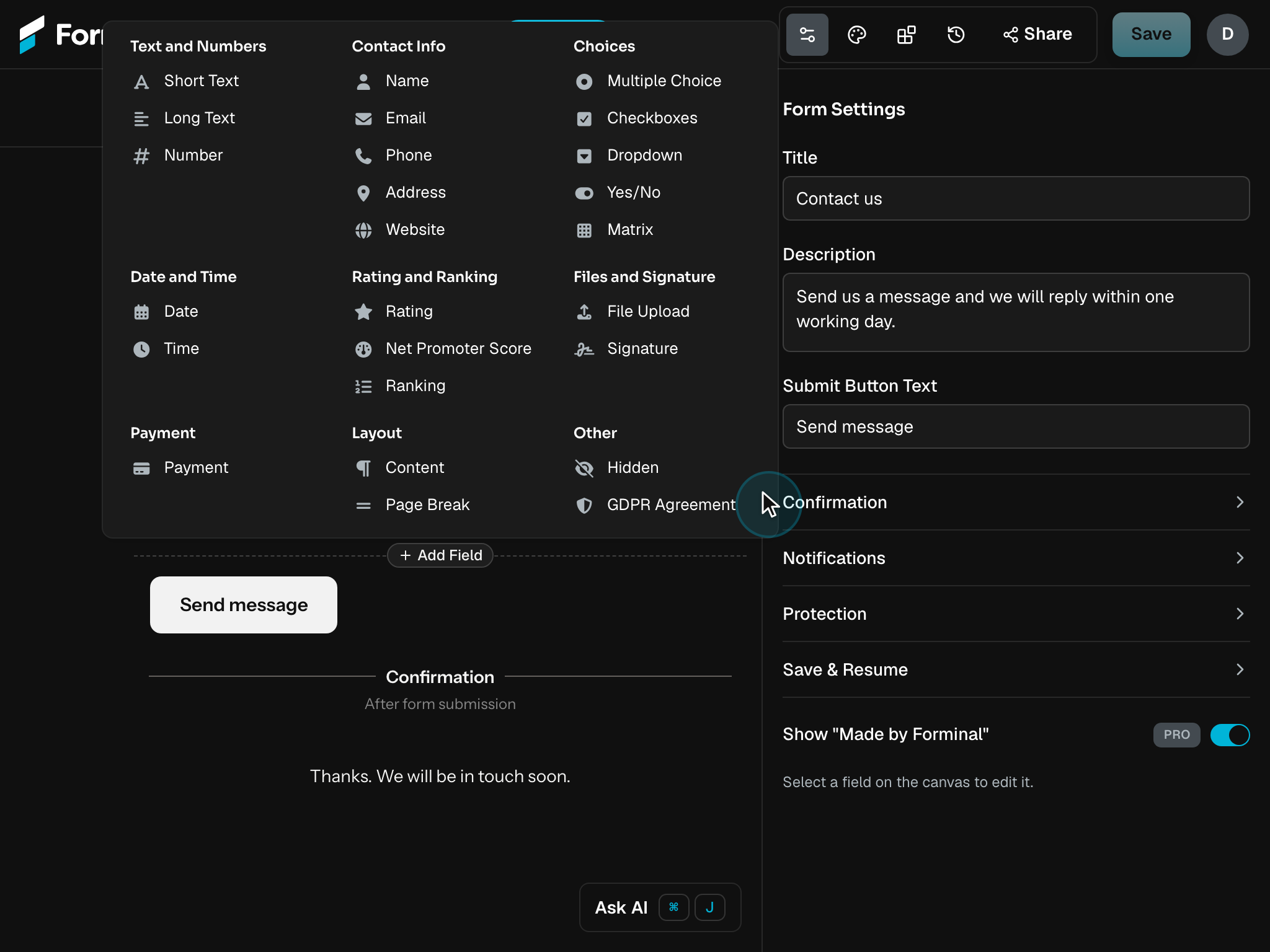
- Under Other, select GDPR Agreement.
- The label starts as “I consent to having this website store my submitted information so they can respond to my inquiry.” Change it on the General tab if you need different wording, and add a Description to link to your privacy policy. It shows under the box; set Description Position to Before Field to put it above. On a form that saves Partial Submissions, reword it to say answers are saved before the visitor submits, since the stock label only covers submitted information.
- Further down the General tab, turn on Disable User Cookies or Disable User Details if the form needs them. Each has an info icon that explains it.
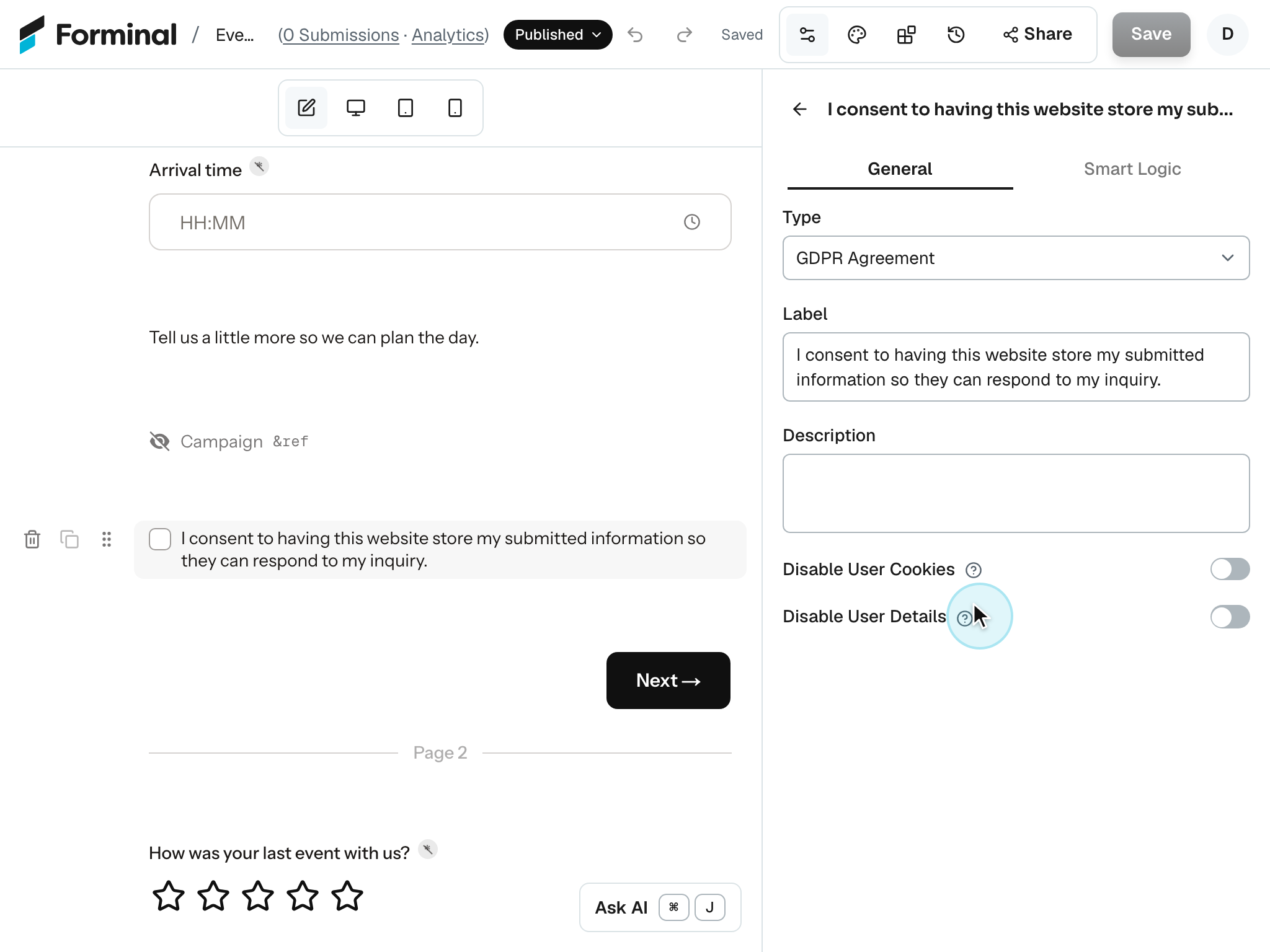
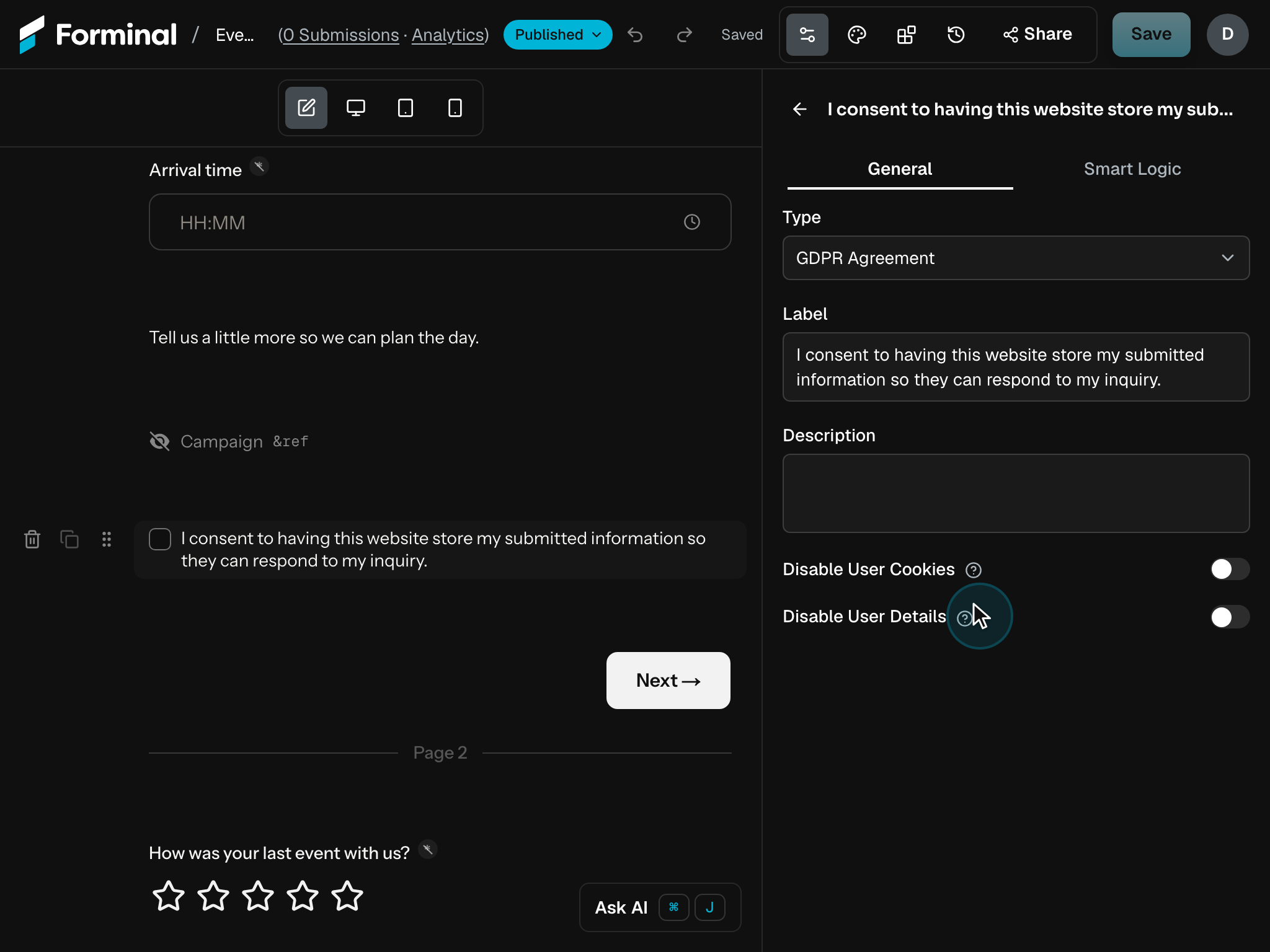
A form holds one GDPR Agreement. Once it has one, its row in the Add Field menu is greyed out with “One GDPR agreement per form”, the Duplicate action says the same, and the Type menu of other fields leaves it out. There’s no Required switch, because it’s always required.
What people see and how answers show
People see an unticked box with your label beside it. If they try to submit without ticking it, they see “This box must be checked” and can’t continue.


Every submission shows Yes for it, in the submissions table, the CSV export and notification emails, because the form can’t be sent without it. In Smart Logic it works like Yes/No, with Checked and Not checked.
Disable User Cookies
With this on, the form stores nothing in the visitor’s browser: no cookies, local storage or session storage. A few things work a little differently:
- One Submission per Person no longer remembers the browser. Pick a Unique Email Field under Protection to keep limiting submissions.
- A partial submission lasts one page load, so reloading the page starts a new one.
- Remember Answers keeps nothing in the browser and clears any answers it kept before. Save and Continue Later still works.
- After a payment, the confirmation page shows the right message, but answers you inserted into it show their fallback text.
- Vimeo videos in the form are asked not to track viewers. YouTube videos always play from YouTube’s no-cookie address.
Outside services still set their own cookies, and while the switch is on the builder says so: “CAPTCHA, Stripe payments and content embedded from other sites still set their own cookies.” Stripe keeps its fraud checks on.
Disable User Details
With this on, submissions and partial submissions keep no IP address, browser or country, and the form never looks up where the visitor is. The form still reads the IP address in memory to limit how often one visitor can submit, but it doesn’t store it. UTM values from the link are still saved, because they describe the link, not the person. A CAPTCHA on the form loads from its provider, which sees the visitor’s IP address.
Without the country, these stop working: Country Access, country rules in Smart Logic, confirmations and notifications, {{country}} in your text, and Prefill from Country. If the form uses any of them when you turn the switch on, a “Turn On Disable User Details?” window names them and asks you to confirm with Turn On or Cancel. They stay on the form but don’t work, and a note under the switch keeps saying so. While the switch is on you can’t add them: Country Access stays Off with a note, Country can’t be picked as a Smart Logic source, {{country}} leaves the insert menu and Prefill from Country is locked.
New submissions then have no country or browser in the submissions table, the CSV export or integrations. Submissions saved before you turned it on keep what they had.
Good to know
Removing the GDPR Agreement, or changing its type, turns both switches off, since they live on it. The field and both switches are available on every plan.
The field helps you ask for consent and keep less data. It doesn’t make a form GDPR compliant on its own: your privacy policy and how you use the answers matter too. If you’re unsure what your situation requires, ask someone who handles privacy law for you.
Frequently asked questions
Can the box be ticked in advance?
No. Consent has to be given by the visitor, so the box always starts unticked and has no default answer.
Can a form have two GDPR Agreements?
No, one per form. For a second consent, such as agreeing to marketing emails, add a Yes/No field.
Does Disable User Cookies stop every cookie?
It stops the form’s own. CAPTCHA, Stripe payments and content embedded from other sites still set their own cookies.
What stops working with Disable User Details?
Everything that needs the visitor’s country: Country Access, country rules, {{country}} and Prefill from Country. The builder asks you to confirm before turning it on when the form uses them.
Is the GDPR Agreement on the free plan?
Yes. The field and both privacy switches are on every plan.