Embed a form on your own website with one snippet from the Share panel. Pick how it shows up: inside the page, as the whole page, in a popup, behind a floating button or in a slider. Every type uses the same script, works on any site that takes HTML, and keeps the look you set in Customize.
Examples
- A contact form at the bottom of a landing page, embedded inline.
- A “Request a quote” button on a pricing page that opens the form in a popup.
- A newsletter sign-up that opens on its own 10 seconds into a blog post, once per visitor.
- A “Feedback” tab on the edge of your help pages.
In this article:
To get the code, publish the form, then pick a type under Embed on Your Site on the Embed tab of the Share panel and select Copy Code. While the panel is open, the builder shows the type you picked on a sample page, so you can try it before you touch your site. For most pages, start with Inline: the form is visible without a click. Pick a popup, floating button or slider when the page has no room for the form.
Inline
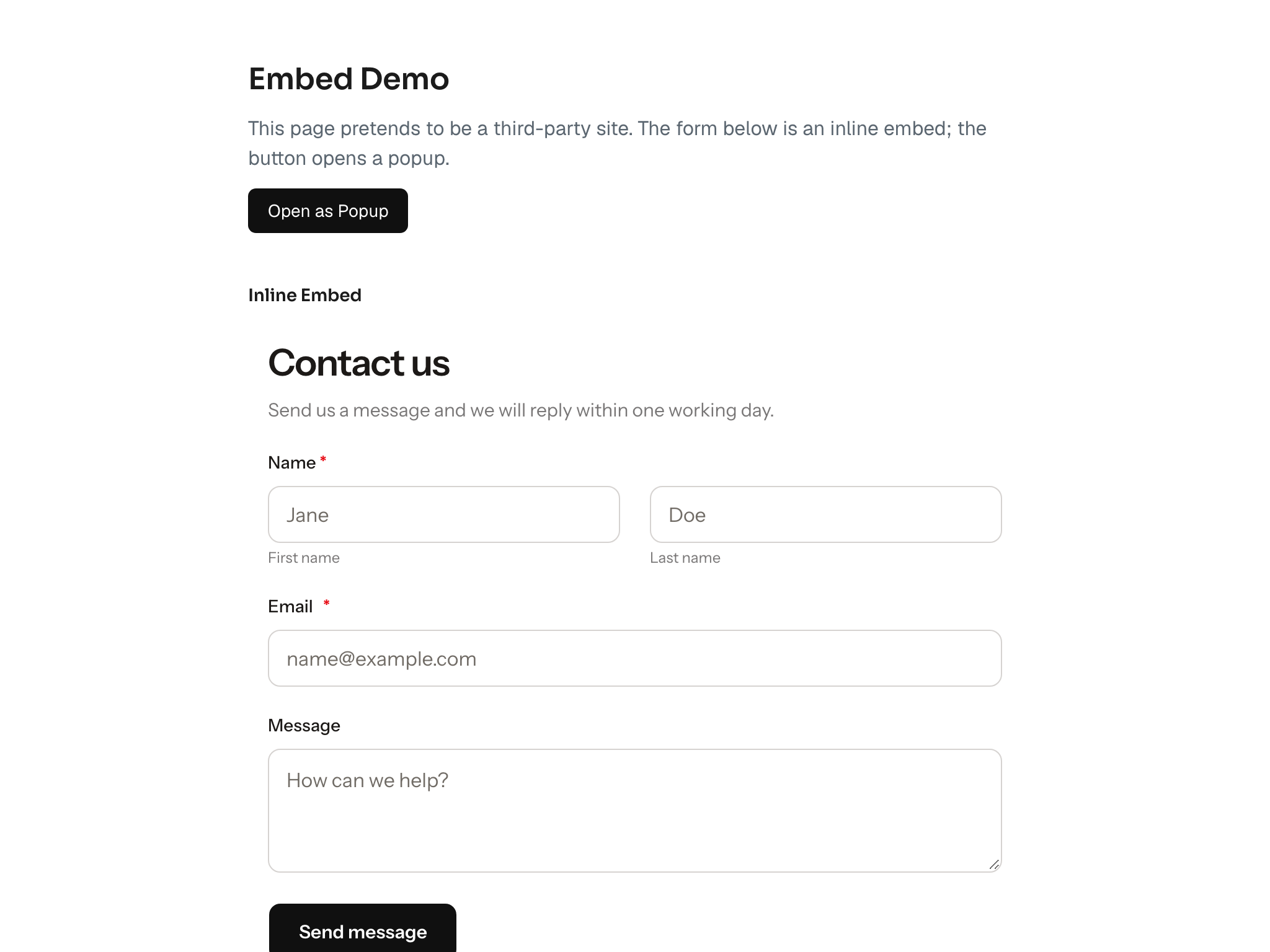
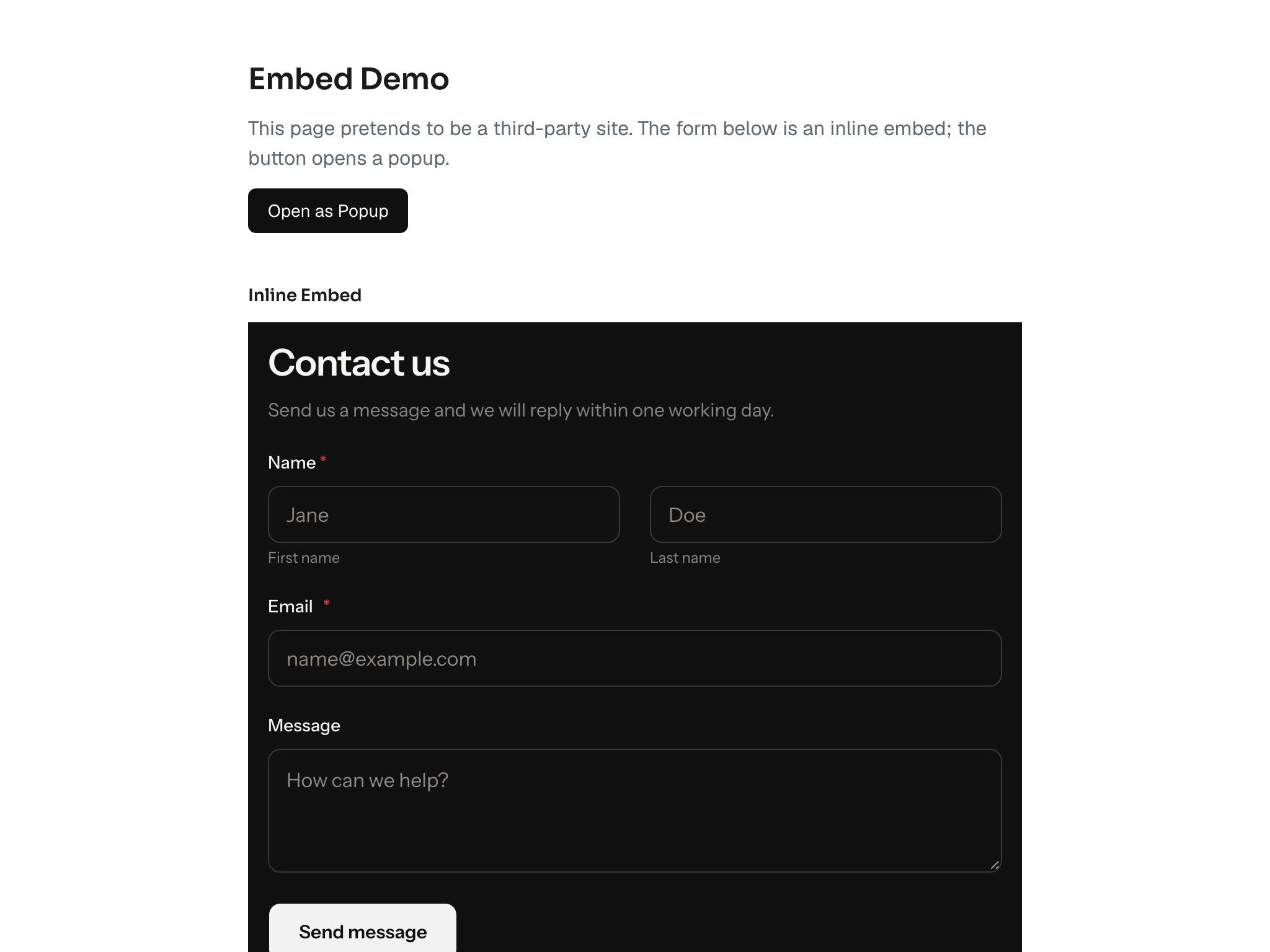
The form sits inside the page, where you paste the code. It loads when a visitor scrolls near it and grows or shrinks to fit its content, so there’s no inner scrollbar and nothing to size by hand. You can hide the form’s title or let your page show through with Show Title and Transparent Background in Customize. See Embed a form on a page.
Full page
The form takes the whole window, for a blank page on your site made just for it. It’s the inline embed’s frame stretched over the page, so use a page with nothing else on it. See Make the form the whole page.
Popup
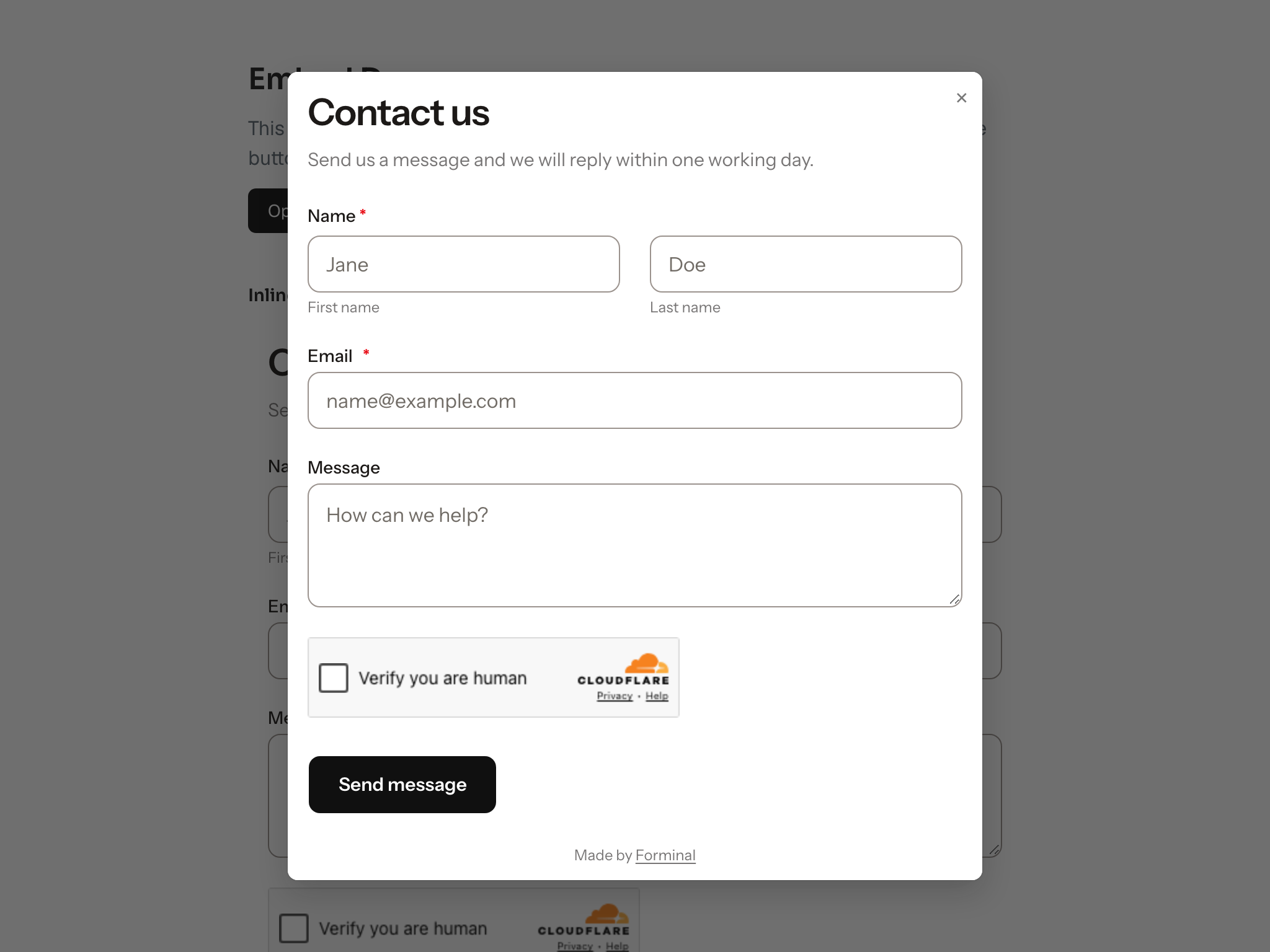
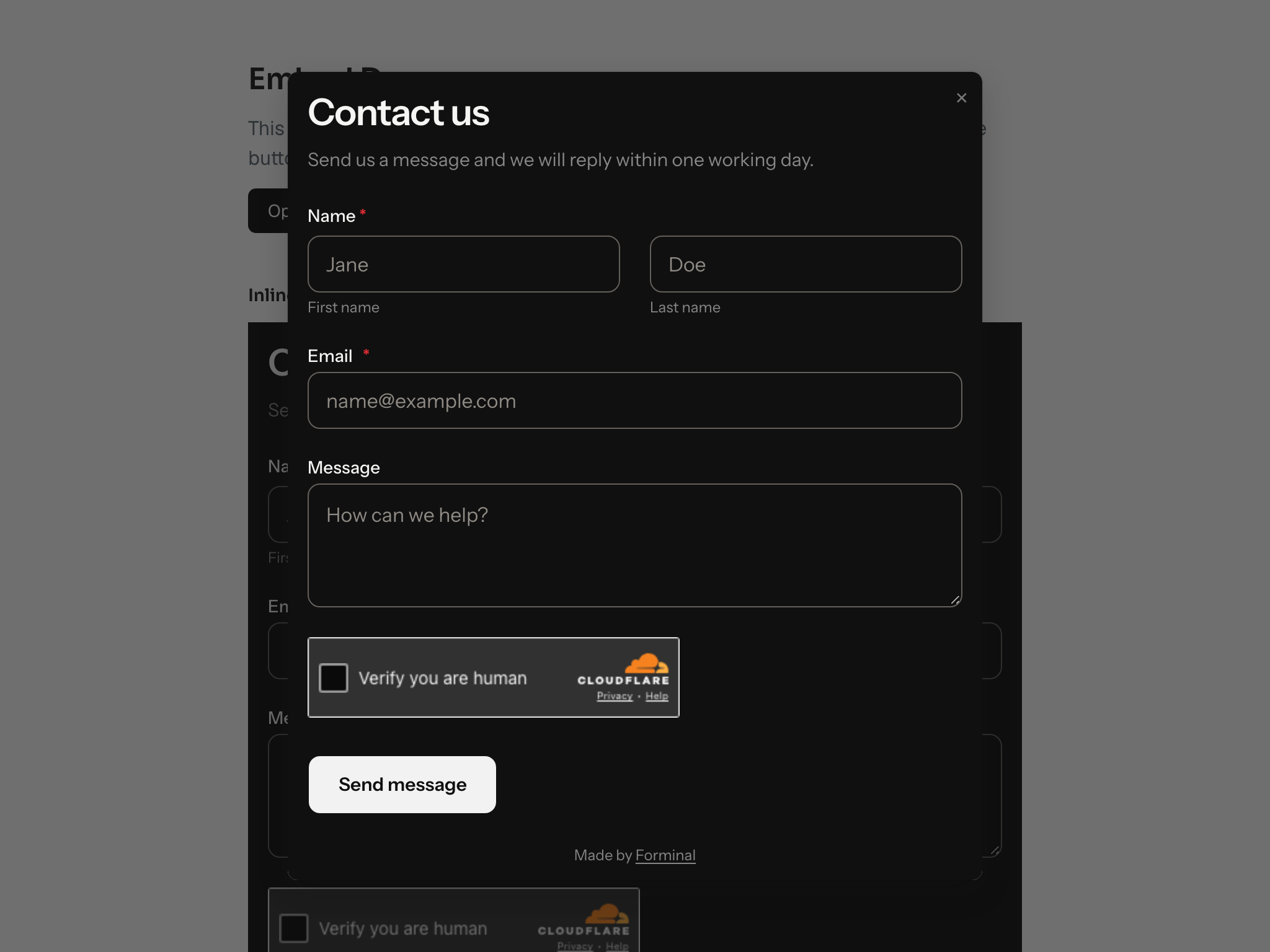
The form opens in a window over the page, in the middle of the screen or as a card in the corner. A button or link opens it, or a trigger opens it on its own: on load, after a delay, once the visitor scrolls part of the way down, or when the visitor is about to leave: the pointer heads for the tabs, or on a phone, a quick scroll back up. How Often decides whether one visitor sees it on every visit, once, or until they answer. You also set its width and whether it closes after someone submits. See Open a form in a popup.
Floating button
A button stays in a bottom corner of the page and opens the form as a card beside it, without dimming the page. Choose its text, an icon, any color and the corner. It suits a form people may want at any moment, such as “Contact us” on every page. See Add a floating button.
Slider
A tab on the left or right edge of the page opens the form as a full-height panel on that side, so visitors can give feedback without leaving the page. Choose the tab’s text, its side and the panel’s width. On a phone the panel fills the screen. See Add a slider.
Works with your site builder
The code is plain HTML, so it works on any site that lets you add your own. Under Where Is Your Site Built?, the Share panel shows where the code goes in WordPress, Webflow, Framer, Wix and Squarespace. Notion gets an embed link instead of code, and shows the form inline. These pages walk through each builder:
- Embed a form in WordPress
- Embed a form in Wix
- Embed a form in Squarespace
- Embed a form in Webflow
- Embed a form in Shopify
- Embed a form in Notion
For developers
The script sends events to your page when an embedded form loads, changes page or is sent, and when a popup, floating button card or slider opens and closes. Events carry the form’s id but never the answers; a webhook sends those to your server. Your code can also open and close a popup itself. See Listen for embed events.
Good to know
- Only published forms load for visitors. Every plan can embed forms.
- A page needs the script only once, whatever types and however many forms it has.
- Smart Logic, multi-page forms, answer piping and CAPTCHA work in every type. If the confirmation redirects, your whole page goes to the redirect address.
- The form gets your page’s query string, so a visit with ?ref=newsletter fills a hidden field named ref.
- A Payment field inside an embed takes card payments only, because methods such as Klarna or Bank would need to leave the frame.
- Your choices on the Embed tab are saved with the form. If you change them later, copy the code again.
- No website? Send the form’s Share Link instead.
Frequently asked questions
Which embed type should I use?
Inline, when the page has room for the form, because visitors see it without a click. Use a popup, floating button or slider when it doesn’t, and Full page for a page made only for the form.
Does the embedded form resize itself?
Yes. An inline embed grows and shrinks to fit its content, so there’s no inner scrollbar. A popup grows up to 85 percent of the screen’s height, then scrolls inside.
Can a popup open without a click?
Yes. It can open on load, after a delay, at a scroll depth or on exit intent, and How Often sets whether a visitor sees it every visit, once or until they answer.
Which site builders can I embed a form in?
Any site that lets you add HTML, including WordPress, Webflow, Framer, Wix, Squarespace and Shopify. In Notion, paste the embed link and the form shows inline.
Can I put more than one form on a page?
Yes. Load the script once and add the code for each form. Only one popup is open at a time.
Can my site tell when someone submits an embedded form?
Yes. The script fires a form:submitted event on window with the form’s id. It never includes the answers, so use a webhook to receive them.