Custom CSS lets you write styles yourself for the details the settings don’t reach. You type ordinary CSS rules into one box, and they apply to that form only, wherever it’s shown.
Examples
- Adding letter spacing to the submit button.
- Matching a heading style from your site exactly.
Add your CSS
- Open the form in the builder and select Customize in the top bar.
- Scroll to the end of the Advanced section and find the Custom CSS box.
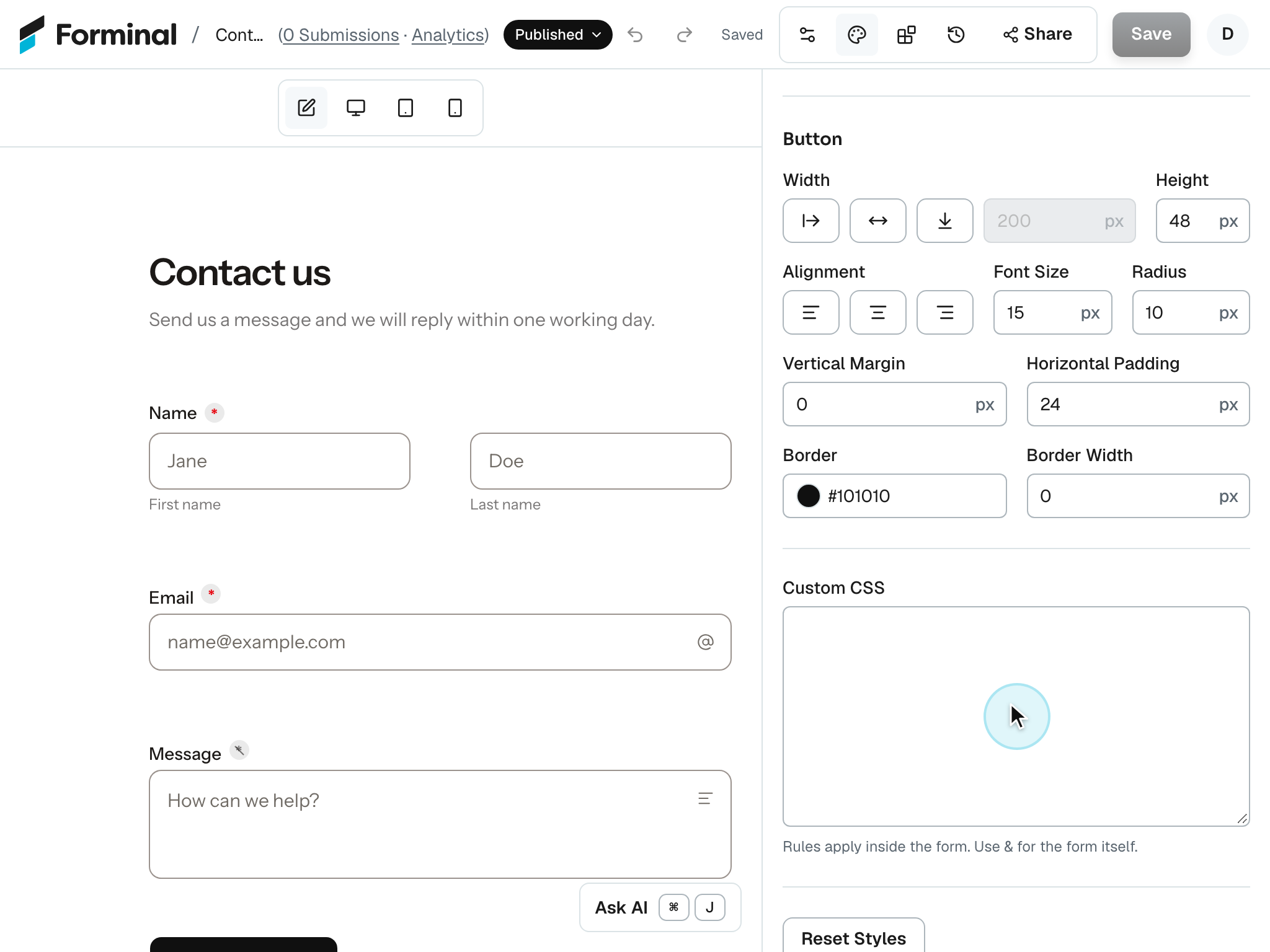
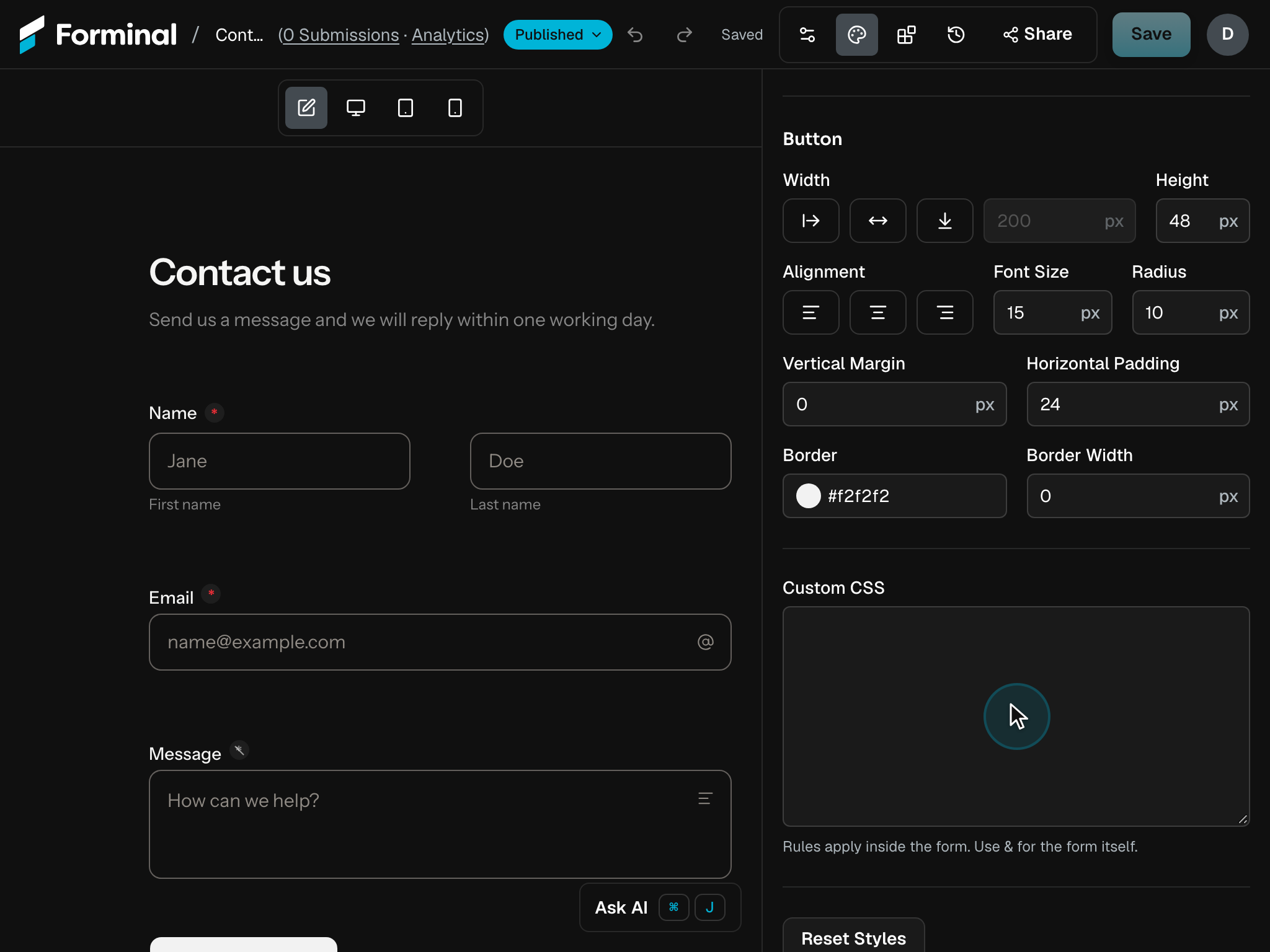
- Type or paste your rules. The canvas updates as you type, and each valid change saves with the form.
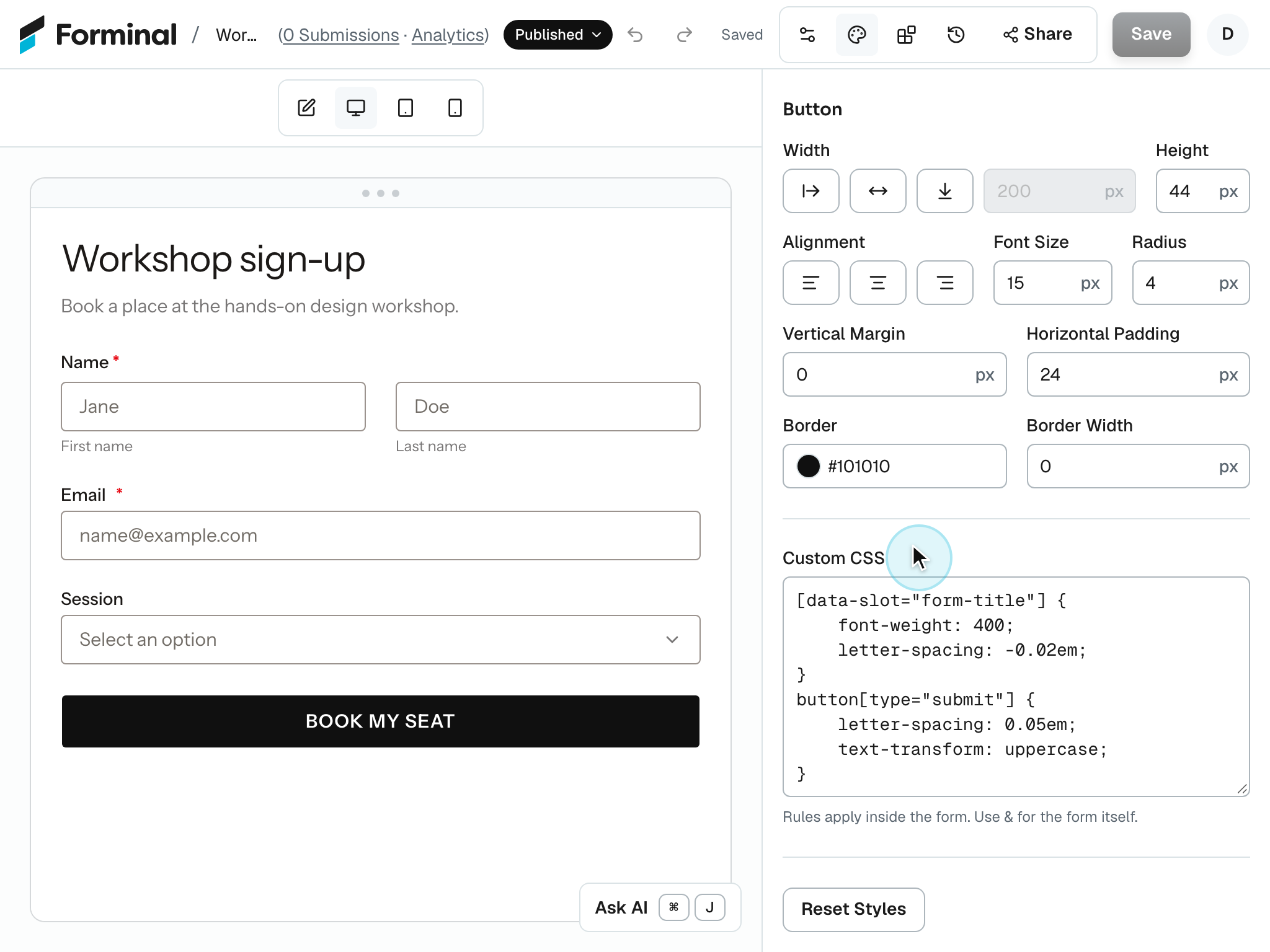
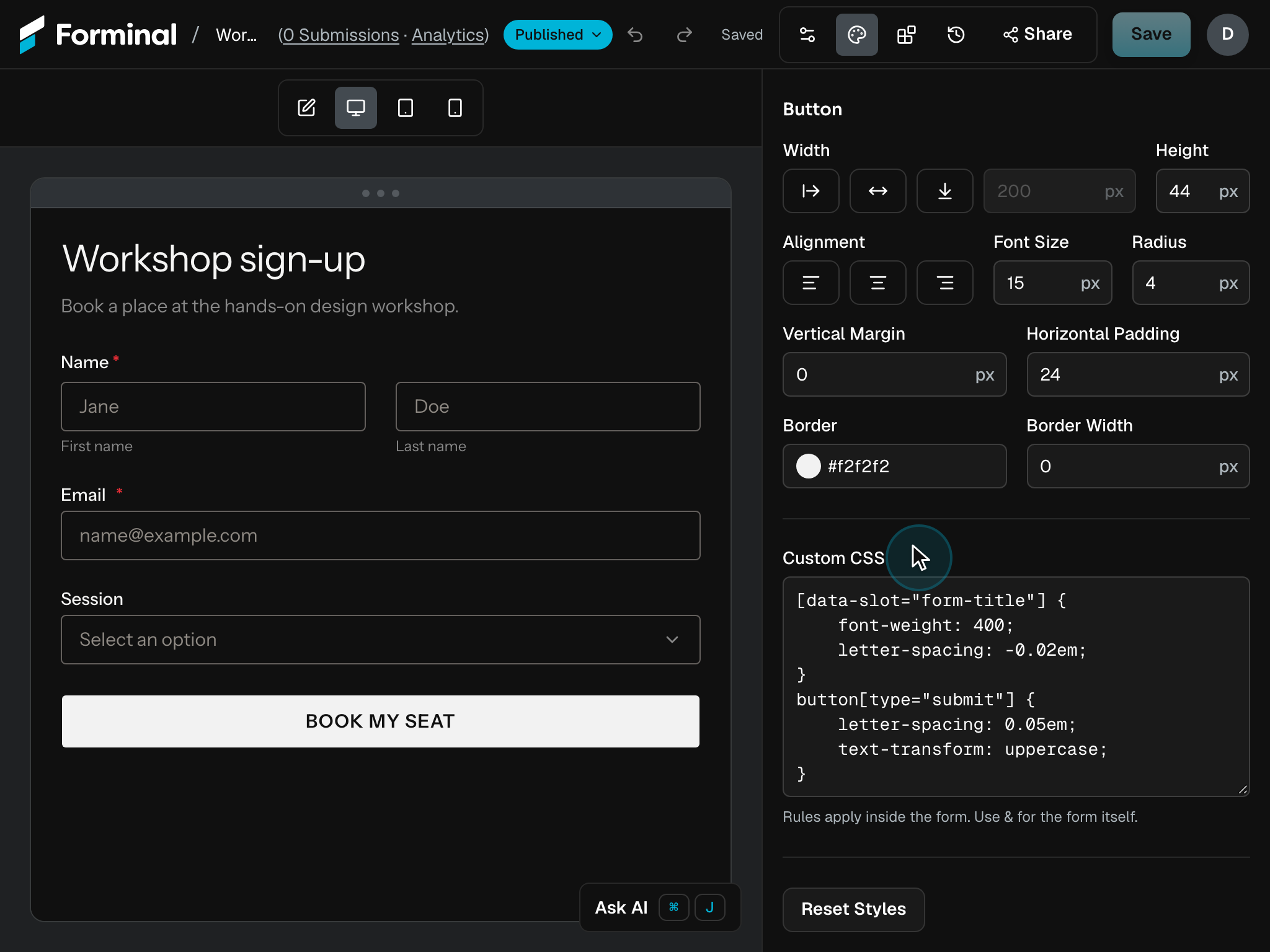
button[type="submit"] {
	letter-spacing: 0.05em;
	text-transform: uppercase;
}
How your rules apply
Every rule is placed inside the form, as the hint under the box says: “Rules apply inside the form. Use & for the form itself.” A selector like button matches only the buttons in this form, and & on its own targets the whole form area. On the form’s own link, that area fills the page. Nothing you write can change the page around the form, and in an embed the form sits in its own frame, so your site’s styles and the form’s styles stay apart.
Your rules are kept inside the form with CSS @scope, which current browsers support: Chrome and Edge 118 or newer, Safari 17.4 or newer and Firefox 146 or newer. An older browser skips your rules and shows the form in its theme and style settings alone.
You can use any CSS property. These parts of the form are easy to target:
[data-slot="form-title"]for the form title.[data-slot="label"]for field labels.[data-slot="input"]and[data-slot="textarea"]for text inputs and paragraph boxes..form-choice-cards,.form-choice-card,.form-choice-mediaand.form-choice-labelfor the option cards of a Multiple Choice or Checkboxes field that shows icons or images: the grid, one card, its picture and its label..form-content-iconfor an icon placed in the text of a Content block, for example to add space around it.[data-slot="form-actions"]for the row that holds the buttons, andbutton[type="submit"]for the submit button. On a form with several pages that also matches Next.
& {
	line-height: 1.6;
}

[data-slot="form-title"] {
	font-weight: 400;
	letter-spacing: -0.02em;
}
What isn’t allowed
The box refuses everything that makes a visitor’s browser load a file, because loading one would hand the visitor’s IP address to the site the file comes from: @import, url(), image(), image-set(), cross-fade() and src(). It also refuses expression(), closing tags such as </style> and any backslash. Braces have to balance, and comments and quoted strings have to be closed, with each string on one line. Gradients and fonts installed on the visitor’s device with local() load nothing, so they’re fine.
When something breaks a rule, the box turns red and shows the reason, for example “Custom CSS can’t load files from other sites, so it can’t use @import, url(), image(), image-set(), cross-fade() or src(). It also can’t contain expression(), closing tags or backslash escapes.” Your last valid CSS stays on the form until you fix it. A form whose saved CSS uses one of these shows without it, and the box opens empty, so add your rules again without that part.
Good to know
You can write up to 10,000 characters. Because url() isn’t allowed, you can’t load background images or your own font files. Pick a font under Font instead, and for a background photo use the Form Card. Custom CSS applies on the form’s link, in inline embeds and popups, on the thank-you message and in the preview. Switching the theme keeps it, and Reset Styles clears it. On the canvas the submit button is a box you type its label into, so a rule for button[type="submit"] shows in the Desktop, Tablet and Mobile previews and on the published form, but not on the canvas. If your plan doesn’t include Custom CSS, the canvas still shows your rules, but the published form and the preview ignore them. The AI assistant can write custom CSS for you too.
Frequently asked questions
Which plan do I need for custom CSS?
Custom CSS is part of Pro, and Business includes everything in Pro. Without it the canvas still shows your rules, but the published form and the preview ignore them.
Can my custom CSS change the styles of my website?
No. Every rule is placed inside the form, and in an embed the form sits in its own frame, so your site’s styles and the form’s stay apart.
Can I add a background image with custom CSS?
Why doesn’t my submit button rule show on the canvas?
On the canvas the submit button is a box for typing its label, so rules for it don’t show there. Check them in the Desktop, Tablet or Mobile preview, or on the published form.
How much CSS can I add to a form?
Up to 10,000 characters.
Does my custom CSS stay when I switch themes?
Switching the theme keeps it. Reset Styles clears it.