Answer Piping puts what someone already told you into a later question. Type @ while you write a label, pick an earlier field, and its answer shows up there when the form is filled in. The form can then follow up on what each person said, rather than asking everyone the same thing.
Examples
- “Thanks, @Name. What brings you here today?” after a name question.
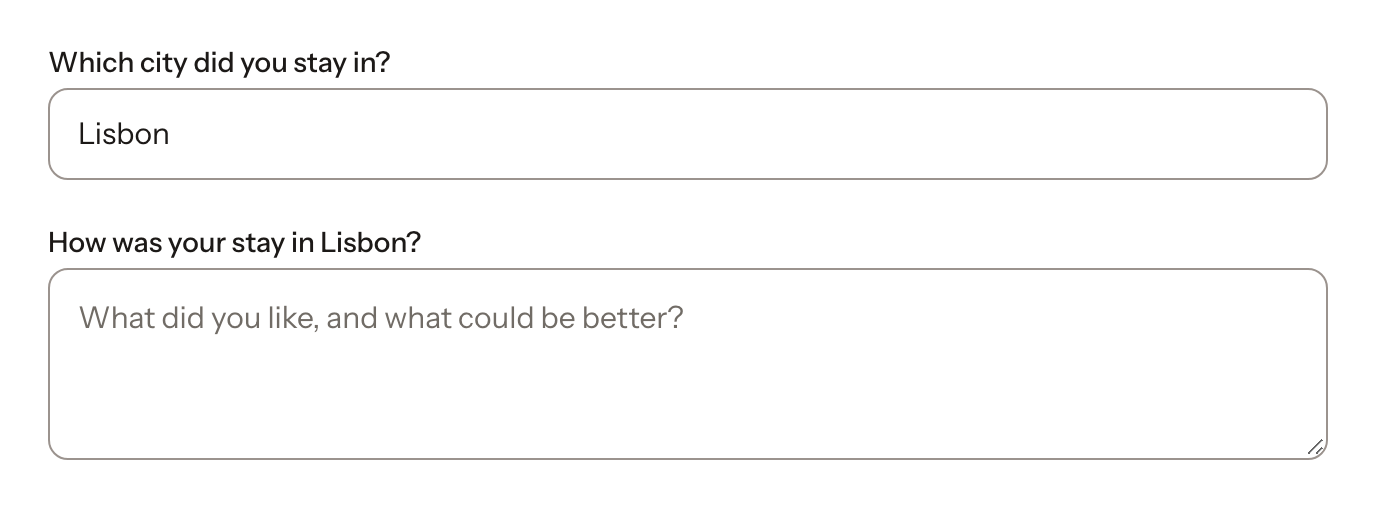
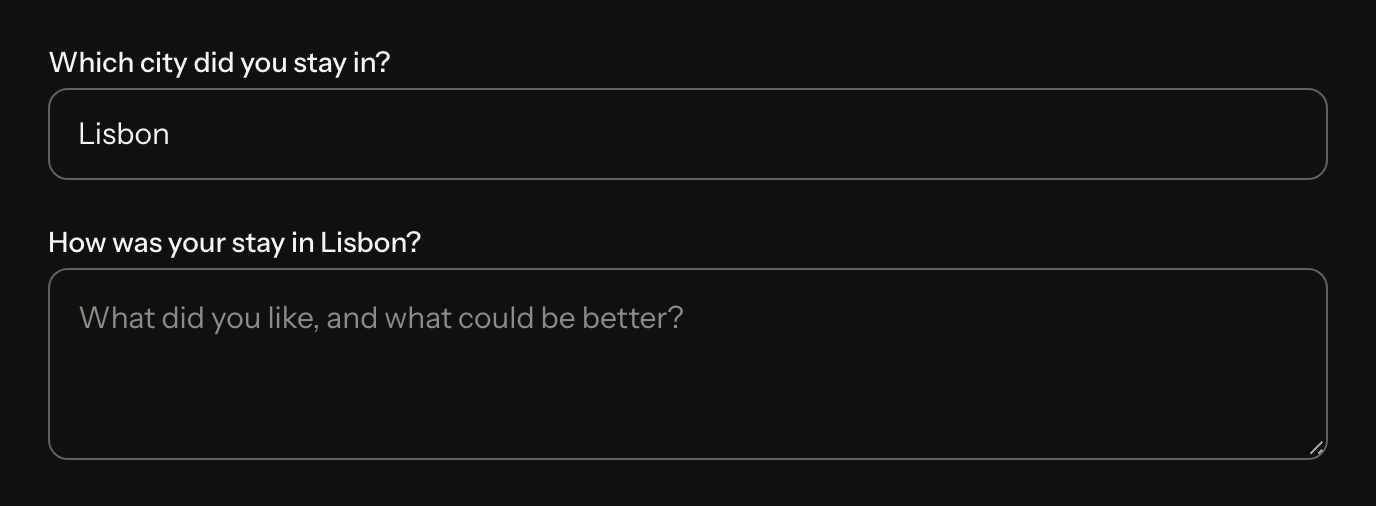
- “How was your stay in @City?” on a hotel feedback form.
- “You picked @Plan. What made you choose it?” right after a choice question.
- A thank-you message that says “We’ll send the details to @Email.”
How to pipe an answer
- Click into the text you want to change, such as a field’s Label or Description.
- Type @. A menu opens with the questions you can use.
- Type a few letters of the question’s name to narrow the list, then pick one with a click, Enter or Tab. The menu shows up to 8 matches at a time, and says “No questions found” when nothing matches.
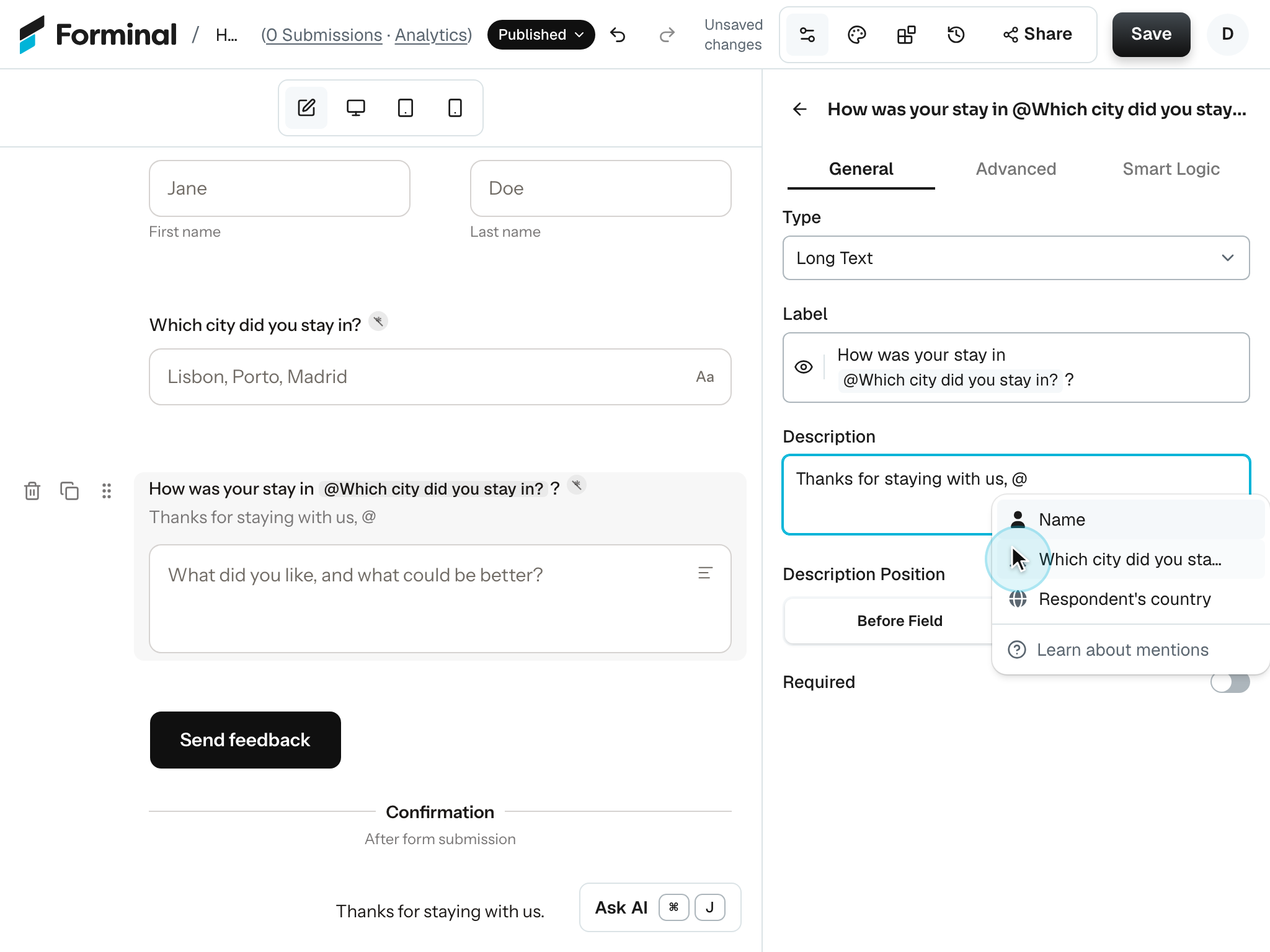
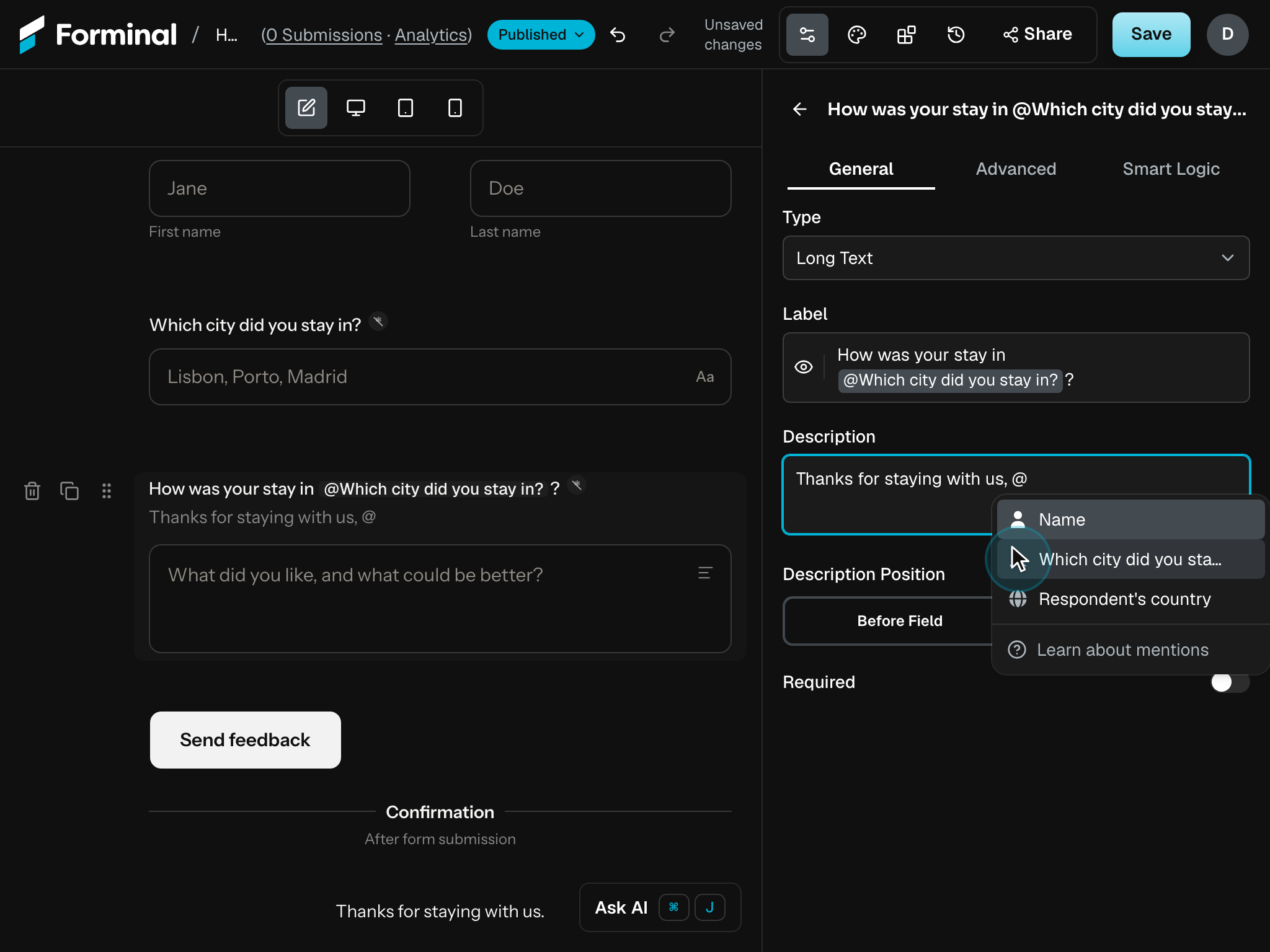
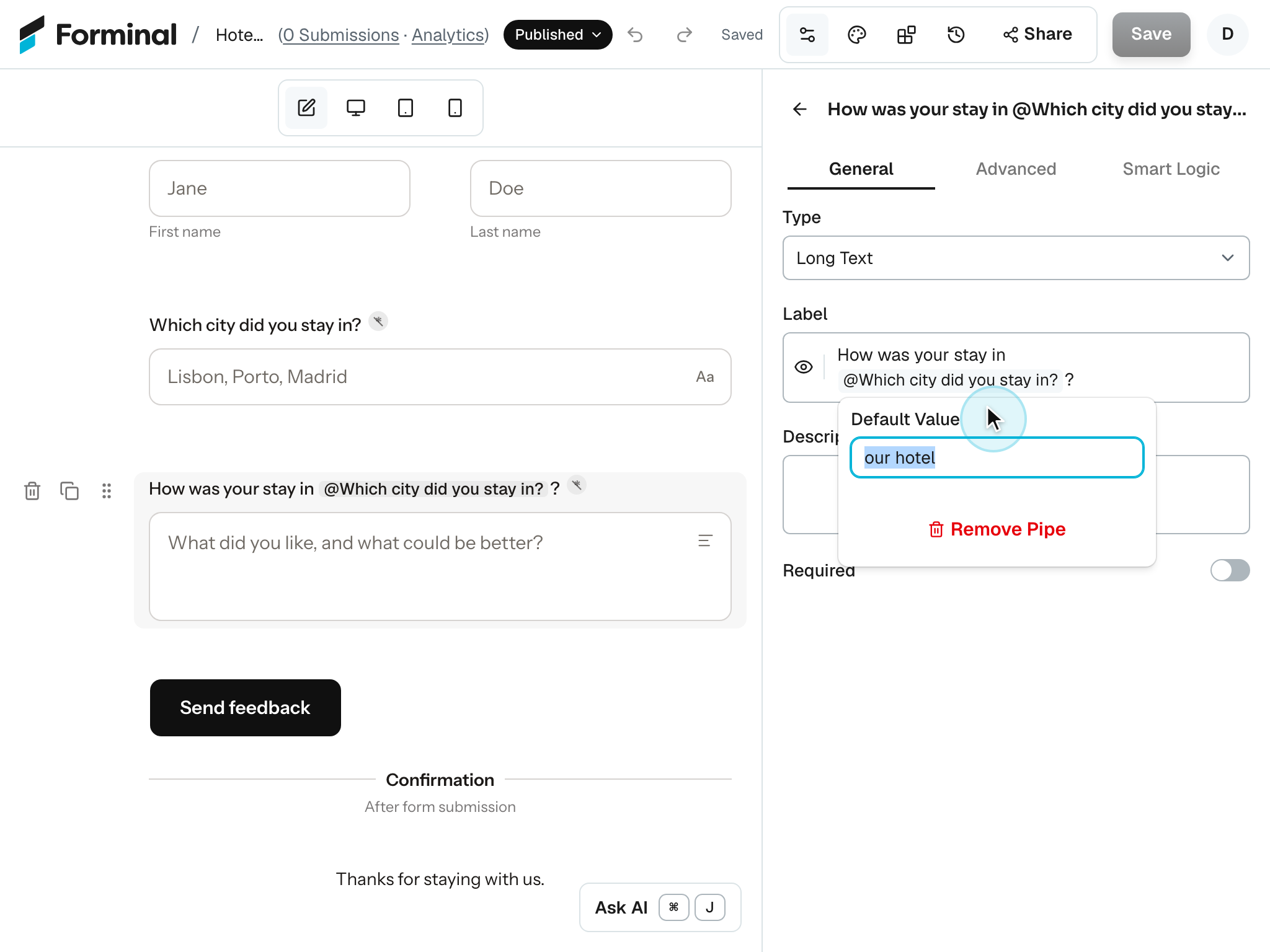
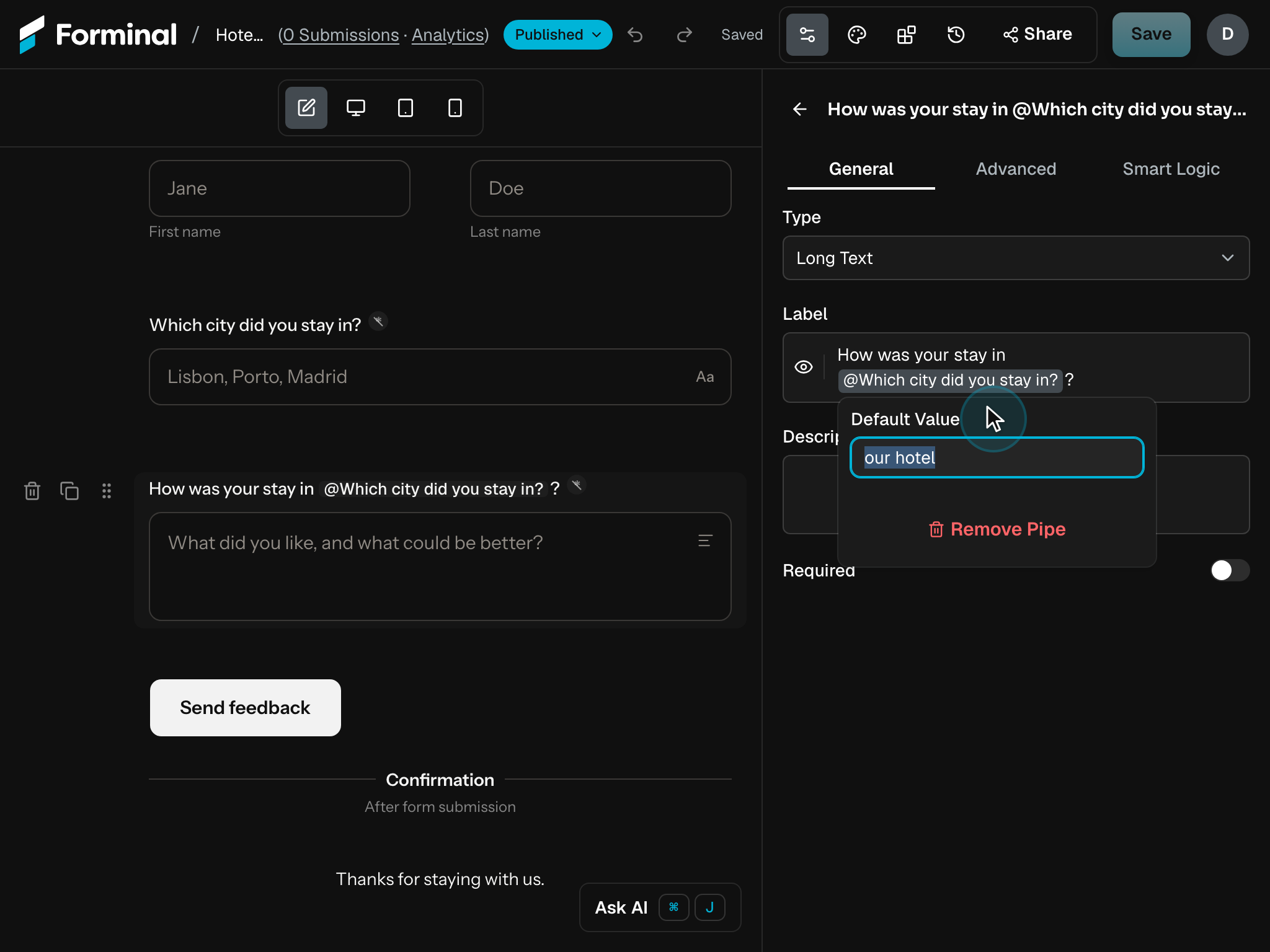
- The answer appears as a chip, such as @Name. Click the chip to fill in its Default Value, or select Remove Pipe to take it out.
While people fill in the form, piped text updates as they type. On a multi-page form, answers from earlier pages carry through to later ones.
Where you can use it
- Field labels, descriptions and placeholders, typed on the canvas or in the field’s settings.
- Choice and ranking option labels.
- Content blocks, and the titles of pages after a page break.
- The form’s title and description.
- Confirmation messages.
- Redirect addresses, in the query string and the part after
#. Each answer is URL-encoded, and it never changes the domain or path. - Notification emails: the Subject, the Message, and the To, CC and Reply To addresses.
A question can only use answers from fields above it, because those are the ones people have reached. A hidden field is the exception: it can be piped anywhere, because its value comes from the link before anyone answers. The form title, the description, confirmations and notifications can use any field in the form. Button text, the first page’s title and the From Name can’t be piped.
Extra pipes in notifications
The To, CC and Reply To boxes only list Email fields and Admin Email, which is the form owner’s email address. The message also offers All Answers. Put All Answers on a line of its own and the email shows every answer as a table of question and answer. Questions left blank are skipped.
Default values
Sometimes there’s no answer to show. The question may have been skipped, or Smart Logic may have hidden it. In that case the pipe shows its default value. Without one, it shows nothing, so a label like “Thanks, @Name!” would read “Thanks, !”. Give each pipe a default, such as “there” for a name, and the sentence reads fine either way.
How answers look when piped
- Text, email, website and time answers appear as they were typed.
- Dates follow the field’s date format, such as October 7, 2026.
- Numbers and phone numbers follow the field’s format settings.
- A choice shows its option label, and several choices are joined with commas.
- A ranking reads as “1. A, 2. B, 3. C”.
- A rating or Net Promoter Score shows the number.
- A name joins its parts with spaces, and an address shows one part per line.
- A file upload shows the file names.
- A Yes/No answer shows “Yes” when ticked. When it’s left unticked, the default value is used.
Good to know
A default value can be up to 100 characters. Signatures and payments can’t be piped. If you delete a field that other text pipes from, each of those pipes turns into its default value as plain text. If you move a field below a question that pipes from it, the pipe stays, but it shows its default until that field is answered. In submissions and exports, a label with a pipe reads as @ and the field name, not the answer someone saw.
Frequently asked questions
What shows if the piped question was skipped?
The pipe’s default value, or nothing if it has none. Click the chip to set a default of up to 100 characters, such as there for a name, so the sentence still reads well.
Can I pipe answers into notification emails?
You can use pipes in the Subject, the message and the To, CC and Reply To addresses. The message also offers All Answers, which lists every answer as a table.
Why can’t I pick a later question when I type @?
A question can only pipe from fields above it, since those are the ones people have answered. Hidden fields are the exception, and the form title, description, confirmations and notifications can use any field.
Which answers can’t be piped?
Signatures and payments. Pipes also don’t work in button text, the first page’s title or the From Name of an email.
Is answer piping on the free plan?
Yes, answer piping works on every plan, Lite included.