Address puts every part of a postal address in one field, laid out for the US or for international addresses. You choose which parts to ask for, and each part can have its own caption, placeholder and default.
Examples
- A shipping form for physical orders.
- A membership form that only needs the city and country.
- A European event registration with the international layout and the country set to Germany by default.
Set it up
- In the builder, point between two fields and select Add Field. On an empty form, select Start from Scratch.
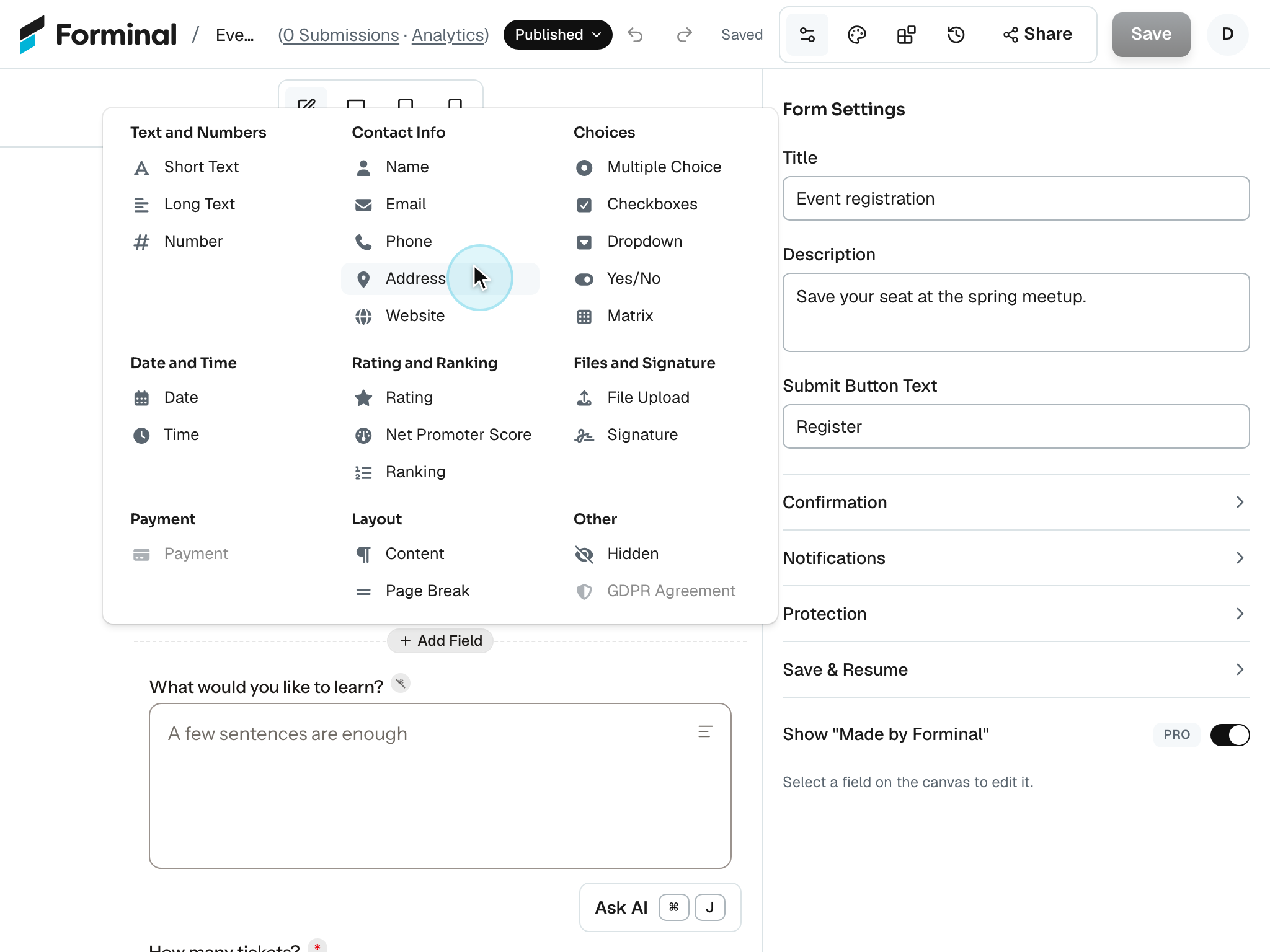
- Under Contact Info, select Address.
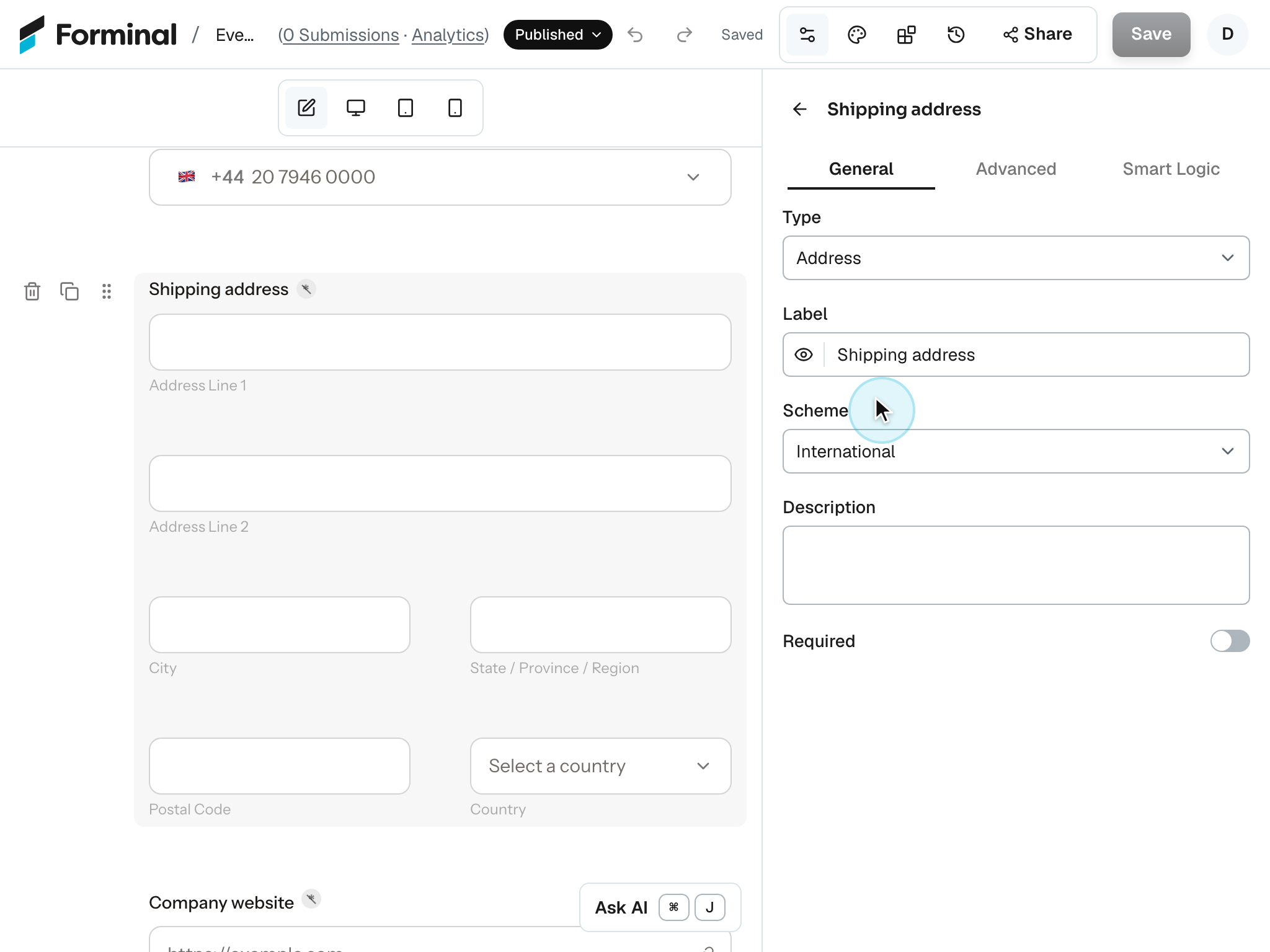
- On the General tab, choose the Scheme: US or International.
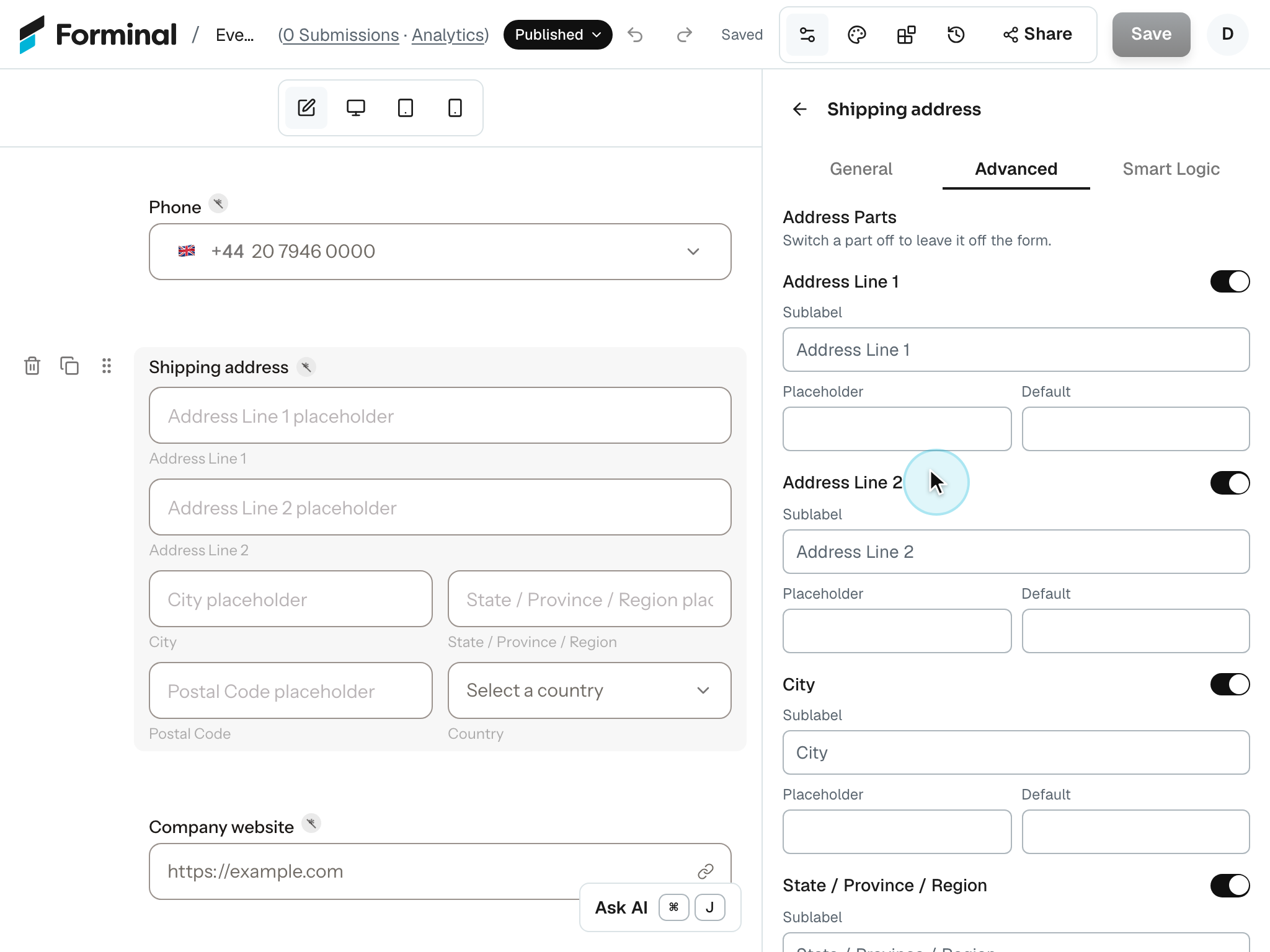
- Open the Advanced tab. Under Address Parts, switch off any part you don’t need.
- For each part you keep, fill in its Sublabel, Placeholder and Default if you want to change them.
Schemes and parts
- US has Address Line 1, Address Line 2, City, State and Zip Code. It has no country.
- International has Address Line 1, Address Line 2, City, State / Province / Region, Postal Code and Country.
Every part has three settings. Sublabel is the part’s caption, so you could write “Postcode” in place of “Postal Code”. You can also edit it right on the canvas. Most themes show it under the box. Inset and Bento put it inside the part’s box at the top, Float sets it on the part’s top edge, and Grouped starts the part’s row with it. Placeholder is the hint inside the empty box. Default fills the part in ahead of time. For Country you pick it from the list, and on the US scheme you type the state’s name or two-letter code. You must keep at least one part on, so the last one can’t be switched off. A sublabel you never changed follows the scheme, so switching from US to International turns “Zip Code” into “Postal Code”.
What people see
The two address lines take the full width, and the other parts sit two to a row. If you hide a part, the rest move up to fill the gap. Country is a menu that reads “Select a country” until someone picks one, and on the US scheme State is a menu of the 50 states and DC that reads “Select a state”. Browsers can autofill the street, city and postal code boxes from a saved address, and on International the state or region box too.
When the field is required, every part you show must be filled in except Address Line 2, which is always optional. A blank part shows its own message, such as “Enter a street address”, “Enter a city” or “Choose a country”.
How answers show in submissions
The address is written out as lines: each street line, then city and state, then postal code and country, with a US state as its two-letter code and the country’s full name. Empty parts are left out. It takes one column in the submissions table and the CSV Export, and appears the same way in notification emails and when you pipe it. Smart Logic reads the address as one line separated by commas, so a rule like “contains Kyiv” works however the parts were filled in. Integrations such as Drip can take each part on its own.
Good to know
Each part takes up to 200 characters, and a sublabel up to 100. If you give the field a Description on the General tab, set Description Position to After Field to show it below every part instead of under the label.
Frequently asked questions
Can I ask for only part of an address, like the city and country?
Switch off the parts you don’t need under Address Parts on the Advanced tab. At least one part has to stay on.
Does the US address layout include a country?
No. The US scheme has the street lines, City, State and Zip Code. Choose International if you need a Country menu.
Is Address Line 2 required?
It’s always optional. When the field is required, every other part you show has to be filled in.
Do the address parts get separate columns in the CSV export?
No. The address takes one column in the submissions table and the CSV export, written out as lines with the country’s full name. Empty parts are left out.
Can browsers autofill the address?
They can fill in the street, city and postal code boxes from an address saved in the browser, and on International the state or region box too. On a US address, visitors pick the state from the menu themselves.