A Escolha Múltipla mostra todas as opções de uma vez como uma lista de botões redondos, e as pessoas escolhem exatamente um. Use-a quando a lista for curta o suficiente para ser lida num relance. Para uma lista longa, um Menu Suspenso ocupa menos espaço.
Exemplos
- Uma pergunta de inquérito sobre como alguém o ouviu, com as opções embaralhadas para que a primeira não seja escolhida com mais frequência apenas por ser a primeira.
- Um formulário de evento a pedir um tamanho de T-shirt, com M pré-selecionado.
- Um formulário de encomenda onde cada pacote tem o seu próprio preço e o escolhido é adicionado ao pagamento.
Adicione-o a um formulário
- In the builder, point between two fields and select Add Field. On an empty form, select Start from Scratch.
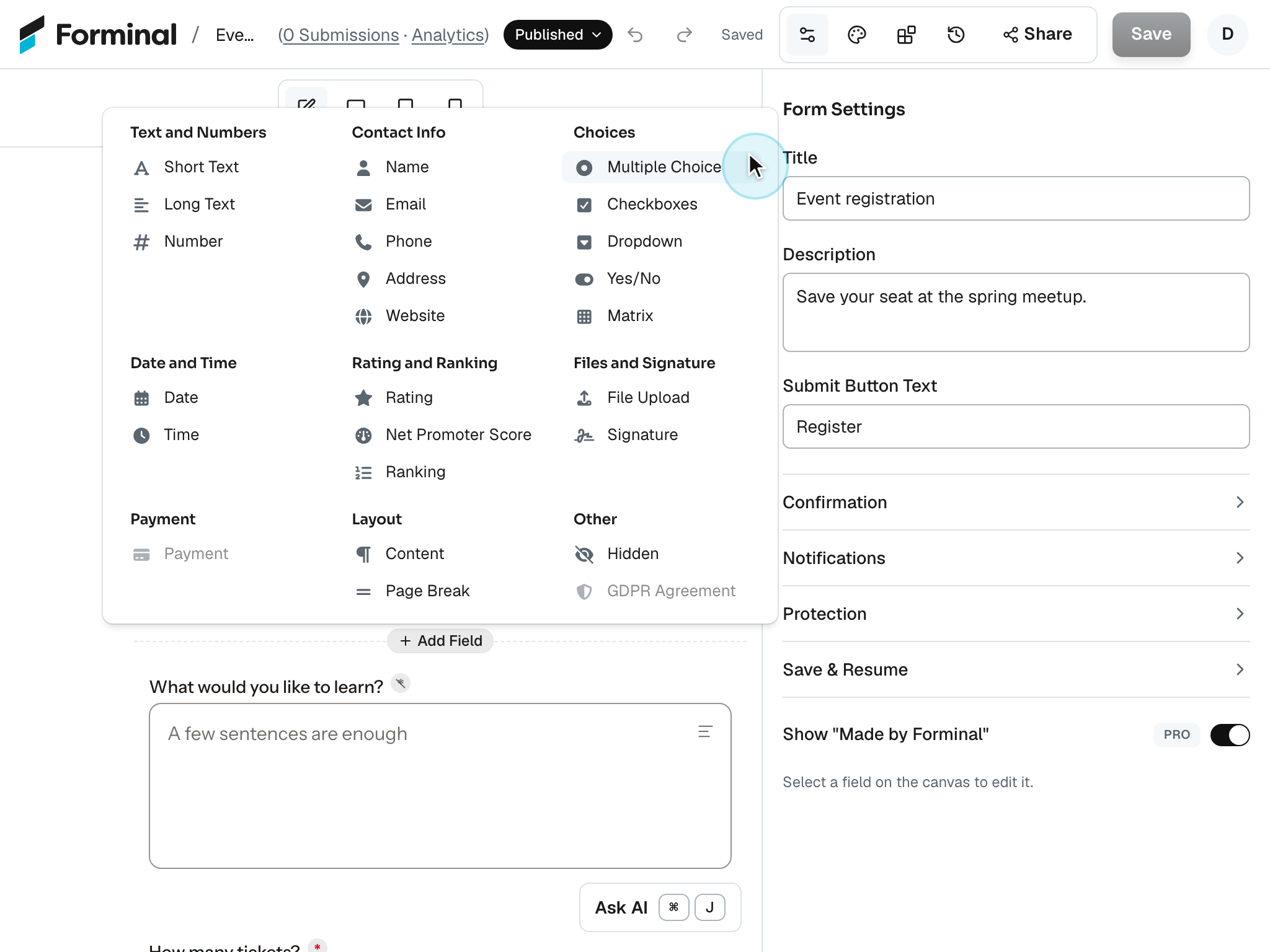
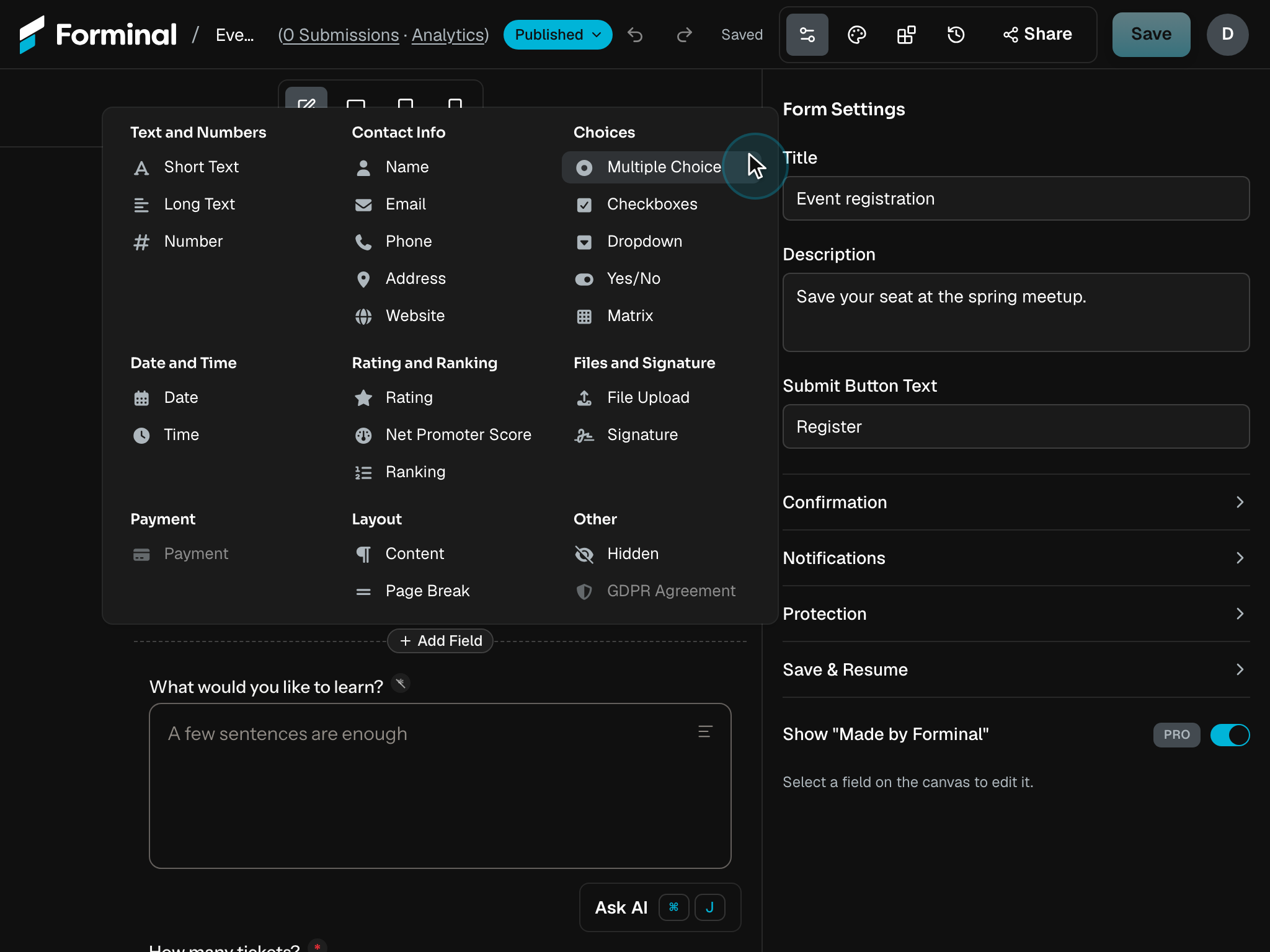
- Under Choices, select Multiple Choice.
- The field starts with the label “Choose one” and three options, Choice 1 to Choice 3. Change the label in the settings panel on the General tab.
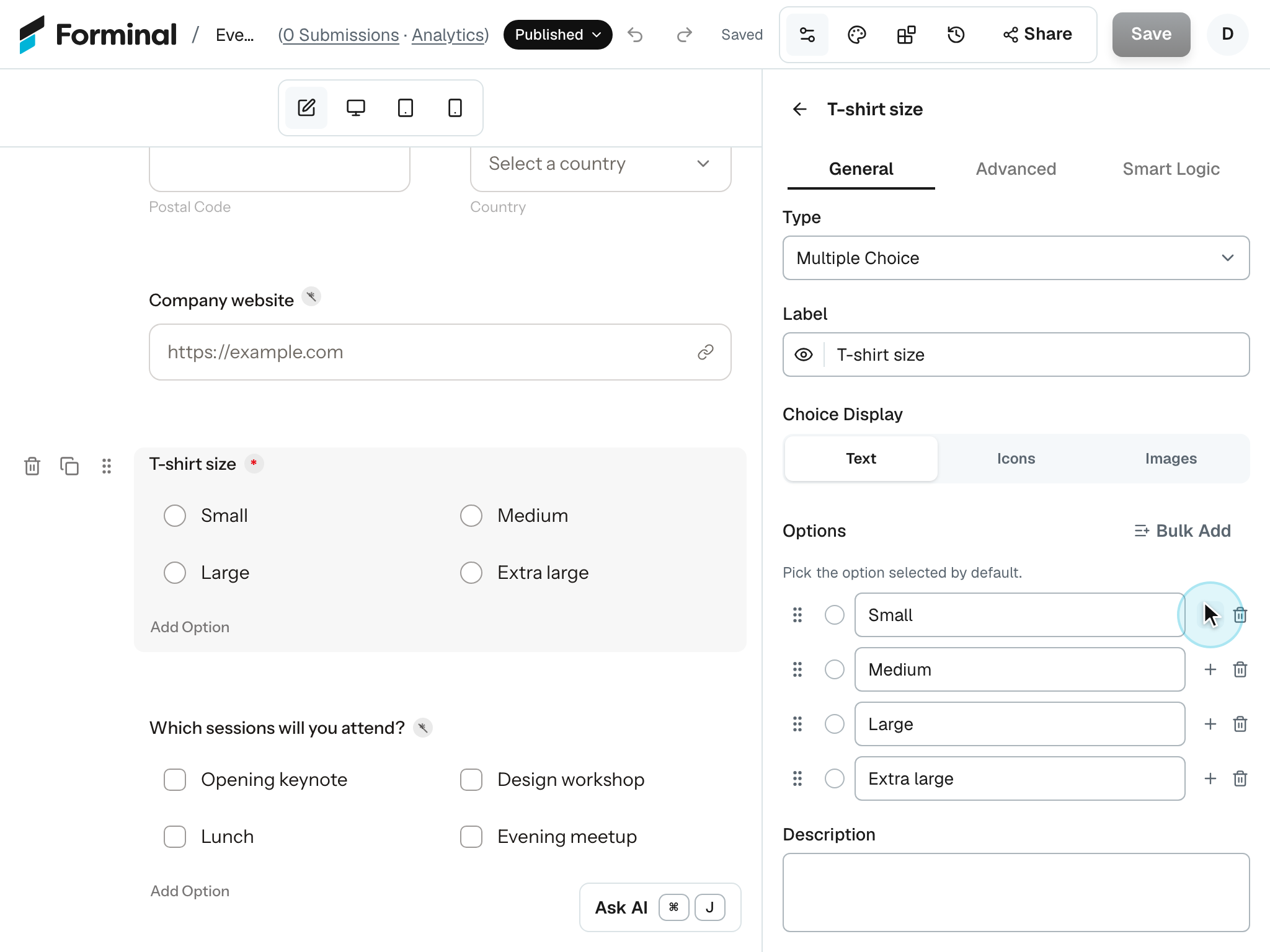
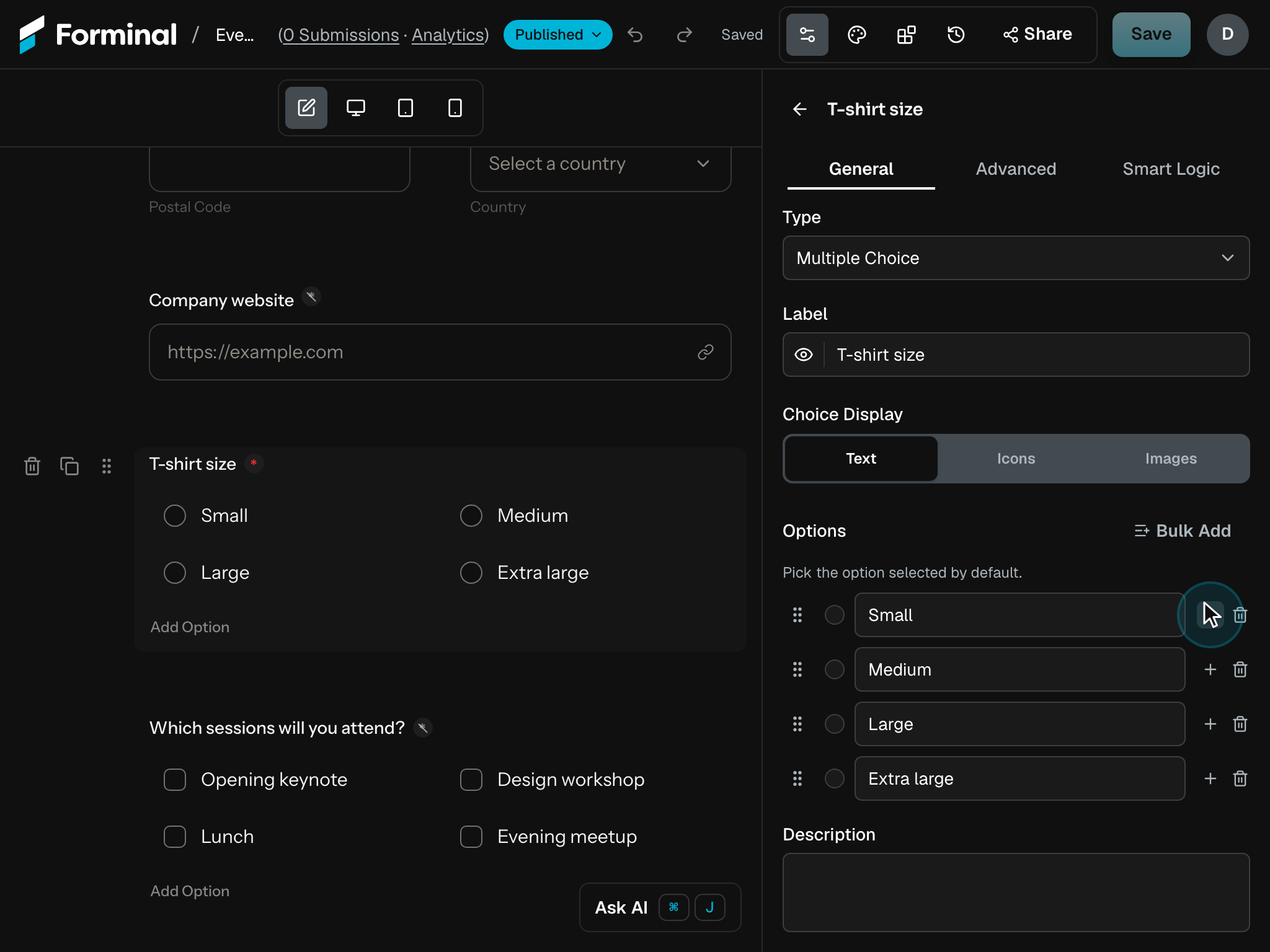
- Under Options, type over each option. Select the small + at the end of a row to add an option right after it, or the bin icon to delete one. A field always keeps at least one option.
- Turn on Required if people must answer before they can submit.
Configurações
Aba Geral
Here you edit the Label, the Options, an optional Description with its Description Position (under the label, or under the options), and Required. Each option label can be up to 200 characters. To pick an option in advance, select the round marker at the start of its row in the Options list. Select the marker again to clear the default. While the field’s settings are open, you can also click that option on the canvas. Under Choice Display, pick Icons or Images to show a picture with each option; see Icon and Image Choices.
To add many options at once, select Bulk Add above the list, type one option per line and select Add Choices. Lines that match an option already in the list are skipped, and a field that still has its starting Choice 1 to Choice 3 gets the new list in their place. Show Presets fills the box with a ready list, such as Countries, U.S. States, Months or a five-point agreement scale.
Aba Avançado
Layout comes first. It sets how the options sit on the form: 1 Column, 2 Columns, 3 Columns or Inline. Inline puts the options side by side in a row that wraps, each as wide as its text. Until you pick one, Layout has nothing selected and the options follow the form’s theme: two columns on most themes, a wrapping row on a few such as Pill, and one stacked list on Grouped, Joined, Sage, Swiss and Prompt. Once you pick a column layout, a narrow field on a phone or in a slim embed drops to fewer columns when an option would get narrower than about 160 pixels, so every option stays readable. Icon and image cards follow the same setting; see Icon and Image Choices.
Randomize Options shuffles the order every time someone opens the form. The canvas keeps the order you wrote, so you can still find each one while you edit.
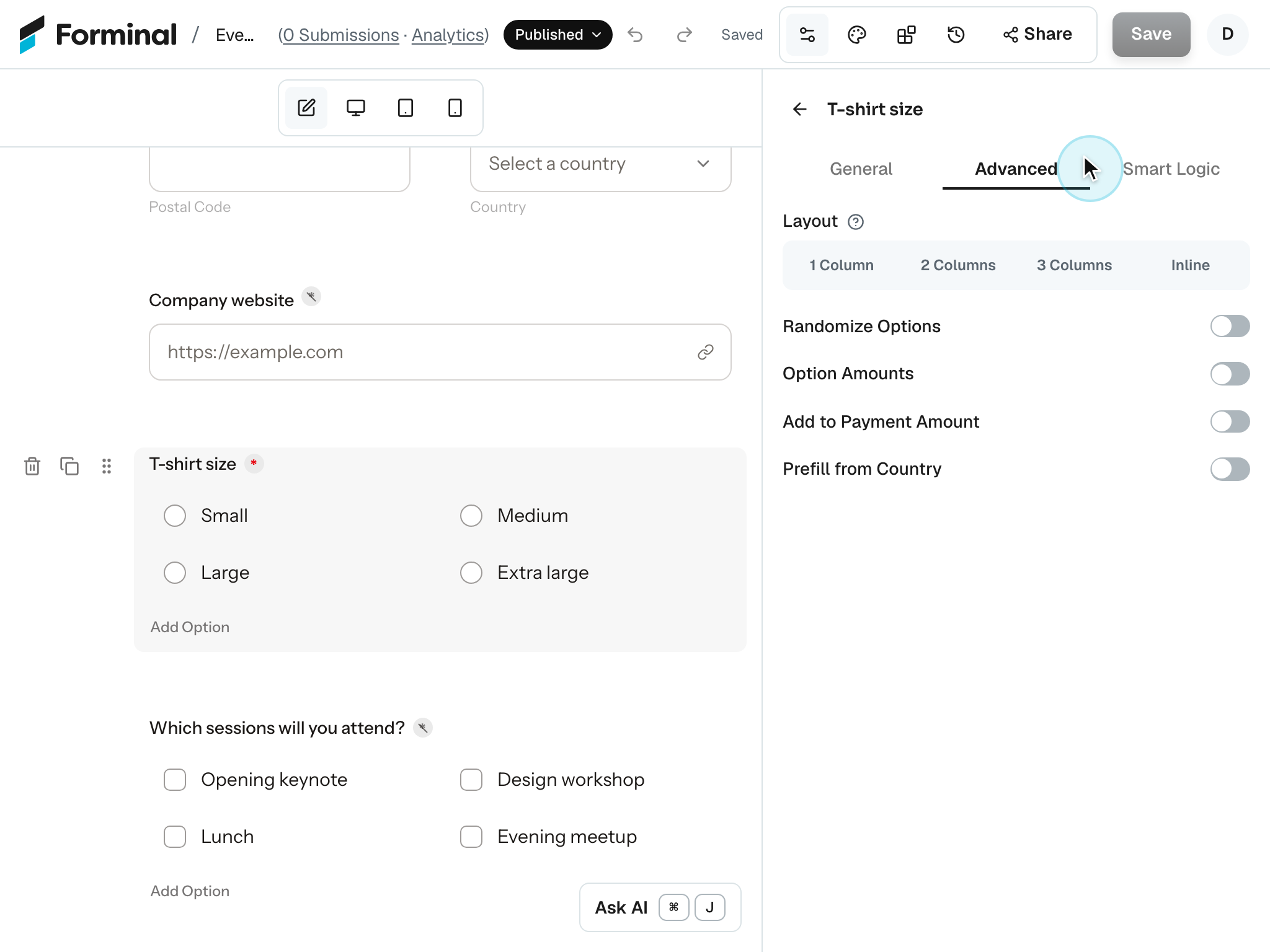
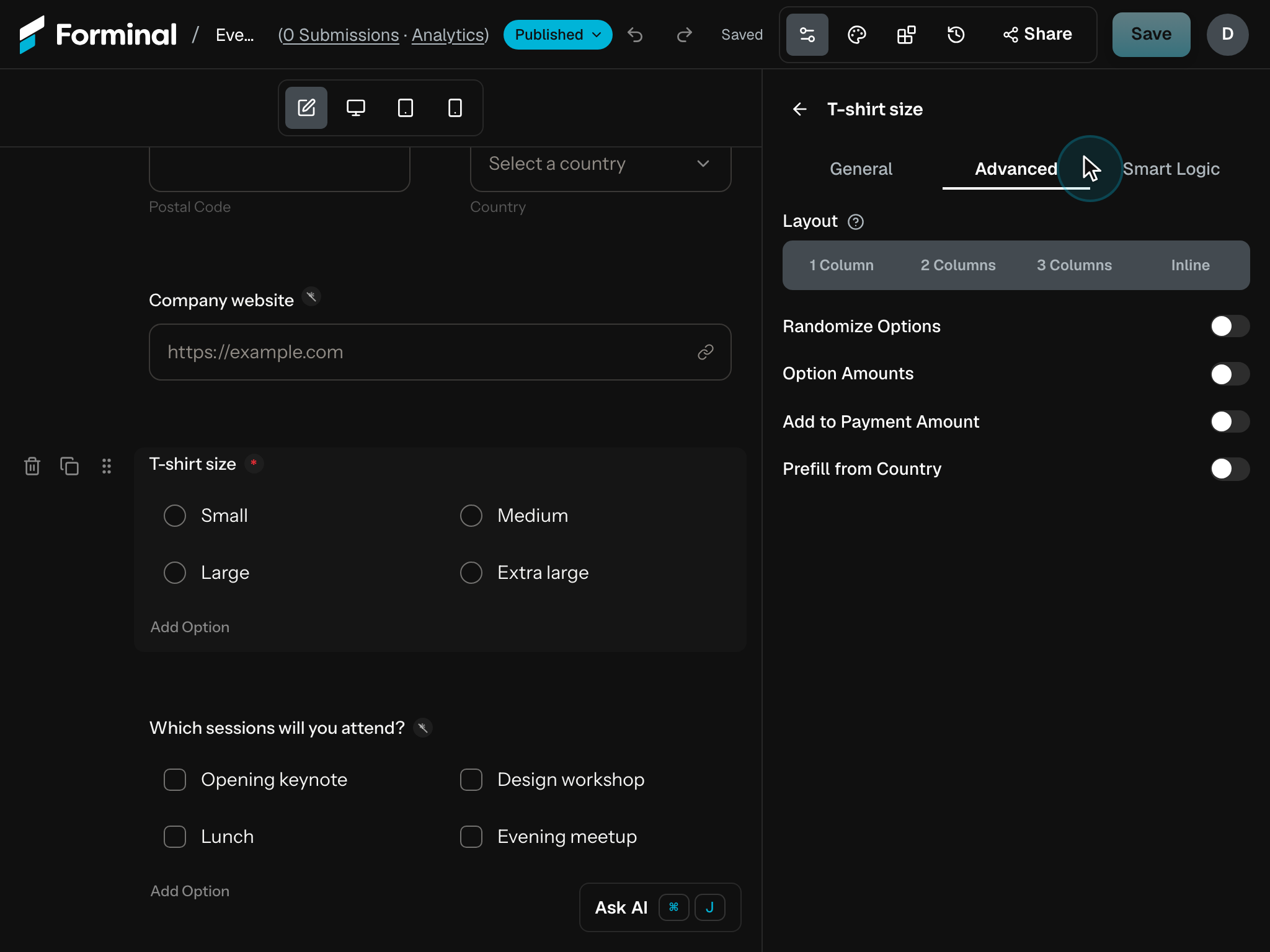
Option Amounts gives each option an amount: turn it on and a price box appears next to each option, in the Options list and on the canvas. A calculation can read those amounts. Switching it off clears them.
When the form has a Payment field, you also get Add to Payment Amount. Turn it on and the price of the option someone picks is added to the total. While the payment charges the field, the price boxes stay on and Option Amounts can’t be switched off. Show Price After Item Labels then prints the price after each option, for example “Premium – $49.00”. Prices use the Payment field.
O que as pessoas veem e como as respostas aparecem
As pessoas veem o rótulo e um botão redondo para cada opção. Escolher um limpa a seleção anterior. Se elas pularem um campo obrigatório, verão “Escolha uma das opções” quando tentarem continuar.
Na tabela de submissões, na exportação CSV e nos e-mails de notificação, a resposta aparece como o rótulo da opção. Renomear uma opção mais tarde também muda a forma como as respostas anteriores são lidas, pois cada resposta aponta para a opção em vez do texto que ela tinha. Uma resposta vazia é omitida do e-mail.
Com a Lógica Inteligente pode mostrar ou ocultar outros campos quando esta resposta é, ou não é, uma opção dada, ou quando está vazia ou não está vazia. Pode também inserir o rótulo da opção escolhida numa pergunta posterior ou na mensagem de agradecimento.
Bom saber
You can switch the field to Checkboxes, Dropdown or Ranking from the Type menu and keep your options. If you delete an option, earlier answers that picked it no longer show a readable label, so rename instead of deleting when you can. The shuffle runs on the form’s link, in embeds and in the builder preview. The canvas shows the first 20 options of a long list, with a note saying so; the published form shows them all.
On the Grouped, Joined, Sage, Swiss and Prompt themes, text options stay one stacked list whatever you pick under Layout; icon and image cards still follow it. Switching the field to Checkboxes keeps the layout; Dropdown and Ranking have none.
Perguntas frequentes
Quando devo usar múltipla escolha em vez de um menu suspenso?
Múltipla escolha mostra todas as opções de uma vez, o que é adequado para uma lista curta. Para uma lista longa, um Menu suspenso ocupa menos espaço. Se as pessoas puderem escolher mais do que uma resposta, use Caixas de seleção.
Posso misturar a ordem das opções para cada pessoa?
Ative Aleatorizar opções no separador Avançadas. A ordem muda sempre que alguém abre o formulário, no seu link, em incorporações e na pré-visualização do construtor, enquanto a tela mantém a ordem que escreveu.
O que acontece às respostas anteriores se eu renomear ou eliminar uma opção?
Renomear uma opção também muda a forma como as respostas anteriores são lidas. Eliminar uma deixa as respostas anteriores que a escolheram sem um rótulo legível, pelo que deve renomeá-la em vez disso quando puder.
Cada opção pode ter o seu próprio preço?
Ative Valores de Opção para dar a cada opção um valor. Num formulário com um campo de Pagamento, Adicionar ao Valor do Pagamento adiciona o preço da opção escolhida ao total. Ver Pagamento.
Posso mudar uma pergunta de múltipla escolha para caixas de seleção mais tarde?
Escolha Caixas de seleção, Menu suspenso ou Classificação no menu Tipo, e as suas opções serão transferidas.
Posso mostrar as opções em duas ou três colunas?
Sim: defina Layout no separador Avançadas para 1 Coluna, 2 Colunas, 3 Colunas ou Inline. Num telemóvel, as opções de texto geralmente reduzem para uma coluna, enquanto os cartões de ícone ou imagem Pequenos e Médios mantêm até dois por linha. Os temas Grouped, Joined, Sage, Swiss e Prompt mantêm as opções de texto numa lista empilhada, independentemente do que escolher.