Templates give you a finished form to start from. The gallery has 1,777 of them, from contact and order forms to event registrations and patient intake. You can try any one before you use it, and the copy you get is yours to change.
Examples
- You need a job application form today, so you search “job application”, try two of them and keep the one closest to your process.
- A school picks a template from Education and changes the fields to match its own enrollment steps.
- You send a colleague the link to a template’s demo so they can say whether it asks the right questions.
Find a template
Templates at the top of the app opens the template gallery. Type in Search templates to search names, descriptions and categories, or pick a category: Business Operations, Calculators, Customer Service, Education, Entertainment, Events, Feedback, Health and Wellness, Marketing, Nonprofit, Quizzes or Registrations. Each category shows how many templates it holds, and Show More at the bottom loads the next ones.
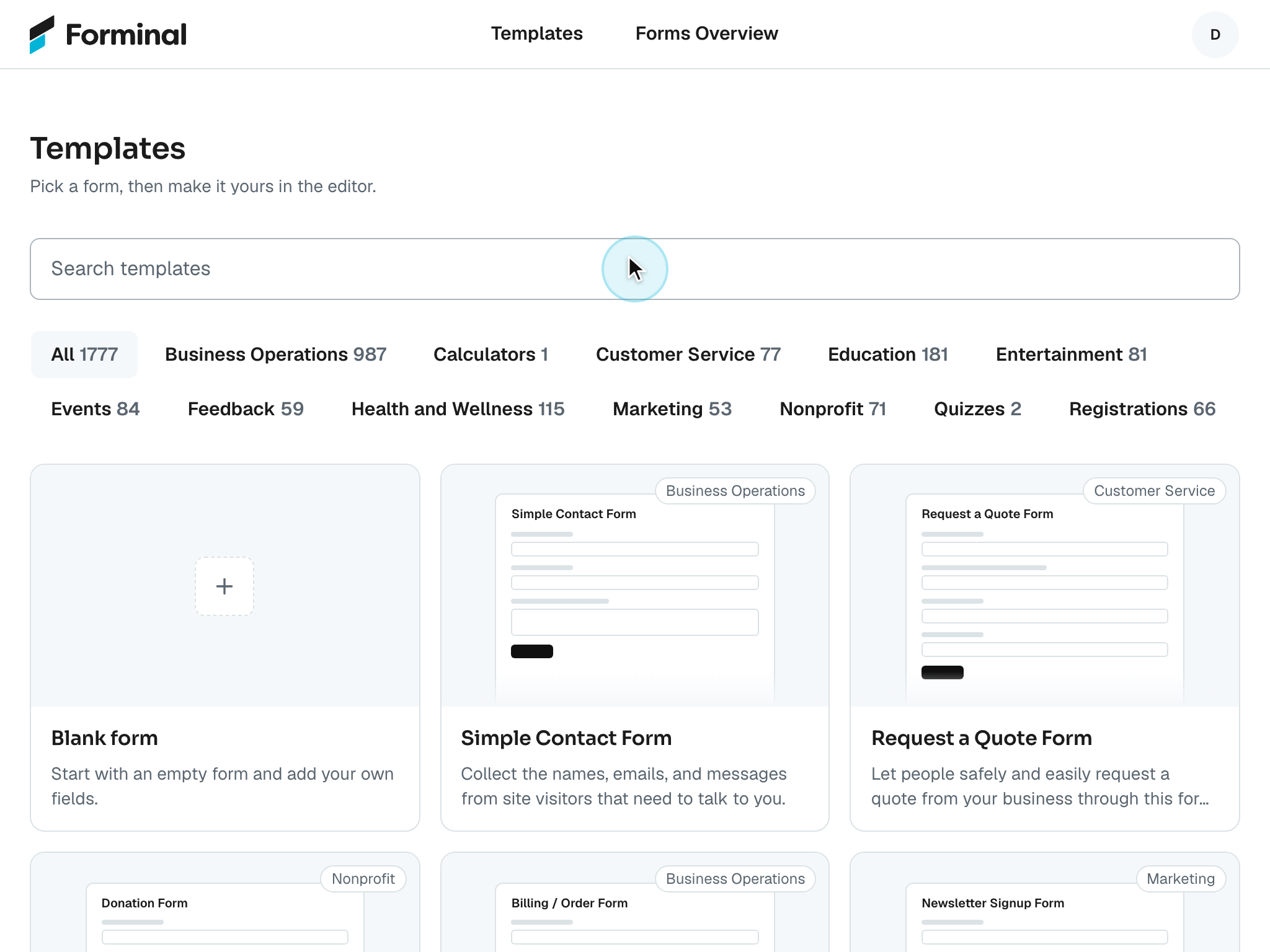
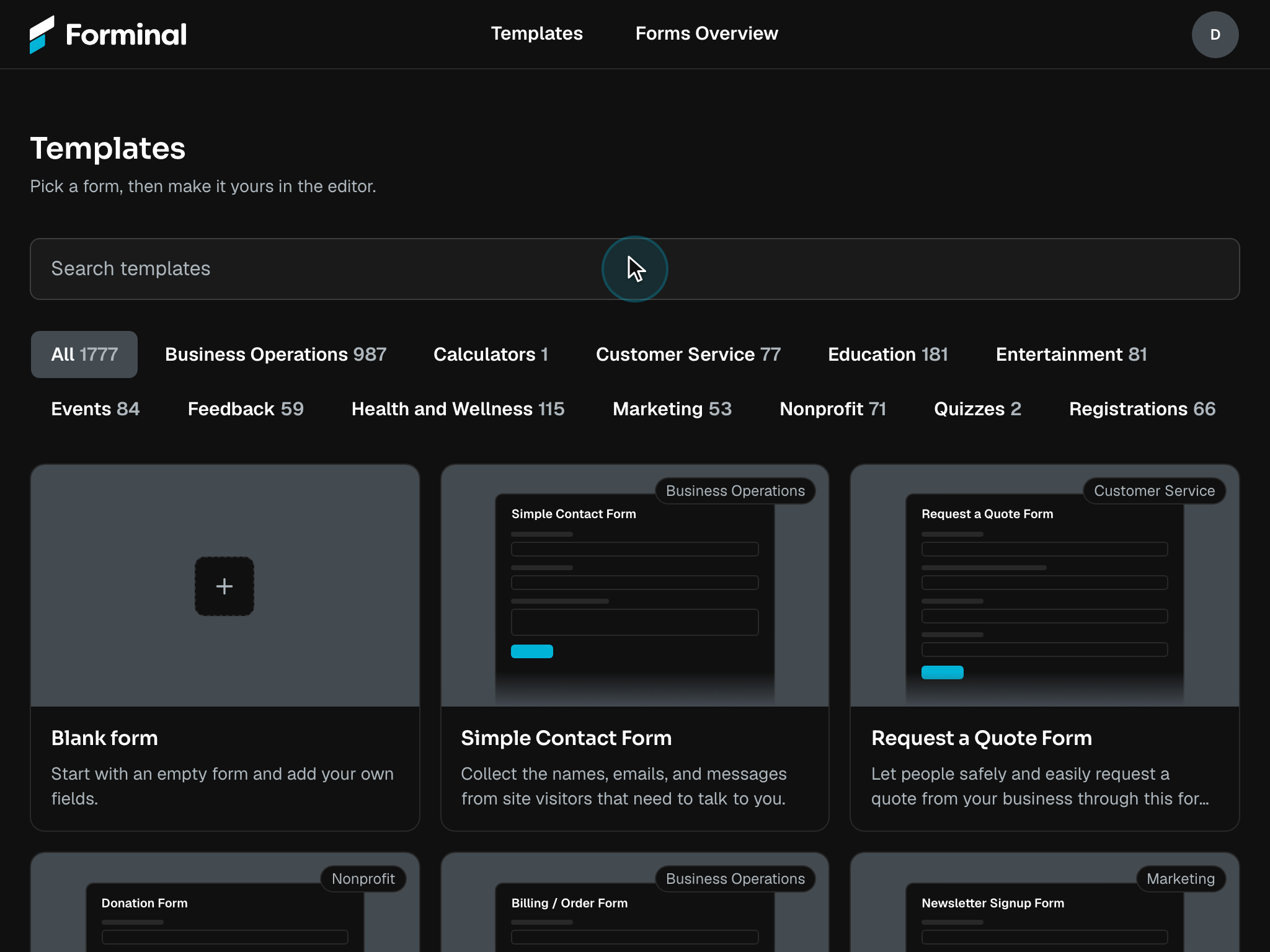
Each card draws a small sketch of the form’s first few fields, so you can tell templates apart before you open one. You can also browse every template on this site.
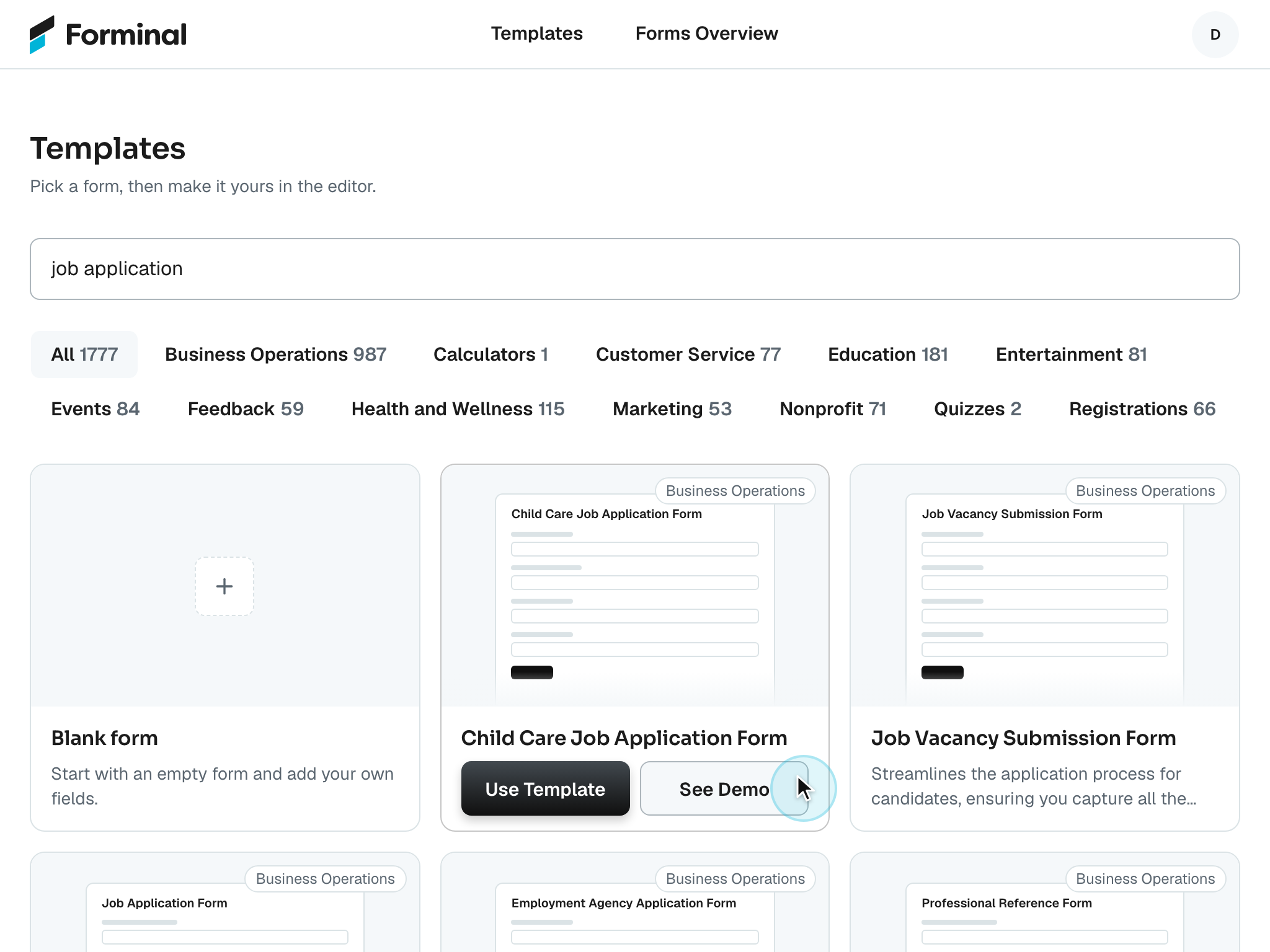
Try it before you use it
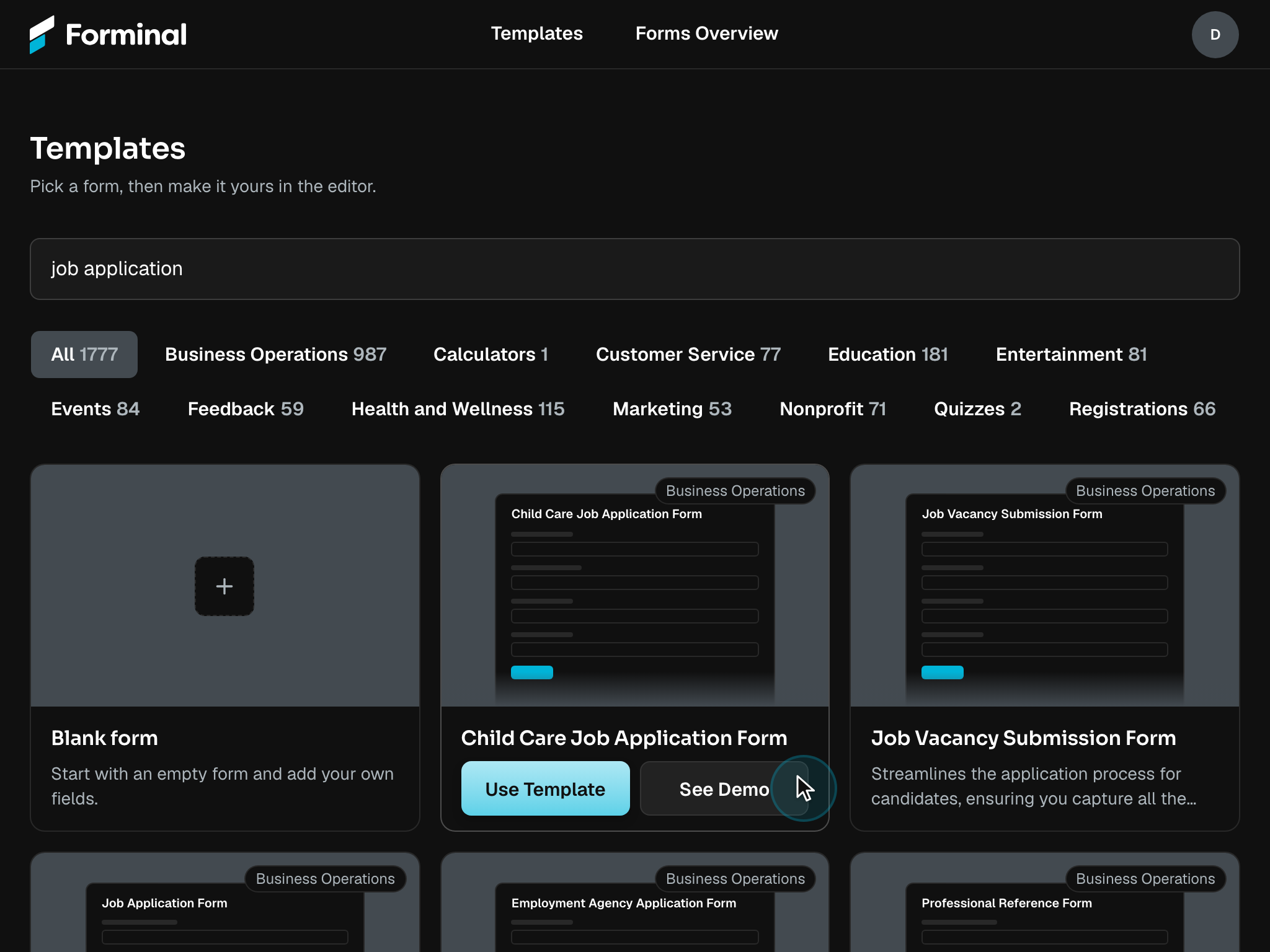
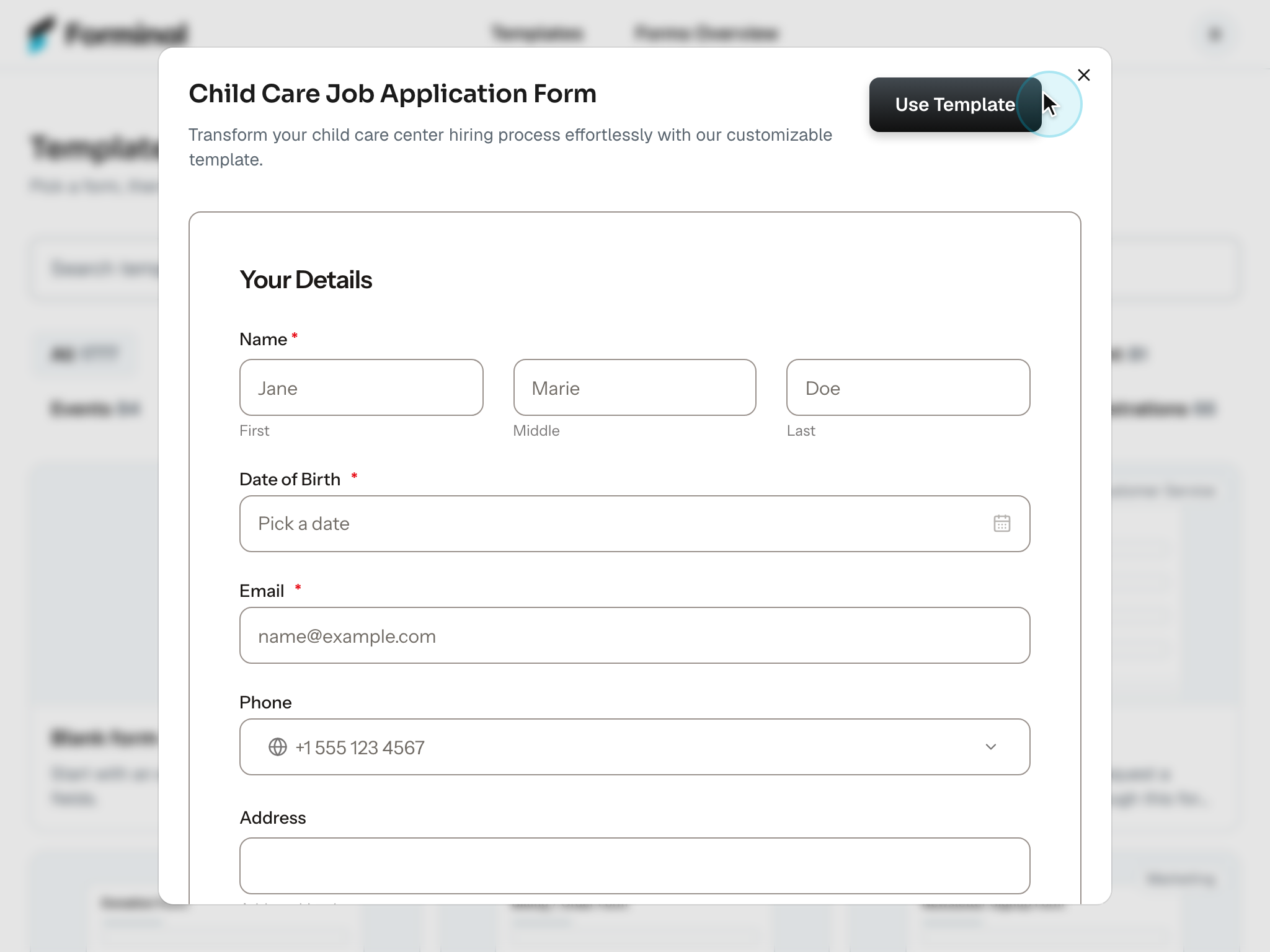
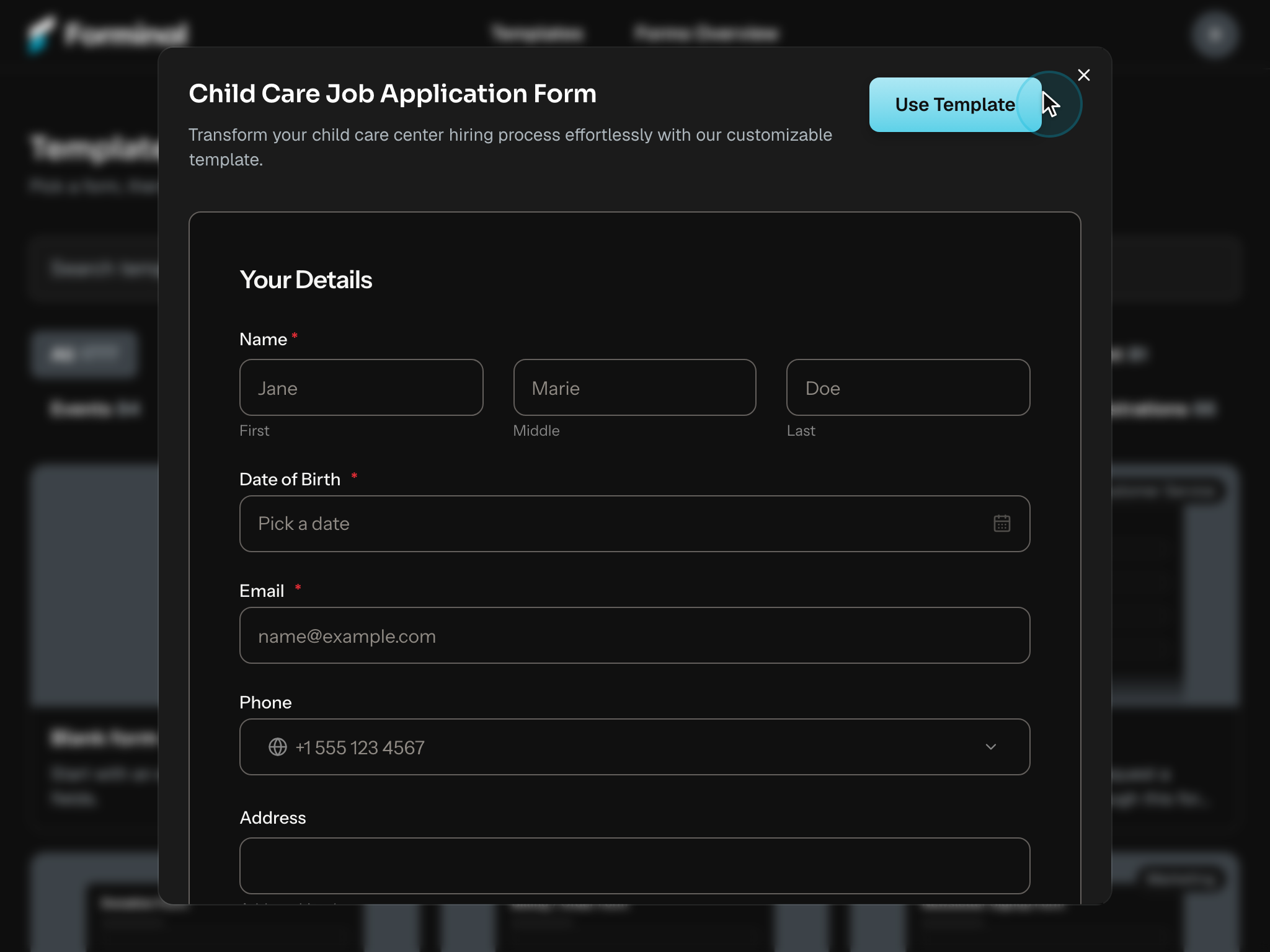
Select See Demo, or the template’s name, to open the form in a window and fill it in as a visitor would. It’s only a preview, and nothing you type there is sent. Close the window or press Back to return to the gallery where you left it. The demo has its own address, so you can share it or reload the page and it opens again.
Use a template
- Select Use Template on its card, or in the demo window.
- A new draft opens in the editor with the template’s fields, settings and style.
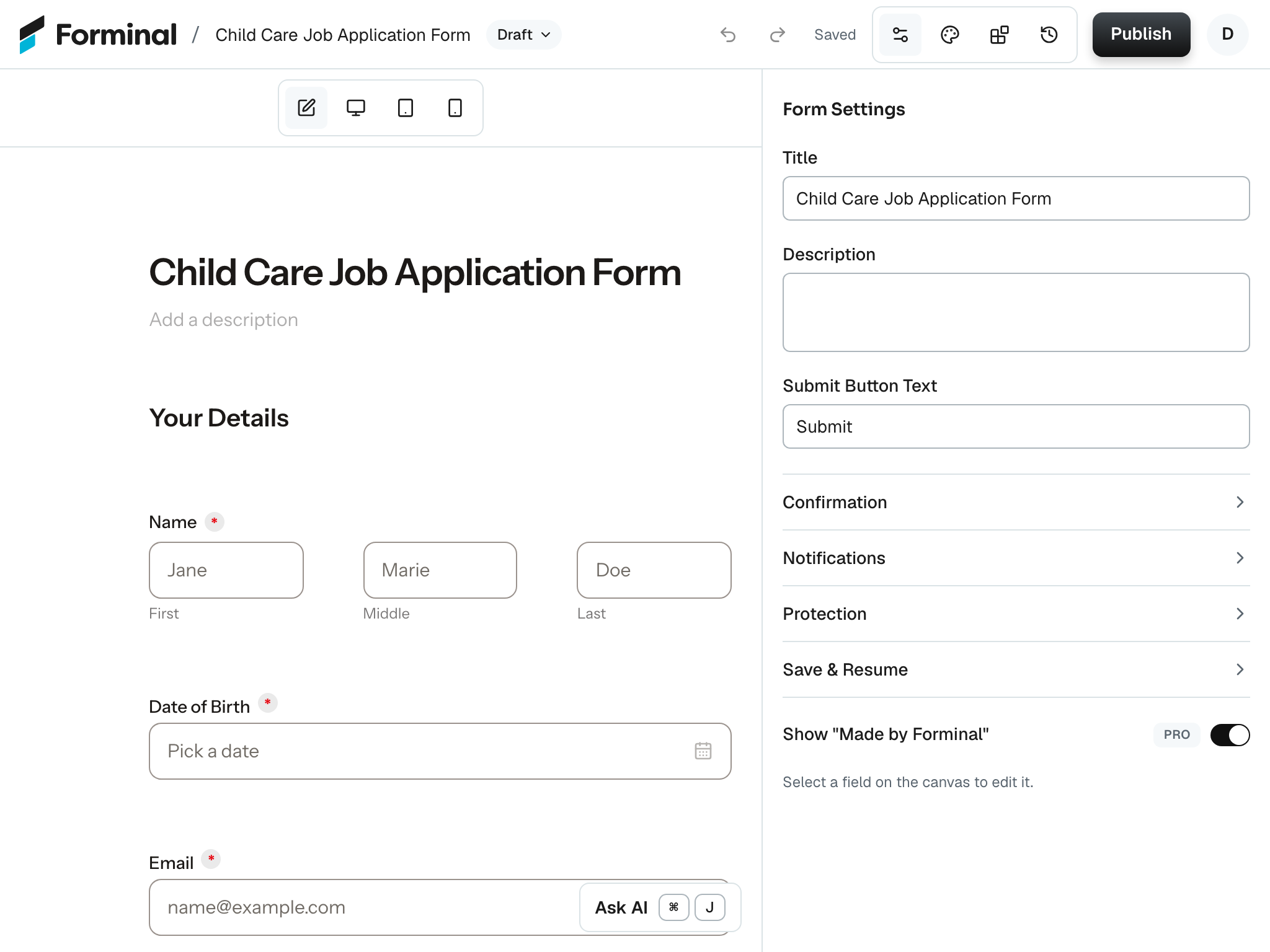
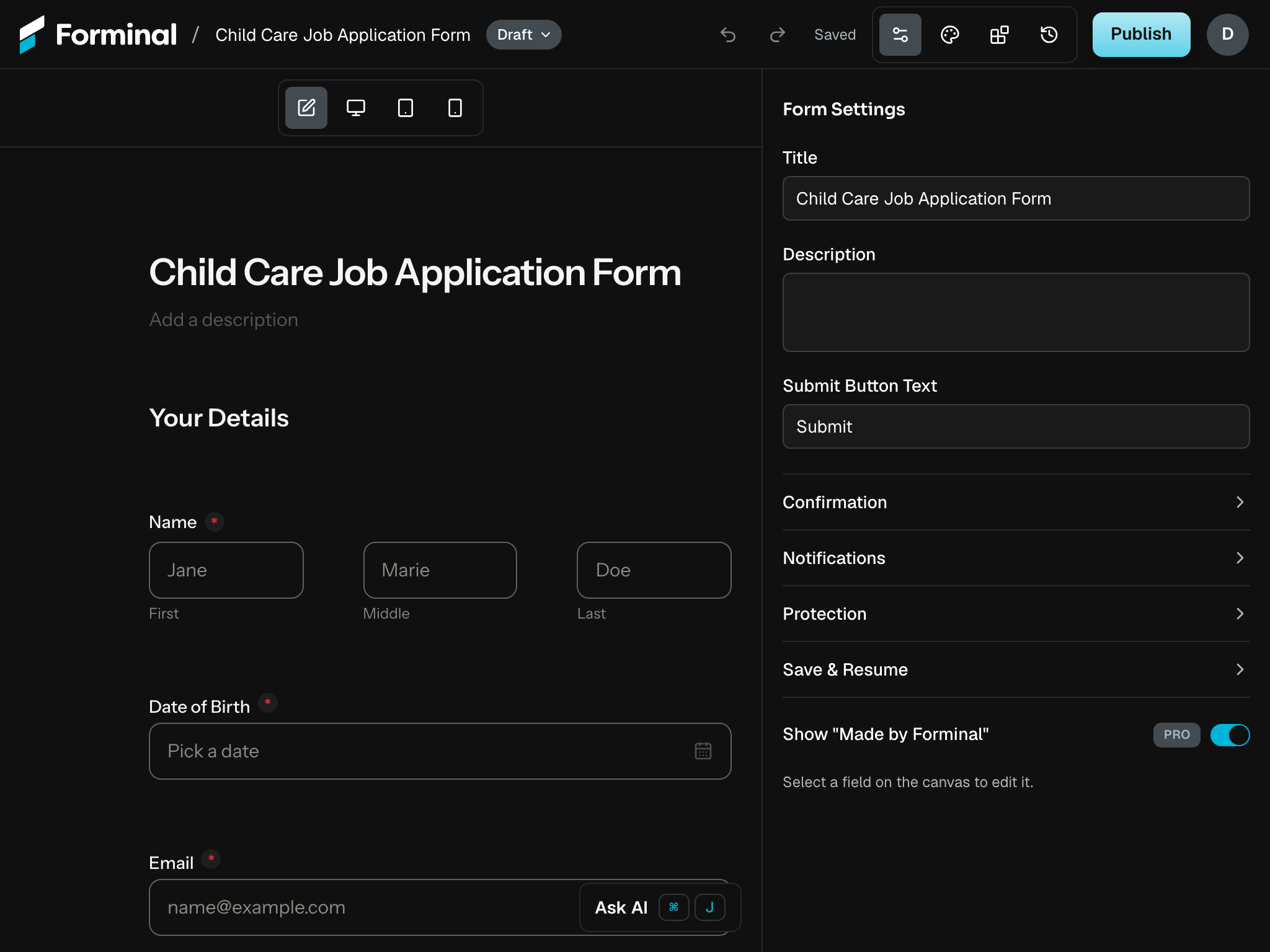
- Change anything you like, then publish it when it’s ready.
To start empty instead, use Blank form, which is always the first card. Its button reads Start from Scratch.
Use a template on an empty form
A form with no fields yet, such as one started with New Form, from the Blank form card or with New form on a workspace’s heading, opens on “How do you want to start?”. Select Use a Template to choose from five popular templates, or type in Search templates to narrow them down. The one you pick fills the form you have open instead of making a new one.
The template brings its fields, title, description, submit button text, confirmation messages, email notifications and multi-page settings. Your form keeps its own style and the rest of its settings, such as privacy, sharing and file storage. One Undo takes the template back out.
For any other template, select Browse All Templates. It opens the full gallery with anything you typed in the search box carried over, and a template you use there makes a new form.
Good to know
Every use makes a separate form, so using the same template twice gives you two forms, and changing yours never changes the template.
You don’t need an account to use a template. The draft belongs to the browser you made it in until you sign up, as with any form you Build Without an Account.
New form on a workspace‘s heading skips the gallery and starts a blank form in that workspace, where Use a Template offers the five popular templates. If you own the workspace and want a different template there, create the form from the gallery, then add it to the workspace with the Workspaces button on its row in the dashboard.
Frequently asked questions
What kinds of templates are there?
The gallery has 1,777 templates in categories such as Business Operations, Calculators, Customer Service, Education, Events, Feedback, Health and Wellness, Marketing, Nonprofit, Quizzes and Registrations.
Do I need an account to use a template?
No. The draft belongs to the browser you made it in until you sign up, like any form you Build Without an Account.
Does editing my form change the template?
No. Every use makes a separate form, so your changes never reach the template, and using it twice gives you two forms.
Can I try a template before using it?
Select See Demo to fill it in as a visitor would. Nothing you type there is sent, and the demo has its own address you can share.
How do I use a template inside a workspace?
New form on a workspace’s heading starts a blank form there, and its Use a Template card offers five popular templates. For any other template, create the form from the gallery, then add it to the workspace with the Workspaces button on its row in the dashboard.
Can I use a template on a form I already started?
Yes, while the form has no fields. Select Use a Template on the empty form, and the template fills it in place, keeping the form’s style and its other settings. Once a form has fields, start a new one from the gallery instead.
Are templates free?
Yes, templates are on every plan, and they work before you have an account.