Logo and cover put your brand at the top of a form. The cover is a wide image across the top of the form, and the logo sits on its bottom edge, just above the title. You can use both, or just one of them.
Examples
- A round company logo over a banner photo on an event sign-up form.
- A square shop logo above the title of an order form, without a cover.
- A thin cover strip in your brand pattern on a contact form.
Add a logo or a cover
- Open the form in the builder and select Customize in the top bar.
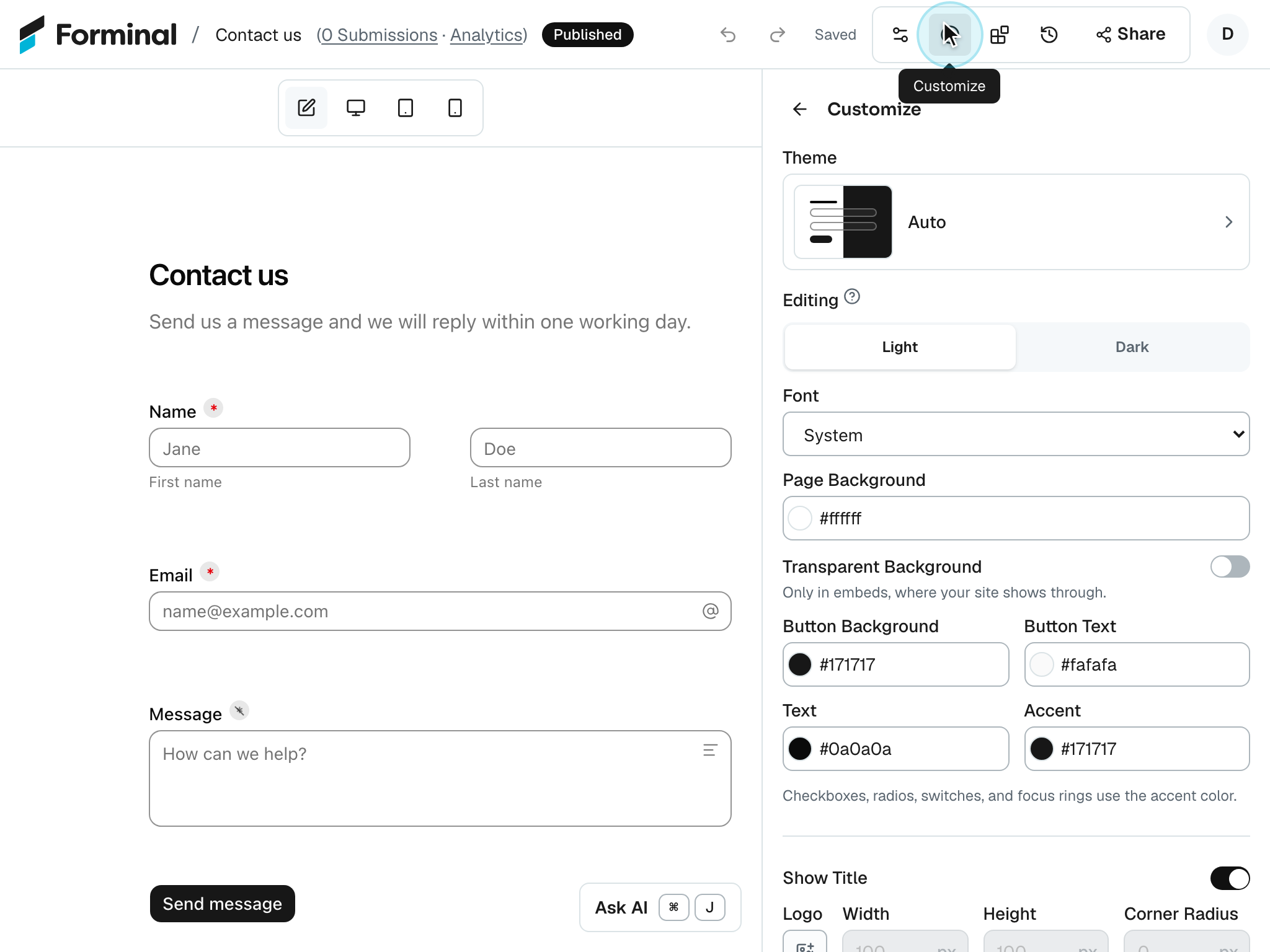
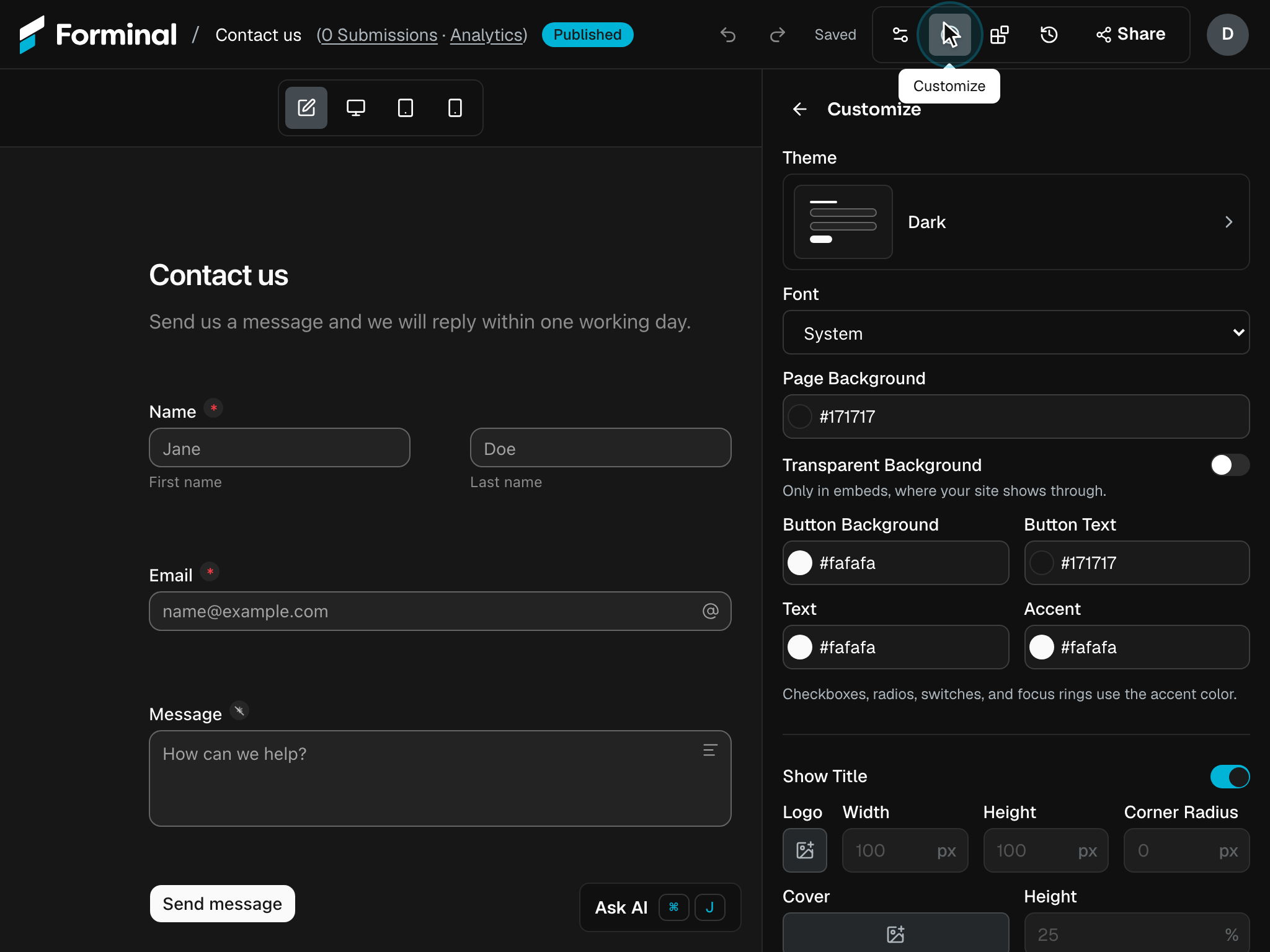
- Select the empty square under Logo, or the wide box under Cover, and choose an image from your computer.
- Set the size in the boxes next to it. The canvas shows each change as you type.
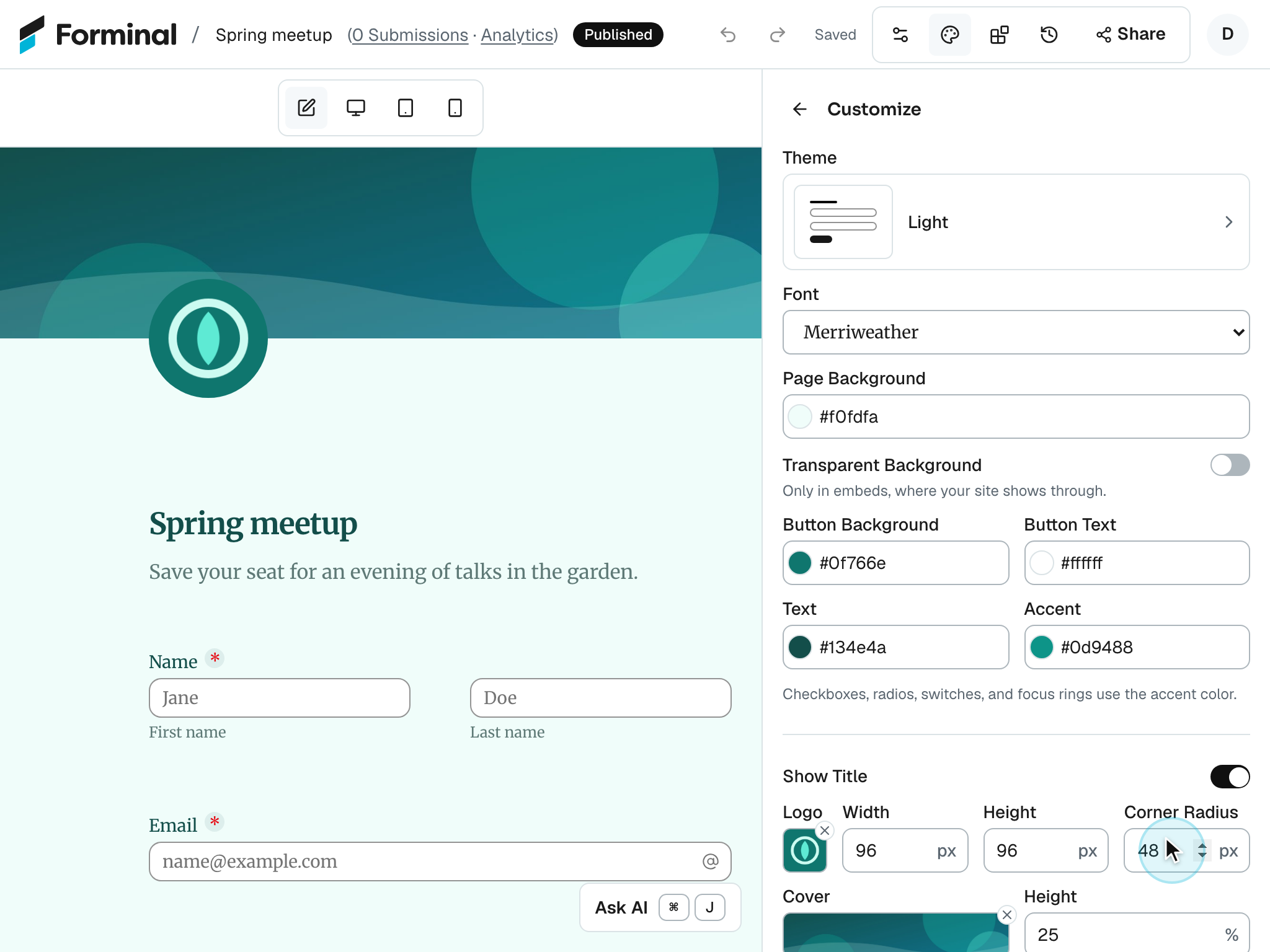
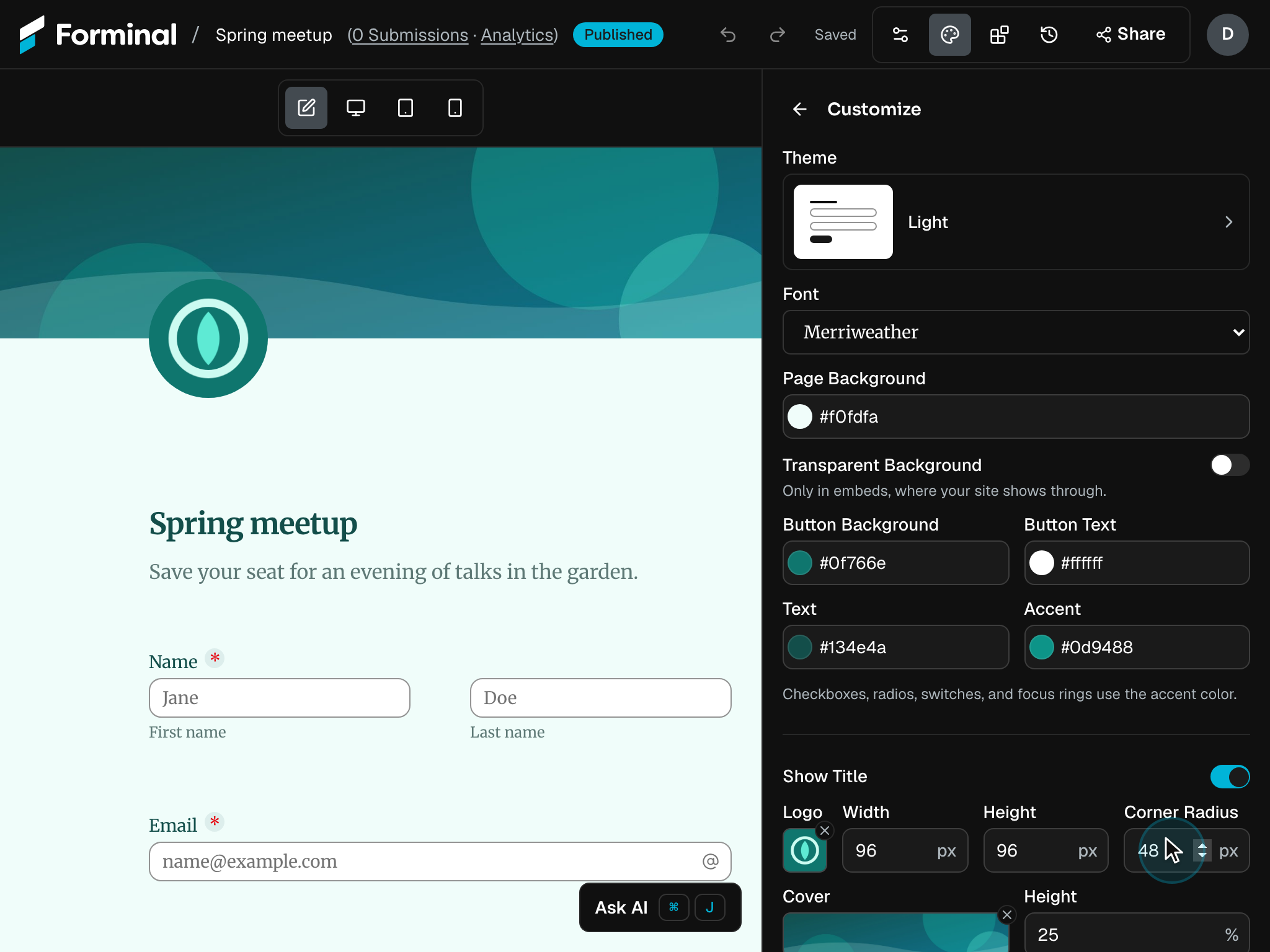
To swap an image, select its thumbnail and choose another one. The new image keeps the sizes you set. To take one off, select the small cross on the corner of its thumbnail.
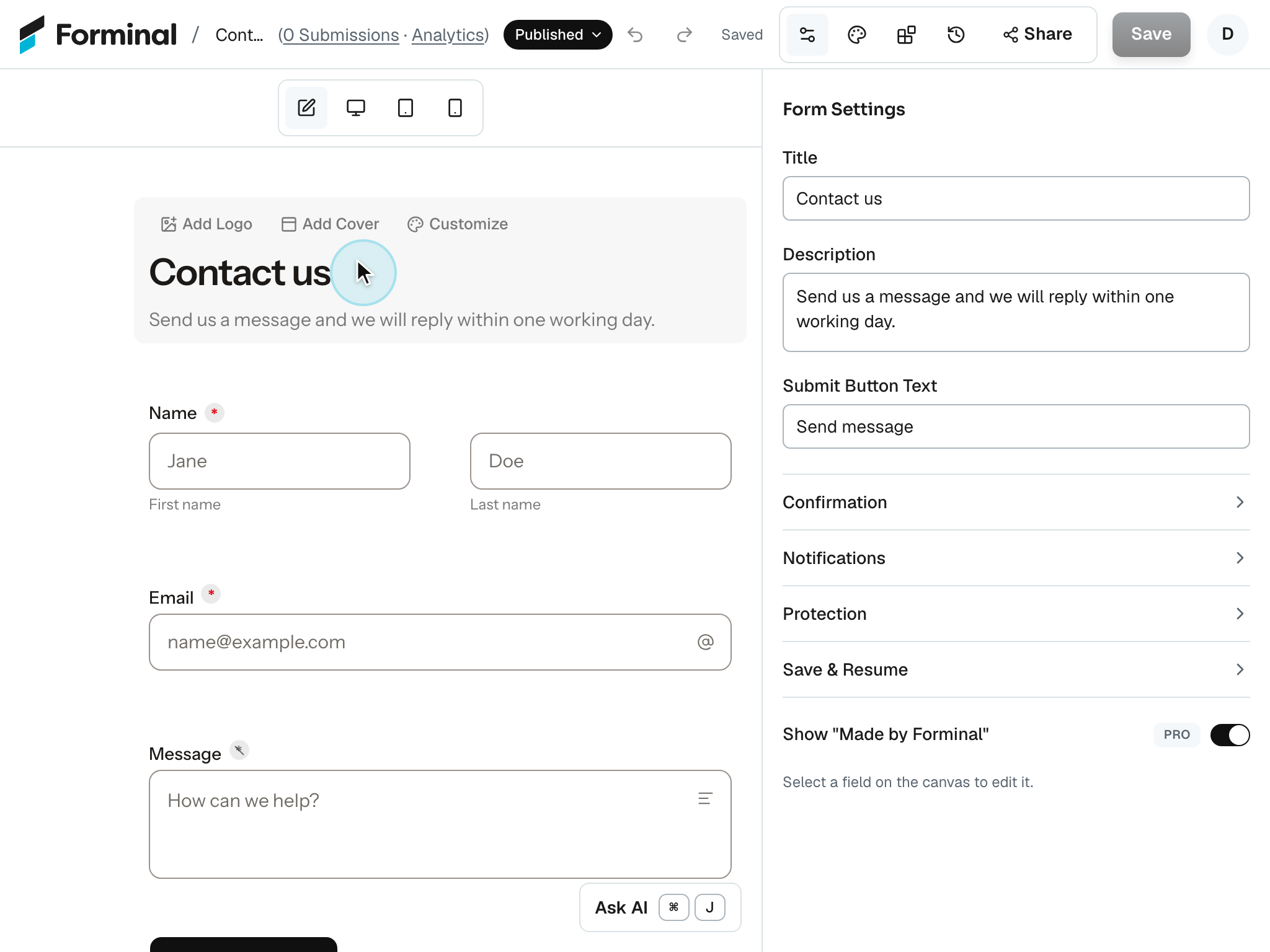
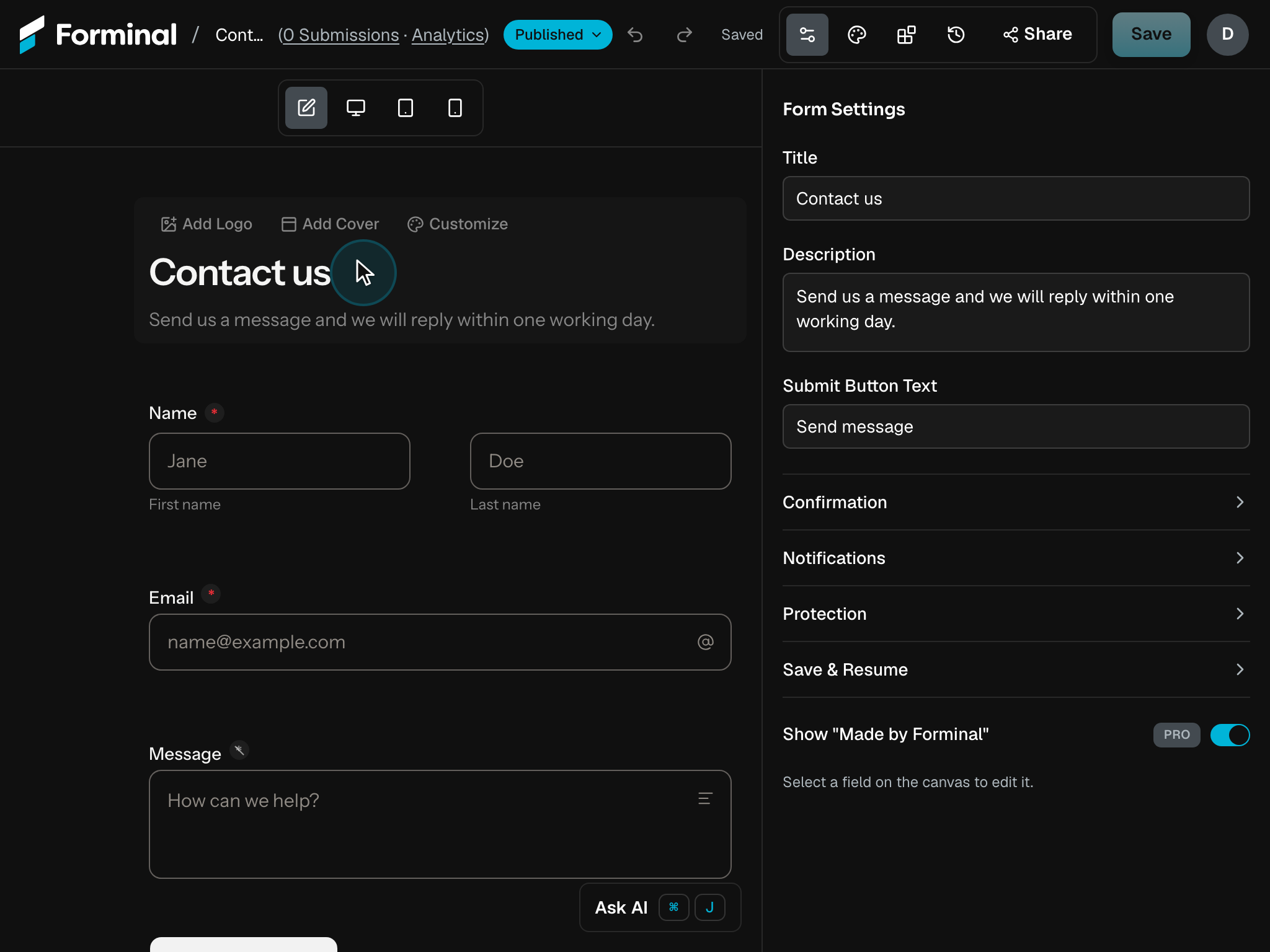
You can also do this on the canvas without opening the panel. Point at the form title and Add Logo, Add Cover and Customize appear above it. Add Logo and Add Cover show only until that image is set. To swap the logo, click it. To swap the cover, point at it and select Change Cover in its top right corner.
Settings
- Logo Width and Height are in pixels, from 16 to 400. Both start at 100.
- Logo Corner Radius rounds the corners, from 0 to 200. It starts at 0, which keeps them square. For a round logo, set it to half the logo’s size, such as 50 for a 100 by 100 logo.
- Cover Height is a percent of the cover’s width, from 10 to 60. It starts at 25, so the cover is four times as wide as it is tall. Because the cover is as wide as the page, it is taller on a wide screen than on a phone.
The size boxes stay greyed out until the image is added. Each image is cropped to fill its shape, so a photo that doesn’t match is trimmed at the edges rather than stretched.
What people see
The cover runs across the full width of the page, or of the frame in an embed, with square corners. The form’s width only limits the fields below it. With a cover, the logo lines up with the left edge of the fields and overlaps the cover’s bottom edge by half the logo’s height. A logo taller than the cover stops at the cover’s top edge. Without a cover, the logo sits on its own above the title.

Both show on the form’s link, in an inline embed, in a popup and in the preview. An embed that hides the title hides the logo and cover with it.
Good to know
An image can be a PNG, JPEG, GIF or WebP file of up to 2 MB. SVG isn’t accepted. A larger file shows “Images are at most 2 MB”, and another type shows “Use a PNG, JPEG, GIF or WebP image”. The logo and cover count toward the images a form can hold, together with images in content blocks and confirmation pages: at most 30 images and 15 MB per form. Reset Styles puts the sizes back to their defaults and keeps both images, and changing the theme keeps them too. A copy of the form keeps its logo and cover. The assistant can resize or remove them, but adding an image is done in the Customize panel. Notification emails and submission PDFs don’t show them. Logo and cover are available on every plan.
To show a different logo or cover in the dark look, add the light one first, set Appearance to Auto, turn the Editing switch to Dark and pick another image in its place. Visitors whose device is set to dark mode see that one. Picking a theme afterwards removes the dark-only image and keeps the light one.
Frequently asked questions
What image formats and file sizes can I use for the logo?
PNG, JPEG, GIF or WebP, up to 2 MB per image. SVG isn’t accepted.
Why is my cover image cropped?
Each image is cropped to fill its shape, so a photo with different proportions is trimmed at the edges rather than stretched. Cover Height sets the shape as a percent of the width, and since the cover spans the page, it is taller on a wide screen than on a phone.
Will the logo show on an embedded form?
It shows in inline embeds and popups as well as on the form’s link. An embed that hides the title hides the logo and cover along with it.
Do the logo and cover appear in notification emails?
No. Notification emails and submission PDFs don’t show them.
Can the AI assistant add a logo for me?
The assistant can resize or remove a logo or cover, but you add the image yourself in the Customize panel.
Is the logo and cover a paid feature?
No, logo and cover are available on every plan.