A confirmation is what people get right after they submit: a message on the page, or a trip to another address. Every form has a default confirmation. You can add more, and each one is shown only when the answers match its rules, so people who answered differently can be told different things.
Examples
- A demo request that sends large companies to your booking calendar and shows everyone else a thank-you message.
- A support form that links to the billing help page when the topic is “Billing”, and to the general help center otherwise.
- An event sign-up that says “See you on Friday, @Name” to people who picked the Friday session.
Two kinds of confirmation
Each confirmation is either a Page or a Redirect, and you switch between them with the tabs in its settings.
- Page shows a message you write on the canvas, under the Confirmation divider. It can have headings, lists, bold and italic text, links and images, and it can pipe in answers from any field. See Thank-You Message for the details.
- Redirect sends people to an address you paste in, such as a page on your own site. They briefly see “Redirecting…” with a Continue link. On an embedded form, the whole page moves, not only the frame. See Redirect After Submit for the details.
Showing a different confirmation based on answers
- Click the confirmation at the bottom of the canvas, or select Form Settings in the top bar, then select Confirmation. A row of confirmations appears under the Confirmation divider, starting with Default.
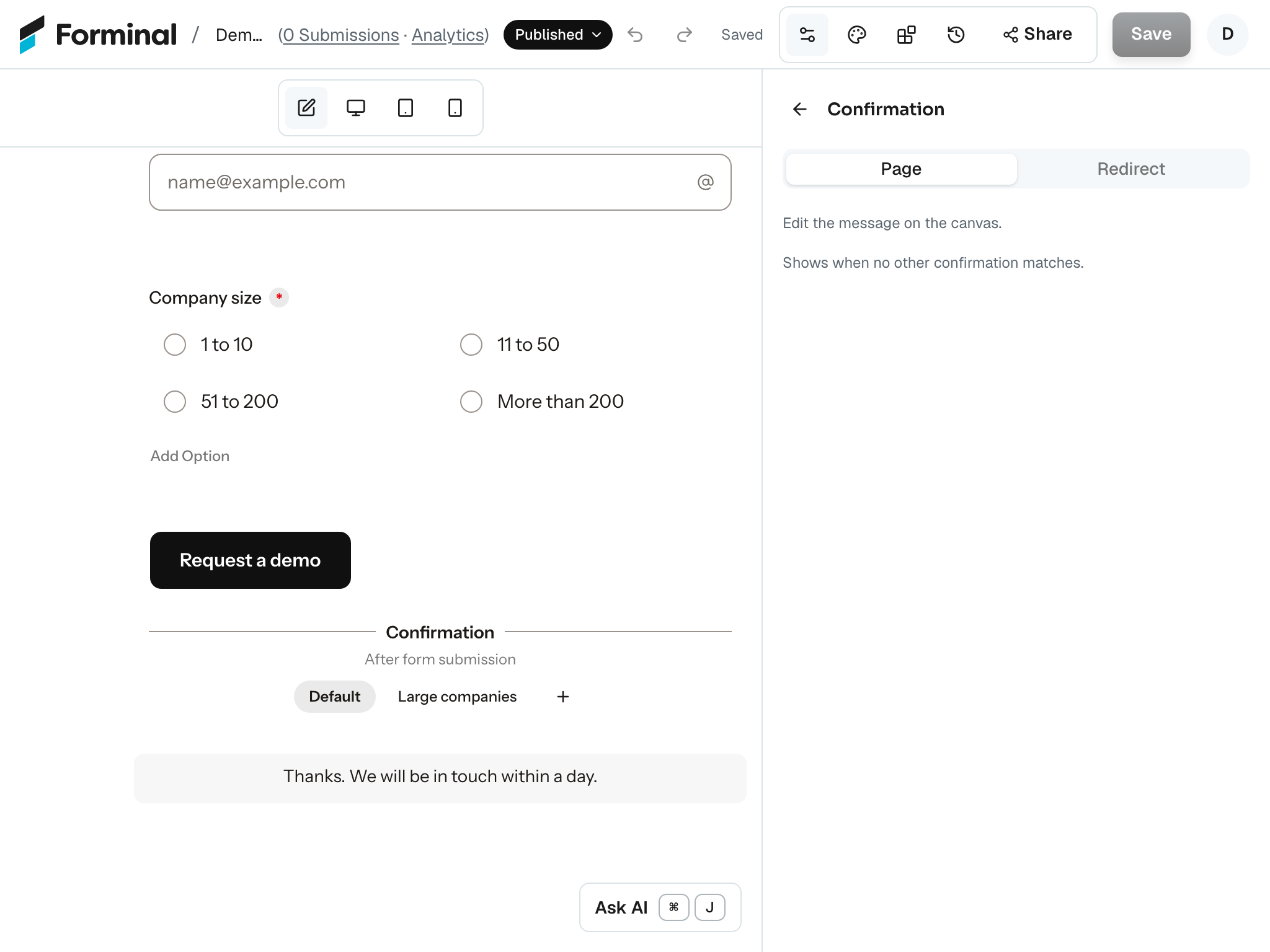
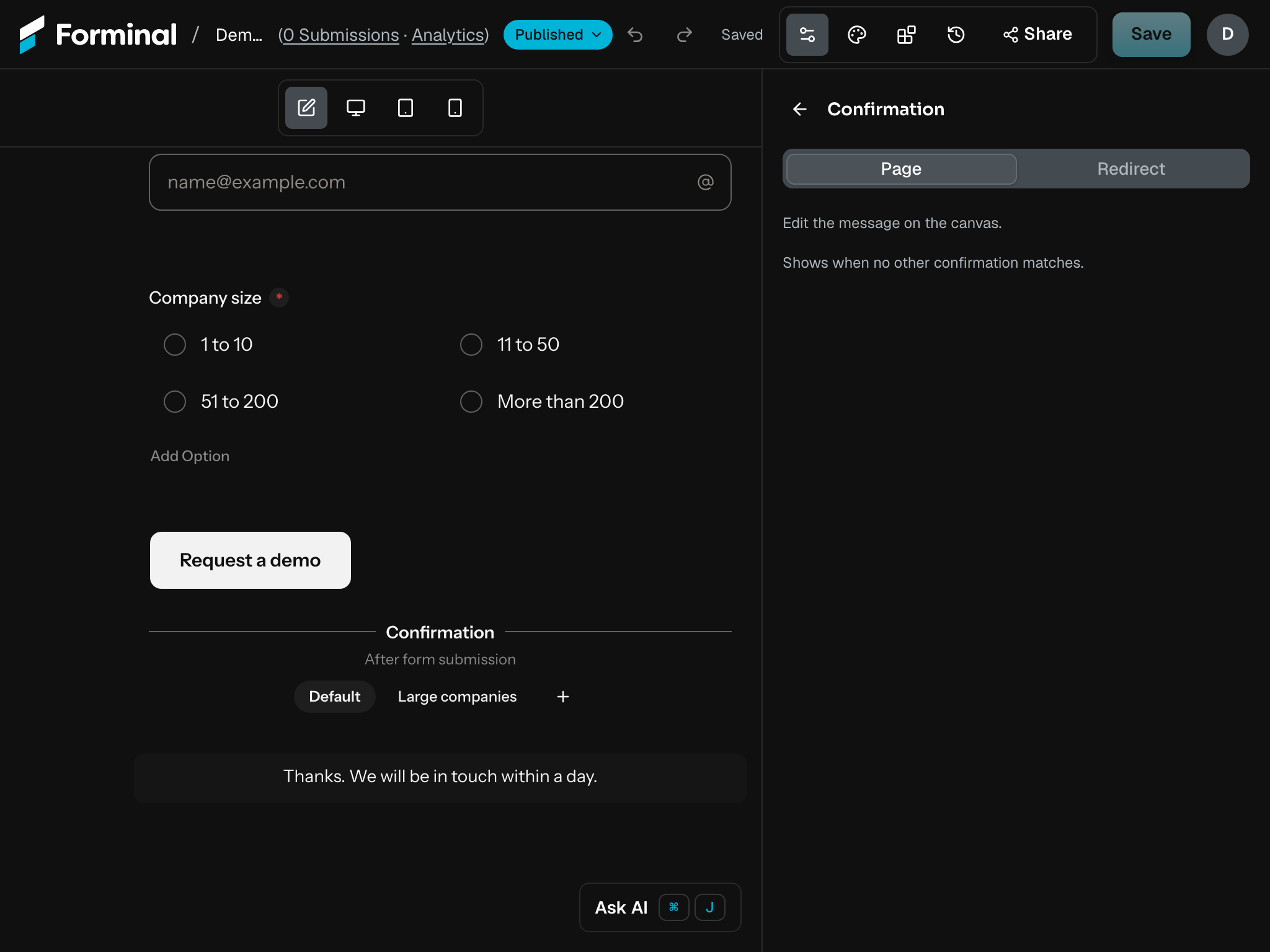
- Click + (Add confirmation) in that row to add one. It’s called “Confirmation 2” until you give it a Name of your own.
- Choose Page or Redirect, and write the message on the canvas or paste the address.
- Under Use when, pick a question, a rule and a value. Rules in the same group must all match: select And to add one. Select Add New Group for a second set of rules; the confirmation shows when any one group matches.
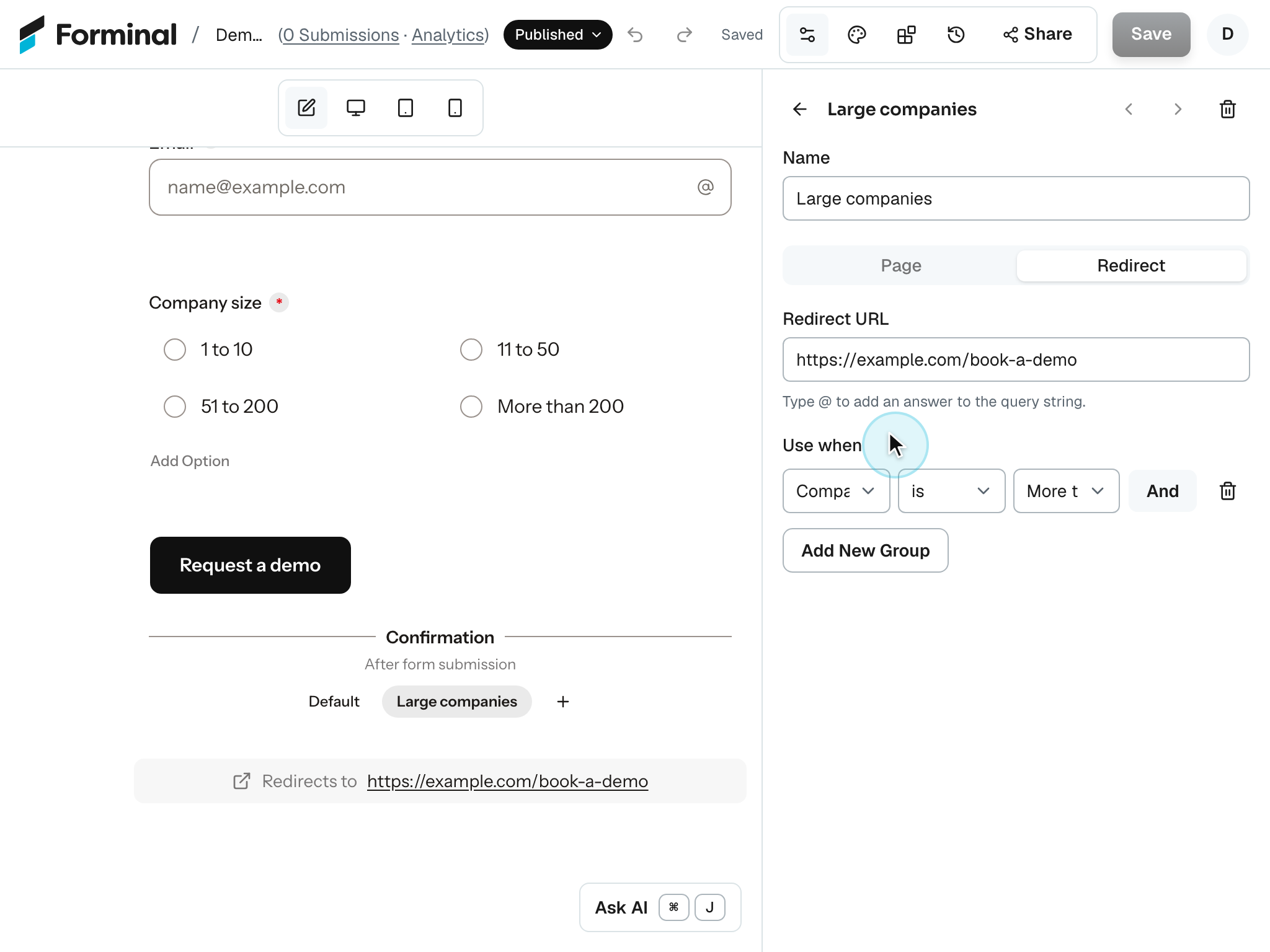
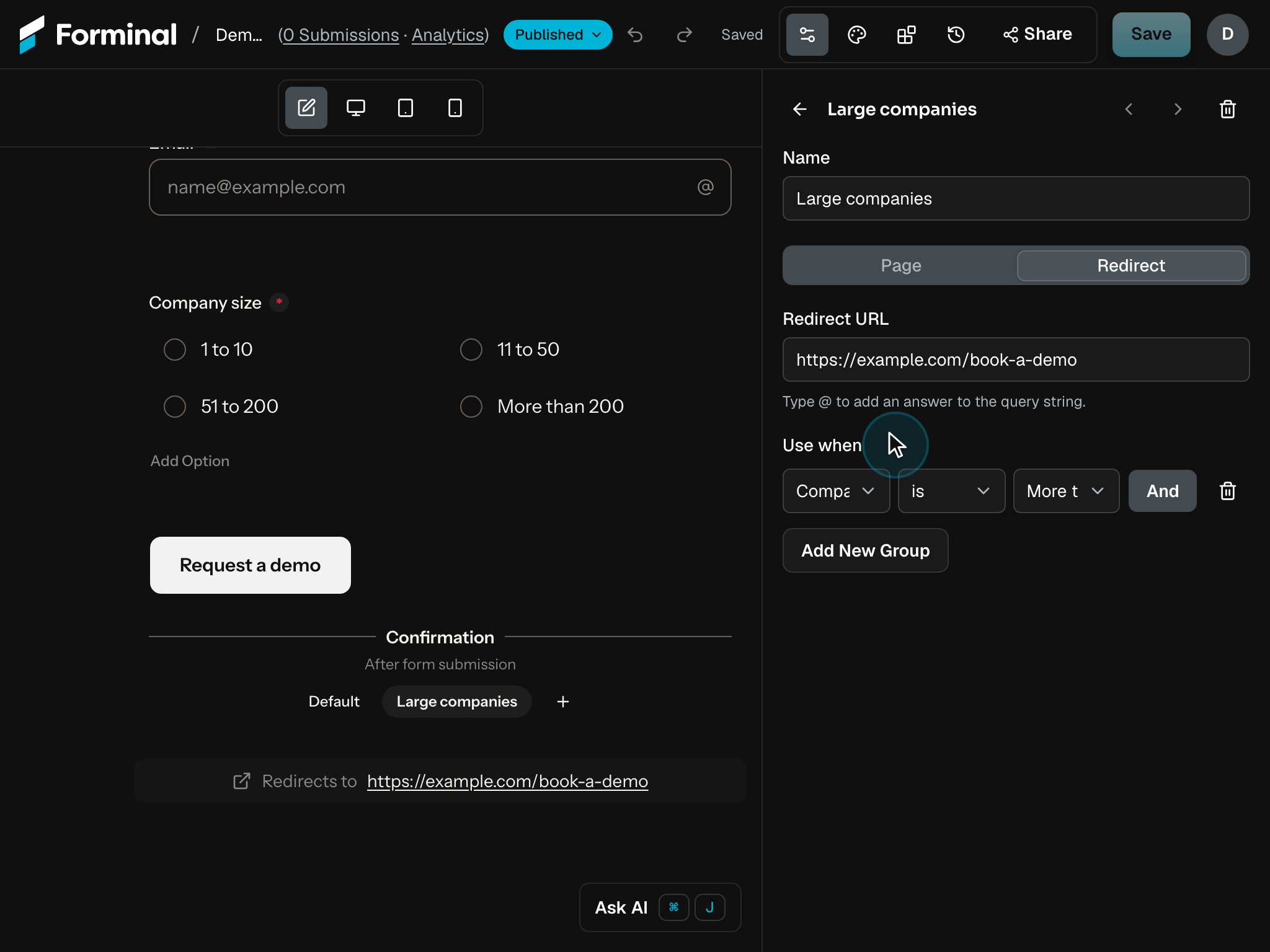
When someone submits, the form checks the confirmations in the row from left to right and shows the first one whose rules match. If none match, people get the default. Use Move left and Move right at the top of a confirmation’s settings to put the most specific one first, and Delete confirmation (the bin icon) to delete it. Rules only look at answers people could see, so a question hidden by Smart Logic never triggers one. A rule you haven’t finished is skipped.
Conditional confirmations use Smart Logic, and they work on every plan. You can try them in preview before you publish.
Trying it out
Switch the builder to Desktop, Tablet or Mobile and submit the form in the preview to see which confirmation your answers lead to. Preview saves nothing and sends no email. A redirect isn’t followed there: you see the Redirecting notice, and the Continue link opens the address in a new tab.
Good to know
A form can have up to 10 confirmations on top of the default. A name can be up to 60 characters. Each confirmation can have up to 10 groups of rules, with up to 10 rules in each. A message left empty shows “Thanks, your submission has been recorded.” A redirect address must be an http or https link of up to 2,000 characters. Answers can go into its query string and the part after #, URL-encoded, but never into the domain or path.
Frequently asked questions
How many confirmations can a form have?
Up to 10 on top of the default. Each one can have up to 10 groups of rules, with up to 10 rules in each.
What happens when more than one confirmation matches?
The form checks the row from left to right and shows the first match. Put the most specific confirmation first with Move left and Move right.
Do conditional confirmations need a paid plan?
No, they work on every plan.
Can a question hidden by Smart Logic trigger a confirmation?
It can’t. Rules only look at answers people could see.
Can I choose a confirmation by the visitor’s country?
Yes. Pick Respondent’s country in the rule, as described in Respondent’s Country.
Can I test confirmations without collecting a submission?
Submit the form in the Desktop, Tablet or Mobile preview. Preview saves nothing and sends no email.