A form that asks everyone everything feels long, and people start skipping questions or leave. Smart Logic shows or hides a question based on what someone already answered. A person who picks pickup never sees the delivery address, and someone happy with your service isn’t asked what went wrong. Smart Logic works on every plan, including Lite.
Add a rule to a field
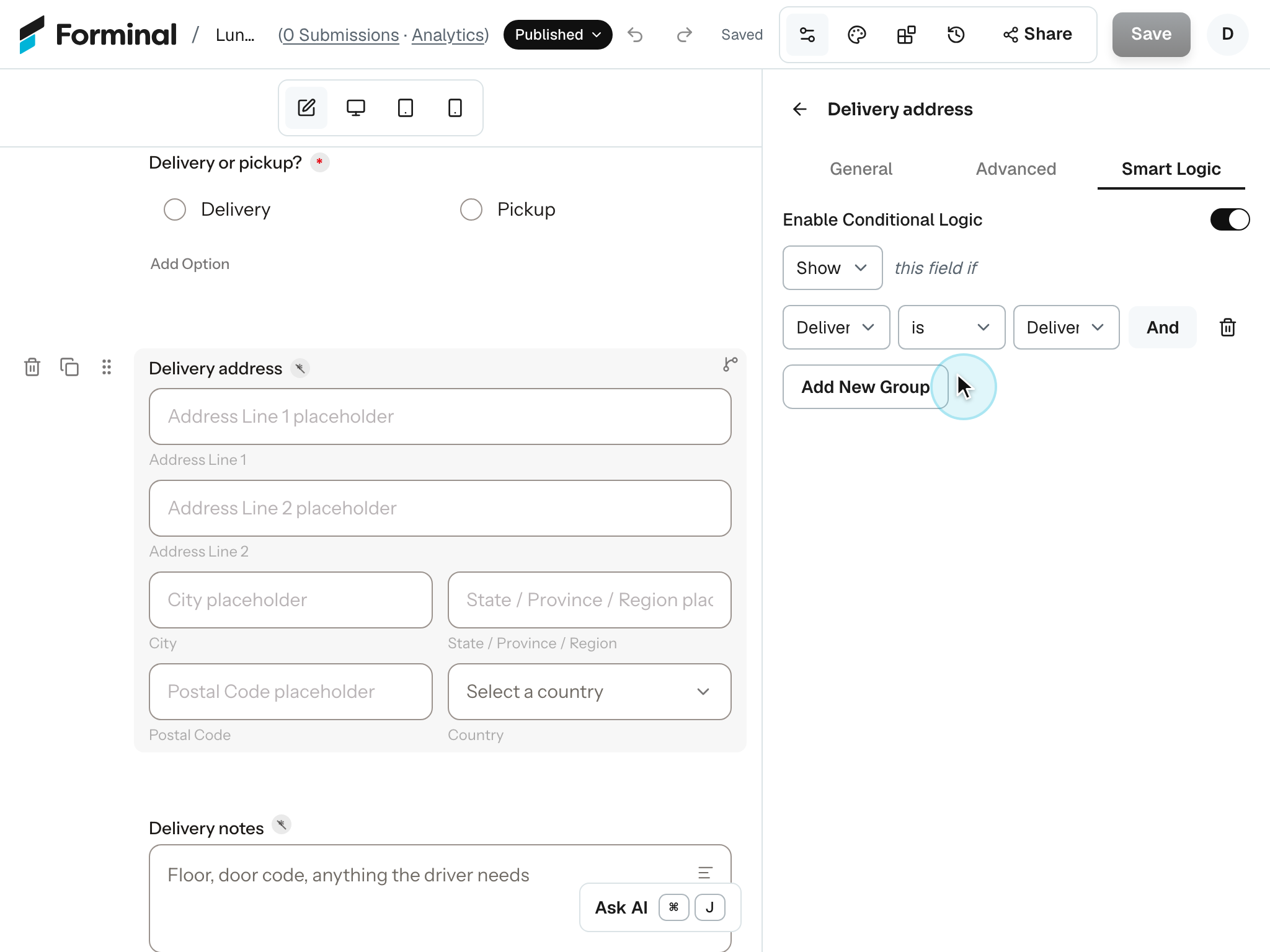
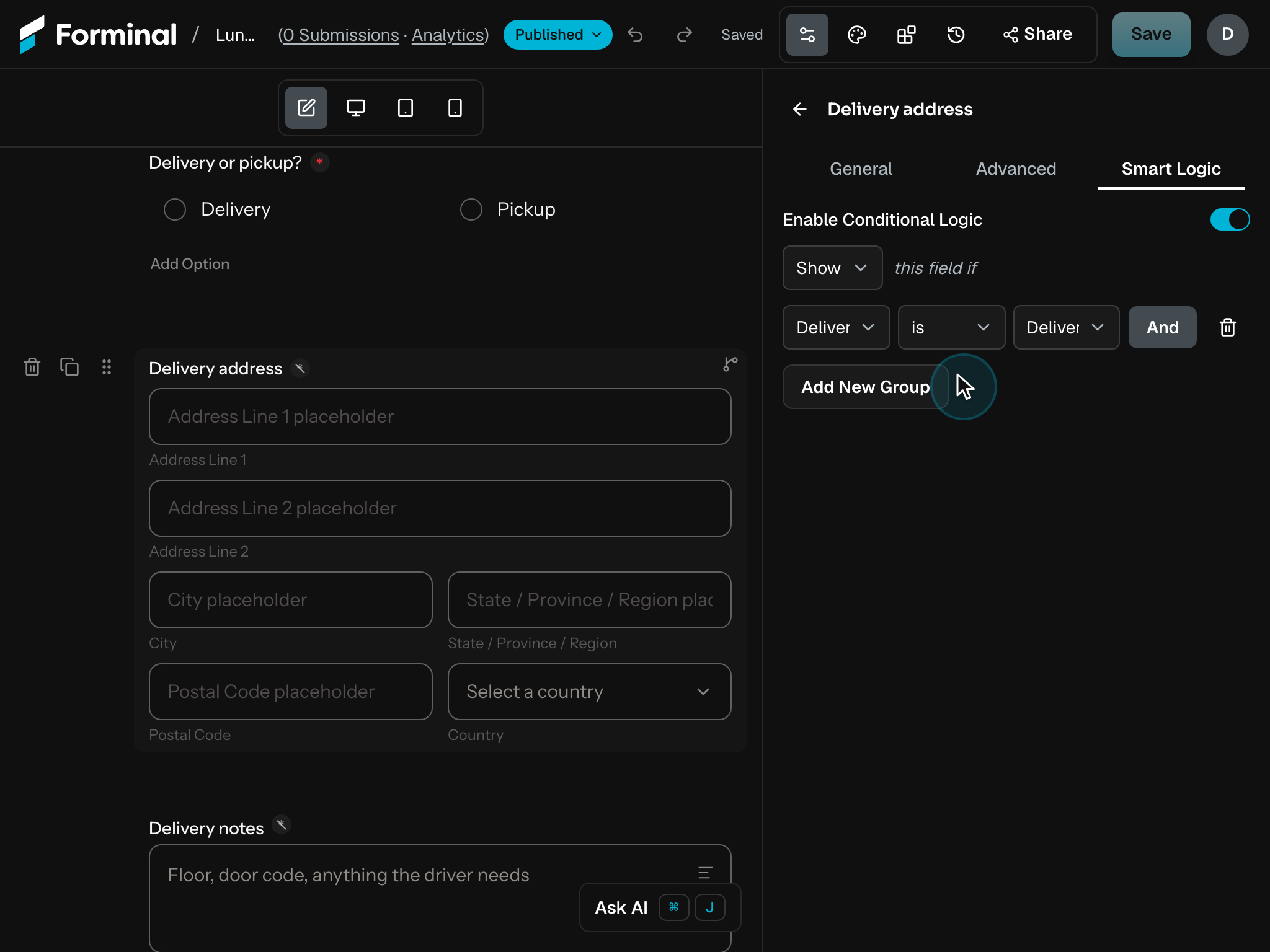
- Select the field you want to show or hide, and open the Smart Logic tab in its settings.
- Turn on Enable Conditional Logic.
- Pick Show or Hide in the “this field if” line.
- Under Select a field, pick the earlier question, then a rule such as is or contains, then the value to compare with.
To try it, switch the builder from Edit to Desktop, Tablet or Mobile and fill in the preview. Questions appear and disappear as you answer, without a reload.
Rules that fit each question
The rules on offer depend on the field you compare with. Text fields such as Short Text, Email and Name offer contains, starts with and ends with. Number, Rating, Net Promoter Score, Date and Time offer greater than and less than. For Multiple Choice, Dropdown and Checkboxes you pick the option from a list, and for File Upload and Signature you check whether anything was added.
For more than one condition, select And to add a rule that must also be true, or Add New Group for another set of rules joined by “or”. A field can have up to 10 groups with up to 10 rules each. You can also pick Respondent’s country as the source, so a question can depend on where the visitor is without a field for it.
What happens to a hidden question
- A hidden question isn’t required, even if you marked it Required, and its answer is left out of the submission.
- The server checks the same rules when the form is sent, so an answer to a hidden question can’t slip through.
- On a multi-page form, a page where every question is hidden is skipped and left out of the progress count.
- Turning the switch off keeps your rules, so you can turn them back on later without building them again.
The same rules for emails and thank-you messages
Notifications use the same rules. Turn on Enable Conditional Logic in a notification and choose Send or Don’t send “this email if” the rules match, so a large order can go to sales and a support request to your help desk. Extra confirmations have a Use when section, so different answers can lead to different thank-you messages.
The Smart Logic page lists every rule each field offers, and Show and Skip Questions with Logic shows how to skip a whole page of a multi-page form.
Create a free account and hide the questions your visitors don’t need to see.