Cada novo formulário começa como um rascunho. Apenas você e as pessoas com quem trabalha podem abri-lo, para que possa criá-lo e testá-lo ao seu próprio ritmo. Assim que o publicar, qualquer pessoa com a ligação poderá preenchê-lo.
Exemplos
- Preparar um formulário de evento uma semana antes da abertura das inscrições.
- Rever um formulário com um colega antes de entrar em vigor.
Enquanto é um rascunho
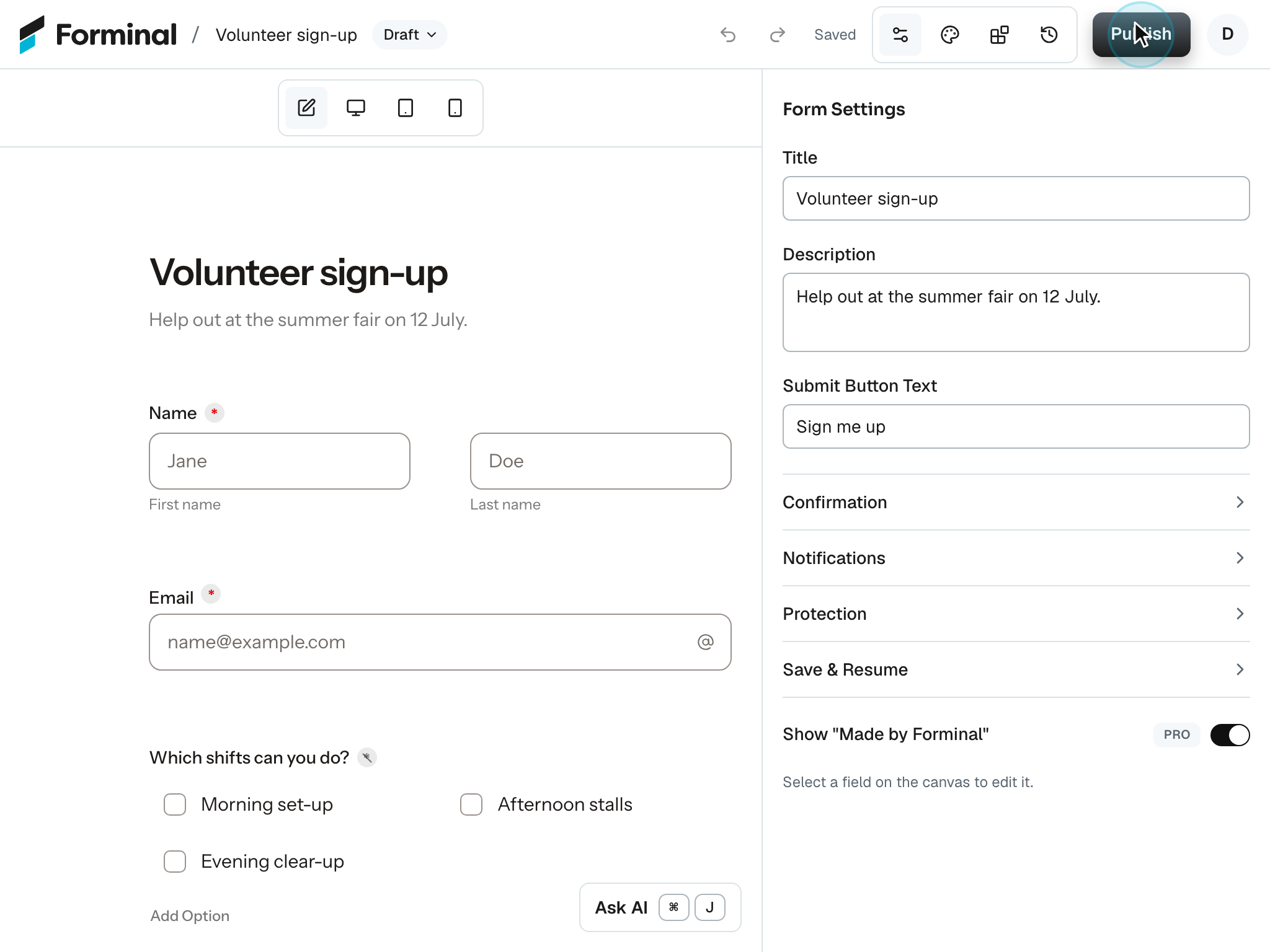
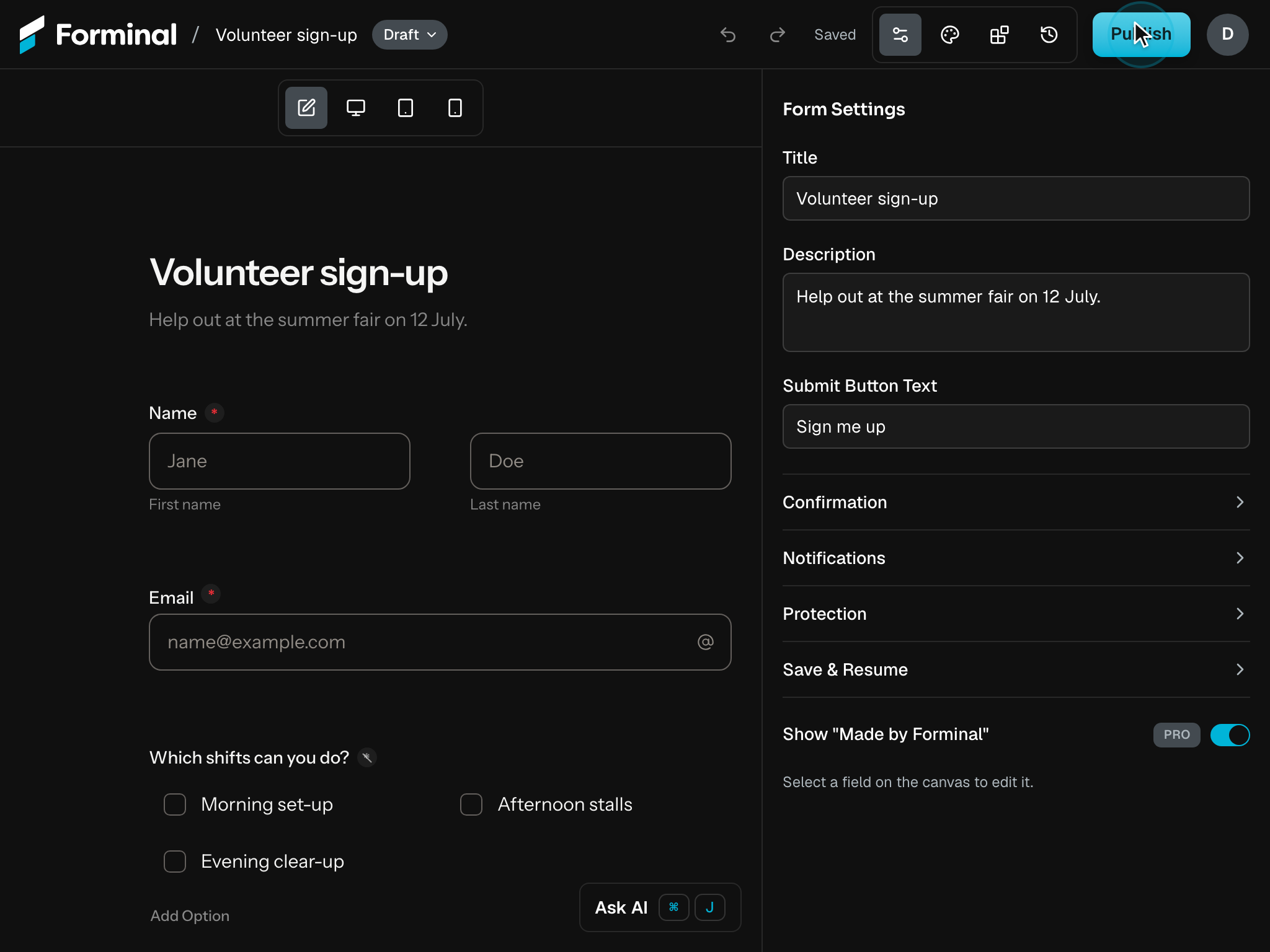
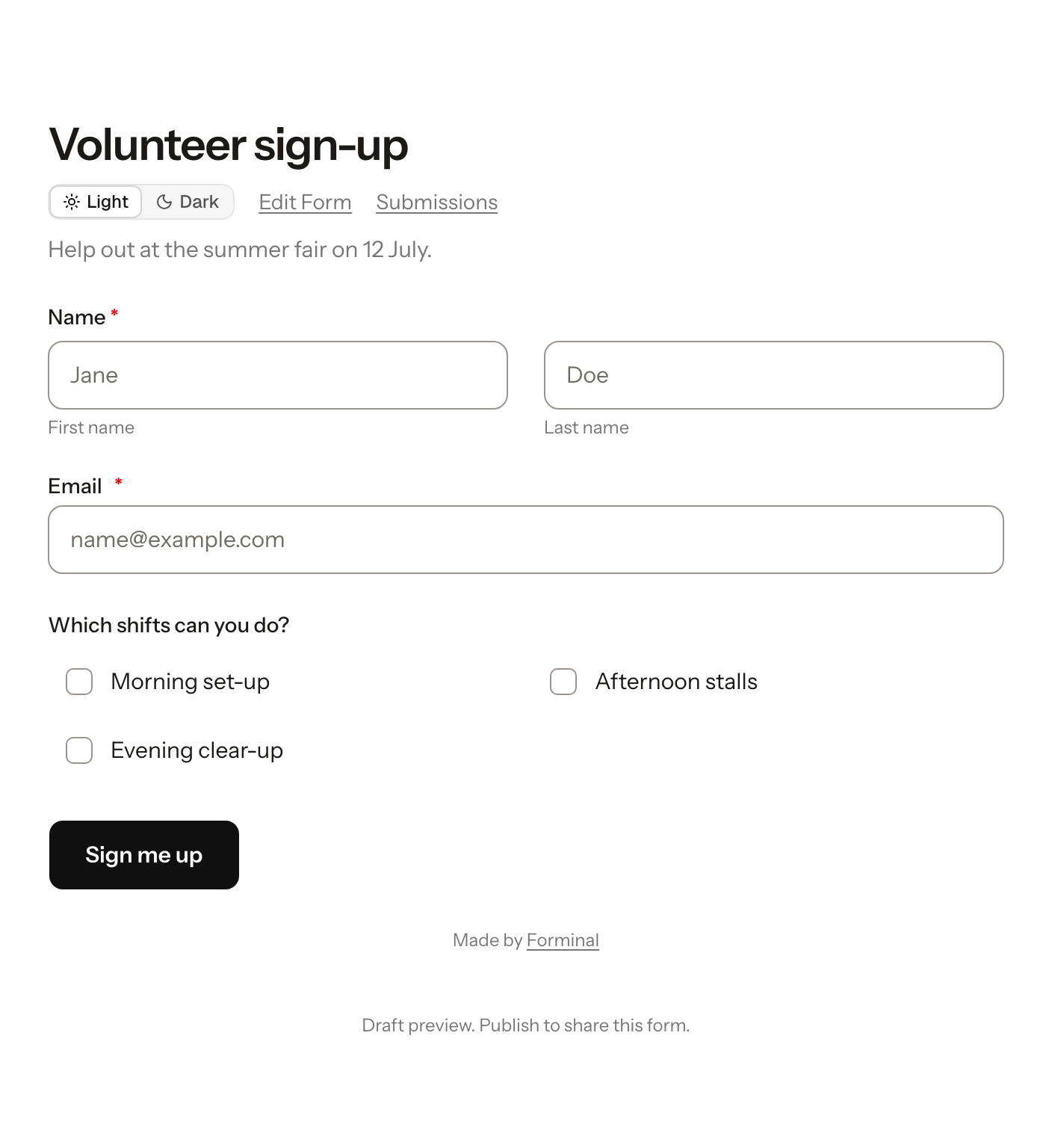
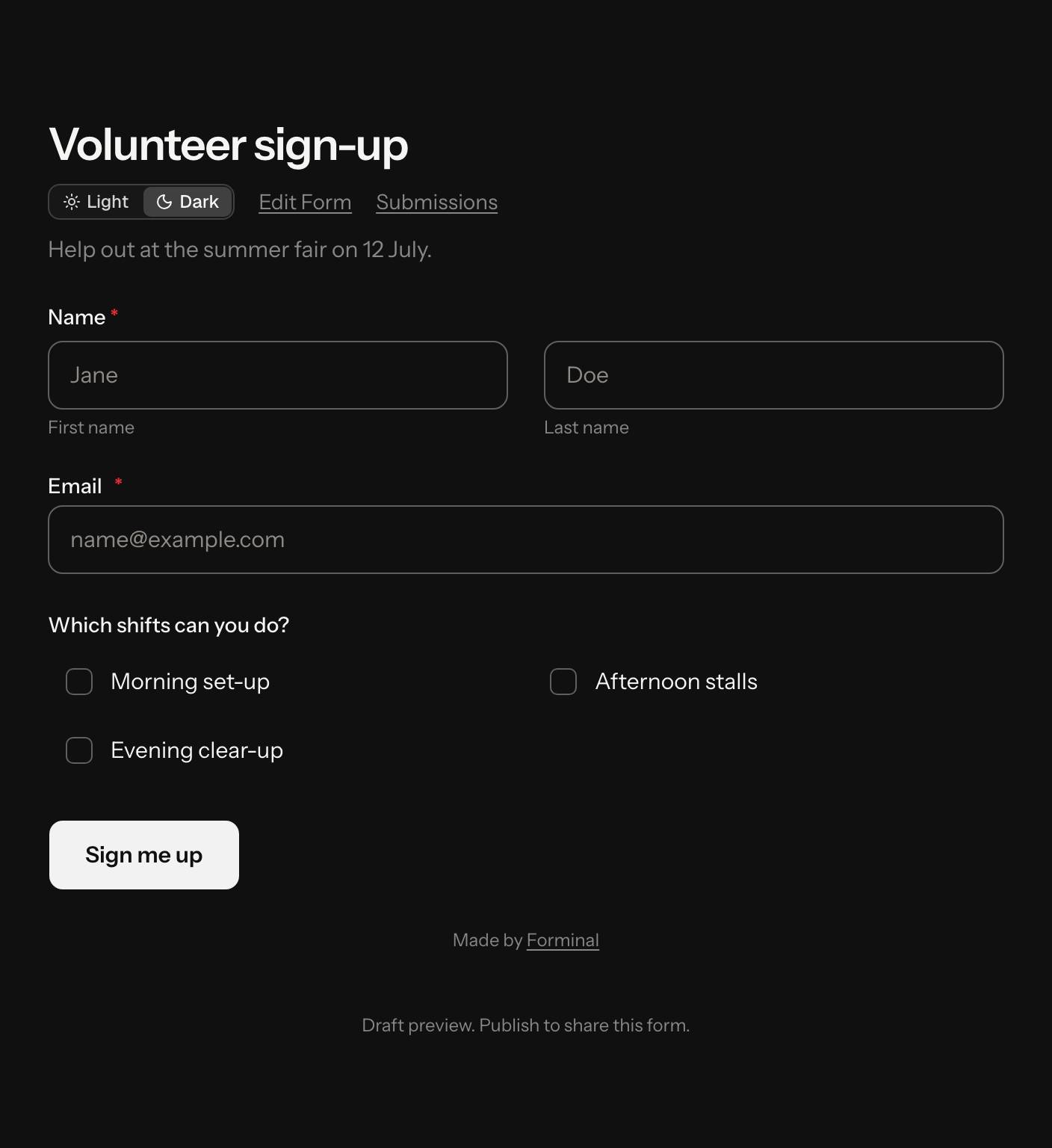
The builder’s top bar shows a Draft badge, and the builder saves every change as you go. You’ll see Saving and then Saved next to the undo buttons. Anyone else who opens the form’s link, or a page that embeds it, gets a page that says it can’t be found. You and people with access to the form can open the link and see the form with “Draft preview. Publish to share this form.” under it, but a draft doesn’t accept submissions. To test the whole flow, switch the builder to Desktop, Tablet or Mobile and submit there; preview saves nothing and sends no email.
Publicar um formulário
- Select Publish at the top right of the builder. If you built the form without an account, you’re asked to sign in first.
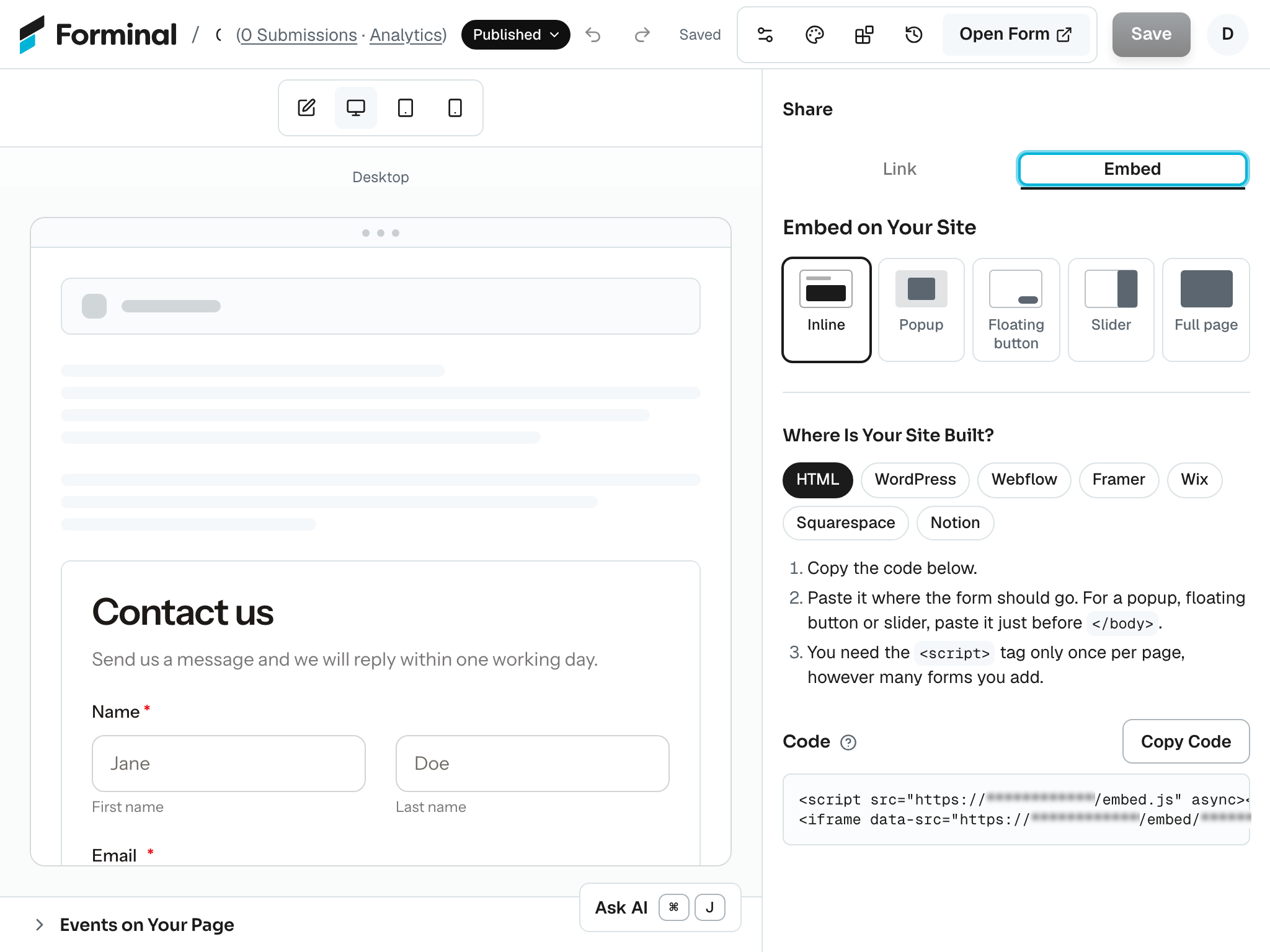
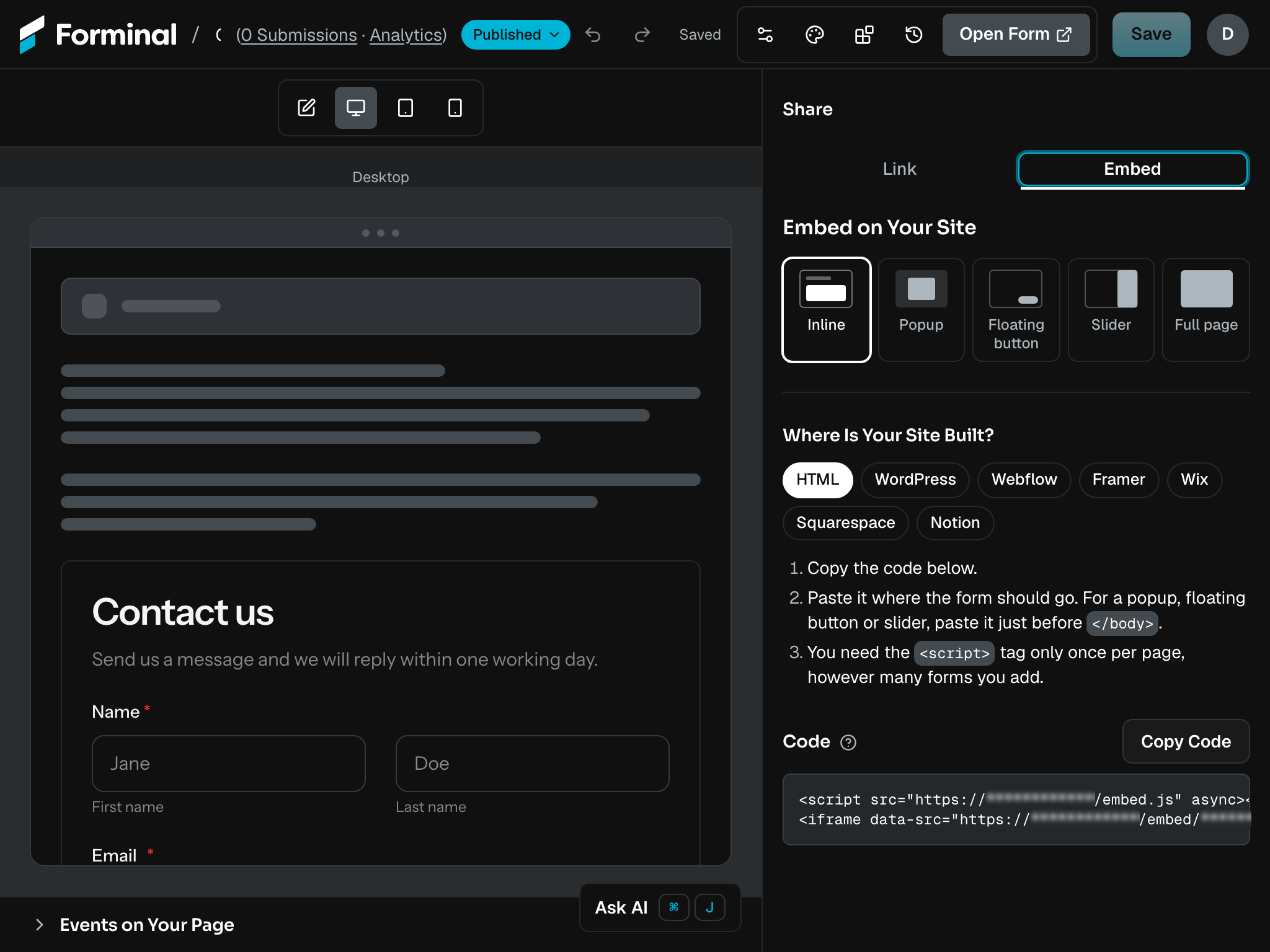
- The badge changes to Published and the Share panel opens, with the form’s embed code on one tab and its link on the other. A Save button takes the place of Publish.
Alguns formulários ainda não podem ser publicados, e verá porquê. Um formulário precisa de pelo menos um campo. Um formulário com um campo de pagamento também precisa de um campo de E-mail, uma fonte de montante com um preço e métodos de pagamento que funcionem com a sua moeda. Se o formulário utilizar funcionalidades que o seu plano não inclui, ele ainda assim publica-se, e um aviso lista o que não aparecerá no formulário ativo.
Editar um formulário publicado
Once a form is published, the builder stops saving as you go, so nobody filling it in sees a half-made change. Your edits wait in the builder, and the top bar reads Unsaved changes. To put them live, select Save in the top bar, or press Cmd+S on a Mac or Ctrl+S elsewhere. Save checks the form by the same rules as Publish: if something would stop it from publishing, the builder says what to fix and the live form stays as it was. The link stays the same.
Each Save keeps the version it replaces in Version History, so you can go back to it later. Publishing saves a version too. A version you restore on a published form also waits as unsaved edits until you select Save. The top bar links to the form’s submissions and analytics, and Share opens the Share panel again.
The assistant in the builder works the same way on a published form: its changes go in as unsaved edits and reach people only when you select Save. For a big change, you can also ask the assistant on your Forms page to duplicate the form and work on the copy.
Sair com edições não guardadas
If you select a link that leaves the builder before you save, a window titled Save Your Changes? asks what to do. Save Changes puts your edits live and then leaves, Discard Changes drops them and leaves, and Cancel keeps you in the builder. If you close or reload the tab instead, your browser shows its own warning, which has no Save option.
Mover um formulário para rascunho
- In the builder, select the Published badge next to the form title.
- Choose Draft.
- In the Move to Draft? window, select Move to Draft.
The window warns: “Your form will go offline. Its link and every embed stop working until you publish it again.” Within 10 minutes of publishing there’s no window, and the form moves straight to draft, because it has had little time to be shared. Unsaved edits are saved into the draft, so you don’t lose them and none of them go live. Submissions stay where they are. To put the form back online, select Publish; the link is the same as before.
Bom saber
As visualizações e outras análises só são contadas num formulário publicado.
Também pode pedir ao assistente na sua página de Formulários para publicar ou despublicar um formulário.
Perguntas frequentes
Preciso de uma conta para publicar um formulário?
Sim. Pode criar um formulário sem conta, mas ao selecionar Publicar pede para iniciar sessão ou criar uma primeiro, e o formulário passa para a sua conta como está.
Um formulário em rascunho pode recolher submissões?
Um rascunho não aceita submissões, e qualquer pessoa que não esteja a trabalhar no formulário recebe uma página a dizer que não pode ser encontrada. A pré-visualização no construtor permite testar o fluxo, mas não guarda nada nem envia e-mails.
Como posso despublicar um formulário?
Select the Published badge next to the form title in the builder, choose Draft and confirm with Move to Draft. The form goes back to being a draft, its link and every embed stop working, and its submissions stay where they are.
Posso editar um formulário publicado sem que as pessoas vejam as alterações imediatamente?
Yes. On a published form your edits wait in the builder until you select Save or press Cmd+S (Ctrl+S elsewhere), so people keep seeing the live version until then.
O que acontece às edições não guardadas se sair do construtor?
Uma janela pergunta se pretende guardá-las, descartá-las ou permanecer no construtor. Fechar ou recarregar o separador mostra o aviso do seu navegador.
Porque não consigo publicar o meu formulário?
Um formulário precisa de pelo menos um campo. Um formulário com um campo de pagamento também precisa de um campo de E-mail, uma fonte de montante com um preço e métodos de pagamento que funcionem com a sua moeda. O construtor indica quais destes estão em falta.
Posso publicar um formulário que utiliza funcionalidades que o meu plano não inclui?
Ainda assim publica, e um aviso lista o que não será exibido no formulário ativo até que atualize.