Colores te permite establecer tú mismo cada color principal del formulario, de modo que coincida con tu marca en lugar de con una predeterminada. Eliges cada color desde un selector de color o escribes su código hexadecimal.
Ejemplos
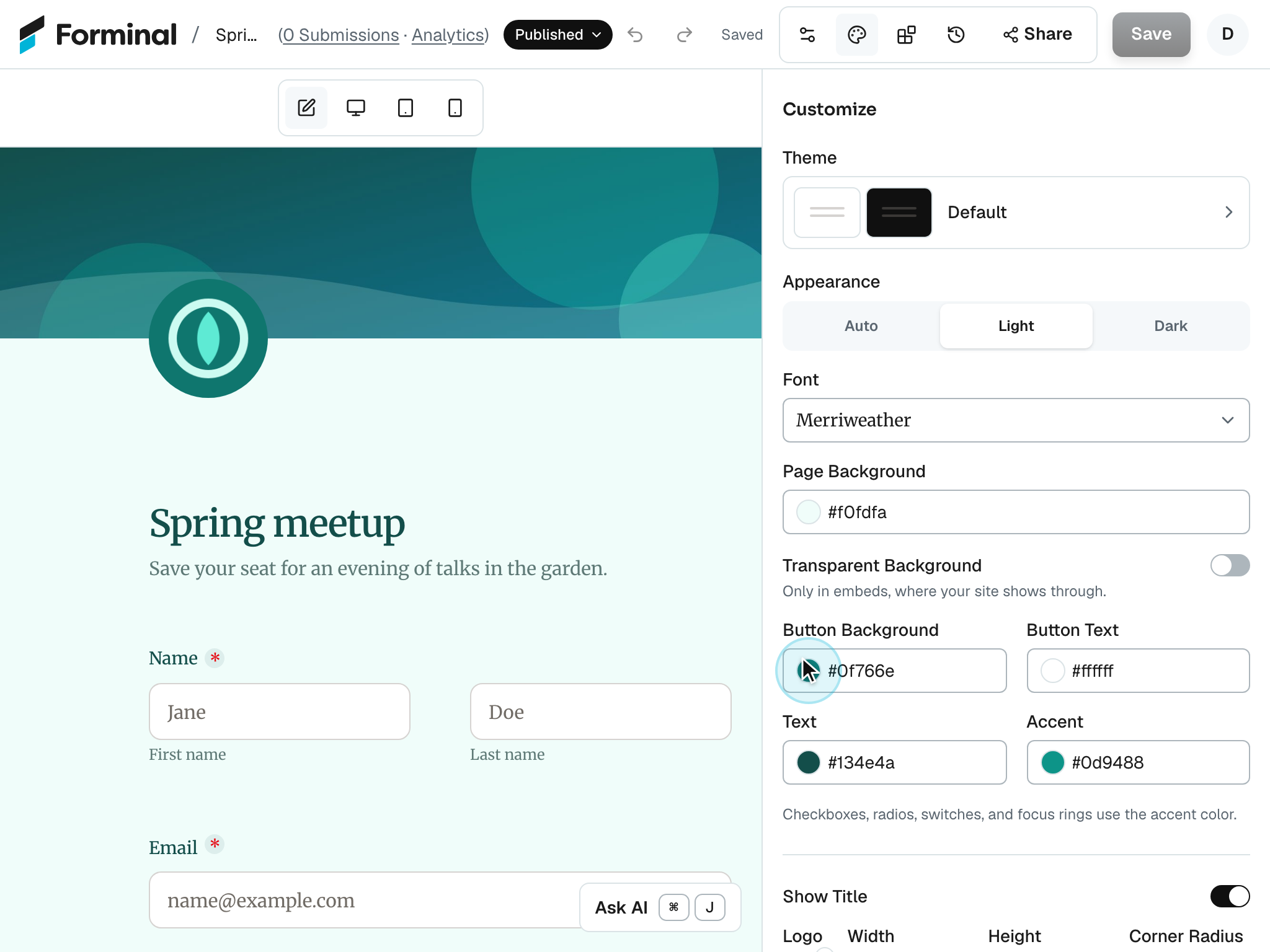
- Haciendo que un botón coincida con el color de tu marca.
- Un fondo transparente para que el formulario se integue en el diseño de tu página.
Cambiar un color
- Open the form in the builder and select Customize in the top bar.
- Under Theme, select the row with your current theme, pick the theme closest to what you want, such as Default or Studio, and select Use Theme on its tile.
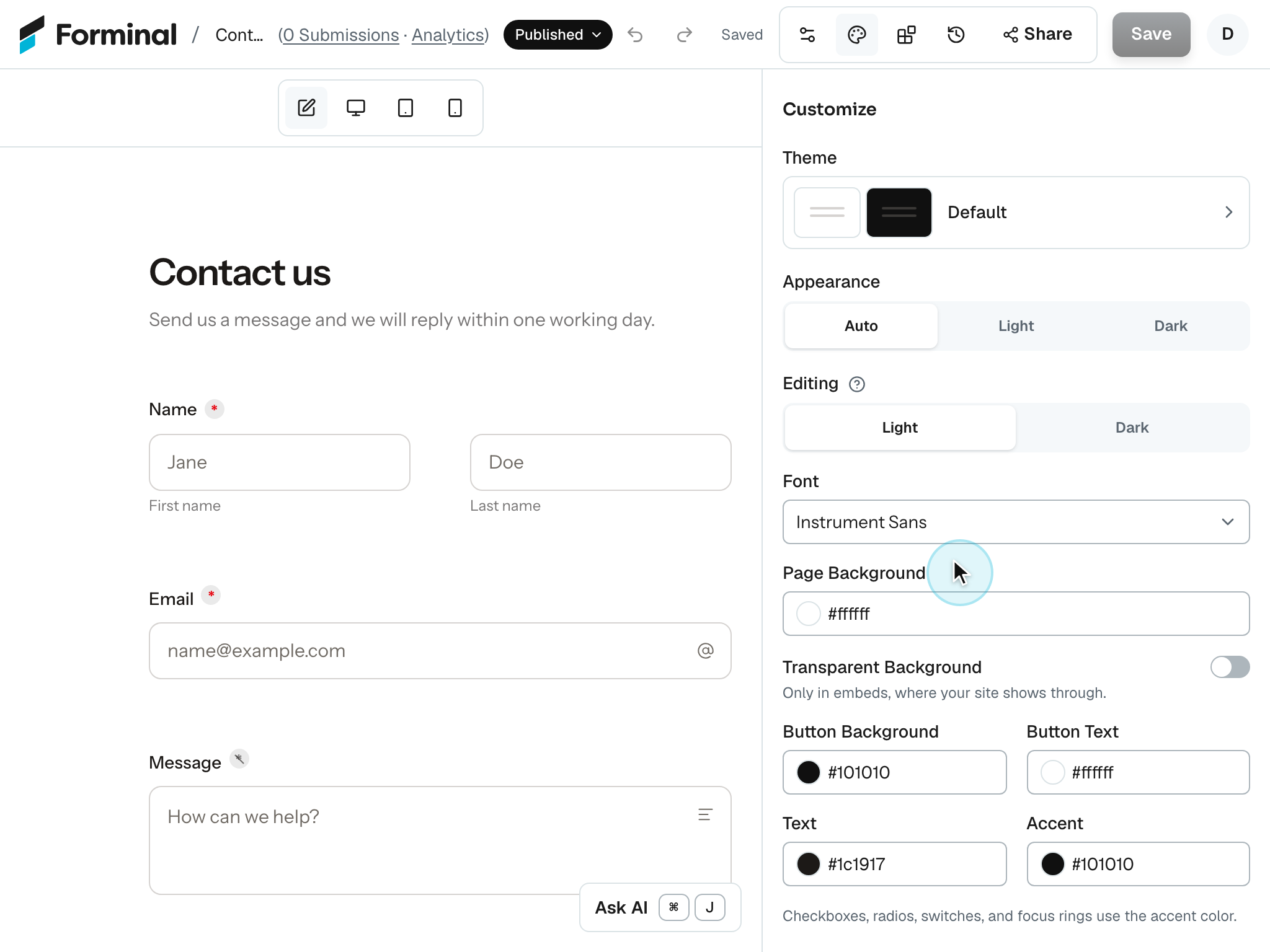
- Selecciona el círculo de color junto a un color para abrir el selector de color, o escribe un código hexadecimal como
#7957ffen el cuadro.
Los colores que puedes establecer
Estos se encuentran en la parte superior del panel Personalizar:
- Page Background fills the form and, on the form’s own link, the whole page around it. When the form sits on a card, the card has its own color and photo, and Page Background colors the page outside it.
- Text colors the title, labels and answers. Help text and captions use a lighter mix of it.
- Button Background and Button Text color the submit button, and the Next and Previous buttons on a form with several pages.
- Accent colors checked checkboxes, radios and switches, the focus ring around the field someone is typing in, and the progress bar.
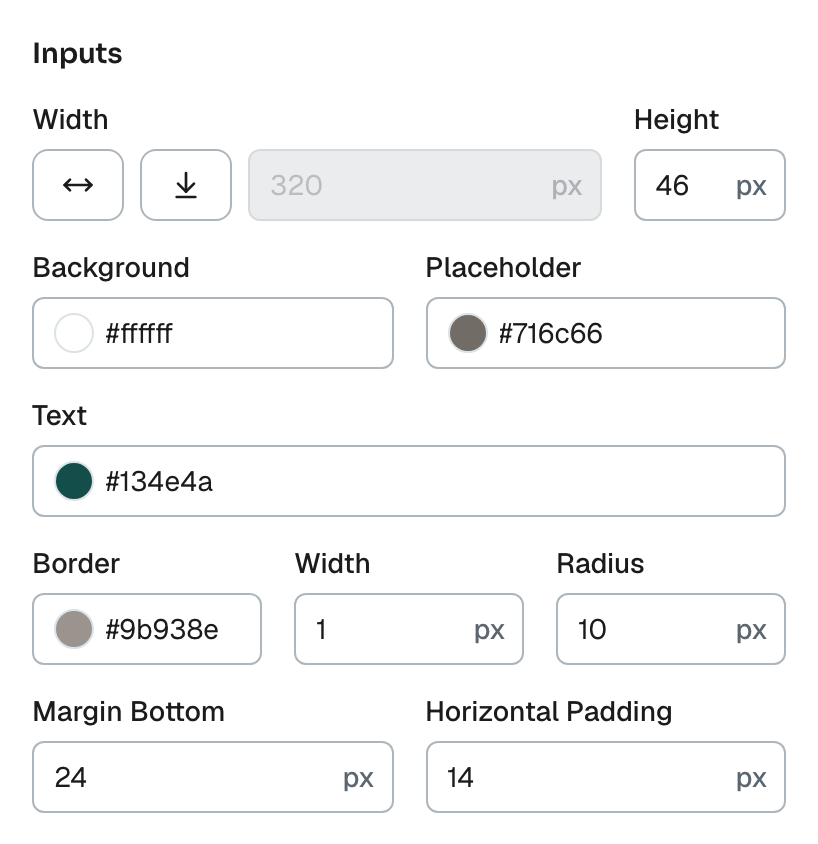
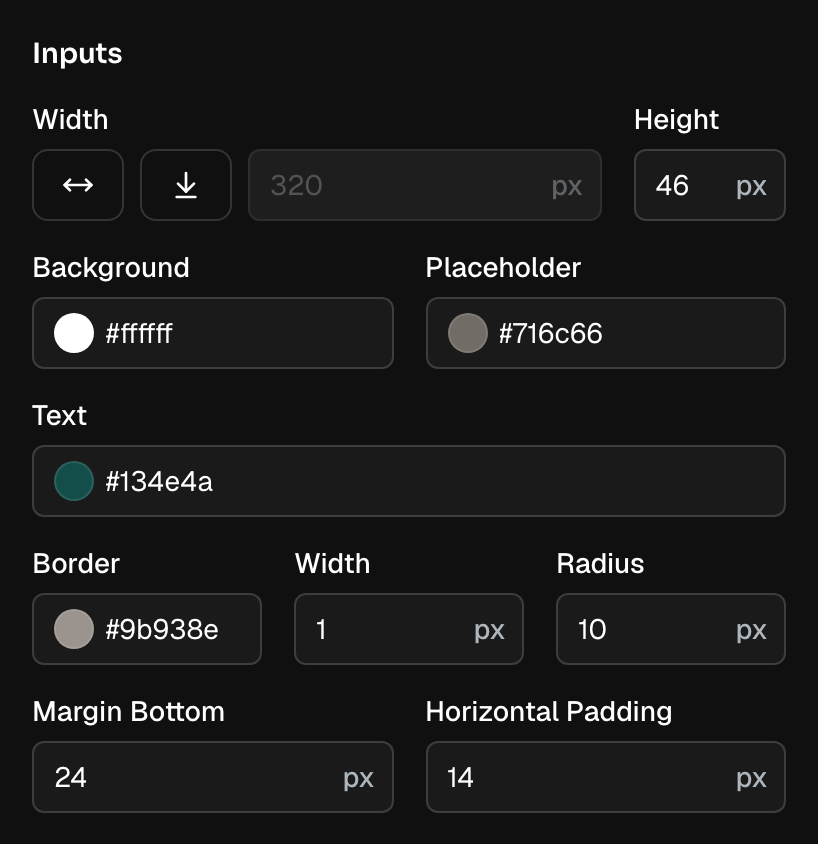
Four more are under Inputs in the Advanced section, and you can change them with the colors above: Background for the inside of each input, Placeholder for the hint text in an empty input, Text for what people type, and Border for the input outline. Text starts as the form’s Text color. Unchecked checkboxes, radios and switches use the input background too.
The Button group under Advanced has a Border color too, with Border Width beside it. The border stays hidden until you set a width above 0. These colors, and the card’s Card Background and Border, work on every plan.
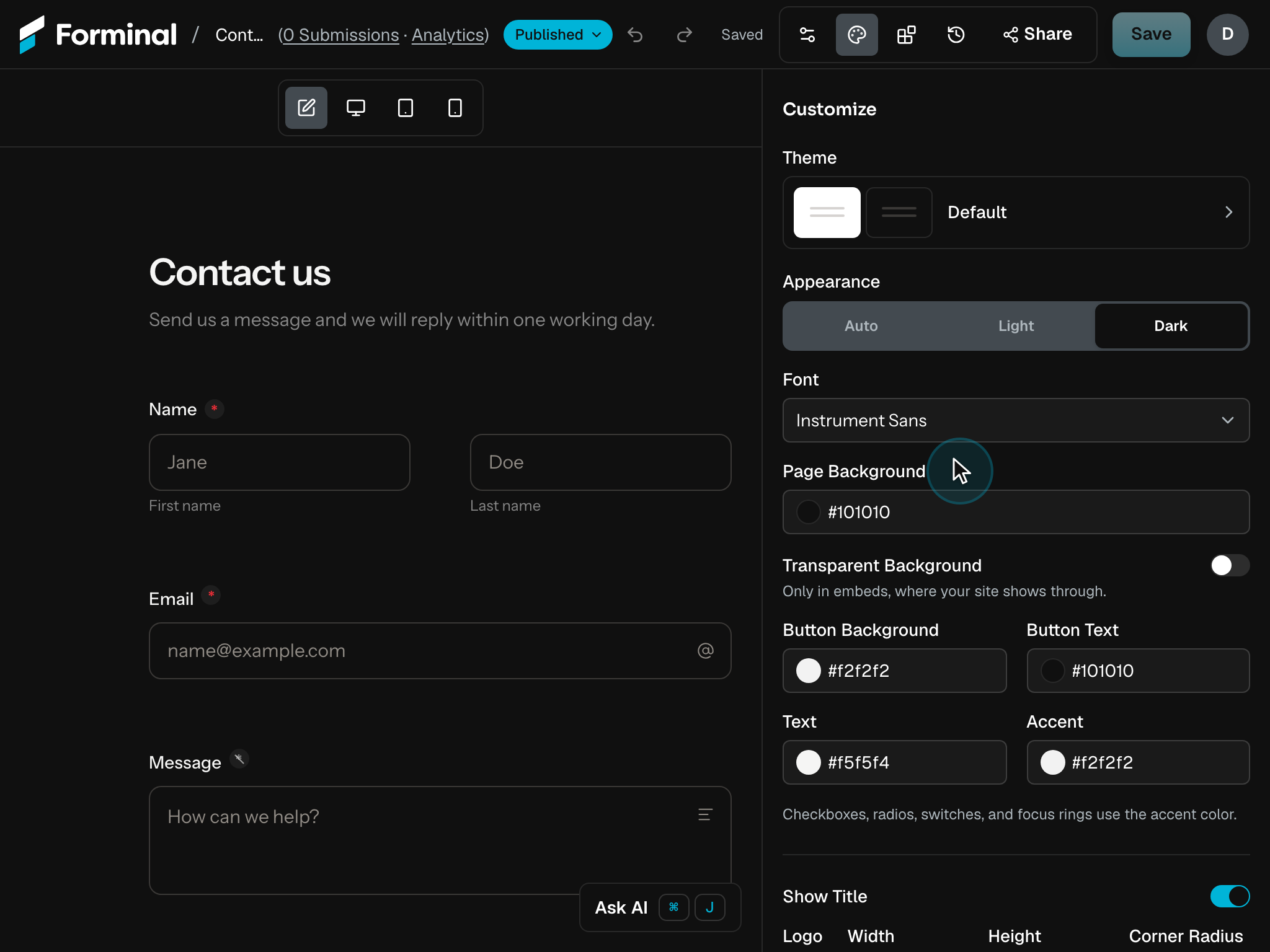
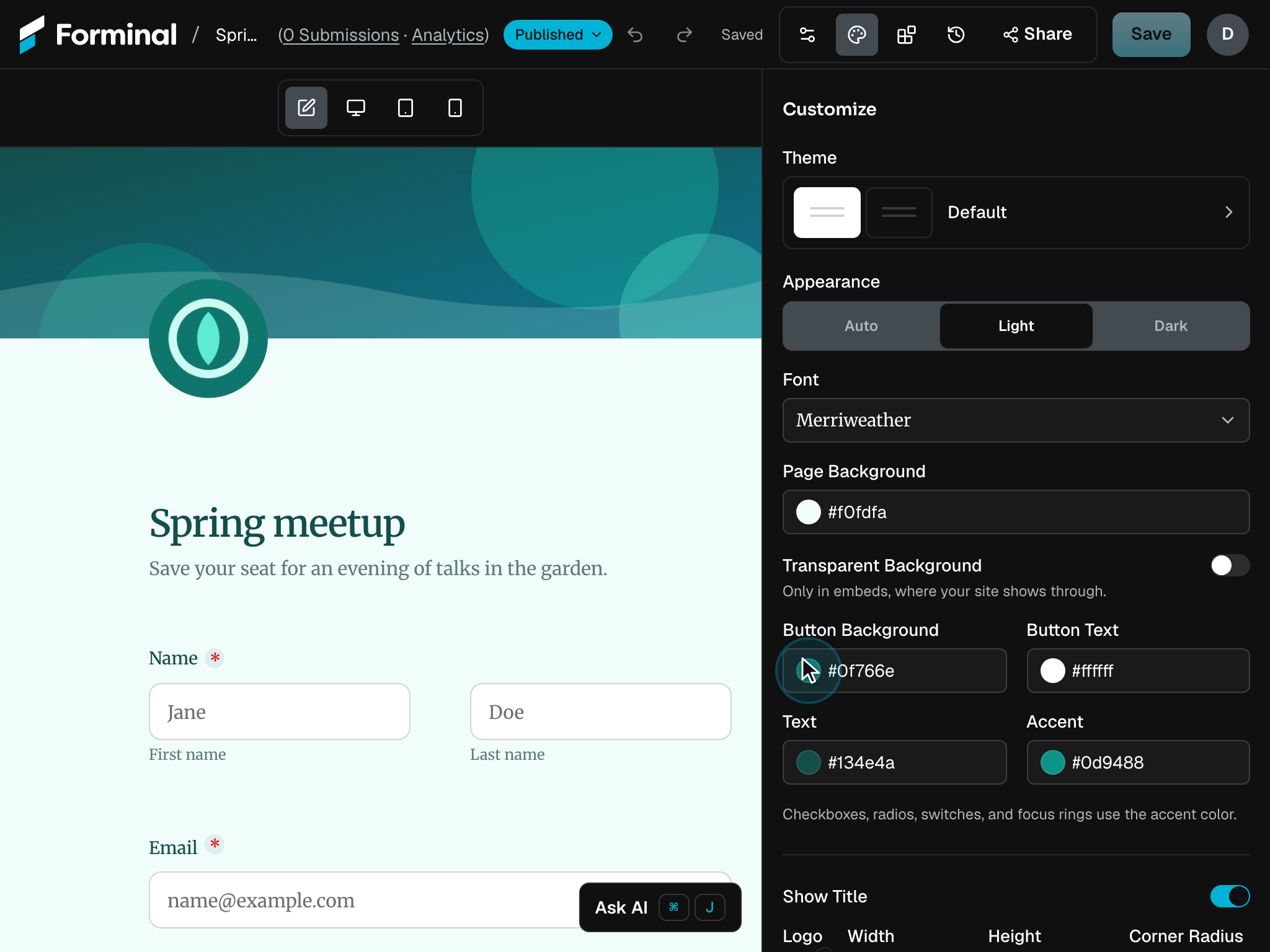
Colores para el aspecto oscuro
Every theme has a light and a dark look, and the form’s Appearance decides which one visitors see. On Auto, set the Editing switch under it to Dark to change the dark look’s colors. Each color you change there applies to the dark look only, and a reset button appears beside it to put back the theme’s own dark color. A color you leave alone follows the theme. On Dark, the colors you see in Customize are the dark look’s.
Colores transparentes
Type an eight-digit hex code to make a color see-through. The last two digits set the opacity, from 00 (fully transparent) to ff (solid). For example, #ffffff00 as the Page Background lets your page show through an embedded form. The color picker keeps a color’s opacity but can’t change it, so type the code to set it.
To clear the background in inline and full-page embeds only, turn on Transparent Background in Customize, right under Page Background. Your page then shows through the form, and the form’s own page and popups keep your Page Background color. A card keeps its own color and photo either way. It works on every plan.
Bueno saber
Un color tiene que ser un código hexadecimal de seis u ocho dígitos. Cualquier otra cosa muestra “Usa un color hexadecimal como #7957ff” y no se guarda. Elegir un tema después reemplaza cada color con el del tema, en ambos aspectos, así que elige el tema primero. Los colores se aplican de la misma manera en el enlace del formulario, en una incrustación en línea, en una ventana emergente y en la vista previa.
Preguntas frecuentes
¿Puedo hacer que el fondo del formulario sea transparente?
Escribe un código hexadecimal de ocho dígitos que termine en 00, como #ffffff00, como Fondo de Página. El selector de color no puede cambiar la opacidad, así que escribe el código. Para borrarlo solo en incrustaciones en línea y de página completa, activa Fondo Transparente en Personalizar. La página y las ventanas emergentes del formulario conservan su color.
¿Puedo usar valores RGB o nombres de colores?
No. Un color tiene que ser un código hexadecimal de seis u ocho dígitos, y cualquier otra cosa muestra un error y no se guarda.
¿Puedo cambiar los colores del borde y del marcador de posición de las entradas?
Encontrarás Fondo, Marcador de posición, Texto y Borde para las entradas en Entradas en la sección Avanzada de Personalizar. Estos colores de entrada se aplican siempre, incluso en un plan sin Estilos Avanzados.
¿Mis colores se ven igual cuando el formulario está incrustado?
Sí. Los colores se aplican de la misma manera en el enlace del formulario, en una incrustación en línea, en una ventana emergente y en la vista previa.
¿Necesito un plan de pago para cambiar los colores?
No, los colores funcionan en todos los planes.