Hojas de cálculo de Google añade cada nueva respuesta como una fila en una hoja de cálculo que elijas. Úsala cuando tu equipo ya trabaje en Hojas de cálculo, o cuando quieras las respuestas en un lugar donde puedas ordenarlas y compartirlas sin abrir la tabla de respuestas.
Ejemplos
- Una hoja compartida de inscripciones a eventos que todo el equipo puede leer, con una fila por persona.
- Una lista de pedidos para una pequeña tienda, donde la columna de Pago muestra si cada pedido ha sido pagado.
Conectar una hoja de cálculo
Primero conecta una cuenta de Google una vez, luego elige una hoja de cálculo para cada formulario.
Conecta tu cuenta de Google
- Open Account menu » Integrations.
- In the Google Sheets box, select Continue with Google.


- Selecciona la cuenta de Google y permite los permisos que Google solicita: tu dirección de correo electrónico y los archivos de Google Drive que usas con Forminal. Vuelves a la página de Integraciones con la cuenta listada.
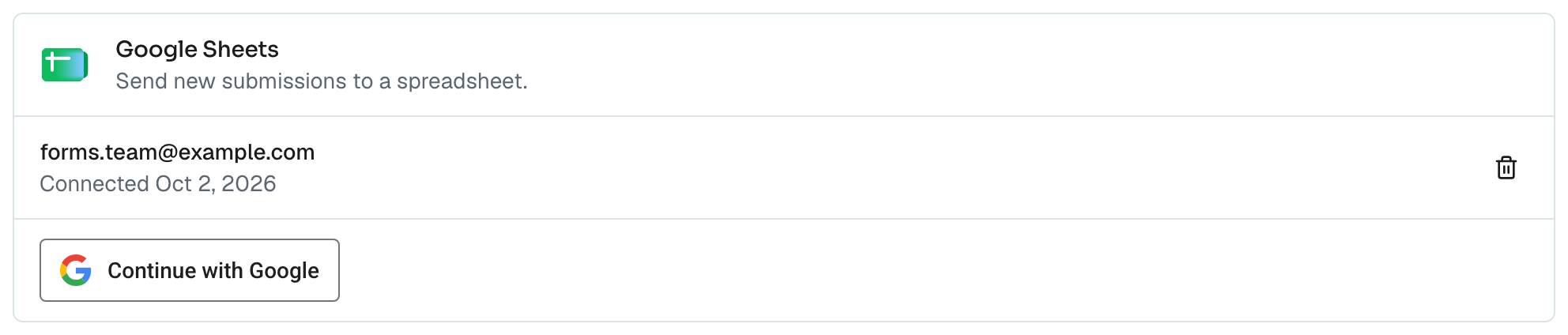
Step 3 happens on Google’s own consent screen. You can connect more than one Google account. Sheets also asks for Google’s most limited Drive permission, because Browse Google Drive lists your spreadsheets through Drive. That permission reaches only the files you pick there and the files Forminal creates. Saving uploaded files to Google Drive is a separate connection. Google permissions explains each permission.
Elegir la hoja de cálculo para un formulario
- Open the form in the builder and select Integrations in the top bar.
- Select Connect next to Google Sheets.
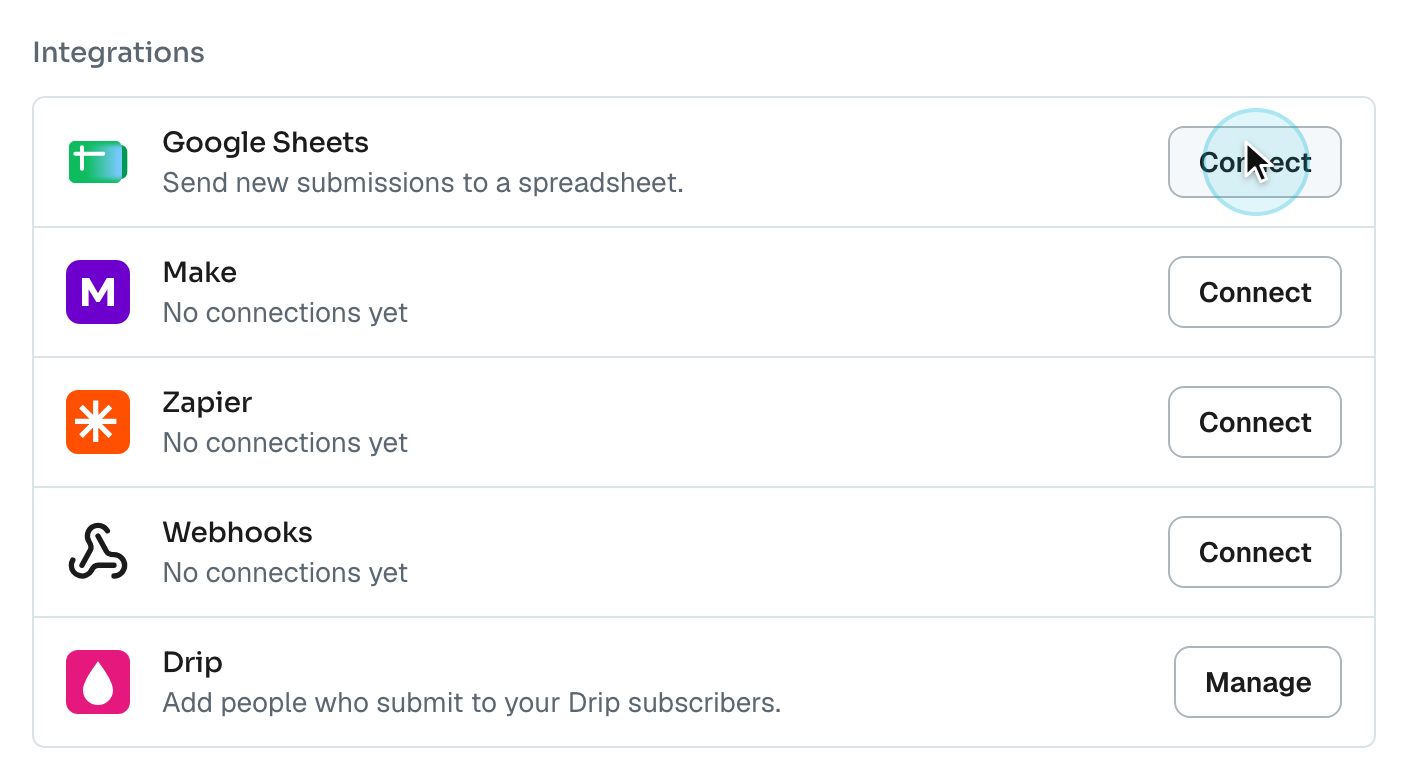
- Check the Connection Name. It starts as the form’s title, and you can change it to anything up to 100 characters.
- Under Google Account, choose the account to write with.
- Under Spreadsheet, choose Create a New Spreadsheet to make one named after the form, or Browse Google Drive to pick one you already have. You need edit access to it.
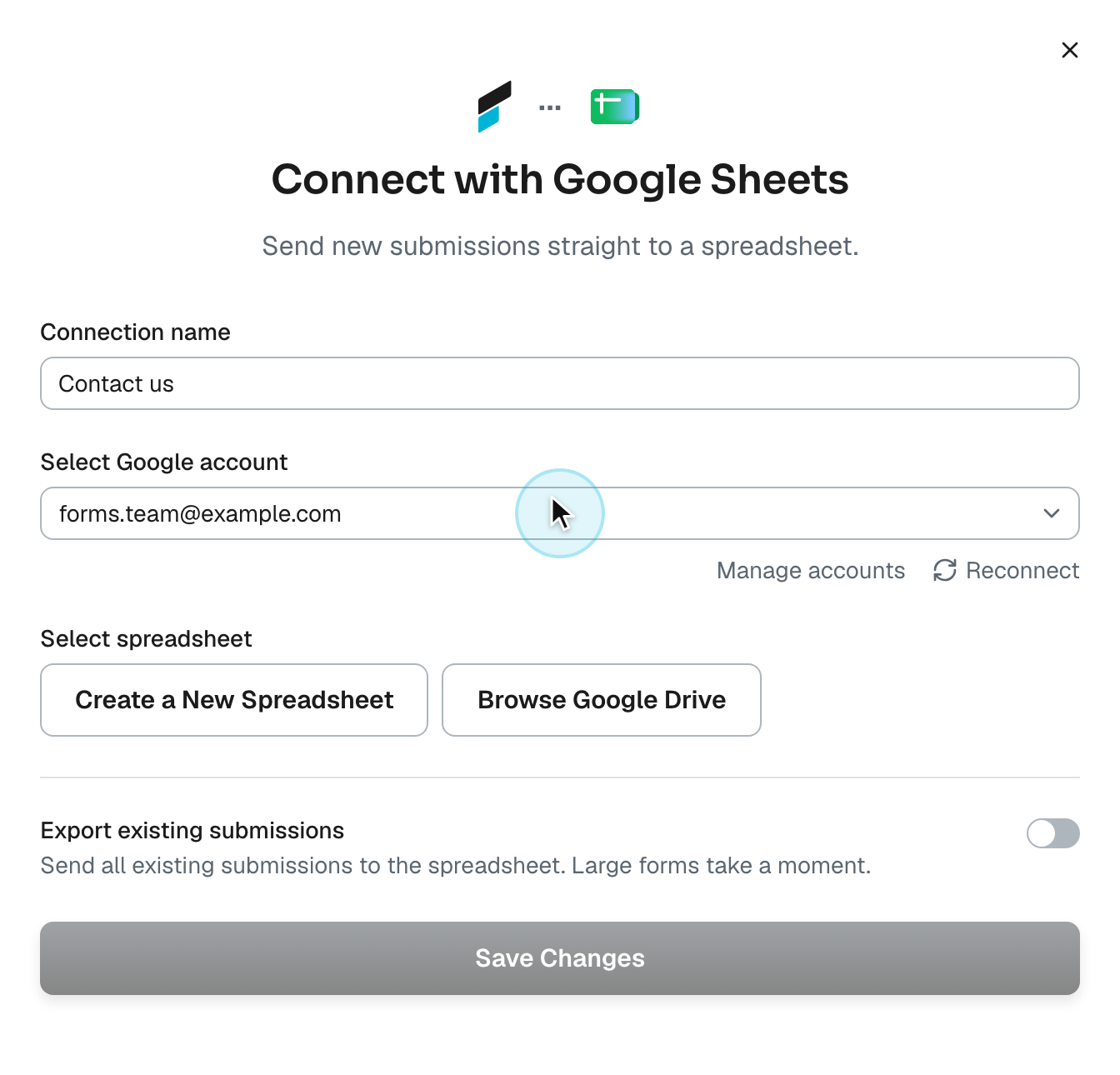
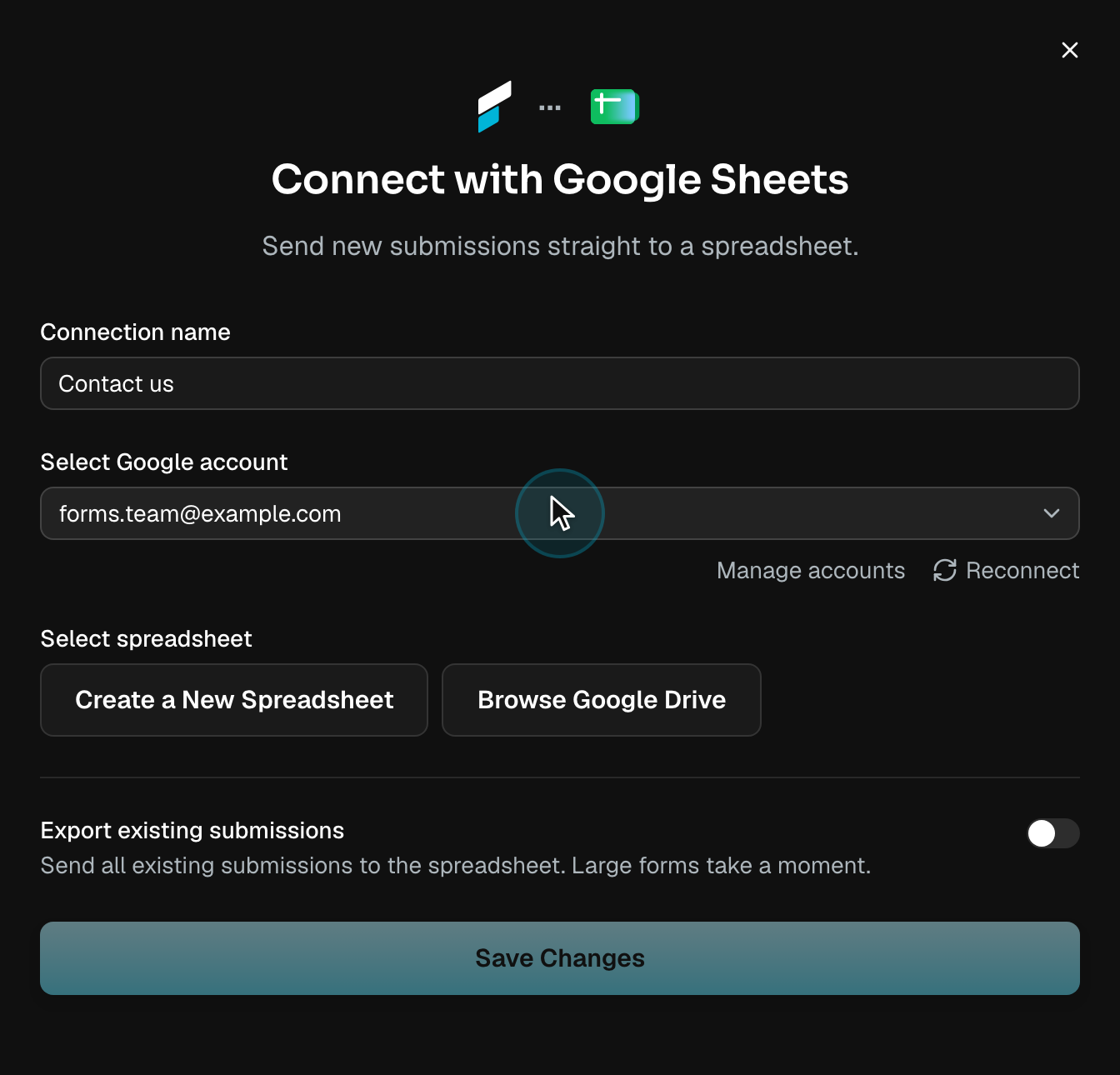
- Under Sheet, pick the tab the rows go to. A tab called Sheet1 is chosen for you when there is one.
- Under Columns, keep Full Submission to give every answer its own column, plus details such as the submission ID and time. To decide which column gets each answer, choose Map Manually instead (see below).
- Turn on Export Existing Submissions to add the submissions the form already has too. Leave it off to send only new ones.
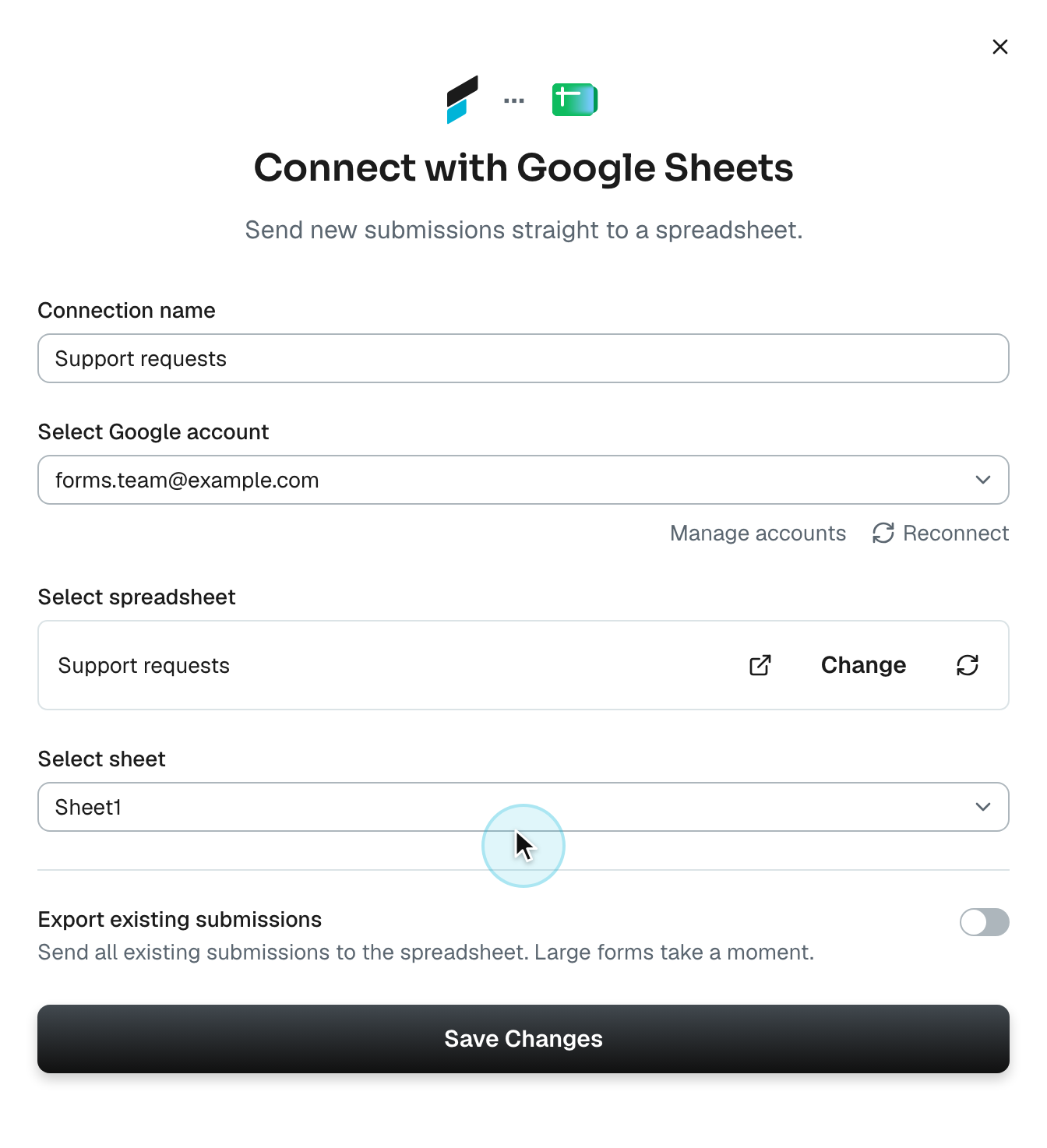
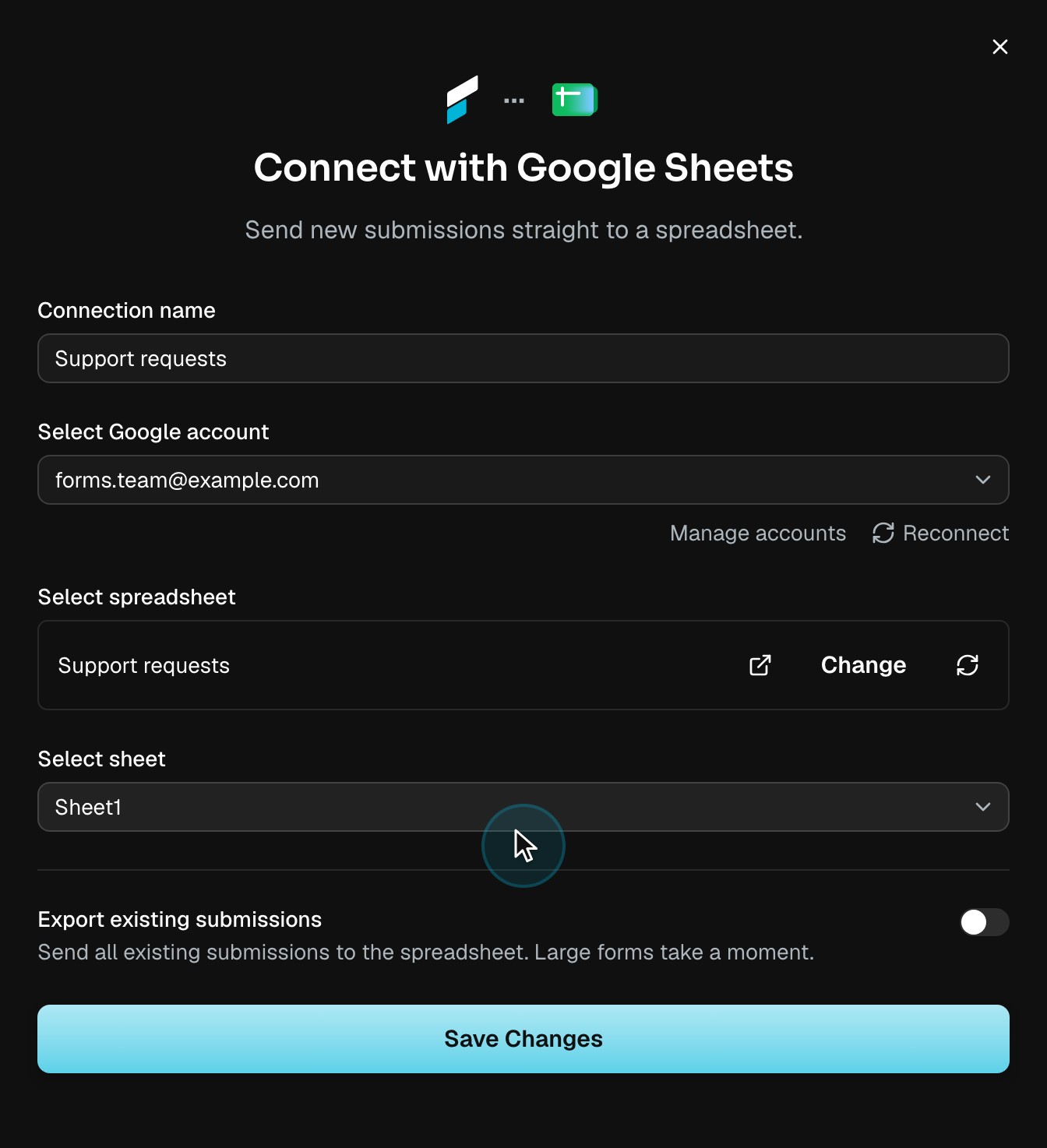
- Select Save Changes.
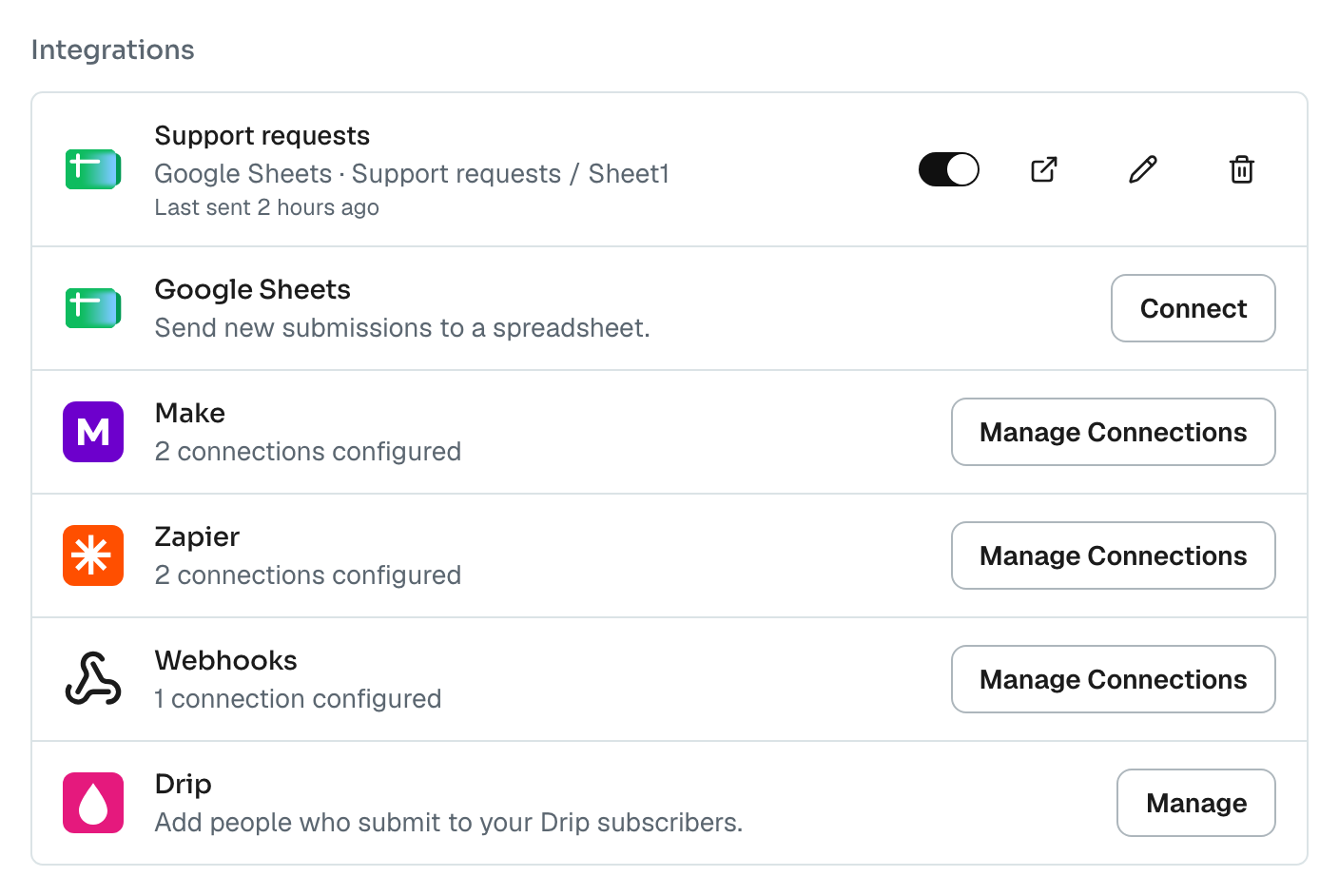
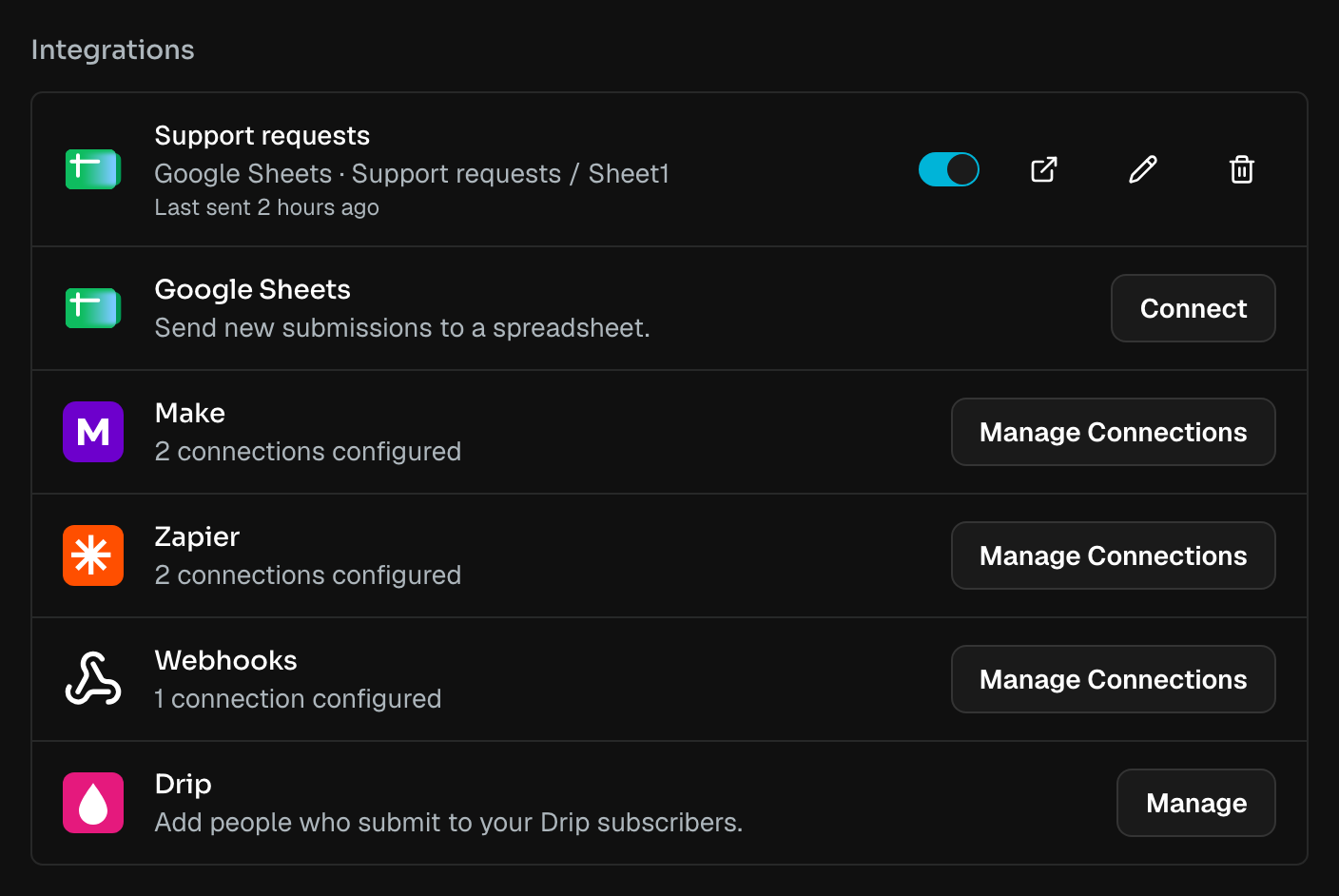
La conexión se muestra entonces en la pestaña de Integraciones con los nombres de la hoja de cálculo y la pestaña. Usa su interruptor para pausarla, el lápiz para editarla, la flecha para abrir la hoja y el cubo de basura para eliminarla. Un formulario puede enviar a más de una hoja de cálculo. Añade otra conexión para cada una.
Qué llega a la hoja
With Full Submission, there’s nothing to map. When you save, the app writes a header in row 1 if that row is empty, and every submission after that becomes one new row under it. The columns come in this order:
- ID de respuesta y Fecha de envío, una fecha y hora en UTC.
- Pago, solo cuando el formulario tiene un campo de Pago, escrito como el estado, importe y divisa, como por ejemplo
pagado 25.00 USD. - Una columna por pregunta, titulada con la etiqueta de la pregunta. Una pregunta sin etiqueta se llama Pregunta 1, Pregunta 2 y así sucesivamente.
- Etiquetas, Página de origen (la página en la que se rellenó el formulario), Navegador, Tiempo de finalización (s) y País, el nombre en inglés del País del encuestado, luego UTM Source, UTM Medium, UTM Campaign, UTM Term y UTM Content de Seguimiento UTM. Una hoja conectada antes de que se añadieran las columnas de País o UTM mantiene sus columnas hasta que la conectas de nuevo.
Las respuestas se escriben como texto legible: opciones por su etiqueta, varias opciones separadas por comas, una casilla de verificación como Sí o No, fechas en el formato que usa el campo y una calificación como la puntuación sobre el total de la escala, como "4 / 5". Las celdas de Carga de Archivos y Firma contienen el enlace al archivo, en su Google Drive o su biblioteca de medios. Los bloques de contenido y las saltos de página no obtienen columna.
Elige tus propias columnas
Choose Map Manually under Columns to fit the form to a sheet you already use. The app reads row 1 of the tab and shows one row for each column it writes to. In each row, pick the sheet column, listed by its header and letter, such as Email (B), or as Column B when the header cell is empty. Then pick what it gets: a question, one part of a name or address, or a detail such as Submitted at, Tags or Country. The column list runs from A to Z, or further when row 1 or your rows go past Z, and leaves out columns another row already uses.
A column whose header matches the label of a question or a detail such as Country or Tags, ignoring upper and lower case, starts mapped to it, and an empty sheet starts with every column in the order above. Select Add Column for another row, up to 100 columns. It takes the first free column and a question that isn’t mapped yet. A column with no row is never written to, so to keep one for your own notes, leave it out or select the bin at the end of its row. When you open the connection again, the rows are listed from A to Z.
When you save, the app writes a question’s label only into the empty header cells of the columns you mapped, so headings you typed stay as they are. At least one column has to be mapped. A question you add to the form later isn’t sent until you give it a row, and a column whose question you removed shows Removed field until you change it. If you change the tabs or row 1 in Google Sheets while the page is open, select the refresh button at the end of the Sheet label to reload the tabs, or the one at the end of the Columns label to read row 1 again. Every connection starts on Full Submission.
Cuándo se envían las filas
Se agrega una fila justo después de que alguien envía el formulario. Cuando el formulario envía sus archivos a Google Drive, van allí primero para que la fila pueda contener sus enlaces. En un formulario con un campo de pago, la fila espera hasta que se pague. Los envíos marcados como spam nunca se envían.
Cada conexión tiene una línea de estado en la pestaña Integraciones: Aún no enviado, Último envío hace cuánto tiempo, o “No se pudo enviar el último envío” con el motivo, como Hoja de cálculo no encontrada, Sin permiso para editar la hoja de cálculo o Límite de Google alcanzado. Si renombra la pestaña en Google Sheets, la aplicación la encuentra de nuevo y sigue escribiendo en ella.
Si una fila falla
The app tries once more straight away if Google says it’s busy. If the sheet is missing, the app has lost permission or Google access needs reconnecting, it keeps trying for about 18 hours, so fixing the cause in that time lets the row through on its own. If Google had a server problem, didn’t answer within a minute, or the connection dropped mid-write, the row may already be in the sheet, so it isn’t tried again, and the status line ends with “Check the sheet before adding the row by hand.” If Google access is revoked, the connection shows Reconnect Google account. Select it, or use Reconnect under the account list on the edit page.
Agrega los envíos que ya tienes
Turn on Export Existing Submissions when you set up or edit a connection, then select Save Changes. The note under the switch says how many submissions it will add. Right after the save, the app adds one row per submission, oldest first, in the same columns as new rows, and tells you how many it exported.
Envía lo que la conexión habría enviado en ese momento: envíos completos que no son spam, y en un formulario de pago solo aquellos cuyo pago se completó. Ejecutarlo de nuevo añade todas las filas de nuevo, así que úsalo en una hoja que aún no tenga esas filas. Si Google lo detiene a mitad de camino, el mensaje dice hasta dónde llegó, como "Escribió 500 de 1.200 filas antes de detenerse. Ejecutarlo de nuevo las añade de nuevo". El interruptor está desactivado cada vez que abres la conexión y bloqueado mientras la conexión está en pausa, y una conexión puede iniciar una exportación por minuto.
Desconectar
To stop one form, select the bin next to its connection and confirm with Delete. New submissions stop going to the spreadsheet, and nothing in the spreadsheet is removed. To remove a Google account everywhere, open Account menu » Integrations and select the bin next to it. If forms use that account, the dialog lists them and asks you to type the email address before Delete Account works, and all their Sheets connections are removed.
Bueno saber
With Full Submission, the columns are fixed when you save the connection. If you add, remove or rename questions later, open the connection with the pencil and select Save Changes again. The header is rewritten only if row 1 still holds the header the app wrote, so a header you edited by hand is left alone. If row 1 already has your own content when you connect, no header is written and rows are added below it. Rows are always added at the bottom, and deleting or tagging a submission later doesn’t change its row.
If Browse Google Drive says “Reconnect this Google account to browse Google Drive”, the account was connected without the Drive permission. Its connections keep adding rows. To browse again, select Reconnect under Google Account, pick the same Google account and allow the permissions Google asks for. If the Drive permission is left out, the page says “Google access was not granted.” and the account stays as it was.
Preguntas frecuentes
¿Necesito un plan de pago para Google Sheets?
La integración con Google Sheets funciona en todos los planes, incluido Lite.
¿Se actualizará la hoja cuando agregue o renombre preguntas?
Por sí sola no. Las columnas se fijan al guardar la conexión, así que ábrela con el lápiz y selecciona Guardar cambios de nuevo después de cambiar las preguntas. Con Mapear manualmente, añade una fila para la nueva pregunta antes de guardar.
¿Puedo enviar envíos que ya tengo a la hoja?
Sí. Activa Exportar envíos existentes al configurar o editar la conexión y guarda. Añade cada envío completo que no sea spam, empezando por el más antiguo, así que si la ejecutas en una hoja que ya tiene esas filas, las añade de nuevo.
¿Eliminar un envío quita su fila de la hoja?
Las filas solo se añaden, por lo que eliminar o etiquetar un envío más tarde no cambia su fila.
¿Puede un formulario enviar a más de una hoja de cálculo?
Sí. Añade una conexión separada para cada hoja de cálculo en la pestaña Integraciones del formulario.
¿Conectar Google Sheets da a Forminal acceso a mis archivos de Google Drive?
Solo a los archivos que eliges con Explorar Google Drive y a los archivos que crea Forminal. Sheets solicita el permiso más limitado de Drive de Google y nada más amplio, que no puede acceder a ninguna otra hoja de cálculo ni archivo. Guardar los archivos subidos en Google Drive es una conexión separada.
¿Por qué Explorar Google Drive me pide que me vuelva a conectar?
La cuenta de Google se conectó sin el permiso de Drive que necesita Explorar Google Drive. Selecciona Volver a conectar en Cuenta de Google y concede los permisos que Google solicita. Hasta entonces, sus conexiones siguen añadiendo filas.
¿Puedo elegir a qué columna va cada respuesta?
Sí. Elige Mapear manualmente en Columnas en la conexión, luego añade una fila para cada columna de la hoja y elige la pregunta o el detalle que recibe. Una columna sin fila se deja intacta, se conserva el texto de tu propia cabecera y solo las celdas de cabecera vacías reciben una etiqueta.