Dropdown keeps a long list of options out of the way until someone opens it. It takes one answer, or several if you turn on Allow Multiple.
Exemplos
- A escolher um departamento de uma longa lista.
- Choosing add-ons for an order with Allow Multiple on, each add-on priced and added to the payment.
Adicione-o a um formulário
- In the builder, point between two fields and select Add Field. On an empty form, select Start from Scratch.
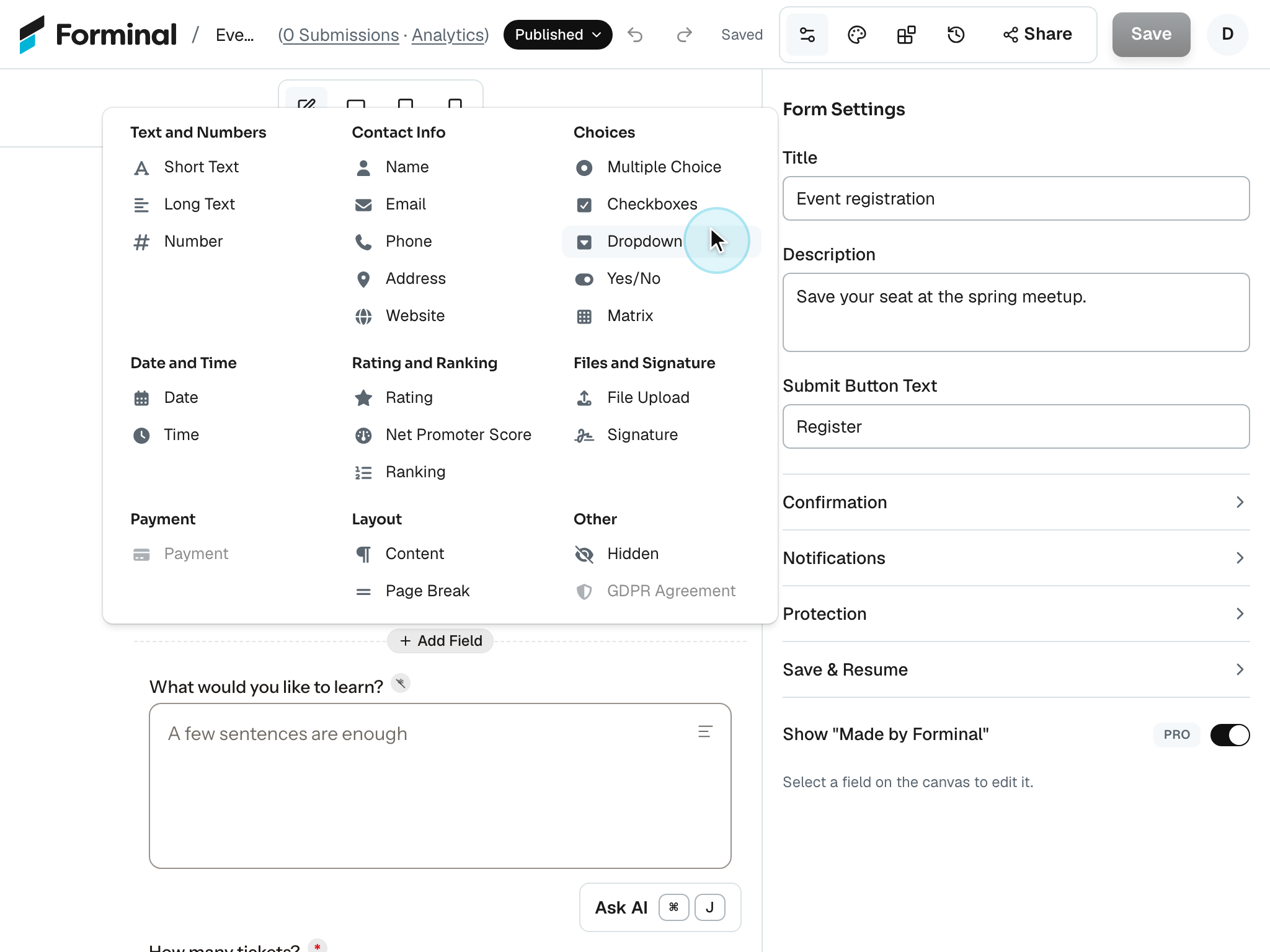
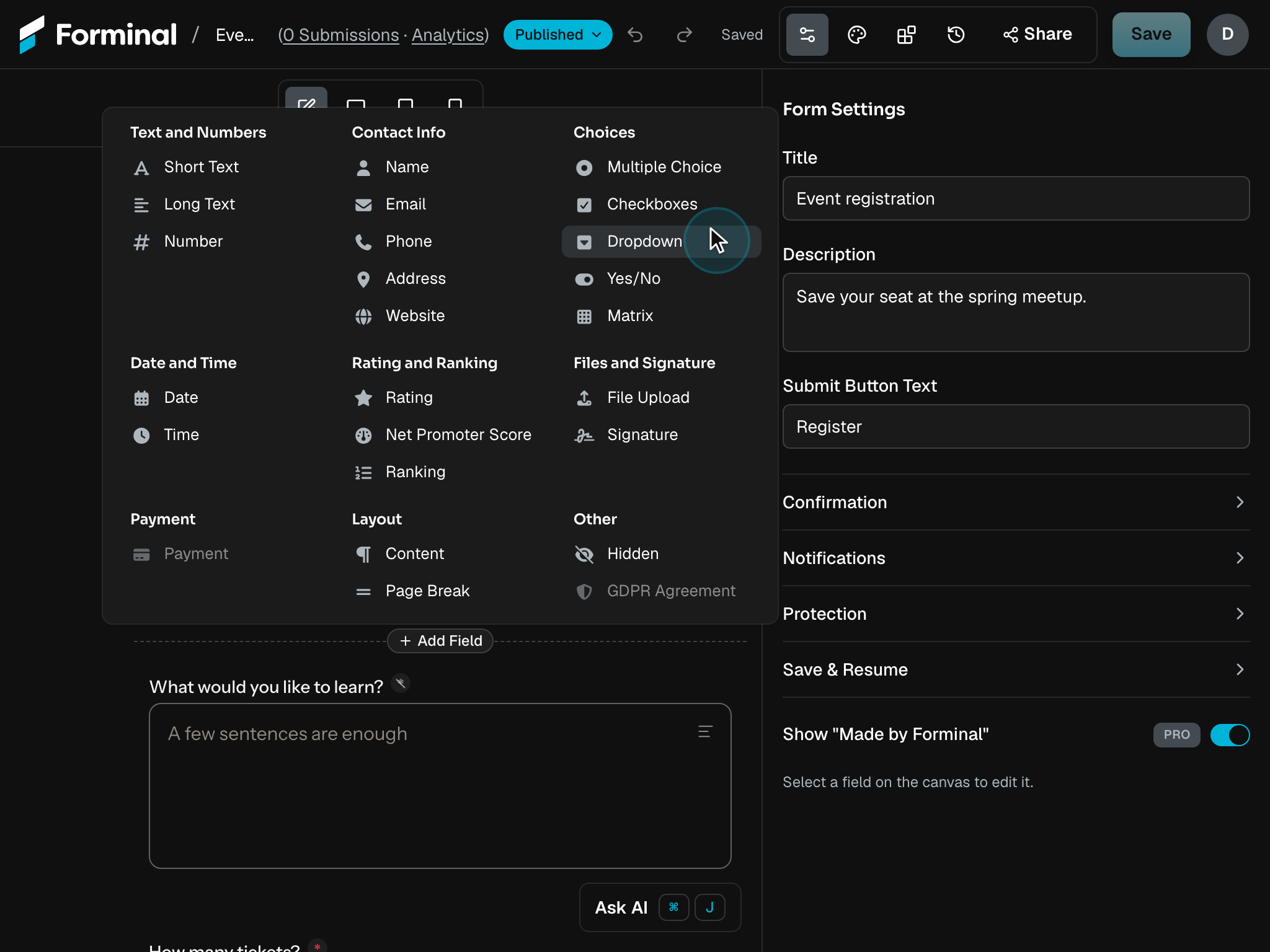
- Under Choices, select Dropdown.
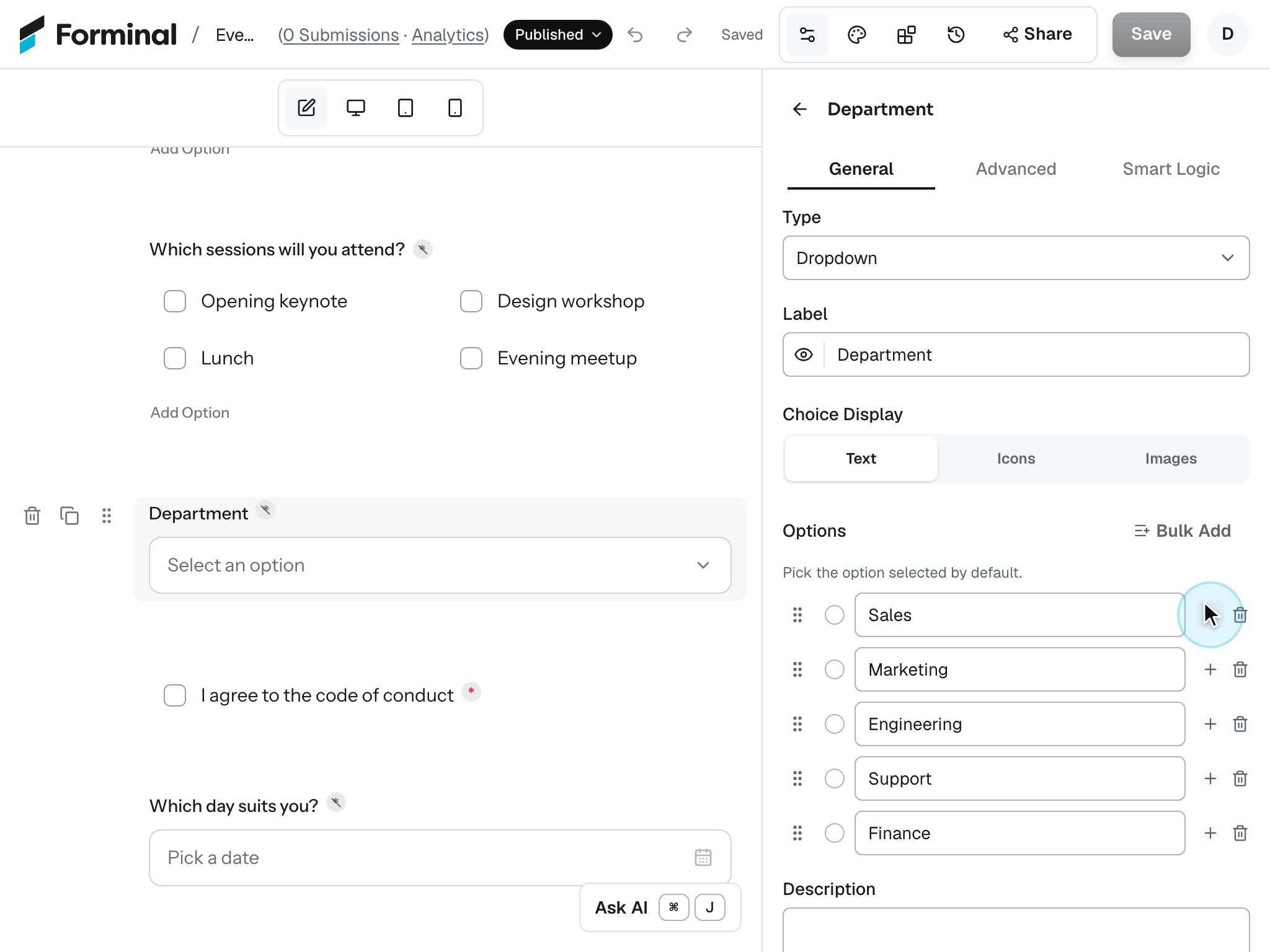
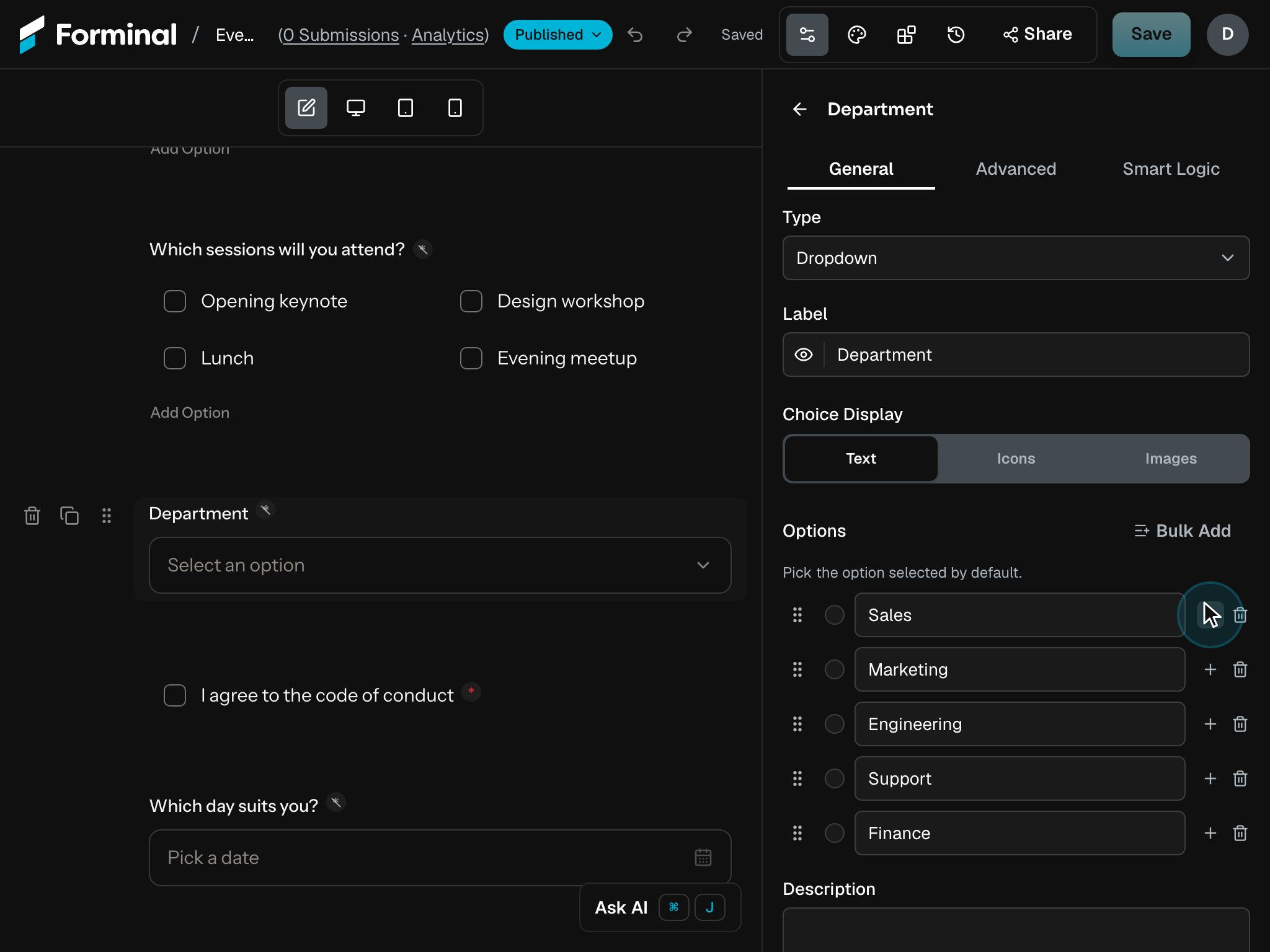
- The field starts with the label “Choose one” and the options Choice 1 to Choice 3. Edit them under Options on the General tab. Select the small + at the end of a row to add an option right after it, or delete one with the bin icon.
- To preselect an answer, pick it in the Options list or in the dropdown on the canvas.
- Turn on Required if an answer is needed.
Configurações
On the General tab, you can add many options at once: select Bulk Add above the list, type one option per line and select Add Choices. Lines that match an option already in the list are skipped, and a field that still has its starting Choice 1 to Choice 3 gets the new list in their place. Show Presets fills the box with a ready list, such as Countries, U.S. States, Months or a five-point agreement scale.
The rest are on the Advanced tab.
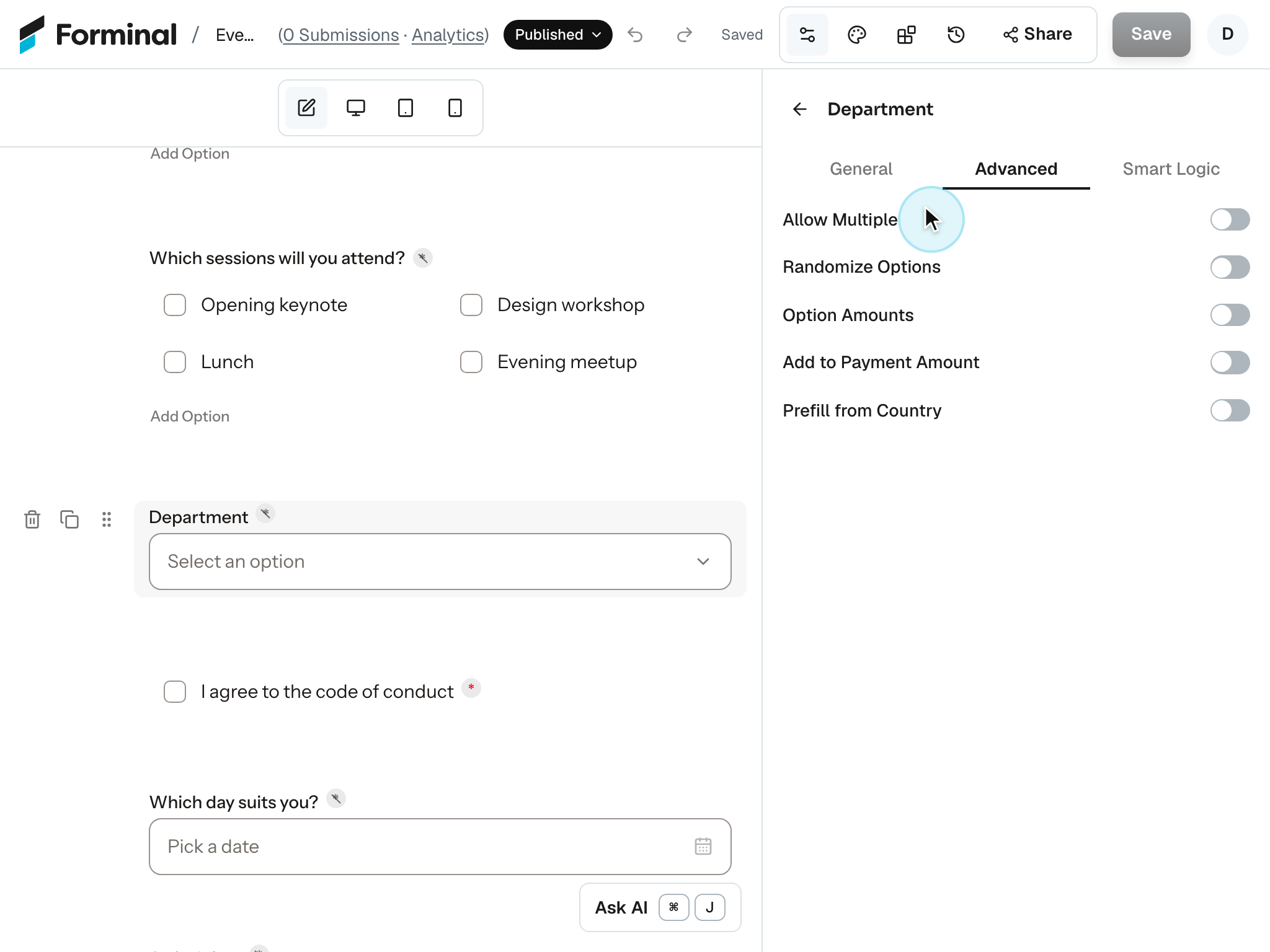
- Allow Multiple: lets people tick several options in the list. You can then preselect several too.
- Randomize Options: shuffles the list each time someone opens the form. The canvas keeps your order.
- Option Amounts: gives each option an amount, with a price box next to each option in the Options list (the dropdown on the canvas stays closed). A calculation can read those amounts. Switching it off clears them.
- Add to Payment Amount: appears when the form has a Payment field. It adds the price of whatever is picked to the total. While the payment charges the field, the price boxes stay on and Option Amounts can’t be switched off. Show Price After Item Labels then shows the price in the list, like “Gift wrap – $5.00”. Prices use the Payment field.
O que as pessoas veem e como as respostas aparecem
A closed dropdown reads “Select an option” until something is picked. With Allow Multiple on, it reads “Select options”, opens a list with a checkbox per option, and shows the picks separated by commas once chosen. A required dropdown left empty shows “Choose one of the options”, or “Choose at least one option” with Allow Multiple on.
The submissions table, the CSV export and notification emails show the option labels, with several picks joined by commas. In Smart Logic, a dropdown answer can be checked with is, is not, empty and not empty. With Allow Multiple on, “is” matches when that option is among the picks.
Bom saber
The “Select an option” text can’t be changed, since dropdowns have no placeholder setting. Option labels can be up to 200 characters. Switching to Multiple Choice, Checkboxes or Ranking from the Type menu keeps your options. Renaming an option updates how earlier answers read; deleting one leaves earlier answers without a readable label. Under Choice Display, pick Icons or Images to show a picture with each option; see Icon and Image Choices.
Perguntas frequentes
As pessoas podem escolher mais de uma opção de um menu suspenso?
Ative Múltiplas seleções no separador Avançadas. A lista mostra então uma caixa de seleção para cada opção, e as escolhas aparecem separadas por vírgulas.
Posso alterar o texto Selecione uma opção?
Não. As listas suspensas não têm uma definição de marcador de posição, pelo que esse texto permanece como está.
Posso pré-selecionar uma resposta numa lista suspensa?
Escolha a opção na lista Opções ou na lista suspensa na tela. Com Múltiplas Permitidas ativado, pode pré-selecionar várias.
As opções de lista suspensa podem ter preços?
Ative Valores de Opção para dar um preço a cada opção. Num formulário com um campo de Pagamento, Adicionar ao Valor do Pagamento adiciona o que for escolhido ao total, e Mostrar Preço Após Rótulos de Item mostra o preço na lista.
Como funciona a Lógica Inteligente com uma lista suspensa de seleção múltipla?
Com Múltiplas Permitidas ativado, uma regra com “é” corresponde quando essa opção está entre as escolhas. Também pode verificar não é, vazio e não vazio.