Dropdown keeps a long list of options out of the way until someone opens it. It takes one answer, or several if you turn on Allow Multiple.
Beispiele
- Auswahl einer Abteilung aus einer langen Liste.
- Choosing add-ons for an order with Allow Multiple on, each add-on priced and added to the payment.
Zu einem Formular hinzufügen
- In the builder, point between two fields and select Add Field. On an empty form, select Start from Scratch.
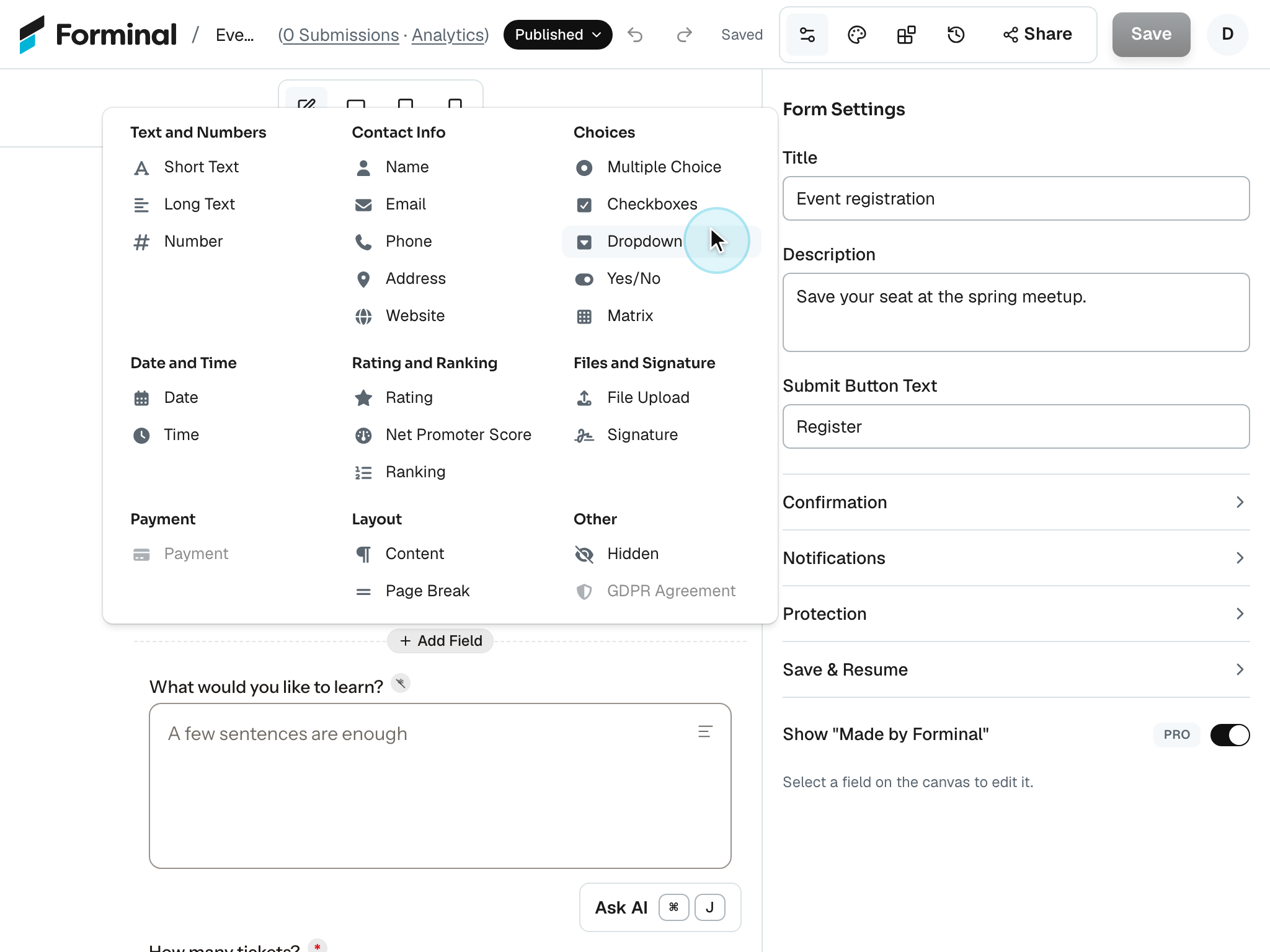
- Under Choices, select Dropdown.
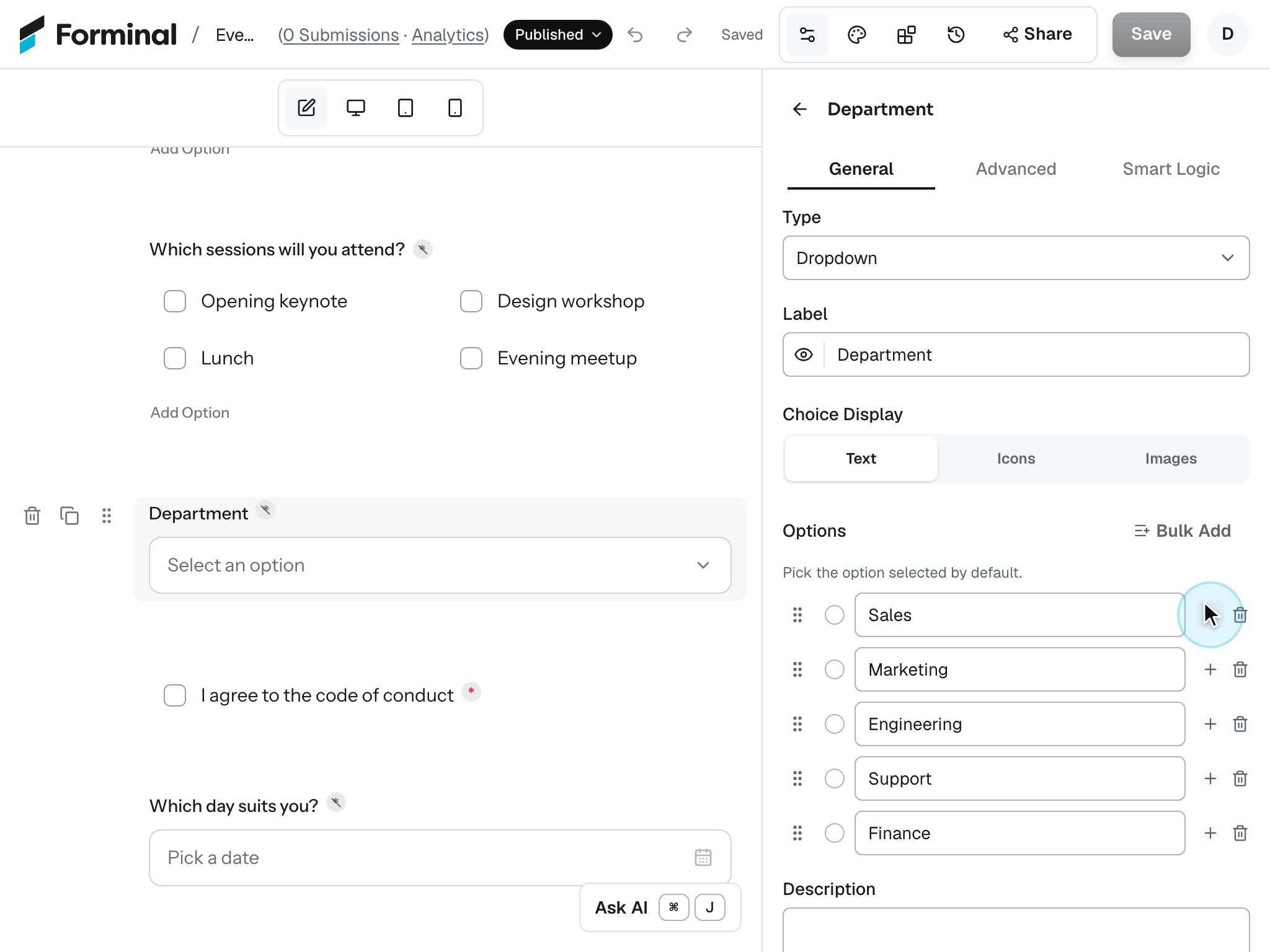
- The field starts with the label “Choose one” and the options Choice 1 to Choice 3. Edit them under Options on the General tab. Select the small + at the end of a row to add an option right after it, or delete one with the bin icon.
- To preselect an answer, pick it in the Options list or in the dropdown on the canvas.
- Turn on Required if an answer is needed.
Einstellungen
On the General tab, you can add many options at once: select Bulk Add above the list, type one option per line and select Add Choices. Lines that match an option already in the list are skipped, and a field that still has its starting Choice 1 to Choice 3 gets the new list in their place. Show Presets fills the box with a ready list, such as Countries, U.S. States, Months or a five-point agreement scale.
The rest are on the Advanced tab.
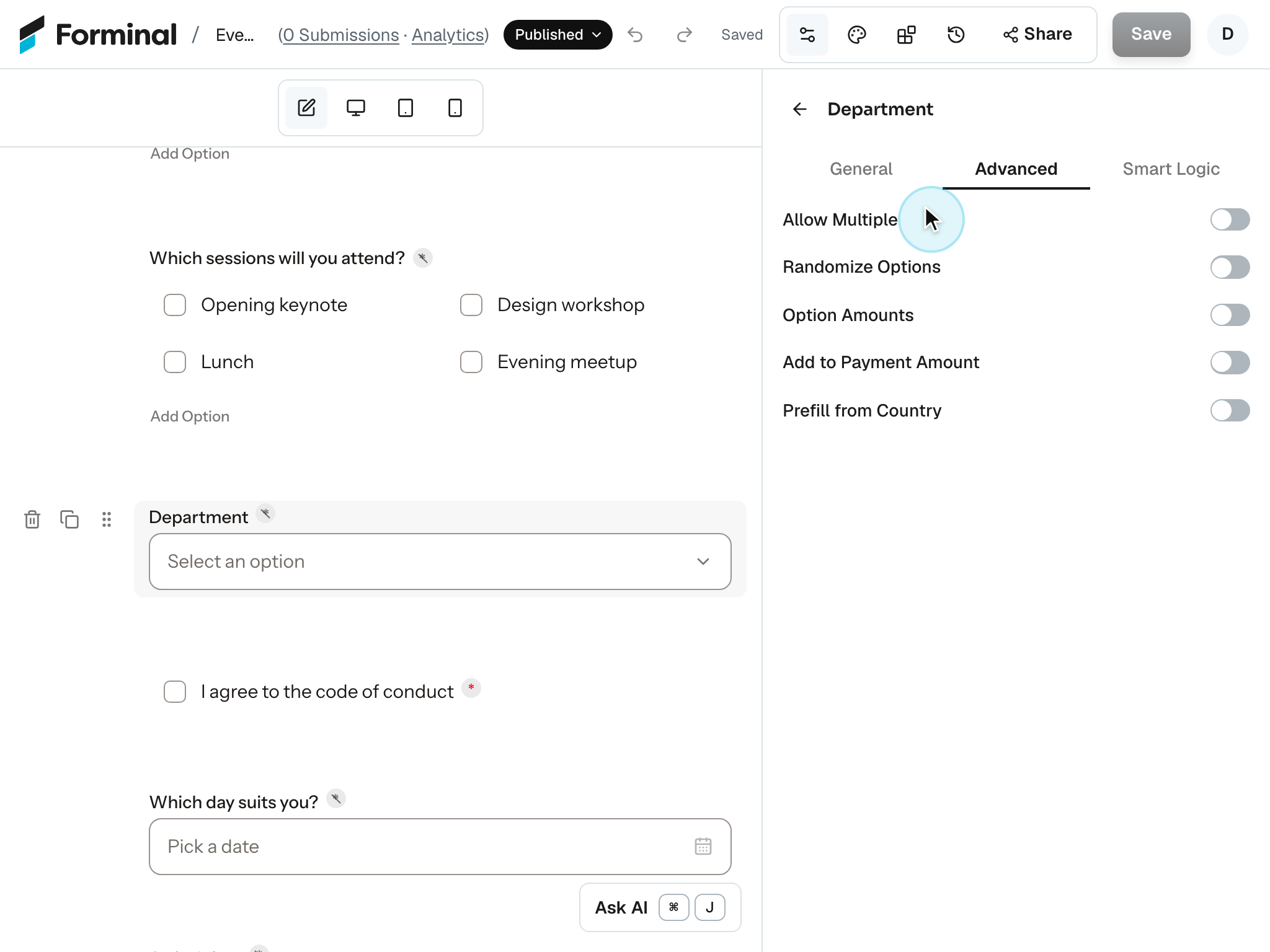
- Allow Multiple: lets people tick several options in the list. You can then preselect several too.
- Randomize Options: shuffles the list each time someone opens the form. The canvas keeps your order.
- Option Amounts: gives each option an amount, with a price box next to each option in the Options list (the dropdown on the canvas stays closed). A calculation can read those amounts. Switching it off clears them.
- Add to Payment Amount: appears when the form has a Payment field. It adds the price of whatever is picked to the total. While the payment charges the field, the price boxes stay on and Option Amounts can’t be switched off. Show Price After Item Labels then shows the price in the list, like “Gift wrap – $5.00”. Prices use the Payment field.
Was Benutzer sehen und wie Antworten angezeigt werden
A closed dropdown reads “Select an option” until something is picked. With Allow Multiple on, it reads “Select options”, opens a list with a checkbox per option, and shows the picks separated by commas once chosen. A required dropdown left empty shows “Choose one of the options”, or “Choose at least one option” with Allow Multiple on.
The submissions table, the CSV export and notification emails show the option labels, with several picks joined by commas. In Smart Logic, a dropdown answer can be checked with is, is not, empty and not empty. With Allow Multiple on, “is” matches when that option is among the picks.
Gut zu wissen
The “Select an option” text can’t be changed, since dropdowns have no placeholder setting. Option labels can be up to 200 characters. Switching to Multiple Choice, Checkboxes or Ranking from the Type menu keeps your options. Renaming an option updates how earlier answers read; deleting one leaves earlier answers without a readable label. Under Choice Display, pick Icons or Images to show a picture with each option; see Icon and Image Choices.
Häufig gestellte Fragen
Können Personen mehr als eine Option aus einem Dropdown auswählen?
Aktivieren Sie Mehrfachauswahl auf der Registerkarte Erweitert. Die Liste zeigt dann ein Kontrollkästchen für jede Option an, und die Auswahlen werden durch Kommas getrennt angezeigt.
Kann ich den Text „Eine Option auswählen“ ändern?
Nein. Dropdowns haben keine Platzhaltereinstellung, daher bleibt dieser Text unverändert.
Kann ich eine Antwort in einem Dropdown vorab auswählen?
Wählen Sie die Option in der Optionsliste oder im Dropdown auf der Leinwand aus. Wenn „Mehrfachauswahl zulassen“ aktiviert ist, können Sie mehrere vorab auswählen.
Können Dropdown-Optionen Preise haben?
Aktivieren Sie „Optionsbeträge“, um jeder Option einen Preis zu geben. Auf einem Formular mit einem Zahlungsfeld werden mit „Betrag zur Zahlung hinzufügen“ die ausgewählten Beträge zur Gesamtsumme addiert, und „Preis nach Element-Labels anzeigen“ zeigt den Preis in der Liste an.
Wie funktioniert die Smart Logic mit einem Dropdown mit Mehrfachauswahl?
Wenn „Mehrfachauswahl zulassen“ aktiviert ist, stimmt eine Regel mit „ist“ überein, wenn diese Option zu den ausgewählten gehört. Sie können auch „ist nicht“, „leer“ und „nicht leer“ überprüfen.